基础入门 Flutter for OpenHarmony:SnackBar 消息提示组件详解
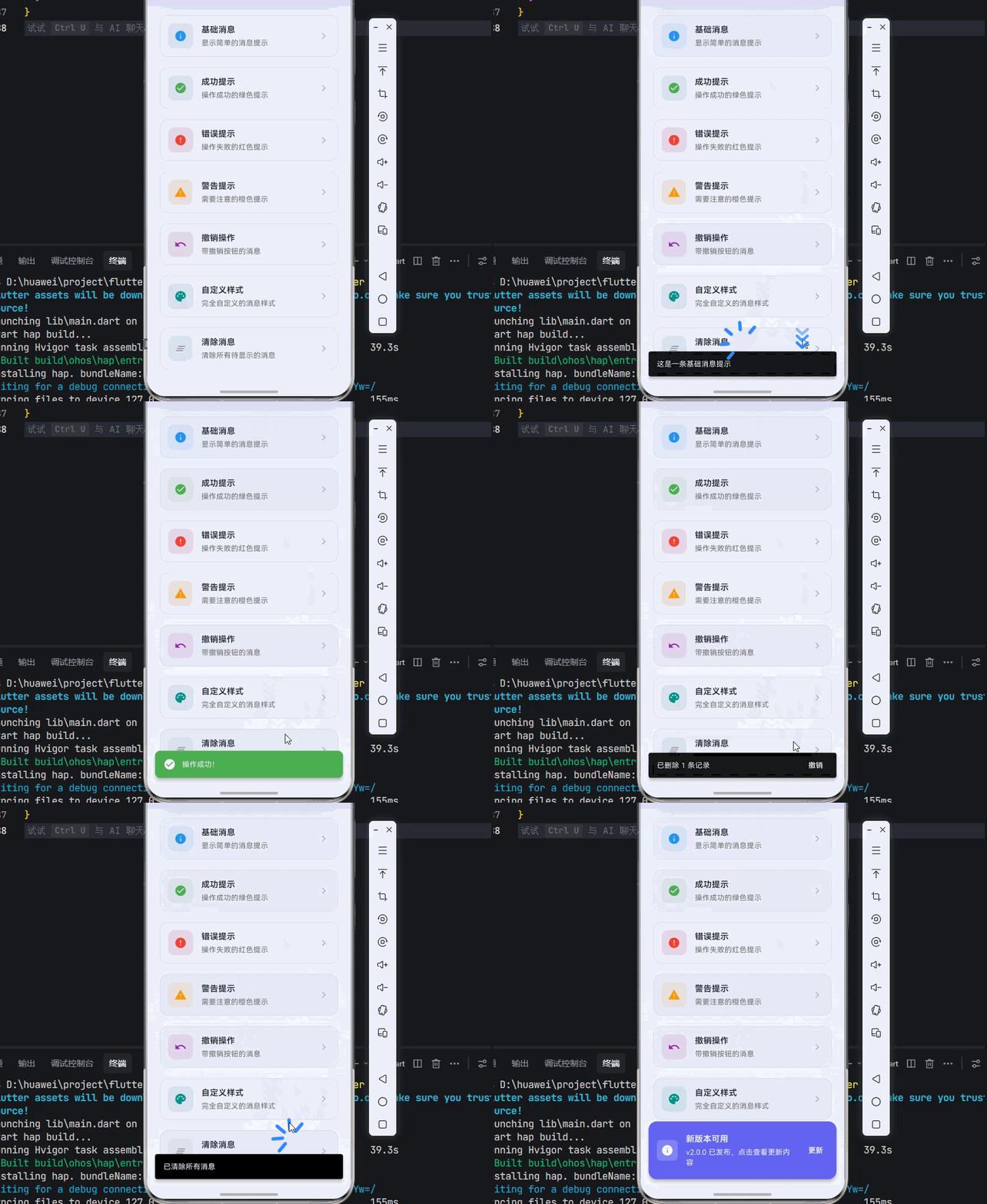
在 Flutter for OpenHarmony 应用开发中,SnackBar(消息提示条)是一种用于显示短暂消息的轻量级反馈组件。它从屏幕底部滑入,在短暂停留后自动消失,不会打断用户的当前操作。SnackBar 是 Material Design 规范中推荐的消息提示方式,适用于操作反馈、错误提示、成功通知等场景。SnackBar(Container(),),Text('新版本可用',),),
欢迎加入开源鸿蒙跨平台社区:https://openharmonycrossplatform.csdn.net
🎯 欢迎来到 Flutter for OpenHarmony 社区!本文将深入讲解 Flutter 中 SnackBar 消息提示组件的使用方法,带你从基础到精通,掌握这一轻量级的消息反馈组件。
一、SnackBar 组件概述
在 Flutter for OpenHarmony 应用开发中,SnackBar(消息提示条)是一种用于显示短暂消息的轻量级反馈组件。它从屏幕底部滑入,在短暂停留后自动消失,不会打断用户的当前操作。SnackBar 是 Material Design 规范中推荐的消息提示方式,适用于操作反馈、错误提示、成功通知等场景。
📋 SnackBar 组件特点
| 特点 | 说明 |
|---|---|
| 轻量级 | 不打断用户操作,自动消失 |
| 底部显示 | 从屏幕底部滑入,不遮挡主要内容 |
| 可交互 | 支持添加操作按钮,如"撤销" |
| 自动关闭 | 默认 4 秒后自动消失 |
| 可堆叠 | 多个消息会依次显示 |
💡 使用场景:SnackBar 常用于操作成功提示、网络错误提示、数据同步状态、撤销操作提示等不需要用户强制响应的场景。
二、SnackBar 基础用法
SnackBar 通过 ScaffoldMessenger 来显示,需要在 Scaffold 的上下文中使用。
2.1 最简单的 SnackBar
ScaffoldMessenger.of(context).showSnackBar(
  const SnackBar(
    content: Text('这是一条消息提示'),
  ),
);
代码解析:
ScaffoldMessenger.of(context):获取 ScaffoldMessenger 实例showSnackBar:显示 SnackBar 的方法content:SnackBar 显示的内容,通常是一个 Text 组件
⚠️ 注意:SnackBar 需要在 Scaffold 的上下文中使用,如果 context 不在 Scaffold 内部,会报错。
2.2 完整示例
下面是一个完整的可运行示例,展示 SnackBar 的基本使用:
class SnackBarExample extends StatelessWidget {
const SnackBarExample({super.key});
Widget build(BuildContext context) {
return Scaffold(
appBar: AppBar(title: const Text('SnackBar 示例')),
body: Center(
child: ElevatedButton(
onPressed: () {
ScaffoldMessenger.of(context).showSnackBar(
const SnackBar(
content: Text('操作成功!'),
),
);
},
child: const Text('显示 SnackBar'),
),
),
);
}
}
三、SnackBar 常用属性
3.1 content - 内容
设置 SnackBar 显示的内容。
SnackBar(
  content: const Text('这是一条消息'),
)
content 可以是任意 Widget,不限于 Text:
SnackBar(
  content: Row(
    children: const [
      Icon(Icons.check_circle, color: Colors.white),
      SizedBox(width: 12),
      Text('操作成功完成'),
    ],
  ),
)
3.2 duration - 显示时长
设置 SnackBar 显示的持续时间。
SnackBar(
  content: const Text('这条消息会显示 2 秒'),
  duration: const Duration(seconds: 2),
)
常用时长设置:
| 时长 | 说明 |
|---|---|
Duration(seconds: 2) |
短消息 |
Duration(seconds: 4) |
默认时长 |
Duration(seconds: 5) |
较长消息 |
Duration(minutes: 1) |
需要用户操作的消息 |
3.3 action - 操作按钮
添加一个操作按钮,常用于"撤销"等操作。
ScaffoldMessenger.of(context).showSnackBar(
  SnackBar(
    content: const Text('已删除 1 条消息'),
    action: SnackBarAction(
      label: '撤销',
      onPressed: () {
        // 执行撤销操作
      },
    ),
  ),
);
3.4 backgroundColor - 背景颜色
设置 SnackBar 的背景颜色。
SnackBar(
  content: const Text('这是一条绿色背景的消息'),
  backgroundColor: Colors.green,
)
3.5 behavior - 显示行为
设置 SnackBar 的显示行为。
SnackBar(
  content: const Text('浮动显示的消息'),
  behavior: SnackBarBehavior.floating,
)
| 行为 | 说明 |
|---|---|
SnackBarBehavior.fixed |
固定在底部(默认) |
SnackBarBehavior.floating |
浮动显示,有边距 |
3.6 shape - 形状
设置 SnackBar 的形状,通常用于设置圆角。
SnackBar(
  content: const Text('圆角消息提示'),
  behavior: SnackBarBehavior.floating,
  shape: RoundedRectangleBorder(
    borderRadius: BorderRadius.circular(12),
  ),
)
3.7 margin - 外边距
设置 SnackBar 的外边距(仅在 floating 模式下有效)。
SnackBar(
  content: const Text('带边距的消息'),
  behavior: SnackBarBehavior.floating,
  margin: const EdgeInsets.all(16),
)
3.8 padding - 内边距
设置 SnackBar 内容的内边距。
SnackBar(
  content: const Text('带内边距的消息'),
  padding: const EdgeInsets.symmetric(horizontal: 24, vertical: 16),
)
3.9 elevation - 阴影高度
设置 SnackBar 的阴影高度。
SnackBar(
  content: const Text('带阴影的消息'),
  behavior: SnackBarBehavior.floating,
  elevation: 8,
)
3.10 width - 宽度
设置 SnackBar 的宽度(仅在 floating 模式下有效)。
SnackBar(
  content: const Text('固定宽度的消息'),
  behavior: SnackBarBehavior.floating,
  width: 300,
)
3.11 showCloseIcon - 关闭图标
是否显示关闭图标。
SnackBar(
  content: const Text('带关闭图标的消息'),
  showCloseIcon: true,
)
3.12 closeIconColor - 关闭图标颜色
设置关闭图标的颜色。
SnackBar(
  content: const Text('自定义关闭图标颜色'),
  showCloseIcon: true,
  closeIconColor: Colors.white,
)
📊 SnackBar 属性速查表
| 属性 | 类型 | 默认值 | 说明 |
|---|---|---|---|
content |
Widget | - | 显示内容(必填) |
duration |
Duration | 4秒 | 显示时长 |
action |
SnackBarAction? | - | 操作按钮 |
backgroundColor |
Color? | - | 背景颜色 |
behavior |
SnackBarBehavior | fixed | 显示行为 |
shape |
ShapeBorder? | - | 形状 |
margin |
EdgeInsetsGeometry? | - | 外边距 |
padding |
EdgeInsetsGeometry? | - | 内边距 |
elevation |
double? | - | 阴影高度 |
width |
double? | - | 宽度 |
showCloseIcon |
bool | false | 显示关闭图标 |
closeIconColor |
Color? | - | 关闭图标颜色 |
四、ScaffoldMessenger 详解
ScaffoldMessenger 是管理 SnackBar 的核心类,提供了多个方法来控制 SnackBar 的显示。
4.1 showSnackBar - 显示消息
ScaffoldMessenger.of(context).showSnackBar(
  const SnackBar(content: Text('消息内容')),
);
4.2 hideCurrentSnackBar - 隐藏当前消息
ScaffoldMessenger.of(context).hideCurrentSnackBar();
4.3 removeCurrentSnackBar - 移除当前消息
与 hideCurrentSnackBar 不同,removeCurrentSnackBar 会立即移除,没有动画。
ScaffoldMessenger.of(context).removeCurrentSnackBar();
4.4 clearSnackBars - 清除所有消息
清除消息队列中的所有 SnackBar。
ScaffoldMessenger.of(context).clearSnackBars();
4.5 消息队列管理
当连续调用 showSnackBar 时,消息会依次显示:
void _showMultipleSnackBars(BuildContext context) {
  ScaffoldMessenger.of(context).showSnackBar(
    const SnackBar(content: Text('第一条消息')),
  );
  ScaffoldMessenger.of(context).showSnackBar(
    const SnackBar(content: Text('第二条消息')),
  );
  ScaffoldMessenger.of(context).showSnackBar(
    const SnackBar(content: Text('第三条消息')),
  );
}
💡 提示:如果需要立即显示新消息,可以先调用
clearSnackBars清除队列。
五、SnackBar 样式定制
5.1 成功提示
void _showSuccessSnackBar(BuildContext context) {
  ScaffoldMessenger.of(context).showSnackBar(
    SnackBar(
      content: Row(
        children: const [
          Icon(Icons.check_circle, color: Colors.white),
          SizedBox(width: 12),
          Text('操作成功!'),
        ],
      ),
      backgroundColor: Colors.green,
      behavior: SnackBarBehavior.floating,
      shape: RoundedRectangleBorder(
        borderRadius: BorderRadius.circular(10),
      ),
    ),
  );
}
5.2 错误提示
void _showErrorSnackBar(BuildContext context) {
  ScaffoldMessenger.of(context).showSnackBar(
    SnackBar(
      content: Row(
        children: const [
          Icon(Icons.error, color: Colors.white),
          SizedBox(width: 12),
          Expanded(child: Text('操作失败,请稍后重试')),
        ],
      ),
      backgroundColor: Colors.red,
      behavior: SnackBarBehavior.floating,
      duration: const Duration(seconds: 5),
      action: SnackBarAction(
        label: '重试',
        textColor: Colors.white,
        onPressed: () {
          // 重试操作
        },
      ),
    ),
  );
}
5.3 警告提示
void _showWarningSnackBar(BuildContext context) {
  ScaffoldMessenger.of(context).showSnackBar(
    SnackBar(
      content: Row(
        children: const [
          Icon(Icons.warning, color: Colors.white),
          SizedBox(width: 12),
          Text('网络连接不稳定'),
        ],
      ),
      backgroundColor: Colors.orange,
      behavior: SnackBarBehavior.floating,
    ),
  );
}
5.4 带撤销操作
void _showUndoSnackBar(BuildContext context) {
  ScaffoldMessenger.of(context).showSnackBar(
    SnackBar(
      content: const Text('已删除 1 条记录'),
      action: SnackBarAction(
        label: '撤销',
        onPressed: () {
          // 执行撤销操作
          ScaffoldMessenger.of(context).showSnackBar(
            const SnackBar(content: Text('已恢复')),
          );
        },
      ),
    ),
  );
}
5.5 自定义样式
void _showCustomSnackBar(BuildContext context) {
  ScaffoldMessenger.of(context).showSnackBar(
    SnackBar(
      content: Container(
        padding: const EdgeInsets.symmetric(vertical: 8),
        child: Row(
          children: [
            Container(
              padding: const EdgeInsets.all(8),
              decoration: BoxDecoration(
                color: Colors.white.withOpacity(0.2),
                borderRadius: BorderRadius.circular(8),
              ),
              child: const Icon(Icons.info, color: Colors.white),
            ),
            const SizedBox(width: 16),
            const Expanded(
              child: Column(
                crossAxisAlignment: CrossAxisAlignment.start,
                mainAxisSize: MainAxisSize.min,
                children: [
                  Text(
                    '新版本可用',
                    style: TextStyle(
                      fontWeight: FontWeight.bold,
                      fontSize: 16,
                    ),
                  ),
                  SizedBox(height: 4),
                  Text(
                    'v2.0.0 已发布,点击查看更新内容',
                    style: TextStyle(fontSize: 14),
                  ),
                ],
              ),
            ),
          ],
        ),
      ),
      backgroundColor: const Color(0xFF6366F1),
      behavior: SnackBarBehavior.floating,
      shape: RoundedRectangleBorder(
        borderRadius: BorderRadius.circular(16),
      ),
      duration: const Duration(seconds: 6),
      action: SnackBarAction(
        label: '更新',
        textColor: Colors.white,
        onPressed: () {},
      ),
    ),
  );
}
六、实际应用场景
6.1 表单提交反馈
class FormSubmitPage extends StatefulWidget {
const FormSubmitPage({super.key});
State<FormSubmitPage> createState() => _FormSubmitPageState();
}
class _FormSubmitPageState extends State<FormSubmitPage> {
final _formKey = GlobalKey<FormState>();
bool _isSubmitting = false;
Future<void> _submitForm() async {
if (!_formKey.currentState!.validate()) return;
setState(() => _isSubmitting = true);
try {
await Future.delayed(const Duration(seconds: 2));
if (mounted) {
ScaffoldMessenger.of(context).showSnackBar(
SnackBar(
content: Row(
children: const [
Icon(Icons.check_circle, color: Colors.white),
SizedBox(width: 12),
Text('提交成功!'),
],
),
backgroundColor: Colors.green,
behavior: SnackBarBehavior.floating,
),
);
Navigator.pop(context);
}
} catch (e) {
if (mounted) {
ScaffoldMessenger.of(context).showSnackBar(
SnackBar(
content: Text('提交失败: $e'),
backgroundColor: Colors.red,
behavior: SnackBarBehavior.floating,
action: SnackBarAction(
label: '重试',
textColor: Colors.white,
onPressed: _submitForm,
),
),
);
}
} finally {
if (mounted) {
setState(() => _isSubmitting = false);
}
}
}
Widget build(BuildContext context) {
return Scaffold(
appBar: AppBar(title: const Text('表单提交')),
body: Padding(
padding: const EdgeInsets.all(16),
child: Form(
key: _formKey,
child: Column(
children: [
TextFormField(
decoration: const InputDecoration(
labelText: '标题',
border: OutlineInputBorder(),
),
validator: (value) {
if (value == null || value.isEmpty) {
return '请输入标题';
}
return null;
},
),
const SizedBox(height: 24),
SizedBox(
width: double.infinity,
child: ElevatedButton(
onPressed: _isSubmitting ? null : _submitForm,
child: _isSubmitting
? const SizedBox(
width: 20,
height: 20,
child: CircularProgressIndicator(strokeWidth: 2),
)
: const Text('提交'),
),
),
],
),
),
),
);
}
}
6.2 删除操作反馈
class DeleteItemPage extends StatelessWidget {
const DeleteItemPage({super.key});
void _deleteItem(BuildContext context, String itemId) {
ScaffoldMessenger.of(context).showSnackBar(
SnackBar(
content: const Text('已删除该项'),
action: SnackBarAction(
label: '撤销',
onPressed: () {
ScaffoldMessenger.of(context).showSnackBar(
const SnackBar(content: Text('已恢复')),
);
},
),
),
);
}
Widget build(BuildContext context) {
return Scaffold(
appBar: AppBar(title: const Text('删除操作')),
body: ListView.builder(
itemCount: 10,
itemBuilder: (context, index) {
return ListTile(
title: Text('项目 ${index + 1}'),
trailing: IconButton(
icon: const Icon(Icons.delete, color: Colors.red),
onPressed: () => _deleteItem(context, 'item_$index'),
),
);
},
),
);
}
}
6.3 网络状态提示
class NetworkStatusPage extends StatefulWidget {
const NetworkStatusPage({super.key});
State<NetworkStatusPage> createState() => _NetworkStatusPageState();
}
class _NetworkStatusPageState extends State<NetworkStatusPage> {
void _checkNetwork() {
ScaffoldMessenger.of(context).showSnackBar(
SnackBar(
content: Row(
children: const [
Icon(Icons.wifi_off, color: Colors.white),
SizedBox(width: 12),
Text('网络连接已断开'),
],
),
backgroundColor: Colors.red,
behavior: SnackBarBehavior.floating,
duration: const Duration(seconds: 5),
action: SnackBarAction(
label: '重试',
textColor: Colors.white,
onPressed: () {
ScaffoldMessenger.of(context).showSnackBar(
SnackBar(
content: Row(
children: const [
Icon(Icons.wifi, color: Colors.white),
SizedBox(width: 12),
Text('网络已连接'),
],
),
backgroundColor: Colors.green,
behavior: SnackBarBehavior.floating,
),
);
},
),
),
);
}
Widget build(BuildContext context) {
return Scaffold(
appBar: AppBar(title: const Text('网络状态')),
body: Center(
child: ElevatedButton(
onPressed: _checkNetwork,
child: const Text('检查网络'),
),
),
);
}
}
6.4 复制成功提示
class CopyTextPage extends StatelessWidget {
const CopyTextPage({super.key});
void _copyText(BuildContext context, String text) {
ScaffoldMessenger.of(context).showSnackBar(
SnackBar(
content: Row(
children: [
const Icon(Icons.copy, color: Colors.white, size: 18),
const SizedBox(width: 12),
Text('已复制: $text'),
],
),
duration: const Duration(seconds: 2),
behavior: SnackBarBehavior.floating,
),
);
}
Widget build(BuildContext context) {
return Scaffold(
appBar: AppBar(title: const Text('复制文本')),
body: ListView(
children: [
ListTile(
title: const Text('订单号: 202401010001'),
trailing: IconButton(
icon: const Icon(Icons.copy),
onPressed: () => _copyText(context, '202401010001'),
),
),
ListTile(
title: const Text('优惠码: SAVE20'),
trailing: IconButton(
icon: const Icon(Icons.copy),
onPressed: () => _copyText(context, 'SAVE20'),
),
),
],
),
);
}
}
七、SnackBar 与其他提示组件对比
📊 SnackBar vs Toast vs Dialog
| 特性 | SnackBar | Toast | Dialog |
|---|---|---|---|
| 显示位置 | 底部 | 可自定义 | 屏幕中央 |
| 用户交互 | 可添加按钮 | 无 | 必须响应 |
| 自动关闭 | 是 | 是 | 否 |
| 阻塞操作 | 否 | 否 | 是 |
| 适用场景 | 操作反馈 | 简单提示 | 重要确认 |
如何选择?
- 使用 SnackBar:操作反馈、撤销提示、网络状态
- 使用 Toast:简单提示、调试信息
- 使用 Dialog:重要确认、错误警告、需要用户决策
八、完整示例代码
下面是一个完整的 Flutter 应用示例,展示 SnackBar 组件的各种用法。
import 'package:flutter/material.dart';
void main() {
runApp(const SnackBarDemo());
}
class SnackBarDemo extends StatelessWidget {
const SnackBarDemo({super.key});
Widget build(BuildContext context) {
return MaterialApp(
title: 'SnackBar 组件演示',
debugShowCheckedModeBanner: false,
theme: ThemeData(
colorScheme: ColorScheme.light(
primary: const Color(0xFF6366F1),
secondary: const Color(0xFF8B5CF6),
surface: const Color(0xFFE8EAF6),
background: const Color(0xFFF8F9FF),
brightness: Brightness.light,
),
useMaterial3: true,
),
home: const SnackBarPage(),
);
}
}
class SnackBarPage extends StatelessWidget {
const SnackBarPage({super.key});
Widget build(BuildContext context) {
return Scaffold(
appBar: AppBar(
title: const Text('SnackBar 组件演示'),
centerTitle: true,
elevation: 0,
),
body: Container(
decoration: const BoxDecoration(
gradient: LinearGradient(
begin: Alignment.topCenter,
end: Alignment.bottomCenter,
colors: [
Color(0xFFE8F4FF),
Color(0xFFF8F9FF),
],
),
),
child: SafeArea(
child: SingleChildScrollView(
padding: const EdgeInsets.all(20),
child: Column(
crossAxisAlignment: CrossAxisAlignment.stretch,
children: [
_buildHeader(),
const SizedBox(height: 24),
_buildButton(
context,
icon: Icons.info,
title: '基础消息',
subtitle: '显示简单的消息提示',
color: Colors.blue,
onTap: () => _showBasicSnackBar(context),
),
const SizedBox(height: 12),
_buildButton(
context,
icon: Icons.check_circle,
title: '成功提示',
subtitle: '操作成功的绿色提示',
color: Colors.green,
onTap: () => _showSuccessSnackBar(context),
),
const SizedBox(height: 12),
_buildButton(
context,
icon: Icons.error,
title: '错误提示',
subtitle: '操作失败的红色提示',
color: Colors.red,
onTap: () => _showErrorSnackBar(context),
),
const SizedBox(height: 12),
_buildButton(
context,
icon: Icons.warning,
title: '警告提示',
subtitle: '需要注意的橙色提示',
color: Colors.orange,
onTap: () => _showWarningSnackBar(context),
),
const SizedBox(height: 12),
_buildButton(
context,
icon: Icons.undo,
title: '撤销操作',
subtitle: '带撤销按钮的消息',
color: Colors.purple,
onTap: () => _showUndoSnackBar(context),
),
const SizedBox(height: 12),
_buildButton(
context,
icon: Icons.palette,
title: '自定义样式',
subtitle: '完全自定义的消息样式',
color: Colors.teal,
onTap: () => _showCustomSnackBar(context),
),
const SizedBox(height: 12),
_buildButton(
context,
icon: Icons.clear_all,
title: '清除消息',
subtitle: '清除所有待显示的消息',
color: Colors.grey,
onTap: () => _clearSnackBars(context),
),
],
),
),
),
),
);
}
Widget _buildHeader() {
return Container(
padding: const EdgeInsets.all(24),
decoration: BoxDecoration(
gradient: const LinearGradient(
begin: Alignment.topLeft,
end: Alignment.bottomRight,
colors: [
Color(0xFF6366F1),
Color(0xFF8B5CF6),
Color(0xFFEC4899),
],
),
borderRadius: BorderRadius.circular(24),
boxShadow: [
BoxShadow(
color: const Color(0xFF6366F1).withOpacity(0.3),
blurRadius: 20,
offset: const Offset(0, 8),
),
],
),
child: const Column(
crossAxisAlignment: CrossAxisAlignment.start,
children: [
Text(
'🔔 SnackBar',
style: TextStyle(
fontSize: 32,
fontWeight: FontWeight.bold,
color: Colors.white,
),
),
SizedBox(height: 8),
Text(
'探索 Flutter for OpenHarmony 中消息提示组件的各种用法',
style: TextStyle(
fontSize: 16,
color: Colors.white,
),
),
],
),
);
}
Widget _buildButton(
BuildContext context, {
required IconData icon,
required String title,
required String subtitle,
required Color color,
required VoidCallback onTap,
}) {
return Card(
elevation: 0,
shape: RoundedRectangleBorder(
borderRadius: BorderRadius.circular(16),
side: BorderSide(color: Colors.grey.withOpacity(0.2)),
),
child: InkWell(
onTap: onTap,
borderRadius: BorderRadius.circular(16),
child: Padding(
padding: const EdgeInsets.all(16),
child: Row(
children: [
Container(
padding: const EdgeInsets.all(12),
decoration: BoxDecoration(
color: color.withOpacity(0.1),
borderRadius: BorderRadius.circular(12),
),
child: Icon(icon, color: color, size: 24),
),
const SizedBox(width: 16),
Expanded(
child: Column(
crossAxisAlignment: CrossAxisAlignment.start,
children: [
Text(
title,
style: const TextStyle(
fontSize: 16,
fontWeight: FontWeight.w600,
color: Color(0xFF1E293B),
),
),
const SizedBox(height: 4),
Text(
subtitle,
style: TextStyle(
fontSize: 14,
color: Colors.grey[600],
),
),
],
),
),
Icon(Icons.chevron_right, color: Colors.grey[400]),
],
),
),
),
);
}
void _showBasicSnackBar(BuildContext context) {
ScaffoldMessenger.of(context).showSnackBar(
const SnackBar(
content: Text('这是一条基础消息提示'),
behavior: SnackBarBehavior.floating,
),
);
}
void _showSuccessSnackBar(BuildContext context) {
ScaffoldMessenger.of(context).showSnackBar(
SnackBar(
content: Row(
children: const [
Icon(Icons.check_circle, color: Colors.white),
SizedBox(width: 12),
Text('操作成功!'),
],
),
backgroundColor: Colors.green,
behavior: SnackBarBehavior.floating,
shape: RoundedRectangleBorder(
borderRadius: BorderRadius.circular(10),
),
),
);
}
void _showErrorSnackBar(BuildContext context) {
ScaffoldMessenger.of(context).showSnackBar(
SnackBar(
content: Row(
children: const [
Icon(Icons.error, color: Colors.white),
SizedBox(width: 12),
Expanded(child: Text('操作失败,请稍后重试')),
],
),
backgroundColor: Colors.red,
behavior: SnackBarBehavior.floating,
duration: const Duration(seconds: 5),
action: SnackBarAction(
label: '重试',
textColor: Colors.white,
onPressed: () => _showSuccessSnackBar(context),
),
),
);
}
void _showWarningSnackBar(BuildContext context) {
ScaffoldMessenger.of(context).showSnackBar(
SnackBar(
content: Row(
children: const [
Icon(Icons.warning, color: Colors.white),
SizedBox(width: 12),
Text('网络连接不稳定'),
],
),
backgroundColor: Colors.orange,
behavior: SnackBarBehavior.floating,
),
);
}
void _showUndoSnackBar(BuildContext context) {
ScaffoldMessenger.of(context).showSnackBar(
SnackBar(
content: const Text('已删除 1 条记录'),
behavior: SnackBarBehavior.floating,
action: SnackBarAction(
label: '撤销',
onPressed: () {
ScaffoldMessenger.of(context).showSnackBar(
const SnackBar(
content: Text('已恢复记录'),
behavior: SnackBarBehavior.floating,
),
);
},
),
),
);
}
void _showCustomSnackBar(BuildContext context) {
ScaffoldMessenger.of(context).showSnackBar(
SnackBar(
content: Container(
padding: const EdgeInsets.symmetric(vertical: 8),
child: Row(
children: [
Container(
padding: const EdgeInsets.all(8),
decoration: BoxDecoration(
color: Colors.white.withOpacity(0.2),
borderRadius: BorderRadius.circular(8),
),
child: const Icon(Icons.info, color: Colors.white),
),
const SizedBox(width: 16),
const Expanded(
child: Column(
crossAxisAlignment: CrossAxisAlignment.start,
mainAxisSize: MainAxisSize.min,
children: [
Text(
'新版本可用',
style: TextStyle(
fontWeight: FontWeight.bold,
fontSize: 16,
),
),
SizedBox(height: 4),
Text(
'v2.0.0 已发布,点击查看更新内容',
style: TextStyle(fontSize: 14),
),
],
),
),
],
),
),
backgroundColor: const Color(0xFF6366F1),
behavior: SnackBarBehavior.floating,
shape: RoundedRectangleBorder(
borderRadius: BorderRadius.circular(16),
),
duration: const Duration(seconds: 6),
action: SnackBarAction(
label: '更新',
textColor: Colors.white,
onPressed: () {},
),
),
);
}
void _clearSnackBars(BuildContext context) {
ScaffoldMessenger.of(context).clearSnackBars();
ScaffoldMessenger.of(context).showSnackBar(
const SnackBar(
content: Text('已清除所有消息'),
duration: Duration(seconds: 1),
behavior: SnackBarBehavior.floating,
),
);
}
}
九、总结
SnackBar 是 Flutter for OpenHarmony 应用开发中常用的轻量级消息反馈组件。通过本文的学习,我们掌握了:
- 基础用法:通过 ScaffoldMessenger 显示 SnackBar
- 常用属性:content、duration、action、backgroundColor 等
- 样式定制:成功/错误/警告提示、自定义样式
- ScaffoldMessenger:消息队列管理和控制方法
- 实际应用:表单反馈、删除撤销、网络状态、复制提示等场景
💡 开发建议:使用 SnackBar 时应注意:
- 消息内容简洁明了,避免过长
- 合理设置显示时长,重要消息可延长
- 需要用户操作时添加 action 按钮
- 使用 floating 模式提升视觉效果
- 避免频繁弹出,影响用户体验

开源鸿蒙跨平台开发社区汇聚开发者与厂商,共建“一次开发,多端部署”的开源生态,致力于降低跨端开发门槛,推动万物智联创新。
更多推荐
 28
28 0
0- 0


 已为社区贡献98条内容

所有评论(0)