基础入门 Flutter for OpenHarmony:DropdownButton 下拉按钮组件详解
在 Flutter for OpenHarmony 应用开发中,DropdownButton(下拉按钮)是一种用于从多个选项中选择一个值的表单组件。用户点击按钮后会展开一个下拉菜单,展示所有可选项,选择后自动收起并显示选中的值。这种组件在设置页面、表单填写、筛选条件等场景中非常常见。),),DropdownButton 是 Flutter for OpenHarmony 应用开发中常用的选择组件。
欢迎加入开源鸿蒙跨平台社区:https://openharmonycrossplatform.csdn.net
🎯 欢迎来到 Flutter for OpenHarmony 社区!本文将深入讲解 Flutter 中 DropdownButton 下拉按钮组件的使用方法,带你从基础到精通,掌握这一常用的选择组件。
一、DropdownButton 组件概述
在 Flutter for OpenHarmony 应用开发中,DropdownButton(下拉按钮)是一种用于从多个选项中选择一个值的表单组件。用户点击按钮后会展开一个下拉菜单,展示所有可选项,选择后自动收起并显示选中的值。这种组件在设置页面、表单填写、筛选条件等场景中非常常见。
📋 DropdownButton 组件特点
| 特点 | 说明 |
|---|---|
| 单选模式 | 每次只能选择一个选项 |
| Material Design | 遵循 Material Design 规范的视觉样式 |
| 自动收起 | 选择后菜单自动收起 |
| 可定制 | 支持自定义样式、图标、提示文字等 |
| 泛型支持 | 支持任意类型的数据作为选项值 |
💡 使用场景:DropdownButton 常用于城市选择、语言切换、分类筛选、排序方式选择等需要从多个选项中单选的场景。
二、DropdownButton 基础用法
学习 DropdownButton,我们需要理解它的核心概念:value(当前选中值)和 items(选项列表)。这两个属性是 DropdownButton 的核心。
2.1 最简单的 DropdownButton
最基础的 DropdownButton 需要提供 items 和 onChanged 回调。
class DropdownButtonExample extends StatefulWidget {
const DropdownButtonExample({super.key});
State<DropdownButtonExample> createState() => _DropdownButtonExampleState();
}
class _DropdownButtonExampleState extends State<DropdownButtonExample> {
String? _selectedValue;
Widget build(BuildContext context) {
return Scaffold(
appBar: AppBar(title: const Text('DropdownButton 示例')),
body: Center(
child: DropdownButton<String>(
value: _selectedValue,
hint: const Text('请选择'),
items: const [
DropdownMenuItem(value: 'apple', child: Text('苹果')),
DropdownMenuItem(value: 'banana', child: Text('香蕉')),
DropdownMenuItem(value: 'orange', child: Text('橙子')),
],
onChanged: (String? value) {
setState(() {
_selectedValue = value;
});
},
),
),
);
}
}
代码解析:
value:当前选中的值,必须与某个 DropdownMenuItem 的 value 匹配hint:未选择时显示的提示文字items:DropdownMenuItem 列表,每个项包含 value 和 childonChanged:选择项改变时的回调,参数为选中的值DropdownMenuItem:下拉菜单中的每一项,value 是实际值,child 是显示的内容
⚠️ 注意:
value必须与items中某个 DropdownMenuItem 的value完全匹配(使用==比较),否则会报错。
2.2 完整示例
下面是一个完整的可运行示例,展示 DropdownButton 的基本使用:
class FruitDropdownDemo extends StatefulWidget {
const FruitDropdownDemo({super.key});
State<FruitDropdownDemo> createState() => _FruitDropdownDemoState();
}
class _FruitDropdownDemoState extends State<FruitDropdownDemo> {
String? _selectedFruit;
final List<String> _fruits = ['苹果', '香蕉', '橙子', '葡萄', '西瓜'];
Widget build(BuildContext context) {
return Scaffold(
appBar: AppBar(title: const Text('水果选择')),
body: Padding(
padding: const EdgeInsets.all(16),
child: Column(
children: [
Container(
padding: const EdgeInsets.symmetric(horizontal: 12, vertical: 4),
decoration: BoxDecoration(
border: Border.all(color: Colors.grey),
borderRadius: BorderRadius.circular(8),
),
child: DropdownButton<String>(
value: _selectedFruit,
hint: const Text('请选择水果'),
isExpanded: true,
underline: const SizedBox(),
items: _fruits.map((String fruit) {
return DropdownMenuItem<String>(
value: fruit,
child: Text(fruit),
);
}).toList(),
onChanged: (String? value) {
setState(() {
_selectedFruit = value;
});
},
),
),
const SizedBox(height: 16),
Text(
'当前选择: ${_selectedFruit ?? "未选择"}',
style: const TextStyle(fontSize: 16),
),
],
),
),
);
}
}
三、DropdownButton 常用属性
掌握了基础用法后,我们来深入了解 DropdownButton 的各种属性,这些属性可以帮助我们创建更丰富的下拉按钮样式。
3.1 value - 当前选中值
设置当前选中的值,必须与 items 中某个项的 value 匹配。
DropdownButton<String>(
  value: 'banana',  // 必须匹配 items 中的某个 value
  items: const [
    DropdownMenuItem(value: 'apple', child: Text('苹果')),
    DropdownMenuItem(value: 'banana', child: Text('香蕉')),
    DropdownMenuItem(value: 'orange', child: Text('橙子')),
  ],
  onChanged: (value) {},
)
重要提示:
value为null时显示hint提示文字value必须与某个DropdownMenuItem的value完全相等- 如果
value不在items中,会抛出异常
3.2 items - 选项列表
设置下拉菜单的选项列表,是一个 DropdownMenuItem 数组。
DropdownButton<String>(
  items: const [
    DropdownMenuItem(
      value: 'zh',
      child: Row(
        children: [
          Icon(Icons.flag),
          SizedBox(width: 8),
          Text('简体中文'),
        ],
      ),
    ),
    DropdownMenuItem(
      value: 'en',
      child: Row(
        children: [
          Icon(Icons.flag),
          SizedBox(width: 8),
          Text('English'),
        ],
      ),
    ),
  ],
  onChanged: (value) {},
)
DropdownMenuItem 属性:
| 属性 | 类型 | 说明 |
|---|---|---|
value |
T | 选项的实际值 |
child |
Widget | 选项显示的内容 |
enabled |
bool | 是否可选(默认 true) |
alignment |
Alignment | 内容对齐方式 |
3.3 hint - 提示文字
当 value 为 null 时显示的提示内容。
DropdownButton<String>(
  value: null,
  hint: const Text('请选择城市'),
  items: const [
    DropdownMenuItem(value: 'beijing', child: Text('北京')),
    DropdownMenuItem(value: 'shanghai', child: Text('上海')),
  ],
  onChanged: (value) {},
)
3.4 disabledHint - 禁用提示
当 onChanged 为 null(禁用状态)时显示的提示内容。
DropdownButton<String>(
  value: 'beijing',
  disabledHint: const Text('当前不可选择'),
  items: const [
    DropdownMenuItem(value: 'beijing', child: Text('北京')),
    DropdownMenuItem(value: 'shanghai', child: Text('上海')),
  ],
  onChanged: null,  // 禁用状态
)
3.5 icon - 下拉图标
自定义下拉箭头图标。
DropdownButton<String>(
  value: _selectedValue,
  icon: const Icon(Icons.arrow_drop_down_circle),
  iconSize: 24,
  iconEnabledColor: Colors.blue,
  items: _items,
  onChanged: (value) {},
)
3.6 iconSize - 图标大小
设置下拉图标的大小。
DropdownButton<String>(
  value: _selectedValue,
  iconSize: 32,
  items: _items,
  onChanged: (value) {},
)
3.7 iconEnabledColor 和 iconDisabledColor
设置启用和禁用状态下的图标颜色。
DropdownButton<String>(
  value: _selectedValue,
  iconEnabledColor: Colors.blue,
  iconDisabledColor: Colors.grey,
  items: _items,
  onChanged: (value) {},
)
3.8 isExpanded - 是否展开
设置为 true 时,下拉按钮会占据父容器的全部宽度。
DropdownButton<String>(
  value: _selectedValue,
  isExpanded: true,  // 占满父容器宽度
  items: _items,
  onChanged: (value) {},
)
💡 建议:在 Container 或 Card 中使用时,建议设置
isExpanded: true,让下拉按钮占满容器宽度。
3.9 underline - 下划线
自定义下划线样式,设置为空 Widget 可以移除默认下划线。
DropdownButton<String>(
  value: _selectedValue,
  underline: Container(
    height: 2,
    color: Colors.blue,
  ),
  items: _items,
  onChanged: (value) {},
)

// 移除下划线
DropdownButton<String>(
  value: _selectedValue,
  underline: const SizedBox(),
  items: _items,
  onChanged: (value) {},
)
3.10 style - 文字样式
设置选中项和下拉菜单中文字的样式。
DropdownButton<String>(
  value: _selectedValue,
  style: const TextStyle(
    fontSize: 18,
    color: Colors.black87,
    fontWeight: FontWeight.w500,
  ),
  items: _items,
  onChanged: (value) {},
)
3.11 dropdownColor - 下拉菜单背景色
设置下拉菜单的背景颜色。
DropdownButton<String>(
  value: _selectedValue,
  dropdownColor: Colors.grey[100],
  items: _items,
  onChanged: (value) {},
)
3.12 elevation - 阴影高度
设置下拉菜单的阴影高度。
DropdownButton<String>(
  value: _selectedValue,
  elevation: 16,
  items: _items,
  onChanged: (value) {},
)
3.13 borderRadius - 圆角
设置下拉菜单的圆角。
DropdownButton<String>(
  value: _selectedValue,
  borderRadius: BorderRadius.circular(12),
  items: _items,
  onChanged: (value) {},
)
📊 DropdownButton 属性速查表
| 属性 | 类型 | 默认值 | 说明 |
|---|---|---|---|
value |
T? | - | 当前选中值 |
items |
List<DropdownMenuItem>? | - | 选项列表 |
onChanged |
ValueChanged<T?>? | - | 选择改变回调 |
hint |
Widget? | - | 未选择时的提示 |
disabledHint |
Widget? | - | 禁用时的提示 |
icon |
Widget? | Icon(Icons.arrow_drop_down) | 下拉图标 |
iconSize |
double? | 24.0 | 图标大小 |
iconEnabledColor |
Color? | - | 启用状态图标颜色 |
iconDisabledColor |
Color? | - | 禁用状态图标颜色 |
isExpanded |
bool | false | 是否展开占满宽度 |
underline |
Widget? | - | 下划线 |
style |
TextStyle? | - | 文字样式 |
dropdownColor |
Color? | - | 下拉菜单背景色 |
elevation |
int? | 8 | 阴影高度 |
borderRadius |
BorderRadius? | - | 下拉菜单圆角 |
四、DropdownButton 禁用状态
将 onChanged 设为 null 即可禁用下拉按钮。
4.1 基本禁用
DropdownButton<String>(
  value: 'apple',
  items: const [
    DropdownMenuItem(value: 'apple', child: Text('苹果')),
    DropdownMenuItem(value: 'banana', child: Text('香蕉')),
  ],
  onChanged: null,  // 禁用状态
)
4.2 条件禁用
DropdownButton<String>(
  value: _selectedValue,
  hint: const Text('请选择'),
  items: _items,
  onChanged: _isEnabled
      ? (String? value) {
          setState(() {
            _selectedValue = value;
          });
        }
      : null,  // 根据 _isEnabled 决定是否禁用
)
4.3 禁用特定选项
通过设置 DropdownMenuItem 的 enabled 属性为 false,可以禁用特定选项。
DropdownButton<String>(
  value: _selectedValue,
  items: const [
    DropdownMenuItem(value: 'apple', child: Text('苹果')),
    DropdownMenuItem(
      value: 'banana',
      child: Text('香蕉(缺货)'),
      enabled: false,  // 禁用此选项
    ),
    DropdownMenuItem(value: 'orange', child: Text('橙子')),
  ],
  onChanged: (value) {},
)
五、DropdownButton 样式定制
5.1 带边框的下拉按钮
Container(
  padding: const EdgeInsets.symmetric(horizontal: 12, vertical: 4),
  decoration: BoxDecoration(
    border: Border.all(color: Colors.grey),
    borderRadius: BorderRadius.circular(8),
  ),
  child: DropdownButton<String>(
    value: _selectedValue,
    isExpanded: true,
    underline: const SizedBox(),
    items: _items,
    onChanged: (value) {},
  ),
)
5.2 带背景色的下拉按钮
Container(
  padding: const EdgeInsets.symmetric(horizontal: 16, vertical: 8),
  decoration: BoxDecoration(
    color: Colors.grey[200],
    borderRadius: BorderRadius.circular(12),
  ),
  child: DropdownButton<String>(
    value: _selectedValue,
    isExpanded: true,
    underline: const SizedBox(),
    dropdownColor: Colors.grey[200],
    items: _items,
    onChanged: (value) {},
  ),
)
5.3 自定义下拉图标
DropdownButton<String>(
  value: _selectedValue,
  icon: Container(
    padding: const EdgeInsets.all(4),
    decoration: BoxDecoration(
      color: Colors.blue.withOpacity(0.1),
      shape: BoxShape.circle,
    ),
    child: const Icon(Icons.keyboard_arrow_down, color: Colors.blue),
  ),
  items: _items,
  onChanged: (value) {},
)
5.4 带图标选项的下拉按钮
class IconDropdownDemo extends StatefulWidget {
const IconDropdownDemo({super.key});
State<IconDropdownDemo> createState() => _IconDropdownDemoState();
}
class _IconDropdownDemoState extends State<IconDropdownDemo> {
String? _selectedValue;
final List<Map<String, dynamic>> _options = [
{'value': 'home', 'label': '首页', 'icon': Icons.home},
{'value': 'search', 'label': '搜索', 'icon': Icons.search},
{'value': 'favorite', 'label': '收藏', 'icon': Icons.favorite},
{'value': 'settings', 'label': '设置', 'icon': Icons.settings},
];
Widget build(BuildContext context) {
return DropdownButton<String>(
value: _selectedValue,
hint: const Text('请选择功能'),
items: _options.map((option) {
return DropdownMenuItem<String>(
value: option['value'],
child: Row(
children: [
Icon(option['icon'], size: 20),
const SizedBox(width: 12),
Text(option['label']),
],
),
);
}).toList(),
onChanged: (value) {
setState(() {
_selectedValue = value;
});
},
);
}
}
5.5 圆角下拉菜单
DropdownButton<String>(
  value: _selectedValue,
  borderRadius: BorderRadius.circular(16),
  dropdownColor: Colors.white,
  elevation: 8,
  items: _items,
  onChanged: (value) {},
)
六、DropdownButtonFormField 表单用法
在表单中使用下拉按钮时,推荐使用 DropdownButtonFormField,它集成了表单验证功能。
6.1 基本用法
Form(
  child: Column(
    children: [
      DropdownButtonFormField<String>(
        decoration: const InputDecoration(
          labelText: '选择城市',
          border: OutlineInputBorder(),
        ),
        items: const [
          DropdownMenuItem(value: 'beijing', child: Text('北京')),
          DropdownMenuItem(value: 'shanghai', child: Text('上海')),
          DropdownMenuItem(value: 'guangzhou', child: Text('广州')),
        ],
        onChanged: (value) {},
        validator: (value) {
          if (value == null) {
            return '请选择城市';
          }
          return null;
        },
      ),
    ],
  ),
)
6.2 带验证的表单示例
class FormDropdownDemo extends StatefulWidget {
const FormDropdownDemo({super.key});
State<FormDropdownDemo> createState() => _FormDropdownDemoState();
}
class _FormDropdownDemoState extends State<FormDropdownDemo> {
final _formKey = GlobalKey<FormState>();
String? _selectedCity;
void _submit() {
if (_formKey.currentState!.validate()) {
ScaffoldMessenger.of(context).showSnackBar(
SnackBar(content: Text('选择的城市: $_selectedCity')),
);
}
}
Widget build(BuildContext context) {
return Scaffold(
appBar: AppBar(title: const Text('表单下拉选择')),
body: Padding(
padding: const EdgeInsets.all(16),
child: Form(
key: _formKey,
child: Column(
children: [
DropdownButtonFormField<String>(
value: _selectedCity,
decoration: const InputDecoration(
labelText: '选择城市',
border: OutlineInputBorder(),
prefixIcon: Icon(Icons.location_city),
),
hint: const Text('请选择城市'),
items: const [
DropdownMenuItem(value: 'beijing', child: Text('北京')),
DropdownMenuItem(value: 'shanghai', child: Text('上海')),
DropdownMenuItem(value: 'guangzhou', child: Text('广州')),
DropdownMenuItem(value: 'shenzhen', child: Text('深圳')),
],
onChanged: (value) {
setState(() {
_selectedCity = value;
});
},
validator: (value) {
if (value == null || value.isEmpty) {
return '请选择城市';
}
return null;
},
),
const SizedBox(height: 24),
SizedBox(
width: double.infinity,
child: ElevatedButton(
onPressed: _submit,
child: const Text('提交'),
),
),
],
),
),
),
);
}
}
📊 DropdownButtonFormField 额外属性
| 属性 | 类型 | 说明 |
|---|---|---|
decoration |
InputDecoration | 输入框装饰 |
validator |
FormFieldValidator? | 表单验证器 |
onSaved |
FormFieldSetter? | 表单保存回调 |
autovalidateMode |
AutovalidateMode | 自动验证模式 |
七、实际应用场景
7.1 城市选择
class CitySelector extends StatefulWidget {
const CitySelector({super.key});
State<CitySelector> createState() => _CitySelectorState();
}
class _CitySelectorState extends State<CitySelector> {
String? _selectedProvince;
String? _selectedCity;
final Map<String, List<String>> _cities = {
'北京': ['东城区', '西城区', '朝阳区', '海淀区'],
'上海': ['黄浦区', '徐汇区', '长宁区', '静安区'],
'广东': ['广州', '深圳', '珠海', '东莞'],
};
Widget build(BuildContext context) {
return Scaffold(
appBar: AppBar(title: const Text('城市选择')),
body: Padding(
padding: const EdgeInsets.all(16),
child: Column(
children: [
Container(
padding: const EdgeInsets.symmetric(horizontal: 12),
decoration: BoxDecoration(
border: Border.all(color: Colors.grey),
borderRadius: BorderRadius.circular(8),
),
child: DropdownButton<String>(
value: _selectedProvince,
isExpanded: true,
underline: const SizedBox(),
hint: const Text('请选择省份'),
items: _cities.keys.map((province) {
return DropdownMenuItem(
value: province,
child: Text(province),
);
}).toList(),
onChanged: (value) {
setState(() {
_selectedProvince = value;
_selectedCity = null;
});
},
),
),
const SizedBox(height: 16),
Container(
padding: const EdgeInsets.symmetric(horizontal: 12),
decoration: BoxDecoration(
border: Border.all(color: Colors.grey),
borderRadius: BorderRadius.circular(8),
),
child: DropdownButton<String>(
value: _selectedCity,
isExpanded: true,
underline: const SizedBox(),
hint: const Text('请选择城市'),
items: _selectedProvince != null
? _cities[_selectedProvince]!.map((city) {
return DropdownMenuItem(
value: city,
child: Text(city),
);
}).toList()
: [],
onChanged: (value) {
setState(() {
_selectedCity = value;
});
},
),
),
const SizedBox(height: 24),
Text(
'选择结果: ${_selectedProvince ?? ""} ${_selectedCity ?? ""}',
style: const TextStyle(fontSize: 16),
),
],
),
),
);
}
}
7.2 语言切换
class LanguageSelector extends StatefulWidget {
const LanguageSelector({super.key});
State<LanguageSelector> createState() => _LanguageSelectorState();
}
class _LanguageSelectorState extends State<LanguageSelector> {
String _selectedLanguage = 'zh';
final List<Map<String, String>> _languages = [
{'code': 'zh', 'name': '简体中文', 'native': '中文'},
{'code': 'en', 'name': 'English', 'native': 'English'},
{'code': 'ja', 'name': '日本語', 'native': 'Japanese'},
{'code': 'ko', 'name': '한국어', 'native': 'Korean'},
];
Widget build(BuildContext context) {
return Scaffold(
appBar: AppBar(title: const Text('语言设置')),
body: Padding(
padding: const EdgeInsets.all(16),
child: Column(
crossAxisAlignment: CrossAxisAlignment.start,
children: [
const Text(
'选择语言',
style: TextStyle(fontSize: 16, fontWeight: FontWeight.bold),
),
const SizedBox(height: 12),
Container(
padding: const EdgeInsets.symmetric(horizontal: 16),
decoration: BoxDecoration(
color: Colors.grey[100],
borderRadius: BorderRadius.circular(12),
),
child: DropdownButton<String>(
value: _selectedLanguage,
isExpanded: true,
underline: const SizedBox(),
items: _languages.map((lang) {
return DropdownMenuItem<String>(
value: lang['code'],
child: Text('${lang['name']} (${lang['native']})'),
);
}).toList(),
onChanged: (value) {
setState(() {
_selectedLanguage = value!;
});
},
),
),
],
),
),
);
}
}
7.3 排序选择
class SortSelector extends StatefulWidget {
const SortSelector({super.key});
State<SortSelector> createState() => _SortSelectorState();
}
class _SortSelectorState extends State<SortSelector> {
String _sortBy = 'default';
Widget build(BuildContext context) {
return Card(
margin: const EdgeInsets.all(16),
child: Padding(
padding: const EdgeInsets.all(16),
child: Row(
children: [
const Icon(Icons.sort),
const SizedBox(width: 12),
const Text('排序方式:'),
const SizedBox(width: 12),
Expanded(
child: DropdownButton<String>(
value: _sortBy,
isExpanded: true,
underline: const SizedBox(),
items: const [
DropdownMenuItem(value: 'default', child: Text('默认排序')),
DropdownMenuItem(value: 'price_asc', child: Text('价格从低到高')),
DropdownMenuItem(value: 'price_desc', child: Text('价格从高到低')),
DropdownMenuItem(value: 'sales', child: Text('销量优先')),
DropdownMenuItem(value: 'newest', child: Text('最新上架')),
],
onChanged: (value) {
setState(() {
_sortBy = value!;
});
},
),
),
],
),
),
);
}
}
7.4 数量选择
class QuantitySelector extends StatefulWidget {
const QuantitySelector({super.key});
State<QuantitySelector> createState() => _QuantitySelectorState();
}
class _QuantitySelectorState extends State<QuantitySelector> {
int _quantity = 1;
Widget build(BuildContext context) {
return Card(
margin: const EdgeInsets.all(16),
child: Padding(
padding: const EdgeInsets.all(16),
child: Row(
mainAxisAlignment: MainAxisAlignment.spaceBetween,
children: [
const Text(
'购买数量',
style: TextStyle(fontSize: 16),
),
Container(
padding: const EdgeInsets.symmetric(horizontal: 12),
decoration: BoxDecoration(
border: Border.all(color: Colors.grey),
borderRadius: BorderRadius.circular(8),
),
child: DropdownButton<int>(
value: _quantity,
underline: const SizedBox(),
items: List.generate(10, (index) => index + 1)
.map((num) => DropdownMenuItem(
value: num,
child: Text('$num'),
))
.toList(),
onChanged: (value) {
setState(() {
_quantity = value!;
});
},
),
),
],
),
),
);
}
}
八、完整示例代码
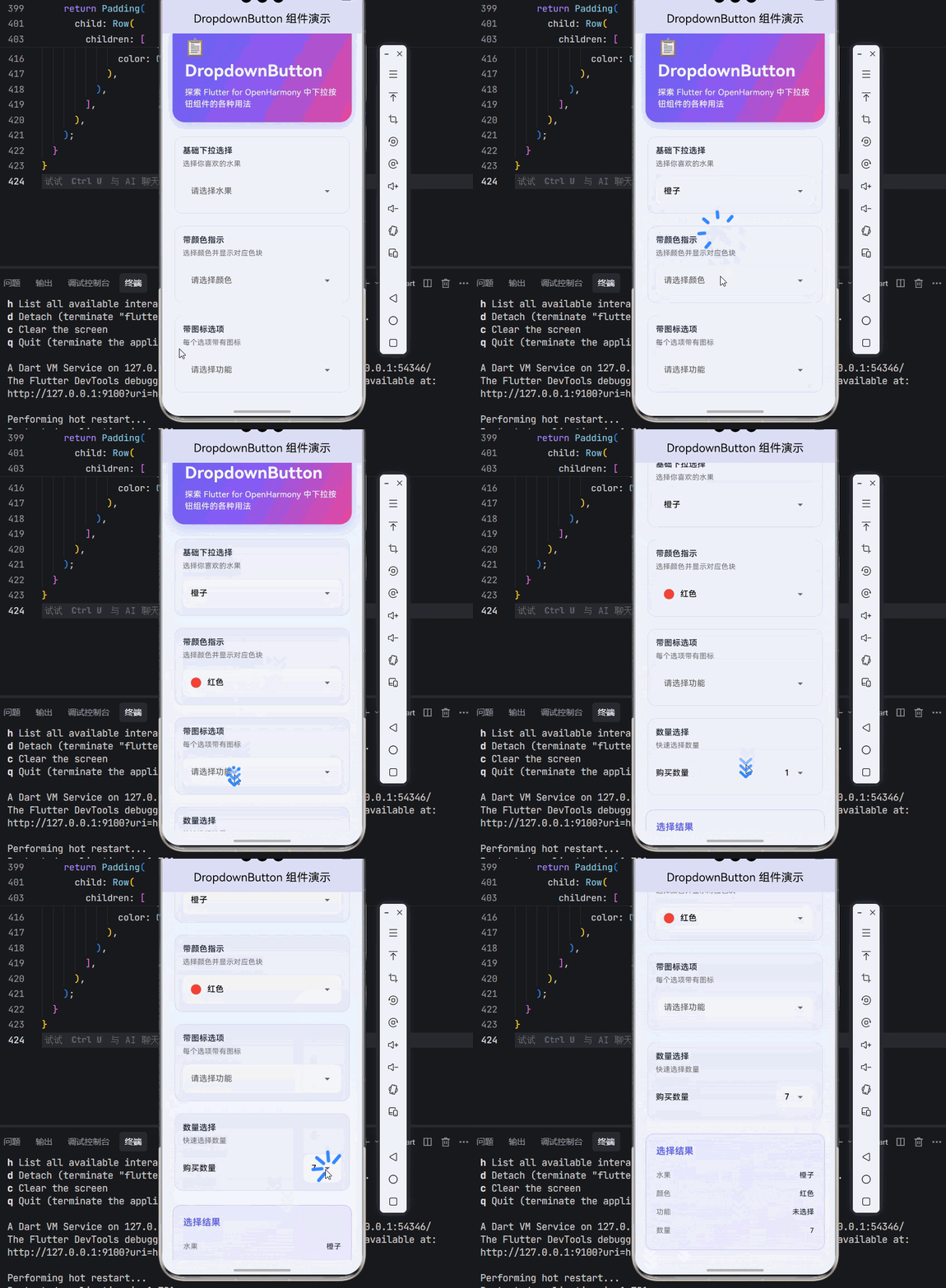
下面是一个完整的 Flutter 应用示例,展示 DropdownButton 组件的各种用法。
import 'package:flutter/material.dart';
void main() {
runApp(const DropdownButtonDemo());
}
class DropdownButtonDemo extends StatelessWidget {
const DropdownButtonDemo({super.key});
Widget build(BuildContext context) {
return MaterialApp(
title: 'DropdownButton 组件演示',
debugShowCheckedModeBanner: false,
theme: ThemeData(
colorScheme: ColorScheme.light(
primary: const Color(0xFF6366F1),
secondary: const Color(0xFF8B5CF6),
surface: const Color(0xFFE8EAF6),
background: const Color(0xFFF8F9FF),
brightness: Brightness.light,
),
useMaterial3: true,
),
home: const DropdownButtonPage(),
);
}
}
class DropdownButtonPage extends StatefulWidget {
const DropdownButtonPage({super.key});
State<DropdownButtonPage> createState() => _DropdownButtonPageState();
}
class _DropdownButtonPageState extends State<DropdownButtonPage> {
String? _selectedFruit;
String? _selectedColor;
String? _selectedIcon;
int _quantity = 1;
final List<Map<String, dynamic>> _fruits = [
{'value': 'apple', 'label': '苹果', 'color': Colors.red},
{'value': 'banana', 'label': '香蕉', 'color': Colors.yellow},
{'value': 'orange', 'label': '橙子', 'color': Colors.orange},
{'value': 'grape', 'label': '葡萄', 'color': Colors.purple},
{'value': 'watermelon', 'label': '西瓜', 'color': Colors.green},
];
final List<Map<String, dynamic>> _colors = [
{'value': 'red', 'label': '红色', 'color': Colors.red},
{'value': 'blue', 'label': '蓝色', 'color': Colors.blue},
{'value': 'green', 'label': '绿色', 'color': Colors.green},
{'value': 'purple', 'label': '紫色', 'color': Colors.purple},
];
final List<Map<String, dynamic>> _icons = [
{'value': 'home', 'label': '首页', 'icon': Icons.home},
{'value': 'search', 'label': '搜索', 'icon': Icons.search},
{'value': 'favorite', 'label': '收藏', 'icon': Icons.favorite},
{'value': 'settings', 'label': '设置', 'icon': Icons.settings},
{'value': 'person', 'label': '个人', 'icon': Icons.person},
];
Widget build(BuildContext context) {
return Scaffold(
appBar: AppBar(
title: const Text('DropdownButton 组件演示'),
centerTitle: true,
elevation: 0,
),
body: Container(
decoration: const BoxDecoration(
gradient: LinearGradient(
begin: Alignment.topCenter,
end: Alignment.bottomCenter,
colors: [
Color(0xFFE8F4FF),
Color(0xFFF8F9FF),
],
),
),
child: SafeArea(
child: SingleChildScrollView(
padding: const EdgeInsets.all(20),
child: Column(
crossAxisAlignment: CrossAxisAlignment.stretch,
children: [
_buildHeader(),
const SizedBox(height: 24),
_buildSection(
title: '基础下拉选择',
subtitle: '选择你喜欢的水果',
child: _buildBasicDropdown(),
),
const SizedBox(height: 16),
_buildSection(
title: '带颜色指示',
subtitle: '选择颜色并显示对应色块',
child: _buildColorDropdown(),
),
const SizedBox(height: 16),
_buildSection(
title: '带图标选项',
subtitle: '每个选项带有图标',
child: _buildIconDropdown(),
),
const SizedBox(height: 16),
_buildSection(
title: '数量选择',
subtitle: '快速选择数量',
child: _buildQuantityDropdown(),
),
const SizedBox(height: 24),
_buildResultCard(),
],
),
),
),
),
);
}
Widget _buildHeader() {
return Container(
padding: const EdgeInsets.all(24),
decoration: BoxDecoration(
gradient: const LinearGradient(
begin: Alignment.topLeft,
end: Alignment.bottomRight,
colors: [
Color(0xFF6366F1),
Color(0xFF8B5CF6),
Color(0xFFEC4899),
],
),
borderRadius: BorderRadius.circular(24),
boxShadow: [
BoxShadow(
color: const Color(0xFF6366F1).withOpacity(0.3),
blurRadius: 20,
offset: const Offset(0, 8),
),
],
),
child: const Column(
crossAxisAlignment: CrossAxisAlignment.start,
children: [
Text(
'📋 DropdownButton',
style: TextStyle(
fontSize: 32,
fontWeight: FontWeight.bold,
color: Colors.white,
),
),
SizedBox(height: 8),
Text(
'探索 Flutter for OpenHarmony 中下拉按钮组件的各种用法',
style: TextStyle(
fontSize: 16,
color: Colors.white,
),
),
],
),
);
}
Widget _buildSection({
required String title,
required String subtitle,
required Widget child,
}) {
return Card(
elevation: 0,
shape: RoundedRectangleBorder(
borderRadius: BorderRadius.circular(16),
side: BorderSide(color: Colors.grey.withOpacity(0.2)),
),
child: Padding(
padding: const EdgeInsets.all(16),
child: Column(
crossAxisAlignment: CrossAxisAlignment.start,
children: [
Text(
title,
style: const TextStyle(
fontSize: 16,
fontWeight: FontWeight.w600,
color: Color(0xFF1E293B),
),
),
const SizedBox(height: 4),
Text(
subtitle,
style: TextStyle(
fontSize: 14,
color: Colors.grey[600],
),
),
const SizedBox(height: 16),
child,
],
),
),
);
}
Widget _buildBasicDropdown() {
return Container(
padding: const EdgeInsets.symmetric(horizontal: 16, vertical: 4),
decoration: BoxDecoration(
color: Colors.grey[100],
borderRadius: BorderRadius.circular(12),
),
child: DropdownButton<String>(
value: _selectedFruit,
isExpanded: true,
underline: const SizedBox(),
hint: const Text('请选择水果'),
borderRadius: BorderRadius.circular(12),
items: _fruits.map((fruit) {
return DropdownMenuItem<String>(
value: fruit['value'],
child: Text(fruit['label']),
);
}).toList(),
onChanged: (value) {
setState(() {
_selectedFruit = value;
});
},
),
);
}
Widget _buildColorDropdown() {
return Container(
padding: const EdgeInsets.symmetric(horizontal: 16, vertical: 4),
decoration: BoxDecoration(
color: Colors.grey[100],
borderRadius: BorderRadius.circular(12),
),
child: DropdownButton<String>(
value: _selectedColor,
isExpanded: true,
underline: const SizedBox(),
hint: const Text('请选择颜色'),
borderRadius: BorderRadius.circular(12),
items: _colors.map((color) {
return DropdownMenuItem<String>(
value: color['value'],
child: Row(
children: [
Container(
width: 20,
height: 20,
decoration: BoxDecoration(
color: color['color'],
shape: BoxShape.circle,
),
),
const SizedBox(width: 12),
Text(color['label']),
],
),
);
}).toList(),
onChanged: (value) {
setState(() {
_selectedColor = value;
});
},
),
);
}
Widget _buildIconDropdown() {
return Container(
padding: const EdgeInsets.symmetric(horizontal: 16, vertical: 4),
decoration: BoxDecoration(
color: Colors.grey[100],
borderRadius: BorderRadius.circular(12),
),
child: DropdownButton<String>(
value: _selectedIcon,
isExpanded: true,
underline: const SizedBox(),
hint: const Text('请选择功能'),
borderRadius: BorderRadius.circular(12),
items: _icons.map((item) {
return DropdownMenuItem<String>(
value: item['value'],
child: Row(
children: [
Icon(item['icon'], size: 20, color: const Color(0xFF6366F1)),
const SizedBox(width: 12),
Text(item['label']),
],
),
);
}).toList(),
onChanged: (value) {
setState(() {
_selectedIcon = value;
});
},
),
);
}
Widget _buildQuantityDropdown() {
return Row(
mainAxisAlignment: MainAxisAlignment.spaceBetween,
children: [
const Text(
'购买数量',
style: TextStyle(fontSize: 16),
),
Container(
padding: const EdgeInsets.symmetric(horizontal: 16, vertical: 4),
decoration: BoxDecoration(
color: Colors.grey[100],
borderRadius: BorderRadius.circular(12),
),
child: DropdownButton<int>(
value: _quantity,
underline: const SizedBox(),
borderRadius: BorderRadius.circular(12),
items: List.generate(10, (index) => index + 1)
.map((num) => DropdownMenuItem(
value: num,
child: Text('$num'),
))
.toList(),
onChanged: (value) {
setState(() {
_quantity = value!;
});
},
),
),
],
);
}
Widget _buildResultCard() {
final selectedFruitLabel = _selectedFruit != null
? _fruits.firstWhere((f) => f['value'] == _selectedFruit)['label']
: '未选择';
final selectedColorLabel = _selectedColor != null
? _colors.firstWhere((c) => c['value'] == _selectedColor)['label']
: '未选择';
final selectedIconLabel = _selectedIcon != null
? _icons.firstWhere((i) => i['value'] == _selectedIcon)['label']
: '未选择';
return Container(
padding: const EdgeInsets.all(20),
decoration: BoxDecoration(
gradient: LinearGradient(
begin: Alignment.topLeft,
end: Alignment.bottomRight,
colors: [
const Color(0xFF6366F1).withOpacity(0.1),
const Color(0xFF8B5CF6).withOpacity(0.1),
],
),
borderRadius: BorderRadius.circular(16),
border: Border.all(
color: const Color(0xFF6366F1).withOpacity(0.3),
),
),
child: Column(
crossAxisAlignment: CrossAxisAlignment.start,
children: [
const Text(
'选择结果',
style: TextStyle(
fontSize: 18,
fontWeight: FontWeight.bold,
color: Color(0xFF6366F1),
),
),
const SizedBox(height: 16),
_buildResultRow('水果', selectedFruitLabel),
_buildResultRow('颜色', selectedColorLabel),
_buildResultRow('功能', selectedIconLabel),
_buildResultRow('数量', '$_quantity'),
],
),
);
}
Widget _buildResultRow(String label, String value) {
return Padding(
padding: const EdgeInsets.symmetric(vertical: 8),
child: Row(
mainAxisAlignment: MainAxisAlignment.spaceBetween,
children: [
Text(
label,
style: TextStyle(
fontSize: 14,
color: Colors.grey[600],
),
),
Text(
value,
style: const TextStyle(
fontSize: 14,
fontWeight: FontWeight.w500,
color: Color(0xFF1E293B),
),
),
],
),
);
}
}
九、总结
DropdownButton 是 Flutter for OpenHarmony 应用开发中常用的选择组件。通过本文的学习,我们掌握了:
- 基础用法:value、items、onChanged 等核心属性的使用
- 常用属性:hint、icon、isExpanded、underline 等样式属性
- 禁用状态:整体禁用和单项禁用的实现方式
- 样式定制:边框、背景色、圆角、图标等个性化设计
- 表单用法:DropdownButtonFormField 的验证功能
- 实际应用:城市选择、语言切换、排序选择、数量选择等场景
💡 开发建议:使用 DropdownButton 时应注意:
- 确保 value 与 items 中的值匹配,避免异常
- 使用 isExpanded 让下拉按钮占满容器宽度
- 在表单中使用 DropdownButtonFormField 进行验证
- 合理使用 hint 提示用户当前状态
- 禁用不可选项时提供说明文字

开源鸿蒙跨平台开发社区汇聚开发者与厂商,共建“一次开发,多端部署”的开源生态,致力于降低跨端开发门槛,推动万物智联创新。
更多推荐

 17
17 0
0- 0


 已为社区贡献98条内容

所有评论(0)