基础入门 Flutter for OpenHarmony:Image 图片组件使用指南
在移动应用开发中,图片是传递信息、美化界面的重要元素。Flutter 的Image组件提供了强大而灵活的图片加载和显示功能,支持多种图片来源和丰富的显示效果。Image 组件是 Flutter 中处理图片显示的核心组件,掌握其各种属性和用法对于创建美观的应用至关重要。
🎯欢迎加入开源鸿蒙跨平台社区:https://openharmonycrossplatform.csdn.net
一、Image 组件概述
在移动应用开发中,图片是传递信息、美化界面的重要元素。Flutter 的 Image 组件提供了强大而灵活的图片加载和显示功能,支持多种图片来源和丰富的显示效果。
📋 图片来源类型
| 来源类型 | 使用场景 | 说明 |
|---|---|---|
Image.asset |
本地资源 | 应用内打包的图片 |
Image.network |
网络图片 | 从 URL 加载 |
Image.file |
文件系统 | 设备存储的图片 |
Image.memory |
内存数据 | 字节数组格式的图片 |
二、加载网络图片
2.1 基础用法
Image.network 是最常用的加载网络图片的方式,只需要提供图片的 URL 即可。Flutter 会自动处理下载和缓存。
Image.network(
  'https://picsum.photos/400/300',
  width: 400,
  height: 300,
)
这种简单的用法适合大多数场景,但对于网络不稳定或图片较大的情况,我们需要更多的控制。
2.2 添加加载和错误处理
为了提供更好的用户体验,我们需要处理图片加载过程中的各种状态,包括加载中、加载成功和加载失败。
Image.network(
  'https://picsum.photos/400/300',
  width: 400,
  height: 300,
  loadingBuilder: (context, child, loadingProgress) {
    if (loadingProgress == null) return child;
    return Center(
      child: CircularProgressIndicator(
        value: loadingProgress.expectedTotalBytes != null
            ? loadingProgress.cumulativeBytesLoaded / loadingProgress.expectedTotalBytes!
            : null,
      ),
    );
  },
  errorBuilder: (context, error, stackTrace) {
    return const Icon(Icons.error, size: 50);
  },
)
loadingBuilder 允许我们自定义加载过程中的显示内容,可以使用进度条或加载动画。errorBuilder 则在图片加载失败时提供友好的错误提示。
💡 小贴士:网络图片加载可能会失败,务必提供错误处理机制,避免应用出现空白或崩溃。
三、加载本地图片
3.1 配置资源文件
在使用本地图片之前,需要在 pubspec.yaml 中声明资源文件的位置。
flutter:
  assets:
    - assets/images/
    - assets/icons/
配置完成后,Flutter 会将这些文件打包到应用中,可以通过相对路径访问。
3.2 使用 Image.asset
Image.asset 用于加载应用内打包的图片资源。
Image.asset(
  'assets/images/logo.png',
  width: 100,
  height: 100,
)
本地图片加载速度快,不依赖网络连接,适合应用图标、启动页等固定资源。
📂 资源文件组织建议
| 目录 | 用途 | 建议格式 |
|---|---|---|
assets/images/ |
一般图片 | PNG, JPG |
assets/icons/ |
图标 | PNG (带透明度) |
assets/animations/ |
动画帧 | PNG 序列 |
四、图片适配模式
4.1 BoxFit 枚举值
fit 属性控制图片在容器中的适应方式,是 Image 组件最重要的属性之一。
Container(
  width: 200,
  height: 200,
  color: Colors.grey[200],
  child: Image.network(
    'https://picsum.photos/300/300',
    fit: BoxFit.cover,
  ),
)
📐 BoxFit 对照表
| 值 | 说明 | 使用场景 | 可能的后果 |
|---|---|---|---|
BoxFit.fill |
填充整个容器 | 需要完全覆盖时 | 可能拉伸变形 |
BoxFit.cover |
覆盖,保持比例 | 背景图、头像 | 可能裁剪部分内容 |
BoxFit.contain |
包含,保持比例 | 需要完整显示时 | 可能有留白 |
BoxFit.fitWidth |
宽度适应 | 横向滚动列表 | 高度可能超出 |
BoxFit.fitHeight |
高度适应 | 纵向滚动列表 | 宽度可能超出 |
BoxFit.none |
不缩放 | 需要原始尺寸 | 可能超出容器 |
4.2 不同效果对比
Row(
  children: [
    _buildFitBox('cover', BoxFit.cover),
    const SizedBox(width: 12),
    _buildFitBox('contain', BoxFit.contain),
    const SizedBox(width: 12),
    _buildFitBox('fill', BoxFit.fill),
  ],
)
cover 模式是背景图片和头像的首选,因为它确保不会有留白。而 contain 模式适合需要完整显示图片内容的场景。
五、图片圆角处理
5.1 使用 ClipRRect
ClipRRect 可以将图片裁剪为圆角矩形,是最常用的圆角处理方式。
ClipRRect(
  borderRadius: BorderRadius.circular(16),
  child: Image.network(
    'https://picsum.photos/200/200',
    width: 200,
    height: 200,
    fit: BoxFit.cover,
  ),
)
通过调整 BorderRadius 的值,可以创建从轻微圆角到完全圆形的各种效果。
5.2 使用 CircleAvatar
对于圆形头像,使用 CircleAvatar 更加方便。
CircleAvatar(
  radius: 50,
  backgroundImage: const NetworkImage('https://picsum.photos/200/200'),
)
5.3 使用 BoxDecoration
BoxDecoration 的 image 属性也可以显示图片,并且支持更丰富的装饰效果。
Container(
  width: 200,
  height: 200,
  decoration: BoxDecoration(
    borderRadius: BorderRadius.circular(20),
    image: const DecorationImage(
      image: NetworkImage('https://picsum.photos/200/200'),
      fit: BoxFit.cover,
    ),
    boxShadow: [
      BoxShadow(
        color: Colors.black.withOpacity(0.3),
        blurRadius: 10,
        offset: const Offset(0, 5),
      ),
    ],
  ),
)
BoxDecoration 的优势在于可以同时添加阴影、边框等装饰效果,创建更加丰富的视觉效果。
六、图片颜色处理
6.1 颜色混合
color 属性可以与图片进行颜色混合,常用于创建灰色图片或添加色调。
ColorFiltered(
  colorFilter: ColorFilter.mode(
    Colors.blue.withOpacity(0.5),
    BlendMode.srcIn,
  ),
  child: Image.network(
    'https://picsum.photos/200/200',
    width: 100,
    height: 100,
  ),
)
BlendMode 决定了颜色混合的方式,不同的模式会产生完全不同的视觉效果。
6.2 灰度效果
使用 ColorFilter.matrix 可以将图片转换为灰度。
ColorFiltered(
  colorFilter: const ColorFilter.matrix(<double>[
    0.2126, 0.7152, 0.0722, 0, 0,
    0.2126, 0.7152, 0.0722, 0, 0,
    0.2126, 0.7152, 0.0722, 0, 0,
    0,      0,      0,      1, 0,
  ]),
  child: Image.network(
    'https://picsum.photos/200/200',
    width: 100,
    height: 100,
  ),
)
这种矩阵变换的方式可以实现各种复杂的颜色效果,包括灰度、反色、色相调整等。
🎨 常用颜色效果
Row(
  children: [
    _buildColorEffect('原图', Colors.transparent),
    _buildColorEffect('灰色', Colors.grey),
    _buildColorEffect('蓝色', Colors.blue),
    _buildColorEffect('红色', Colors.red),
  ],
)
七、图片缓存策略
7.1 自动缓存
Flutter 的 Image.network 会自动缓存下载的图片,下次加载时会从缓存读取,大大提升加载速度。
Image.network(
  'https://picsum.photos/400/300',
  cacheWidth: 400,
  cacheHeight: 300,
)
cacheWidth 和 cacheHeight 可以指定缓存的图片尺寸,减少内存占用。
7.2 清除缓存
如果需要手动清除图片缓存,可以使用 ImageCache。
void clearImageCache() {
  PaintingBinding.instance.imageCache.clear();
  PaintingBinding.instance.imageCache.clearLiveImages();
}
⚠️ 注意:清除缓存会导致图片重新下载,仅在必要时使用。
八、高级效果
8.1 图片阴影
为图片添加阴影可以增强立体感。
Container(
  decoration: BoxDecoration(
    boxShadow: [
      BoxShadow(
        color: Colors.black.withOpacity(0.3),
        blurRadius: 15,
        offset: const Offset(0, 8),
      ),
    ],
    borderRadius: BorderRadius.circular(16),
  ),
  child: ClipRRect(
    borderRadius: BorderRadius.circular(16),
    child: Image.network(
      'https://picsum.photos/200/200',
      width: 200,
      height: 200,
      fit: BoxFit.cover,
    ),
  ),
)
8.2 图片叠加
使用 Stack 可以在图片上叠加其他内容,如文字、图标或渐变遮罩。
Stack(
  children: [
    Image.network(
      'https://picsum.photos/400/200',
      width: 400,
      height: 200,
      fit: BoxFit.cover,
    ),
    Container(
      width: 400,
      height: 200,
      decoration: BoxDecoration(
        gradient: LinearGradient(
          begin: Alignment.topCenter,
          end: Alignment.bottomCenter,
          colors: [
            Colors.transparent,
            Colors.black.withOpacity(0.7),
          ],
        ),
      ),
    ),
    const Positioned(
      bottom: 16,
      left: 16,
      right: 16,
      child: Text(
        '图片标题文字',
        style: TextStyle(
          color: Colors.white,
          fontSize: 18,
          fontWeight: FontWeight.bold,
        ),
      ),
    ),
  ],
)
这种布局常用于卡片、轮播图等场景,渐变遮罩确保文字在任何背景下都清晰可读。
8.3 图片画廊
使用 PageView 可以创建滑动浏览的图片画廊。
PageView.builder(
  itemCount: 5,
  itemBuilder: (context, index) {
    return Image.network(
      'https://picsum.photos/400/300?random=$index',
      fit: BoxFit.cover,
    );
  },
)
配合指示器,可以创建完整的轮播图组件。
九、性能优化
9.1 使用 cached_network_image
对于频繁加载的网络图片,使用 cached_network_image 插件可以提供更好的缓存管理。
首先在 pubspec.yaml 中添加依赖:
dependencies:
  cached_network_image: ^3.3.1
然后使用 CachedNetworkImage:
CachedNetworkImage(
  imageUrl: 'https://picsum.photos/400/300',
  placeholder: (context, url) => const CircularProgressIndicator(),
  errorWidget: (context, url, error) => const Icon(Icons.error),
  width: 400,
  height: 300,
)
9.2 图片压缩
在服务端或加载前压缩图片可以显著减少带宽和内存占用。
Image.network(
  'https://picsum.photos/400/300',
  width: 400,
  height: 300,
  cacheWidth: (400 * 2).toInt(), // 考虑设备像素比
  cacheHeight: (300 * 2).toInt(),
)
📊 性能优化建议
| 优化项 | 说明 | 效果 |
|---|---|---|
| 指定缓存尺寸 | 减少内存占用 | ⭐⭐⭐⭐⭐ |
| 使用缓存插件 | 更好的缓存管理 | ⭐⭐⭐⭐ |
| 图片压缩 | 减少网络传输 | ⭐⭐⭐⭐⭐ |
| 懒加载 | 按需加载图片 | ⭐⭐⭐ |
| 预加载 | 提前缓存图片 | ⭐⭐⭐ |
十、完整示例代码
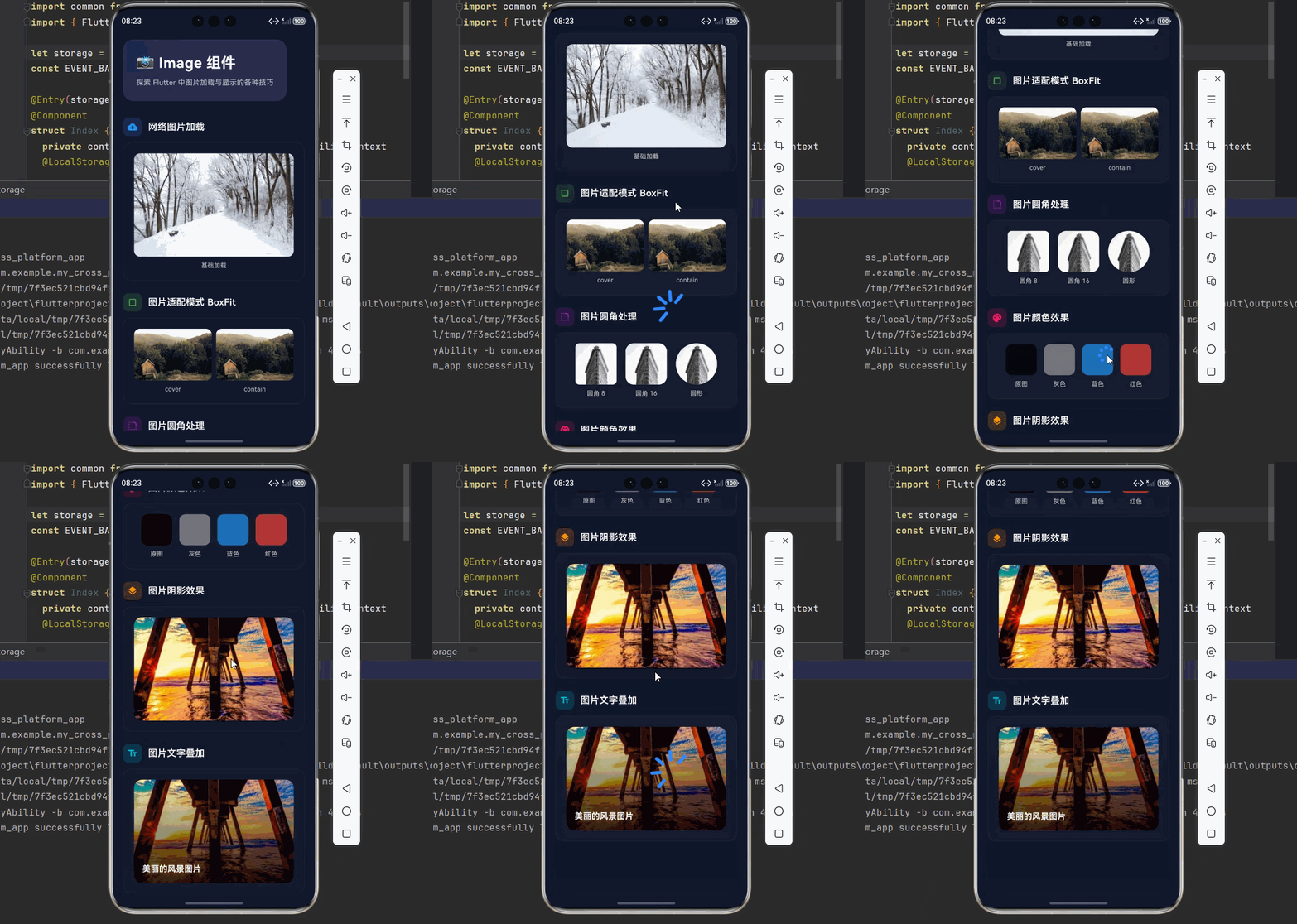
下面是一个完整的 Flutter 应用示例,展示所有 Image 组件的效果。
import 'package:flutter/material.dart';
void main() {
runApp(const ImageDemo());
}
class ImageDemo extends StatelessWidget {
const ImageDemo({super.key});
Widget build(BuildContext context) {
return MaterialApp(
title: 'Image 组件演示',
debugShowCheckedModeBanner: false,
theme: ThemeData(
colorScheme: ColorScheme.dark(
primary: const Color(0xFF6366F1),
secondary: const Color(0xFF8B5CF6),
surface: const Color(0xFF1E293B),
background: const Color(0xFF0F172A),
brightness: Brightness.dark,
),
useMaterial3: true,
),
home: const ImagePage(),
);
}
}
class ImagePage extends StatelessWidget {
const ImagePage({super.key});
Widget build(BuildContext context) {
return Scaffold(
backgroundColor: const Color(0xFF0F172A),
body: SafeArea(
child: SingleChildScrollView(
padding: const EdgeInsets.all(20),
child: Column(
crossAxisAlignment: CrossAxisAlignment.start,
children: [
// 标题区域
Container(
padding: const EdgeInsets.all(24),
decoration: BoxDecoration(
gradient: LinearGradient(
begin: Alignment.topLeft,
end: Alignment.bottomRight,
colors: [
const Color(0xFF6366F1).withOpacity(0.2),
const Color(0xFF8B5CF6).withOpacity(0.2),
],
),
borderRadius: BorderRadius.circular(20),
border: Border.all(
color: Colors.white.withOpacity(0.1),
),
),
child: Column(
crossAxisAlignment: CrossAxisAlignment.start,
children: [
const Text(
'📸 Image 组件',
style: TextStyle(
fontSize: 28,
fontWeight: FontWeight.bold,
color: Colors.white,
letterSpacing: 0.5,
),
),
const SizedBox(height: 8),
Text(
'探索 Flutter 中图片加载与显示的各种技巧',
style: TextStyle(
fontSize: 14,
color: Colors.white.withOpacity(0.7),
height: 1.5,
),
),
],
),
),
const SizedBox(height: 32),
// 网络图片
_buildSection(
title: '网络图片加载',
icon: Icons.cloud_download,
color: Colors.blue,
child: _buildImageCard([
_buildNetworkImage(
'https://picsum.photos/400/300',
'基础加载',
),
]),
),
const SizedBox(height: 24),
// BoxFit 适配
_buildSection(
title: '图片适配模式 BoxFit',
icon: Icons.crop_square,
color: Colors.green,
child: _buildImageCard([
Row(
children: [
Expanded(
child: _buildFitImage('cover', BoxFit.cover),
),
const SizedBox(width: 8),
Expanded(
child: _buildFitImage('contain', BoxFit.contain),
),
],
),
]),
),
const SizedBox(height: 24),
// 圆角处理
_buildSection(
title: '图片圆角处理',
icon: Icons.rounded_corner,
color: Colors.purple,
child: _buildImageCard([
Row(
mainAxisAlignment: MainAxisAlignment.spaceEvenly,
children: [
_buildRoundedImage(8, '圆角 8'),
_buildRoundedImage(16, '圆角 16'),
_buildCircularImage('圆形'),
],
),
]),
),
const SizedBox(height: 24),
// 颜色效果
_buildSection(
title: '图片颜色效果',
icon: Icons.palette,
color: Colors.pink,
child: _buildImageCard([
Row(
mainAxisAlignment: MainAxisAlignment.spaceEvenly,
children: [
_buildColorEffect('原图', Colors.transparent),
_buildColorEffect('灰色', Colors.grey),
_buildColorEffect('蓝色', Colors.blue),
_buildColorEffect('红色', Colors.red),
],
),
]),
),
const SizedBox(height: 24),
// 阴影效果
_buildSection(
title: '图片阴影效果',
icon: Icons.layers,
color: Colors.orange,
child: _buildImageCard([
_buildShadowImage(),
]),
),
const SizedBox(height: 24),
// 图片叠加
_buildSection(
title: '图片文字叠加',
icon: Icons.text_fields,
color: Colors.cyan,
child: _buildImageCard([
_buildOverlayImage(),
]),
),
const SizedBox(height: 80),
],
),
),
),
);
}
Widget _buildSection({
required String title,
required IconData icon,
required Color color,
required Widget child,
}) {
return Column(
crossAxisAlignment: CrossAxisAlignment.start,
children: [
Row(
children: [
Container(
padding: const EdgeInsets.all(8),
decoration: BoxDecoration(
color: color.withOpacity(0.2),
borderRadius: BorderRadius.circular(10),
),
child: Icon(icon, color: color, size: 20),
),
const SizedBox(width: 12),
Text(
title,
style: const TextStyle(
fontSize: 18,
fontWeight: FontWeight.w600,
color: Colors.white,
),
),
],
),
const SizedBox(height: 12),
child,
],
);
}
Widget _buildImageCard(List<Widget> children) {
return Container(
width: double.infinity,
padding: const EdgeInsets.all(20),
decoration: BoxDecoration(
color: Colors.white.withOpacity(0.03),
borderRadius: BorderRadius.circular(16),
border: Border.all(
color: Colors.white.withOpacity(0.05),
),
),
child: Column(
children: children,
),
);
}
Widget _buildNetworkImage(String url, String label) {
return Column(
children: [
ClipRRect(
borderRadius: BorderRadius.circular(12),
child: Image.network(
url,
width: double.infinity,
height: 200,
fit: BoxFit.cover,
loadingBuilder: (context, child, loadingProgress) {
if (loadingProgress == null) return child;
return Container(
width: double.infinity,
height: 200,
color: Colors.white.withOpacity(0.05),
child: Center(
child: CircularProgressIndicator(
value: loadingProgress.expectedTotalBytes != null
? loadingProgress.cumulativeBytesLoaded /
loadingProgress.expectedTotalBytes!
: null,
strokeWidth: 2,
),
),
);
},
errorBuilder: (context, error, stackTrace) {
return Container(
width: double.infinity,
height: 200,
color: Colors.white.withOpacity(0.05),
child: const Center(
child: Icon(Icons.error_outline, size: 48, color: Colors.red),
),
);
},
),
),
const SizedBox(height: 8),
Text(
label,
style: TextStyle(
fontSize: 12,
color: Colors.white.withOpacity(0.7),
),
),
],
);
}
Widget _buildFitImage(String label, BoxFit fit) {
return Column(
children: [
Container(
width: double.infinity,
height: 100,
decoration: BoxDecoration(
color: Colors.white.withOpacity(0.05),
borderRadius: BorderRadius.circular(12),
),
child: ClipRRect(
borderRadius: BorderRadius.circular(12),
child: Image.network(
'https://picsum.photos/300/200',
fit: fit,
),
),
),
const SizedBox(height: 8),
Text(
label,
style: TextStyle(
fontSize: 12,
color: Colors.white.withOpacity(0.7),
),
),
],
);
}
Widget _buildRoundedImage(double radius, String label) {
return Column(
children: [
ClipRRect(
borderRadius: BorderRadius.circular(radius),
child: Image.network(
'https://picsum.photos/100/100',
width: 80,
height: 80,
fit: BoxFit.cover,
),
),
const SizedBox(height: 8),
Text(
label,
style: TextStyle(
fontSize: 12,
color: Colors.white.withOpacity(0.7),
),
),
],
);
}
Widget _buildCircularImage(String label) {
return Column(
children: [
ClipOval(
child: Image.network(
'https://picsum.photos/100/100',
width: 80,
height: 80,
fit: BoxFit.cover,
),
),
const SizedBox(height: 8),
Text(
label,
style: TextStyle(
fontSize: 12,
color: Colors.white.withOpacity(0.7),
),
),
],
);
}
Widget _buildColorEffect(String label, Color color) {
return Column(
children: [
ClipRRect(
borderRadius: BorderRadius.circular(12),
child: ColorFiltered(
colorFilter: ColorFilter.mode(
color.withOpacity(0.7),
BlendMode.srcIn,
),
child: Image.network(
'https://picsum.photos/80/80',
width: 60,
height: 60,
fit: BoxFit.cover,
),
),
),
const SizedBox(height: 8),
Text(
label,
style: TextStyle(
fontSize: 12,
color: Colors.white.withOpacity(0.7),
),
),
],
);
}
Widget _buildShadowImage() {
return Container(
decoration: BoxDecoration(
boxShadow: [
BoxShadow(
color: Colors.black.withOpacity(0.4),
blurRadius: 20,
offset: const Offset(0, 10),
),
],
borderRadius: BorderRadius.circular(16),
),
child: ClipRRect(
borderRadius: BorderRadius.circular(16),
child: Image.network(
'https://picsum.photos/400/200',
width: double.infinity,
height: 200,
fit: BoxFit.cover,
),
),
);
}
Widget _buildOverlayImage() {
return ClipRRect(
borderRadius: BorderRadius.circular(16),
child: Stack(
children: [
Image.network(
'https://picsum.photos/400/200',
width: double.infinity,
height: 200,
fit: BoxFit.cover,
),
Container(
width: double.infinity,
height: 200,
decoration: BoxDecoration(
gradient: LinearGradient(
begin: Alignment.topCenter,
end: Alignment.bottomCenter,
colors: [
Colors.transparent,
Colors.black.withOpacity(0.8),
],
),
borderRadius: BorderRadius.circular(16),
),
),
const Positioned(
bottom: 16,
left: 16,
right: 16,
child: Text(
'美丽的风景图片',
style: TextStyle(
color: Colors.white,
fontSize: 16,
fontWeight: FontWeight.bold,
),
),
),
],
),
);
}
}
十一、总结
Image 组件是 Flutter 中处理图片显示的核心组件,掌握其各种属性和用法对于创建美观的应用至关重要。
🎯 使用建议
- 网络图片 → 使用
Image.network+ 加载/错误处理 - 本地资源 → 使用
Image.asset+ 合理的资源组织 - 头像显示 → 使用
CircleAvatar或圆形裁剪 - 背景图片 → 使用
BoxFit.cover+ 阴影效果 - 图片叠加 → 使用
Stack+ 渐变遮罩 - 性能优化 → 指定缓存尺寸 + 使用缓存插件
在实际开发中,合理选择图片来源和显示方式,配合适当的优化策略,可以创建出既美观又高效的图片展示效果。

开源鸿蒙跨平台开发社区汇聚开发者与厂商,共建“一次开发,多端部署”的开源生态,致力于降低跨端开发门槛,推动万物智联创新。
更多推荐



 0
0 0
0- 0


 已为社区贡献3条内容

所有评论(0)