Flutter for OpenHarmony 实战之基础组件:第四十篇 Draggable 与 DragTarget — 实现直观的拖拽数据交互
本文介绍了如何在Flutter for OpenHarmony中实现拖拽交互功能。通过Draggable和DragTarget组件的配合,开发者可以轻松构建跨区域的数据搬运功能,并适配鸿蒙系统的多窗口和分屏操作。文章详细讲解了拖拽三部曲(Draggable、DragTarget、LongPressDraggable)的使用方法,包括数据传递、接收逻辑控制以及视觉反馈的实现。特别针对OpenHarm

Flutter for OpenHarmony 实战之基础组件:第四十篇 Draggable 与 DragTarget — 实现直观的拖拽数据交互
前言
在移动端应用中,除了点击和滑动,最能体现交互深度的就是“拖拽”(Drag and Drop)。无论是将商品拖入购物车、整理文件位置,还是在拼图游戏中移动碎片,拖拽交互都能为用户提供极其直观的操作反馈感。
在 Flutter for OpenHarmony 开发中,内置的 Draggable 和 DragTarget 是一对完美的搭档。它们能让你轻松实现跨区域的数据搬运,且能完美自动适配鸿蒙多窗口、多分屏下的触控手势。本文将详解这对组合的机制及高级实战技巧。
一、拖拽三部曲:数据搬运的底层机制
拖拽交互涉及三个核心组件:
- Draggable:被拖动的源组件,负责携带数据(Data)。
- DragTarget:接收数据的目标区域,负责处理数据接收逻辑(Accept/Reject)。
- LongPressDraggable(可选):仅在长按后才触发拖动的变体,常用于避免与列表滑动手势冲突。
二、Draggable:赋予组件“漂浮”的能力
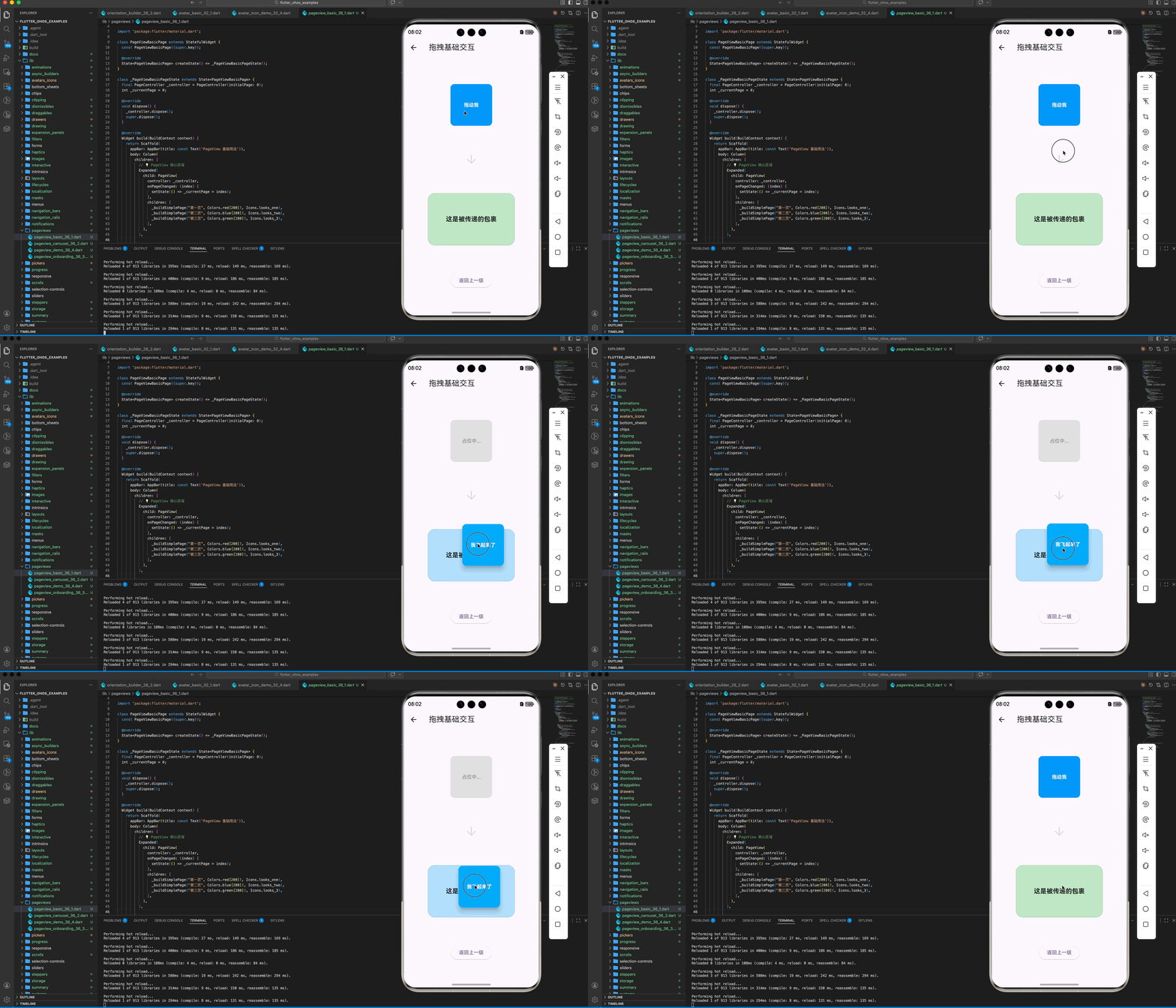
Draggable 不仅能携带数据,还能定义拖动中、拖动后的不同外观。
1.1 基础实现
Draggable<String>(
  data: '这是被传递的包裹', // 核心:传递的数据
  child: _buildItem('拖动我'), // 处于原始位置时的样子
  feedback: _buildItem('我飞起来了', isFeeback: true), // 拖动过程中悬浮在手指底下的样子
  childWhenDragging: _buildPlaceholder(), // 拖走后留在原地的占位样子
)
1.2 跨页面传递
💡 提示:只要 Draggable 发送的数据类型与 DragTarget 接收的类型一致,哪怕它们不在同一个父容器下,也能完成交互。
三、DragTarget:数据的港湾
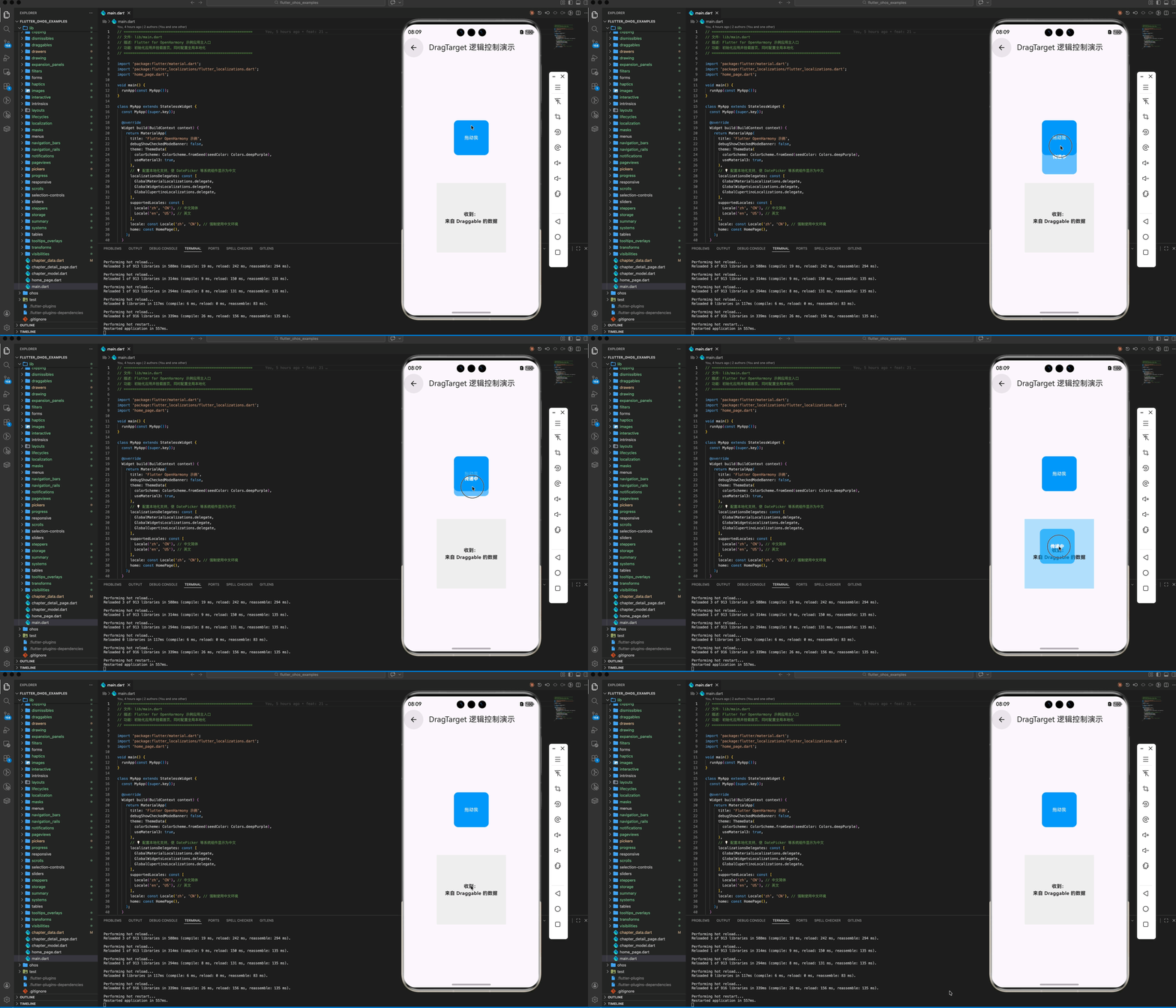
DragTarget 实时感知上方是否有 Draggable 经过,并决定是否“开门迎接”。
2.1 接收逻辑控制
DragTarget<String>(
  // 实时回调:当有东西从上方滑过
  onWillAccept: (data) => data != null,
  // 核心回调:当用户在上方松手
  onAccept: (data) {
    setState(() {
      _receivedData = data;
    });
  },
  builder: (context, candidateData, rejectedData) {
    return Container(
      width: 200, height: 200,
      color: candidateData.isNotEmpty ? Colors.blue[100] : Colors.grey[200],
      child: const Center(child: Text("放这里")),
    );
  },
)
四、实战:构建一个简单的“分类分发系统”
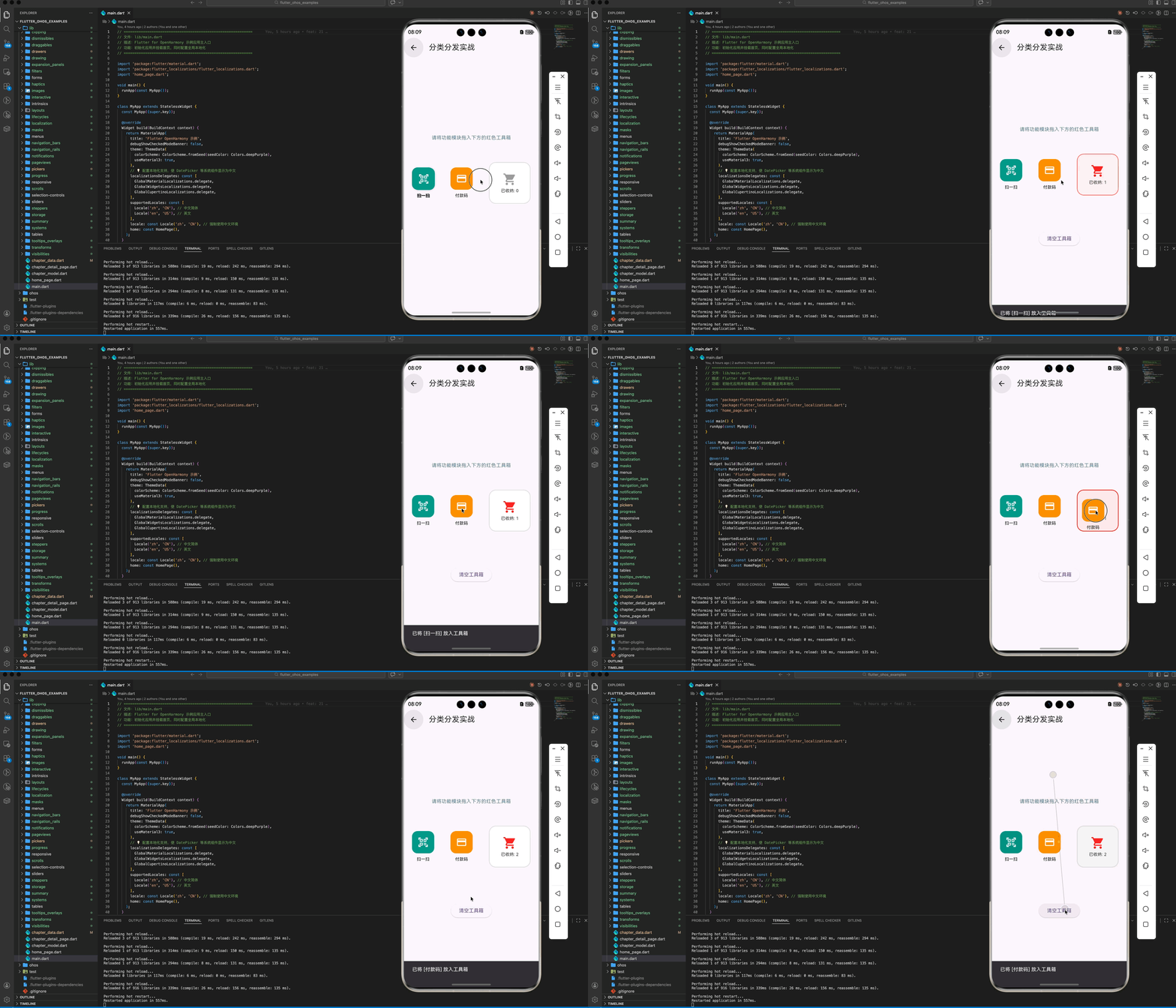
假设我们要将不同的“功能模块”拖入“我的工具箱”:
Row(
  mainAxisAlignment: MainAxisAlignment.spaceAround,
  children: [
    Draggable<String>(data: '扫一扫', feedback: _p(Icons.qr_code_scanner), child: _p(Icons.qr_code_scanner)),
    Draggable<String>(data: '付款码', feedback: _p(Icons.payment), child: _p(Icons.payment)),

    DragTarget<String>(
      onAccept: (v) => _showResult(v),
      builder: (c, list, _) => Container(
         width: 100, height: 100,
         child: Icon(Icons.shopping_cart, color: list.isNotEmpty ? Colors.red : Colors.grey),
      ),
    ),
  ],
)
五、OpenHarmony 平台适配建议
5.1 触控手势冲突处理
在鸿蒙系统上,全局侧滑返回或页面上下滚动可能会打断拖拽手势。
✅ 推荐方案:
对于列表中的拖拽项,务必使用 LongPressDraggable。这样用户只有在长按确认后才开始拖动,正常滑动则作为列表滚动处理,这完全符合鸿蒙系统的交互逻辑。
5.2 窗口缩放与坐标平移
鸿蒙应用支持自由缩放窗口。
💡 调优建议:
在 feedback 节点设计时,尽量不使用固定像素(Px)的位置偏移,而是依靠 Material 包装,并确保拖动过程中外层有 Overlay 支持(Flutter 自动处理,但要注意 Z-Index)。
5.3 震动马达反馈 (HapticFeedback)
拖拽开始、进入目标区域、放置成功,这三个节点应给予用户明确的触感。
import 'package:flutter/services.dart';

// 开始拖动
onDragStarted: () => HapticFeedback.heavyImpact(),
// 成功放置
onAccept: (v) => HapticFeedback.vibrate(),
六、完整示例代码
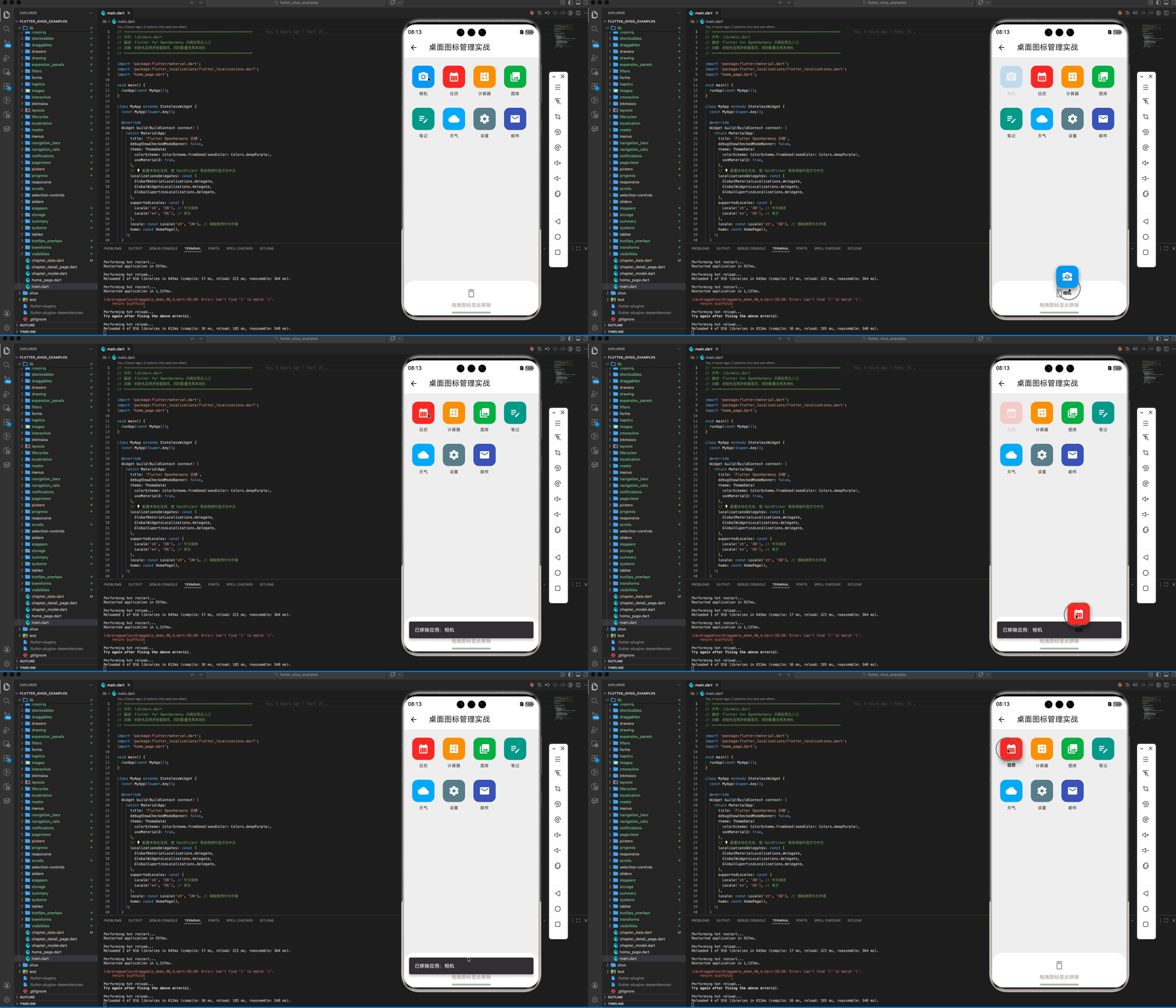
以下代码演示了一个带有“垃圾桶回收”功能的拖拽排序/清理示例。
import 'package:flutter/material.dart';
import 'package:flutter/services.dart';
class DraggableDemoPage extends StatefulWidget {
const DraggableDemoPage({super.key});
State<DraggableDemoPage> createState() => _DraggableDemoPageState();
}
class _DraggableDemoPageState extends State<DraggableDemoPage> {
// 💡 模拟应用图标数据
final List<Map<String, dynamic>> _apps = [
{"name": "相机", "icon": Icons.camera_alt_rounded, "color": Colors.blue},
{"name": "日历", "icon": Icons.calendar_month_rounded, "color": Colors.red},
{"name": "计算器", "icon": Icons.calculate_rounded, "color": Colors.orange},
{"name": "图库", "icon": Icons.collections_rounded, "color": Colors.green},
{"name": "笔记", "icon": Icons.edit_note_rounded, "color": Colors.teal},
{"name": "天气", "icon": Icons.cloud_rounded, "color": Colors.lightBlue},
{"name": "设置", "icon": Icons.settings_rounded, "color": Colors.blueGrey},
{"name": "邮件", "icon": Icons.email_rounded, "color": Colors.indigo},
];
bool _isDraggingToGarbage = false;
void _onDragStarted() {
// 💡 5.3 震动马达反馈:开始拖动时触发重感反馈
HapticFeedback.heavyImpact();
}
Widget build(BuildContext context) {
return Scaffold(
backgroundColor: Colors.grey[200],
appBar: AppBar(
title: const Text('桌面图标管理实战'),
elevation: 0,
backgroundColor: Colors.white),
body: SizedBox.expand(
child: Stack(
children: [
// 💡 1. 桌面应用网格
Padding(
padding: const EdgeInsets.all(24),
child: Wrap(
spacing: 24,
runSpacing: 32,
children: _apps.map((app) {
return Draggable<Map<String, dynamic>>(
data: app,
onDragStarted: _onDragStarted,
feedback: _buildAppIcon(app, isDragging: true),
childWhenDragging:
Opacity(opacity: 0.2, child: _buildAppIcon(app)),
child: _buildAppIcon(app),
);
}).toList(),
),
),
// 💡 2. 底部垃圾桶区域
Positioned(
left: 0,
right: 0,
bottom: 0,
child: DragTarget<Map<String, dynamic>>(
onWillAccept: (data) {
setState(() => _isDraggingToGarbage = true);
HapticFeedback.selectionClick(); // 💡 触碰垃圾桶边缘时的反馈
return true;
},
onLeave: (_) => setState(() => _isDraggingToGarbage = false),
onAccept: (app) {
HapticFeedback.vibrate(); // 💡 销毁成功的强震动
setState(() {
_apps.remove(app);
_isDraggingToGarbage = false;
});
_showMessage("已移除应用:${app['name']}");
},
builder: (context, candidateData, rejectedData) {
return AnimatedContainer(
duration: const Duration(milliseconds: 300),
height: _isDraggingToGarbage ? 160 : 100,
decoration: BoxDecoration(
color: _isDraggingToGarbage
? Colors.red.withOpacity(0.9)
: Colors.white.withOpacity(0.8),
borderRadius: const BorderRadius.only(
topLeft: Radius.circular(32),
topRight: Radius.circular(32)),
),
child: Column(
mainAxisAlignment: MainAxisAlignment.center,
children: [
Icon(
_isDraggingToGarbage
? Icons.delete_forever
: Icons.delete_outline_rounded,
size: _isDraggingToGarbage ? 48 : 32,
color:
_isDraggingToGarbage ? Colors.white : Colors.grey,
),
const SizedBox(height: 8),
Text(
_isDraggingToGarbage ? "松手即卸载" : "拖拽图标至此移除",
style: TextStyle(
color: _isDraggingToGarbage
? Colors.white
: Colors.grey,
fontWeight: _isDraggingToGarbage
? FontWeight.bold
: FontWeight.normal),
),
],
),
);
},
),
)
],
)),
);
}
Widget _buildAppIcon(Map<String, dynamic> app, {bool isDragging = false}) {
return Column(
mainAxisSize: MainAxisSize.min,
children: [
Material(
elevation: isDragging ? 12 : 0,
borderRadius: BorderRadius.circular(16),
color: Colors.transparent,
child: Container(
width: 64,
height: 64,
decoration: BoxDecoration(
color: app['color'],
borderRadius: BorderRadius.circular(16),
boxShadow: isDragging
? const [
BoxShadow(
color: Colors.black26,
blurRadius: 10,
offset: Offset(0, 4))
]
: const [],
),
child: Icon(app['icon'], color: Colors.white, size: 32),
),
),
const SizedBox(height: 8),
Text(app['name'],
style: const TextStyle(
fontSize: 12,
decoration: TextDecoration.none,
color: Colors.black87)),
],
);
}
void _showMessage(String msg) {
ScaffoldMessenger.of(context).showSnackBar(
SnackBar(content: Text(msg), behavior: SnackBarBehavior.floating),
);
}
}
七、总结
在 Flutter for OpenHarmony 开发中,拖拽交互能让你的应用从“能用”跨越到“好用”。
- Draggable-DragTarget:是一对数据搬运的“发送端”与“接收端”。
- LongPressDraggable:是处理手机端复杂叠加手势冲突的良药。
- 反馈体系:利用 Z-Index(feedback)和物理震感(HapticFeedback),给用户建立起一种虚拟物体的真实操作感。
通过这对组件,你可以实现极为丰富的卡片排序、文件管理等系统级深度交互。
📦 完整代码已上传至 AtomGit:flutter_ohos_examples
🌐 欢迎加入开源鸿蒙跨平台社区:开源鸿蒙跨平台开发者社区

开源鸿蒙跨平台开发社区汇聚开发者与厂商,共建“一次开发,多端部署”的开源生态,致力于降低跨端开发门槛,推动万物智联创新。
更多推荐



 12
12 0
0- 0


 已为社区贡献39条内容

所有评论(0)