Flutter for OpenHarmony:image_picker 插件鸿蒙化适配指南
Flutter for OpenHarmony:image_picker 插件鸿蒙化适配指南 本文介绍了如何在 OpenHarmony Next 环境下适配使用 image_picker 插件,实现图片选择和相机拍摄功能。主要内容包括: 环境配置:通过 dependency_overrides 引入鸿蒙适配包,并在 module.json5 中声明相机权限和多语言文案 权限处理:结合 permis

Flutter for OpenHarmony:image_picker 插件鸿蒙化适配指南
前言
在移动端应用中,上传头像、发布朋友圈或拍摄视频是极常见的场景。image_picker 插件为开发者提供了跨平台的统一 API,但在 OpenHarmony Next(API 12+)环境下,官方原版插件尚未完全覆盖底层实现。
目前,通过 OpenHarmony SIG 社区的维护,我们已经可以使用适配后的 image_picker 插件来流畅调用鸿蒙系统的图库(PhotoViewPicker)和相机(CameraCenter)。
本文你将学到:
- 适配版
image_picker的安装与依赖覆盖 - 核心功能实现:从相册选图、相机拍摄
- 鸿蒙系统权限配置(oh-package 与 module.json5)
- 异步处理与性能优化
一、OpenHarmony 环境配置
1.1 依赖引入
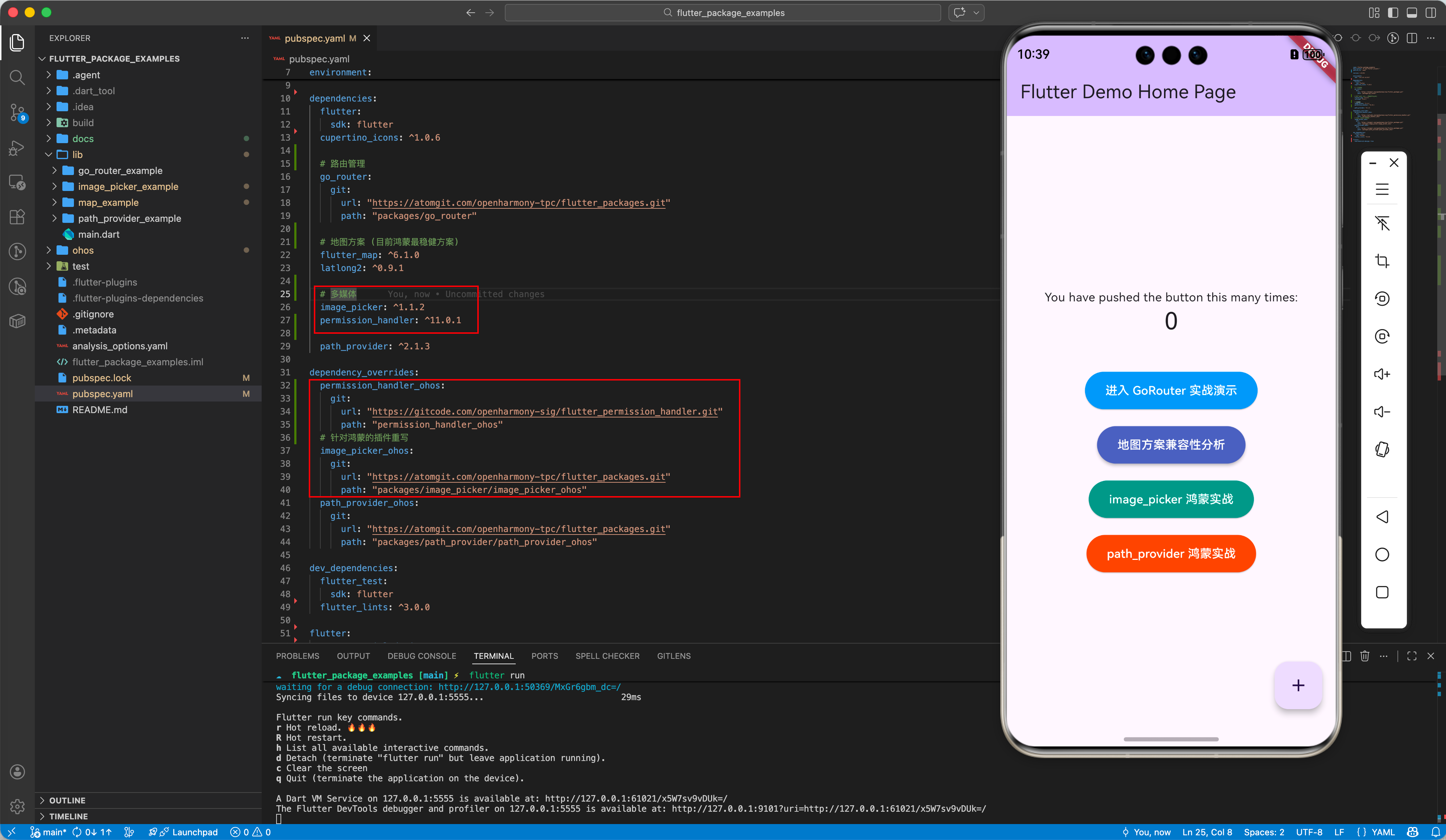
在 OpenHarmony 平台上,我们需要同时引入 image_picker 和 permission_handler,并通过 dependency_overrides 指定对应的鸿蒙适配包:
dependencies:
  image_picker: ^1.1.2
  permission_handler: ^11.0.1  # 注意版本兼容性

dependency_overrides:
  image_picker_ohos:
    git:
      url: "https://atomgit.com/openharmony-tpc/flutter_packages.git"
      path: "packages/image_picker/image_picker_ohos"
  permission_handler_ohos:
    git:
      url: "https://gitcode.com/openharmony-sig/flutter_permission_handler.git"
      path: "permission_handler_ohos"
💡 注意:permission_handler 在鸿蒙上的适配包通常托管在 openharmony-sig 组织下,且需要严格的版本匹配(建议锁定在 11.0.1 左右以匹配 interface)。
1.2 权限声明 (module.json5)
这是鸿蒙开发中最容易被忽略的一步。静态声明是动态申请的前提,如果这里没写,代码里的请求会被系统直接拦截。
请在 ohos/entry/src/main/module.json5 中确保包含以下配置:
{
  "module": {
    "requestPermissions": [
      {
        "name": "ohos.permission.CAMERA",
        "reason": "$string:camera_reason", // 必须对应多语言文件中的文案
        "usedScene": {
          "abilities": ["EntryAbility"],
          "when": "inuse"
        }
      }
    ]
  }
}
同时,别忘了在 resources/base/element/string.json 和 zh_CN 目录下添加 camera_reason 的键值对,否则编译会报错。
配置示例:
resources/base/element/string.json (默认英文):
{
  "string": [
    {
      "name": "camera_reason",
      "value": "Camera permission is required to take photos."
    }
  ]
}
resources/zh_CN/element/string.json (中文):
{
  "string": [
    {
      "name": "camera_reason",
      "value": "拍摄照片需要使用相机权限"
    }
  ]
}
二、核心功能实战
2.1 初始化与权限检查
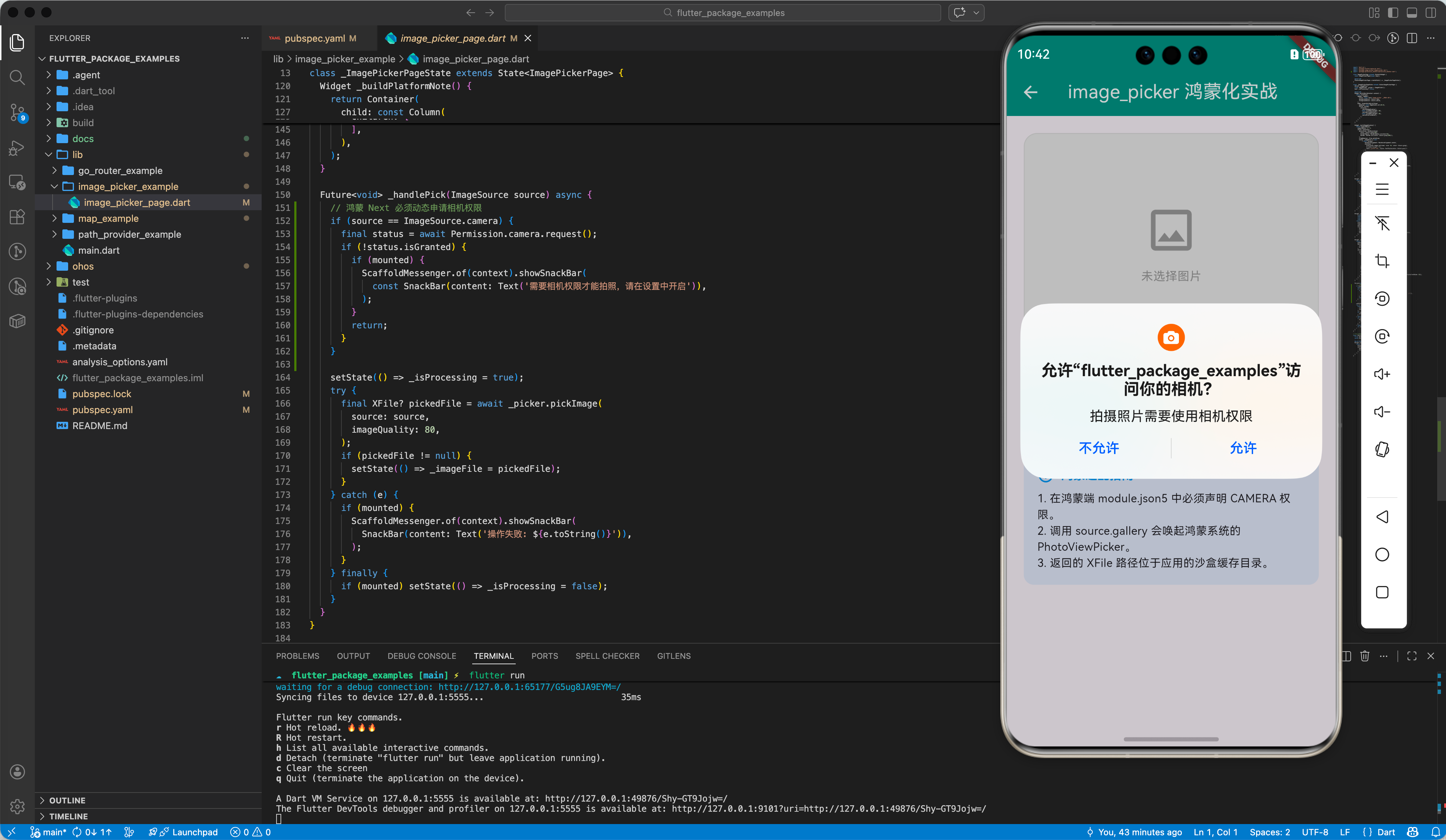
在使用 image_picker 调用相机前,必须先进行动态权限请求:
import 'package:permission_handler/permission_handler.dart';

Future<void> _handlePick(ImageSource source) async {
  // 鸿蒙 Next 实操关键点:动态请求相机权限
  if (source == ImageSource.camera) {
    final status = await Permission.camera.request();
    if (!status.isGranted) {
      showToast('需要相机权限才能拍照,请在设置中开启');
      return;
    }
  }

  // 权限通过后,再调用 image_picker
  final XFile? pickedFile = await _picker.pickImage(source: source);
  // ...
}
2.2 从相册选择图片
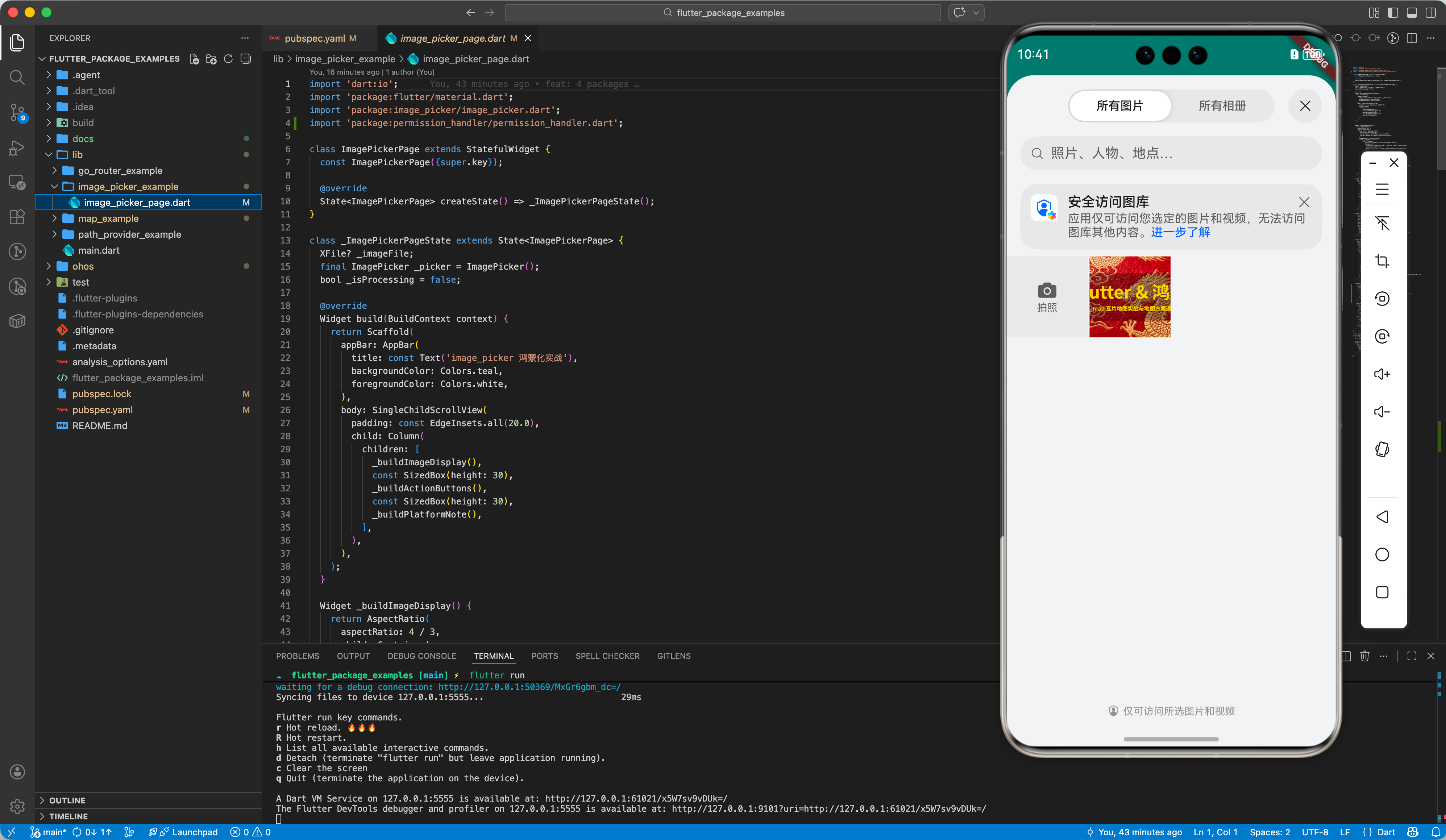
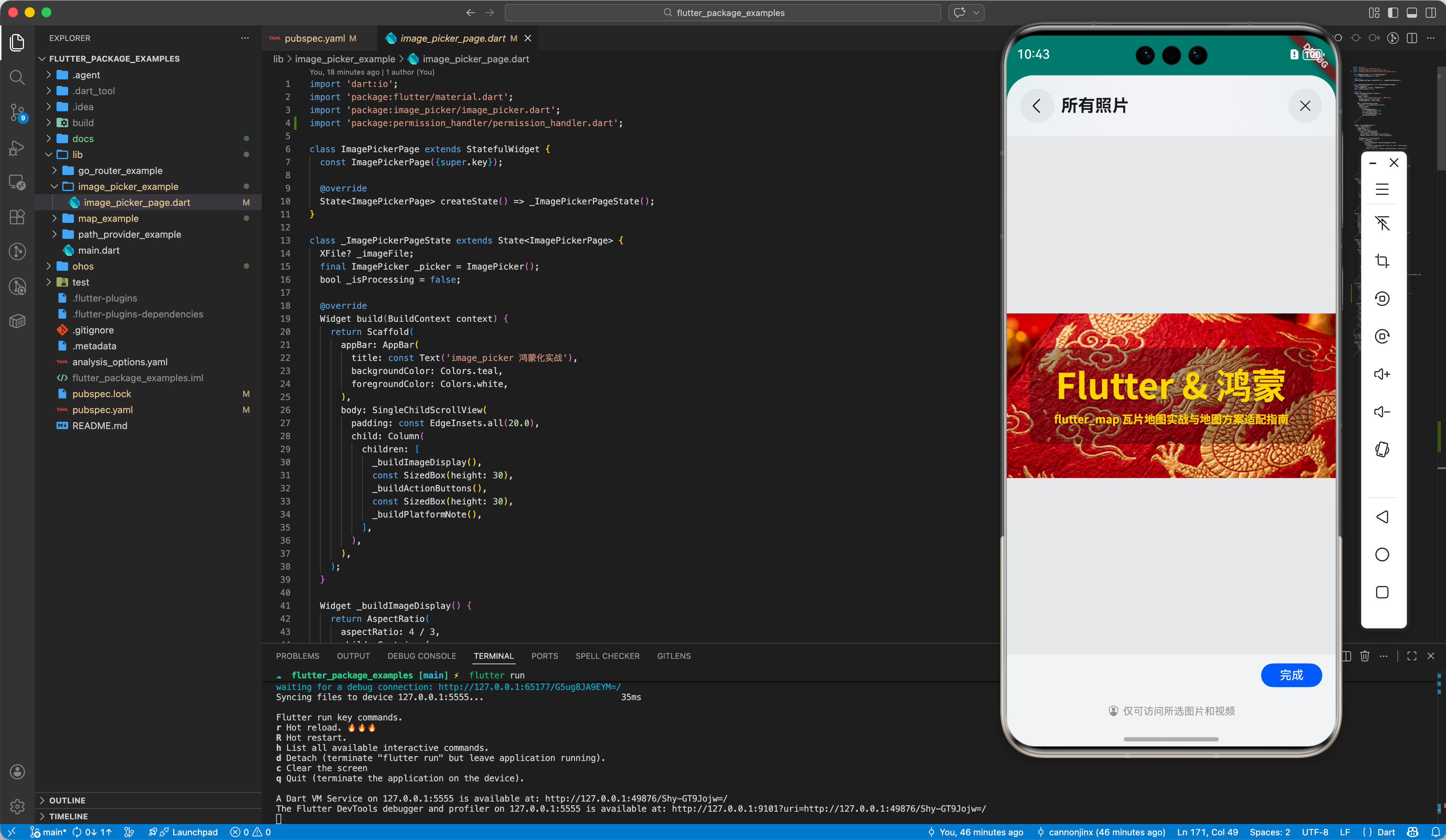
鸿蒙系统的相册选择(PhotoViewPicker)通常不需要额外权限,可以直接调用:
final XFile? image = await _picker.pickImage(source: ImageSource.gallery);
三、鸿蒙平台适配细节
3.1 临时路径处理
image_picker 返回的是一个临时文件路径。在鸿蒙上,这些文件通常存储在应用的 cache 目录下。如果你需要持久化存储,请结合 path_provider 将其移动到文档目录。
3.2 权限动态申请
虽然我们在 module.json5 中声明了权限,但在 OpenHarmony Next 中,相机等敏感权限仍需在代码中动态申请。可以结合 permission_handler 插件:
import 'package:permission_handler/permission_handler.dart';

Future<void> checkCameraPermission() async {
  var status = await Permission.camera.status;
  if (status.isDenied) {
    await Permission.camera.request();
  }
}
3.3 图片类型限制
在鸿蒙系统上,支持常见的 jpg、png 格式,对于部分特有的 heif 格式图片,建议在上传前进行格式转换或使用底层解码器。
四、完整代码示例
import 'dart:io';
import 'package:flutter/material.dart';
import 'package:image_picker/image_picker.dart';
import 'package:permission_handler/permission_handler.dart';
class ImagePickerPage extends StatefulWidget {
const ImagePickerPage({super.key});
State<ImagePickerPage> createState() => _ImagePickerPageState();
}
class _ImagePickerPageState extends State<ImagePickerPage> {
XFile? _imageFile;
final ImagePicker _picker = ImagePicker();
bool _isProcessing = false;
Widget build(BuildContext context) {
return Scaffold(
appBar: AppBar(
title: const Text('image_picker 鸿蒙化实战'),
backgroundColor: Colors.teal,
foregroundColor: Colors.white,
),
body: SingleChildScrollView(
padding: const EdgeInsets.all(20.0),
child: Column(
children: [
_buildImageDisplay(),
const SizedBox(height: 30),
_buildActionButtons(),
const SizedBox(height: 30),
_buildPlatformNote(),
],
),
),
);
}
Widget _buildImageDisplay() {
return AspectRatio(
aspectRatio: 4 / 3,
child: Container(
decoration: BoxDecoration(
color: Colors.grey[200],
borderRadius: BorderRadius.circular(16),
border: Border.all(color: Colors.grey[300]!),
),
clipBehavior: Clip.antiAlias,
child: _imageFile == null
? const Column(
mainAxisAlignment: MainAxisAlignment.center,
children: [
Icon(Icons.image_outlined, size: 64, color: Colors.grey),
SizedBox(height: 12),
Text('未选择图片', style: TextStyle(color: Colors.grey)),
],
)
: Stack(
fit: StackFit.expand,
children: [
Image.file(File(_imageFile!.path), fit: BoxFit.cover),
PositionAtEnd(
child: IconButton(
onPressed: () => setState(() => _imageFile = null),
icon: const Icon(Icons.close, color: Colors.white),
style:
IconButton.styleFrom(backgroundColor: Colors.black45),
),
),
],
),
),
);
}
Widget _buildActionButtons() {
return Row(
children: [
Expanded(
child: _buildIconButton(
icon: Icons.photo_library,
label: '系统相册',
color: Colors.teal,
onPressed: () => _handlePick(ImageSource.gallery),
),
),
const SizedBox(width: 16),
Expanded(
child: _buildIconButton(
icon: Icons.camera_alt,
label: '拍摄照片',
color: Colors.orange,
onPressed: () => _handlePick(ImageSource.camera),
),
),
],
);
}
Widget _buildIconButton(
{required IconData icon,
required String label,
required Color color,
required VoidCallback onPressed}) {
return ElevatedButton.icon(
icon: Icon(icon),
label: Text(label),
onPressed: _isProcessing ? null : onPressed,
style: ElevatedButton.styleFrom(
backgroundColor: color,
foregroundColor: Colors.white,
padding: const EdgeInsets.symmetric(vertical: 16),
shape: RoundedRectangleBorder(borderRadius: BorderRadius.circular(12)),
),
);
}
Widget _buildPlatformNote() {
return Container(
padding: const EdgeInsets.all(16),
decoration: BoxDecoration(
color: Colors.blue.withOpacity(0.1),
borderRadius: BorderRadius.circular(12),
),
child: const Column(
crossAxisAlignment: CrossAxisAlignment.start,
children: [
Row(
children: [
Icon(Icons.info_outline, color: Colors.blue, size: 20),
SizedBox(width: 8),
Text('鸿蒙适配指南',
style: TextStyle(
fontWeight: FontWeight.bold, color: Colors.blue)),
],
),
SizedBox(height: 8),
Text('1. 在鸿蒙端 module.json5 中必须声明 CAMERA 权限。',
style: TextStyle(fontSize: 13)),
Text('2. 调用 source.gallery 会唤起鸿蒙系统的 PhotoViewPicker。',
style: TextStyle(fontSize: 13)),
Text('3. 返回的 XFile 路径位于应用的沙盒缓存目录。', style: TextStyle(fontSize: 13)),
],
),
);
}
Future<void> _handlePick(ImageSource source) async {
// 鸿蒙 Next 必须动态申请相机权限
if (source == ImageSource.camera) {
final status = await Permission.camera.request();
if (!status.isGranted) {
if (mounted) {
ScaffoldMessenger.of(context).showSnackBar(
const SnackBar(content: Text('需要相机权限才能拍照,请在设置中开启')),
);
}
return;
}
}
setState(() => _isProcessing = true);
try {
final XFile? pickedFile = await _picker.pickImage(
source: source,
imageQuality: 80,
);
if (pickedFile != null) {
setState(() => _imageFile = pickedFile);
}
} catch (e) {
if (mounted) {
ScaffoldMessenger.of(context).showSnackBar(
SnackBar(content: Text('操作失败: ${e.toString()}')),
);
}
} finally {
if (mounted) setState(() => _isProcessing = false);
}
}
}
// 辅助组件:定位到右上角
class PositionAtEnd extends StatelessWidget {
final Widget child;
const PositionAtEnd({super.key, required this.child});
Widget build(BuildContext context) {
return Align(
alignment: Alignment.topRight,
child: Padding(
padding: const EdgeInsets.all(8.0),
child: child,
),
);
}
}
五、总结
image_picker 的鸿蒙化适配极大地降低了开发者调用多媒体功能的难度。通过合理利用 dependency_overrides 和权限管理,我们可以无缝地为鸿蒙用户提供高质量的图库交互体验。
📦 完整代码已上传至 AtomGit:flutter_package_examples
🌐 欢迎加入开源鸿蒙跨平台社区:开源鸿蒙跨平台开发者社区

开源鸿蒙跨平台开发社区汇聚开发者与厂商,共建“一次开发,多端部署”的开源生态,致力于降低跨端开发门槛,推动万物智联创新。
更多推荐
 19
19 0
0- 0


 已为社区贡献18条内容

所有评论(0)