Flutter for OpenHarmony 实战_吃豆人游戏迷宫生成与渲染系统
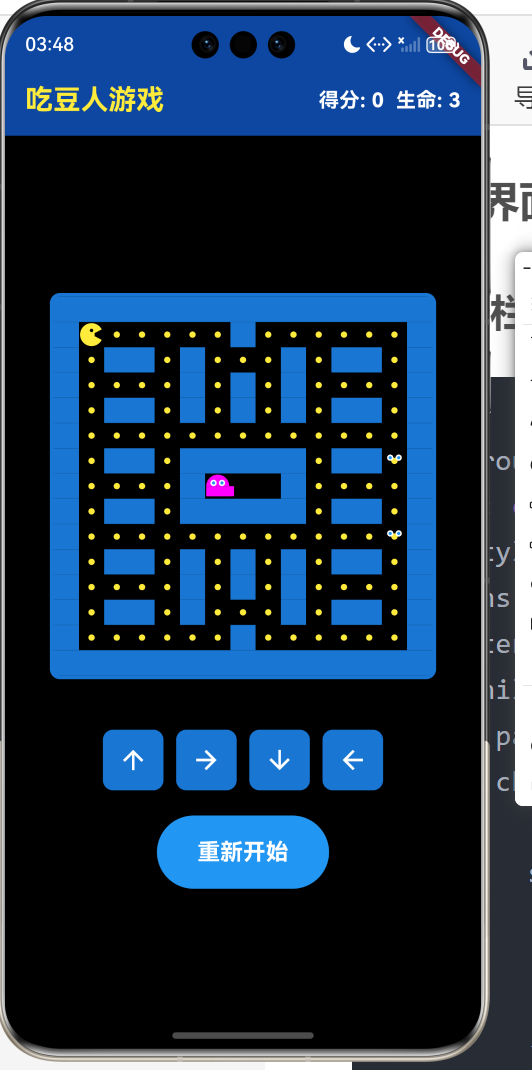
本文介绍了使用Flutter for OpenHarmony实现吃豆人游戏的核心技术。主要内容包括: 迷宫数据结构设计:采用15x15二维数组表示迷宫布局,0/1/2分别代表空地、墙壁和豆子,并独立管理豆子状态。 渲染系统实现:通过CustomPainter绘制迷宫墙壁(蓝色矩形)和豆子(黄色圆形),动态计算网格尺寸适配不同屏幕。 角色动画技术:使用扇形绘制吃豆人角色,实现张嘴动画效果;通过三角函
Flutter for OpenHarmony 实战:吃豆人游戏迷宫生成与渲染系统
欢迎加入开源鸿蒙跨平台社区:开源鸿蒙跨平台开发者社区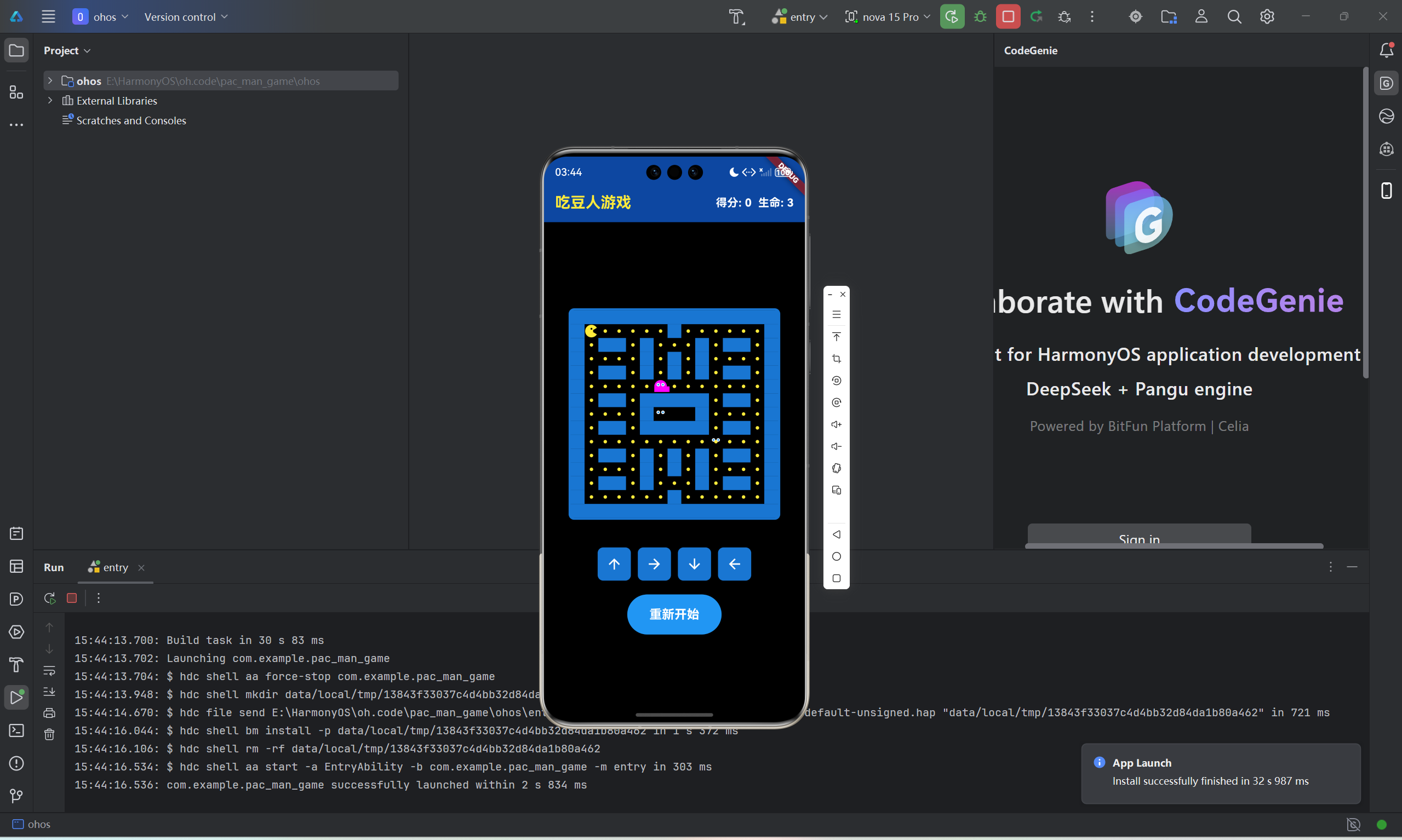
文章目录
前言
吃豆人游戏是经典的街机游戏,玩家需要在迷宫中控制角色吃掉所有豆子,同时躲避幽灵的追逐。本文将详细介绍如何使用Flutter for OpenHarmony实现吃豆人游戏的迷宫生成和渲染系统,包括迷宫数据结构设计、CustomPainter绘制技术、角色动画实现等核心技术点。
一、迷宫数据结构设计
1.1 迷宫布局表示
代码中使用15x15的二维数组表示迷宫布局: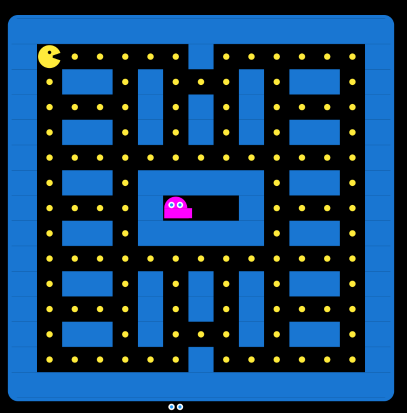
static const int rows = 15;
static const int cols = 15;

// 0 = 空地, 1 = 墙, 2 = 豆子
final List<List<int>> initialMaze = [
  [1, 1, 1, 1, 1, 1, 1, 1, 1, 1, 1, 1, 1, 1, 1],
  [1, 2, 2, 2, 2, 2, 2, 1, 2, 2, 2, 2, 2, 2, 1],
  [1, 2, 1, 1, 2, 1, 2, 2, 2, 1, 2, 1, 1, 2, 1],
  [1, 2, 2, 2, 2, 1, 2, 1, 2, 1, 2, 2, 2, 2, 1],
  [1, 2, 1, 1, 2, 1, 2, 1, 2, 1, 2, 1, 1, 2, 1],
  [1, 2, 2, 2, 2, 2, 2, 2, 2, 2, 2, 2, 2, 2, 1],
  [1, 2, 1, 1, 2, 1, 1, 1, 1, 1, 2, 1, 1, 2, 1],
  [1, 2, 2, 2, 2, 1, 0, 0, 0, 1, 2, 2, 2, 2, 1],
  [1, 2, 1, 1, 2, 1, 1, 1, 1, 1, 2, 1, 1, 2, 1],
  [1, 2, 2, 2, 2, 2, 2, 2, 2, 2, 2, 2, 2, 2, 1],
  [1, 2, 1, 1, 2, 1, 2, 1, 2, 1, 2, 1, 1, 2, 1],
  [1, 2, 2, 2, 2, 1, 2, 1, 2, 1, 2, 2, 2, 2, 1],
  [1, 2, 1, 1, 2, 1, 2, 2, 2, 1, 2, 1, 1, 2, 1],
  [1, 2, 2, 2, 2, 2, 2, 1, 2, 2, 2, 2, 2, 2, 1],
  [1, 1, 1, 1, 1, 1, 1, 1, 1, 1, 1, 1, 1, 1, 1],
];
这种设计将迷宫的每个单元格用整数表示,数字0、1、2分别对应空地、墙壁和豆子,简洁明了地表达了游戏场景的完整信息。
1.2 豆子状态管理
代码使用布尔二维数组单独管理豆子状态:
late List<List<bool>> dots;

dots = List.generate(rows, (i) => List.generate(cols, (j) => maze[i][j] == 2));
通过遍历迷宫数组,将所有值为2的位置标记为true,这样可以独立控制每个位置的豆子是否被吃掉,而不影响原始迷宫布局。
二、CustomPainter渲染系统
2.1 画布坐标系设置
static const double cellSize = 20.0;
void paint(Canvas canvas, Size size) {
final cellWidth = size.width / cols;
final cellHeight = size.height / rows;
}
将画布动态划分为15x15的网格,每个单元格的尺寸根据画布总尺寸计算,确保在不同屏幕尺寸下都能正确显示。
2.2 墙壁绘制
if (maze[y][x] == 1) {
  final rect = Rect.fromLTWH(
    x * cellWidth,
    y * cellHeight,
    cellWidth,
    cellHeight,
  );

  final paint = Paint()
    ..color = Colors.blue.shade700
    ..style = PaintingStyle.fill;
  canvas.drawRect(rect, paint);
}
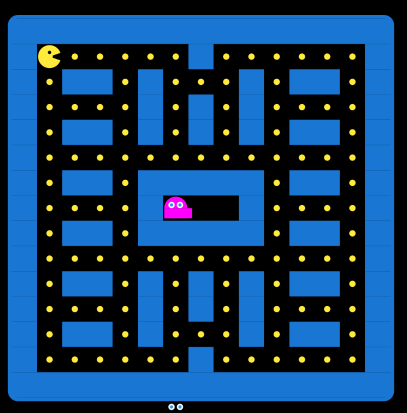
遍历迷宫数组,遇到值为1的位置时,使用Rect.fromLTWH创建矩形区域,然后用深蓝色填充,形成迷宫的墙壁效果。
2.3 豆子绘制
if (dots[y][x]) {
  final center = Offset(
    x * cellWidth + cellWidth / 2,
    y * cellHeight + cellHeight / 2,
  );
  final paint = Paint()
    ..color = Colors.yellow
    ..style = PaintingStyle.fill;
  canvas.drawCircle(center, cellWidth / 8, paint);
}
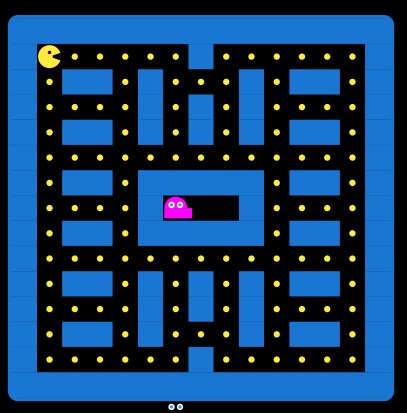
豆子使用黄色圆形表示,圆心位于单元格中心,半径为单元格宽度的1/8,这个比例保证了豆子大小适中,既清晰可见又不会过大。
三、吃豆人角色绘制

3.1 弧形绘制技术
吃豆人角色的核心是一个带有张嘴动画的扇形:
final pacmanCenter = Offset(
  pacmanX * cellWidth + cellWidth / 2,
  pacmanY * cellHeight + cellHeight / 2,
);

final pacmanPaint = Paint()
  ..color = Colors.yellow
  ..style = PaintingStyle.fill;

final startAngle = _getPacmanStartAngle();
final sweepAngle = _getPacmanSweepAngle();

canvas.drawArc(
  Rect.fromCircle(center: pacmanCenter, radius: cellWidth / 2.2),
  startAngle,
  sweepAngle,
  true,
  pacmanPaint,
);
使用drawArc方法绘制扇形,第一个参数是扇形的外接圆,第二个参数是起始角度,第三个参数是扫过的角度,第四个参数true表示使用圆心形成扇形。
3.2 方向控制实现
根据移动方向计算扇形的起始角度:
double _getPacmanStartAngle() {
  final baseAngle = pacmanDirection * pi / 2;
  return baseAngle + mouthOpen * pi / 180;
}
四个方向分别对应不同的baseAngle值:0对应向上(0弧度),1对应向右(π/2弧度),2对应向下(π弧度),3对应向左(3π/2弧度)。加上mouthOpen角度后,嘴巴就会朝向移动方向。
3.3 嘴巴动画系统
嘴巴的张合动画通过定时器实现:
int mouthOpen = 0;
int mouthDirection = 1;

void updateMouth() {
  setState(() {
    mouthOpen += mouthDirection;
    if (mouthOpen >= 45 || mouthOpen <= 0) {
      mouthDirection *= -1;
    }
  });
}
mouthOpen在0到45度之间往复变化,每次增加或减少mouthDirection,当达到边界值时将direction乘以-1实现反转。这个定时器每200毫秒执行一次,形成流畅的张嘴动画效果。
3.4 眼睛细节绘制

final eyeOffset = Offset(
  pacmanCenter.dx + cellWidth / 6 * cos(_getPacmanEyeAngle()),
  pacmanCenter.dy + cellWidth / 6 * sin(_getPacmanEyeAngle()),
);

final eyePaint = Paint()
  ..color = Colors.black
  ..style = PaintingStyle.fill;
canvas.drawCircle(eyeOffset, cellWidth / 15, eyePaint);

double _getPacmanEyeAngle() {
  return pacmanDirection * pi / 2 - pi / 2;
}
眼睛的位置使用三角函数计算,距离圆心为cellWidth/6,角度比移动方向少π/2(90度),使眼睛始终位于扇形开口方向,增强角色的方向感。
四、游戏循环与定时器
4.1 双定时器系统
代码使用两个独立的定时器分别控制吃豆人和幽灵:
Timer? gameTimer;
Timer? ghostTimer;

gameTimer = Timer.periodic(const Duration(milliseconds: 200), (timer) {
  if (!gameOver && !won) {
    movePacman();
    updateMouth();
  }
});

ghostTimer = Timer.periodic(const Duration(milliseconds: 300), (timer) {
  if (!gameOver && !won) {
    moveGhosts();
    checkCollisions();
  }
});
吃豆人每200毫秒移动一次,幽灵每300毫秒移动一次,这种时间差异让玩家的速度略快于幽灵,增加了游戏的公平性和可玩性。
4.2 定时器生命周期管理
void dispose() {
gameTimer?.cancel();
ghostTimer?.cancel();
super.dispose();
}
在组件销毁时取消所有定时器,避免内存泄漏和资源浪费。
五、重绘优化策略
5.1 精确的重绘控制
bool shouldRepaint(PacManPainter oldDelegate) {
return oldDelegate.pacmanX != pacmanX ||
oldDelegate.pacmanY != pacmanY ||
oldDelegate.pacmanDirection != pacmanDirection ||
oldDelegate.mouthOpen != mouthOpen ||
oldDelegate.ghosts != ghosts;
}
只在关键状态变化时才重绘,避免每帧都重绘带来的性能开销。这种细粒度的重绘控制是游戏性能优化的关键。
六、UI界面设计
6.1 状态栏设计
AppBar(
  backgroundColor: Colors.blue.shade900,
  title: const Text('吃豆人游戏',
      style: TextStyle(color: Colors.yellow, fontWeight: FontWeight.bold)),
  actions: [
    Center(
      child: Padding(
        padding: const EdgeInsets.only(right: 16),
        child: Text(
          '得分: $score  生命: $lives',
          style: const TextStyle(
            color: Colors.white,
            fontSize: 16,
            fontWeight: FontWeight.bold,
          ),
        ),
      ),
    ),
  ],
)
使用深蓝色背景和黄色标题营造街机风格,右侧实时显示得分和生命值,让玩家随时了解游戏状态。
6.2 游戏容器样式
Container(
  decoration: BoxDecoration(
    border: Border.all(color: Colors.blue.shade700, width: 3),
    borderRadius: BorderRadius.circular(8),
  ),
  child: CustomPaint(
    size: const Size(cols * cellSize, rows * cellSize),
    painter: PacManPainter(
      maze: maze,
      dots: dots,
      pacmanX: pacmanX,
      pacmanY: pacmanY,
      pacmanDirection: pacmanDirection,
      mouthOpen: mouthOpen,
      ghosts: ghosts,
    ),
  ),
)
游戏区域使用3像素的蓝色边框和8像素圆角,与整体设计风格保持一致。
总结
本文详细介绍了吃豆人游戏的迷宫生成和渲染系统,从数据结构设计到CustomPainter绘制,从角色动画到游戏循环,完整展示了使用Flutter for OpenHarmony开发经典游戏的完整技术路径。通过这些技术实现,我们能够创建出视觉效果出色、运行流畅的游戏体验。

开源鸿蒙跨平台开发社区汇聚开发者与厂商,共建“一次开发,多端部署”的开源生态,致力于降低跨端开发门槛,推动万物智联创新。
更多推荐
 27
27 0
0- 0


 已为社区贡献84条内容

所有评论(0)