Flutter for OpenHarmony 实战:局域网聊天系统完整开发指南
摘要 本文详细介绍使用Flutter for OpenHarmony开发局域网聊天系统的完整流程。系统包含消息发送接收、在线用户管理、状态切换等核心功能,采用StatefulWidget进行状态管理。文章重点讲解了消息气泡UI设计、消息列表管理、实时UI更新等关键技术实现,包括ChatMessage数据模型定义、消息左右对齐显示、系统消息处理等。通过模拟接收消息功能,完整演示了聊天应用的开发过程,
欢迎加入开源鸿蒙跨平台社区:开源鸿蒙跨平台开发者社区
Flutter for OpenHarmony 实战:局域网聊天系统完整开发指南
文章目录
摘要
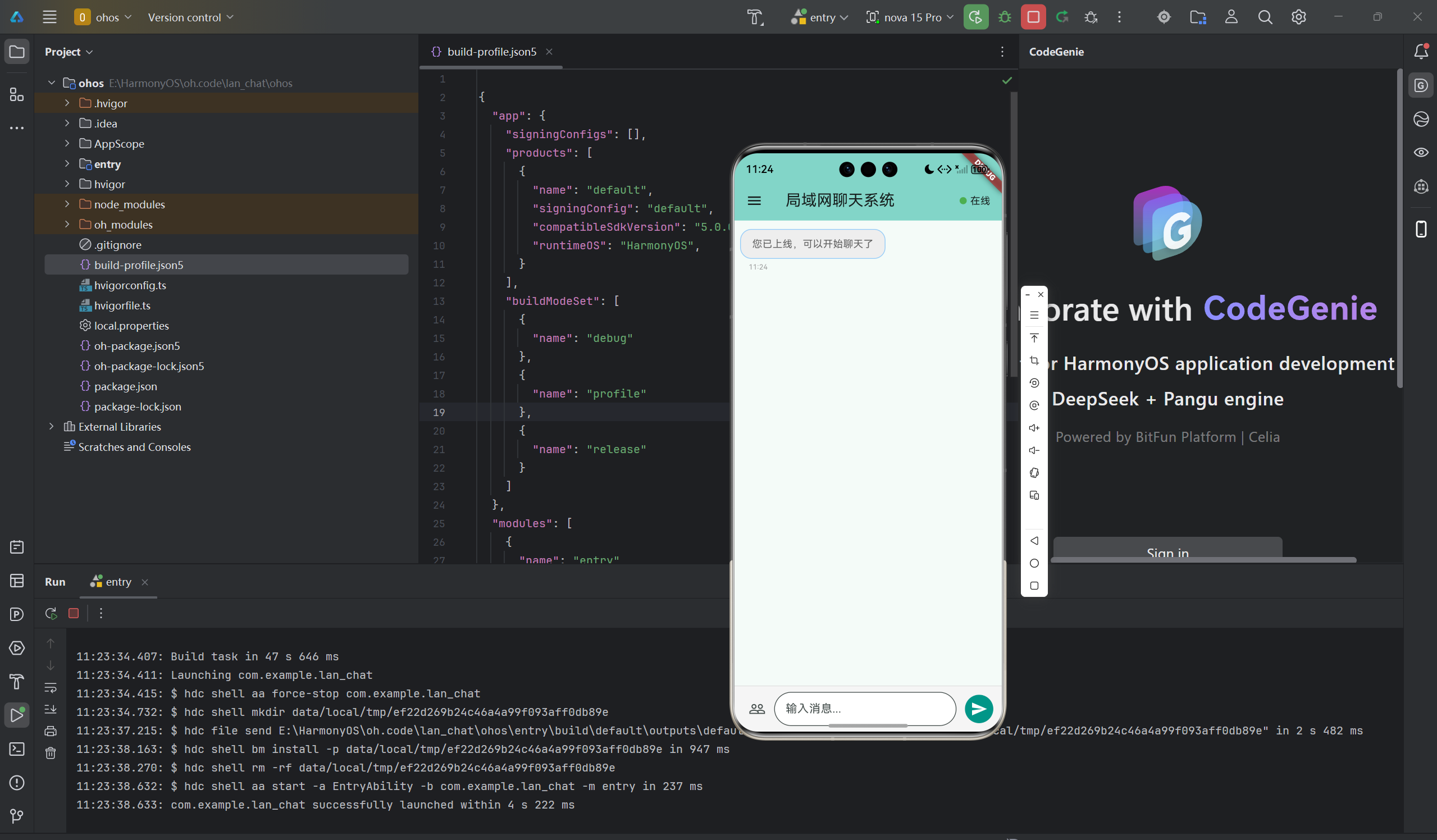
即时通讯应用是现代社交的重要工具,局域网聊天系统可以实现无需互联网的本地通信。本文将详细介绍如何使用Flutter for OpenHarmony框架开发一款功能完整的局域网聊天应用。文章涵盖了聊天消息模型设计、消息气泡UI实现、在线用户管理、状态切换等核心技术点。通过本文学习,读者将掌握Flutter在鸿蒙平台上开发聊天类应用的完整流程,了解消息列表管理和实时UI更新的实现方法。
一、项目背景与功能概述
1.1 局域网聊天应用场景
局域网聊天系统广泛应用于:
- 办公室内部沟通
- 局域网游戏语音
- 家庭设备互联
- 离线消息传输
1.2 应用功能规划
| 功能模块 | 具体功能 |
|---|---|
| 用户管理 | 昵称设置、用户ID生成 |
| 状态控制 | 在线/离线切换 |
| 消息发送 | 文本消息发送 |
| 消息接收 | 接收其他用户消息 |
| 消息显示 | 左右对齐气泡 |
| 用户列表 | 在线用户查看 |
| 系统消息 | 上线/下线提示 |
1.3 界面设计要求
- 消息气泡左右对齐
- 自己发的消息靠右
- 别人发的消息靠左
- 系统消息居中
- 顶部显示在线状态
- 侧边栏管理用户信息
二、数据模型设计
2.1 聊天消息类
class ChatMessage {
  final String id;              // 消息ID
  final String senderId;        // 发送者ID
  final String senderName;      // 发送者名称
  final String content;         // 消息内容
  final DateTime timestamp;     // 时间戳
  final bool isSelf;            // 是否是自己发送的

  ChatMessage({
    required this.id,
    required this.senderId,
    required this.senderName,
    required this.content,
    required this.timestamp,
    this.isSelf = false,
  });
}
2.2 在线用户类
class OnlineUser {
  final String id;              // 用户ID
  final String name;            // 用户名称
  final String ip;              // IP地址
  final bool isOnline;          // 是否在线

  OnlineUser({
    required this.id,
    required this.name,
    required this.ip,
    this.isOnline = true,
  });
}
三、技术选型与架构设计
3.1 核心技术栈
状态管理
- StatefulWidget管理应用状态
- setState更新UI
UI组件
- ListView.builder:消息列表
- Card:消息气泡
- CircleAvatar:用户头像
- Drawer:侧边栏
交互设计
- TextField:消息输入
- IconButton:操作按钮
- showModalBottomSheet:用户列表
3.2 应用架构
ChatPage (聊天页面)
    ├── AppBar
    │   └── 在线状态显示
    ├── 消息列表区域
    │   └── MessageBubble (多个)
    │       ├── 用户头像
    │       ├── 发送者名称
    │       ├── 消息气泡
    │       └── 时间戳
    ├── 输入区域
    │   ├── 用户列表按钮
    │   ├── 输入框
    │   └── 发送按钮
    └── Drawer
        ├── 用户信息
        ├── 上线/下线
        ├── 修改昵称
        └── 清空记录
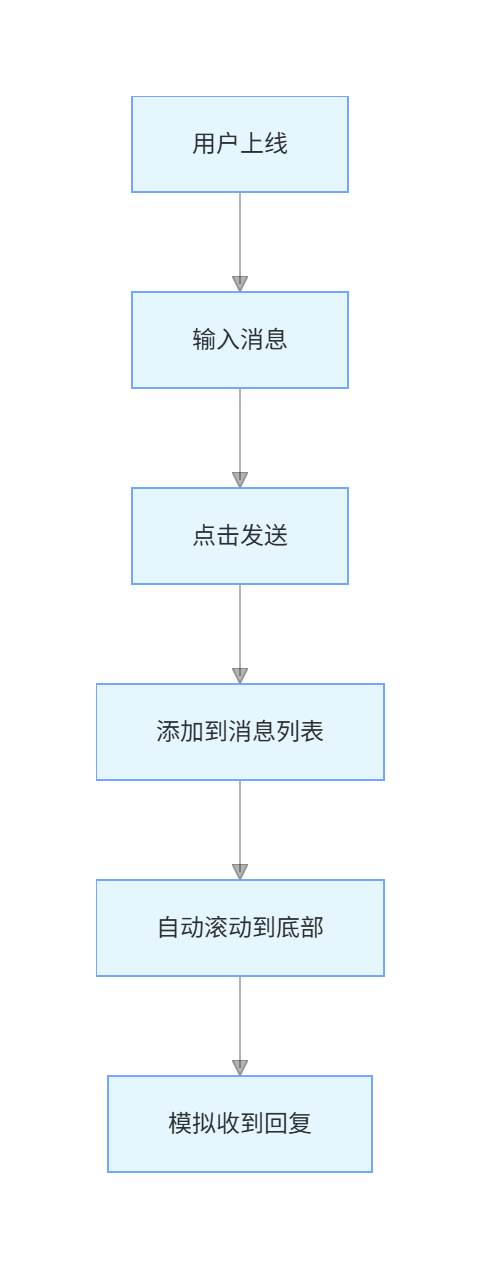
3.3 数据流设计
四、状态管理实现
4.1 应用状态
class _ChatPageState extends State<ChatPage> {
  final List<ChatMessage> _messages = [];        // 消息列表
  final List<OnlineUser> _onlineUsers = [];      // 在线用户
  final TextEditingController _messageController = TextEditingController();
  final TextEditingController _nameController = TextEditingController();
  final ScrollController _scrollController = ScrollController();

  final String _currentUserId = 'user_${DateTime.now().millisecondsSinceEpoch}';
  bool _isOnline = false;                        // 在线状态
}
4.2 在线状态切换
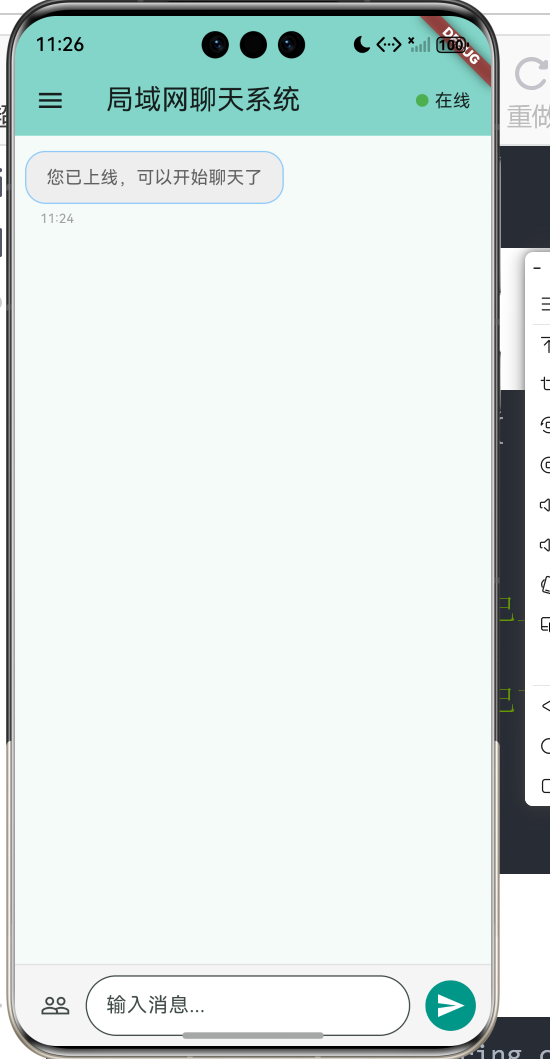
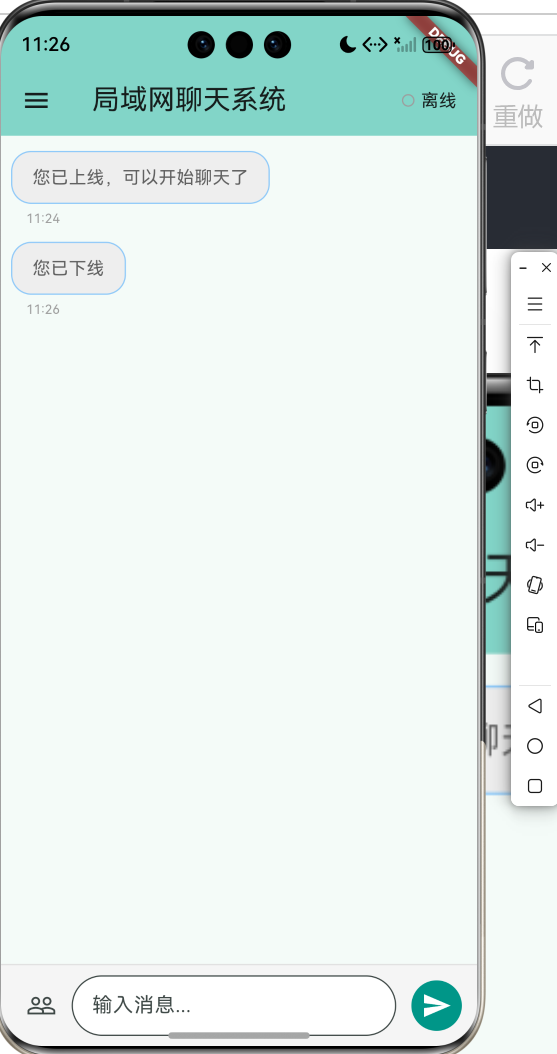
void _toggleOnlineStatus() {
  setState(() {
    _isOnline = !_isOnline;
    if (_isOnline) {
      _addSystemMessage('您已上线,可以开始聊天了');
    } else {
      _addSystemMessage('您已下线');
    }
  });
}
4.3 系统消息
void _addSystemMessage(String content) {
  setState(() {
    _messages.add(ChatMessage(
      id: DateTime.now().millisecondsSinceEpoch.toString(),
      senderId: 'system',
      senderName: '系统',
      content: content,
      timestamp: DateTime.now(),
    ));
  });
  _scrollToBottom();
}
五、消息发送与接收
5.1 发送消息
void _sendMessage() {
  if (_messageController.text.trim().isEmpty) return;

  if (!_isOnline) {
    ScaffoldMessenger.of(context).showSnackBar(
      const SnackBar(content: Text('请先上线')),
    );
    return;
  }

  setState(() {
    _messages.add(ChatMessage(
      id: DateTime.now().millisecondsSinceEpoch.toString(),
      senderId: _currentUserId,
      senderName: _nameController.text,
      content: _messageController.text.trim(),
      timestamp: DateTime.now(),
      isSelf: true,
    ));
    _messageController.clear();
  });
  _scrollToBottom();

  // 模拟收到回复
  Future.delayed(const Duration(seconds: 1), () {
    _simulateReceiveMessage();
  });
}
5.2 模拟接收消息
void _simulateReceiveMessage() {
  if (!_isOnline) return;

  final onlineUsers = _onlineUsers.where((u) => u.isOnline && u.id != _currentUserId).toList();
  if (onlineUsers.isEmpty) return;

  final randomUser = onlineUsers[DateTime.now().millisecond % onlineUsers.length];
  final responses = [
    '你好!',
    '收到,明白了',
    '好的,没问题',
    '这是一个好主意',
    '我同意你的看法',
    '哈哈哈',
    '确实如此',
    '让我想想',
  ];
  final response = responses[DateTime.now().millisecond % responses.length];

  setState(() {
    _messages.add(ChatMessage(
      id: DateTime.now().millisecondsSinceEpoch.toString(),
      senderId: randomUser.id,
      senderName: randomUser.name,
      content: response,
      timestamp: DateTime.now(),
      isSelf: false,
    ));
  });
  _scrollToBottom();
}
六、消息气泡UI实现
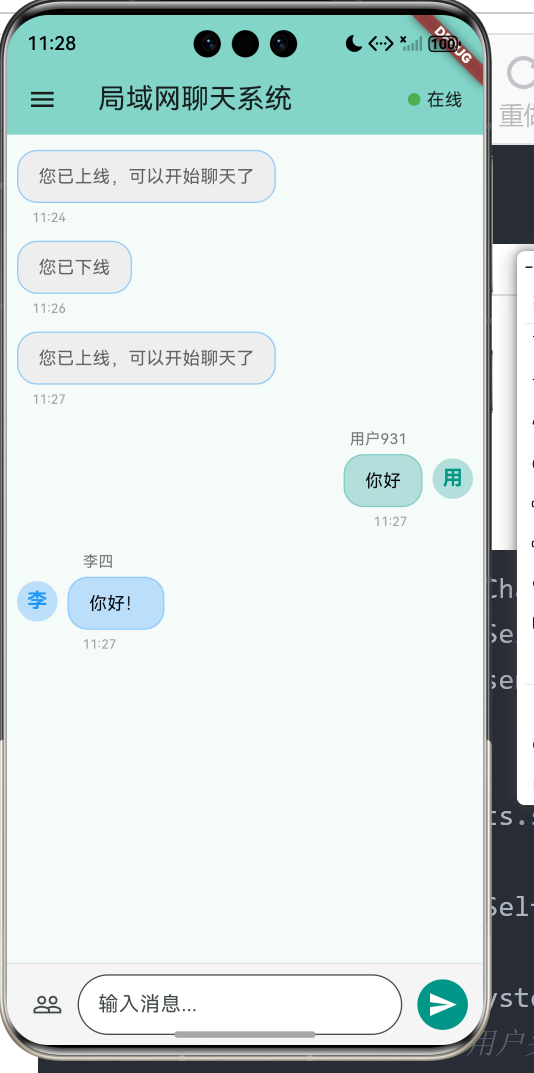
6.1 消息气泡布局
Widget _buildMessageBubble(ChatMessage message) {
  final isSelf = message.isSelf;
  final isSystem = message.senderId == 'system';

  return Padding(
    padding: const EdgeInsets.symmetric(vertical: 4),
    child: Row(
      mainAxisAlignment: isSelf ? MainAxisAlignment.end : MainAxisAlignment.start,
      children: [
        if (!isSelf && !isSystem) ...[
          CircleAvatar(/* 用户头像 */),
          const SizedBox(width: 8),
        ],
        Flexible(
          child: Column(
            crossAxisAlignment: isSelf ? CrossAxisAlignment.end : CrossAxisAlignment.start,
            children: [
              if (!isSystem)
                Padding(
                  padding: const EdgeInsets.symmetric(horizontal: 12, vertical: 4),
                  child: Text(message.senderName),
                ),
              Container(/* 消息气泡 */),
              Padding(
                padding: const EdgeInsets.symmetric(horizontal: 12, vertical: 4),
                child: Text(_formatTime(message.timestamp)),
              ),
            ],
          ),
        ),
        if (isSelf && !isSystem) ...[
          const SizedBox(width: 8),
          CircleAvatar(/* 自己头像 */),
        ],
      ],
    ),
  );
}
6.2 消息气泡样式
Container(
  padding: const EdgeInsets.symmetric(horizontal: 16, vertical: 10),
  decoration: BoxDecoration(
    color: isSystem
        ? Colors.grey.shade200
        : (isSelf ? Colors.teal : Colors.blue).shade100,
    borderRadius: BorderRadius.circular(16),
    border: Border.all(
      color: (isSelf ? Colors.teal : Colors.blue).shade200,
    ),
  ),
  child: Text(
    message.content,
    style: TextStyle(
      color: isSystem ? Colors.grey.shade700 : Colors.black,
    ),
  ),
)
6.3 时间格式化
String _formatTime(DateTime time) {
  return '${time.hour.toString().padLeft(2, '0')}:'
         '${time.minute.toString().padLeft(2, '0')}';
}
七、用户列表管理
7.1 用户列表弹窗
void _showUserList() {
  showModalBottomSheet(
    context: context,
    builder: (context) => StatefulBuilder(
      builder: (context, setModalState) {
        return Container(
          padding: const EdgeInsets.all(16),
          child: Column(
            mainAxisSize: MainAxisSize.min,
            children: [
              Row(
                mainAxisAlignment: MainAxisAlignment.spaceBetween,
                children: [
                  const Text('在线用户'),
                  Text('共 ${_onlineUsers.where((u) => u.isOnline).length} 人'),
                ],
              ),
              const Divider(),
              ListView.builder(
                shrinkWrap: true,
                itemCount: _onlineUsers.length,
                itemBuilder: (context, index) {
                  final user = _onlineUsers[index];
                  return ListTile(
                    leading: CircleAvatar(
                      backgroundColor: user.isOnline ? Colors.green : Colors.grey,
                      child: Text(user.name.substring(0, 1)),
                    ),
                    title: Text(user.name),
                    subtitle: Text(user.ip),
                    trailing: Container(
                      padding: const EdgeInsets.symmetric(horizontal: 8, vertical: 4),
                      decoration: BoxDecoration(
                        color: user.isOnline ? Colors.green.shade100 : Colors.grey.shade200,
                        borderRadius: BorderRadius.circular(12),
                      ),
                      child: Text(
                        user.isOnline ? '在线' : '离线',
                      ),
                    ),
                  );
                },
              ),
            ],
          ),
        );
      },
    ),
  );
}
八、侧边栏功能
8.1 Drawer布局
Drawer(
  child: ListView(
    padding: EdgeInsets.zero,
    children: [
      DrawerHeader(
        decoration: BoxDecoration(color: Colors.teal),
        child: Column(
          children: [
            CircleAvatar(/* 用户头像 */),
            Text(_nameController.text),
            Text('ID: $_currentUserId'),
          ],
        ),
      ),
      ListTile(
        leading: Icon(_isOnline ? Icons.toggle_on : Icons.toggle_off),
        title: Text(_isOnline ? '点击下线' : '点击上线'),
        onTap: _toggleOnlineStatus,
      ),
      ListTile(
        leading: const Icon(Icons.edit),
        title: const Text('修改昵称'),
        onTap: () {
          Navigator.pop(context);
          _showNameEditDialog();
        },
      ),
      ListTile(
        leading: const Icon(Icons.history),
        title: const Text('清空聊天记录'),
        onTap: () {
          Navigator.pop(context);
          _clearMessages();
        },
      ),
    ],
  ),
)
8.2 修改昵称

void _showNameEditDialog() {
  final controller = TextEditingController(text: _nameController.text);
  showDialog(
    context: context,
    builder: (context) => AlertDialog(
      title: const Text('修改昵称'),
      content: TextField(
        controller: controller,
        decoration: const InputDecoration(
          labelText: '新昵称',
          border: OutlineInputBorder(),
        ),
      ),
      actions: [
        TextButton(
          onPressed: () => Navigator.pop(context),
          child: const Text('取消'),
        ),
        TextButton(
          onPressed: () {
            if (controller.text.trim().isNotEmpty) {
              setState(() {
                _nameController.text = controller.text.trim();
              });
              Navigator.pop(context);
            }
          },
          child: const Text('确定'),
        ),
      ],
    ),
  );
}
8.3 清空消息
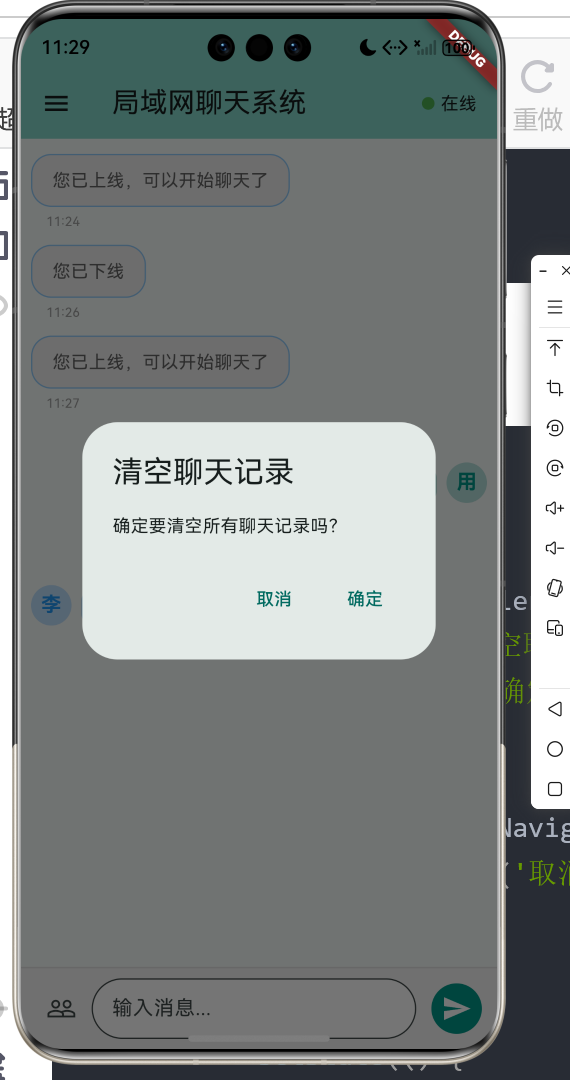
void _clearMessages() {
  showDialog(
    context: context,
    builder: (context) => AlertDialog(
      title: const Text('清空聊天记录'),
      content: const Text('确定要清空所有聊天记录吗?'),
      actions: [
        TextButton(
          onPressed: () => Navigator.pop(context),
          child: const Text('取消'),
        ),
        TextButton(
          onPressed: () {
            setState(() {
              _messages.clear();
            });
            Navigator.pop(context);
            ScaffoldMessenger.of(context).showSnackBar(
              const SnackBar(content: Text('聊天记录已清空')),
            );
          },
          child: const Text('确定'),
        ),
      ],
    ),
  );
}
九、自动滚动功能
9.1 滚动到底部
void _scrollToBottom() {
  if (_scrollController.hasClients) {
    Future.delayed(const Duration(milliseconds: 100), () {
      if (_scrollController.hasClients) {
        _scrollController.animateTo(
          _scrollController.position.maxScrollExtent,
          duration: const Duration(milliseconds: 300),
          curve: Curves.easeInOut,
        );
      }
    });
  }
}
9.2 消息列表
Expanded(
  child: _messages.isEmpty
      ? Center(
          child: Column(
            mainAxisAlignment: MainAxisAlignment.center,
            children: [
              Icon(
                _isOnline ? Icons.chat_bubble_outline : Icons.offline_bolt,
                size: 64,
                color: Colors.grey.shade400,
              ),
              const SizedBox(height: 16),
              Text(
                _isOnline ? '开始聊天吧' : '请先上线',
                style: TextStyle(
                  fontSize: 16,
                  color: Colors.grey.shade600,
                ),
              ),
            ],
          ),
        )
      : ListView.builder(
          controller: _scrollController,
          padding: const EdgeInsets.all(8),
          itemCount: _messages.length,
          itemBuilder: (context, index) {
            final message = _messages[index];
            return _buildMessageBubble(message);
          },
        ),
)
十、运行效果与测试
10.1 项目运行命令
cd E:\HarmonyOS\oh.code\lan_chat
flutter run -d ohos
10.2 功能测试清单
上线测试
- 点击上线按钮
- 状态变为在线
- 显示系统消息
消息发送测试
- 输入消息后可发送
- 消息显示在右侧
- 自动滚动到底部
消息接收测试
- 自动收到模拟回复
- 回复显示在左侧
- 显示发送者名称
用户列表测试
- 显示所有用户
- 显示在线状态
- 显示在线人数
昵称修改测试
- 可修改昵称
- 修改后立即生效
清空记录测试
- 弹出确认对话框
- 清空后消息消失
十一、总结
本文详细介绍了使用Flutter for OpenHarmony开发局域网聊天系统的完整过程,涵盖了以下核心技术点:
- 数据模型:消息类、用户类设计
- 状态管理:在线状态、消息列表
- 消息UI:左右对齐气泡、头像
- 用户管理:用户列表、昵称修改
- 交互设计:发送、接收、滚动
- 侧边栏:用户设置、操作入口
这个项目展示了Flutter在聊天应用开发中的完整流程。在第二篇文章中,我们将深入讲解Socket通信原理和实际网络编程实现。
读者可以基于此项目添加更多功能:
- 真实的Socket通信
- 图片/文件传输
- 表情包支持
- 群聊功能
- 消息撤回
- 消息已读状态
通过本文的学习,读者应该能够掌握Flutter在鸿蒙平台上开发聊天类应用的基本方法。
欢迎加入开源鸿蒙跨平台社区: 开源鸿蒙跨平台开发者社区

开源鸿蒙跨平台开发社区汇聚开发者与厂商,共建“一次开发,多端部署”的开源生态,致力于降低跨端开发门槛,推动万物智联创新。
更多推荐


 4
4 0
0- 0


 已为社区贡献6条内容

所有评论(0)