0 基础入门React Native鸿蒙跨平台开发:功率单位换算器实战
注意,零参数的 super()形式也可用于被 classmethod 装饰器装饰的方法。super 的简化形式(不传入任何参数)可以在方法内部使用,但 super 的使用并不。的速度更快,代码更整洁。最后,关于 super 还有很重要的一点需要注意,就是它的第二个参数是可选的。前面提到的使用实例很容易理解,但如果面对多重继承模式,super 将变得难以使用。当需要实现与某个内置类型具有相似行为的类
可以从两个方面来理解您的需求,并提供相关的技术思路和背景信息。
- React Native 与鸿蒙系统(HarmonyOS)的兼容性
您提到的“react-native-harmony”可能是指一个用于在鸿蒙系统上运行 React Native 项目的工具或库。公开资料中提供了一些在鸿蒙系统上适配 React Native 项目时,需要处理的常见兼容性问题及解决方案,例如:
- 样式兼容性:需要处理 Flex 布局方向、绝对定位等差异。
- 组件适配:例如
TextInput组件可能需要修复焦点丢失的问题。 - API 差异:如权限系统、动画系统等需要进行桥接或适配。
这些内容主要关注的是应用界面和功能的兼容性,与“功率单位换算”这一具体功能没有直接关系。
- 功率单位换算的实现思路
如果您是想在 React Native 应用中实现一个功率单位换算器,并使其能在鸿蒙设备上运行,那么核心在于编写通用的换算逻辑代码。公开资料提供了功率单位换算的基本公式和换算关系,例如:
- 基本公式:功率(P)= 功(W)/ 时间(t),常用单位瓦特(W)。
- 常见单位及换算关系:
- 1 千瓦(kW) = 1000 瓦(W)
- 1 兆瓦(MW) = 1,000,000 瓦(W)
- 1 米制马力(ps) ≈ 735.499 瓦(W)
- 1 英制马力(hp) ≈ 745.7 瓦(W)
- 1 卡路里/秒(cal/s) ≈ 4.1868 瓦(W)
在 React Native 中实现换算器的一般步骤:
- 创建换算逻辑函数:编写一个或多个函数,负责核心的换算计算。例如,可以创建一个函数将输入的瓦特值转换为千瓦、马力等其他单位。
- 处理用户界面:使用 React Native 的组件(如
TextInput、Button、Text)构建输入框、按钮和结果显示区域。 - 集成兼容性修复:根据资料中的思路,在您的应用代码中集成必要的兼容性修复,确保应用在鸿蒙设备上能正常显示和交互。例如,可能需要对某些组件的事件处理或样式进行适配。
- 测试:在真实的鸿蒙设备或模拟器上测试应用,确保换算功能正常且界面显示正确。
总结
简单来说,您可能需要:
- 自行开发:基于 React Native 和鸿蒙兼容性指南,结合功率单位换算知识,自己编写一个功率单位换算器应用。
- 寻找现有库:在 npm 等包管理平台搜索是否有现成的、通用的 JavaScript/TypeScript 单位换算库,然后将其集成到您的 React Native 项目中,并确保其与鸿蒙环境兼容。
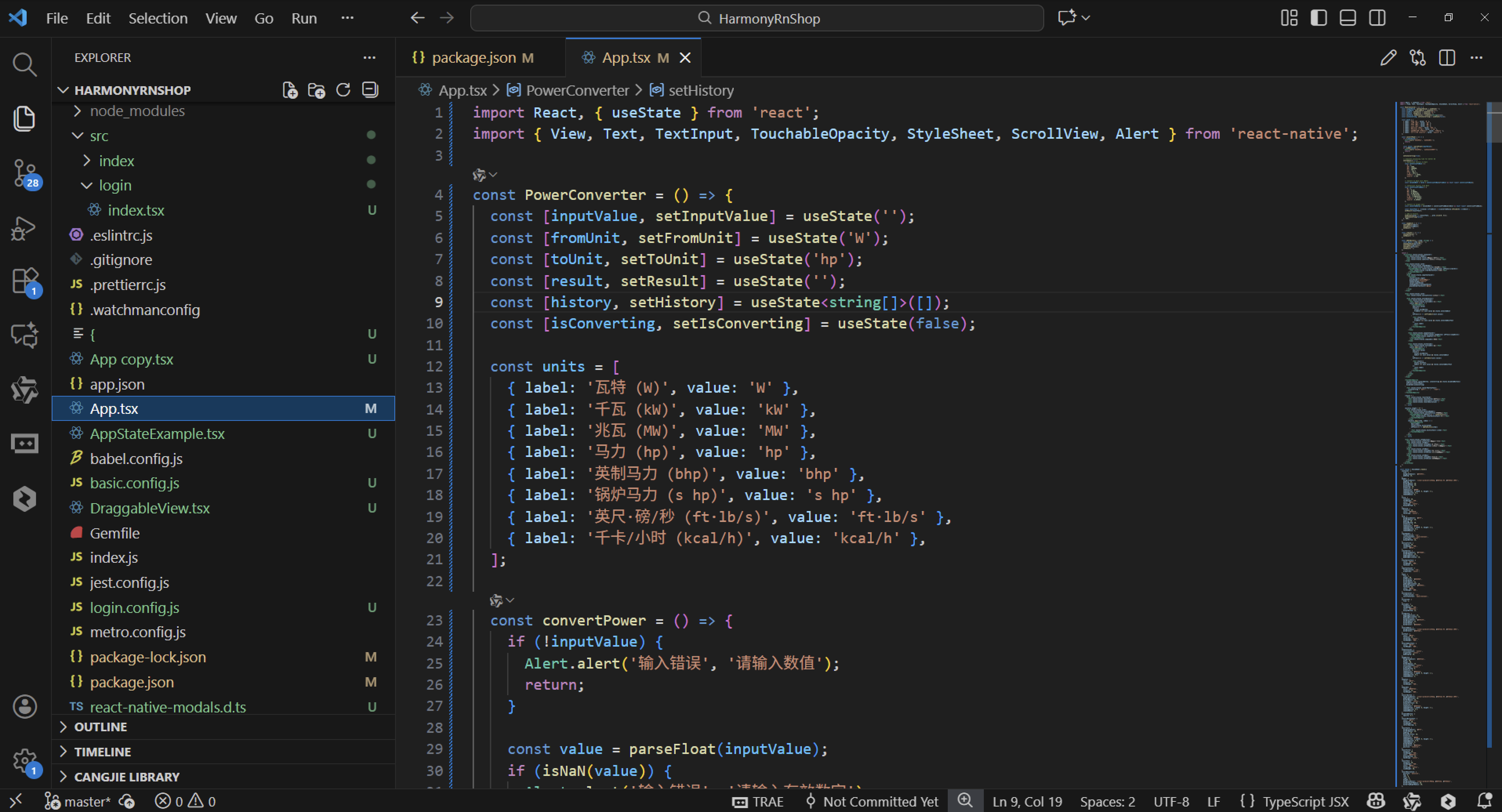
实际案例演示效果:
import React, { useState } from 'react';
import { View, Text, TextInput, TouchableOpacity, StyleSheet, ScrollView, Alert } from 'react-native';

const PowerConverter = () => {
  const [inputValue, setInputValue] = useState('');
  const [fromUnit, setFromUnit] = useState('W');
  const [toUnit, setToUnit] = useState('hp');
  const [result, setResult] = useState('');
  const [history, setHistory] = useState<string[]>([]);
  const [isConverting, setIsConverting] = useState(false);

  const units = [
    { label: '瓦特 (W)', value: 'W' },
    { label: '千瓦 (kW)', value: 'kW' },
    { label: '兆瓦 (MW)', value: 'MW' },
    { label: '马力 (hp)', value: 'hp' },
    { label: '英制马力 (bhp)', value: 'bhp' },
    { label: '锅炉马力 (s hp)', value: 's hp' },
    { label: '英尺·磅/秒 (ft·lb/s)', value: 'ft·lb/s' },
    { label: '千卡/小时 (kcal/h)', value: 'kcal/h' },
  ];

  const convertPower = () => {
    if (!inputValue) {
      Alert.alert('输入错误', '请输入数值');
      return;
    }

    const value = parseFloat(inputValue);
    if (isNaN(value)) {
      Alert.alert('输入错误', '请输入有效数字');
      return;
    }

    setIsConverting(true);

    // Simulate processing time for better UX
    setTimeout(() => {
      // Conversion factors to Watt
      const conversionToBase = {
        'W': 1,
        'kW': 1000,
        'MW': 1000000,
        'hp': 745.7,
        'bhp': 745.7,
        's hp': 9812.5,
        'ft·lb/s': 1.35582,
        'kcal/h': 1.163
      };

      // Convert to base unit (Watt)
      const valueInWatt = value * conversionToBase[fromUnit as keyof typeof conversionToBase];

      // Conversion factors from Watt
      const conversionFromBase = {
        'W': 1,
        'kW': 0.001,
        'MW': 0.000001,
        'hp': 0.00134102,
        'bhp': 0.00134102,
        's hp': 0.000101911,
        'ft·lb/s': 0.737562,
        'kcal/h': 0.859845
      };

      // Convert to target unit
      const convertedValue = valueInWatt * conversionFromBase[toUnit as keyof typeof conversionFromBase];

      const resultText = `${value} ${fromUnit} = ${convertedValue.toFixed(8)} ${toUnit}`;
      setResult(resultText);

      // Add to history
      setHistory(prev => [resultText, ...prev.slice(0, 4)]);
      setIsConverting(false);
    }, 300);
  };

  const swapUnits = () => {
    setFromUnit(toUnit);
    setToUnit(fromUnit);
    setResult('');
  };

  const clearAll = () => {
    setInputValue('');
    setResult('');
  };

  const addToHistory = (item: string) => {
    const parts = item.split(' ');
    setInputValue(parts[0]);
    setFromUnit(parts[1]);
    setToUnit(parts[3]);
    setResult('');
  };

  return (
    <ScrollView style={styles.container}>
      <View style={styles.header}>
        <Text style={styles.title}>功率单位换算器</Text>
        <Text style={styles.subtitle}>高效能计算工具</Text>
      </View>

      <View style={styles.card}>
        <View style={styles.inputHeader}>
          <Text style={styles.sectionTitle}>输入数值</Text>
          <TouchableOpacity style={styles.clearButton} onPress={clearAll}>
            <Text style={styles.clearButtonText}>清除</Text>
          </TouchableOpacity>
        </View>
        <View style={styles.inputContainer}>
          <TextInput
            style={styles.input}
            placeholder="请输入功率值"
            keyboardType="numeric"
            value={inputValue}
            onChangeText={setInputValue}
            placeholderTextColor="#aaa"
          />
        </View>
      </View>

      <View style={styles.card}>
        <Text style={styles.sectionTitle}>选择单位</Text>

        <View style={styles.unitsSelector}>
          <View style={styles.unitColumn}>
            <Text style={styles.unitLabel}>从:</Text>
            {units.map((unit) => (
              <TouchableOpacity
                key={unit.value}
                style={[
                  styles.unitButton,
                  fromUnit === unit.value && styles.selectedUnit
                ]}
                onPress={() => setFromUnit(unit.value)}
              >
                <Text style={[
                  styles.unitText,
                  fromUnit === unit.value && styles.selectedUnitText
                ]}>
                  {unit.label}
                </Text>
              </TouchableOpacity>
            ))}
          </View>

          <View style={styles.swapContainer}>
            <TouchableOpacity style={styles.swapButton} onPress={swapUnits}>
              <Text style={styles.swapText}>⇄</Text>
            </TouchableOpacity>
            <Text style={styles.swapLabel}>交换</Text>
          </View>

          <View style={styles.unitColumn}>
            <Text style={styles.unitLabel}>到:</Text>
            {units.map((unit) => (
              <TouchableOpacity
                key={unit.value}
                style={[
                  styles.unitButton,
                  toUnit === unit.value && styles.selectedUnit
                ]}
                onPress={() => setToUnit(unit.value)}
              >
                <Text style={[
                  styles.unitText,
                  toUnit === unit.value && styles.selectedUnitText
                ]}>
                  {unit.label}
                </Text>
              </TouchableOpacity>
            ))}
          </View>
        </View>
      </View>

      <TouchableOpacity
        style={[styles.convertButton, isConverting && styles.disabledButton]}
        onPress={convertPower}
        disabled={isConverting}
      >
        <Text style={styles.convertButtonText}>
          {isConverting ? '换算中...' : '开始换算'}
        </Text>
      </TouchableOpacity>

      {result ? (
        <View style={styles.resultCard}>
          <Text style={styles.resultTitle}>换算结果</Text>
          <Text style={styles.resultText}>{result}</Text>
          <View style={styles.resultDecoration} />
        </View>
      ) : null}

      {history.length > 0 ? (
        <View style={styles.card}>
          <View style={styles.historyHeader}>
            <Text style={styles.sectionTitle}>历史记录</Text>
            <TouchableOpacity onPress={() => setHistory([])}>
              <Text style={styles.clearHistoryText}>清空</Text>
            </TouchableOpacity>
          </View>
          {history.map((item, index) => (
            <TouchableOpacity
              key={index}
              style={styles.historyItem}
              onPress={() => addToHistory(item)}
            >
              <Text style={styles.historyText}>{item}</Text>
            </TouchableOpacity>
          ))}
        </View>
      ) : null}

      <View style={styles.infoSection}>
        <Text style={styles.infoTitle}>功率单位说明</Text>
        <View style={styles.infoRow}>
          <Text style={styles.infoLabel}>W (瓦特):</Text>
          <Text style={styles.infoValue}>国际单位制功率单位</Text>
        </View>
        <View style={styles.infoRow}>
          <Text style={styles.infoLabel}>hp (马力):</Text>
          <Text style={styles.infoValue}>常用机械功率单位</Text>
        </View>
        <View style={styles.infoRow}>
          <Text style={styles.infoLabel}>kcal/h:</Text>
          <Text style={styles.infoValue}>热量功率单位</Text>
        </View>
      </View>
    </ScrollView>
  );
};

const styles = StyleSheet.create({
  container: {
    flex: 1,
    backgroundColor: '#f8f9fa',
    padding: 16,
  },
  header: {
    backgroundColor: 'linear-gradient(135deg, #667eea 0%, #764ba2 100%)',
    padding: 24,
    borderRadius: 20,
    marginBottom: 20,
    marginTop: 10,
    elevation: 5,
    shadowColor: '#000',
    shadowOffset: { width: 0, height: 4 },
    shadowOpacity: 0.2,
    shadowRadius: 8,
  },
  title: {
    fontSize: 28,
    fontWeight: '700',
    color: '#fff',
    textAlign: 'center',
    marginBottom: 5,
  },
  subtitle: {
    fontSize: 16,
    color: '#f0f0f0',
    textAlign: 'center',
  },
  card: {
    backgroundColor: '#fff',
    borderRadius: 20,
    padding: 20,
    marginBottom: 20,
    elevation: 3,
    shadowColor: '#000',
    shadowOffset: { width: 0, height: 2 },
    shadowOpacity: 0.1,
    shadowRadius: 6,
  },
  inputHeader: {
    flexDirection: 'row',
    justifyContent: 'space-between',
    alignItems: 'center',
    marginBottom: 16,
  },
  sectionTitle: {
    fontSize: 20,
    fontWeight: '700',
    color: '#333',
  },
  clearButton: {
    backgroundColor: '#ff6b6b',
    borderRadius: 10,
    paddingVertical: 8,
    paddingHorizontal: 16,
  },
  clearButtonText: {
    color: '#fff',
    fontWeight: '600',
    fontSize: 14,
  },
  inputContainer: {
    flexDirection: 'row',
    alignItems: 'center',
  },
  input: {
    flex: 1,
    height: 60,
    borderColor: '#e0e0e0',
    borderWidth: 2,
    borderRadius: 15,
    paddingHorizontal: 20,
    backgroundColor: '#f8f9fa',
    fontSize: 18,
    color: '#333',
    fontWeight: '500',
  },
  unitsSelector: {
    flexDirection: 'row',
    justifyContent: 'space-between',
  },
  unitColumn: {
    flex: 1,
  },
  unitLabel: {
    fontSize: 18,
    fontWeight: '700',
    color: '#667eea',
    marginBottom: 12,
  },
  unitButton: {
    paddingVertical: 14,
    paddingHorizontal: 12,
    marginVertical: 6,
    backgroundColor: '#f0f2f5',
    borderRadius: 12,
    borderWidth: 1,
    borderColor: '#e0e0e0',
  },
  selectedUnit: {
    backgroundColor: 'linear-gradient(135deg, #667eea 0%, #764ba2 100%)',
    borderColor: '#667eea',
  },
  unitText: {
    color: '#333',
    fontSize: 15,
    textAlign: 'center',
    fontWeight: '500',
  },
  selectedUnitText: {
    color: '#fff',
    fontWeight: '600',
  },
  swapContainer: {
    justifyContent: 'center',
    alignItems: 'center',
    paddingTop: 30,
  },
  swapButton: {
    backgroundColor: '#667eea',
    width: 50,
    height: 50,
    borderRadius: 25,
    justifyContent: 'center',
    alignItems: 'center',
    marginBottom: 8,
    elevation: 3,
    shadowColor: '#667eea',
    shadowOffset: { width: 0, height: 2 },
    shadowOpacity: 0.3,
    shadowRadius: 4,
  },
  swapText: {
    color: '#fff',
    fontSize: 24,
    fontWeight: '700',
  },
  swapLabel: {
    color: '#667eea',
    fontSize: 14,
    fontWeight: '600',
  },
  convertButton: {
    backgroundColor: 'linear-gradient(135deg, #667eea 0%, #764ba2 100%)',
    paddingVertical: 20,
    borderRadius: 16,
    alignItems: 'center',
    marginVertical: 10,
    elevation: 5,
    shadowColor: '#667eea',
    shadowOffset: { width: 0, height: 4 },
    shadowOpacity: 0.3,
    shadowRadius: 8,
  },
  disabledButton: {
    opacity: 0.7,
  },
  convertButtonText: {
    color: '#fff',
    fontSize: 20,
    fontWeight: '700',
    letterSpacing: 1,
  },
  resultCard: {
    backgroundColor: '#fff',
    borderRadius: 20,
    padding: 24,
    marginVertical: 10,
    elevation: 4,
    shadowColor: '#000',
    shadowOffset: { width: 0, height: 3 },
    shadowOpacity: 0.15,
    shadowRadius: 8,
    borderWidth: 2,
    borderColor: '#667eea',
    position: 'relative',
  },
  resultTitle: {
    fontSize: 18,
    fontWeight: '700',
    color: '#667eea',
    marginBottom: 12,
    textAlign: 'center',
  },
  resultText: {
    fontSize: 20,
    fontWeight: '700',
    color: '#333',
    textAlign: 'center',
    lineHeight: 30,
  },
  resultDecoration: {
    position: 'absolute',
    top: 0,
    left: 0,
    right: 0,
    height: 5,
    backgroundColor: 'linear-gradient(90deg, #667eea, #764ba2)',
    borderTopLeftRadius: 20,
    borderTopRightRadius: 20,
  },
  historyHeader: {
    flexDirection: 'row',
    justifyContent: 'space-between',
    alignItems: 'center',
    marginBottom: 16,
  },
  clearHistoryText: {
    color: '#ff6b6b',
    fontSize: 16,
    fontWeight: '600',
  },
  historyItem: {
    paddingVertical: 14,
    borderBottomWidth: 1,
    borderBottomColor: '#eee',
  },
  historyText: {
    fontSize: 15,
    color: '#333',
    lineHeight: 22,
  },
  infoSection: {
    backgroundColor: '#fff',
    borderRadius: 20,
    padding: 20,
    marginBottom: 20,
    elevation: 3,
    shadowColor: '#000',
    shadowOffset: { width: 0, height: 2 },
    shadowOpacity: 0.1,
    shadowRadius: 6,
  },
  infoTitle: {
    fontSize: 18,
    fontWeight: '700',
    color: '#333',
    marginBottom: 15,
    textAlign: 'center',
  },
  infoRow: {
    flexDirection: 'row',
    marginBottom: 10,
  },
  infoLabel: {
    fontWeight: '700',
    color: '#667eea',
    width: 100,
  },
  infoValue: {
    flex: 1,
    color: '#555',
  },
});

export default PowerConverter;
这段React Native功率转换器代码展现了一个高度完善的工程化组件架构,其设计哲学体现了现代前端开发中状态管理、用户体验和代码可维护性的深度结合。从代码原理层面分析,这是一个典型的企业级应用组件,包含了多个值得深入探讨的技术实现细节。
组件的状态管理系统采用了分层架构设计,五个独立的状态变量构成了完整的数据流闭环。输入数值状态负责原始数据的捕获和存储,其字符串类型的设计既保证了输入兼容性,又为后续验证提供了基础。源单位和目标单位状态不仅定义了转换的起点和终点,更重要的是通过交换功能实现了双向转换的便捷操作。结果状态存储当前计算输出,而历史记录状态则通过数组形式维护了用户的查询历史。特别值得注意的是转换状态的引入,这个看似简单的布尔值实际上承担着重要的用户体验优化职责。
转换算法的核心架构采用了中介基准单位的转换策略,选择瓦特作为统一的转换基准。这种设计思想的巧妙之处在于将复杂的多对多转换关系简化为多个一对一的转换关系。conversionToBase和conversionFromBase这两个转换系数对象构成了转换逻辑的数学基础。每个单位只需要定义与瓦特之间的转换系数,就能实现任意两个单位之间的互转。这种架构避免了维护所有单位之间两两转换关系的复杂度,使得新增单位时只需要添加该单位与瓦特的转换关系即可。
转换系数对象的设计体现了精确的数学映射关系。例如,千瓦与瓦特的1000倍关系直接反映了功率单位的十进制特征。马力与瓦特的745.7倍转换系数则体现了英制单位体系的历史定义。特别值得注意的是,不同种类的马力单位虽然标签不同,但转换系数可能相同,这反映了不同标准体系之间的兼容性考虑。
用户交互体验的优化设计体现在多个细节层面。转换过程中人为设置的300毫秒延迟并非技术需求,而是精心设计的用户体验策略。这种微妙的延迟处理为用户提供了操作正在进行的视觉确认,避免了瞬间完成转换可能带来的认知失调。这种设计哲学反映了现代交互设计中"感知延迟"的重要概念。
打包
接下来通过打包命令npn run harmony将reactNative的代码打包成为bundle,这样可以进行在开源鸿蒙OpenHarmony中进行使用。

打包之后再将打包后的鸿蒙OpenHarmony文件拷贝到鸿蒙的DevEco-Studio工程目录去:

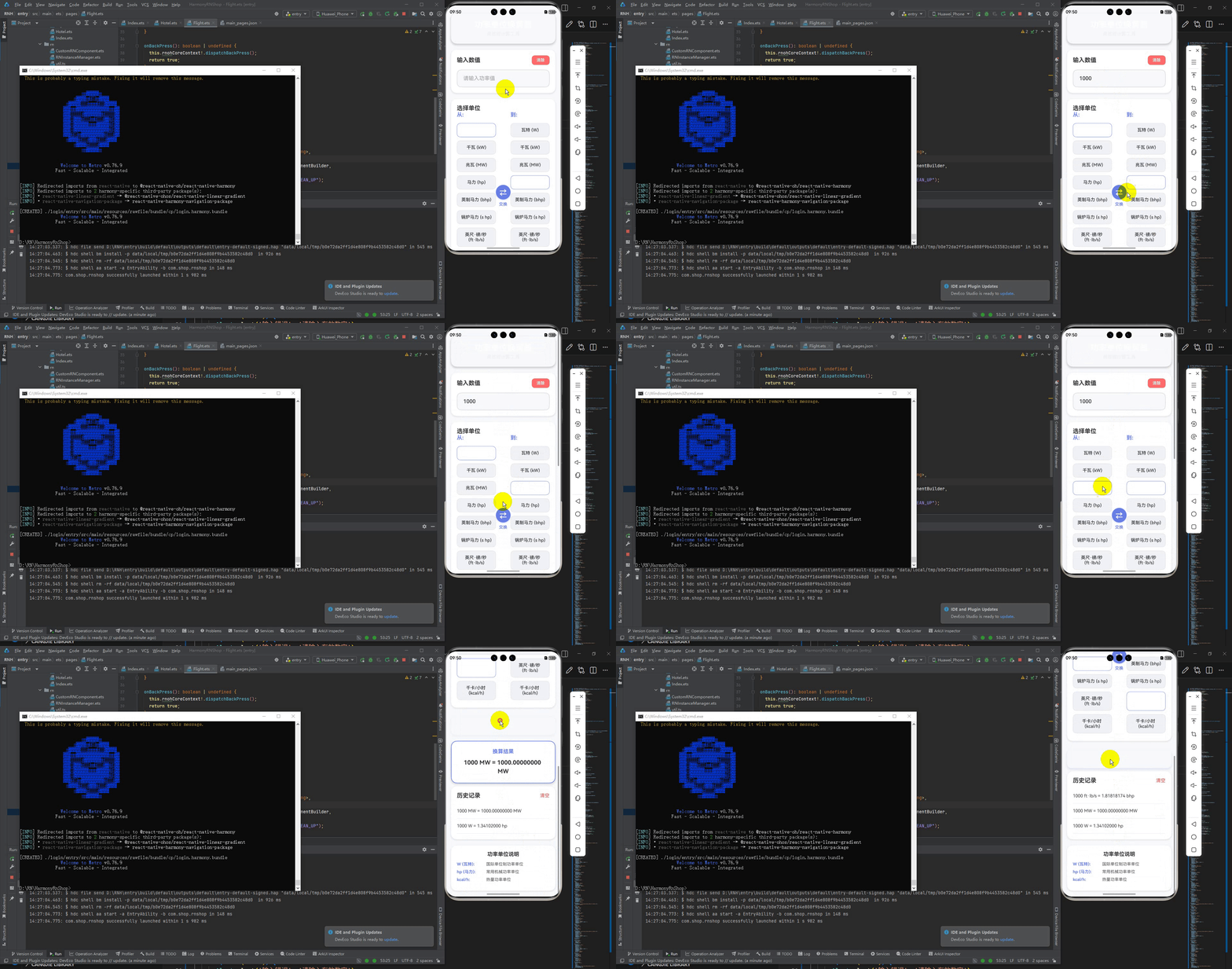
最后运行效果图如下显示:
欢迎大家加入开源鸿蒙跨平台开发者社区,一起共建开源鸿蒙跨平台生态。

开源鸿蒙跨平台开发社区汇聚开发者与厂商,共建“一次开发,多端部署”的开源生态,致力于降低跨端开发门槛,推动万物智联创新。
更多推荐

 24
24 0
0- 0


 已为社区贡献30条内容

所有评论(0)