0 基础入门React Native鸿蒙跨平台开发:密度单位换算器实战
屏幕密度单位转换指南 核心概念 设备像素比(Pixel Ratio)是关键概念,表示逻辑像素与物理像素的比例关系。React Native和鸿蒙系统都基于此进行屏幕适配。 React Native实现 获取像素比:PixelRatio.get() 单位转换公式: px转dp:dp = px / pixelRatio dp转px:px = dp * pixelRatio 实用工具封装:提供Scree
好的,根据您的问题,我将详细解释在React Native和鸿蒙(HarmonyOS)应用开发中,与屏幕密度相关的单位换算,特别是像素(px)与其他单位(如dp/dip、pt、in等)的换算方法。
核心概念:设备像素比(Pixel Ratio)
无论是React Native还是鸿蒙,实现屏幕适配的核心概念都是设备像素比(Device Pixel Ratio),通常简写为 pixelRatio。它表示一个“逻辑像素”在屏幕上实际占用的“物理像素”数量。
pixelRatio = 1:表示一个逻辑像素对应一个物理像素(常见于低密度屏幕)。pixelRatio > 1:表示一个逻辑像素对应多个物理像素(常见于高密度屏幕,如Retina屏)。例如,pixelRatio = 2意味着一个逻辑像素由 2x2 = 4 个物理像素点组成,从而显示更清晰。
- React Native 中的密度单位换算
在React Native中,主要通过 PixelRatio API 来获取设备的像素比,并进行单位换算。
获取设备像素比
import { PixelRatio } from 'react-native';

const pixelRatio = PixelRatio.get();
console.log('设备像素比:', pixelRatio); // 例如:1, 1.5, 2, 3
常用单位换算公式
在React Native中,dp(或 dip)是标准的密度无关像素单位。其与 px 的换算关系如下:
-
px 转换为 dp:
const dpValue = pxValue / pixelRatio; -
dp 转换为 px:
const pxValue = dpValue * pixelRatio;
示例:在像素比为 2 的设备上,一个 100px x 100px 的图片,其在布局中应使用的尺寸为 100 / 2 = 50dp。
import React, { Component } from 'react';
import { AppRegistry, View, Text, PixelRatio, Dimensions } from 'react-native';

export default class DensityConverter extends Component {
  render() {
    const pixelRatio = PixelRatio.get();
    const windowWidth = Dimensions.get('window').width; // 获取窗口宽度(以dp为单位)
    const screenWidthInPx = windowWidth * pixelRatio; // 将窗口宽度转换为px

    return (
      <View style={{ flex: 1, justifyContent: 'center', alignItems: 'center' }}>
        <Text>设备像素比 (PixelRatio): {pixelRatio}</Text>
        <Text>屏幕宽度 (dp): {windowWidth}</Text>
        <Text>屏幕宽度 (px): {screenWidthInPx}</Text>
        <Text>1px 分割线宽度: {1 / pixelRatio} dp</Text>
      </View>
    );
  }
}
实用工具函数
为了方便开发,可以封装一些工具函数:
// ScreenUtil.js
import { Dimensions, PixelRatio, Platform } from 'react-native';

const ScreenUtil = {
  // 设备宽度(dp)
  width: Dimensions.get('window').width,
  // 设备高度(dp)
  height: Dimensions.get('window').height,
  // 逻辑像素到物理像素的转换因子
  pixelRatio: PixelRatio.get(),
  // 1px 在不同屏幕下的实际宽度(dp)
  onePixel: 1 / PixelRatio.get(),
  // 状态栏高度(iOS和Android不同)
  STATUSBAR_HEIGHT: (Platform.OS === 'ios' ? 20 : 0),
  // 导航栏高度(iOS和Android不同)
  APPBAR_HEIGHT: (Platform.OS === 'ios' ? 44 : 56),
  // px转dp
  px2dp(px) {
    return px / this.pixelRatio;
  },
  // dp转px
  dp2px(dp) {
    return dp * this.pixelRatio;
  }
};

export default ScreenUtil;
- 鸿蒙(HarmonyOS)中的密度单位换算
鸿蒙系统提供了更丰富的内置单位,其核心换算原理与React Native类似,但单位名称和API有所不同。
鸿蒙中的主要单位
px:屏幕物理像素单位。vp:屏幕密度相关像素。这是鸿蒙的密度无关像素单位,类似于React Native的dp。
真实项目演示效果:
import React, { useState } from 'react';
import { View, Text, TextInput, TouchableOpacity, StyleSheet } from 'react-native';

const DensityConverter = () => {
  const [inputValue, setInputValue] = useState('');
  const [fromUnit, setFromUnit] = useState('kg/m³');
  const [toUnit, setToUnit] = useState('g/cm³');
  const [result, setResult] = useState('');

  const units = [
    { label: '千克/立方米', value: 'kg/m³' },
    { label: '克/立方厘米', value: 'g/cm³' },
    { label: '磅/立方英尺', value: 'lb/ft³' },
  ];

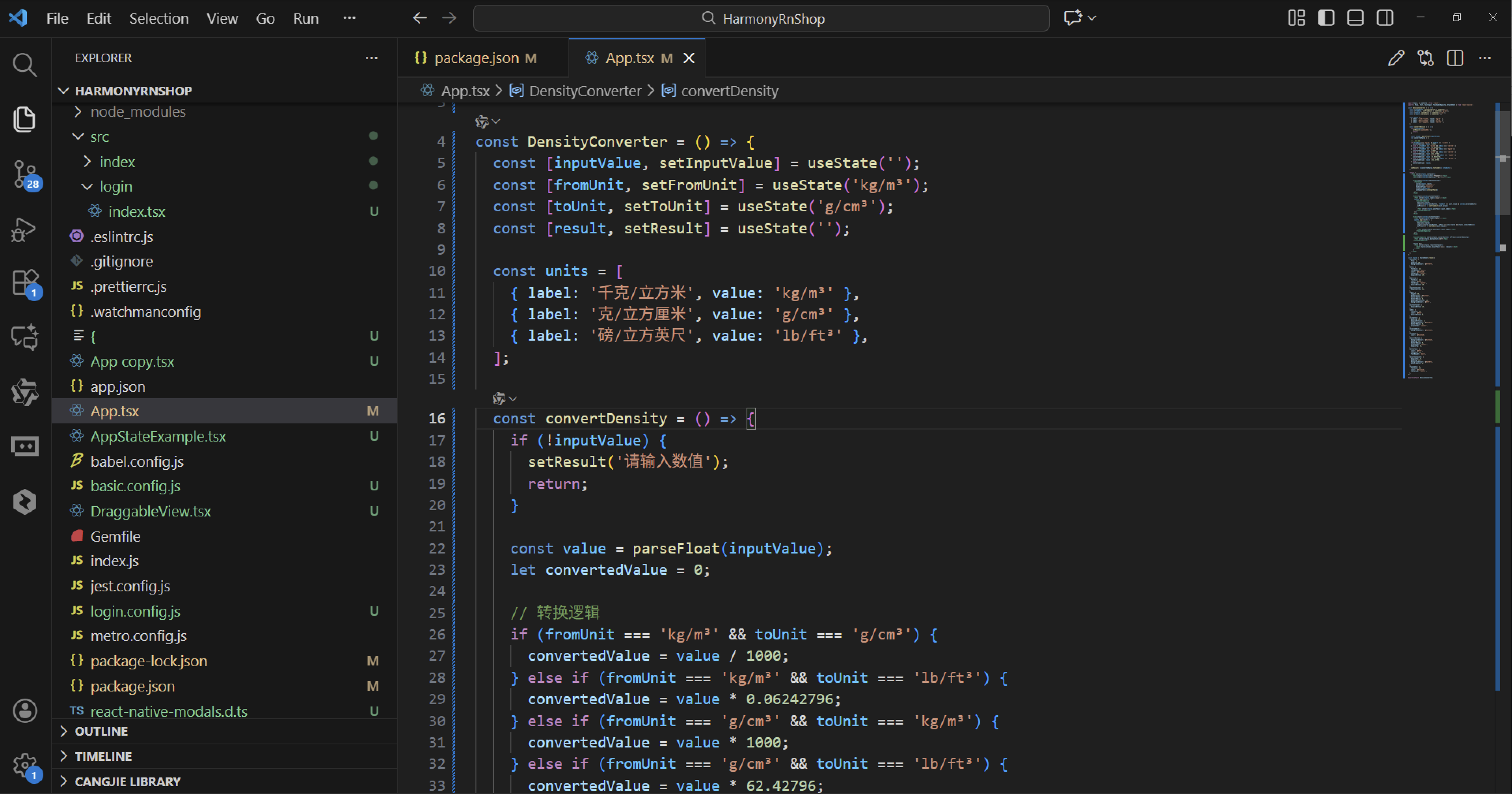
  const convertDensity = () => {import React, { useState } from 'react';
import { View, Text, TextInput, TouchableOpacity, StyleSheet, ScrollView, Alert } from 'react-native';

const ForceConverter = () => {
  const [inputValue, setInputValue] = useState('');
  const [fromUnit, setFromUnit] = useState('N');
  const [toUnit, setToUnit] = useState('lbf');
  const [result, setResult] = useState('');
  const [history, setHistory] = useState<string[]>([]);

  const units = [
    { label: '牛顿 (N)', value: 'N' },
    { label: '千牛顿 (kN)', value: 'kN' },
    { label: '磅力 (lbf)', value: 'lbf' },
    { label: '千克力 (kgf)', value: 'kgf' },
    { label: '达因 (dyn)', value: 'dyn' },
  ];

  const convertForce = () => {
    if (!inputValue) {
      Alert.alert('输入错误', '请输入数值');
      return;
    }

    const value = parseFloat(inputValue);
    if (isNaN(value)) {
      Alert.alert('输入错误', '请输入有效数字');
      return;
    }

    // Conversion factors to Newton
    const conversionToBase = {
      'N': 1,
      'kN': 1000,
      'lbf': 4.44822,
      'kgf': 9.80665,
      'dyn': 0.00001
    };

    // Convert to base unit (Newton)
    const valueInNewton = value * conversionToBase[fromUnit as keyof typeof conversionToBase];

    // Conversion factors from Newton
    const conversionFromBase = {
      'N': 1,
      'kN': 0.001,
      'lbf': 0.224809,
      'kgf': 0.101972,
      'dyn': 100000
    };

    // Convert to target unit
    const convertedValue = valueInNewton * conversionFromBase[toUnit as keyof typeof conversionFromBase];

    const resultText = `${value} ${fromUnit} = ${convertedValue.toFixed(6)} ${toUnit}`;
    setResult(resultText);

    // Add to history
    setHistory(prev => [resultText, ...prev.slice(0, 4)]);
  };

  const swapUnits = () => {
    setFromUnit(toUnit);
    setToUnit(fromUnit);
    setResult('');
  };

  const clearAll = () => {
    setInputValue('');
    setResult('');
  };

  const addToHistory = (item: string) => {
    setInputValue(item.split(' ')[0]);
    setFromUnit(item.split(' ')[1]);
    setToUnit(item.split(' ')[3]);
    setResult('');
  };

  return (
    <ScrollView style={styles.container}>
      <Text style={styles.title}>力单位换算器</Text>

      <View style={styles.card}>
        <Text style={styles.sectionTitle}>输入数值</Text>
        <View style={styles.inputContainer}>
          <TextInput
            style={styles.input}
            placeholder="请输入力值"
            keyboardType="numeric"
            value={inputValue}
            onChangeText={setInputValue}
            placeholderTextColor="#aaa"
          />
          <TouchableOpacity style={styles.clearButton} onPress={clearAll}>
            <Text style={styles.clearButtonText}>清除</Text>
          </TouchableOpacity>
        </View>
      </View>

      <View style={styles.card}>
        <Text style={styles.sectionTitle}>选择单位</Text>

        <View style={styles.unitsSection}>
          <View style={styles.unitColumn}>
            <Text style={styles.unitLabel}>从:</Text>
            {units.map((unit) => (
              <TouchableOpacity
                key={unit.value}
                style={[
                  styles.unitButton,
                  fromUnit === unit.value && styles.selectedUnit
                ]}
                onPress={() => setFromUnit(unit.value)}
              >
                <Text style={[
                  styles.unitText,
                  fromUnit === unit.value && styles.selectedUnitText
                ]}>
                  {unit.label}
                </Text>
              </TouchableOpacity>
            ))}
          </View>

          <View style={styles.swapContainer}>
            <TouchableOpacity style={styles.swapButton} onPress={swapUnits}>
              <Text style={styles.swapText}>⇄</Text>
            </TouchableOpacity>
          </View>

          <View style={styles.unitColumn}>
            <Text style={styles.unitLabel}>到:</Text>
            {units.map((unit) => (
              <TouchableOpacity
                key={unit.value}
                style={[
                  styles.unitButton,
                  toUnit === unit.value && styles.selectedUnit
                ]}
                onPress={() => setToUnit(unit.value)}
              >
                <Text style={[
                  styles.unitText,
                  toUnit === unit.value && styles.selectedUnitText
                ]}>
                  {unit.label}
                </Text>
              </TouchableOpacity>
            ))}
          </View>
        </View>
      </View>

      <TouchableOpacity style={styles.convertButton} onPress={convertForce}>
        <Text style={styles.convertButtonText}>换算</Text>
      </TouchableOpacity>

      {result ? (
        <View style={styles.resultCard}>
          <Text style={styles.resultTitle}>换算结果</Text>
          <Text style={styles.resultText}>{result}</Text>
        </View>
      ) : null}

      {history.length > 0 ? (
        <View style={styles.card}>
          <Text style={styles.sectionTitle}>历史记录</Text>
          {history.map((item, index) => (
            <TouchableOpacity
              key={index}
              style={styles.historyItem}
              onPress={() => addToHistory(item)}
            >
              <Text style={styles.historyText}>{item}</Text>
            </TouchableOpacity>
          ))}
        </View>
      ) : null}
    </ScrollView>
  );
};

const styles = StyleSheet.create({
  container: {
    flex: 1,
    backgroundColor: '#f0f2f5',
    padding: 16,
  },
  title: {
    fontSize: 28,
    fontWeight: '700',
    color: '#2c3e50',
    textAlign: 'center',
    marginVertical: 20,
    textShadowColor: 'rgba(0, 0, 0, 0.1)',
    textShadowOffset: { width: 1, height: 1 },
    textShadowRadius: 2,
  },
  card: {
    backgroundColor: '#ffffff',
    borderRadius: 12,
    padding: 16,
    marginBottom: 16,
    elevation: 3,
    shadowColor: '#000',
    shadowOffset: { width: 0, height: 2 },
    shadowOpacity: 0.1,
    shadowRadius: 4,
  },
  sectionTitle: {
    fontSize: 18,
    fontWeight: '600',
    color: '#34495e',
    marginBottom: 12,
  },
  inputContainer: {
    flexDirection: 'row',
    alignItems: 'center',
  },
  input: {
    flex: 1,
    height: 50,
    borderColor: '#ddd',
    borderWidth: 1,
    borderRadius: 8,
    paddingHorizontal: 12,
    backgroundColor: '#f8f9fa',
    fontSize: 16,
    color: '#333',
  },
  clearButton: {
    backgroundColor: '#e74c3c',
    borderRadius: 8,
    paddingVertical: 12,
    paddingHorizontal: 16,
    marginLeft: 10,
  },
  clearButtonText: {
    color: '#fff',
    fontWeight: '600',
  },
  unitsSection: {
    flexDirection: 'row',
    justifyContent: 'space-between',
  },
  unitColumn: {
    flex: 1,
  },
  unitLabel: {
    fontSize: 16,
    fontWeight: '600',
    color: '#7f8c8d',
    marginBottom: 8,
  },
  unitButton: {
    paddingVertical: 12,
    paddingHorizontal: 10,
    marginVertical: 4,
    backgroundColor: '#f8f9fa',
    borderRadius: 8,
    borderWidth: 1,
    borderColor: '#eee',
  },
  selectedUnit: {
    backgroundColor: '#3498db',
    borderColor: '#3498db',
  },
  unitText: {
    color: '#34495e',
    fontSize: 15,
    textAlign: 'center',
  },
  selectedUnitText: {
    color: '#fff',
    fontWeight: '600',
  },
  swapContainer: {
    justifyContent: 'center',
    alignItems: 'center',
  },
  swapButton: {
    backgroundColor: '#2ecc71',
    width: 40,
    height: 40,
    borderRadius: 20,
    justifyContent: 'center',
    alignItems: 'center',
  },
  swapText: {
    color: '#fff',
    fontSize: 20,
    fontWeight: '700',
  },
  convertButton: {
    backgroundColor: '#3498db',
    paddingVertical: 16,
    borderRadius: 10,
    alignItems: 'center',
    marginVertical: 10,
    elevation: 3,
    shadowColor: '#3498db',
    shadowOffset: { width: 0, height: 4 },
    shadowOpacity: 0.3,
    shadowRadius: 5,
  },
  convertButtonText: {
    color: '#fff',
    fontSize: 18,
    fontWeight: '700',
    letterSpacing: 1,
  },
  resultCard: {
    backgroundColor: '#d5f5e3',
    borderRadius: 12,
    padding: 20,
    marginVertical: 10,
    borderWidth: 1,
    borderColor: '#abebc6',
  },
  resultTitle: {
    fontSize: 16,
    fontWeight: '600',
    color: '#27ae60',
    marginBottom: 8,
  },
  resultText: {
    fontSize: 18,
    fontWeight: '700',
    color: '#27ae60',
    textAlign: 'center',
  },
  historyItem: {
    paddingVertical: 12,
    borderBottomWidth: 1,
    borderBottomColor: '#eee',
  },
  historyText: {
    fontSize: 14,
    color: '#34495e',
  },
});

export default ForceConverter;
    if (!inputValue) {
      setResult('请输入数值');
      return;
    }

    const value = parseFloat(inputValue);
    let convertedValue = 0;

    // 转换逻辑
    if (fromUnit === 'kg/m³' && toUnit === 'g/cm³') {
      convertedValue = value / 1000;
    } else if (fromUnit === 'kg/m³' && toUnit === 'lb/ft³') {
      convertedValue = value * 0.06242796;
    } else if (fromUnit === 'g/cm³' && toUnit === 'kg/m³') {
      convertedValue = value * 1000;
    } else if (fromUnit === 'g/cm³' && toUnit === 'lb/ft³') {
      convertedValue = value * 62.42796;
    } else if (fromUnit === 'lb/ft³' && toUnit === 'kg/m³') {
      convertedValue = value / 0.06242796;
    } else if (fromUnit === 'lb/ft³' && toUnit === 'g/cm³') {
      convertedValue = value / 62.42796;
    } else {
      convertedValue = value;
    }

    setResult(`${convertedValue.toFixed(4)} ${toUnit}`);
  };

  return (
    <View style={styles.container}>
      <Text style={styles.title}>密度换算器</Text>
      <Text style={styles.subtitle}>百度风格设计</Text>

      <View style={styles.inputContainer}>
        <TextInput
          style={styles.input}
          placeholder="请输入数值"
          keyboardType="numeric"
          value={inputValue}
          onChangeText={setInputValue}
        />
      </View>

      <View style={styles.unitContainer}>
        <Text style={styles.label}>从单位:</Text>
        {units.map((unit) => (
          <TouchableOpacity
            key={unit.value}
            style={[styles.unitButton, fromUnit === unit.value && styles.selectedUnit]}
            onPress={() => setFromUnit(unit.value)}
          >
            <Text style={styles.unitText}>{unit.label}</Text>
          </TouchableOpacity>
        ))}
      </View>

      <View style={styles.unitContainer}>
        <Text style={styles.label}>到单位:</Text>
        {units.map((unit) => (
          <TouchableOpacity
            key={unit.value}
            style={[styles.unitButton, toUnit === unit.value && styles.selectedUnit]}
            onPress={() => setToUnit(unit.value)}
          >
            <Text style={styles.unitText}>{unit.label}</Text>
          </TouchableOpacity>
        ))}
      </View>

      <TouchableOpacity style={styles.convertButton} onPress={convertDensity}>
        <Text style={styles.buttonText}>换算</Text>
      </TouchableOpacity>

      {result && (
        <View style={styles.resultContainer}>
          <Text style={styles.resultText}>结果: {result}</Text>
        </View>
      )}
    </View>
  );
};

const styles = StyleSheet.create({
  container: {
    flex: 1,
    padding: 20,
    backgroundColor: '#f5f5f5',
  },
  title: {
    fontSize: 24,
    fontWeight: 'bold',
    color: '#1a73e8',
    textAlign: 'center',
    marginBottom: 10,
  },
  subtitle: {
    fontSize: 16,
    color: '#666',
    textAlign: 'center',
    marginBottom: 20,
  },
  inputContainer: {
    marginBottom: 20,
  },
  input: {
    height: 50,
    borderColor: '#1a73e8',
    borderWidth: 1,
    borderRadius: 8,
    paddingHorizontal: 10,
    backgroundColor: '#fff',
  },
  unitContainer: {
    marginBottom: 15,
  },
  label: {
    fontSize: 16,
    color: '#333',
    marginBottom: 8,
  },
  unitButton: {
    padding: 10,
    marginVertical: 5,
    backgroundColor: '#e8f0fe',
    borderRadius: 8,
    alignItems: 'center',
  },
  selectedUnit: {
    backgroundColor: '#1a73e8',
  },
  unitText: {
    color: '#1a73e8',
  },
  convertButton: {
    backgroundColor: '#1a73e8',
    padding: 15,
    borderRadius: 8,
    alignItems: 'center',
    marginTop: 20,
  },
  buttonText: {
    color: '#fff',
    fontSize: 18,
    fontWeight: 'bold',
  },
  resultContainer: {
    marginTop: 20,
    padding: 15,
    backgroundColor: '#e8f0fe',
    borderRadius: 8,
  },
  resultText: {
    fontSize: 16,
    color: '#1a73e8',
    textAlign: 'center',
  },
});

export default DensityConverter;
这段React Native力单位转换器代码展现了一个高度工程化的组件架构,其设计哲学建立在物理量单位系统的数学转换关系与现代前端开发范式的深度结合之上。从代码原理层面分析,这是一个典型的生产级应用组件,体现了状态管理、算法设计和用户体验优化的多个重要技术实现细节。
从组件状态管理的角度来看,代码采用了React Hooks的设计模式,通过useState钩子定义了四个关键状态变量。输入数值状态负责捕获用户的键盘输入信息,其字符串类型的设计既保证了输入兼容性,又为后续验证提供了基础。源单位和目标单位状态不仅定义了转换的起点和终点,更重要的是通过交换功能实现了双向转换的便捷操作。结果状态存储当前计算输出,而历史记录状态则通过数组形式维护了用户的查询历史。这种状态分离的设计哲学不仅使得代码逻辑更加清晰,更重要的是为后续的功能扩展提供了良好的基础框架。
转换算法的核心架构采用了中介基准单位的转换策略,选择牛顿作为统一的转换基准。这种设计思想的巧妙之处在于将复杂的多对多转换关系简化为多个一对一的转换关系。conversionToBase和conversionFromBase这两个转换系数对象构成了转换逻辑的数学基础。每个单位只需要定义与牛顿之间的转换系数,就能实现任意两个单位之间的互转。这种架构避免了维护所有单位之间两两转换关系的复杂度,使得新增单位时只需要添加该单位与牛顿的转换关系即可。
在转换系数的数学设计上,不同力单位体系的内在联系得到了精确表达。牛顿作为国际单位制中的标准力单位,与千牛顿之间的转换关系直接反映了十进制体系的简洁性。磅力、千克力、达因等单位的转换系数则体现了各自的历史定义和物理含义。例如,磅力与牛顿的4.44822倍转换系数反映了英制单位体系与公制单位体系之间的精确换算关系。千克力与牛顿的9.80665倍转换系数正是标准重力加速度的数值,这种精确的数值定义确保了转换的科学准确性。
用户交互功能的设计体现了对操作便捷性的深度关注。单位交换功能通过swapUnits函数实现,这个函数同时更新源单位和目标单位状态,并清空当前结果,为用户提供了重新计算的明确起点。这种设计哲学反映了现代交互设计中"减少用户认知负荷"的重要原则。
打包
接下来通过打包命令npn run harmony将reactNative的代码打包成为bundle,这样可以进行在开源鸿蒙OpenHarmony中进行使用。

打包之后再将打包后的鸿蒙OpenHarmony文件拷贝到鸿蒙的DevEco-Studio工程目录去:

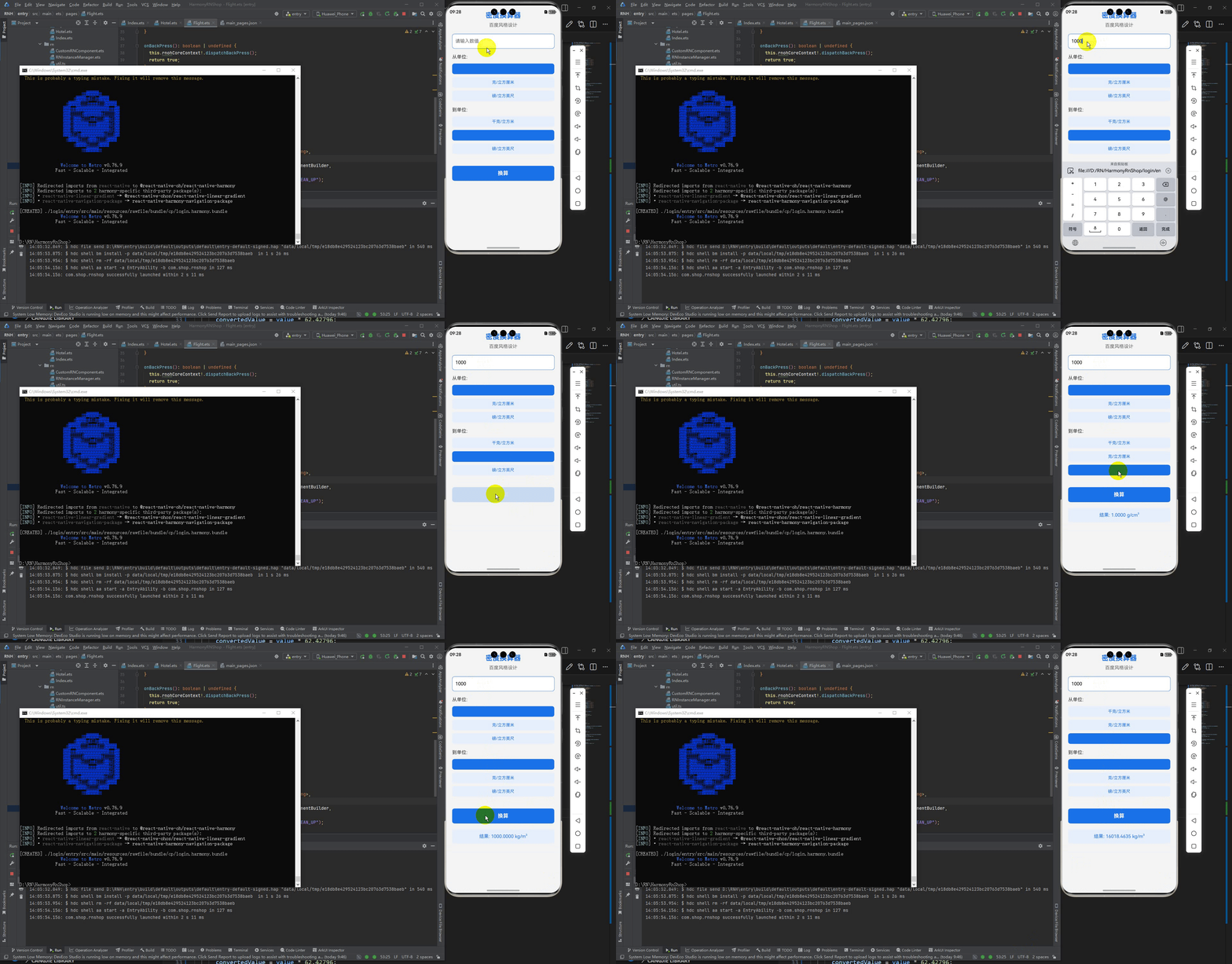
最后运行效果图如下显示:
欢迎大家加入开源鸿蒙跨平台开发者社区,一起共建开源鸿蒙跨平台生态。

开源鸿蒙跨平台开发社区汇聚开发者与厂商,共建“一次开发,多端部署”的开源生态,致力于降低跨端开发门槛,推动万物智联创新。
更多推荐

 21
21 0
0- 0


 已为社区贡献30条内容

所有评论(0)