Flutter for OpenHarmony 身体健康状况记录App实战 - 编辑资料实现
本文介绍了编辑资料页面的实现方案,主要包含头像编辑和表单字段两大核心功能。页面采用浅灰色背景,顶部导航栏包含返回和保存按钮。头像区域支持点击修改,提供拍照和相册选择两种方式。表单区域展示昵称、性别、出生日期等个人信息,使用白色卡片布局,每个字段包含标签和可编辑文本框。整体设计简洁直观,便于用户修改和保存个人资料。
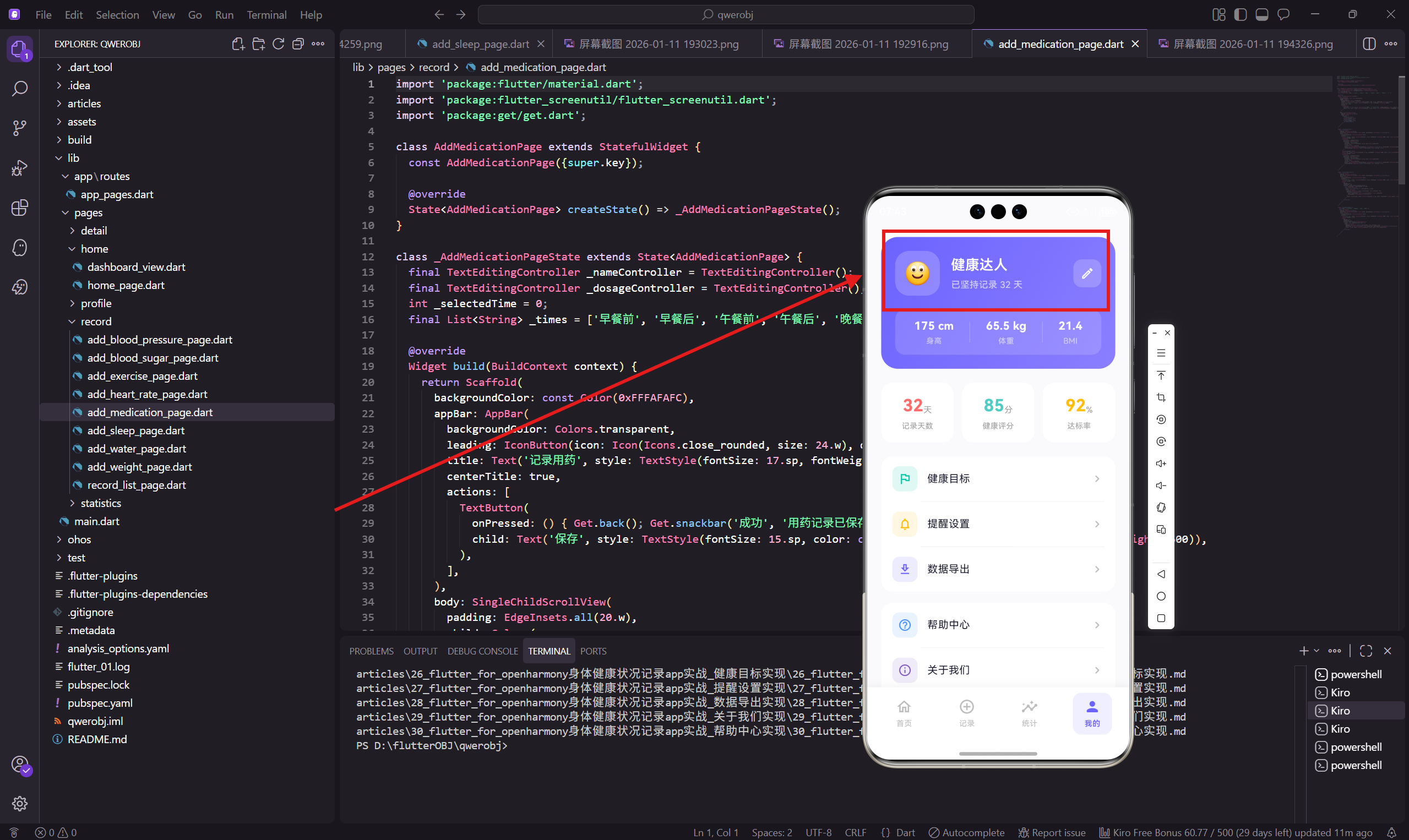
前言
编辑资料页面让用户可以修改自己的个人信息,包括头像、昵称、性别、出生日期、身高、体重等。这些信息对于健康数据的分析和建议生成非常重要。
这篇文章会讲解编辑资料页面的实现,包括头像编辑、表单字段设计等核心功能。
页面整体结构
编辑资料页面包含头像编辑区域和表单字段列表两个主要部分。
class EditProfilePage extends StatelessWidget {
const EditProfilePage({super.key});
Widget build(BuildContext context) {
return Scaffold(
backgroundColor: const Color(0xFFFAFAFC),
appBar: AppBar(
backgroundColor: Colors.transparent,
leading: IconButton(
icon: Icon(Icons.arrow_back_ios_rounded, size: 20.w),
onPressed: () => Get.back()
),
title: Text('编辑资料', style: TextStyle(fontSize: 17.sp, fontWeight: FontWeight.w600)),
centerTitle: true,
actions: [
TextButton(
onPressed: () => Get.back(),
child: Text('保存', style: TextStyle(
fontSize: 15.sp,
color: const Color(0xFF6C63FF),
fontWeight: FontWeight.w600
))
),
],
),
body: SingleChildScrollView(
padding: EdgeInsets.all(20.w),
child: Column(
children: [
_buildAvatar(),
SizedBox(height: 24.h),
_buildForm(),
],
),
),
);
}
}
AppBar 右侧添加了保存按钮,使用主题色让它更醒目。页面使用统一的浅灰色背景,头像区域和表单区域垂直排列。
头像编辑区域
头像编辑区域展示当前头像,并提供修改入口。
Widget _buildAvatar() {
  return Center(
    child: Stack(
      children: [
        Container(
          width: 90.w,
          height: 90.w,
          decoration: BoxDecoration(
            color: const Color(0xFF6C63FF).withOpacity(0.1),
            shape: BoxShape.circle,
          ),
          child: Center(
            child: Text('🙂', style: TextStyle(fontSize: 40.sp))
          ),
        ),
        Positioned(
          right: 0,
          bottom: 0,
          child: Container(
            padding: EdgeInsets.all(8.w),
            decoration: const BoxDecoration(
              color: Color(0xFF6C63FF),
              shape: BoxShape.circle
            ),
            child: Icon(Icons.camera_alt_outlined, size: 16.w, color: Colors.white),
          ),
        ),
      ],
    ),
  );
}
头像使用圆形容器,背景是淡紫色。当前用 emoji 表情代替真实头像,实际应用中可以换成用户上传的图片。
右下角的相机图标用 Stack 和 Positioned 定位,点击可以打开相册或相机选择新头像。
头像选择功能
点击头像时弹出选择菜单:
void _showAvatarPicker(BuildContext context) {
  showModalBottomSheet(
    context: context,
    backgroundColor: Colors.white,
    shape: RoundedRectangleBorder(
      borderRadius: BorderRadius.vertical(top: Radius.circular(20.r)),
    ),
    builder: (context) => Container(
      padding: EdgeInsets.all(20.w),
      child: Column(
        mainAxisSize: MainAxisSize.min,
        children: [
          _buildPickerOption('拍照', Icons.camera_alt_outlined, () {
            Navigator.pop(context);
            // 打开相机
          }),
          SizedBox(height: 12.h),
          _buildPickerOption('从相册选择', Icons.photo_library_outlined, () {
            Navigator.pop(context);
            // 打开相册
          }),
          SizedBox(height: 12.h),
          _buildPickerOption('取消', Icons.close_rounded, () {
            Navigator.pop(context);
          }),
        ],
      ),
    ),
  );
}

Widget _buildPickerOption(String label, IconData icon, VoidCallback onTap) {
  return GestureDetector(
    onTap: onTap,
    child: Container(
      padding: EdgeInsets.symmetric(vertical: 14.h),
      decoration: BoxDecoration(
        color: Colors.grey[50],
        borderRadius: BorderRadius.circular(12.r),
      ),
      child: Row(
        mainAxisAlignment: MainAxisAlignment.center,
        children: [
          Icon(icon, size: 20.w, color: const Color(0xFF6C63FF)),
          SizedBox(width: 10.w),
          Text(label, style: TextStyle(
            fontSize: 15.sp,
            color: const Color(0xFF1A1A2E),
          )),
        ],
      ),
    ),
  );
}
底部弹出菜单提供拍照和从相册选择两个选项,用户可以根据需要选择。
表单字段列表
表单字段列表展示所有可编辑的个人信息。
Widget _buildForm() {
  return Container(
    padding: EdgeInsets.all(20.w),
    decoration: BoxDecoration(
      color: Colors.white,
      borderRadius: BorderRadius.circular(20.r)
    ),
    child: Column(
      children: [
        _buildField('昵称', '健康达人'),
        _buildField('性别', '男'),
        _buildField('出生日期', '1990-01-01'),
        _buildField('身高', '175 cm'),
        _buildField('体重', '65.5 kg'),
      ],
    ),
  );
}

Widget _buildField(String label, String value) {
  return Padding(
    padding: EdgeInsets.only(bottom: 16.h),
    child: Row(
      children: [
        SizedBox(
          width: 80.w,
          child: Text(label, style: TextStyle(
            fontSize: 14.sp,
            color: Colors.grey[600]
          ))
        ),
        Expanded(
          child: TextField(
            controller: TextEditingController(text: value),
            decoration: InputDecoration(
              border: InputBorder.none,
              contentPadding: EdgeInsets.zero,
              isDense: true,
            ),
            style: TextStyle(
              fontSize: 15.sp,
              color: const Color(0xFF1A1A2E)
            ),
          ),
        ),
        Icon(Icons.chevron_right_rounded, size: 20.w, color: Colors.grey[400]),
      ],
    ),
  );
}
每个字段一行,左边是标签,中间是输入框,右边是箭头图标。标签宽度固定为 80.w,保证对齐。
输入框去掉了边框,和整体设计风格保持一致。箭头图标提示用户这个字段可以点击编辑。
性别选择
性别字段点击后弹出选择器:
void _showGenderPicker(BuildContext context) {
  showModalBottomSheet(
    context: context,
    backgroundColor: Colors.white,
    shape: RoundedRectangleBorder(
      borderRadius: BorderRadius.vertical(top: Radius.circular(20.r)),
    ),
    builder: (context) => Container(
      padding: EdgeInsets.all(20.w),
      child: Column(
        mainAxisSize: MainAxisSize.min,
        children: [
          Text('选择性别', style: TextStyle(
            fontSize: 16.sp,
            fontWeight: FontWeight.w600,
            color: const Color(0xFF1A1A2E),
          )),
          SizedBox(height: 20.h),
          _buildGenderOption('男', true),
          SizedBox(height: 12.h),
          _buildGenderOption('女', false),
        ],
      ),
    ),
  );
}

Widget _buildGenderOption(String gender, bool isSelected) {
  return GestureDetector(
    onTap: () {
      // 选择性别
      Navigator.pop(Get.context!);
    },
    child: Container(
      padding: EdgeInsets.symmetric(vertical: 14.h),
      decoration: BoxDecoration(
        color: isSelected
          ? const Color(0xFF6C63FF).withOpacity(0.1)
          : Colors.grey[50],
        borderRadius: BorderRadius.circular(12.r),
        border: isSelected
          ? Border.all(color: const Color(0xFF6C63FF))
          : null,
      ),
      child: Center(
        child: Text(gender, style: TextStyle(
          fontSize: 15.sp,
          color: isSelected
            ? const Color(0xFF6C63FF)
            : const Color(0xFF1A1A2E),
          fontWeight: isSelected ? FontWeight.w600 : FontWeight.w400,
        )),
      ),
    ),
  );
}
性别选择器用底部弹出菜单,选中的选项用紫色边框和背景高亮显示。
日期选择
出生日期字段点击后弹出日期选择器:
void _showDatePicker(BuildContext context) async {
  final DateTime? picked = await showDatePicker(
    context: context,
    initialDate: DateTime(1990, 1, 1),
    firstDate: DateTime(1900),
    lastDate: DateTime.now(),
    builder: (context, child) {
      return Theme(
        data: Theme.of(context).copyWith(
          colorScheme: const ColorScheme.light(
            primary: Color(0xFF6C63FF),
            onPrimary: Colors.white,
            surface: Colors.white,
            onSurface: Color(0xFF1A1A2E),
          ),
        ),
        child: child!,
      );
    },
  );

  if (picked != null) {
    // 更新出生日期
    final formatted = '${picked.year}-${picked.month.toString().padLeft(2, '0')}-${picked.day.toString().padLeft(2, '0')}';
    // setState or update controller
  }
}
使用 Flutter 内置的 showDatePicker,通过 Theme 自定义颜色和应用主题保持一致。
数值输入
身高和体重字段需要数值输入,可以用滑动选择器或数字键盘:
void _showHeightPicker(BuildContext context) {
  int selectedHeight = 175;

  showModalBottomSheet(
    context: context,
    backgroundColor: Colors.white,
    shape: RoundedRectangleBorder(
      borderRadius: BorderRadius.vertical(top: Radius.circular(20.r)),
    ),
    builder: (context) => StatefulBuilder(
      builder: (context, setState) => Container(
        height: 300.h,
        padding: EdgeInsets.all(20.w),
        child: Column(
          children: [
            Row(
              mainAxisAlignment: MainAxisAlignment.spaceBetween,
              children: [
                TextButton(
                  onPressed: () => Navigator.pop(context),
                  child: Text('取消', style: TextStyle(
                    fontSize: 15.sp,
                    color: Colors.grey[600],
                  )),
                ),
                Text('选择身高', style: TextStyle(
                  fontSize: 16.sp,
                  fontWeight: FontWeight.w600,
                  color: const Color(0xFF1A1A2E),
                )),
                TextButton(
                  onPressed: () {
                    // 确认选择
                    Navigator.pop(context);
                  },
                  child: Text('确定', style: TextStyle(
                    fontSize: 15.sp,
                    color: const Color(0xFF6C63FF),
                    fontWeight: FontWeight.w600,
                  )),
                ),
              ],
            ),
            Expanded(
              child: ListWheelScrollView.useDelegate(
                itemExtent: 50.h,
                physics: const FixedExtentScrollPhysics(),
                onSelectedItemChanged: (index) {
                  setState(() => selectedHeight = 100 + index);
                },
                childDelegate: ListWheelChildBuilderDelegate(
                  childCount: 151, // 100-250 cm
                  builder: (context, index) {
                    final height = 100 + index;
                    final isSelected = height == selectedHeight;
                    return Center(
                      child: Text(
                        '$height cm',
                        style: TextStyle(
                          fontSize: isSelected ? 20.sp : 16.sp,
                          color: isSelected
                            ? const Color(0xFF6C63FF)
                            : Colors.grey[400],
                          fontWeight: isSelected
                            ? FontWeight.w600
                            : FontWeight.w400,
                        ),
                      ),
                    );
                  },
                ),
              ),
            ),
          ],
        ),
      ),
    ),
  );
}
身高选择器使用 ListWheelScrollView 实现滚轮效果,选中的数值用紫色高亮显示。
表单验证
保存前需要验证表单数据:
bool _validateForm() {
  // 验证昵称
  if (_nicknameController.text.isEmpty) {
    _showError('请输入昵称');
    return false;
  }

  // 验证身高
  final height = double.tryParse(_heightController.text.replaceAll(' cm', ''));
  if (height == null || height < 50 || height > 250) {
    _showError('请输入有效的身高');
    return false;
  }

  // 验证体重
  final weight = double.tryParse(_weightController.text.replaceAll(' kg', ''));
  if (weight == null || weight < 20 || weight > 300) {
    _showError('请输入有效的体重');
    return false;
  }

  return true;
}

void _showError(String message) {
  Get.snackbar(
    '提示',
    message,
    snackPosition: SnackPosition.TOP,
    backgroundColor: const Color(0xFFFF6B6B),
    colorText: Colors.white,
  );
}
验证失败时显示错误提示,使用 GetX 的 snackbar 在顶部显示。
保存数据
验证通过后保存数据:
void _saveProfile() {
  if (!_validateForm()) return;

  // 收集表单数据
  final profile = {
    'nickname': _nicknameController.text,
    'gender': _selectedGender,
    'birthday': _selectedBirthday,
    'height': double.parse(_heightController.text.replaceAll(' cm', '')),
    'weight': double.parse(_weightController.text.replaceAll(' kg', '')),
  };

  // 保存到本地或服务器
  // await ProfileService.save(profile);

  Get.back();
  Get.snackbar(
    '成功',
    '资料已保存',
    snackPosition: SnackPosition.TOP,
    backgroundColor: const Color(0xFF00C9A7),
    colorText: Colors.white,
  );
}
保存成功后返回上一页,并显示成功提示。
小结
编辑资料页面通过头像编辑和表单字段两个区域,让用户可以方便地修改个人信息。
核心设计要点包括:头像右下角添加相机图标提示可编辑,表单字段使用统一的布局和样式,特殊字段(性别、日期、数值)使用专门的选择器。这些设计让用户能轻松完成资料编辑,同时保证数据的准确性。
欢迎加入开源鸿蒙跨平台社区:https://openharmonycrossplatform.csdn.net

开源鸿蒙跨平台开发社区汇聚开发者与厂商,共建“一次开发,多端部署”的开源生态,致力于降低跨端开发门槛,推动万物智联创新。
更多推荐



 8
8 0
0- 0


 已为社区贡献30条内容

所有评论(0)