Flutter for OpenHarmony 看书管理记录App实战:想读清单实现dd
本文介绍了想读清单功能的实现,该功能用于记录用户想读但未开始阅读的书籍。页面采用Flutter开发,包含书籍列表展示、优先级标记、添加新书等功能。核心代码包括:1) 使用ListView渲染书籍列表,每项显示书名、作者、优先级和想读原因;2) 根据优先级高低显示不同颜色标签;3) 提供"开始阅读"和删除按钮。页面采用米色背景和棕色导航栏的暖色调设计,右上角提供排序功能,底部悬浮
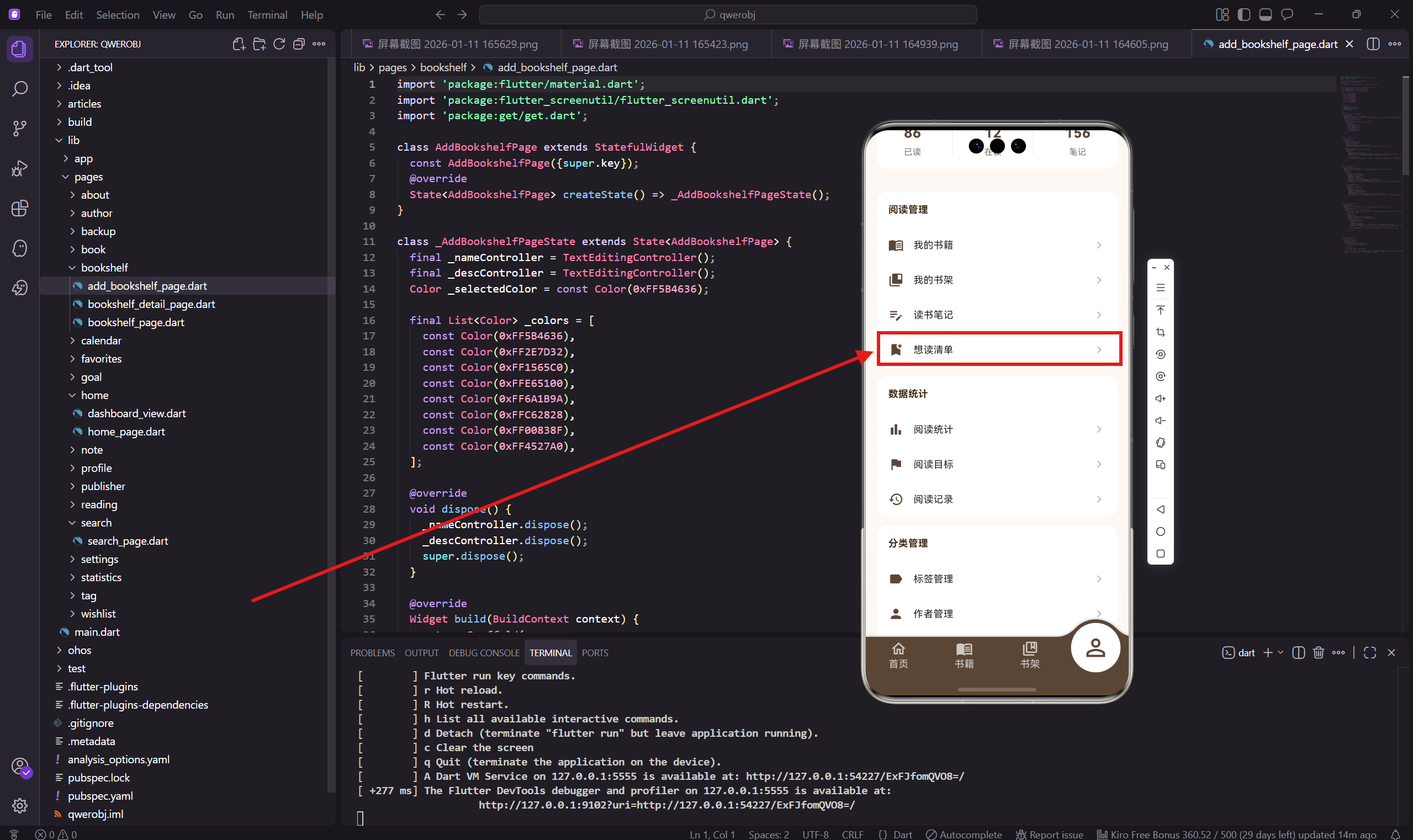
想读清单是一个很实用的功能,用来记录那些想读但还没开始读的书。很多时候我们会在网上看到别人推荐的好书,或者朋友推荐的书,但当时没时间读,过段时间就忘了。有了想读清单,就可以把这些书先记下来,等有时间再读。
做这个页面的时候,我加入了优先级功能,让用户可以标记哪些书更想读,方便以后选书。
依赖引入
import 'package:flutter/material.dart';
import 'package:flutter_screenutil/flutter_screenutil.dart';
import 'package:get/get.dart';
import '../../app/routes/app_routes.dart';
标准的依赖引入,app_routes 用于页面跳转。
页面主体结构
class WishlistPage extends StatelessWidget {
const WishlistPage({super.key});
Widget build(BuildContext context) {
final wishlist = [
{'title': '枪炮、病菌与钢铁', 'author': '贾雷德·戴蒙德', 'reason': '朋友推荐,了解人类文明发展', 'priority': '高'},
{'title': '思考,快与慢', 'author': '丹尼尔·卡尼曼', 'reason': '诺贝尔奖得主作品', 'priority': '高'},
{'title': '乌合之众', 'author': '古斯塔夫·勒庞', 'reason': '经典心理学著作', 'priority': '中'},
{'title': '人性的弱点', 'author': '戴尔·卡耐基', 'reason': '提升人际交往能力', 'priority': '中'},
{'title': '原则', 'author': '瑞·达利欧', 'reason': '投资大师的人生智慧', 'priority': '低'},
];
想读清单数据包含书名、作者、想读原因、优先级四个字段。想读原因帮助用户回忆为什么想读这本书。
Scaffold 结构
    return Scaffold(
      backgroundColor: const Color(0xFFFDF8F3),
      appBar: AppBar(
        title: const Text('想读清单'),
        backgroundColor: const Color(0xFF5B4636),
        foregroundColor: Colors.white,
        actions: [
          IconButton(icon: const Icon(Icons.sort), onPressed: () {}),
        ],
      ),
AppBar 右上角有排序按钮,可以按优先级、添加时间等排序。
列表渲染
      body: ListView.builder(
        padding: EdgeInsets.all(16.w),
        itemCount: wishlist.length,
        itemBuilder: (context, index) => _buildWishItem(wishlist[index]),
      ),
      floatingActionButton: FloatingActionButton(
        backgroundColor: const Color(0xFF5B4636),
        onPressed: () => Get.toNamed(AppRoutes.addWishlist),
        child: const Icon(Icons.add, color: Colors.white),
      ),
    );
  }
用 ListView.builder 渲染列表,悬浮按钮跳转到添加想读页面。
想读项组件
  Widget _buildWishItem(Map<String, String> item) {
    final priorityColor = item['priority'] == '高'
        ? Colors.red
        : (item['priority'] == '中' ? Colors.orange : Colors.green);
    return Container(
      margin: EdgeInsets.only(bottom: 12.h),
      padding: EdgeInsets.all(16.w),
      decoration: BoxDecoration(
        color: Colors.white,
        borderRadius: BorderRadius.circular(12.r),
      ),
根据优先级设置不同的颜色:高优先级红色,中优先级橙色,低优先级绿色。
书名和优先级
      child: Column(
        crossAxisAlignment: CrossAxisAlignment.start,
        children: [
          Row(
            children: [
              Expanded(
                child: Text(
                  item['title']!,
                  style: TextStyle(
                    fontWeight: FontWeight.w600,
                    fontSize: 16.sp,
                  ),
                ),
              ),
              Container(
                padding: EdgeInsets.symmetric(horizontal: 8.w, vertical: 4.h),
                decoration: BoxDecoration(
                  color: priorityColor.withOpacity(0.1),
                  borderRadius: BorderRadius.circular(4.r),
                ),
                child: Text(
                  item['priority']!,
                  style: TextStyle(
                    fontSize: 11.sp,
                    color: priorityColor,
                  ),
                ),
              ),
            ],
          ),
书名在左边,优先级标签在右边。标签用对应颜色的浅色背景。
作者和想读原因
          SizedBox(height: 6.h),
          Text(
            item['author']!,
            style: TextStyle(
              color: Colors.grey[600],
              fontSize: 13.sp,
            ),
          ),
          SizedBox(height: 10.h),
          Row(
            children: [
              Icon(Icons.lightbulb_outline, size: 14.sp, color: Colors.grey[500]),
              SizedBox(width: 4.w),
              Expanded(
                child: Text(
                  item['reason']!,
                  style: TextStyle(
                    color: Colors.grey[500],
                    fontSize: 12.sp,
                  ),
                ),
              ),
            ],
          ),
作者用灰色显示,想读原因前面有个灯泡图标,表示这是一个想法或灵感。
操作按钮
          SizedBox(height: 12.h),
          Row(
            children: [
              Expanded(
                child: OutlinedButton(
                  onPressed: () => Get.toNamed(AppRoutes.addBook),
                  style: OutlinedButton.styleFrom(
                    foregroundColor: const Color(0xFF5B4636),
                    side: const BorderSide(color: Color(0xFF5B4636)),
                  ),
                  child: const Text('开始阅读'),
                ),
              ),
              SizedBox(width: 12.w),
              IconButton(
                icon: Icon(Icons.delete_outline, color: Colors.grey[400]),
                onPressed: () {},
              ),
            ],
          ),
        ],
      ),
    );
  }
}
底部有"开始阅读"按钮和删除按钮。点击开始阅读会跳转到添加书籍页面,把这本书正式加入书架。
优先级设计
优先级用三个等级:
高:非常想读,有时间就读。
中:比较想读,有空再说。
低:随便看看,不着急。
颜色用红橙绿,符合人们对优先级的直觉认知。
想读原因的作用
记录想读原因很重要:
帮助回忆为什么想读这本书。
过段时间再看,可能发现已经不想读了。
可以作为选书的参考依据。
从想读到在读
点击"开始阅读"后的流程:
跳转到添加书籍页面,预填书名和作者。
用户补充其他信息后保存。
书籍加入书架,从想读清单移除。
小结
想读清单页面帮助用户记录想读的书,每本书有优先级和想读原因。用户可以随时把想读的书转为在读状态。
优先级用颜色区分,一眼就能看出哪些书更想读。想读原因帮助用户回忆当初为什么想读这本书。
下一篇会讲添加想读页面的实现,让用户可以把新书加入想读清单。
欢迎加入开源鸿蒙跨平台社区:https://openharmonycrossplatform.csdn.net

开源鸿蒙跨平台开发社区汇聚开发者与厂商,共建“一次开发,多端部署”的开源生态,致力于降低跨端开发门槛,推动万物智联创新。
更多推荐

 6
6 0
0- 0


 已为社区贡献30条内容

所有评论(0)