flutter_for_openharmony手语学习app实战+课程详情实现
课程详情页使用StatefulWidget管理学习状态,包含进度条、手语动作展示、学习提示和底部控制按钮。通过课程ID从Provider获取数据,AppBar集成收藏功能。页面布局分为三部分:顶部进度条显示学习进度,中间可滚动区域展示当前步骤的图文说明和提示,底部提供"上一步/下一步"导航。状态变量跟踪当前步骤和完成状态,交互式组件支持收藏切换和步骤切换功能。
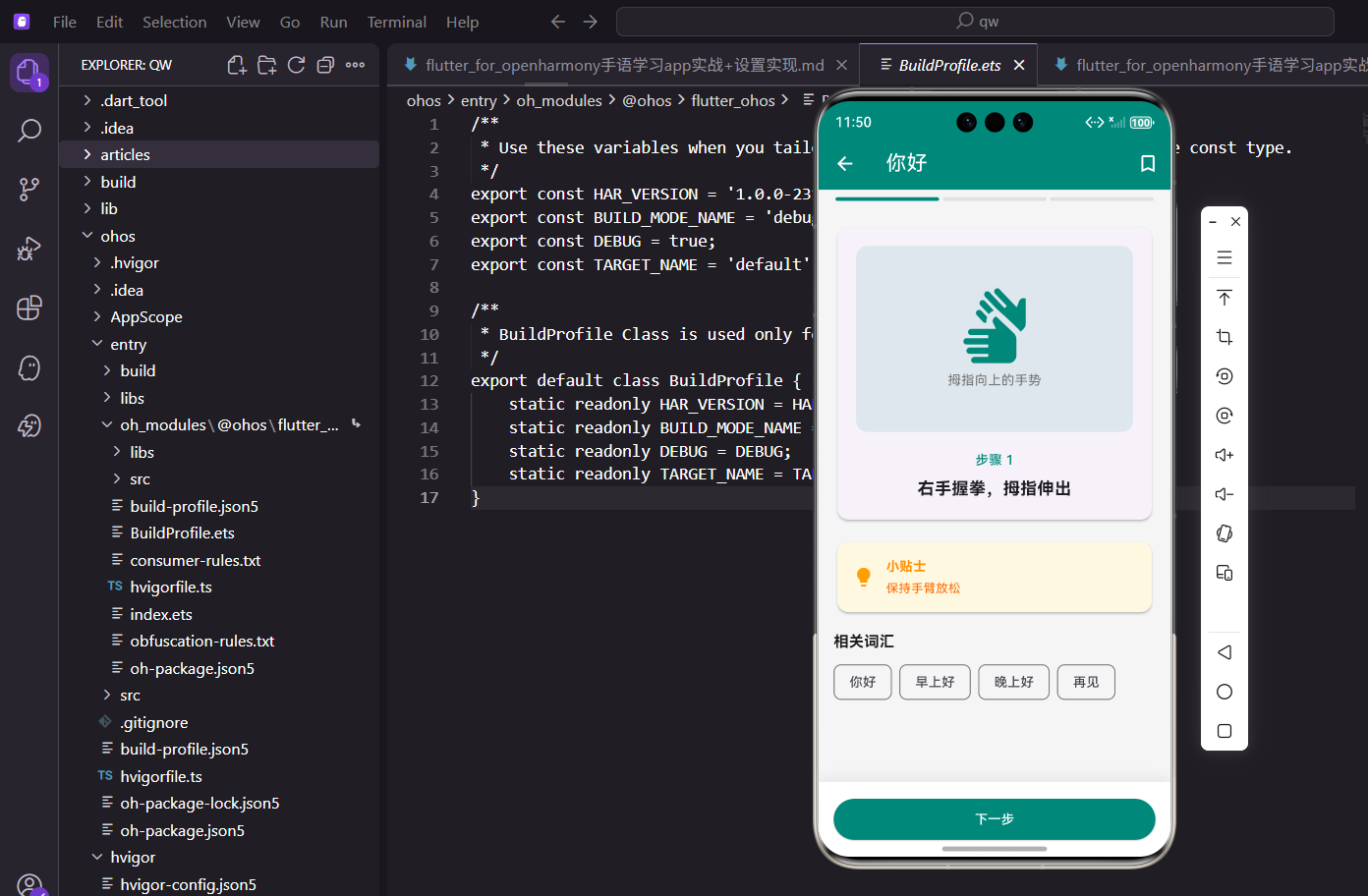
课程详情页是用户真正学习手语的地方,需要展示手语动作、步骤说明、学习提示等内容。这个页面交互较多,用StatefulWidget来管理状态。
页面参数接收
课程详情页需要接收课程ID:
class LessonDetailScreen extends StatefulWidget {
final String lessonId;
const LessonDetailScreen({super.key, required this.lessonId});
State<LessonDetailScreen> createState() => _LessonDetailScreenState();
}
通过构造函数传入课程ID,required关键字确保调用时必须提供这个参数。
状态变量定义
页面需要追踪当前学习步骤和完成状态:
class _LessonDetailScreenState extends State<LessonDetailScreen> {
  int _currentStep = 0;
  bool _isCompleted = false;
_currentStep记录当前在第几步,_isCompleted标记是否完成学习。这两个状态会随用户操作变化。
获取课程数据
从Provider获取课程信息:
Widget build(BuildContext context) {
final learningProvider = Provider.of<LearningProvider>(context);
final appProvider = Provider.of<AppProvider>(context);
final lesson = learningProvider.lessons.firstWhere(
(l) => l.id == widget.lessonId,
orElse: () => learningProvider.lessons.first,
);
firstWhere根据ID查找课程,找不到时返回第一个课程作为默认值。widget.lessonId访问StatefulWidget的属性。
AppBar收藏功能
AppBar右侧放收藏按钮:
    return Scaffold(
      appBar: AppBar(
        title: Text(lesson.title),
        actions: [
          IconButton(
            icon: Icon(
              appProvider.favorites.contains(widget.lessonId)
                  ? Icons.bookmark
                  : Icons.bookmark_border,
            ),
            onPressed: () => appProvider.toggleFavorite(widget.lessonId),
          ),
        ],
      ),
根据是否已收藏显示不同图标,实心表示已收藏,空心表示未收藏。点击调用toggleFavorite切换状态。
页面整体布局
页面分为进度条、内容区和底部按钮三部分:
      body: Column(
        children: [
          _buildProgressIndicator(lesson.steps.length),
          Expanded(
            child: SingleChildScrollView(
              padding: EdgeInsets.all(16.w),
              child: Column(
                crossAxisAlignment: CrossAxisAlignment.start,
                children: [
                  _buildStepCard(lesson.steps[_currentStep]),
                  SizedBox(height: 16.h),
                  _buildTipsCard(lesson.steps[_currentStep].tip),
                  SizedBox(height: 16.h),
                  _buildRelatedWords(),
                ],
              ),
            ),
          ),
          _buildBottomControls(lesson.steps.length, appProvider),
        ],
      ),
    );
  }
中间内容区可滚动,包含步骤卡片、提示卡片和相关词汇三个模块。
进度指示器
顶部显示学习进度:
  Widget _buildProgressIndicator(int totalSteps) {
    return Container(
      padding: EdgeInsets.symmetric(horizontal: 16.w, vertical: 8.h),
      color: Colors.grey[100],
      child: Row(
        children: List.generate(totalSteps, (index) {
          return Expanded(
            child: Container(
              height: 4.h,
              margin: EdgeInsets.symmetric(horizontal: 2.w),
              decoration: BoxDecoration(
                color: index <= _currentStep
                    ? const Color(0xFF00897B)
                    : Colors.grey[300],
                borderRadius: BorderRadius.circular(2.r),
              ),
            ),
          );
        }),
      ),
    );
  }
用List.generate生成和步骤数量相同的进度条段。当前步骤及之前的显示主题色,之后的显示灰色。Expanded让每段等宽。
步骤卡片展示
展示当前步骤的手语动作:
  Widget _buildStepCard(SignStep step) {
    return Card(
      child: Padding(
        padding: EdgeInsets.all(20.w),
        child: Column(
          children: [
            Container(
              width: double.infinity,
              height: 200.h,
              decoration: BoxDecoration(
                color: const Color(0xFF00897B).withOpacity(0.1),
                borderRadius: BorderRadius.circular(12.r),
              ),
              child: Column(
                mainAxisAlignment: MainAxisAlignment.center,
                children: [
                  Icon(
                    Icons.sign_language,
                    size: 80.sp,
                    color: const Color(0xFF00897B),
                  ),
图片区域用浅色背景占位,实际项目中这里应该放手语动作的图片或动画。
                  SizedBox(height: 8.h),
                  Text(
                    step.imageDescription,
                    style: TextStyle(
                      fontSize: 14.sp,
                      color: Colors.grey[600]
                    ),
                  ),
                ],
              ),
            ),
图标居中显示,下方是图片描述文字。
步骤说明文字
步骤编号和指令:
            SizedBox(height: 20.h),
            Text(
              '步骤 ${_currentStep + 1}',
              style: TextStyle(
                fontSize: 14.sp,
                color: const Color(0xFF00897B),
                fontWeight: FontWeight.w500,
              ),
            ),
            SizedBox(height: 8.h),
            Text(
              step.instruction,
              style: TextStyle(
                fontSize: 18.sp,
                fontWeight: FontWeight.bold
              ),
              textAlign: TextAlign.center,
            ),
          ],
        ),
      ),
    );
  }
步骤编号用主题色显示,指令文字加粗居中。大字体指令设计让用户能快速理解要做什么。
学习提示卡片
每个步骤配一个小贴士:
  Widget _buildTipsCard(String tip) {
    return Card(
      color: Colors.amber[50],
      child: Padding(
        padding: EdgeInsets.all(16.w),
        child: Row(
          children: [
            Icon(
              Icons.lightbulb,
              color: Colors.amber[700],
              size: 24.sp
            ),
            SizedBox(width: 12.w),
            Expanded(
              child: Column(
                crossAxisAlignment: CrossAxisAlignment.start,
                children: [
                  Text(
                    '小贴士',
                    style: TextStyle(
                      fontSize: 14.sp,
                      fontWeight: FontWeight.bold,
                      color: Colors.amber[800],
                    ),
                  ),
                  SizedBox(height: 4.h),
                  Text(
                    tip,
                    style: TextStyle(
                      fontSize: 13.sp,
                      color: Colors.amber[900]
                    ),
                  ),
                ],
              ),
            ),
          ],
        ),
      ),
    );
  }
提示卡片用暖黄色背景,配合灯泡图标,视觉上很温馨。Expanded让文字区域自动填充剩余空间。
相关词汇展示
底部展示相关的手语词汇:
  Widget _buildRelatedWords() {
    return Column(
      crossAxisAlignment: CrossAxisAlignment.start,
      children: [
        Text(
          '相关词汇',
          style: TextStyle(
            fontSize: 16.sp,
            fontWeight: FontWeight.bold
          ),
        ),
        SizedBox(height: 8.h),
        Wrap(
          spacing: 8.w,
          runSpacing: 8.h,
          children: ['你好', '早上好', '晚上好', '再见'].map((word) {
            return Chip(
              label: Text(word),
              backgroundColor: Colors.grey[100],
            );
          }).toList(),
        ),
      ],
    );
  }
用Wrap组件让标签自动换行,spacing是水平间距,runSpacing是行间距。
底部控制按钮
上一步和下一步按钮:
  Widget _buildBottomControls(int totalSteps, AppProvider appProvider) {
    return Container(
      padding: EdgeInsets.all(16.w),
      decoration: BoxDecoration(
        color: Colors.white,
        boxShadow: [
          BoxShadow(
            color: Colors.black.withOpacity(0.05),
            blurRadius: 10,
            offset: const Offset(0, -5),
          ),
        ],
      ),
底部控制区加了向上的阴影,和内容区形成分层效果。
      child: Row(
        children: [
          if (_currentStep > 0)
            Expanded(
              child: OutlinedButton(
                onPressed: () => setState(() => _currentStep--),
                child: const Text('上一步'),
              ),
            ),
          if (_currentStep > 0) SizedBox(width: 12.w),
          Expanded(
            flex: 2,
            child: ElevatedButton(
              onPressed: () {
                if (_currentStep < totalSteps - 1) {
                  setState(() => _currentStep++);
                } else {
                  _completeLesson(appProvider);
                }
              },
              style: ElevatedButton.styleFrom(
                backgroundColor: const Color(0xFF00897B),
                padding: EdgeInsets.symmetric(vertical: 12.h),
              ),
              child: Text(
                _currentStep < totalSteps - 1 ? '下一步' : '完成学习',
                style: const TextStyle(color: Colors.white),
              ),
            ),
          ),
        ],
      ),
    );
  }
第一步时不显示"上一步"按钮。最后一步时按钮文字变成"完成学习"。flex: 2让主按钮占更多空间。
完成学习弹窗
学完后弹出庆祝弹窗:
  void _completeLesson(AppProvider appProvider) {
    appProvider.completeLesson(widget.lessonId);
    showDialog(
      context: context,
      builder: (context) => AlertDialog(
        title: Row(
          children: [
            Icon(Icons.celebration, color: Colors.amber, size: 28.sp),
            SizedBox(width: 8.w),
            const Text('恭喜完成!'),
          ],
        ),
        content: Column(
          mainAxisSize: MainAxisSize.min,
          children: [
            Text('你已成功学习了这个手语!'),
            SizedBox(height: 16.h),
            Row(
              mainAxisAlignment: MainAxisAlignment.center,
              children: [
                _buildRewardItem(Icons.star, '+10', '积分'),
                SizedBox(width: 24.w),
                _buildRewardItem(
                  Icons.local_fire_department, '+1', '连续'
                ),
              ],
            ),
          ],
        ),
弹窗展示获得的奖励:积分和连续学习天数。庆祝图标和金色配色营造成就感。
弹窗按钮
返回和继续学习按钮:
        actions: [
          TextButton(
            onPressed: () {
              Navigator.pop(context);
              Navigator.pop(context);
            },
            child: const Text('返回'),
          ),
          ElevatedButton(
            onPressed: () {
              Navigator.pop(context);
            },
            child: const Text('继续学习'),
          ),
        ],
      ),
    );
  }
返回按钮关闭弹窗并返回上一页,继续学习按钮只关闭弹窗。
奖励项样式
单个奖励项的样式:
  Widget _buildRewardItem(IconData icon, String value, String label) {
    return Column(
      children: [
        Icon(icon, color: Colors.amber, size: 32.sp),
        SizedBox(height: 4.h),
        Text(
          value,
          style: TextStyle(
            fontSize: 18.sp,
            fontWeight: FontWeight.bold
          )
        ),
        Text(
          label,
          style: TextStyle(fontSize: 12.sp, color: Colors.grey)
        ),
      ],
    );
  }
图标、数值、标签垂直排列,金色图标突出奖励感。
小结
课程详情页的核心是步骤导航和状态管理。进度指示器让用户知道学到哪了,底部按钮控制前进后退,完成弹窗给予正向反馈。这些设计共同构成了完整的学习体验。
欢迎加入开源鸿蒙跨平台社区:https://openharmonycrossplatform.csdn.net

开源鸿蒙跨平台开发社区汇聚开发者与厂商,共建“一次开发,多端部署”的开源生态,致力于降低跨端开发门槛,推动万物智联创新。
更多推荐

 5
5 0
0- 0


 已为社区贡献30条内容

所有评论(0)