Flutter与OpenHarmony搜索结果页面开发
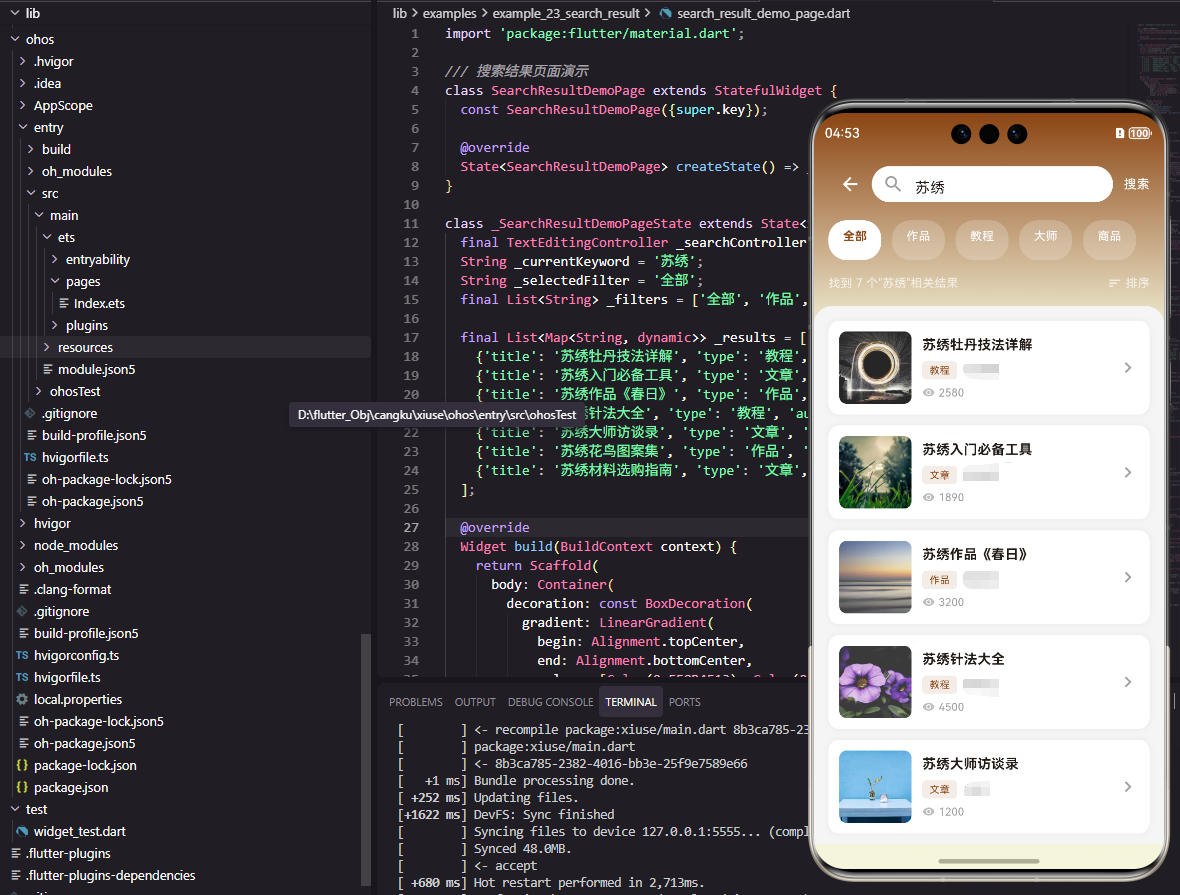
本文介绍了如何在Flutter和OpenHarmony平台实现搜索结果页面。主要内容包括:1) 页面结构设计,通过构造函数接收关键词参数;2) 页面布局实现,包含AppBar、搜索信息和结果列表;3) 结果列表构建,使用ListView展示带标题、类型和作者的卡片式结果。页面采用渐变背景和白色卡片设计,提供筛选功能入口,并显示搜索结果数量。代码示例展示了从数据模型到UI渲染的完整实现流程,适用于需
前言
搜索结果页面是用户执行搜索后展示匹配内容的关键页面。它需要清晰展示搜索关键词、结果数量、结果列表,并提供筛选和排序功能。本文将详细介绍如何在Flutter和OpenHarmony平台上实现一个功能完善的搜索结果页面。
搜索结果页面的设计需要考虑结果的相关性展示、空结果的友好提示、以及加载更多的性能优化。
Flutter搜索结果页面实现
页面结构设计
搜索结果页面接收关键词参数并展示结果。
class SearchResultPage extends StatefulWidget {
final String keyword;
const SearchResultPage({super.key, required this.keyword});
State<SearchResultPage> createState() => _SearchResultPageState();
}
class _SearchResultPageState extends State<SearchResultPage> {
final List<Map<String, String>> _results = [
{'title': '苏绣牡丹技法详解', 'type': '教程', 'author': '王淑英'},
{'title': '苏绣入门必备工具', 'type': '文章', 'author': '李雪芬'},
{'title': '苏绣作品《春日》', 'type': '作品', 'author': '陈美华'},
];
keyword通过构造函数传入。_results存储搜索结果数据,实际项目中应从后端API获取。
页面布局实现
包含AppBar、搜索信息和结果列表。
Widget build(BuildContext context) {
return Scaffold(
appBar: AppBar(
title: Text('搜索: ${widget.keyword}', style: const TextStyle(fontSize: 16, color: Colors.white)),
backgroundColor: const Color(0xFF8B4513),
leading: IconButton(
icon: const Icon(Icons.arrow_back, color: Colors.white),
onPressed: () => Navigator.pop(context),
),
),
body: Container(
decoration: const BoxDecoration(
gradient: LinearGradient(
begin: Alignment.topCenter,
end: Alignment.bottomCenter,
colors: [Color(0xFF8B4513), Color(0xFFF5F5DC)],
),
),
child: Column(
children: [
Container(
padding: const EdgeInsets.all(16),
child: Row(
mainAxisAlignment: MainAxisAlignment.spaceBetween,
children: [
Text('找到 ${_results.length} 个结果', style: const TextStyle(color: Colors.white, fontSize: 14)),
Row(
children: [
const Icon(Icons.filter_list, color: Colors.white, size: 18),
const SizedBox(width: 4),
const Text('筛选', style: TextStyle(color: Colors.white, fontSize: 14)),
],
),
],
),
),
AppBar显示搜索关键词。结果数量和筛选按钮显示在列表上方。
结果列表构建
使用ListView展示搜索结果。
            Expanded(
              child: ListView.builder(
                padding: const EdgeInsets.symmetric(horizontal: 16),
                itemCount: _results.length,
                itemBuilder: (context, index) {
                  final result = _results[index];
                  return Container(
                    margin: const EdgeInsets.only(bottom: 12),
                    padding: const EdgeInsets.all(16),
                    decoration: BoxDecoration(
                      color: Colors.white,
                      borderRadius: BorderRadius.circular(12),
                      boxShadow: [BoxShadow(color: Colors.black.withOpacity(0.05), blurRadius: 5)],
                    ),
                    child: Row(
                      children: [
                        Container(
                          width: 60,
                          height: 60,
                          decoration: BoxDecoration(
                            color: Colors.grey[200],
                            borderRadius: BorderRadius.circular(8),
                          ),
                          child: const Icon(Icons.image, color: Colors.grey),
                        ),
                        const SizedBox(width: 12),
                        Expanded(
                          child: Column(
                            crossAxisAlignment: CrossAxisAlignment.start,
                            children: [
                              Text(result['title']!, style: const TextStyle(fontSize: 14, fontWeight: FontWeight.bold)),
                              const SizedBox(height: 4),
                              Row(
                                children: [
                                  Container(
                                    padding: const EdgeInsets.symmetric(horizontal: 6, vertical: 2),
                                    decoration: BoxDecoration(
                                      color: const Color(0xFF8B4513).withOpacity(0.1),
                                      borderRadius: BorderRadius.circular(4),
                                    ),
                                    child: Text(result['type']!, style: const TextStyle(fontSize: 10, color: Color(0xFF8B4513))),
                                  ),
                                  const SizedBox(width: 8),
                                  Text(result['author']!, style: TextStyle(fontSize: 12, color: Colors.grey[600])),
                                ],
                              ),
                            ],
                          ),
                        ),
                        const Icon(Icons.chevron_right, color: Colors.grey),
                      ],
                    ),
                  );
                },
              ),
            ),
          ],
        ),
      ),
    );
  }
}
每个结果项包含缩略图、标题、类型标签和作者信息。类型标签使用品牌色背景区分不同内容类型。
OpenHarmony鸿蒙实现
页面定义
鸿蒙平台使用路由参数接收关键词。
interface ResultItem {
  title: string
  type: string
  author: string
}

@Entry
@Component
struct SearchResultPage {
  @State keyword: string = ''
  private results: Array<ResultItem> = [
    { title: '苏绣牡丹技法详解', type: '教程', author: '王淑英' },
    { title: '苏绣入门必备工具', type: '文章', author: '李雪芬' },
    { title: '苏绣作品《春日》', type: '作品', author: '陈美华' }
  ]

  aboutToAppear() {
    const params = router.getParams() as Record<string, string>
    this.keyword = params?.keyword || ''
  }
aboutToAppear生命周期方法中获取路由参数。
页面布局实现
使用Column和List构建页面。
  build() {
    Column() {
      Row() {
        Image($r('app.media.back'))
          .width(24)
          .height(24)
          .fillColor(Color.White)
          .onClick(() => router.back())
        Text('搜索: ' + this.keyword)
          .fontSize(16)
          .fontColor(Color.White)
          .layoutWeight(1)
          .margin({ left: 12 })
      }
      .width('100%')
      .height(56)
      .padding({ left: 16, right: 16 })
      .backgroundColor('#8B4513')

      Row() {
        Text('找到 ' + this.results.length + ' 个结果')
          .fontSize(14)
          .fontColor(Color.White)
        Blank()
        Row() {
          Image($r('app.media.filter'))
            .width(18)
            .height(18)
            .fillColor(Color.White)
          Text('筛选')
            .fontSize(14)
            .fontColor(Color.White)
            .margin({ left: 4 })
        }
      }
      .width('100%')
      .padding(16)

      List() {
        ForEach(this.results, (item: ResultItem) => {
          ListItem() {
            Row() {
              Stack() {
                Image($r('app.media.placeholder'))
                  .width(60)
                  .height(60)
                  .borderRadius(8)
              }
              .width(60)
              .height(60)
              .backgroundColor('#F0F0F0')
              .borderRadius(8)

              Column() {
                Text(item.title)
                  .fontSize(14)
                  .fontWeight(FontWeight.Bold)
                  .fontColor('#333333')
                Row() {
                  Text(item.type)
                    .fontSize(10)
                    .fontColor('#8B4513')
                    .backgroundColor('#8B45131A')
                    .borderRadius(4)
                    .padding({ left: 6, right: 6, top: 2, bottom: 2 })
                  Text(item.author)
                    .fontSize(12)
                    .fontColor('#666666')
                    .margin({ left: 8 })
                }
                .margin({ top: 4 })
              }
              .layoutWeight(1)
              .alignItems(HorizontalAlign.Start)
              .margin({ left: 12 })

              Image($r('app.media.arrow_right'))
                .width(16)
                .height(16)
                .fillColor('#CCCCCC')
            }
            .width('100%')
            .padding(16)
            .backgroundColor(Color.White)
            .borderRadius(12)
          }
          .margin({ bottom: 12 })
        })
      }
      .width('90%')
      .layoutWeight(1)
    }
    .width('100%')
    .height('100%')
    .linearGradient({
      direction: GradientDirection.Bottom,
      colors: [['#8B4513', 0], ['#F5F5DC', 1]]
    })
  }
}
List组件实现可滚动的结果列表。router.back()返回上一页。
功能扩展
搜索结果页面还可以添加搜索历史记录、搜索建议、结果排序、分页加载、空结果提示等功能。对于复杂的搜索场景,可以添加多维度筛选面板。
总结
本文介绍了Flutter和OpenHarmony平台上搜索结果页面的实现方法。搜索结果页面是搜索功能的核心展示页面,其设计需要清晰展示结果并提供便捷的筛选功能。欢迎加入开源鸿蒙跨平台社区:https://openharmonycrossplatform.csdn.net

开源鸿蒙跨平台开发社区汇聚开发者与厂商,共建“一次开发,多端部署”的开源生态,致力于降低跨端开发门槛,推动万物智联创新。
更多推荐

 5
5 0
0- 0


 已为社区贡献24条内容

所有评论(0)