RN for OpenHarmony英雄联盟助手App实战:英雄图鉴实现
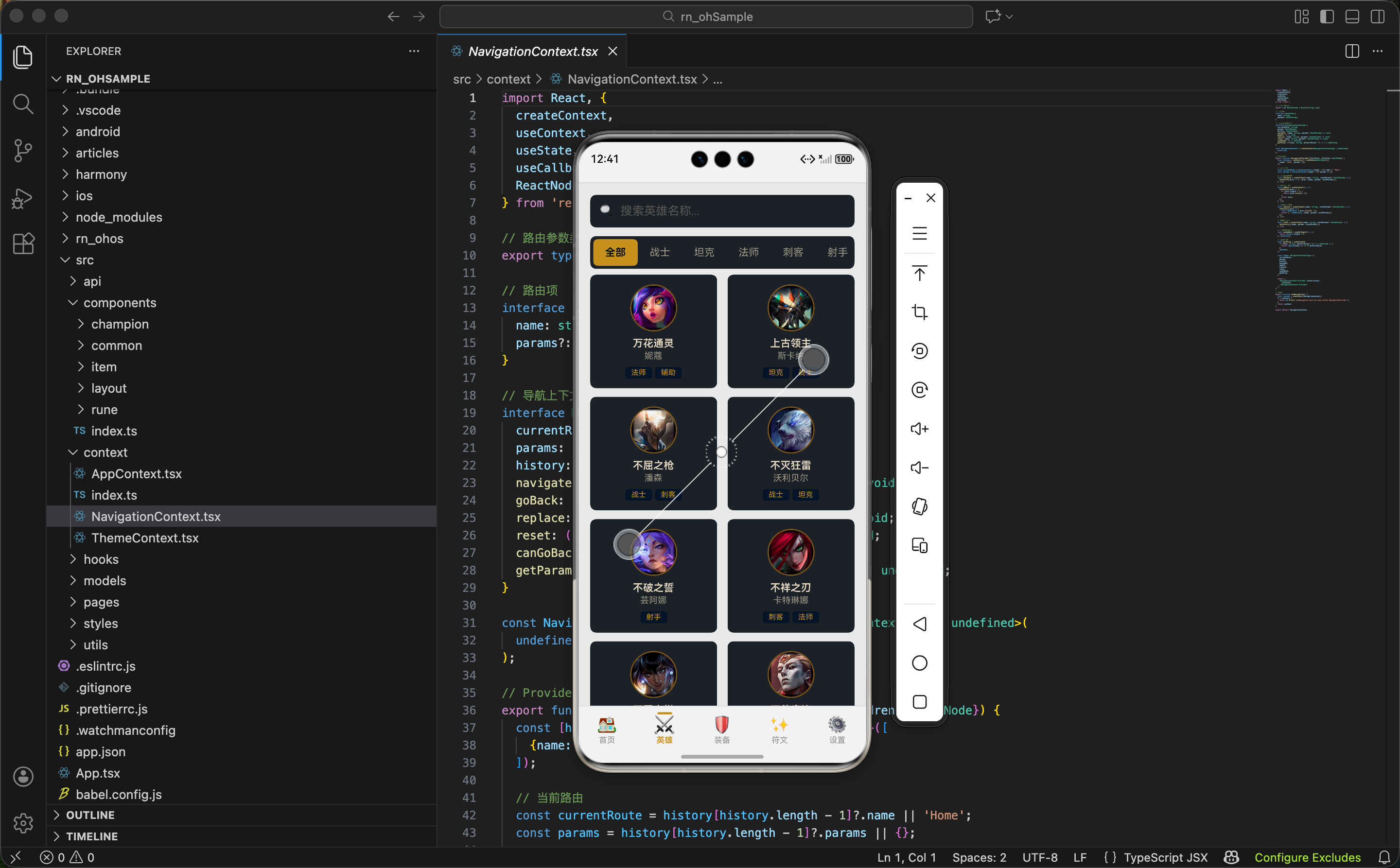
本文介绍了英雄联盟图鉴页面的实现方案,重点从组件拆分、性能优化和交互体验三个维度进行讲解。页面包含搜索框、职业筛选标签栏和双列英雄卡片网格布局,采用分层组件设计: 组件结构分为三层:页面容器、功能组件(搜索框/标签栏)和展示组件(卡片/网格) 搜索框实现受控组件模式,支持关键词搜索和清除功能 标签栏提供固定和滚动两种布局模式,优化多标签展示 英雄卡片展示头像、名称和职业标签,采用懒加载提升性能 数
案例开源地址:https://atomgit.com/nutpi/rn_openharmony_lol
英雄图鉴是整个 App 中数据量最大的列表页面,目前英雄联盟有 160+ 个英雄,如何高效地展示、搜索和筛选这些数据,是这个页面要解决的核心问题。这篇文章会从组件拆分、性能优化、交互体验三个维度来讲解实现过程。
先看效果,再拆解实现
英雄图鉴页面包含这些功能:
- 顶部搜索框,支持按英雄名称、称号搜索
- 职业筛选标签栏,可以按战士、法师、刺客等职业筛选
- 双列网格布局展示英雄卡片
- 点击卡片跳转到英雄详情页
整个页面的数据流是这样的:原始数据 → 职业筛选 → 关键词搜索 → 渲染列表。每一步都是对上一步结果的过滤,最终得到要展示的英雄列表。
组件拆分策略
这个页面我拆成了三层组件:
ChampionListPage (页面组件)
├── SearchBar (搜索框)
├── TabBar (标签栏)
└── ChampionGrid (网格容器)
    └── ChampionCard (英雄卡片)
为什么要这样拆?
SearchBar和TabBar是通用组件,在装备列表、符文列表等页面也会用到ChampionGrid封装了 FlatList 的配置,让页面组件更简洁ChampionCard是最小的展示单元,只负责渲染单个英雄的信息这种拆分让每个组件的职责都很清晰,也方便复用和测试。
搜索框组件
先从最简单的搜索框开始:
interface SearchBarProps {
  value: string;
  onChangeText: (text: string) => void;
  placeholder?: string;
  onClear?: () => void;
}

export function SearchBar({value, onChangeText, placeholder = '搜索...', onClear}: SearchBarProps) {
  const handleClear = () => {
    onChangeText('');
    onClear?.();
  };

  return (
    <View style={styles.container}>
      <Text style={styles.icon}>🔍</Text>
      <TextInput
        style={styles.input}
        value={value}
        onChangeText={onChangeText}
        placeholder={placeholder}
        placeholderTextColor={colors.textMuted}
        returnKeyType="search"
      />
      {value.length > 0 && (
        <TouchableOpacity onPress={handleClear} style={styles.clearButton}>
          <Text style={styles.clearText}>✕</Text>
        </TouchableOpacity>
      )}
    </View>
  );
}
设计要点解析:
受控组件模式:
value和onChangeText由父组件控制,SearchBar 本身不维护状态。这样父组件可以随时获取或修改搜索内容清除按钮的条件渲染:只有输入框有内容时才显示清除按钮,避免界面元素过多
可选的回调:
onClear?.()使用可选链调用,即使父组件没传这个 prop 也不会报错returnKeyType=“search”:让键盘的回车键显示为"搜索",提升用户体验
搜索框样式
const styles = StyleSheet.create({
  container: {
    flexDirection: 'row',
    alignItems: 'center',
    backgroundColor: colors.backgroundCard,
    borderRadius: 8,
    paddingHorizontal: 12,
    height: 44,
    borderWidth: 1,
    borderColor: colors.border,
  },
  input: {
    flex: 1,
    fontSize: 16,
    color: colors.textPrimary,
    padding: 0,
  },
  clearButton: {
    padding: 4,
  },
});
样式细节:
height: 44是 iOS 人机交互指南推荐的最小点击区域高度padding: 0重置 TextInput 的默认内边距,避免不同平台的差异- 清除按钮加了
padding: 4扩大点击区域,方便用户点击
标签栏组件
标签栏支持两种模式:固定宽度和可滚动。英雄职业有 7 个选项,一行放不下,所以用可滚动模式。
interface Tab {
  key: string;
  label: string;
}

interface TabBarProps {
  tabs: Tab[];
  activeKey: string;
  onTabChange: (key: string) => void;
  scrollable?: boolean;
}

export function TabBar({tabs, activeKey, onTabChange, scrollable = false}: TabBarProps) {
  const content = tabs.map(tab => {
    const isActive = tab.key === activeKey;
    return (
      <TouchableOpacity
        key={tab.key}
        style={[styles.tab, isActive && styles.tabActive]}
        onPress={() => onTabChange(tab.key)}>
        <Text style={[styles.tabText, isActive && styles.tabTextActive]}>
          {tab.label}
        </Text>
      </TouchableOpacity>
    );
  });

  if (scrollable) {
    return (
      <ScrollView
        horizontal
        showsHorizontalScrollIndicator={false}
        contentContainerStyle={styles.scrollContent}>
        {content}
      </ScrollView>
    );
  }

  return <View style={styles.container}>{content}</View>;
}
两种模式的实现:
通过
scrollable属性控制渲染方式:
scrollable=false:用普通 View 包裹,标签平分宽度scrollable=true:用横向 ScrollView 包裹,标签按内容宽度排列这种设计让组件更灵活,适应不同的使用场景。
标签样式
tab: {
  paddingVertical: 10,
  paddingHorizontal: 16,
  alignItems: 'center',
  borderRadius: 6,
},
tabActive: {
  backgroundColor: colors.primary,
},
tabText: {
  fontSize: 14,
  color: colors.textSecondary,
},
tabTextActive: {
  color: colors.background,
  fontWeight: '600',
},
激活状态的视觉反馈:
选中的标签有三个变化:背景色变成金色、文字变成深色、字重加粗。多重变化让激活状态更明显,用户一眼就能看出当前选中的是哪个。
英雄卡片组件
每个英雄卡片展示头像、名称、称号和职业标签:
interface ChampionCardProps {
  champion: Champion;
  version: string;
  onPress: () => void;
}

export function ChampionCard({champion, version, onPress}: ChampionCardProps) {
  const iconUrl = getChampionIconUrl(version, champion.id);

  return (
    <TouchableOpacity style={styles.container} onPress={onPress}>
      <Image source={{uri: iconUrl}} style={styles.icon} />
      <View style={styles.info}>
        <Text style={styles.name} numberOfLines={1}>{champion.name}</Text>
        <Text style={styles.title} numberOfLines={1}>{champion.title}</Text>
        <View style={styles.tags}>
          {champion.tags.slice(0, 2).map(tag => (
            <View key={tag} style={styles.tag}>
              <Text style={styles.tagText}>{getTagName(tag)}</Text>
            </View>
          ))}
        </View>
      </View>
    </TouchableOpacity>
  );
}
关键实现细节:
图片 URL 动态生成:
getChampionIconUrl(version, champion.id)根据版本号和英雄 ID 拼接图片地址,确保获取到正确版本的资源职业标签最多显示两个:
champion.tags.slice(0, 2)限制标签数量,有些英雄有三个职业标签,全部显示会撑乱布局文字截断:
numberOfLines={1}防止名称或称号过长导致换行
卡片样式
container: {
  width: '48%',
  backgroundColor: colors.backgroundCard,
  borderRadius: 8,
  padding: 12,
  marginBottom: 12,
  borderWidth: 1,
  borderColor: colors.border,
},
icon: {
  width: 64,
  height: 64,
  borderRadius: 32,
  alignSelf: 'center',
  marginBottom: 8,
  borderWidth: 2,
  borderColor: colors.borderGold,
},
宽度设置的技巧:
width: '48%'而不是50%,是为了给两列之间留出间隙。配合父容器的justifyContent: 'space-between',两张卡片会分别靠左右对齐,中间自然形成间距。
网格容器组件
ChampionGrid 封装了 FlatList 的配置,让页面组件不用关心列表渲染的细节:
interface ChampionGridProps {
  champions: Champion[];
  version: string;
  onChampionPress: (champion: Champion) => void;
  ListHeaderComponent?: React.ReactElement;
}

export function ChampionGrid({champions, version, onChampionPress, ListHeaderComponent}: ChampionGridProps) {
  if (champions.length === 0) {
    return <EmptyView message="没有找到英雄" icon="🔍" />;
  }

  return (
    <FlatList
      data={champions}
      keyExtractor={item => item.id}
      numColumns={2}
      columnWrapperStyle={styles.row}
      contentContainerStyle={styles.container}
      showsVerticalScrollIndicator={false}
      ListHeaderComponent={ListHeaderComponent}
      renderItem={({item}) => (
        <ChampionCard
          champion={item}
          version={version}
          onPress={() => onChampionPress(item)}
        />
      )}
    />
  );
}
FlatList vs ScrollView:
为什么用 FlatList 而不是 ScrollView + map?
- 虚拟化渲染:FlatList 只渲染可见区域的元素,160+ 个英雄如果全部渲染会很卡
- 内置优化:自动处理滚动性能、内存回收等问题
- 丰富的 API:支持下拉刷新、上拉加载、头部/尾部组件等
numColumns 的使用:
numColumns={2}让 FlatList 变成两列布局。注意这个属性设置后,renderItem返回的组件宽度需要自己控制,FlatList 不会自动分配。
防抖 Hook 的实现
搜索功能如果每次输入都立即触发过滤,会造成不必要的计算。我们用防抖来优化:
import {useState, useEffect} from 'react';

export function useDebounce<T>(value: T, delay: number = 300): T {
  const [debouncedValue, setDebouncedValue] = useState<T>(value);

  useEffect(() => {
    const timer = setTimeout(() => {
      setDebouncedValue(value);
    }, delay);

    return () => {
      clearTimeout(timer);
    };
  }, [value, delay]);

  return debouncedValue;
}
防抖原理:
- 每次
value变化时,设置一个定时器- 如果在
delay时间内value又变化了,清除之前的定时器,重新计时- 只有当
value稳定delay毫秒后,才更新debouncedValue这样用户快速输入时,不会频繁触发搜索,只有停下来后才会执行。
在页面中使用
const [searchText, setSearchText] = useState('');
const debouncedSearch = useDebounce(searchText, 300);

const filteredChampions = useMemo(() => {
  let result = state.champions;
  if (activeTag !== 'All') {
    result = championApi.filterChampionsByTag(result, activeTag);
  }
  if (debouncedSearch) {
    result = championApi.searchChampions(result, debouncedSearch);
  }
  return result;
}, [state.champions, activeTag, debouncedSearch]);
数据流分析:
- 用户输入 →
searchText立即更新 → 输入框显示最新内容- 300ms 后 →
debouncedSearch更新 → 触发useMemo重新计算filteredChampions更新 → 列表重新渲染这样既保证了输入的即时响应,又避免了频繁的列表过滤。
筛选和搜索逻辑
筛选和搜索的逻辑封装在 championApi 中:
export function filterChampionsByTag(champions: Champion[], tag: string): Champion[] {
  if (!tag || tag === 'All') {
    return champions;
  }
  return champions.filter(c => c.tags.includes(tag));
}

export function searchChampions(champions: Champion[], keyword: string): Champion[] {
  if (!keyword.trim()) {
    return champions;
  }
  const lowerKeyword = keyword.toLowerCase();
  return champions.filter(
    c =>
      c.name.toLowerCase().includes(lowerKeyword) ||
      c.id.toLowerCase().includes(lowerKeyword) ||
      c.title.toLowerCase().includes(lowerKeyword),
  );
}
搜索范围的设计:
搜索会匹配三个字段:
name:中文名,如"盖伦"id:英文 ID,如"Garen"title:称号,如"德玛西亚之力"这样用户无论输入中文还是英文,都能找到想要的英雄。
大小写不敏感:
搜索前把关键词和目标字段都转成小写,实现大小写不敏感的匹配。这是搜索功能的基本要求。
页面组件整合
最后看看页面组件如何把这些组件组合起来:
const tagTabs = [
  {key: 'All', label: '全部'},
  {key: 'Fighter', label: '战士'},
  {key: 'Tank', label: '坦克'},
  {key: 'Mage', label: '法师'},
  {key: 'Assassin', label: '刺客'},
  {key: 'Marksman', label: '射手'},
  {key: 'Support', label: '辅助'},
];

export function ChampionListPage() {
  const {colors} = useTheme();
  const {state, setChampions} = useApp();
  const {navigate} = useNavigation();
  const [loading, setLoading] = useState(true);
  const [searchText, setSearchText] = useState('');
  const [activeTag, setActiveTag] = useState('All');

  const debouncedSearch = useDebounce(searchText, 300);
状态设计:
页面只维护三个状态:
loading:加载状态searchText:搜索关键词activeTag:当前选中的职业标签英雄列表数据存在全局状态中,避免重复请求。
列表头部组件
const ListHeader = (
  <View style={styles.header}>
    <SearchBar value={searchText} onChangeText={setSearchText} placeholder="搜索英雄名称..." />
    <View style={styles.tabContainer}>
      <TabBar tabs={tagTabs} activeKey={activeTag} onTabChange={setActiveTag} scrollable />
    </View>
  </View>
);

return (
  <View style={styles.container}>
    <ChampionGrid
      champions={filteredChampions}
      version={state.version}
      onChampionPress={handleChampionPress}
      ListHeaderComponent={ListHeader}
    />
  </View>
);
为什么把搜索框和标签栏放在 ListHeaderComponent 里?
这样它们会跟随列表一起滚动,而不是固定在顶部。好处是:
- 滚动时能看到更多内容
- 用户想搜索时,滚动到顶部就能看到搜索框
如果需要固定在顶部,可以把它们放到 ChampionGrid 外面。
小结
这篇文章我们实现了英雄图鉴页面,涉及的技术点包括:
- 组件拆分:按职责拆分成 SearchBar、TabBar、ChampionGrid、ChampionCard 四个组件
- 防抖优化:自定义 useDebounce Hook,避免搜索时频繁计算
- FlatList 优化:利用虚拟化渲染提升长列表性能
- 数据流设计:原始数据 → 筛选 → 搜索 → 渲染的单向数据流
下一篇我们会实现英雄详情页,展示英雄的技能、皮肤、属性等详细信息。
欢迎加入开源鸿蒙跨平台社区:https://openharmonycrossplatform.csdn.net

开源鸿蒙跨平台开发社区汇聚开发者与厂商,共建“一次开发,多端部署”的开源生态,致力于降低跨端开发门槛,推动万物智联创新。
更多推荐


 26
26 0
0- 0


 已为社区贡献30条内容

所有评论(0)