RN for OpenHarmony 小工具 App 实战:名言警句实现
本文实现了一个「名言警句」小工具,主要功能包括: 数据设计:精选15条中外名言,涵盖儒家经典、道家思想、西方智慧等多元内容 核心功能: 随机切换:通过动画序列实现流畅的卡片翻转效果 收藏管理:支持添加/移除收藏,使用数组方法实现状态更新 交互体验: 组合使用淡入淡出、缩放和旋转动画 精心设计的动画时序确保平滑过渡 技术亮点: 使用TypeScript自动推断类型 组合Animated API实现复
开篇
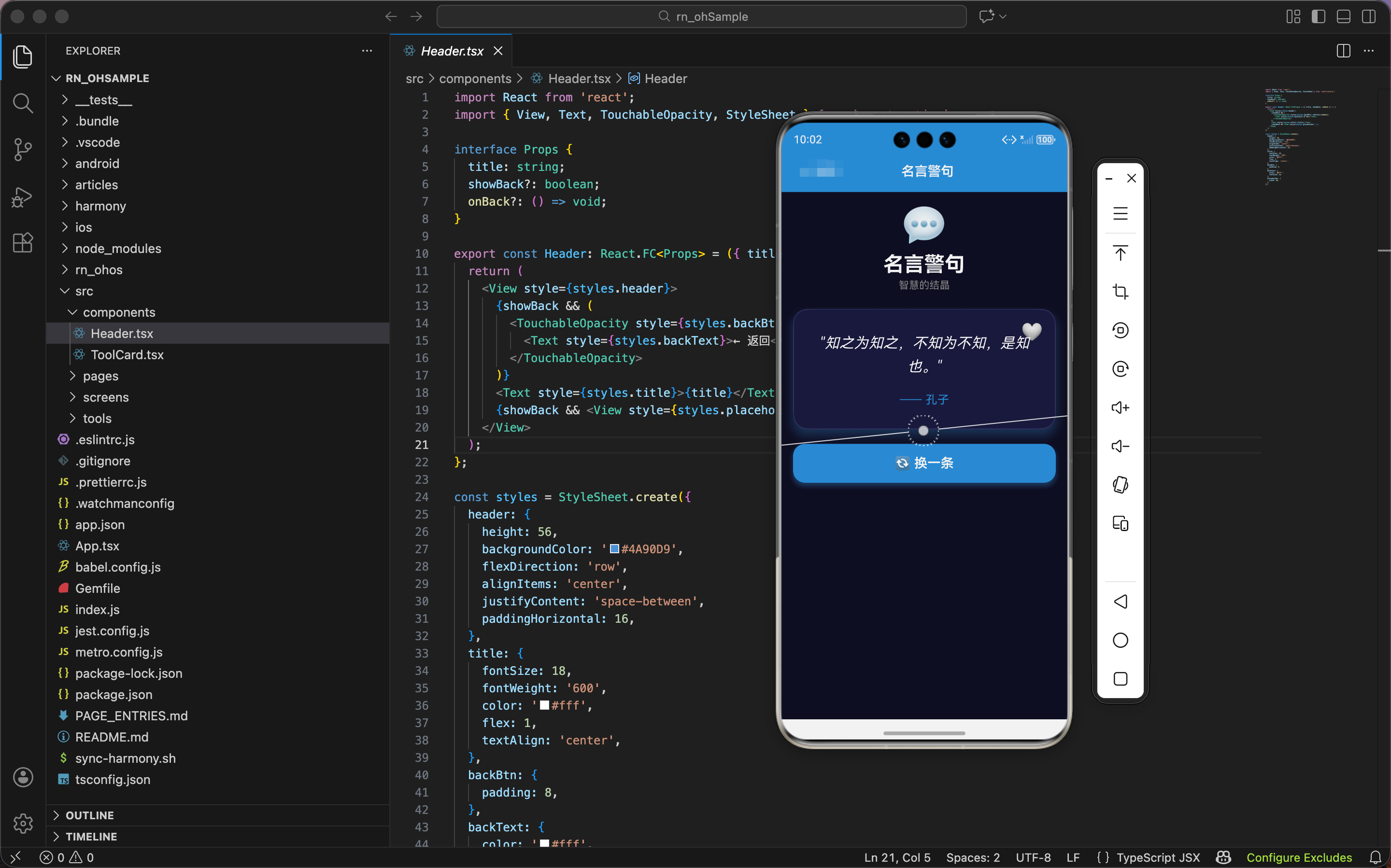
“千里之行,始于足下。” —— 老子
名言警句是人类智慧的结晶,一句好的名言可以激励人心、启迪思考。本文将实现一个「名言警句」小工具,让用户随时获取一句智慧箴言。
功能特性:
- 📜 15 条精选中外名言
- 🔄 随机切换,带翻转动画
- ❤️ 收藏功能,保存喜欢的名言
- ✨ 卡片动画效果
📁 源码:
src/pages/Quotes.tsx
一、数据结构设计
1.1 名言数据定义
const quotes = [
  { text: '生活不是等待暴风雨过去,而是学会在雨中跳舞。', author: '未知' },
  { text: '成功不是终点,失败也不是终结,唯有勇气才是永恒。', author: '丘吉尔' },
  { text: '千里之行,始于足下。', author: '老子' },
  { text: '知之为知之,不知为不知,是知也。', author: '孔子' },
  { text: '天行健,君子以自强不息。', author: '周易' },
  { text: '学而不思则罔,思而不学则殆。', author: '孔子' },
  { text: '己所不欲,勿施于人。', author: '孔子' },
  { text: '路漫漫其修远兮,吾将上下而求索。', author: '屈原' },
  { text: '不积跬步,无以至千里。', author: '荀子' },
  { text: '业精于勤,荒于嬉。', author: '韩愈' },
  { text: '宝剑锋从磨砺出,梅花香自苦寒来。', author: '古语' },
  { text: '世上无难事,只怕有心人。', author: '古语' },
  { text: '失败是成功之母。', author: '古语' },
  { text: '书山有路勤为径,学海无涯苦作舟。', author: '韩愈' },
  { text: '三人行,必有我师焉。', author: '孔子' },
];
数据结构说明:
| 字段 | 类型 | 说明 |
|---|---|---|
text |
string | 名言内容 |
author |
string | 作者/出处 |
名言分类:
| 类别 | 名言数量 | 代表作者 |
|---|---|---|
| 儒家经典 | 5 条 | 孔子、荀子 |
| 道家思想 | 1 条 | 老子 |
| 古典文学 | 2 条 | 屈原、韩愈 |
| 民间智慧 | 4 条 | 古语 |
| 西方名言 | 2 条 | 丘吉尔等 |
| 经典典籍 | 1 条 | 周易 |
这种混合选择让用户能接触到不同文化背景的智慧。
二、状态管理
2.1 核心状态定义
export const Quotes: React.FC = () => {
  const [current, setCurrent] = useState(quotes[0]);
  const [favorites, setFavorites] = useState<typeof quotes>([]);
状态说明:
| 状态 | 类型 | 初始值 | 用途 |
|---|---|---|---|
current |
Quote 对象 | 第一条名言 | 当前显示的名言 |
favorites |
Quote 数组 | 空数组 | 用户收藏的名言 |
TypeScript 类型技巧:
const [favorites, setFavorites] = useState<typeof quotes>([]);
typeof quotes 自动推断出 { text: string; author: string }[] 类型,无需手动定义接口。
2.2 动画值初始化
const fadeAnim = useRef(new Animated.Value(1)).current;
const scaleAnim = useRef(new Animated.Value(1)).current;
const rotateAnim = useRef(new Animated.Value(0)).current;
三个动画值的用途:
| 动画值 | 初始值 | 控制属性 | 效果 |
|---|---|---|---|
fadeAnim |
1 | opacity | 淡入淡出 |
scaleAnim |
1 | scale | 缩放 |
rotateAnim |
0 | rotate | 旋转 |
三个动画组合产生"卡片翻转"的视觉效果。
三、核心功能实现
3.1 随机切换名言
const randomQuote = () => {
  Animated.sequence([
    Animated.parallel([
      Animated.timing(fadeAnim, { toValue: 0, duration: 200, useNativeDriver: true }),
      Animated.timing(scaleAnim, { toValue: 0.8, duration: 200, useNativeDriver: true }),
      Animated.timing(rotateAnim, { toValue: 1, duration: 200, useNativeDriver: true }),
    ]),
    Animated.parallel([
      Animated.timing(fadeAnim, { toValue: 1, duration: 300, useNativeDriver: true }),
      Animated.spring(scaleAnim, { toValue: 1, friction: 4, useNativeDriver: true }),
      Animated.timing(rotateAnim, { toValue: 0, duration: 300, useNativeDriver: true }),
    ]),
  ]).start();

  setTimeout(() => {
    const newQuote = quotes[Math.floor(Math.random() * quotes.length)];
    setCurrent(newQuote);
  }, 200);
};
动画流程详解:
这个函数实现了一个精心设计的"翻转切换"效果,分为两个阶段:
阶段1(200ms):卡片"飞走"
├── opacity: 1 → 0(淡出)
├── scale: 1 → 0.8(缩小)
└── rotate: 0 → -5deg(倾斜)

阶段2(300ms):新卡片"飞入"
├── opacity: 0 → 1(淡入)
├── scale: 0.8 → 1(弹性放大)
└── rotate: -5deg → 0(回正)
Animated.sequence vs Animated.parallel:
| API | 作用 | 本例用法 |
|---|---|---|
sequence |
动画依次执行 | 先"飞走"再"飞入" |
parallel |
动画同时执行 | 淡出+缩小+旋转同时进行 |
为什么用 setTimeout 更新状态?
setTimeout(() => {
  const newQuote = quotes[Math.floor(Math.random() * quotes.length)];
  setCurrent(newQuote);
}, 200);
延迟 200ms 是为了在卡片"消失"时更新内容,这样用户看到的是:
- 旧内容淡出
- 内容更新(此时卡片不可见)
- 新内容淡入
如果立即更新,用户会看到内容"跳变",体验不佳。
随机选择算法:
quotes[Math.floor(Math.random() * quotes.length)]
Math.random():返回 0~1 的随机数* quotes.length:映射到 0~15 的范围Math.floor():向下取整,得到有效索引 0~14
3.2 收藏功能
const toggleFavorite = () => {
  const isFav = favorites.some(f => f.text === current.text);
  if (isFav) {
    setFavorites(favorites.filter(f => f.text !== current.text));
  } else {
    setFavorites([...favorites, current]);
  }
};
收藏逻辑解析:
| 当前状态 | 操作 | 结果 |
|---|---|---|
| 未收藏 | 点击 | 添加到收藏 |
| 已收藏 | 点击 | 从收藏移除 |
Array.some 的用法:
favorites.some(f => f.text === current.text)
检查数组中是否存在满足条件的元素,返回 boolean。比 find 更语义化,因为我们只关心"是否存在"。
Array.filter 实现删除:
favorites.filter(f => f.text !== current.text)
返回一个新数组,只包含不等于当前名言的项。这是 React 中删除数组元素的标准做法(不可变更新)。
展开运算符添加元素:
[...favorites, current]
创建新数组,包含原有收藏 + 当前名言。同样是不可变更新。
3.3 判断是否已收藏
const isFavorite = favorites.some(f => f.text === current.text);
这个变量用于控制收藏按钮的图标显示:
<Text style={styles.favIcon}>{isFavorite ? '❤️' : '🤍'}</Text>
- 已收藏:红心 ❤️
- 未收藏:白心 🤍
3.4 旋转角度映射
const rotate = rotateAnim.interpolate({
  inputRange: [0, 1],
  outputRange: ['0deg', '-5deg']
});
interpolate 的作用:
将动画值(数字)映射为样式值(字符串)。
| 动画值 | 输出值 |
|---|---|
| 0 | ‘0deg’ |
| 0.5 | ‘-2.5deg’ |
| 1 | ‘-5deg’ |
为什么是 -5deg?负值表示逆时针旋转,给人"向左倾斜飞走"的感觉。
四、UI 布局实现
4.1 头部区域
<View style={styles.header}>
  <Text style={styles.headerEmoji}>💬</Text>
  <Text style={styles.headerTitle}>名言警句</Text>
  <Text style={styles.headerSubtitle}>智慧的结晶</Text>
</View>
标准的三层头部结构:图标 + 标题 + 副标题。
4.2 名言卡片
<Animated.View style={[styles.quoteCard, {
  opacity: fadeAnim,
  transform: [{ scale: scaleAnim }, { rotate }]
}]}>
  <TouchableOpacity style={styles.favBtn} onPress={toggleFavorite}>
    <Text style={styles.favIcon}>{isFavorite ? '❤️' : '🤍'}</Text>
  </TouchableOpacity>
  <Text style={styles.quoteText}>"{current.text}"</Text>
  <Text style={styles.author}>—— {current.author}</Text>
</Animated.View>
卡片结构:
┌─────────────────────────────┐
│                         ❤️  │  ← 收藏按钮(右上角)
│                             │
│   "千里之行,始于足下。"     │  ← 名言内容
│                             │
│         —— 老子             │  ← 作者
└─────────────────────────────┘
transform 数组的顺序:
transform: [{ scale: scaleAnim }, { rotate }]
变换的顺序会影响最终效果:
- 先缩放,再旋转:围绕缩放后的中心旋转
- 先旋转,再缩放:围绕原始中心旋转后再缩放
这里先缩放再旋转,效果更自然。
4.3 切换按钮
<TouchableOpacity style={styles.btn} onPress={randomQuote} activeOpacity={0.8}>
  <Text style={styles.btnText}>🔄 换一条</Text>
</TouchableOpacity>
简洁的操作按钮,emoji + 文字的组合直观易懂。
4.4 收藏列表
{favorites.length > 0 && (
  <View style={styles.favorites}>
    <Text style={styles.favTitle}>❤️ 收藏 ({favorites.length})</Text>
    {favorites.map((q, i) => (
      <TouchableOpacity key={i} style={styles.favItem} onPress={() => setCurrent(q)}>
        <Text style={styles.favText} numberOfLines={2}>"{q.text}"</Text>
        <Text style={styles.favAuthor}>—— {q.author}</Text>
      </TouchableOpacity>
    ))}
  </View>
)}
条件渲染:
{favorites.length > 0 && (...)}
只有当收藏列表不为空时才显示,避免空状态的尴尬。
点击收藏项的交互:
onPress={() => setCurrent(q)}
点击收藏的名言,直接显示到主卡片区域,方便用户回顾。
numberOfLines={2} 的作用:
限制文字最多显示 2 行,超出部分用省略号表示。这样收藏列表不会因为长名言而变得过长。
五、样式详解
5.1 名言卡片样式
quoteCard: {
  backgroundColor: '#1a1a3e',
  padding: 30,
  borderRadius: 20,
  marginBottom: 20,
  alignItems: 'center',
  borderWidth: 1,
  borderColor: '#3a3a6a',
  shadowColor: '#4A90D9',
  shadowOffset: { width: 0, height: 8 },
  shadowOpacity: 0.3,
  shadowRadius: 16,
  elevation: 10
},
阴影设计:
| 属性 | 值 | 效果 |
|---|---|---|
shadowColor |
#4A90D9 |
蓝色阴影,呼应主题色 |
shadowOffset |
{ 0, 8 } |
向下偏移 8px |
shadowOpacity |
0.3 | 30% 透明度 |
shadowRadius |
16 | 大模糊半径,柔和 |
蓝色阴影让卡片有"发光"的感觉,增加视觉层次。
5.2 名言文字样式
quoteText: {
  fontSize: 20,
  lineHeight: 32,
  color: '#fff',
  textAlign: 'center',
  fontStyle: 'italic'
},
排版细节:
fontSize: 20:适中的字号,易于阅读lineHeight: 32:1.6 倍行高,阅读舒适fontStyle: 'italic':斜体,符合引用的排版惯例
5.3 收藏按钮定位
favBtn: { position: 'absolute', top: 16, right: 16 },
使用绝对定位将收藏按钮固定在卡片右上角,不影响内容布局。
5.4 收藏列表样式
favorites: {
  backgroundColor: '#1a1a3e',
  padding: 16,
  borderRadius: 16,
  borderWidth: 1,
  borderColor: '#3a3a6a'
},
favItem: {
  paddingVertical: 12,
  borderBottomWidth: 1,
  borderBottomColor: '#3a3a6a'
},
收藏列表使用分隔线区分每条名言,视觉清晰。
六、完整代码
import React, { useState, useRef } from 'react';
import { View, Text, TouchableOpacity, StyleSheet, ScrollView, Animated } from 'react-native';

const quotes = [
  { text: '生活不是等待暴风雨过去,而是学会在雨中跳舞。', author: '未知' },
  { text: '成功不是终点,失败也不是终结,唯有勇气才是永恒。', author: '丘吉尔' },
  { text: '千里之行,始于足下。', author: '老子' },
  { text: '知之为知之,不知为不知,是知也。', author: '孔子' },
  { text: '天行健,君子以自强不息。', author: '周易' },
  { text: '学而不思则罔,思而不学则殆。', author: '孔子' },
  { text: '己所不欲,勿施于人。', author: '孔子' },
  { text: '路漫漫其修远兮,吾将上下而求索。', author: '屈原' },
  { text: '不积跬步,无以至千里。', author: '荀子' },
  { text: '业精于勤,荒于嬉。', author: '韩愈' },
  { text: '宝剑锋从磨砺出,梅花香自苦寒来。', author: '古语' },
  { text: '世上无难事,只怕有心人。', author: '古语' },
  { text: '失败是成功之母。', author: '古语' },
  { text: '书山有路勤为径,学海无涯苦作舟。', author: '韩愈' },
  { text: '三人行,必有我师焉。', author: '孔子' },
];

export const Quotes: React.FC = () => {
  const [current, setCurrent] = useState(quotes[0]);
  const [favorites, setFavorites] = useState<typeof quotes>([]);

  const fadeAnim = useRef(new Animated.Value(1)).current;
  const scaleAnim = useRef(new Animated.Value(1)).current;
  const rotateAnim = useRef(new Animated.Value(0)).current;

  const randomQuote = () => {
    Animated.sequence([
      Animated.parallel([
        Animated.timing(fadeAnim, { toValue: 0, duration: 200, useNativeDriver: true }),
        Animated.timing(scaleAnim, { toValue: 0.8, duration: 200, useNativeDriver: true }),
        Animated.timing(rotateAnim, { toValue: 1, duration: 200, useNativeDriver: true }),
      ]),
      Animated.parallel([
        Animated.timing(fadeAnim, { toValue: 1, duration: 300, useNativeDriver: true }),
        Animated.spring(scaleAnim, { toValue: 1, friction: 4, useNativeDriver: true }),
        Animated.timing(rotateAnim, { toValue: 0, duration: 300, useNativeDriver: true }),
      ]),
    ]).start();

    setTimeout(() => {
      const newQuote = quotes[Math.floor(Math.random() * quotes.length)];
      setCurrent(newQuote);
    }, 200);
  };

  const toggleFavorite = () => {
    const isFav = favorites.some(f => f.text === current.text);
    if (isFav) {
      setFavorites(favorites.filter(f => f.text !== current.text));
    } else {
      setFavorites([...favorites, current]);
    }
  };

  const isFavorite = favorites.some(f => f.text === current.text);
  const rotate = rotateAnim.interpolate({ inputRange: [0, 1], outputRange: ['0deg', '-5deg'] });

  return (
    <ScrollView style={styles.container}>
      <View style={styles.header}>
        <Text style={styles.headerEmoji}>💬</Text>
        <Text style={styles.headerTitle}>名言警句</Text>
        <Text style={styles.headerSubtitle}>智慧的结晶</Text>
      </View>

      <Animated.View style={[styles.quoteCard, { opacity: fadeAnim, transform: [{ scale: scaleAnim }, { rotate }] }]}>
        <TouchableOpacity style={styles.favBtn} onPress={toggleFavorite}>
          <Text style={styles.favIcon}>{isFavorite ? '❤️' : '🤍'}</Text>
        </TouchableOpacity>
        <Text style={styles.quoteText}>"{current.text}"</Text>
        <Text style={styles.author}>—— {current.author}</Text>
      </Animated.View>

      <TouchableOpacity style={styles.btn} onPress={randomQuote} activeOpacity={0.8}>
        <Text style={styles.btnText}>🔄 换一条</Text>
      </TouchableOpacity>

      {favorites.length > 0 && (
        <View style={styles.favorites}>
          <Text style={styles.favTitle}>❤️ 收藏 ({favorites.length})</Text>
          {favorites.map((q, i) => (
            <TouchableOpacity key={i} style={styles.favItem} onPress={() => setCurrent(q)}>
              <Text style={styles.favText} numberOfLines={2}>"{q.text}"</Text>
              <Text style={styles.favAuthor}>—— {q.author}</Text>
            </TouchableOpacity>
          ))}
        </View>
      )}
    </ScrollView>
  );
};

const styles = StyleSheet.create({
  container: { flex: 1, backgroundColor: '#0f0f23', padding: 16 },
  header: { alignItems: 'center', marginBottom: 24 },
  headerEmoji: { fontSize: 50, marginBottom: 8 },
  headerTitle: { fontSize: 28, fontWeight: '700', color: '#fff' },
  headerSubtitle: { fontSize: 14, color: '#888', marginTop: 4 },
  quoteCard: { backgroundColor: '#1a1a3e', padding: 30, borderRadius: 20, marginBottom: 20, alignItems: 'center', borderWidth: 1, borderColor: '#3a3a6a', shadowColor: '#4A90D9', shadowOffset: { width: 0, height: 8 }, shadowOpacity: 0.3, shadowRadius: 16, elevation: 10 },
  quoteText: { fontSize: 20, lineHeight: 32, color: '#fff', textAlign: 'center', fontStyle: 'italic' },
  author: { fontSize: 16, color: '#4A90D9', marginTop: 20 },
  favBtn: { position: 'absolute', top: 16, right: 16 },
  favIcon: { fontSize: 24 },
  btn: { backgroundColor: '#4A90D9', padding: 16, borderRadius: 16, alignItems: 'center', marginBottom: 24, shadowColor: '#4A90D9', shadowOffset: { width: 0, height: 4 }, shadowOpacity: 0.4, shadowRadius: 8, elevation: 6 },
  btnText: { color: '#fff', fontSize: 18, fontWeight: '600' },
  favorites: { backgroundColor: '#1a1a3e', padding: 16, borderRadius: 16, borderWidth: 1, borderColor: '#3a3a6a' },
  favTitle: { fontSize: 16, fontWeight: '600', marginBottom: 12, color: '#fff' },
  favItem: { paddingVertical: 12, borderBottomWidth: 1, borderBottomColor: '#3a3a6a' },
  favText: { fontSize: 14, color: '#aaa', fontStyle: 'italic' },
  favAuthor: { fontSize: 12, color: '#4A90D9', marginTop: 4 },
});
七、技术要点总结
| 技术点 | 实现方式 |
|---|---|
| 复合动画 | sequence + parallel 组合 |
| 旋转效果 | interpolate 映射角度 |
| 收藏功能 | some + filter 数组操作 |
| 条件渲染 | && 短路求值 |
| 不可变更新 | 展开运算符 [...arr] |
这个名言警句工具虽然简单,但展示了 React Native 动画系统的强大能力,以及如何用函数式方法管理数组状态。
欢迎加入开源鸿蒙跨平台社区:https://openharmonycrossplatform.csdn.net

开源鸿蒙跨平台开发社区汇聚开发者与厂商,共建“一次开发,多端部署”的开源生态,致力于降低跨端开发门槛,推动万物智联创新。
更多推荐



 7
7 0
0- 0


 已为社区贡献31条内容

所有评论(0)