Flutter & OpenHarmony 社交App图片裁剪组件实现技巧
前言
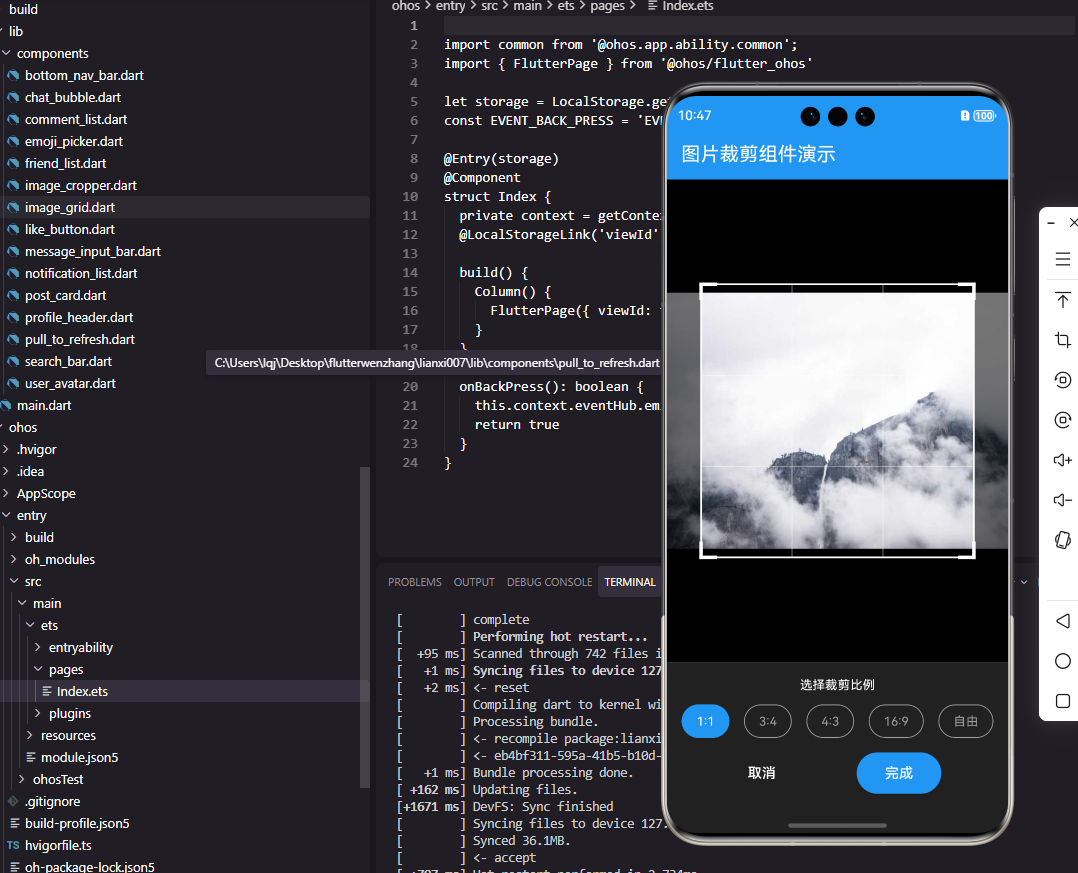
图片裁剪是社交应用中上传头像和发布图片时的常用功能。一个优秀的图片裁剪组件需要支持自由裁剪、固定比例裁剪、手势缩放和旋转等功能。本文将详细讲解如何在Flutter和OpenHarmony平台上实现专业级的图片裁剪组件。
Flutter图片裁剪实现
首先实现基础的裁剪框组件。
class ImageCropper extends StatefulWidget {
final ImageProvider image;
final double aspectRatio;
final Function(Rect) onCropChanged;
const ImageCropper({
Key? key,
required this.image,
this.aspectRatio = 1.0,
required this.onCropChanged,
}) : super(key: key);
State<ImageCropper> createState() => _ImageCropperState();
}
ImageCropper接收图片源、裁剪比例和裁剪区域变化回调。aspectRatio默认为1.0表示正方形裁剪,适合头像场景。
class _ImageCropperState extends State<ImageCropper> {
Rect _cropRect = Rect.zero;
double _scale = 1.0;
Offset _offset = Offset.zero;
Widget build(BuildContext context) {
return GestureDetector(
onScaleStart: _onScaleStart,
onScaleUpdate: _onScaleUpdate,
child: Stack(
children: [
Positioned.fill(
child: Image(
image: widget.image,
fit: BoxFit.contain,
),
),
CustomPaint(
painter: CropOverlayPainter(cropRect: _cropRect),
size: Size.infinite,
),
],
),
);
}
State类管理裁剪框位置、缩放比例和偏移量。GestureDetector处理缩放和拖动手势。Stack叠加图片和裁剪遮罩层,CustomPaint绘制裁剪框和半透明遮罩。
void _onScaleStart(ScaleStartDetails details) {
// 记录初始状态
}
void _onScaleUpdate(ScaleUpdateDetails details) {
setState(() {
_scale = (_scale * details.scale).clamp(0.5, 3.0);
_offset += details.focalPointDelta;
});
widget.onCropChanged(_cropRect);
}
}
class CropOverlayPainter extends CustomPainter {
final Rect cropRect;
CropOverlayPainter({required this.cropRect});
void paint(Canvas canvas, Size size) {
final paint = Paint()
..color = Colors.black54
..style = PaintingStyle.fill;
// 绘制四周遮罩
canvas.drawPath(
Path.combine(
PathOperation.difference,
Path()..addRect(Rect.fromLTWH(0, 0, size.width, size.height)),
Path()..addRect(cropRect),
),
paint,
);
_onScaleUpdate处理缩放和拖动,clamp限制缩放范围。CropOverlayPainter使用Path.combine绘制裁剪区域外的半透明遮罩,让用户清楚看到裁剪范围。
// 绘制裁剪框边框
final borderPaint = Paint()
..color = Colors.white
..style = PaintingStyle.stroke
..strokeWidth = 2;
canvas.drawRect(cropRect, borderPaint);
// 绘制四角手柄
final handlePaint = Paint()
..color = Colors.white
..style = PaintingStyle.fill;
final handleSize = 20.0;
canvas.drawRect(
Rect.fromLTWH(cropRect.left - 2, cropRect.top - 2, handleSize, 4),
handlePaint,
);
canvas.drawRect(
Rect.fromLTWH(cropRect.left - 2, cropRect.top - 2, 4, handleSize),
handlePaint,
);
// ... 其他三个角
}
bool shouldRepaint(covariant CropOverlayPainter oldDelegate) {
return cropRect != oldDelegate.cropRect;
}
}
绘制白色边框和四角手柄,让用户可以拖动调整裁剪区域。shouldRepaint优化重绘性能,只在裁剪框变化时重绘。
OpenHarmony ArkTS实现
鸿蒙系统上的图片裁剪实现。
@Component
struct ImageCropper {
  @Prop imageUrl: string = ''
  @Prop aspectRatio: number = 1
  @State cropRect: CropRect = { x: 50, y: 50, width: 200, height: 200 }
  @State scale: number = 1
  onCropChanged: (rect: CropRect) => void = () => {}

  build() {
    Stack() {
      Image(this.imageUrl)
        .width('100%')
        .height('100%')
        .objectFit(ImageFit.Contain)
        .scale({ x: this.scale, y: this.scale })
@State管理裁剪框和缩放状态。Stack叠加图片和裁剪遮罩。Image组件的scale属性实现缩放效果。
      Canvas(this.context)
        .width('100%')
        .height('100%')
        .onReady(() => {
          this.drawOverlay()
        })
    }
    .gesture(
      PinchGesture()
        .onActionUpdate((event: GestureEvent) => {
          this.scale = Math.max(0.5, Math.min(3, this.scale * event.scale))
        })
    )
  }

  private context: CanvasRenderingContext2D = new CanvasRenderingContext2D()
Canvas组件绘制裁剪遮罩。PinchGesture处理双指缩放手势,限制缩放范围在0.5到3倍之间。
  drawOverlay() {
    const ctx = this.context
    const width = ctx.width
    const height = ctx.height

    // 绘制半透明遮罩
    ctx.fillStyle = 'rgba(0, 0, 0, 0.5)'
    ctx.fillRect(0, 0, width, height)

    // 清除裁剪区域
    ctx.clearRect(
      this.cropRect.x,
      this.cropRect.y,
      this.cropRect.width,
      this.cropRect.height
    )

    // 绘制边框
    ctx.strokeStyle = '#FFFFFF'
    ctx.lineWidth = 2
    ctx.strokeRect(
      this.cropRect.x,
      this.cropRect.y,
      this.cropRect.width,
      this.cropRect.height
    )
  }
}
drawOverlay方法使用Canvas API绘制遮罩和边框。fillRect绘制全屏半透明遮罩,clearRect清除裁剪区域,strokeRect绘制白色边框。
裁剪结果处理
在Flutter中获取裁剪后的图片:
Future<Uint8List> cropImage(
  Uint8List imageBytes,
  Rect cropRect,
  Size imageSize,
) async {
  final codec = await ui.instantiateImageCodec(imageBytes);
  final frame = await codec.getNextFrame();
  final image = frame.image;

  final recorder = ui.PictureRecorder();
  final canvas = Canvas(recorder);

  final srcRect = Rect.fromLTWH(
    cropRect.left * image.width / imageSize.width,
    cropRect.top * image.height / imageSize.height,
    cropRect.width * image.width / imageSize.width,
    cropRect.height * image.height / imageSize.height,
  );

  canvas.drawImageRect(
    image,
    srcRect,
    Rect.fromLTWH(0, 0, cropRect.width, cropRect.height),
    Paint(),
  );

  final picture = recorder.endRecording();
  final croppedImage = await picture.toImage(
    cropRect.width.toInt(),
    cropRect.height.toInt(),
  );

  final byteData = await croppedImage.toByteData(
    format: ui.ImageByteFormat.png,
  );

  return byteData!.buffer.asUint8List();
}
cropImage方法将裁剪框坐标转换为实际图片坐标,使用Canvas绘制裁剪区域,最后导出为PNG格式的字节数据。这个方法可以在用户确认裁剪后调用。
总结
本文详细介绍了图片裁剪组件在Flutter和OpenHarmony两个平台上的实现。图片裁剪是社交应用上传头像的必备功能,需要支持手势操作和实时预览。两个平台都使用Canvas绘制裁剪遮罩。在实际项目中,还可以扩展旋转、滤镜、多比例切换等功能。
欢迎加入开源鸿蒙跨平台社区:https://openharmonycrossplatform.csdn.net

开源鸿蒙跨平台开发社区汇聚开发者与厂商,共建“一次开发,多端部署”的开源生态,致力于降低跨端开发门槛,推动万物智联创新。
更多推荐
 3
3 0
0- 0


 已为社区贡献21条内容

所有评论(0)