Flutter & OpenHarmony 社交App位置分享组件构建教程
本文介绍了在Flutter和OpenHarmony平台上实现位置分享组件的技术方案。Flutter部分通过LocationInfo数据模型封装位置信息,使用LocationCard组件展示包含地图预览、地点名称和导航按钮的卡片式UI。OpenHarmony部分采用ArkTS语言实现类似功能,通过Column、Stack等组件构建位置卡片界面。两种实现都支持点击查看地图详情和跳转导航功能,为社交应用
前言
位置分享是社交应用中增强用户互动的重要功能,让用户能够分享自己的位置或约定见面地点。一个完善的位置分享组件需要支持地图展示、位置选择、地址搜索以及导航跳转等功能。本文将详细讲解如何在Flutter和OpenHarmony平台上构建专业级的位置分享组件。
Flutter位置分享实现
首先定义位置数据模型。
class LocationInfo {
  final double latitude;
  final double longitude;
  final String name;
  final String address;

  LocationInfo({
    required this.latitude,
    required this.longitude,
    required this.name,
    required this.address,
  });
}
LocationInfo包含经纬度坐标、地点名称和详细地址。这些信息足以在地图上标记位置并提供导航功能。
class LocationCard extends StatelessWidget {
final LocationInfo location;
final VoidCallback? onTap;
final VoidCallback? onNavigate;
const LocationCard({
Key? key,
required this.location,
this.onTap,
this.onNavigate,
}) : super(key: key);
Widget build(BuildContext context) {
return GestureDetector(
onTap: onTap,
child: Container(
decoration: BoxDecoration(
color: Colors.white,
borderRadius: BorderRadius.circular(12),
boxShadow: [
BoxShadow(
color: Colors.black.withOpacity(0.1),
blurRadius: 8,
offset: Offset(0, 2),
),
],
),
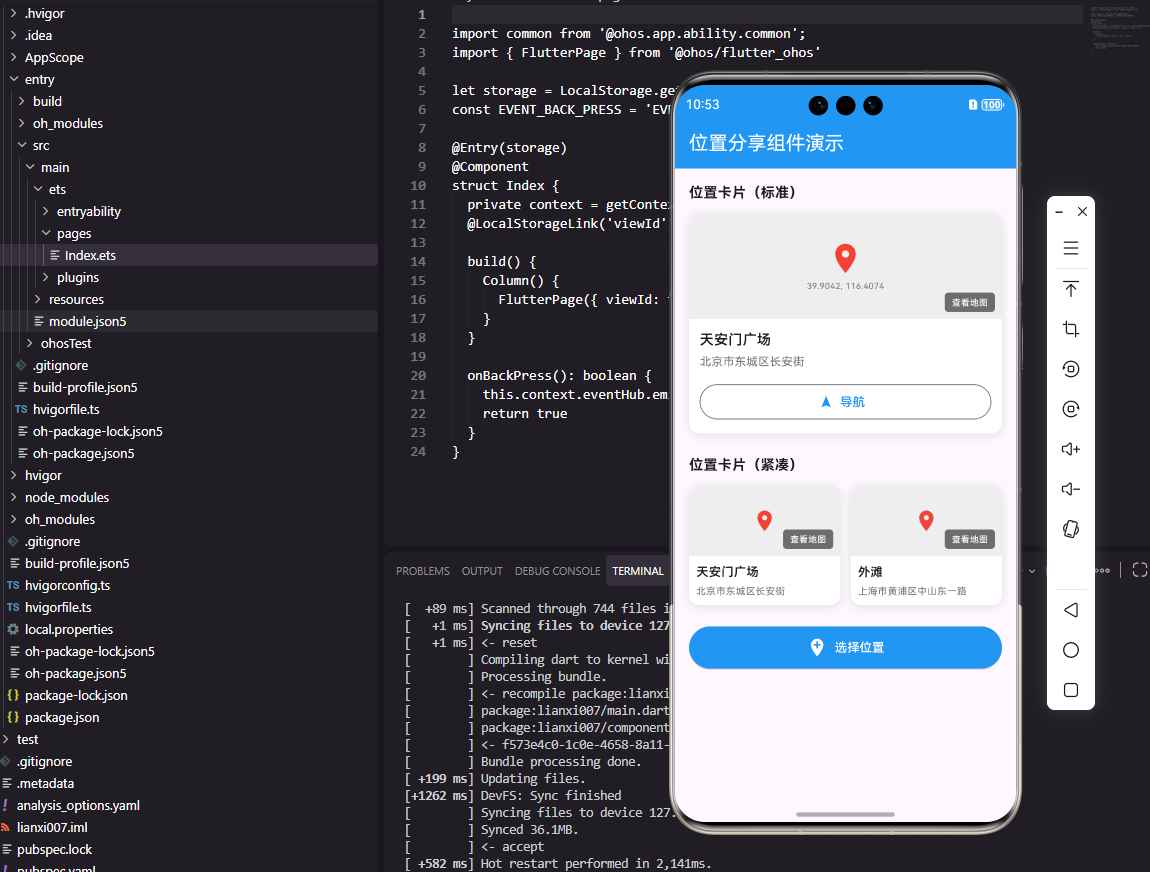
LocationCard组件展示位置信息卡片。Container设置圆角和阴影效果,形成卡片样式。onTap处理点击查看详情,onNavigate处理导航跳转。
        child: Column(
          crossAxisAlignment: CrossAxisAlignment.start,
          children: [
            ClipRRect(
              borderRadius: BorderRadius.vertical(top: Radius.circular(12)),
              child: Container(
                height: 120,
                width: double.infinity,
                color: Colors.grey[200],
                child: Stack(
                  children: [
                    Center(
                      child: Icon(
                        Icons.location_on,
                        size: 40,
                        color: Colors.red,
                      ),
                    ),
                    Positioned(
                      right: 8,
                      bottom: 8,
                      child: Container(
                        padding: EdgeInsets.symmetric(horizontal: 8, vertical: 4),
                        decoration: BoxDecoration(
                          color: Colors.black54,
                          borderRadius: BorderRadius.circular(4),
                        ),
                        child: Text(
                          '查看地图',
                          style: TextStyle(color: Colors.white, fontSize: 12),
                        ),
                      ),
                    ),
                  ],
                ),
              ),
            ),
顶部区域显示地图预览,这里使用占位图标代替实际地图。ClipRRect裁剪顶部圆角。Stack叠加位置图标和"查看地图"标签。实际项目中可以集成地图SDK显示静态地图图片。
            Padding(
              padding: EdgeInsets.all(12),
              child: Column(
                crossAxisAlignment: CrossAxisAlignment.start,
                children: [
                  Text(
                    location.name,
                    style: TextStyle(
                      fontSize: 16,
                      fontWeight: FontWeight.w600,
                    ),
                    maxLines: 1,
                    overflow: TextOverflow.ellipsis,
                  ),
                  SizedBox(height: 4),
                  Text(
                    location.address,
                    style: TextStyle(
                      fontSize: 13,
                      color: Colors.grey[600],
                    ),
                    maxLines: 2,
                    overflow: TextOverflow.ellipsis,
                  ),
底部区域显示地点名称和详细地址。名称使用较大字号和加粗字重,地址使用灰色字体。maxLines和overflow处理长文本截断。
                  SizedBox(height: 12),
                  Row(
                    children: [
                      Expanded(
                        child: OutlinedButton.icon(
                          onPressed: onNavigate,
                          icon: Icon(Icons.navigation, size: 16),
                          label: Text('导航'),
                        ),
                      ),
                    ],
                  ),
                ],
              ),
            ),
          ],
        ),
      ),
    );
  }
}
导航按钮使用OutlinedButton样式,点击后可以跳转到地图应用进行导航。Expanded让按钮占满宽度。
OpenHarmony ArkTS实现
鸿蒙系统上的位置卡片实现。
@Component
struct LocationCard {
  @Prop location: LocationInfo
  onTap: () => void = () => {}
  onNavigate: () => void = () => {}

  build() {
    Column() {
      Stack() {
        Column()
          .width('100%')
          .height(120)
          .backgroundColor('#F5F5F5')

        Image($r('app.media.ic_location'))
          .width(40)
          .height(40)
          .fillColor(Color.Red)
Column作为根容器垂直排列地图预览和信息区域。Stack叠加背景和位置图标。
        Text('查看地图')
          .fontSize(12)
          .fontColor(Color.White)
          .backgroundColor('#00000088')
          .borderRadius(4)
          .padding({ left: 8, right: 8, top: 4, bottom: 4 })
          .position({ x: '85%', y: '80%' })
      }
      .width('100%')
      .height(120)
      .borderRadius({ topLeft: 12, topRight: 12 })
      .clip(true)
"查看地图"标签使用position定位在右下角。clip(true)裁剪超出圆角的内容。
      Column() {
        Text(this.location.name)
          .fontSize(16)
          .fontWeight(FontWeight.Medium)
          .maxLines(1)
          .textOverflow({ overflow: TextOverflow.Ellipsis })
          .width('100%')

        Text(this.location.address)
          .fontSize(13)
          .fontColor('#8E8E93')
          .maxLines(2)
          .textOverflow({ overflow: TextOverflow.Ellipsis })
          .width('100%')
          .margin({ top: 4 })

        Button('导航')
          .width('100%')
          .height(36)
          .fontSize(14)
          .margin({ top: 12 })
          .onClick(() => this.onNavigate())
      }
      .padding(12)
      .alignItems(HorizontalAlign.Start)
    }
    .backgroundColor(Color.White)
    .borderRadius(12)
    .shadow({ radius: 8, color: '#0000001A', offsetY: 2 })
    .onClick(() => this.onTap())
  }
}
信息区域显示地点名称、地址和导航按钮。shadow设置卡片阴影效果。
位置选择器扩展
在Flutter中实现位置选择:
class LocationPicker extends StatefulWidget {
final Function(LocationInfo) onLocationSelected;
const LocationPicker({
Key? key,
required this.onLocationSelected,
}) : super(key: key);
State<LocationPicker> createState() => _LocationPickerState();
}
class _LocationPickerState extends State<LocationPicker> {
List<LocationInfo> _nearbyLocations = [];
String _searchQuery = '';
Widget build(BuildContext context) {
return Column(
children: [
TextField(
decoration: InputDecoration(
hintText: '搜索地点',
prefixIcon: Icon(Icons.search),
),
onChanged: (value) {
setState(() => _searchQuery = value);
_searchLocations(value);
},
),
Expanded(
child: ListView.builder(
itemCount: _nearbyLocations.length,
itemBuilder: (context, index) {
final location = _nearbyLocations[index];
return ListTile(
leading: Icon(Icons.location_on),
title: Text(location.name),
subtitle: Text(location.address),
onTap: () => widget.onLocationSelected(location),
);
},
),
),
],
);
}
void _searchLocations(String query) {
// 调用地图API搜索地点
}
}
LocationPicker提供搜索输入框和附近地点列表。用户可以搜索或选择附近地点,选中后通过回调返回位置信息。实际项目中需要集成地图SDK获取附近地点数据。
总结
本文详细介绍了位置分享组件在Flutter和OpenHarmony两个平台上的实现。位置分享是社交应用增强互动的重要功能,需要支持地图展示和导航跳转。两个平台的实现都采用了卡片式布局。在实际项目中,需要集成地图SDK实现完整的地图展示和位置搜索功能。
欢迎加入开源鸿蒙跨平台社区:https://openharmonycrossplatform.csdn.net

开源鸿蒙跨平台开发社区汇聚开发者与厂商,共建“一次开发,多端部署”的开源生态,致力于降低跨端开发门槛,推动万物智联创新。
更多推荐
 5
5 0
0- 0


 已为社区贡献21条内容

所有评论(0)