协作编辑 Cordova 与 OpenHarmony 混合开发实战
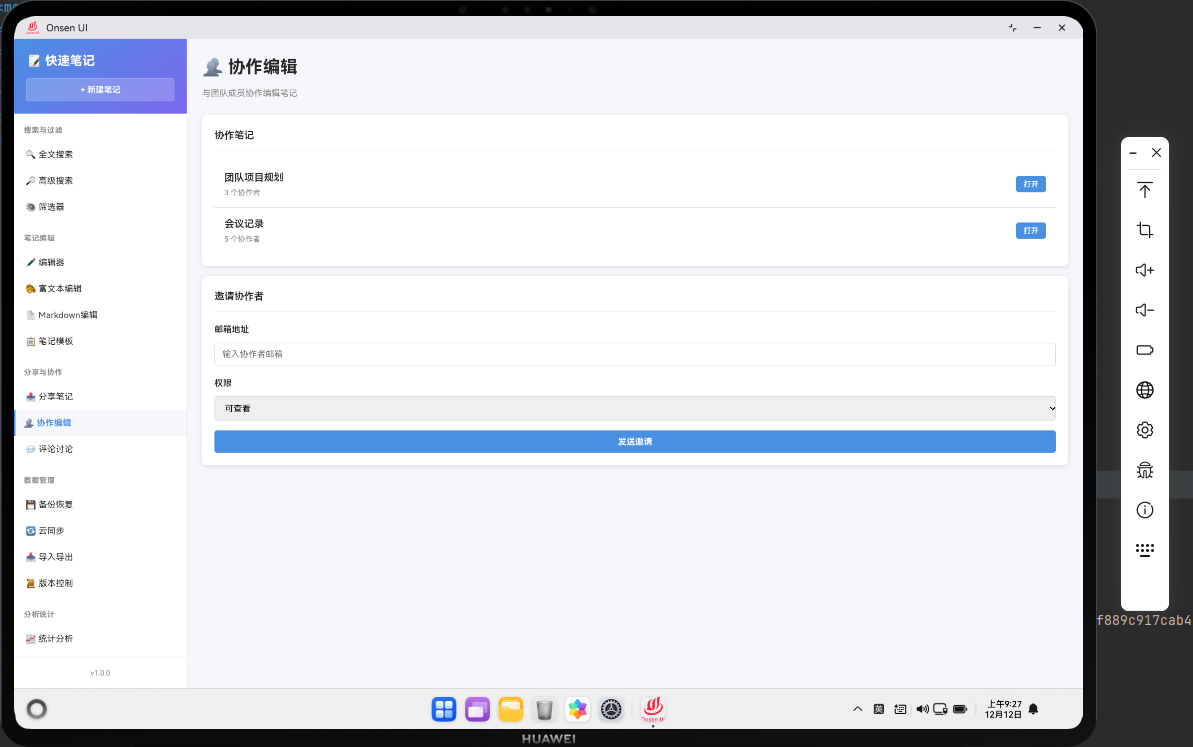
📌 模块概述
协作编辑功能允许多个用户同时编辑同一个笔记。通过协作编辑,用户可以与团队成员共同完成笔记的编写和编辑。协作编辑需要实时同步机制来确保所有用户看到最新的内容。
🔗 完整流程
第一步:邀请协作者
笔记所有者可以邀请其他用户来协作编辑笔记。邀请可以通过分享链接或直接输入用户ID来完成。
第二步:实时同步
当一个用户编辑笔记时,编辑内容需要实时同步到其他协作者的设备上。这需要使用WebSocket或类似的实时通信技术。
第三步:冲突解决
当多个用户同时编辑同一个位置时,需要有冲突解决机制来确定最终的内容。
🔧 Web代码实现
第一步:加载笔记和协作者
const note = await noteDB.getNote(noteId);
const collaborators = await noteDB.getCollaborators(noteId);
从数据库获取笔记和协作者列表。
第二步:渲染协作者列表
${collaborators.map(collab => `
  <div class="collaborator-item">
    <span>${collab.name}</span>
    <span class="status ${collab.isOnline ? 'online' : 'offline'}"></span>
  </div>
`).join('')}
显示所有协作者及其在线状态。
第三步:邀请协作者
const collaborator = {
  id: Date.now(),
  noteId: noteId,
  email: email,
  role: 'editor',
  invitedAt: new Date().toISOString()
};
await noteDB.addCollaborator(collaborator);
创建协作者邀请记录并保存到数据库。
第四步:实时同步编辑内容
document.getElementById('collab-content').addEventListener('input', async function() {
  const content = this.value;
  await app.syncContent(content);
});
监听编辑区的输入事件,实时同步内容。
第五步:移除协作者
await noteDB.removeCollaborator(collaboratorId);
Utils.showToast('协作者已移除', 'success');
从数据库中删除协作者记录。
🔌 OpenHarmony 原生代码
第一步:导入模块
import { webview } from '@kit.ArkWeb';
import { common } from '@kit.AbilityKit';
import { fileIo } from '@kit.CoreFileKit';
导入必要的HarmonyOS库。
第二步:定义CollaborationPlugin类
@NativeComponent
export class CollaborationPlugin {
  private context: common.UIAbilityContext;
}
使用@NativeComponent装饰器标记为原生组件。
第三步:初始化JavaScript代理
public init(webviewController: webview.WebviewController): void {
  webviewController.registerJavaScriptProxy(
    new CollaborationJSProxy(this),
    'collaborationPlugin',
    ['inviteCollaborator', 'getCollaborators', 'syncContent']
  );
}
注册JavaScript代理。
第四步:邀请协作者
const collaboratorsPath = this.context.cacheDir + '/collaborators.json';
let collaborators = JSON.parse(fileIo.readTextSync(collaboratorsPath));
collaborators.push({
  id: Date.now(),
  noteId: noteId,
  email: email,
  role: 'editor',
  invitedAt: new Date().toISOString()
});
fileIo.writeTextSync(collaboratorsPath, JSON.stringify(collaborators, null, 2));
创建协作者邀请记录并保存到文件。
第五步:获取协作者列表
const collaborators = JSON.parse(fileIo.readTextSync(collaboratorsPath));
const noteCollaborators = collaborators.filter((c: any) => c.noteId === noteId);
根据笔记ID筛选协作者列表。
第六步:同步内容
const note = notes.find((n: any) => n.id === noteId);
if (note) {
  note.content = content;
  note.updatedAt = new Date().toISOString();
  fileIo.writeTextSync(notesPath, JSON.stringify(notes, null, 2));
}
更新笔记内容并保存到文件。
Web-Native 通信
第一步:邀请协作者
cordova.exec(
  function(success) {
    Utils.showToast('邀请已发送', 'success');
  },
  function(error) {
    Utils.showToast('邀请失败', 'error');
  },
  'CollaborationPlugin',
  'inviteCollaborator',
  [noteId, email]
);
调用原生方法邀请协作者。
第二步:同步编辑内容
cordova.exec(
  function(success) {
    console.log('Content synced');
  },
  function(error) {
    console.error('Sync failed:', error);
  },
  'CollaborationPlugin',
  'syncContent',
  [noteId, content]
);
调用原生方法同步编辑内容。
📝 总结
协作编辑功能展示了如何在Cordova与OpenHarmony混合开发中实现一个团队协作工具。通过实时同步和冲突解决机制,我们为用户提供了一个高效的协作平台。
欢迎加入开源鸿蒙跨平台社区:https://openharmonycrossplatform.csdn.net

开源鸿蒙跨平台开发社区汇聚开发者与厂商,共建“一次开发,多端部署”的开源生态,致力于降低跨端开发门槛,推动万物智联创新。
更多推荐
 4
4 0
0- 0


 已为社区贡献26条内容

所有评论(0)