数据导入导出Cordova与OpenHarmony混合开发实战
欢迎大家加入开源鸿蒙跨平台开发者社区,一起共建开源鸿蒙跨平台生态。
📌 概述
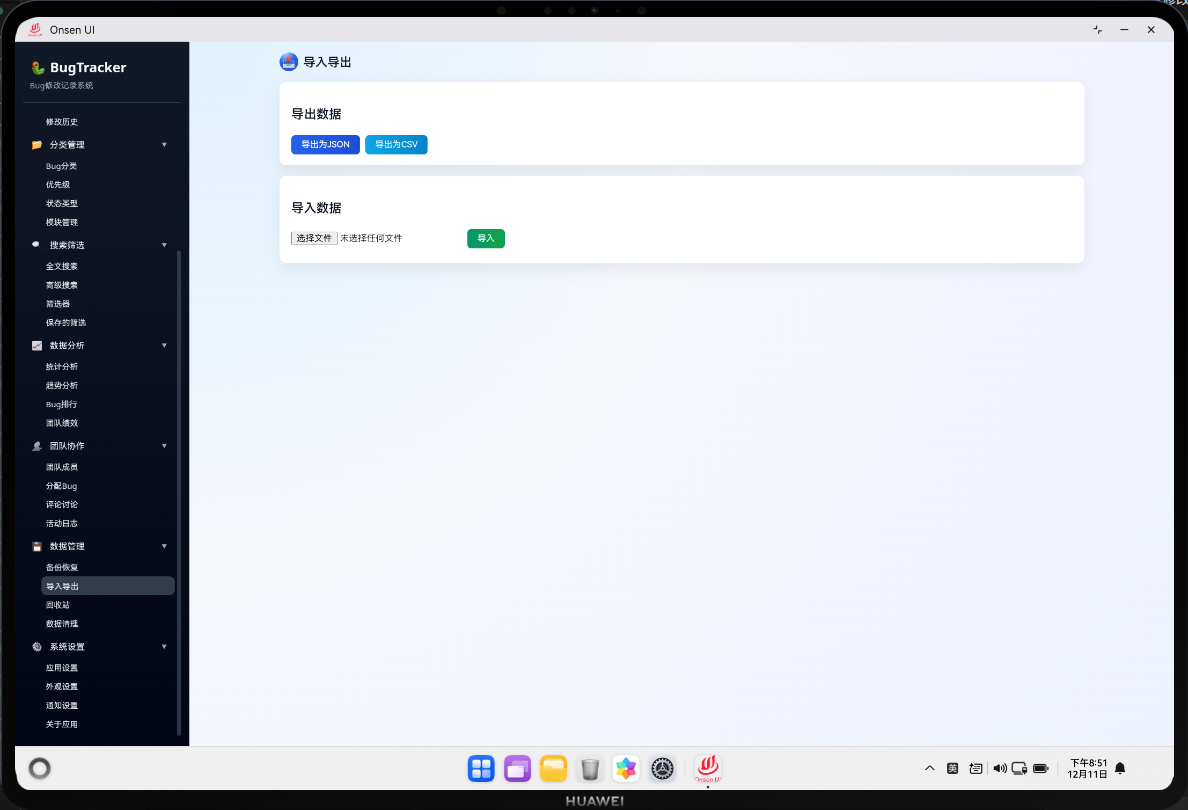
数据导入导出模块允许用户将Bug数据导出为JSON或CSV格式,以及从文件中导入Bug数据。在Cordova与OpenHarmony混合开发框架下,这个模块提供了完整的数据导入导出功能,用户可以轻松备份和恢复数据。数据导入导出功能的设计目标是为用户提供灵活的数据管理方式,确保数据的安全性和可移植性。
数据导入导出模块采用了原生文件系统访问的方式,通过Cordova插件与OpenHarmony原生代码进行交互,实现高效的文件操作。
🔗 完整流程
第一步:数据导出
当用户点击导出按钮时,系统首先从IndexedDB数据库中收集所有Bug数据。系统会将数据转换为JSON格式,然后通过Cordova插件调用原生代码,将数据写入到文件系统中。
导出过程包括数据收集、格式转换、文件写入等步骤。系统会显示一个进度提示,告诉用户导出的进度。
第二步:文件保存
原生代码会将JSON数据写入到应用的缓存目录或用户选择的目录。系统会返回文件路径给Web层,Web层会显示导出成功的提示和文件路径。
第三步:数据导入
当用户点击导入按钮时,系统会打开一个文件选择器,让用户选择要导入的JSON或CSV文件。用户选择文件后,系统会读取文件内容,解析数据,然后将数据导入到IndexedDB数据库中。
导入过程包括文件读取、数据解析、验证、导入等步骤。系统会显示一个导入确认对话框,让用户确认导入操作。
🔧 Web代码实现
HTML结构
<div id="import-export-page" class="page">
  <div class="page-header">
    <h1 class="page-title">数据导入导出</h1>
  </div>

  <div class="page-content">
    <!-- 导出部分 -->
    <div class="section">
      <h2>导出数据</h2>
      <p>将所有Bug数据导出为JSON文件,用于备份或转移。</p>

      <div class="form-group">
        <label for="export-format" class="form-label">导出格式</label>
        <select id="export-format" class="form-select">
          <option value="json">JSON格式</option>
          <option value="csv">CSV格式</option>
        </select>
      </div>

      <div class="form-actions">
        <button class="btn btn-primary" onclick="importExportModule.exportData()">
          导出数据
        </button>
        <div id="export-status" class="status-message"></div>
      </div>
    </div>

    <!-- 导入部分 -->
    <div class="section">
      <h2>导入数据</h2>
      <p>从JSON或CSV文件中导入Bug数据。导入前请确保文件格式正确。</p>

      <div class="form-group">
        <label for="import-file" class="form-label">选择文件</label>
        <input
          type="file"
          id="import-file"
          class="form-input"
          accept=".json,.csv"
        />
      </div>

      <div class="form-actions">
        <button class="btn btn-primary" onclick="importExportModule.importData()">
          导入数据
        </button>
        <div id="import-status" class="status-message"></div>
      </div>
    </div>

    <!-- 导出历史 -->
    <div class="section">
      <h2>导出历史</h2>
      <div id="export-history" class="history-list">
        <!-- 动态生成的导出历史 -->
      </div>
    </div>
  </div>
</div>

<!-- 导入确认对话框 -->
<div id="import-confirm-modal" class="modal" style="display: none;">
  <div class="modal-content">
    <div class="modal-header">
      <h2>确认导入</h2>
      <button class="modal-close" onclick="importExportModule.closeConfirmModal()">×</button>
    </div>

    <div class="modal-body">
      <p>即将导入 <span id="import-count">0</span> 条Bug记录。</p>
      <p>导入后,现有数据将被合并。是否继续?</p>
    </div>

    <div class="modal-footer">
      <button class="btn btn-default" onclick="importExportModule.closeConfirmModal()">取消</button>
      <button class="btn btn-primary" onclick="importExportModule.confirmImport()">确认导入</button>
    </div>
  </div>
</div>
HTML结构包含了导出、导入和导出历史三个部分,以及导入确认对话框。
JavaScript逻辑
// 导入导出模块
class ImportExportModule {
  constructor() {
    this.pendingImportData = null;
    this.exportHistory = [];
    this.init();
  }

  async init() {
    await this.loadExportHistory();
  }

  async exportData() {
    try {
      // 显示加载提示
      utils.showLoading('正在导出数据...');

      // 从数据库获取所有Bug
      const bugs = await db.getAllBugs();
      const categories = await db.getAllCategories();

      // 构建导出数据
      const exportData = {
        version: '1.0',
        exportDate: new Date().toISOString(),
        bugs: bugs,
        categories: categories
      };

      // 获取导出格式
      const format = document.getElementById('export-format').value;

      // 转换数据格式
      let fileContent;
      let fileName;

      if (format === 'json') {
        fileContent = JSON.stringify(exportData, null, 2);
        fileName = `bugs_export_${Date.now()}.json`;
      } else {
        fileContent = this.convertToCSV(bugs);
        fileName = `bugs_export_${Date.now()}.csv`;
      }

      // 调用原生代码保存文件
      await this.saveFile(fileName, fileContent);

      // 隐藏加载提示
      utils.hideLoading();

      // 显示成功提示
      utils.showSuccess('数据导出成功');

      // 记录导出历史
      await this.recordExportHistory(fileName, bugs.length);

      // 刷新导出历史
      await this.loadExportHistory();

    } catch (error) {
      console.error('导出数据失败:', error);
      utils.hideLoading();
      utils.showError('导出数据失败: ' + error.message);
    }
  }

  convertToCSV(bugs) {
    // CSV头
    const headers = ['ID', '标题', '描述', '优先级', '状态', '分类', '创建日期'];
    const rows = [headers.join(',')];

    // CSV行
    bugs.forEach(bug => {
      const row = [
        bug.id,
        `"${bug.title.replace(/"/g, '""')}"`,
        `"${(bug.description || '').replace(/"/g, '""')}"`,
        bug.priority,
        bug.status,
        bug.categoryId || '',
        bug.createdDate
      ];
      rows.push(row.join(','));
    });

    return rows.join('\n');
  }

  async saveFile(fileName, fileContent) {
    return new Promise((resolve, reject) => {
      if (window.cordova) {
        cordova.exec(
          (filePath) => {
            console.log('文件已保存:', filePath);
            resolve(filePath);
          },
          (error) => {
            console.error('保存文件失败:', error);
            reject(error);
          },
          'FileManagerPlugin',
          'saveFile',
          [fileName, fileContent]
        );
      } else {
        // 浏览器环境下使用Blob
        const blob = new Blob([fileContent], { type: 'text/plain' });
        const url = URL.createObjectURL(blob);
        const a = document.createElement('a');
        a.href = url;
        a.download = fileName;
        a.click();
        URL.revokeObjectURL(url);
        resolve(fileName);
      }
    });
  }

  async importData() {
    const fileInput = document.getElementById('import-file');
    const file = fileInput.files[0];

    if (!file) {
      utils.showError('请选择要导入的文件');
      return;
    }

    try {
      // 读取文件
      const fileContent = await this.readFile(file);

      // 解析数据
      let importData;
      if (file.name.endsWith('.json')) {
        importData = JSON.parse(fileContent);
      } else if (file.name.endsWith('.csv')) {
        importData = this.parseCSV(fileContent);
      } else {
        utils.showError('不支持的文件格式');
        return;
      }

      // 验证数据
      if (!importData.bugs || !Array.isArray(importData.bugs)) {
        utils.showError('文件格式不正确');
        return;
      }

      // 保存待导入数据
      this.pendingImportData = importData;

      // 显示确认对话框
      document.getElementById('import-count').textContent = importData.bugs.length;
      document.getElementById('import-confirm-modal').style.display = 'flex';

    } catch (error) {
      console.error('导入数据失败:', error);
      utils.showError('导入数据失败: ' + error.message);
    }
  }

  readFile(file) {
    return new Promise((resolve, reject) => {
      const reader = new FileReader();
      reader.onload = (e) => resolve(e.target.result);
      reader.onerror = (e) => reject(e);
      reader.readAsText(file);
    });
  }

  parseCSV(content) {
    const lines = content.split('\n');
    const headers = lines[0].split(',');
    const bugs = [];

    for (let i = 1; i < lines.length; i++) {
      if (!lines[i].trim()) continue;

      const values = lines[i].split(',');
      const bug = {
        id: parseInt(values[0]),
        title: values[1].replace(/^"|"$/g, ''),
        description: values[2].replace(/^"|"$/g, ''),
        priority: values[3],
        status: values[4],
        categoryId: values[5] ? parseInt(values[5]) : null,
        createdDate: values[6]
      };
      bugs.push(bug);
    }

    return { bugs };
  }

  closeConfirmModal() {
    document.getElementById('import-confirm-modal').style.display = 'none';
    this.pendingImportData = null;
  }

  async confirmImport() {
    try {
      utils.showLoading('正在导入数据...');

      // 导入Bug数据
      for (let bug of this.pendingImportData.bugs) {
        await db.addBug(bug);
      }

      // 导入分类数据(如果有)
      if (this.pendingImportData.categories) {
        for (let category of this.pendingImportData.categories) {
          await db.addCategory(category);
        }
      }

      utils.hideLoading();
      utils.showSuccess('数据导入成功');

      this.closeConfirmModal();

      // 清空文件输入
      document.getElementById('import-file').value = '';

    } catch (error) {
      console.error('导入数据失败:', error);
      utils.hideLoading();
      utils.showError('导入数据失败: ' + error.message);
    }
  }

  async recordExportHistory(fileName, bugCount) {
    const record = {
      fileName: fileName,
      bugCount: bugCount,
      exportDate: new Date().toISOString()
    };

    // 保存到本地存储
    let history = JSON.parse(localStorage.getItem('export_history') || '[]');
    history.unshift(record);
    history = history.slice(0, 10); // 只保留最近10条
    localStorage.setItem('export_history', JSON.stringify(history));
  }

  async loadExportHistory() {
    const history = JSON.parse(localStorage.getItem('export_history') || '[]');

    const html = history.map(record => `
      <div class="history-item">
        <div class="history-info">
          <span class="history-name">${record.fileName}</span>
          <span class="history-count">${record.bugCount} 条记录</span>
        </div>
        <div class="history-date">${utils.formatDate(record.exportDate)}</div>
      </div>
    `).join('');

    document.getElementById('export-history').innerHTML = html || '<p>暂无导出历史</p>';
  }
}

// 初始化导入导出模块
const importExportModule = new ImportExportModule();
JavaScript代码实现了完整的导入导出功能,包括数据导出、格式转换、文件保存、数据导入、格式解析等。
CSS样式
/* 部分样式 */
.section {
  padding: 20px;
  background: white;
  border-radius: 4px;
  margin-bottom: 20px;
  box-shadow: 0 2px 8px rgba(0, 0, 0, 0.1);
}

.section h2 {
  margin-top: 0;
  margin-bottom: 10px;
  font-size: 16px;
}

.section p {
  color: #666;
  font-size: 12px;
  margin-bottom: 15px;
}

/* 导出历史 */
.history-list {
  display: flex;
  flex-direction: column;
  gap: 10px;
}

.history-item {
  display: flex;
  justify-content: space-between;
  align-items: center;
  padding: 12px;
  background: #f5f7fa;
  border-radius: 4px;
}

.history-info {
  display: flex;
  align-items: center;
  gap: 15px;
}

.history-name {
  font-weight: 500;
  color: #333;
}

.history-count {
  color: #999;
  font-size: 12px;
}

.history-date {
  color: #999;
  font-size: 12px;
}

/* 状态消息 */
.status-message {
  margin-top: 10px;
  padding: 10px;
  border-radius: 4px;
  font-size: 12px;
  display: none;
}

.status-message.show {
  display: block;
}

.status-message.success {
  background: #f0f9ff;
  color: #67c23a;
  border: 1px solid #67c23a;
}

.status-message.error {
  background: #fef0f0;
  color: #f56c6c;
  border: 1px solid #f56c6c;
}
🔌 OpenHarmony原生代码
// entry/src/main/ets/plugins/FileManagerPlugin.ets
import { hilog } from '@kit.PerformanceAnalysisKit';
import { fileIo } from '@kit.CoreFileKit';
import { common } from '@kit.AbilityKit';

const TAG: string = '[FileManagerPlugin]';
const DOMAIN: number = 0xFF00;

export class FileManagerPlugin {
  static async saveFile(success: Function, error: Function, args: any[]): Promise<void> {
    try {
      const context = getContext(this) as common.UIAbilityContext;
      const fileName = args[0];
      const fileContent = args[1];

      // 获取缓存目录
      const cacheDir = context.cacheDir;
      const filePath = cacheDir + '/' + fileName;

      // 写入文件
      const file = fileIo.openSync(filePath, fileIo.OpenMode.CREATE | fileIo.OpenMode.WRITE);
      fileIo.writeSync(file.fd, fileContent);
      fileIo.closeSync(file.fd);

      hilog.info(DOMAIN, TAG, `文件已保存: ${filePath}`);
      success(filePath);
    } catch (err) {
      hilog.error(DOMAIN, TAG, `保存文件失败: ${err}`);
      error('保存文件失败');
    }
  }

  static async readFile(success: Function, error: Function, args: any[]): Promise<void> {
    try {
      const filePath = args[0];

      // 读取文件
      const file = fileIo.openSync(filePath, fileIo.OpenMode.READ);
      const stat = fileIo.statSync(filePath);
      const buf = new ArrayBuffer(stat.size);
      fileIo.readSync(file.fd, buf);
      fileIo.closeSync(file.fd);

      const content = String.fromCharCode.apply(null, new Uint8Array(buf));

      hilog.info(DOMAIN, TAG, `文件已读取: ${filePath}`);
      success(content);
    } catch (err) {
      hilog.error(DOMAIN, TAG, `读取文件失败: ${err}`);
      error('读取文件失败');
    }
  }
}
Web-Native通信
// 文件管理通信类
class FileManagerBridge {
  static saveFile(fileName, fileContent) {
    return new Promise((resolve, reject) => {
      if (window.cordova) {
        cordova.exec(
          (filePath) => {
            console.log('文件已保存:', filePath);
            resolve(filePath);
          },
          (error) => {
            console.error('保存文件失败:', error);
            reject(error);
          },
          'FileManagerPlugin',
          'saveFile',
          [fileName, fileContent]
        );
      } else {
        reject('Cordova未加载');
      }
    });
  }

  static readFile(filePath) {
    return new Promise((resolve, reject) => {
      if (window.cordova) {
        cordova.exec(
          (content) => {
            console.log('文件已读取');
            resolve(content);
          },
          (error) => {
            console.error('读取文件失败:', error);
            reject(error);
          },
          'FileManagerPlugin',
          'readFile',
          [filePath]
        );
      } else {
        reject('Cordova未加载');
      }
    });
  }
}
📝 总结
数据导入导出模块是BugTracker Pro应用中用于数据备份和转移的重要功能。在Cordova与OpenHarmony混合开发框架下,它提供了完整的导入导出功能,支持JSON和CSV两种格式。通过灵活的数据导入导出,用户可以轻松备份数据、转移数据或与其他系统集成。
模块采用了模块化的设计,各个功能都是独立的,易于维护和扩展。通过Cordova插件与原生代码的交互,我们可以实现高效的文件操作。这充分展示了混合开发框架的优势。

开源鸿蒙跨平台开发社区汇聚开发者与厂商,共建“一次开发,多端部署”的开源生态,致力于降低跨端开发门槛,推动万物智联创新。
更多推荐

 15
15 0
0- 0


 已为社区贡献16条内容

所有评论(0)