高级日历组件 Flutter OpenHarmony日期选择器
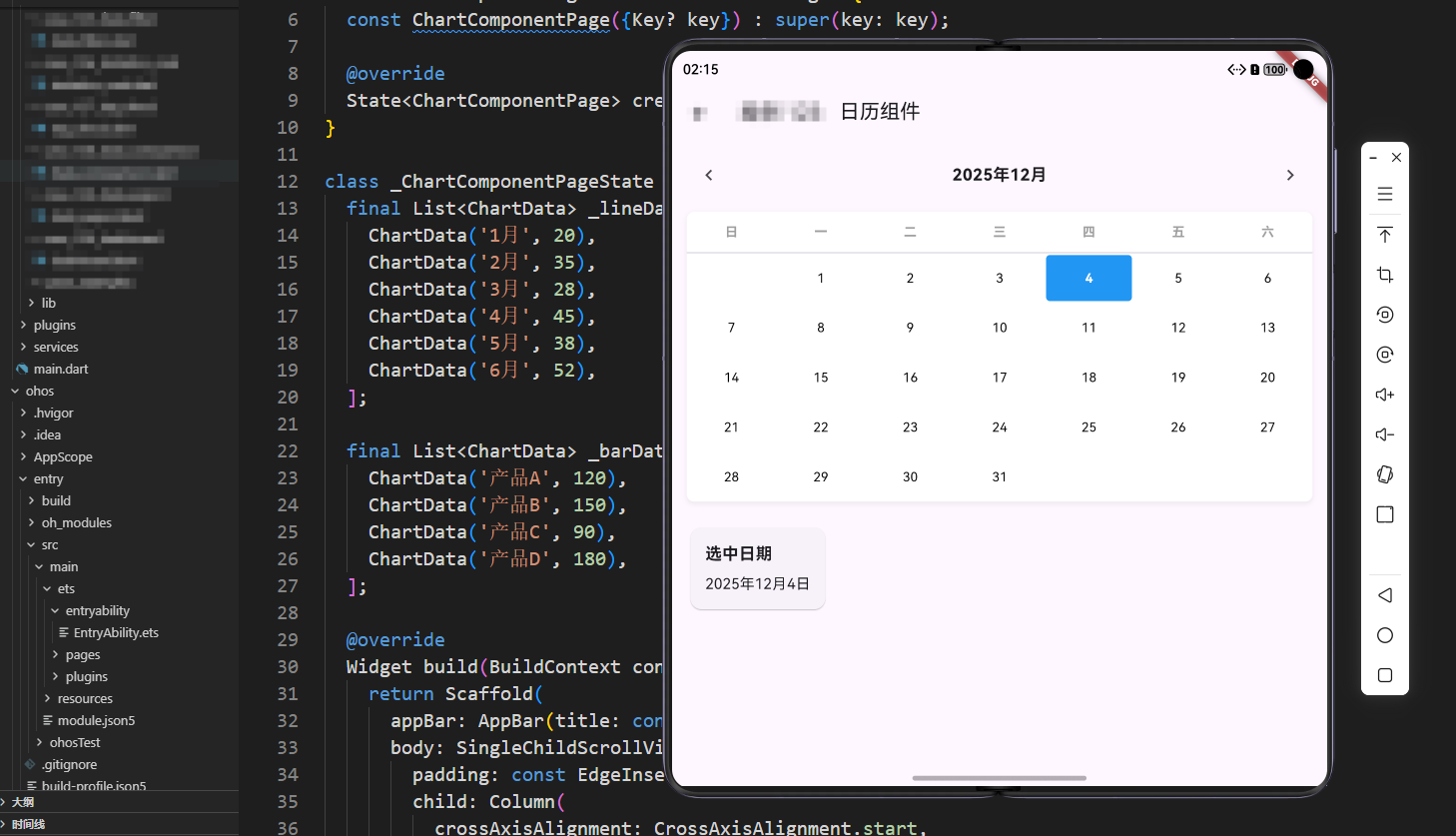
本文探讨了高级日历组件的技术实现,重点介绍了日期计算、月份选择器和日历网格渲染等核心功能。文章详细讲解了如何计算月份天数、处理星期对齐以及实现月份导航功能。通过完整的代码示例展示了日期单元格的渲染逻辑,包括当前日期高亮、选中状态显示等交互细节。这些技术点为构建功能完善的跨平台日历组件奠定了基础,特别适合OpenHarmony PC端的大屏幕应用场景。
引言
在现代应用开发中,日历组件是时间管理和日期选择的重要工具。无论是任务管理、日程安排、数据统计还是日期选择,日历组件都扮演着关键角色。一个功能完善的日历组件不仅能够清晰地展示日期信息,更能够提供日期选择、事件标记、多视图切换等高级功能,帮助用户高效地管理时间。
高级日历组件的实现涉及日期计算、视图渲染、事件管理、交互处理等多个技术点。Flutter 提供了基础的日期选择器,但实际应用中需要自定义日历组件以满足特定需求。日期计算需要考虑月份天数、星期对齐、闰年处理等复杂逻辑;视图渲染需要支持月视图、周视图、日视图等多种展示方式;事件管理需要支持事件添加、编辑、删除等功能。在 OpenHarmony PC 端,由于屏幕尺寸更大、鼠标操作更精确,日历组件的设计可以更加精细,充分利用 PC 端的交互优势。
本文将深入探讨高级日历组件的技术实现,从基础的日期展示到高级的事件管理、多视图切换、日期范围选择等功能,结合 OpenHarmony PC 端的特性,展示如何构建功能完善、性能优秀的日历组件。我们将通过完整的代码示例和详细的解释,帮助开发者理解日历组件的每一个细节,掌握跨平台时间管理的最佳实践。
一、日历组件基础架构
日历组件的核心是日期计算和展示。需要计算每个月的天数、星期对齐、当前日期等基础信息,然后通过网格布局展示日期。
日期计算基础
class _CalendarPageState extends State<CalendarPage> {
  DateTime _selectedDate = DateTime.now();
  DateTime _currentMonth = DateTime.now();

  // 获取月份的第一天
  DateTime getFirstDayOfMonth(DateTime date) {
    return DateTime(date.year, date.month, 1);
  }

  // 获取月份的最后一天
  DateTime getLastDayOfMonth(DateTime date) {
    return DateTime(date.year, date.month + 1, 0);
  }

  // 获取月份的第一天是星期几(1-7,1表示周一)
  int getFirstDayOfWeek(DateTime date) {
    final firstDay = getFirstDayOfMonth(date);
    return firstDay.weekday;
  }

  // 获取月份的天数
  int getDaysInMonth(DateTime date) {
    return getLastDayOfMonth(date).day;
  }
}
代码解释: 日期计算是日历组件的基础。getFirstDayOfMonth 获取月份第一天,getLastDayOfMonth 获取月份最后一天(使用下个月第0天的方式)。getFirstDayOfWeek 获取月份第一天是星期几,用于对齐日历网格。getDaysInMonth 获取月份天数,需要考虑不同月份的天数差异。
月份选择器实现
Widget _buildMonthSelector() {
  return Row(
    mainAxisAlignment: MainAxisAlignment.spaceBetween,
    children: [
      IconButton(
        icon: const Icon(Icons.chevron_left),
        onPressed: () {
          setState(() {
            _currentMonth = DateTime(
              _currentMonth.year,
              _currentMonth.month - 1,
            );
          });
        },
      ),
      Text(
        '${_currentMonth.year}年${_currentMonth.month}月',
        style: const TextStyle(fontSize: 18, fontWeight: FontWeight.bold),
      ),
      IconButton(
        icon: const Icon(Icons.chevron_right),
        onPressed: () {
          setState(() {
            _currentMonth = DateTime(
              _currentMonth.year,
              _currentMonth.month + 1,
            );
          });
        },
      ),
    ],
  );
}
代码解释: _buildMonthSelector 方法构建月份选择器。使用左右箭头按钮切换月份,显示当前年月。月份切换时需要注意跨年处理,DateTime 构造函数会自动处理月份溢出,例如12月+1会变成下一年的1月。这种设计提供了直观的月份导航功能。
二、日历网格渲染
日历网格是日历组件的核心展示部分,需要将日期按照星期排列,处理月份边界的空白日期。
星期标题渲染
Widget _buildCalendar() {
  final weekDays = ['日', '一', '二', '三', '四', '五', '六'];
  final firstDay = getFirstDayOfMonth(_currentMonth);
  final lastDay = getLastDayOfMonth(_currentMonth);
  final firstDayOfWeek = firstDay.weekday;
  final daysInMonth = lastDay.day;

  return Container(
    decoration: BoxDecoration(
      color: Colors.white,
      borderRadius: BorderRadius.circular(8),
      boxShadow: [
        BoxShadow(
          color: Colors.grey.withOpacity(0.2),
          blurRadius: 4,
          offset: const Offset(0, 2),
        ),
      ],
    ),
    child: Column(
      children: [
        // 星期标题
        Row(
          children: weekDays.map((day) {
            return Expanded(
              child: Container(
                padding: const EdgeInsets.symmetric(vertical: 12),
                alignment: Alignment.center,
                child: Text(
                  day,
                  style: const TextStyle(
                    fontWeight: FontWeight.bold,
                    color: Colors.grey,
                  ),
                ),
              ),
            );
          }).toList(),
        ),
        const Divider(height: 1),
        // 日期网格
        // ...
      ],
    ),
  );
}
代码解释: _buildCalendar 方法构建日历网格。星期标题使用 Row 和 Expanded 平均分配空间,每个星期标题居中显示。Divider 分隔标题和日期网格,提供清晰的视觉层次。
日期单元格渲染
...List.generate((daysInMonth + firstDayOfWeek - 1) ~/ 7 + 1, (weekIndex) {
  return Row(
    children: List.generate(7, (dayIndex) {
      final dayNumber = weekIndex * 7 + dayIndex - firstDayOfWeek + 1;
      final isCurrentMonth = dayNumber > 0 && dayNumber <= daysInMonth;
      final date = isCurrentMonth
          ? DateTime(_currentMonth.year, _currentMonth.month, dayNumber)
          : null;
      final isSelected = date != null &&
          date.year == _selectedDate.year &&
          date.month == _selectedDate.month &&
          date.day == _selectedDate.day;
      final isToday = date != null &&
          date.year == DateTime.now().year &&
          date.month == DateTime.now().month &&
          date.day == DateTime.now().day;

      return Expanded(
        child: GestureDetector(
          onTap: isCurrentMonth
              ? () {
                  setState(() {
                    _selectedDate = date!;
                  });
                }
              : null,
          child: Container(
            height: 50,
            margin: const EdgeInsets.all(2),
            decoration: BoxDecoration(
              color: isSelected
                  ? Colors.blue
                  : isToday
                      ? Colors.blue.withOpacity(0.2)
                      : Colors.transparent,
              borderRadius: BorderRadius.circular(4),
            ),
            alignment: Alignment.center,
            child: Text(
              isCurrentMonth ? dayNumber.toString() : '',
              style: TextStyle(
                color: isSelected
                    ? Colors.white
                    : isToday
                        ? Colors.blue
                        : Colors.black,
                fontWeight: isSelected || isToday ? FontWeight.bold : FontWeight.normal,
              ),
            ),
          ),
        ),
      );
    }),
  );
}),
代码解释: 日期网格使用嵌套的 List.generate 生成。外层生成周数,内层生成每天。dayNumber 计算当前单元格对应的日期,负数或超出月份范围表示上个月或下个月的日期。isCurrentMonth 判断是否属于当前月份,非当前月份的日期不显示。isSelected 判断是否选中,isToday 判断是否是今天,分别使用不同的样式突出显示。
三、日期选择功能
日期选择是日历组件的核心交互功能,需要处理点击事件,更新选中状态,提供视觉反馈。
日期选择状态管理
class _CalendarPageState extends State<CalendarPage> {
  DateTime _selectedDate = DateTime.now();

  void _selectDate(DateTime date) {
    setState(() {
      _selectedDate = date;
    });
  }
}
代码解释: _selectedDate 存储当前选中的日期,_selectDate 方法更新选中日期。使用 setState 触发UI更新,重新渲染日历网格,高亮显示选中的日期。
选中日期信息展示
Widget _buildSelectedDateInfo() {
  return Card(
    child: Padding(
      padding: const EdgeInsets.all(16),
      child: Column(
        crossAxisAlignment: CrossAxisAlignment.start,
        children: [
          const Text(
            '选中日期',
            style: TextStyle(fontSize: 18, fontWeight: FontWeight.bold),
          ),
          const SizedBox(height: 8),
          Text(
            '${_selectedDate.year}年${_selectedDate.month}月${_selectedDate.day}日',
            style: const TextStyle(fontSize: 16),
          ),
        ],
      ),
    ),
  );
}
代码解释: _buildSelectedDateInfo 方法构建选中日期信息卡片。显示选中日期的完整信息,包括年月日。在实际应用中,可以扩展显示更多信息,如星期、农历日期、节假日等。
四、事件管理功能
高级日历组件需要支持事件管理,允许用户在特定日期添加、编辑、删除事件。
事件数据结构
class CalendarEvent {
  final String id;
  final DateTime date;
  final String title;
  final String? description;
  final Color color;

  CalendarEvent({
    required this.id,
    required this.date,
    required this.title,
    this.description,
    this.color = Colors.blue,
  });
}

class _CalendarPageState extends State<CalendarPage> {
  final Map<String, List<CalendarEvent>> _events = {};

  void _addEvent(DateTime date, CalendarEvent event) {
    final key = _getDateKey(date);
    setState(() {
      _events.putIfAbsent(key, () => []).add(event);
    });
  }

  void _removeEvent(DateTime date, String eventId) {
    final key = _getDateKey(date);
    setState(() {
      _events[key]?.removeWhere((e) => e.id == eventId);
      if (_events[key]?.isEmpty ?? false) {
        _events.remove(key);
      }
    });
  }

  List<CalendarEvent> _getEventsForDate(DateTime date) {
    final key = _getDateKey(date);
    return _events[key] ?? [];
  }

  String _getDateKey(DateTime date) {
    return '${date.year}-${date.month}-${date.day}';
  }
}
代码解释: CalendarEvent 类定义事件数据结构,包含ID、日期、标题、描述、颜色等属性。_events 使用 Map 存储事件,键为日期字符串,值为事件列表。_addEvent 添加事件,_removeEvent 删除事件,_getEventsForDate 获取指定日期的事件列表。这种设计支持一个日期多个事件,便于扩展。
事件标记渲染
Widget _buildDateCell(DateTime? date, bool isCurrentMonth) {
  if (date == null || !isCurrentMonth) {
    return Container();
  }

  final events = _getEventsForDate(date);
  final isSelected = _isDateSelected(date);
  final isToday = _isToday(date);

  return Container(
    height: 50,
    margin: const EdgeInsets.all(2),
    decoration: BoxDecoration(
      color: isSelected ? Colors.blue : Colors.transparent,
      borderRadius: BorderRadius.circular(4),
    ),
    child: Column(
      mainAxisAlignment: MainAxisAlignment.center,
      children: [
        Text(
          date.day.toString(),
          style: TextStyle(
            color: isSelected ? Colors.white : Colors.black,
            fontWeight: isToday ? FontWeight.bold : FontWeight.normal,
          ),
        ),
        if (events.isNotEmpty)
          Container(
            margin: const EdgeInsets.only(top: 2),
            height: 4,
            width: 4,
            decoration: BoxDecoration(
              color: events.first.color,
              shape: BoxShape.circle,
            ),
          ),
      ],
    ),
  );
}
代码解释: _buildDateCell 方法构建日期单元格,包含日期数字和事件标记。如果有事件,在日期下方显示彩色圆点标记。多个事件可以显示多个标记,或者使用不同颜色区分。这种设计提供了直观的事件提示,用户可以快速识别有事件的日期。
五、多视图切换
高级日历组件应该支持月视图、周视图、日视图等多种展示方式,满足不同场景的需求。
视图类型定义
enum CalendarView {
  month,
  week,
  day,
}

class _CalendarPageState extends State<CalendarPage> {
  CalendarView _currentView = CalendarView.month;

  void _switchView(CalendarView view) {
    setState(() {
      _currentView = view;
    });
  }
}
代码解释: CalendarView 枚举定义视图类型,包括月视图、周视图、日视图。_currentView 存储当前视图类型,_switchView 方法切换视图。这种设计允许用户根据需要选择不同的视图,提升使用体验。
周视图实现
Widget _buildWeekView() {
  final startOfWeek = _getStartOfWeek(_currentMonth);
  final weekDays = List.generate(7, (index) {
    return startOfWeek.add(Duration(days: index));
  });

  return Column(
    children: [
      _buildWeekHeader(weekDays),
      Expanded(
        child: Row(
          children: weekDays.map((date) {
            return Expanded(
              child: _buildDayView(date),
            );
          }).toList(),
        ),
      ),
    ],
  );
}

DateTime _getStartOfWeek(DateTime date) {
  final daysFromMonday = date.weekday - 1;
  return date.subtract(Duration(days: daysFromMonday));
}

Widget _buildDayView(DateTime date) {
  final events = _getEventsForDate(date);

  return Container(
    decoration: BoxDecoration(
      border: Border(right: BorderSide(color: Colors.grey[300]!)),
    ),
    child: Column(
      children: [
        Container(
          padding: const EdgeInsets.all(8),
          decoration: BoxDecoration(
            color: _isToday(date) ? Colors.blue : Colors.grey[100],
          ),
          child: Text(
            '${date.day}日',
            style: TextStyle(
              fontWeight: FontWeight.bold,
              color: _isToday(date) ? Colors.white : Colors.black,
            ),
          ),
        ),
        Expanded(
          child: ListView.builder(
            itemCount: events.length,
            itemBuilder: (context, index) {
              final event = events[index];
              return ListTile(
                title: Text(event.title),
                subtitle: event.description != null
                    ? Text(event.description!)
                    : null,
                leading: Container(
                  width: 4,
                  height: double.infinity,
                  color: event.color,
                ),
              );
            },
          ),
        ),
      ],
    ),
  );
}
代码解释: _buildWeekView 方法构建周视图。_getStartOfWeek 获取周一的日期,生成一周的日期列表。_buildDayView 构建单日视图,显示日期标题和该日期的事件列表。周视图适合查看一周的日程安排,提供更详细的事件信息。
六、日期范围选择
日期范围选择功能允许用户选择起始日期和结束日期,适用于预订、统计等场景。
范围选择状态管理
class _CalendarPageState extends State<CalendarPage> {
  DateTime? _startDate;
  DateTime? _endDate;
  bool _isSelectingRange = false;

  void _selectDateRange(DateTime date) {
    if (!_isSelectingRange || _startDate == null) {
      setState(() {
        _startDate = date;
        _endDate = null;
        _isSelectingRange = true;
      });
    } else {
      if (date.isBefore(_startDate!)) {
        setState(() {
          _endDate = _startDate;
          _startDate = date;
        });
      } else {
        setState(() {
          _endDate = date;
        });
      }
      _isSelectingRange = false;
    }
  }

  bool _isDateInRange(DateTime date) {
    if (_startDate == null || _endDate == null) {
      return false;
    }
    return date.isAfter(_startDate!.subtract(const Duration(days: 1))) &&
           date.isBefore(_endDate!.add(const Duration(days: 1)));
  }

  bool _isRangeStart(DateTime date) {
    return _startDate != null &&
           date.year == _startDate!.year &&
           date.month == _startDate!.month &&
           date.day == _startDate!.day;
  }

  bool _isRangeEnd(DateTime date) {
    return _endDate != null &&
           date.year == _endDate!.year &&
           date.month == _endDate!.month &&
           date.day == _endDate!.day;
  }
}
代码解释: _startDate 和 _endDate 存储范围选择的起始和结束日期。_isSelectingRange 标记是否正在选择范围。_selectDateRange 处理日期选择,第一次点击设置起始日期,第二次点击设置结束日期。如果第二次点击的日期早于起始日期,则交换起始和结束日期。_isDateInRange 判断日期是否在范围内,_isRangeStart 和 _isRangeEnd 判断是否是范围的起始或结束日期。
范围选择视觉反馈
Widget _buildDateCellWithRange(DateTime? date, bool isCurrentMonth) {
  if (date == null || !isCurrentMonth) {
    return Container();
  }

  final isInRange = _isDateInRange(date);
  final isStart = _isRangeStart(date);
  final isEnd = _isRangeEnd(date);
  final isSelected = isStart || isEnd;

  return Container(
    height: 50,
    margin: const EdgeInsets.all(2),
    decoration: BoxDecoration(
      color: isSelected
          ? Colors.blue
          : isInRange
              ? Colors.blue.withOpacity(0.2)
              : Colors.transparent,
      borderRadius: BorderRadius.only(
        topLeft: isStart ? const Radius.circular(4) : Radius.zero,
        bottomLeft: isStart ? const Radius.circular(4) : Radius.zero,
        topRight: isEnd ? const Radius.circular(4) : Radius.zero,
        bottomRight: isEnd ? const Radius.circular(4) : Radius.zero,
      ),
    ),
    child: Center(
      child: Text(
        date.day.toString(),
        style: TextStyle(
          color: isSelected ? Colors.white : Colors.black,
          fontWeight: isSelected ? FontWeight.bold : FontWeight.normal,
        ),
      ),
    ),
  );
}
代码解释: _buildDateCellWithRange 方法构建支持范围选择的日期单元格。范围内的日期使用半透明蓝色背景,起始和结束日期使用实心蓝色背景。圆角只在起始和结束日期应用,提供清晰的视觉反馈。
七、Flutter 桥接 OpenHarmony 原理与 EntryAbility.ets 实现
高级日历组件在 OpenHarmony 平台上主要通过 Flutter 的渲染引擎实现,但在某些场景中,如系统日历集成、提醒功能、时区处理等,可能需要通过 Platform Channel 与 OpenHarmony 系统交互。
Flutter 桥接 OpenHarmony 的架构原理
Flutter 与 OpenHarmony 的桥接基于 Platform Channel 机制。对于日历组件,虽然基本的日历功能可以在 Flutter 的 Dart 层实现,但某些系统级功能(如系统日历集成、提醒功能、时区处理等)需要通过 Platform Channel 调用 OpenHarmony 的原生能力。
系统日历集成桥接: OpenHarmony 提供了日历和提醒 API,可以读取和写入系统日历事件。通过 Platform Channel,可以实现日历事件的同步,利用系统日历的功能。
EntryAbility.ets 中的日历桥接配置
import { FlutterAbility, FlutterEngine } from '@ohos/flutter_ohos';
import { GeneratedPluginRegistrant } from '../plugins/GeneratedPluginRegistrant';
import { MethodChannel } from '@ohos/flutter_ohos';
import { calendarManager } from '@kit.ArkData';

export default class EntryAbility extends FlutterAbility {
  private _calendarChannel: MethodChannel | null = null;

  configureFlutterEngine(flutterEngine: FlutterEngine) {
    super.configureFlutterEngine(flutterEngine)
    GeneratedPluginRegistrant.registerWith(flutterEngine)
    this._setupCalendarBridge(flutterEngine)
  }

  private _setupCalendarBridge(flutterEngine: FlutterEngine) {
    this._calendarChannel = new MethodChannel(
      flutterEngine.dartExecutor,
      'com.example.app/calendar'
    );

    this._calendarChannel.setMethodCallHandler(async (call, result) => {
      if (call.method === 'addCalendarEvent') {
        try {
          const event = call.arguments['event'] as any;
          const calendarId = call.arguments['calendarId'] as string;

          // 使用系统日历API添加事件
          const calendarEvent = {
            title: event.title,
            description: event.description,
            startTime: event.startTime,
            endTime: event.endTime,
            timeZone: event.timeZone || 'Asia/Shanghai',
          };

          await calendarManager.addEvent(calendarId, calendarEvent);
          result.success(true);
        } catch (e) {
          result.error('CALENDAR_ERROR', e.message, null);
        }
      } else if (call.method === 'getCalendarEvents') {
        try {
          const startTime = call.arguments['startTime'] as number;
          const endTime = call.arguments['endTime'] as number;

          const events = await calendarManager.queryEvents(startTime, endTime);
          result.success(events);
        } catch (e) {
          result.error('CALENDAR_ERROR', e.message, null);
        }
      } else {
        result.notImplemented();
      }
    });
  }
}
代码解释: _setupCalendarBridge 方法设置日历桥接。addCalendarEvent 方法处理添加日历事件,使用系统日历API将事件添加到系统日历。getCalendarEvents 方法查询指定时间范围内的日历事件,返回事件列表。这种桥接机制使得 Flutter 应用可以充分利用 OpenHarmony 平台的日历能力,提供系统级的功能。
Flutter 端日历桥接封装
在 Flutter 端,可以通过 Platform Channel 封装日历功能:
class CalendarHelper {
  static const _calendarChannel = MethodChannel('com.example.app/calendar');

  static Future<bool> addCalendarEvent({
    required String title,
    required DateTime startTime,
    required DateTime endTime,
    String? description,
    String calendarId = 'default',
  }) async {
    try {
      final result = await _calendarChannel.invokeMethod('addCalendarEvent', {
        'event': {
          'title': title,
          'description': description,
          'startTime': startTime.millisecondsSinceEpoch,
          'endTime': endTime.millisecondsSinceEpoch,
        },
        'calendarId': calendarId,
      });
      return result as bool;
    } catch (e) {
      print('添加日历事件失败: $e');
      return false;
    }
  }

  static Future<List<Map<String, dynamic>>> getCalendarEvents({
    required DateTime startTime,
    required DateTime endTime,
  }) async {
    try {
      final result = await _calendarChannel.invokeMethod('getCalendarEvents', {
        'startTime': startTime.millisecondsSinceEpoch,
        'endTime': endTime.millisecondsSinceEpoch,
      });
      return List<Map<String, dynamic>>.from(result);
    } catch (e) {
      print('获取日历事件失败: $e');
      return [];
    }
  }
}
代码解释: Flutter 端通过 MethodChannel 封装日历功能。addCalendarEvent 方法添加日历事件,getCalendarEvents 方法获取日历事件。这种封装提供了简洁的 API,隐藏了 Platform Channel 的实现细节,便于在应用中调用。错误处理确保功能失败时能够优雅降级,不影响应用的正常运行。
八、日历组件最佳实践
性能优化
日历组件的性能主要取决于日期计算和渲染复杂度。对于大量事件的场景,应该使用虚拟滚动,只渲染可见的日期。日期计算应该缓存结果,避免重复计算。可以使用 RepaintBoundary 优化重绘性能,将每个日期单元格隔离到独立的绘制层。
用户体验设计
日历组件应该提供清晰的视觉反馈。选中的日期应该明显突出,今天的日期应该特殊标记。事件标记应该清晰可见,但不应该过于抢眼。月份切换应该流畅,提供动画过渡效果。日期选择应该支持键盘导航,PC 端用户可以使用方向键和 Tab 键导航。
响应式设计
日历组件应该适应不同的屏幕尺寸。在移动端,日历可以简化显示,突出重要信息;在 PC 端,日历可以显示更多细节,充分利用屏幕空间。周视图和日视图在移动端可以全屏显示,在 PC 端可以并排显示。
国际化支持
日历组件应该支持国际化,包括星期标题、月份名称、日期格式等。应该使用 Flutter 的国际化机制,根据用户的语言和地区设置显示相应的文本。日期格式应该符合用户的习惯,例如中文用户习惯使用"年月日"格式,英文用户习惯使用"月/日/年"格式。
总结
高级日历组件是现代应用设计的重要组成部分,它通过日期选择、事件管理、多视图切换等功能,提供了专业的时间管理体验。通过掌握日期计算、视图渲染、事件管理等技术,我们可以创建出功能完善、性能优秀的日历组件。在 OpenHarmony PC 端,充分利用系统日历集成、提醒功能等平台特性,可以实现系统级的日历功能。同时,要注意性能优化、用户体验设计、响应式设计、国际化支持等问题,确保日历组件在不同场景下都能提供良好的用户体验。
高级日历组件不仅仅是日期展示,更是时间管理的重要组成部分。一个设计良好的日历组件可以让用户高效地管理时间,提升应用的整体价值。通过不断学习和实践,我们可以掌握更多日历组件技术,创建出更加优秀的应用体验。
欢迎加入开源鸿蒙跨平台社区:https://openharmonycrossplatform.csdn.net

开源鸿蒙跨平台开发社区汇聚开发者与厂商,共建“一次开发,多端部署”的开源生态,致力于降低跨端开发门槛,推动万物智联创新。
更多推荐
 12
12 0
0- 0


 已为社区贡献15条内容

所有评论(0)