Flutter for OpenHarmony 实战:分割线与间距控制
将分割线和间距控制逻辑抽离为独立组件使用构造函数参数实现组件的灵活性提供便捷构造函数和工具类,简化使用方式使用和实现虚线分割线掌握Canvas绘图API,实现自定义图形优化绘制性能,避免不必要的重绘。
欢迎加入开源鸿蒙跨平台社区: https://openharmonycrossplatform.csdn.net
前言:跨生态开发的新机遇
在移动开发领域,我们总是面临着选择与适配。今天,你的Flutter应用在Android和iOS上跑得正欢,明天可能就需要考虑一个新的平台:HarmonyOS(鸿蒙)。这不是一道选答题,而是很多团队正在面对的现实。
Flutter的优势很明确——写一套代码,就能在两个主要平台上运行,开发体验流畅。而鸿蒙代表的是下一个时代的互联生态,它不仅仅是手机系统,更着眼于未来全场景的体验。将现有的Flutter应用适配到鸿蒙,听起来像是一个“跨界”任务,但它本质上是一次有价值的技术拓展:让产品触达更多用户,也让技术栈覆盖更广。
不过,这条路走起来并不像听起来那么简单。Flutter和鸿蒙,从底层的架构到上层的工具链,都有着各自的设计逻辑。会遇到一些具体的问题:代码如何组织?原有的功能在鸿蒙上如何实现?那些平台特有的能力该怎么调用?更实际的是,从编译打包到上架部署,整个流程都需要重新摸索。
这篇文章想做的,就是把这些我们趟过的路、踩过的坑,清晰地摊开给你看。我们不会只停留在“怎么做”,还会聊到“为什么得这么做”,以及“如果出了问题该往哪想”。这更像是一份实战笔记,源自真实的项目经验,聚焦于那些真正卡住过我们的环节。
无论你是在为一个成熟产品寻找新的落地平台,还是从一开始就希望构建能面向多端的应用,这里的思路和解决方案都能提供直接的参考。理解了两套体系之间的异同,掌握了关键的衔接技术,不仅能完成这次迁移,更能积累起应对未来技术变化的能力。
混合工程结构深度解析
项目目录架构
当Flutter项目集成鸿蒙支持后,典型的项目结构会发生显著变化。以下是经过ohos_flutter插件初始化后的项目结构:
my_flutter_harmony_app/
├── lib/                          # Flutter业务代码(基本不变)
│   ├── main.dart                 # 应用入口
│   ├── components/               # 组件目录
│   │   ├── divider_widget.dart   # 分割线组件
│   │   └── spacing_widget.dart   # 间距控制组件
│   └── utils/
│       └── platform_utils.dart  # 平台工具类
├── pubspec.yaml                  # Flutter依赖配置
├── ohos/                         # 鸿蒙原生层(核心适配区)
│   ├── entry/                    # 主模块
│   │   └── src/main/
│   │       ├── ets/              # ArkTS代码
│   │       │   ├── MainAbility/
│   │       │   │   ├── MainAbility.ts       # 主Ability
│   │       │   │   └── MainAbilityContext.ts
│   │       │   └── pages/
│   │       │       ├── Index.ets           # 主页面
│   │       │       └── Splash.ets          # 启动页
│   │       ├── resources/        # 鸿蒙资源文件
│   │       │   ├── base/
│   │       │   │   ├── element/  # 字符串等
│   │       │   │   ├── media/    # 图片资源
│   │       │   │   └── profile/  # 配置文件
│   │       │   └── en_US/        # 英文资源
│   │       └── config.json       # 应用核心配置
│   ├── ohos_test/               # 测试模块
│   ├── build-profile.json5      # 构建配置
│   └── oh-package.json5         # 鸿蒙依赖管理
└── README.md
展示效果图片
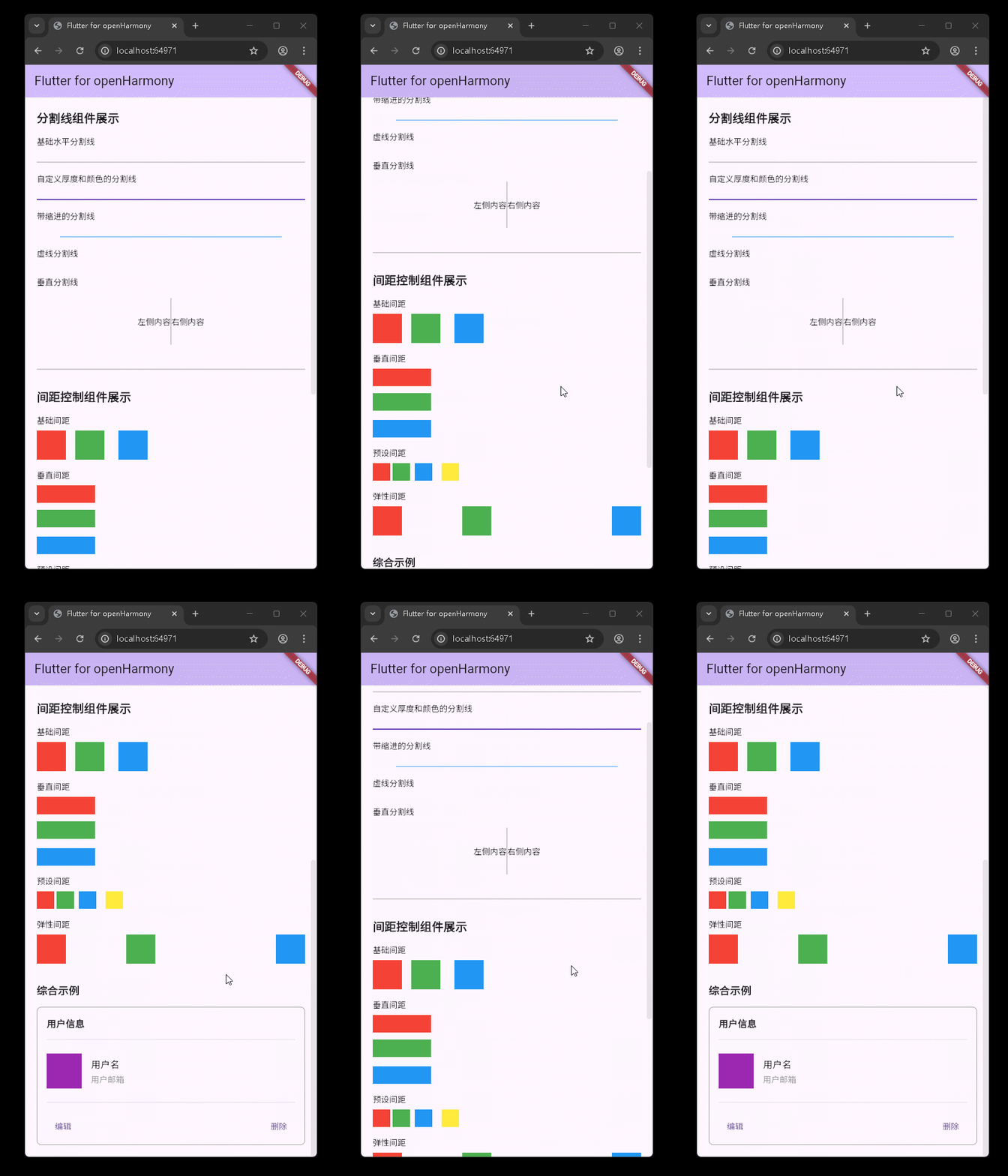
flutter 实时预览 效果展示
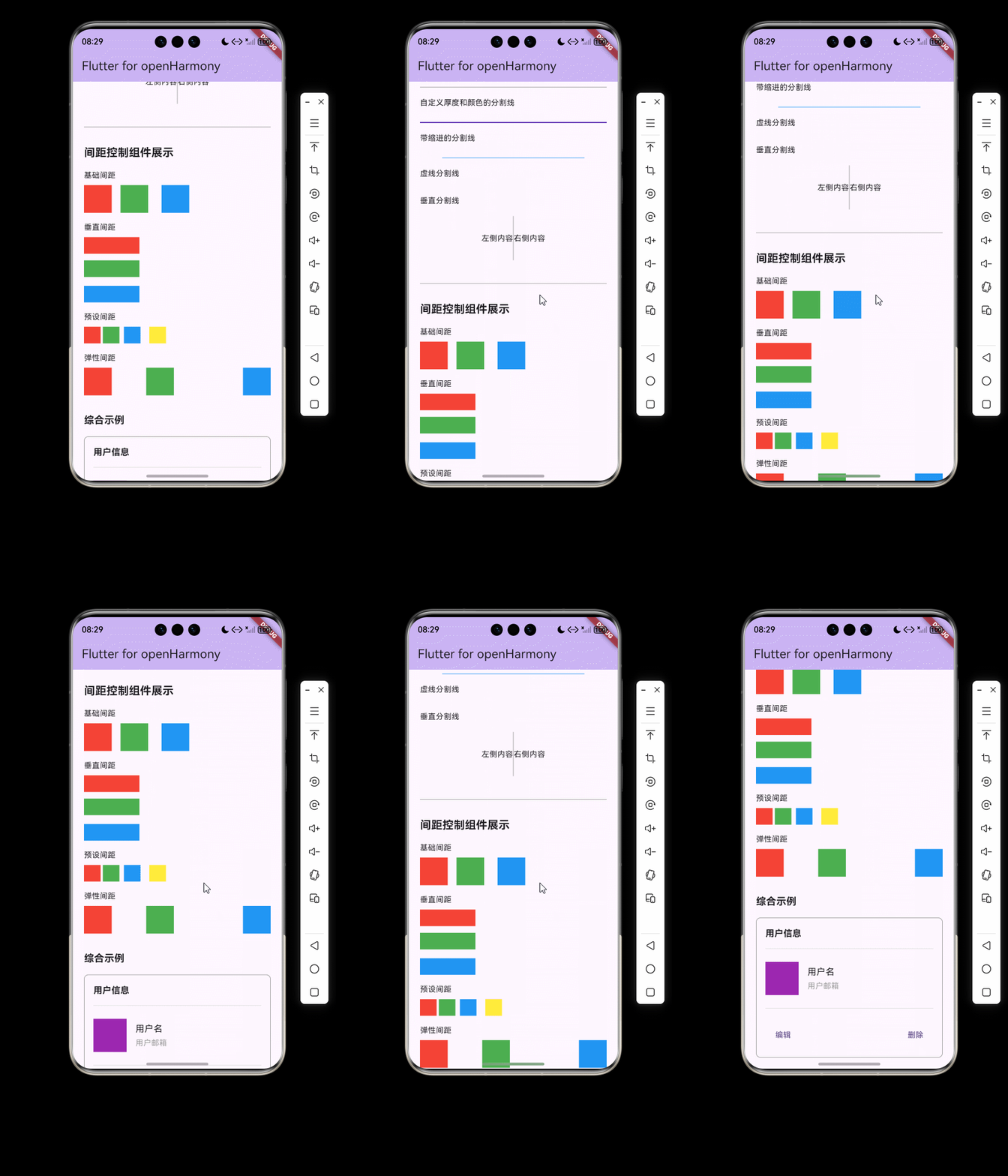
运行到鸿蒙虚拟设备中效果展示
目录
功能代码实现
分割线组件
设计思路
分割线组件是UI布局中常用的元素,用于分隔不同的内容区域,提升界面的层次感和可读性。在本实现中,我们设计了一个功能丰富的分割线组件,支持以下特性:
- 水平和垂直两种方向
- 自定义厚度、颜色
- 支持缩进效果
- 支持虚线样式
核心代码实现
import 'package:flutter/material.dart';
class DividerWidget extends StatelessWidget {
final double thickness;
final Color color;
final double indent;
final double endIndent;
final bool isVertical;
final double height;
final bool isDashed;
final double dashWidth;
final double dashGap;
const DividerWidget({
super.key,
this.thickness = 1.0,
this.color = Colors.grey,
this.indent = 0.0,
this.endIndent = 0.0,
this.isVertical = false,
this.height = double.infinity,
this.isDashed = false,
this.dashWidth = 4.0,
this.dashGap = 2.0,
});
Widget build(BuildContext context) {
if (isVertical) {
return SizedBox(
width: thickness,
height: height,
child: isDashed
? CustomPaint(
painter: _DashedLinePainter(
color: color,
dashWidth: dashWidth,
dashGap: dashGap,
isVertical: true,
),
)
: Container(
margin: EdgeInsets.symmetric(
vertical: indent,
),
width: thickness,
color: color,
),
);
} else {
return isDashed
? Container(
height: thickness,
margin: EdgeInsets.only(
left: indent,
right: endIndent,
),
child: CustomPaint(
painter: _DashedLinePainter(
color: color,
dashWidth: dashWidth,
dashGap: dashGap,
isVertical: false,
),
),
)
: Divider(
thickness: thickness,
color: color,
indent: indent,
endIndent: endIndent,
);
}
}
}
class _DashedLinePainter extends CustomPainter {
final Color color;
final double dashWidth;
final double dashGap;
final bool isVertical;
_DashedLinePainter({
required this.color,
required this.dashWidth,
required this.dashGap,
required this.isVertical,
});
void paint(Canvas canvas, Size size) {
final paint = Paint()
..color = color
..strokeWidth = isVertical ? size.width : size.height
..style = PaintingStyle.stroke;
final length = isVertical ? size.height : size.width;
double start = 0.0;
while (start < length) {
final end = start + dashWidth;
if (isVertical) {
canvas.drawLine(
Offset(size.width / 2, start),
Offset(size.width / 2, end > length ? length : end),
paint,
);
} else {
canvas.drawLine(
Offset(start, size.height / 2),
Offset(end > length ? length : end, size.height / 2),
paint,
);
}
start = end + dashGap;
}
}
bool shouldRepaint(covariant CustomPainter oldDelegate) {
return false;
}
}
代码解析
-
组件参数设计:
thickness:分割线厚度,默认为1.0color:分割线颜色,默认为灰色indent:分割线缩进,水平分割线为左侧缩进,垂直分割线为顶部缩进endIndent:分割线结束缩进,仅对水平分割线有效isVertical:是否为垂直分割线,默认为false(水平分割线)height:垂直分割线的高度,默认为无限大isDashed:是否为虚线,默认为falsedashWidth:虚线线段宽度,默认为4.0dashGap:虚线线段间距,默认为2.0
-
实现逻辑:
- 根据
isVertical参数判断是水平还是垂直分割线 - 根据
isDashed参数判断是实线还是虚线 - 对于虚线,使用
CustomPaint和_DashedLinePainter自定义绘制 - 对于实线,水平分割线使用Flutter内置的
Divider组件,垂直分割线使用Container实现
- 根据
-
虚线绘制:
- 自定义
_DashedLinePainter类继承自CustomPainter - 根据
isVertical参数决定绘制方向 - 使用循环绘制多个线段,实现虚线效果
- 自定义
使用方法
// 基础水平分割线
DividerWidget()

// 自定义厚度和颜色的分割线
DividerWidget(
  thickness: 2,
  color: Colors.deepPurple,
)

// 带缩进的分割线
DividerWidget(
  indent: 40,
  endIndent: 40,
  color: Colors.blue,
)

// 虚线分割线
DividerWidget(
  isDashed: true,
  dashWidth: 8,
  dashGap: 4,
  color: Colors.green,
)

// 垂直分割线
DividerWidget(
  isVertical: true,
  height: 80,
)
开发注意事项
-
性能优化:
- 对于频繁使用的分割线,建议使用常量构造函数创建
- 虚线分割线使用了
CustomPaint,在列表中使用时要注意性能
-
布局适配:
- 垂直分割线需要指定合适的
height值 - 在Row中使用垂直分割线时,要注意Row的对齐方式
- 垂直分割线需要指定合适的
-
颜色一致性:
- 建议在主题中定义分割线颜色,保持应用内颜色一致
间距控制组件
设计思路
间距控制是UI布局中的重要部分,合理的间距可以提升界面的美观度和可读性。在本实现中,我们设计了一个灵活的间距控制组件,支持以下特性:
- 水平和垂直两种方向
- 固定间距和弹性间距
- 预设常用间距值
核心代码实现
import 'package:flutter/material.dart';
class SpacingWidget extends StatelessWidget {
final double size;
final Axis direction;
final bool flex;
final int flexValue;
const SpacingWidget({
super.key,
this.size = 16.0,
this.direction = Axis.vertical,
this.flex = false,
this.flexValue = 1,
});
const SpacingWidget.horizontal({
super.key,
this.size = 16.0,
this.direction = Axis.horizontal,
this.flex = false,
this.flexValue = 1,
});
const SpacingWidget.vertical({
super.key,
this.size = 16.0,
this.direction = Axis.vertical,
this.flex = false,
this.flexValue = 1,
});
const SpacingWidget.flex({
super.key,
this.size = 0.0,
this.direction = Axis.vertical,
this.flex = true,
this.flexValue = 1,
});
Widget build(BuildContext context) {
if (flex) {
return Expanded(
flex: flexValue,
child: SizedBox(
width: direction == Axis.horizontal ? size : 0,
height: direction == Axis.vertical ? size : 0,
),
);
}
return SizedBox(
width: direction == Axis.horizontal ? size : 0,
height: direction == Axis.vertical ? size : 0,
);
}
}
class Spacing {
static const SizedBox xs = SizedBox(height: 4, width: 4);
static const SizedBox sm = SizedBox(height: 8, width: 8);
static const SizedBox md = SizedBox(height: 16, width: 16);
static const SizedBox lg = SizedBox(height: 24, width: 24);
static const SizedBox xl = SizedBox(height: 32, width: 32);
static const SizedBox xxl = SizedBox(height: 48, width: 48);
static SizedBox horizontal(double size) => SizedBox(width: size);
static SizedBox vertical(double size) => SizedBox(height: size);
}
代码解析
-
组件参数设计:
size:间距大小,默认为16.0direction:间距方向,默认为垂直方向flex:是否为弹性间距,默认为falseflexValue:弹性间距的权重,默认为1
-
构造函数:
- 默认构造函数:创建指定大小和方向的间距
horizontal:创建水平间距的便捷构造函数vertical:创建垂直间距的便捷构造函数flex:创建弹性间距的便捷构造函数
-
Spacing工具类:
- 提供了常用间距的静态常量:xs(4), sm(8), md(16), lg(24), xl(32), xxl(48)
- 提供了创建水平和垂直间距的静态方法
使用方法
// 使用SpacingWidget
SpacingWidget(size: 20)
SpacingWidget.horizontal(size: 16)
SpacingWidget.vertical(size: 12)
SpacingWidget.flex(flexValue: 2)

// 使用Spacing工具类
Spacing.md
Spacing.horizontal(24)
Spacing.vertical(16)
开发注意事项
-
间距规范:
- 建议在项目中统一使用预设的间距值,保持布局一致性
- 可以根据设计系统的要求,调整Spacing工具类中的预设值
-
弹性布局:
- 在Row或Column中使用弹性间距时,要注意其他子组件的布局
- 弹性间距会占据剩余空间,可能影响其他组件的显示
-
性能优化:
- 对于固定间距,建议使用Spacing工具类中的静态常量
- 避免在build方法中频繁创建新的间距组件
组件集成
首页集成
在首页中,我们集成了分割线和间距控制组件,展示了不同样式的分割线和间距效果。
import 'package:flutter/material.dart';
import 'components/divider_widget.dart';
import 'components/spacing_widget.dart';
class MyHomePage extends StatefulWidget {
const MyHomePage({super.key, required this.title});
final String title;
State<MyHomePage> createState() => _MyHomePageState();
}
class _MyHomePageState extends State<MyHomePage> {
Widget build(BuildContext context) {
return Scaffold(
appBar: AppBar(
backgroundColor: Theme.of(context).colorScheme.inversePrimary,
title: Text(widget.title),
),
body: SingleChildScrollView(
padding: const EdgeInsets.all(20),
child: Column(
crossAxisAlignment: CrossAxisAlignment.start,
children: <Widget>[
// 分割线展示
const Text(
'分割线组件展示',
style: TextStyle(fontSize: 20, fontWeight: FontWeight.bold),
),
Spacing.md,
// 基础水平分割线
const Text('基础水平分割线'),
Spacing.sm,
Container(
padding: const EdgeInsets.symmetric(vertical: 10),
child: const DividerWidget(),
),
// 自定义厚度和颜色的分割线
const Text('自定义厚度和颜色的分割线'),
Spacing.sm,
Container(
padding: const EdgeInsets.symmetric(vertical: 10),
child: const DividerWidget(
thickness: 2,
color: Colors.deepPurple,
),
),
// 带缩进的分割线
const Text('带缩进的分割线'),
Spacing.sm,
Container(
padding: const EdgeInsets.symmetric(vertical: 10),
child: const DividerWidget(
indent: 40,
endIndent: 40,
color: Colors.blue,
),
),
// 虚线分割线
const Text('虚线分割线'),
Spacing.sm,
Container(
padding: const EdgeInsets.symmetric(vertical: 10),
child: const DividerWidget(
isDashed: true,
dashWidth: 8,
dashGap: 4,
color: Colors.green,
),
),
// 垂直分割线
const Text('垂直分割线'),
Spacing.sm,
Container(
height: 100,
child: Row(
mainAxisAlignment: MainAxisAlignment.center,
children: const [
Text('左侧内容'),
DividerWidget(isVertical: true, height: 80),
Text('右侧内容'),
],
),
),
Spacing.lg,
const DividerWidget(thickness: 1, color: Colors.grey),
Spacing.lg,
// 间距控制展示
const Text(
'间距控制组件展示',
style: TextStyle(fontSize: 20, fontWeight: FontWeight.bold),
),
Spacing.md,
// 基础间距
const Text('基础间距'),
Spacing.sm,
Row(
children: [
Container(width: 50, height: 50, color: Colors.red),
Spacing.horizontal(16),
Container(width: 50, height: 50, color: Colors.green),
Spacing.horizontal(24),
Container(width: 50, height: 50, color: Colors.blue),
],
),
Spacing.md,
// 垂直间距
const Text('垂直间距'),
Spacing.sm,
Column(
children: [
Container(width: 100, height: 30, color: Colors.red),
Spacing.vertical(12),
Container(width: 100, height: 30, color: Colors.green),
Spacing.vertical(16),
Container(width: 100, height: 30, color: Colors.blue),
],
),
Spacing.md,
// 预设间距
const Text('预设间距'),
Spacing.sm,
Row(
children: [
Container(width: 30, height: 30, color: Colors.red),
Spacing.xs,
Container(width: 30, height: 30, color: Colors.green),
Spacing.sm,
Container(width: 30, height: 30, color: Colors.blue),
Spacing.md,
Container(width: 30, height: 30, color: Colors.yellow),
],
),
Spacing.md,
// 弹性间距
const Text('弹性间距'),
Spacing.sm,
Row(
children: [
Container(width: 50, height: 50, color: Colors.red),
const SpacingWidget.flex(),
Container(width: 50, height: 50, color: Colors.green),
const SpacingWidget.flex(flexValue: 2),
Container(width: 50, height: 50, color: Colors.blue),
],
),
Spacing.xl,
// 综合示例
const Text(
'综合示例',
style: TextStyle(fontSize: 18, fontWeight: FontWeight.bold),
),
Spacing.md,
Container(
padding: const EdgeInsets.all(16),
decoration: BoxDecoration(
border: Border.all(color: Colors.grey),
borderRadius: BorderRadius.circular(8),
),
child: Column(
crossAxisAlignment: CrossAxisAlignment.start,
children: [
const Text('用户信息', style: TextStyle(fontSize: 16, fontWeight: FontWeight.bold)),
Spacing.sm,
DividerWidget(thickness: 1, color: Colors.grey.shade300),
Spacing.md,
Row(
children: [
Container(width: 60, height: 60, color: Colors.purple),
Spacing.horizontal(16),
Column(
crossAxisAlignment: CrossAxisAlignment.start,
children: [
const Text('用户名', style: TextStyle(fontSize: 16)),
Spacing.xs,
const Text('用户邮箱', style: TextStyle(fontSize: 14, color: Colors.grey)),
],
),
],
),
Spacing.md,
DividerWidget(thickness: 1, color: Colors.grey.shade300),
Spacing.md,
Row(
mainAxisAlignment: MainAxisAlignment.spaceBetween,
children: [
TextButton(onPressed: () {}, child: const Text('编辑')),
TextButton(onPressed: () {}, child: const Text('删除')),
],
),
],
),
),
],
),
),
);
}
}
集成注意事项
-
导入路径:
- 确保正确导入组件文件,路径根据项目结构调整
-
布局结构:
- 使用
SingleChildScrollView确保内容超出屏幕时可以滚动 - 使用
Column和Row组织布局,结合间距组件控制元素间距
- 使用
-
性能优化:
- 对于固定的文本和组件,使用
const关键字 - 避免在build方法中频繁创建新的Widget
- 对于固定的文本和组件,使用
-
适配性:
- 测试不同屏幕尺寸下的显示效果
- 确保在OpenHarmony设备上的显示效果与Flutter预览一致
本次开发中容易遇到的问题
1. 组件导入路径问题
问题描述
在集成组件时,可能会遇到导入路径错误的问题,导致编译失败。
解决方案
- 检查项目结构,确保组件文件路径正确
- 使用相对路径导入组件,如
import 'components/divider_widget.dart'; - 避免使用包名导入,除非组件已经发布为包
注意事项
- 导入路径的大小写要与实际文件路径一致
- 确保组件文件存在于指定路径中
2. 虚线分割线绘制问题
问题描述
在某些设备或Flutter版本上,虚线分割线可能显示不正确,或者性能较差。
解决方案
- 使用
CustomPaint时,确保shouldRepaint方法返回false,避免不必要的重绘 - 对于长列表中的虚线分割线,考虑使用缓存或其他优化方式
- 测试不同设备上的显示效果,确保兼容性
注意事项
- 虚线的
dashWidth和dashGap值不宜过小,否则可能导致显示模糊 - 在低性能设备上,大量使用自定义绘制可能会影响性能
3. 间距控制一致性问题
问题描述
在不同的布局中,间距控制不一致,导致界面美观度下降。
解决方案
- 统一使用Spacing工具类中的预设值
- 在项目中建立间距规范,明确不同场景下使用的间距值
- 使用主题或常量类管理间距值,方便统一调整
注意事项
- 遵循设计系统的间距规范
- 考虑不同屏幕尺寸下的间距适配
4. 弹性布局计算问题
问题描述
在使用弹性间距时,可能会遇到布局计算错误,导致组件显示异常。
解决方案
- 确保在Row或Column中使用弹性间距时,其他子组件的布局是合理的
- 避免在同一个Row或Column中混合使用过多的弹性组件
- 测试不同内容长度下的布局效果
注意事项
- 弹性间距会影响其他组件的布局,使用时要谨慎
- 在复杂布局中,考虑使用Expanded或Flexible组件直接控制
5. 平台适配问题
问题描述
在OpenHarmony设备上,分割线和间距的显示效果可能与Flutter预览不一致。
解决方案
- 测试不同OpenHarmony版本上的显示效果
- 考虑平台差异,必要时进行平台特定的调整
- 使用Flutter的平台检测功能,针对不同平台提供不同的实现
注意事项
- OpenHarmony的渲染引擎可能与Android/iOS有所不同
- 测试是确保跨平台兼容性的关键
总结本次开发中用到的技术点
1. 组件化开发
技术要点
- 将分割线和间距控制逻辑抽离为独立组件
- 使用构造函数参数实现组件的灵活性
- 提供便捷构造函数和工具类,简化使用方式
应用场景
- 分割线组件:用于分隔不同内容区域,如列表项、卡片等
- 间距控制组件:用于控制UI元素之间的间距,提升布局美观度
2. 自定义绘制
技术要点
- 使用
CustomPaint和CustomPainter实现虚线分割线 - 掌握Canvas绘图API,实现自定义图形
- 优化绘制性能,避免不必要的重绘
应用场景
- 虚线分割线:适用于需要特殊样式分割线的场景
- 自定义图形:适用于需要绘制复杂图形的场景
3. 布局控制
技术要点
- 使用
Row和Column组织布局 - 使用
SingleChildScrollView实现滚动布局 - 使用弹性布局实现灵活的空间分配
应用场景
- 页面布局:组织页面中的各个元素
- 列表布局:实现垂直或水平的列表
- 复杂布局:处理包含多种元素的复杂界面
4. 工具类设计
技术要点
- 设计静态工具类,提供常用的间距常量和方法
- 使用常量构造函数,提升性能
- 统一管理间距值,保持布局一致性
应用场景
- 间距管理:统一控制UI元素之间的间距
- 样式管理:统一管理应用中的样式元素
- 工具方法:提供常用的工具方法,简化代码
5. 性能优化
技术要点
- 使用
const关键字创建不可变Widget - 优化自定义绘制性能,避免不必要的重绘
- 合理使用弹性布局,避免布局计算错误
应用场景
- 列表渲染:提升长列表的滚动性能
- 复杂界面:优化包含多个组件的复杂界面
- 动画效果:确保动画流畅运行
6. 跨平台适配
技术要点
- 确保组件在不同平台上的显示效果一致
- 测试OpenHarmony设备上的显示效果
- 考虑平台差异,进行必要的调整
应用场景
- Flutter for OpenHarmony项目:确保在OpenHarmony设备上的兼容性
- 多平台项目:确保在Android、iOS和OpenHarmony上的一致性
7. 代码规范
技术要点
- 遵循Dart代码规范,保持代码风格一致
- 使用有意义的变量和方法命名
- 添加适当的注释,提高代码可读性
应用场景
- 团队开发:确保团队成员之间的代码风格一致
- 代码维护:提高代码的可维护性和可读性
- 开源项目:符合开源社区的代码规范要求
8. 测试与调试
技术要点
- 测试不同场景下的组件显示效果
- 使用Flutter DevTools进行性能分析
- 调试布局问题,确保组件正确显示
应用场景
- 开发阶段:及时发现和解决问题
- 发布前:确保组件在各种场景下的稳定性
- 维护阶段:定位和修复问题
通过本次开发,我们成功实现了Flutter for OpenHarmony的分割线和间距控制组件,掌握了组件化开发、自定义绘制、布局控制等关键技术点。这些技术不仅适用于分割线和间距控制的开发,也是Flutter开发中的通用技术,对于构建高质量的Flutter应用具有重要意义。
在开发过程中,我们遇到了一些问题,如组件导入路径问题、虚线分割线绘制问题、间距控制一致性问题等,但通过分析问题原因,采取相应的解决方案,成功解决了这些问题。
同时,我们也总结了一些开发经验和最佳实践,如统一使用间距工具类、优化自定义绘制性能、确保跨平台兼容性等,这些经验对于后续的Flutter for OpenHarmony开发工作具有参考价值。
欢迎加入开源鸿蒙跨平台社区: https://openharmonycrossplatform.csdn.net

开源鸿蒙跨平台开发社区汇聚开发者与厂商,共建“一次开发,多端部署”的开源生态,致力于降低跨端开发门槛,推动万物智联创新。
更多推荐


 10
10 0
0- 0


 已为社区贡献26条内容

所有评论(0)