Flutter + OpenHarmony 游戏开发进阶:主菜单架构与历史最高分持久化
通过合理使用 `StatefulWidget`、安全调用 `shared_preferences`、精心设计 `Stack` 布局,我们不仅构建了一个**健壮、美观、可扩展**的主菜单系统,更为未来适配 **OpenHarmony** 等新兴生态打下了坚实基础。

个人主页:ujainu
文章目录
引言
随着 OpenHarmony 生态的快速演进,越来越多的开发者开始关注如何将现有 Flutter 应用高效迁移或适配到这一开源分布式操作系统上。尽管 OpenHarmony 目前对 Flutter 的原生支持仍在完善中(可通过 ArkTS 桥接或社区方案运行),但良好的代码结构、轻量级数据存储、健壮的状态管理,正是确保应用未来平滑迁移的关键前提。
在游戏开发中,主菜单页不仅是用户进入游戏的第一印象,更是承载核心元数据(如历史最高分)的关键入口。一个优秀的主菜单应具备:
- 快速响应:避免卡顿或白屏;
- 数据可靠:即使应用被杀,历史记录仍能保留;
- 视觉清晰:突出“开始游戏”与“历史成绩”;
- 健壮性:网络异常、存储失败等边界情况需优雅处理;
- 跨平台友好:为未来适配 OpenHarmony 等新平台预留接口。
本文将聚焦于 主菜单页面的完整实现,重点讲解:
- 如何使用
StatefulWidget管理加载状态与分数数据; - 如何通过
shared_preferences安全读写历史最高分(该插件在 OpenHarmony 社区已有兼容层探索); - 如何利用
Stack + Positioned构建灵活 UI 布局; - 如何进行错误防御与生命周期安全检查,提升代码可移植性。
💡 技术栈:Flutter 3.24+、Dart 3.5+、
shared_preferences: ^2.3.0
✅ 适用场景:小游戏、教育类 App、工具类启动页,OpenHarmony 适配
一、为什么选择 StatefulWidget?
主菜单看似静态,实则包含动态数据(历史最高分)和加载状态(“加载中…”)。因此必须使用 StatefulWidget:
class MainMenuScreen extends StatefulWidget {
_MainMenuScreenState createState() => _MainMenuScreenState();
}
其对应的 State 类负责:
- 声明状态变量(
_highScore,_isLoading); - 在
initState中触发异步加载; - 通过
setState更新 UI。
📌 关键原则:
- 状态最小化:只存必要数据(
int _highScore),不存复杂对象;- 初始化分离:数据加载逻辑放在
initState,而非build。
这种设计不仅符合 Flutter 最佳实践,也为未来在 OpenHarmony 上通过 Platform Channel 或 FFI 调用本地存储能力提供了清晰的数据边界。
二、使用 shared_preferences 持久化历史最高分
1. 什么是 shared_preferences?
shared_preferences 是 Flutter 官方提供的轻量级键值对存储方案,底层对应:
- Android:
SharedPreferences - iOS:
NSUserDefaults - Web:
localStorage
在 OpenHarmony 社区,已有开发者基于 Preferences Kit(OpenHarmony 提供的轻量级数据存储能力)封装了兼容 shared_preferences 接口的桥接层。这意味着,只要我们遵循标准 API 调用,未来迁移到 OpenHarmony 将只需替换依赖,无需重写业务逻辑。
⚠️ 不适用场景:大量结构化数据(应使用 SQLite 或 Hive)。
2. 初始化与读取
我们在 initState 中调用 _loadHighScore():
void initState() {
super.initState();
_loadHighScore();
}
具体实现如下:
Future<void> _loadHighScore() async {
  try {
    final prefs = await SharedPreferences.getInstance();
    final score = prefs.getInt('highScore') ?? 0;
    if (mounted) {
      setState(() {
        _highScore = score;
        _isLoading = false;
      });
    }
  } catch (e) {
    // 加载失败时,隐藏加载状态,但不崩溃
    if (mounted) setState(() => _isLoading = false);
  }
}
代码详解:
| 行 | 说明 |
|---|---|
prefs.getInt('highScore') |
尝试读取整数类型键值 |
?? 0 |
若首次启动(无数据),默认返回 0 |
if (mounted) |
关键安全检查!防止异步回调时组件已销毁 |
catch (e) |
捕获存储异常(如权限问题、磁盘满) |
✅ 最佳实践:
- 键名规范:使用小驼峰
highScore,避免特殊字符;- 默认值明确:
?? 0比!更安全;- 为 OpenHarmony 预留抽象层:未来可将
SharedPreferences.getInstance()替换为统一的StorageService.get()。
三、UI 布局:Stack + Positioned 的灵活组合
主菜单需要同时满足:
- 居中内容(标题、最高分、开始按钮);
- 角落控件(右上角“皮肤”按钮)。
此时 Stack 是最佳选择:
body: Stack(
  children: [
    Center( /* 主体内容 */ ),
    Positioned(top: 40, left: 30, child: /* 皮肤按钮 */),
  ],
)
1. 主体内容:Column 居中
Center(
  child: Column(
    mainAxisAlignment: MainAxisAlignment.center,
    children: [
      Text('圆环跳跃', style: ...),
      Container( /* 最高分展示 */ ),
      ElevatedButton( /* 开始游戏 */ ),
    ],
  ),
)
mainAxisAlignment: MainAxisAlignment.center:垂直居中;- 使用
Container + BoxDecoration自定义最高分样式,比纯Text更醒目。
2. 角落按钮:Positioned 精确定位
Positioned(
  top: 40,
  left: 30,
  child: ElevatedButton.icon(
    onPressed: () => Navigator.push(context, MaterialPageRoute(builder: (_) => SkinScreen())),
    icon: Icon(Icons.palette),
    label: Text('皮肤'),
  ),
)
top: 40, left: 30:距离顶部 40px,左侧 30px;- 使用
ElevatedButton.icon节省空间,符合 Material Design。
💡 布局优势:
Stack不受子元素尺寸影响,定位自由;- 避免使用
padding或margin实现角落布局,更语义化;- 此布局在 OpenHarmony 的不同设备形态(手机、平板、智慧屏)上也能通过响应式调整良好适配。
四、错误处理与用户体验优化
1. 加载状态反馈
在数据未加载完成前,显示“加载中…”:
Text(
  _isLoading ? '加载中...' : '历史最高:$_highScore',
  style: TextStyle(color: Colors.amber, fontSize: 24),
)
- 避免用户看到“0分”误以为是真实成绩;
- 使用琥珀色强调重要信息。
2. 异常静默处理
即使 shared_preferences 读取失败(如模拟器沙盒限制),我们也不抛出错误,而是:
- 关闭
_isLoading状态; - 显示默认值
0。
这保证了应用可用性,符合“Fail Gracefully”原则,也是 OpenHarmony 分布式应用所倡导的弹性体验。
3. 生命周期安全:mounted 检查
这是 Flutter 异步编程的黄金法则:
if (mounted) {
  setState(() { ... });
}
❌ 危险写法:
_loadHighScore().then((_) {
  setState(() { ... }); // 可能 crash!
});
因为当页面快速关闭(如用户点击返回),setState 会在已销毁的 State 上调用,导致:
setState() called after dispose()
解决方案:始终在 setState 前加 mounted 判断。这一习惯在多端适配(包括 OpenHarmony)时尤为重要,因不同平台生命周期行为可能存在差异。
五、性能与扩展性考虑
1. 数据隔离:仅存 highScore
我们只存储一个整数:
await prefs.setInt('highScore', newScore);
而非存储整个游戏状态(如轨道列表、球位置)。原因:
- 存储效率高:整数序列化快,占用空间小;
- 兼容性强:未来版本更新不会因结构变化导致解析失败;
- 安全性好:避免敏感数据泄露;
- 便于 OpenHarmony 迁移:Preferences Kit 原生支持基本类型,无需复杂序列化。
2. 未来扩展点
当前“皮肤”按钮跳转到占位页:
class SkinScreen extends StatelessWidget {
Widget build(BuildContext context) {
return Scaffold(
body: Center(child: Text('皮肤功能开发中...')),
);
}
}
这种预留框架设计便于后续迭代,且不影响主流程。未来若 OpenHarmony 提供主题服务,可无缝接入。
六、完整可运行代码(贴合主题)
将以下代码保存为 lib/main_menu_demo.dart,即可独立运行主菜单模块:
import 'package:flutter/material.dart';
import 'package:shared_preferences/shared_preferences.dart';
void main() => runApp(const MyApp());
class MyApp extends StatelessWidget {
const MyApp({super.key});
Widget build(BuildContext context) {
return MaterialApp(
title: 'Flutter + OpenHarmony 主菜单演示',
debugShowCheckedModeBanner: false,
home: MainMenuScreen(),
);
}
}
// ==================== 主菜单页(带历史最高纪录) ====================
class MainMenuScreen extends StatefulWidget {
_MainMenuScreenState createState() => _MainMenuScreenState();
}
class _MainMenuScreenState extends State<MainMenuScreen> {
int _highScore = 0;
bool _isLoading = true;
void initState() {
super.initState();
_loadHighScore();
}
Future<void> _loadHighScore() async {
try {
final prefs = await SharedPreferences.getInstance();
final score = prefs.getInt('highScore') ?? 0;
if (mounted) {
setState(() {
_highScore = score;
_isLoading = false;
});
}
} catch (e) {
// 即使加载失败,也确保 UI 可交互
if (mounted) setState(() => _isLoading = false);
}
}
Future<void> _simulateNewGame(int newScore) async {
// 模拟游戏结束后保存新分数
if (newScore > _highScore) {
final prefs = await SharedPreferences.getInstance();
await prefs.setInt('highScore', newScore);
if (mounted) {
setState(() {
_highScore = newScore;
});
}
}
}
Widget build(BuildContext context) {
return Scaffold(
backgroundColor: const Color(0xFF0F0F1A),
body: Stack(
children: [
Center(
child: Column(
mainAxisAlignment: MainAxisAlignment.center,
children: [
const Text(
'圆环跳跃',
style: TextStyle(fontSize: 36, fontWeight: FontWeight.bold, color: Colors.white),
),
const SizedBox(height: 40),
Container(
padding: const EdgeInsets.symmetric(horizontal: 24, vertical: 12),
decoration: BoxDecoration(
color: Colors.amber.withOpacity(0.15),
border: Border.all(color: Colors.amber, width: 2),
borderRadius: BorderRadius.circular(16),
),
child: Text(
_isLoading ? '加载中...' : '历史最高:$_highScore',
style: const TextStyle(
color: Colors.amber,
fontSize: 24,
fontWeight: FontWeight.bold,
),
),
),
const SizedBox(height: 30),
// 模拟“开始游戏”后获得新分数
Wrap(
spacing: 15,
runSpacing: 10,
children: [
ElevatedButton(
onPressed: () => _simulateNewGame(15),
style: ElevatedButton.styleFrom(backgroundColor: Colors.green),
child: const Text('模拟得15分'),
),
ElevatedButton(
onPressed: () => _simulateNewGame(25),
style: ElevatedButton.styleFrom(backgroundColor: Colors.blue),
child: const Text('模拟得25分'),
),
],
),
const SizedBox(height: 20),
ElevatedButton(
onPressed: () => Navigator.pushReplacement(
context,
MaterialPageRoute(builder: (_) => MainMenuScreen()), // 刷新页面
),
style: ElevatedButton.styleFrom(
padding: const EdgeInsets.symmetric(horizontal: 50, vertical: 18),
textStyle: const TextStyle(fontSize: 22),
backgroundColor: const Color(0xFF4E54C8),
foregroundColor: Colors.cyan,
),
child: const Text('刷新页面'),
),
],
),
),
Positioned(
top: 40,
left: 30,
child: ElevatedButton.icon(
onPressed: () {
// 此处可跳转到皮肤页
ScaffoldMessenger.of(context).showSnackBar(
const SnackBar(content: Text('皮肤功能即将上线!')),
);
},
icon: const Icon(Icons.palette, size: 20, color: Colors.white),
label: const Text('皮肤', style: TextStyle(fontSize: 16, color: Colors.white)),
style: ElevatedButton.styleFrom(
backgroundColor: Colors.deepPurple.shade700,
shape: RoundedRectangleBorder(borderRadius: BorderRadius.circular(20)),
),
),
),
],
),
);
}
}
运行界面: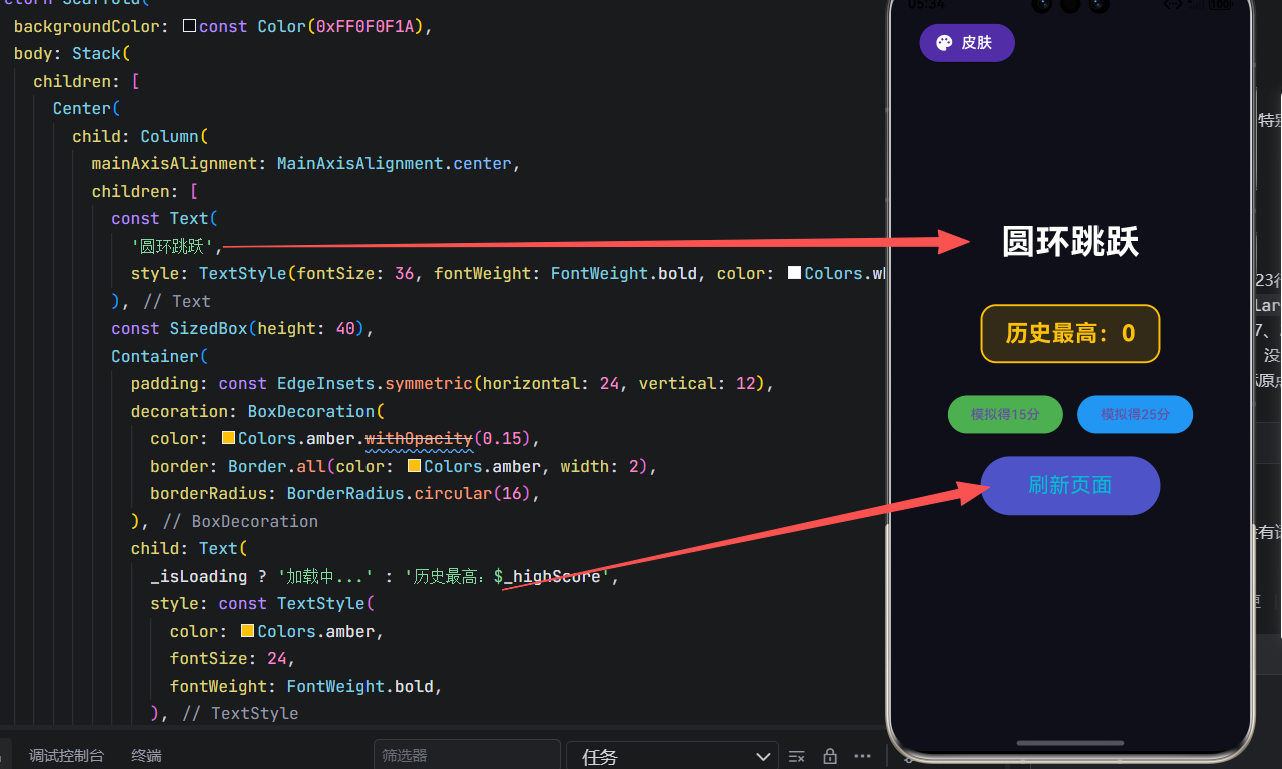
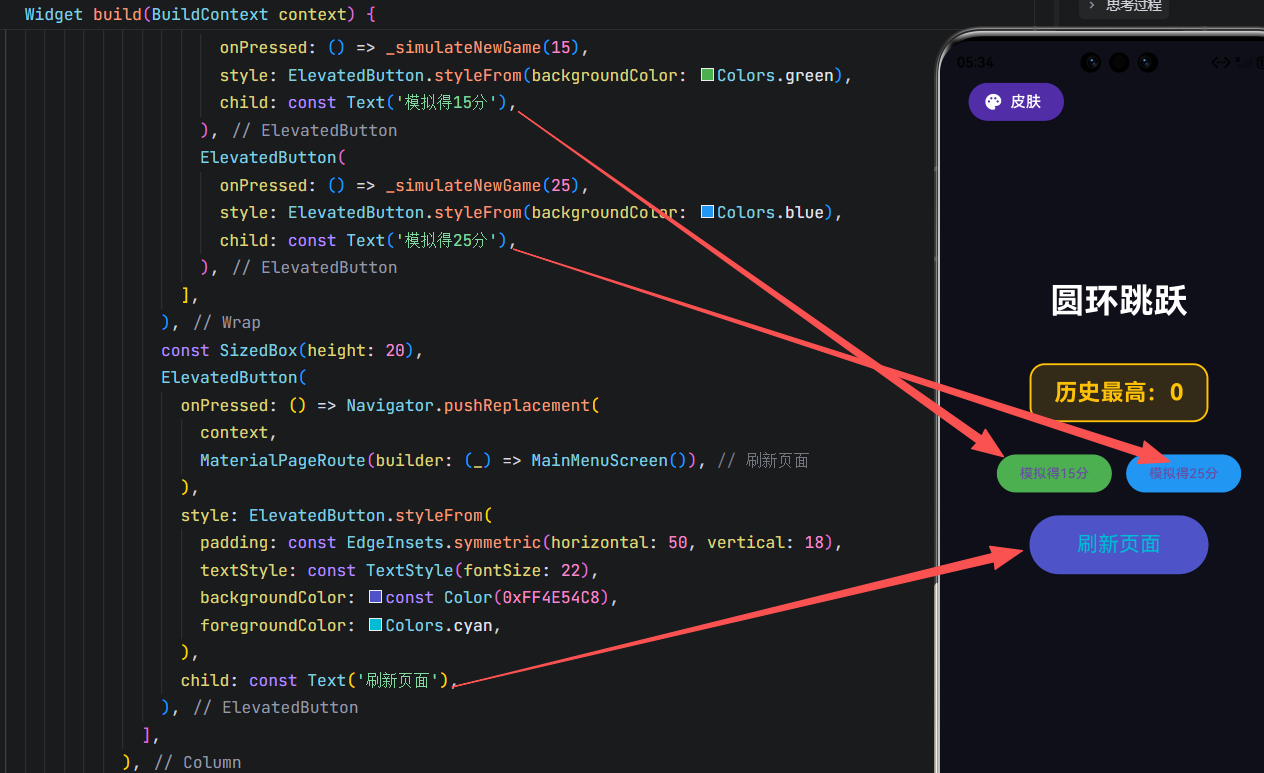
🔧 使用说明:
- 添加依赖:
shared_preferences: ^2.3.0;- 点击“模拟得XX分”可测试分数保存;
- 点击“刷新页面”验证数据持久化;
- 面向 OpenHarmony 适配建议:未来可将
shared_preferences替换为社区提供的 OpenHarmony 兼容包,业务逻辑无需改动。
结语
主菜单虽小,却是用户体验的第一道关卡,更是跨平台迁移的基石。通过合理使用 StatefulWidget、安全调用 shared_preferences、精心设计 Stack 布局,我们不仅构建了一个健壮、美观、可扩展的主菜单系统,更为未来适配 OpenHarmony 等新兴生态打下了坚实基础。
欢迎加入开源鸿蒙跨平台社区: https://openharmonycrossplatform.csdn.net

开源鸿蒙跨平台开发社区汇聚开发者与厂商,共建“一次开发,多端部署”的开源生态,致力于降低跨端开发门槛,推动万物智联创新。
更多推荐
 8
8 0
0- 0


 已为社区贡献49条内容

所有评论(0)