Flutter for OpenHarmony生活助手App实战:记账本首页实现
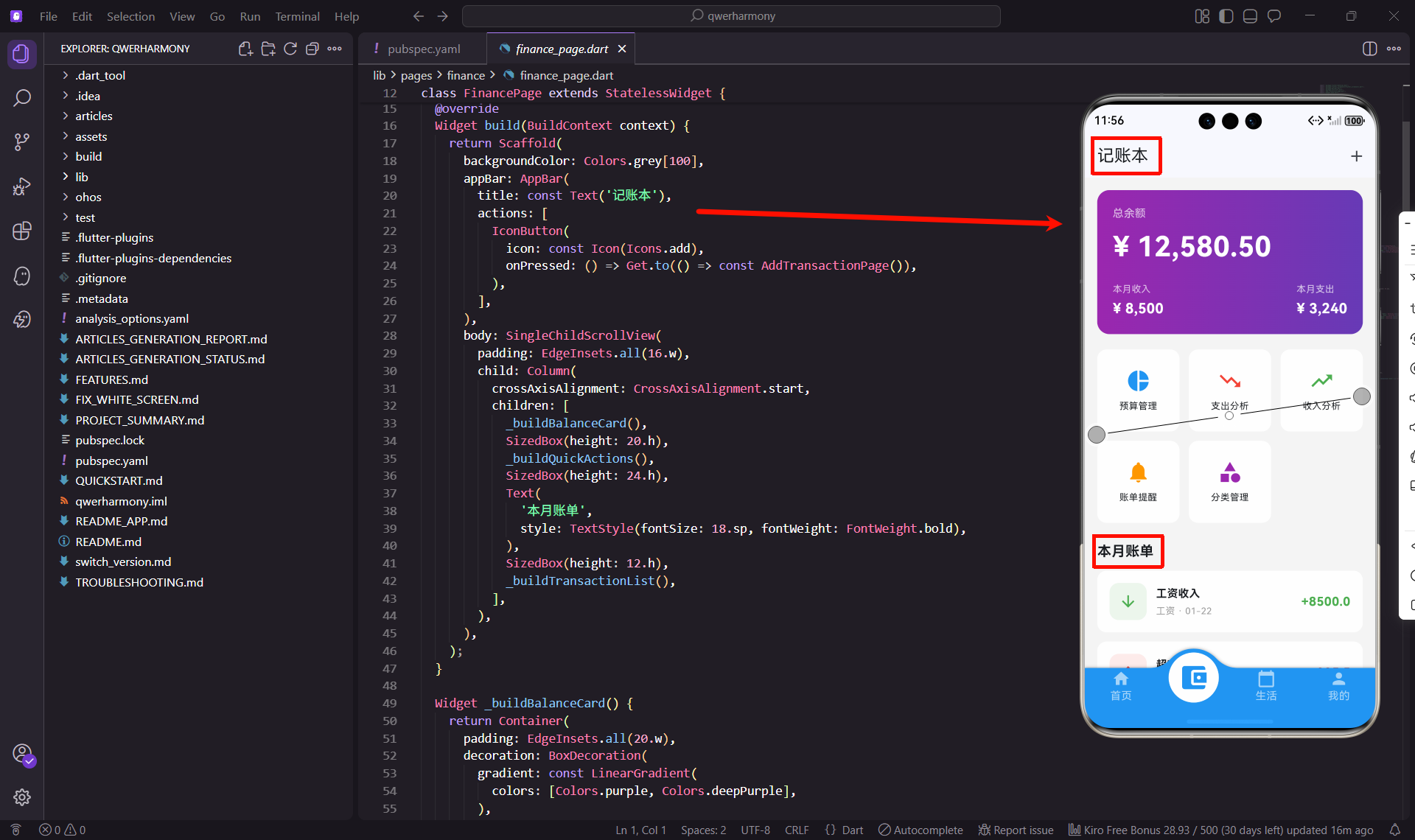
记账本是生活助手App中非常重要的一个模块。一个好的记账本首页应该让用户一眼就能看到自己的财务状况,同时提供便捷的记账入口和数据分析功能。今天我来分享一下如何实现这个功能。
功能规划
在设计记账本首页时,我考虑了以下几个核心要素:
首先是余额展示,这是用户最关心的信息。我把它放在页面顶部,用一个醒目的卡片来展示总余额、本月收入和本月支出。
其次是快捷功能入口,用户需要快速访问预算管理、支出分析、收入分析等功能。我用网格布局把这些功能整齐地排列出来。
最后是账单列表,展示最近的交易记录。每条记录都包含类别、金额、日期等信息,用户可以快速浏览自己的消费情况。
页面结构搭建
让我先看看整体的代码结构:
import 'package:flutter/material.dart';
import 'package:flutter_screenutil/flutter_screenutil.dart';
import 'package:get/get.dart';
import 'package:intl/intl.dart';
import 'add_transaction_page.dart';
import 'budget_page.dart';
import 'expense_analysis_page.dart';
import 'income_analysis_page.dart';
import 'bill_reminder_page.dart';
import 'category_management_page.dart';
class FinancePage extends StatelessWidget {
const FinancePage({super.key});
Widget build(BuildContext context) {
return Scaffold(
backgroundColor: Colors.grey[100],
appBar: AppBar(
title: const Text('记账本'),
actions: [
IconButton(
icon: const Icon(Icons.add),
onPressed: () => Get.to(() => const AddTransactionPage()),
),
],
),
body: SingleChildScrollView(
padding: EdgeInsets.all(16.w),
child: Column(
crossAxisAlignment: CrossAxisAlignment.start,
children: [
_buildBalanceCard(),
SizedBox(height: 20.h),
_buildQuickActions(),
SizedBox(height: 24.h),
Text(
'本月账单',
style: TextStyle(fontSize: 18.sp, fontWeight: FontWeight.bold),
),
SizedBox(height: 12.h),
_buildTransactionList(),
],
),
),
);
}
}
这个页面使用了StatelessWidget,因为数据会通过状态管理来更新。AppBar右上角有一个加号按钮,点击可以快速记账。
余额卡片设计
余额卡片是整个页面的视觉焦点,我用了紫色渐变背景来突出显示:
Widget _buildBalanceCard() {
  return Container(
    padding: EdgeInsets.all(20.w),
    decoration: BoxDecoration(
      gradient: const LinearGradient(
        colors: [Colors.purple, Colors.deepPurple],
      ),
      borderRadius: BorderRadius.circular(16.r),
    ),
    child: Column(
      crossAxisAlignment: CrossAxisAlignment.start,
      children: [
        Text(
          '总余额',
          style: TextStyle(color: Colors.white70, fontSize: 14.sp),
        ),
        SizedBox(height: 8.h),
        Text(
          '¥ 12,580.50',
          style: TextStyle(
            color: Colors.white,
            fontSize: 36.sp,
            fontWeight: FontWeight.bold,
          ),
        ),
        SizedBox(height: 20.h),
        Row(
          mainAxisAlignment: MainAxisAlignment.spaceBetween,
          children: [
            _buildBalanceItem('本月收入', '¥ 8,500'),
            _buildBalanceItem('本月支出', '¥ 3,240'),
          ],
        ),
      ],
    ),
  );
}

Widget _buildBalanceItem(String label, String amount) {
  return Column(
    crossAxisAlignment: CrossAxisAlignment.start,
    children: [
      Text(
        label,
        style: TextStyle(color: Colors.white70, fontSize: 12.sp),
      ),
      SizedBox(height: 4.h),
      Text(
        amount,
        style: TextStyle(
          color: Colors.white,
          fontSize: 18.sp,
          fontWeight: FontWeight.bold,
        ),
      ),
    ],
  );
}
这个卡片的设计很有层次感。最上面是"总余额"标签,用半透明的白色显示。中间是大号的余额数字,非常醒目。下面是本月收入和支出的对比,让用户能够快速了解本月的财务状况。
紫色的渐变背景给人一种高端、专业的感觉,很适合财务类的应用。
快捷功能入口
快捷功能区域使用网格布局,让用户能够快速访问各种功能:
Widget _buildQuickActions() {
  final actions = [
    {'title': '预算管理', 'icon': Icons.pie_chart, 'color': Colors.blue, 'page': const BudgetPage()},
    {'title': '支出分析', 'icon': Icons.trending_down, 'color': Colors.red, 'page': const ExpenseAnalysisPage()},
    {'title': '收入分析', 'icon': Icons.trending_up, 'color': Colors.green, 'page': const IncomeAnalysisPage()},
    {'title': '账单提醒', 'icon': Icons.notifications, 'color': Colors.orange, 'page': const BillReminderPage()},
    {'title': '分类管理', 'icon': Icons.category, 'color': Colors.purple, 'page': const CategoryManagementPage()},
  ];

  return GridView.builder(
    shrinkWrap: true,
    physics: const NeverScrollableScrollPhysics(),
    gridDelegate: SliverGridDelegateWithFixedCrossAxisCount(
      crossAxisCount: 3,
      crossAxisSpacing: 12.w,
      mainAxisSpacing: 12.h,
      childAspectRatio: 1,
    ),
    itemCount: actions.length,
    itemBuilder: (context, index) {
      final action = actions[index];
      return GestureDetector(
        onTap: () => Get.to(() => action['page'] as Widget),
        child: Container(
          decoration: BoxDecoration(
            color: Colors.white,
            borderRadius: BorderRadius.circular(12.r),
          ),
          child: Column(
            mainAxisAlignment: MainAxisAlignment.center,
            children: [
              Icon(action['icon'] as IconData, color: action['color'] as Color, size: 32.sp),
              SizedBox(height: 8.h),
              Text(
                action['title'] as String,
                style: TextStyle(fontSize: 12.sp),
                textAlign: TextAlign.center,
              ),
            ],
          ),
        ),
      );
    },
  );
}
这个网格布局很灵活,我把所有功能的信息都放在一个List里,包括标题、图标、颜色和对应的页面。这样做的好处是以后要添加或删除功能,只需要修改这个List就行。
每个功能卡片都是一个白色的圆角矩形,里面有一个彩色图标和文字标签。不同的功能用不同的颜色区分,让界面更加生动。
shrinkWrap: true和physics: const NeverScrollableScrollPhysics()这两个设置很重要,它们让GridView不会独立滚动,而是跟随外层的SingleChildScrollView一起滚动。
账单列表实现
账单列表展示最近的交易记录,让用户能够快速浏览自己的消费情况:
Widget _buildTransactionList() {
  final transactions = [
    {'title': '工资收入', 'amount': 8500.0, 'type': 'income', 'category': '工资', 'date': DateTime.now()},
    {'title': '超市购物', 'amount': -235.5, 'type': 'expense', 'category': '餐饮', 'date': DateTime.now()},
    {'title': '交通费', 'amount': -50.0, 'type': 'expense', 'category': '交通', 'date': DateTime.now()},
    {'title': '房租', 'amount': -2000.0, 'type': 'expense', 'category': '住房', 'date': DateTime.now()},
  ];

  return ListView.builder(
    shrinkWrap: true,
    physics: const NeverScrollableScrollPhysics(),
    itemCount: transactions.length,
    itemBuilder: (context, index) {
      final transaction = transactions[index];
      final isIncome = transaction['type'] == 'income';
      return Container(
        margin: EdgeInsets.only(bottom: 12.h),
        padding: EdgeInsets.all(16.w),
        decoration: BoxDecoration(
          color: Colors.white,
          borderRadius: BorderRadius.circular(12.r),
        ),
        child: Row(
          children: [
            Container(
              padding: EdgeInsets.all(12.w),
              decoration: BoxDecoration(
                color: (isIncome ? Colors.green : Colors.red).withOpacity(0.1),
                borderRadius: BorderRadius.circular(12.r),
              ),
              child: Icon(
                isIncome ? Icons.arrow_downward : Icons.arrow_upward,
                color: isIncome ? Colors.green : Colors.red,
              ),
            ),
            SizedBox(width: 12.w),
            Expanded(
              child: Column(
                crossAxisAlignment: CrossAxisAlignment.start,
                children: [
                  Text(
                    transaction['title'] as String,
                    style: TextStyle(fontSize: 14.sp, fontWeight: FontWeight.bold),
                  ),
                  SizedBox(height: 4.h),
                  Text(
                    '${transaction['category']} · ${DateFormat('MM-dd').format(transaction['date'] as DateTime)}',
                    style: TextStyle(fontSize: 12.sp, color: Colors.grey),
                  ),
                ],
              ),
            ),
            Text(
              '${isIncome ? '+' : ''}${transaction['amount']}',
              style: TextStyle(
                fontSize: 16.sp,
                fontWeight: FontWeight.bold,
                color: isIncome ? Colors.green : Colors.red,
              ),
            ),
          ],
        ),
      );
    },
  );
}
每条账单记录都包含一个图标、标题、分类、日期和金额。我用不同的颜色来区分收入和支出:收入用绿色,支出用红色。这种视觉区分让用户能够快速识别交易类型。
图标的设计也很有意思,收入用向下的箭头(表示钱进来),支出用向上的箭头(表示钱出去)。图标的背景色是半透明的,和图标颜色保持一致。
数据模型设计
在实际应用中,我们需要定义一个Transaction模型来管理账单数据:
class Transaction {
  final String id;
  final String title;
  final double amount;
  final String type; // 'income' or 'expense'
  final String category;
  final DateTime date;
  final String? note;

  Transaction({
    required this.id,
    required this.title,
    required this.amount,
    required this.type,
    required this.category,
    required this.date,
    this.note,
  });

  Map<String, dynamic> toJson() => {
    'id': id,
    'title': title,
    'amount': amount,
    'type': type,
    'category': category,
    'date': date.toIso8601String(),
    'note': note,
  };

  factory Transaction.fromJson(Map<String, dynamic> json) => Transaction(
    id: json['id'],
    title: json['title'],
    amount: json['amount'],
    type: json['type'],
    category: json['category'],
    date: DateTime.parse(json['date']),
    note: json['note'],
  );
}
这个模型包含了账单的所有必要信息,并提供了JSON序列化和反序列化的方法,方便数据的存储和读取。
状态管理
记账本的数据需要在多个页面之间共享,我建议使用GetX或Provider来管理状态:
import 'package:get/get.dart';
class FinanceController extends GetxController {
final RxList<Transaction> transactions = <Transaction>[].obs;
final RxDouble balance = 0.0.obs;
final RxDouble monthlyIncome = 0.0.obs;
final RxDouble monthlyExpense = 0.0.obs;
void onInit() {
super.onInit();
loadTransactions();
}
void loadTransactions() async {
// 从数据库或SharedPreferences加载数据
// transactions.value = await TransactionService.getAll();
calculateBalance();
}
void addTransaction(Transaction transaction) {
transactions.add(transaction);
calculateBalance();
// 保存到数据库
}
void calculateBalance() {
double income = 0;
double expense = 0;
final now = DateTime.now();
final thisMonth = transactions.where((t) =>
t.date.year == now.year && t.date.month == now.month
);
for (var t in thisMonth) {
if (t.type == 'income') {
income += t.amount;
} else {
expense += t.amount.abs();
}
}
monthlyIncome.value = income;
monthlyExpense.value = expense;
balance.value = income - expense;
}
}
这个Controller管理所有的账单数据和财务统计。当数据变化时,UI会自动更新。
数据持久化
账单数据需要持久化存储,我建议使用SQLite数据库:
import 'package:sqflite/sqflite.dart';
import 'package:path/path.dart';

class TransactionDatabase {
  static Database? _database;

  static Future<Database> get database async {
    if (_database != null) return _database!;
    _database = await initDatabase();
    return _database!;
  }

  static Future<Database> initDatabase() async {
    String path = join(await getDatabasesPath(), 'transactions.db');
    return await openDatabase(
      path,
      version: 1,
      onCreate: (db, version) async {
        await db.execute('''
          CREATE TABLE transactions(
            id TEXT PRIMARY KEY,
            title TEXT,
            amount REAL,
            type TEXT,
            category TEXT,
            date TEXT,
            note TEXT
          )
        ''');
      },
    );
  }

  static Future<void> insertTransaction(Transaction transaction) async {
    final db = await database;
    await db.insert('transactions', transaction.toJson());
  }

  static Future<List<Transaction>> getAllTransactions() async {
    final db = await database;
    final List<Map<String, dynamic>> maps = await db.query('transactions');
    return List.generate(maps.length, (i) => Transaction.fromJson(maps[i]));
  }
}
SQLite提供了可靠的数据存储方案,适合存储大量的账单记录。
性能优化
记账本首页涉及到大量的数据展示,需要注意性能优化:
第一,账单列表使用分页加载。不要一次性加载所有账单,而是先加载最近的20条,用户滚动到底部时再加载更多。
第二,使用缓存机制。把常用的数据缓存在内存中,避免频繁的数据库查询。
第三,优化图表渲染。如果页面包含图表,可以使用RepaintBoundary来隔离图表的重绘。
扩展功能
基于这个记账本首页,还可以添加很多实用的功能:
比如添加搜索功能,让用户可以按关键词、分类、日期范围搜索账单。
或者添加导出功能,支持导出Excel或PDF格式的账单报表。
还可以加入预算预警,当支出超过预算时自动提醒用户。
另外,可以添加多账户管理,让用户可以分别管理现金、银行卡、信用卡等不同账户的资金。
总结
记账本首页是整个记账功能的入口,它需要清晰地展示用户的财务状况,同时提供便捷的功能访问。在开发过程中,我特别注重数据的准确性和界面的易用性。
通过合理的布局、清晰的数据展示和便捷的交互设计,用户能够轻松管理自己的财务。希望这篇文章能给你带来一些启发,帮助你实现一个优秀的记账本功能。
欢迎加入开源鸿蒙跨平台社区:https://openharmonycrossplatform.csdn.net

开源鸿蒙跨平台开发社区汇聚开发者与厂商,共建“一次开发,多端部署”的开源生态,致力于降低跨端开发门槛,推动万物智联创新。
更多推荐
 12
12 0
0- 0


 已为社区贡献28条内容

所有评论(0)