Flutter for OpenHarmony垃圾分类指南App实战:消息通知实现
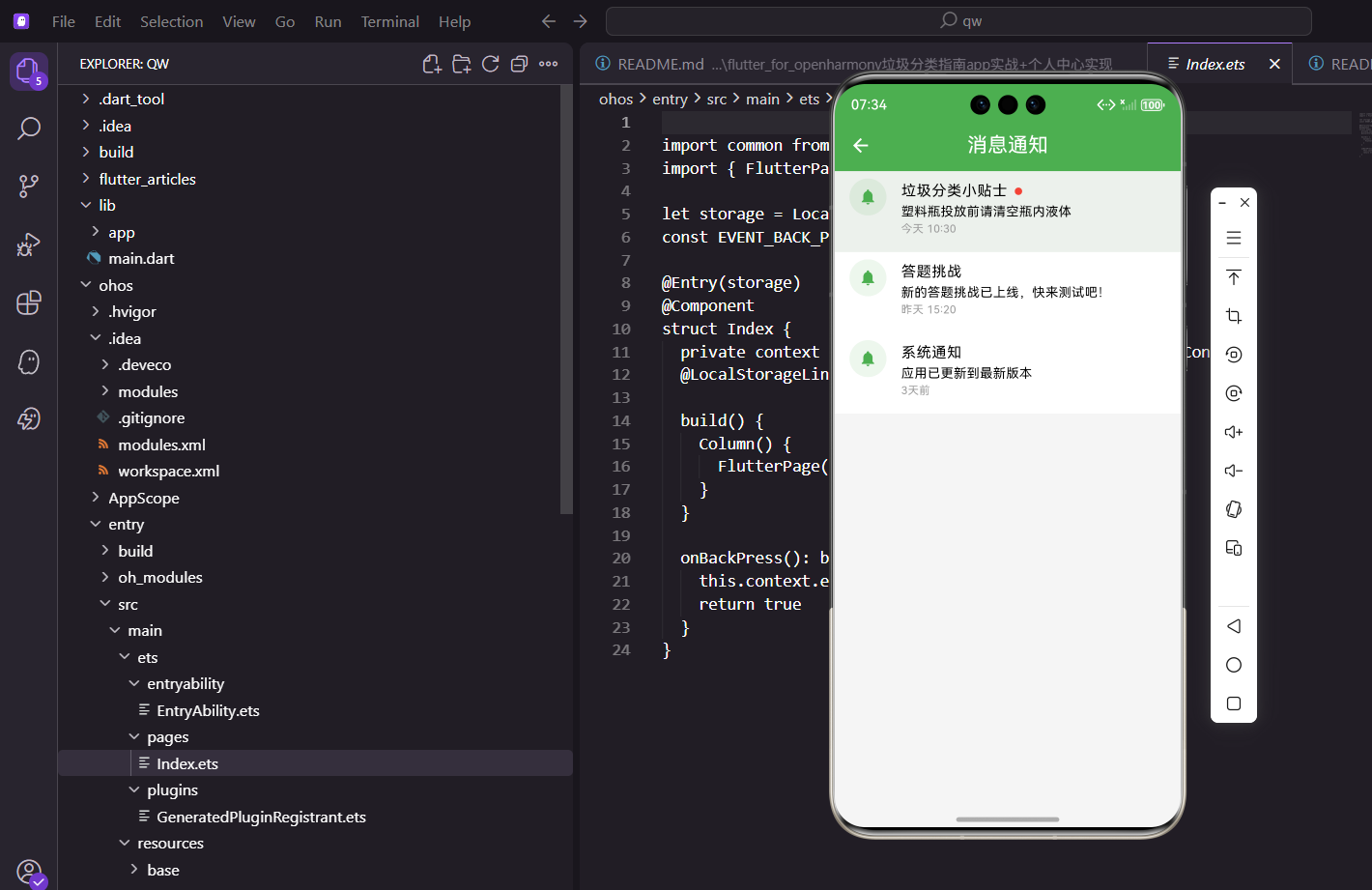
本文介绍了在Flutter for OpenHarmony环境下实现消息通知页面的关键技术。主要内容包括:使用ListView.builder高效渲染消息列表;通过read字段管理已读/未读状态,并用不同背景色和红色圆点进行视觉区分;设计友好的空状态提示;采用ListTile组件布局消息项,包含图标、标题、内容和时间;以及使用Dismissible组件实现滑动删除功能。文章还建议使用Notific
前言
消息通知是App和用户沟通的重要渠道,可以推送小贴士、活动通知、系统消息等。消息通知页面让用户集中查看所有收到的消息。本文将详细介绍如何在Flutter for OpenHarmony环境下实现一个完整的消息通知页面,包括消息数据结构、已读状态管理、空状态处理以及交互功能实现。
技术要点概览
本页面涉及的核心技术点:
- ListView.builder:高效的列表渲染
- 条件样式:已读/未读的视觉区分
- 空状态设计:无消息时的友好提示
- ListTile组件:标准的列表项布局
- Dismissible组件:滑动删除功能
消息数据结构
每条消息包含标题、内容、时间和已读状态:
class NotificationPage extends StatelessWidget {
const NotificationPage({super.key});
Widget build(BuildContext context) {
final notifications = [
{'title': '垃圾分类小贴士', 'content': '塑料瓶投放前请清空瓶内液体', 'time': '今天 10:30', 'read': false},
{'title': '答题挑战', 'content': '新的答题挑战已上线,快来测试吧!', 'time': '昨天 15:20', 'read': true},
{'title': '系统通知', 'content': '应用已更新到最新版本', 'time': '3天前', 'read': true},
];
消息类型多样:
- 小贴士:每日推送的环保知识
- 活动通知:新功能上线、活动开始等
- 系统通知:版本更新、维护公告等
read字段标记消息是否已读,未读消息会有特殊的视觉提示。
使用Model类管理数据
实际项目中建议使用Model类:
class NotificationItem {
  final String id;
  final String title;
  final String content;
  final DateTime time;
  final bool read;
  final NotificationType type;

  NotificationItem({
    required this.id,
    required this.title,
    required this.content,
    required this.time,
    this.read = false,
    this.type = NotificationType.system,
  });

  factory NotificationItem.fromJson(Map<String, dynamic> json) {
    return NotificationItem(
      id: json['id'],
      title: json['title'],
      content: json['content'],
      time: DateTime.parse(json['time']),
      read: json['read'] ?? false,
      type: NotificationType.values.byName(json['type'] ?? 'system'),
    );
  }
}

enum NotificationType { tip, activity, system, interaction }
空状态处理
如果没有消息,显示友好的空状态:
    return Scaffold(
      appBar: AppBar(title: const Text('消息通知')),
      body: notifications.isEmpty
          ? Center(
              child: Column(
                mainAxisAlignment: MainAxisAlignment.center,
                children: [
                  Icon(Icons.notifications_none, size: 64.sp, color: Colors.grey),
                  SizedBox(height: 16.h),
                  Text('暂无消息', style: TextStyle(fontSize: 16.sp, color: Colors.grey)),
                ],
              ),
            )
空心铃铛图标配合"暂无消息"文字,让用户知道这里是消息页面,只是暂时没有内容。
增强版空状态
Widget _buildEmptyState() {
  return Center(
    child: Column(
      mainAxisAlignment: MainAxisAlignment.center,
      children: [
        Icon(Icons.notifications_none, size: 80.sp, color: Colors.grey.shade300),
        SizedBox(height: 16.h),
        Text('暂无消息', style: TextStyle(fontSize: 18.sp, color: Colors.grey)),
        SizedBox(height: 8.h),
        Text(
          '新消息会在这里显示',
          style: TextStyle(fontSize: 14.sp, color: Colors.grey.shade400),
        ),
        SizedBox(height: 24.h),
        OutlinedButton.icon(
          onPressed: () => Get.toNamed(Routes.settings),
          icon: Icon(Icons.settings),
          label: Text('通知设置'),
        ),
      ],
    ),
  );
}
消息列表
有消息时用ListView.builder渲染:
          : ListView.builder(
              itemCount: notifications.length,
              itemBuilder: (context, index) {
                final item = notifications[index];
                final read = item['read'] as bool;

                return Container(
                  color: read ? Colors.white : AppTheme.primaryColor.withOpacity(0.05),
未读消息的背景色是主题色的浅色版本,和已读消息形成区分。用户一眼就能看出哪些是新消息。
消息项内容
每条消息包含图标、标题、内容和时间:
                  child: ListTile(
                    leading: Container(
                      width: 40.w,
                      height: 40.w,
                      decoration: BoxDecoration(
                        color: AppTheme.primaryColor.withOpacity(0.1),
                        shape: BoxShape.circle,
                      ),
                      child: Icon(Icons.notifications, color: AppTheme.primaryColor, size: 20.sp),
                    ),
左边是个圆形图标,用铃铛表示这是通知消息。
标题和未读标记
                    title: Row(
                      children: [
                        Text(item['title'] as String),
                        if (!read) ...[
                          SizedBox(width: 8.w),
                          Container(
                            width: 8.w,
                            height: 8.w,
                            decoration: const BoxDecoration(
                              color: Colors.red,
                              shape: BoxShape.circle,
                            ),
                          ),
                        ],
                      ],
                    ),
未读标记:未读消息的标题后面有个红色小圆点,这是很常见的设计模式,用户一看就知道是新消息。
内容和时间
                    subtitle: Column(
                      crossAxisAlignment: CrossAxisAlignment.start,
                      children: [
                        Text(item['content'] as String, maxLines: 1, overflow: TextOverflow.ellipsis),
                        Text(item['time'] as String, style: TextStyle(fontSize: 12.sp, color: Colors.grey)),
                      ],
                    ),
                    isThreeLine: true,
                  ),
                );
              },
            ),
    );
  }
}
内容只显示一行,超出部分用省略号。时间用灰色小字显示。isThreeLine: true让ListTile有足够的高度容纳三行内容。
消息的交互
1. 点击标记已读
class NotificationController extends GetxController {
  final notifications = <NotificationItem>[].obs;

  void markAsRead(String id) {
    final index = notifications.indexWhere((n) => n.id == id);
    if (index != -1) {
      notifications[index] = notifications[index].copyWith(read: true);
      _saveToStorage();
    }
  }

  void onNotificationTap(NotificationItem item) {
    // 标记为已读
    markAsRead(item.id);

    // 根据消息类型跳转到对应页面
    switch (item.type) {
      case NotificationType.tip:
        Get.toNamed(Routes.dailyTip);
        break;
      case NotificationType.activity:
        Get.toNamed(Routes.quiz);
        break;
      case NotificationType.system:
        // 显示详情弹窗
        _showDetailDialog(item);
        break;
      default:
        break;
    }
  }
}
点击消息后标记为已读,并根据消息类型跳转到对应页面。
2. 滑动删除
Widget _buildNotificationItem(NotificationItem item) {
  return Dismissible(
    key: Key(item.id),
    direction: DismissDirection.endToStart,
    background: Container(
      color: Colors.red,
      alignment: Alignment.centerRight,
      padding: EdgeInsets.only(right: 16.w),
      child: Icon(Icons.delete, color: Colors.white),
    ),
    confirmDismiss: (direction) async {
      return await Get.dialog<bool>(
        AlertDialog(
          title: Text('确认删除'),
          content: Text('确定要删除这条消息吗?'),
          actions: [
            TextButton(
              onPressed: () => Get.back(result: false),
              child: Text('取消'),
            ),
            TextButton(
              onPressed: () => Get.back(result: true),
              child: Text('删除', style: TextStyle(color: Colors.red)),
            ),
          ],
        ),
      ) ?? false;
    },
    onDismissed: (_) => controller.deleteNotification(item.id),
    child: _buildListTile(item),
  );
}
左滑显示删除按钮,继续滑动删除消息。
3. 全部已读
AppBar(
  title: const Text('消息通知'),
  actions: [
    Obx(() {
      final hasUnread = controller.notifications.any((n) => !n.read);
      if (!hasUnread) return SizedBox.shrink();

      return TextButton(
        onPressed: controller.markAllAsRead,
        child: Text('全部已读', style: TextStyle(color: Colors.white)),
      );
    }),
  ],
)
在AppBar右边加个"全部已读"按钮,一键标记所有消息为已读。
推送通知的实现
消息通知页面展示的是App内的消息,还可以配合系统推送:
import 'package:firebase_messaging/firebase_messaging.dart';

class PushNotificationService {
  static final _messaging = FirebaseMessaging.instance;

  static Future<void> initialize() async {
    // 请求通知权限
    await _messaging.requestPermission();

    // 获取FCM Token
    final token = await _messaging.getToken();
    print('FCM Token: $token');

    // 监听前台消息
    FirebaseMessaging.onMessage.listen(_handleForegroundMessage);

    // 监听后台消息点击
    FirebaseMessaging.onMessageOpenedApp.listen(_handleMessageOpenedApp);
  }

  static void _handleForegroundMessage(RemoteMessage message) {
    // 收到推送时保存到本地
    final notification = NotificationItem(
      id: message.messageId ?? DateTime.now().toString(),
      title: message.notification?.title ?? '',
      content: message.notification?.body ?? '',
      time: DateTime.now(),
      read: false,
    );

    Get.find<NotificationController>().addNotification(notification);

    // 显示本地通知
    _showLocalNotification(notification);
  }

  static void _handleMessageOpenedApp(RemoteMessage message) {
    // 用户点击通知打开App
    Get.toNamed(Routes.notification);
  }
}
收到系统推送后,把消息保存到本地,用户打开消息页面就能看到。
消息的分类
消息多了之后可以分类展示:
class NotificationPage extends StatelessWidget {
Widget build(BuildContext context) {
return DefaultTabController(
length: 4,
child: Scaffold(
appBar: AppBar(
title: const Text('消息通知'),
bottom: TabBar(
tabs: [
Tab(text: '全部'),
Tab(text: '系统'),
Tab(text: '活动'),
Tab(text: '互动'),
],
),
),
body: TabBarView(
children: [
_buildNotificationList(null),
_buildNotificationList(NotificationType.system),
_buildNotificationList(NotificationType.activity),
_buildNotificationList(NotificationType.interaction),
],
),
),
);
}
Widget _buildNotificationList(NotificationType? type) {
return Obx(() {
var list = controller.notifications;
if (type != null) {
list = list.where((n) => n.type == type).toList();
}
if (list.isEmpty) {
return _buildEmptyState();
}
return ListView.builder(
itemCount: list.length,
itemBuilder: (context, index) => _buildNotificationItem(list[index]),
);
});
}
}
用Tab切换不同类型的消息,让用户更容易找到想看的内容。
未读数量角标
在底部导航栏或消息入口显示未读数量:
class UnreadBadge extends StatelessWidget {
final int count;
const UnreadBadge({super.key, required this.count});
Widget build(BuildContext context) {
if (count == 0) return SizedBox.shrink();
return Container(
padding: EdgeInsets.symmetric(horizontal: 6.w, vertical: 2.h),
decoration: BoxDecoration(
color: Colors.red,
borderRadius: BorderRadius.circular(10.r),
),
child: Text(
count > 99 ? '99+' : '$count',
style: TextStyle(color: Colors.white, fontSize: 10.sp),
),
);
}
}
// 在底部导航栏使用
BottomNavigationBarItem(
icon: Stack(
children: [
Icon(Icons.notifications),
Positioned(
right: 0,
top: 0,
child: Obx(() => UnreadBadge(count: controller.unreadCount)),
),
],
),
label: '消息',
)
性能优化
1. 使用const构造函数
const Icon(Icons.notifications_none, size: 64, color: Colors.grey)
const Text('暂无消息')
2. 列表项使用Key
return Dismissible(
  key: Key(item.id),
  // ...
);
3. 分页加载
class NotificationController extends GetxController {
  final notifications = <NotificationItem>[].obs;
  final isLoading = false.obs;
  final hasMore = true.obs;
  int _page = 1;

  Future<void> loadMore() async {
    if (isLoading.value || !hasMore.value) return;

    isLoading.value = true;
    final newItems = await _fetchNotifications(_page);
    if (newItems.length < 20) {
      hasMore.value = false;
    }
    notifications.addAll(newItems);
    _page++;
    isLoading.value = false;
  }
}
总结
消息通知是保持用户活跃的重要手段,合理的推送能提升用户粘性,过度推送则会让用户反感。本文介绍的实现方案包括:
- 消息数据结构:标题、内容、时间、已读状态
- 已读状态管理:视觉区分和状态更新
- 交互功能:点击、滑动删除、全部已读
- 消息分类:使用Tab切换不同类型
把握好推送的度很重要,让消息通知成为用户和App之间的良好沟通桥梁。
欢迎加入开源鸿蒙跨平台社区:https://openharmonycrossplatform.csdn.net

开源鸿蒙跨平台开发社区汇聚开发者与厂商,共建“一次开发,多端部署”的开源生态,致力于降低跨端开发门槛,推动万物智联创新。
更多推荐

 4
4 0
0- 0


 已为社区贡献19条内容

所有评论(0)