flutter_for_openharmony手语学习app实战+成就徽章实现
本文介绍了成就徽章页面的实现方案,主要包括状态管理、页面布局和交互设计。采用Provider管理成就数据,实现数据驱动UI更新。页面采用网格布局展示徽章卡片,头部显示解锁进度统计。卡片设计根据解锁状态变化样式,点击可查看详情。整体设计通过颜色区分、数据可视化和交互反馈,有效提升用户成就感与使用体验。
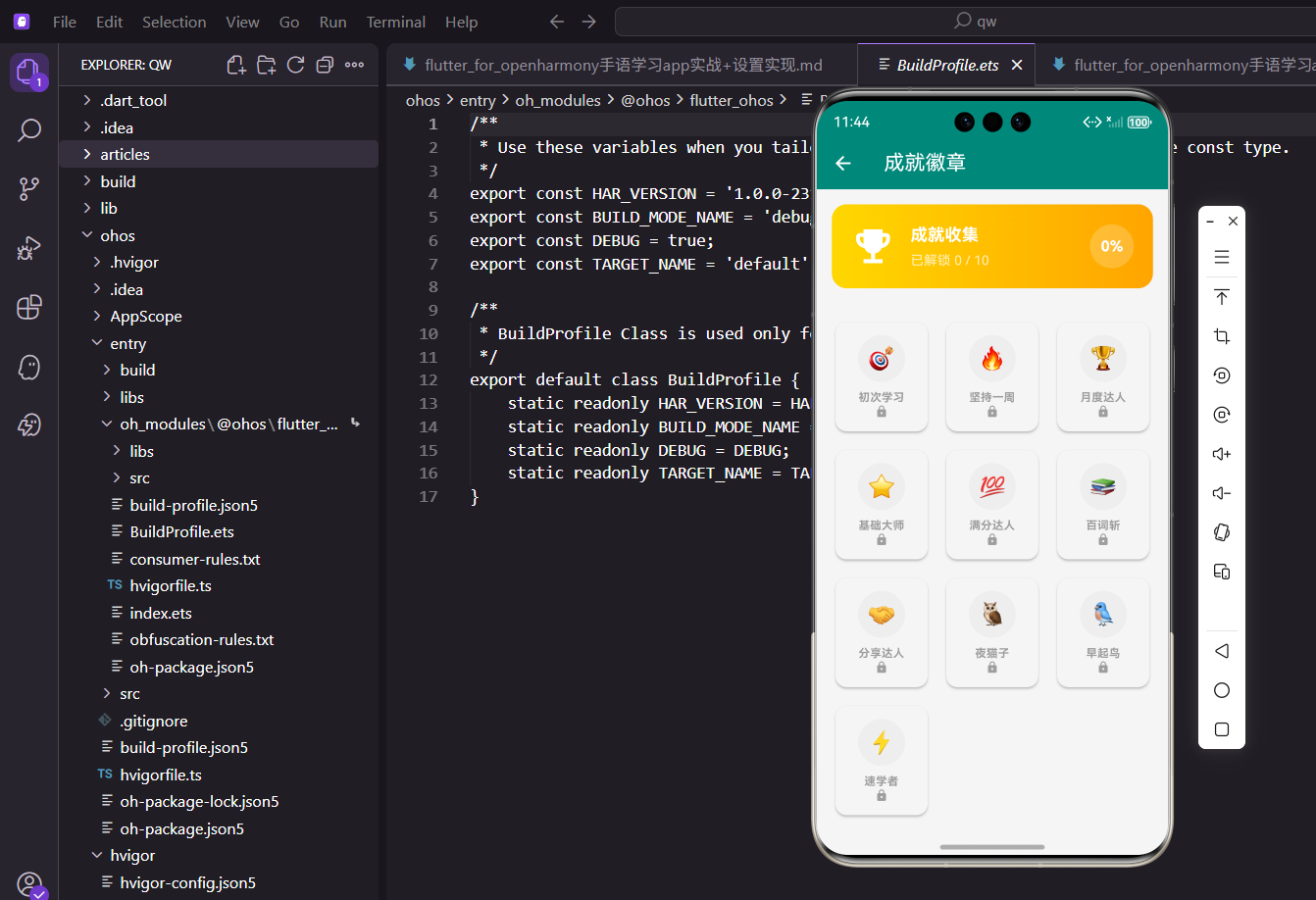
成就徽章是激励用户持续学习的重要机制,通过收集徽章获得成就感。本文介绍如何实现一个成就徽章页面,包括徽章展示、解锁状态和详情弹窗。
Provider状态管理
获取成就数据:
class AchievementScreen extends StatelessWidget {
const AchievementScreen({super.key});
Widget build(BuildContext context) {
final userProvider = Provider.of<UserProvider>(context);
final unlockedCount = userProvider.achievements.where((a) => a.isUnlocked).length;
return Scaffold(
appBar: AppBar(title: const Text('成就徽章')),
body: Column(
children: [
_buildHeader(unlockedCount, userProvider.achievements.length),
使用Provider.of获取UserProvider实例,访问成就列表。用where方法过滤出已解锁的成就,length获取数量。这种数据驱动的方式让成就状态自动更新,无需手动刷新。
页面布局
构建整体的上下布局:
          Expanded(
            child: GridView.builder(
              padding: EdgeInsets.all(16.w),
              gridDelegate: SliverGridDelegateWithFixedCrossAxisCount(
                crossAxisCount: 3,
                crossAxisSpacing: 12.w,
                mainAxisSpacing: 12.h,
                childAspectRatio: 0.85,
              ),
              itemCount: userProvider.achievements.length,
              itemBuilder: (context, index) {
                final achievement = userProvider.achievements[index];
                return _buildAchievementCard(context, achievement);
              },
            ),
          ),
        ],
      ),
    );
  }
用Column纵向排列头部和网格,Expanded让网格占据剩余空间。GridView.builder创建网格布局,crossAxisCount: 3表示每行3列。childAspectRatio: 0.85设置宽高比,让卡片略高于宽。这种网格布局适合展示多个徽章。
头部卡片
构建顶部的统计展示:
  Widget _buildHeader(int unlocked, int total) {
    return Container(
      margin: EdgeInsets.all(16.w),
      padding: EdgeInsets.all(20.w),
      decoration: BoxDecoration(
        gradient: const LinearGradient(
          colors: [Color(0xFFFFD700), Color(0xFFFFA500)],
        ),
        borderRadius: BorderRadius.circular(16.r),
      ),
用金色渐变背景和圆角装饰容器,金色代表成就和荣耀。渐变从金黄色到橙色,营造奖杯质感。这种设计让头部卡片成为页面的视觉焦点。
头部内容
显示奖杯图标和统计信息:
      child: Row(
        children: [
          Icon(Icons.emoji_events, size: 48.sp, color: Colors.white),
          SizedBox(width: 16.w),
          Expanded(
            child: Column(
              crossAxisAlignment: CrossAxisAlignment.start,
              children: [
                Text(
                  '成就收集',
                  style: TextStyle(fontSize: 18.sp, fontWeight: FontWeight.bold, color: Colors.white),
                ),
                SizedBox(height: 4.h),
                Text(
                  '已解锁 $unlocked / $total',
                  style: TextStyle(fontSize: 14.sp, color: Colors.white70),
                ),
              ],
            ),
          ),
奖杯图标用白色,大小48.sp非常醒目。标题和统计信息用Column纵向排列,标题用粗体白色,统计用半透明白色。Expanded让信息区域占据剩余空间。这种横向布局让信息层次清晰。
完成度百分比
显示圆形百分比:
          Container(
            padding: EdgeInsets.all(12.w),
            decoration: BoxDecoration(
              color: Colors.white.withOpacity(0.2),
              shape: BoxShape.circle,
            ),
            child: Text(
              '${(unlocked / total * 100).toInt()}%',
              style: TextStyle(fontSize: 16.sp, fontWeight: FontWeight.bold, color: Colors.white),
            ),
          ),
        ],
      ),
    );
  }
百分比用圆形容器包裹,半透明白色背景。计算公式unlocked / total * 100得到百分比,toInt()转换为整数。这种可视化展示让用户直观了解收集进度。
成就卡片
构建单个成就徽章:
  Widget _buildAchievementCard(BuildContext context, Achievement achievement) {
    return GestureDetector(
      onTap: () => _showAchievementDetail(context, achievement),
      child: Card(
        color: achievement.isUnlocked ? Colors.white : Colors.grey[100],
        child: Padding(
          padding: EdgeInsets.all(12.w),
          child: Column(
            mainAxisAlignment: MainAxisAlignment.center,
            children: [
用GestureDetector处理点击,点击显示详情弹窗。卡片背景根据解锁状态变化:已解锁白色,未解锁浅灰色。mainAxisAlignment.center让内容垂直居中。这种状态驱动的UI让解锁状态一目了然。
徽章图标
显示成就的图标:
              Container(
                width: 50.w,
                height: 50.w,
                decoration: BoxDecoration(
                  color: achievement.isUnlocked
                      ? const Color(0xFFFFD700).withOpacity(0.2)
                      : Colors.grey[200],
                  shape: BoxShape.circle,
                ),
                child: Center(
                  child: Text(
                    achievement.icon,
                    style: TextStyle(
                      fontSize: 24.sp,
                      color: achievement.isUnlocked ? null : Colors.grey,
                    ),
                  ),
                ),
              ),
              SizedBox(height: 8.h),
图标用圆形容器包裹,已解锁显示金色半透明背景,未解锁显示灰色背景。图标emoji已解锁时彩色显示,未解锁时灰色显示。这种颜色区分让用户快速识别解锁状态。
徽章标题
显示成就名称:
              Text(
                achievement.title,
                style: TextStyle(
                  fontSize: 12.sp,
                  fontWeight: FontWeight.bold,
                  color: achievement.isUnlocked ? Colors.black : Colors.grey,
                ),
                textAlign: TextAlign.center,
                maxLines: 1,
                overflow: TextOverflow.ellipsis,
              ),
标题用粗体显示,已解锁黑色,未解锁灰色。textAlign.center让文字居中,maxLines: 1限制一行,overflow: TextOverflow.ellipsis超出显示省略号。这种文字处理避免标题过长破坏布局。
锁定图标
未解锁时显示锁图标:
              if (!achievement.isUnlocked)
                Icon(Icons.lock, size: 14.sp, color: Colors.grey),
            ],
          ),
        ),
      ),
    );
  }
用if条件渲染,只在未解锁时显示锁图标。锁图标用灰色小尺寸,表示这是待解锁状态。这种视觉提示增强了成就系统的神秘感和吸引力。
详情弹窗
显示成就的详细信息:
  void _showAchievementDetail(BuildContext context, Achievement achievement) {
    showModalBottomSheet(
      context: context,
      shape: RoundedRectangleBorder(
        borderRadius: BorderRadius.vertical(top: Radius.circular(20.r)),
      ),
      builder: (context) => Container(
        padding: EdgeInsets.all(24.w),
        child: Column(
          mainAxisSize: MainAxisSize.min,
          children: [
使用showModalBottomSheet从底部弹出半屏弹窗,shape设置顶部圆角。mainAxisSize.min让弹窗高度自适应内容。这种底部弹窗是移动应用的常见交互方式。
弹窗图标
显示大尺寸的成就图标:
            Container(
              width: 80.w,
              height: 80.w,
              decoration: BoxDecoration(
                color: achievement.isUnlocked
                    ? const Color(0xFFFFD700).withOpacity(0.2)
                    : Colors.grey[200],
                shape: BoxShape.circle,
              ),
              child: Center(
                child: Text(achievement.icon, style: TextStyle(fontSize: 40.sp)),
              ),
            ),
            SizedBox(height: 16.h),
弹窗中的图标更大(80x80),emoji字号40.sp。背景色根据解锁状态变化,与卡片保持一致。这种放大展示让用户看清成就的细节。
弹窗标题和描述
显示成就的名称和说明:
            Text(
              achievement.title,
              style: TextStyle(fontSize: 20.sp, fontWeight: FontWeight.bold),
            ),
            SizedBox(height: 8.h),
            Text(
              achievement.description,
              style: TextStyle(fontSize: 14.sp, color: Colors.grey),
              textAlign: TextAlign.center,
            ),
            SizedBox(height: 16.h),
标题用大字号粗体,描述用中等字号灰色居中显示。描述文字说明如何解锁这个成就,给用户明确的目标。间距控制让信息层次清晰。
解锁状态标签
显示解锁状态:
            Container(
              padding: EdgeInsets.symmetric(horizontal: 16.w, vertical: 8.h),
              decoration: BoxDecoration(
                color: achievement.isUnlocked ? Colors.green[50] : Colors.grey[100],
                borderRadius: BorderRadius.circular(20.r),
              ),
              child: Text(
                achievement.isUnlocked ? '已解锁' : '未解锁',
                style: TextStyle(
                  color: achievement.isUnlocked ? Colors.green : Colors.grey,
                  fontWeight: FontWeight.bold,
                ),
              ),
            ),
状态标签用圆角容器包裹,已解锁显示绿色背景和文字,未解锁显示灰色。绿色代表成功和完成,灰色代表待完成。这种颜色语义化让状态一目了然。
解锁时间
已解锁时显示解锁时间:
            if (achievement.isUnlocked && achievement.unlockedAt != null) ...[
              SizedBox(height: 8.h),
              Text(
                '解锁时间: ${achievement.unlockedAt!.toString().substring(0, 10)}',
                style: TextStyle(fontSize: 12.sp, color: Colors.grey),
              ),
            ],
            SizedBox(height: 20.h),
          ],
        ),
      ),
    );
  }
}
用if条件渲染,只在已解锁且有时间时显示。substring(0, 10)截取日期部分(YYYY-MM-DD)。...展开运算符将多个组件插入列表。这种详细信息让用户回顾解锁历程。
where方法的应用
过滤已解锁成就:
final unlockedCount = userProvider.achievements.where((a) => a.isUnlocked).length;
where方法过滤出满足条件的元素,返回新的可迭代对象。length获取数量。这种链式调用简洁高效,一行代码完成过滤和计数。
条件渲染
根据状态显示不同内容:
color: achievement.isUnlocked ? Colors.white : Colors.grey[100],
color: achievement.isUnlocked ? const Color(0xFFFFD700).withOpacity(0.2) : Colors.grey[200],
if (!achievement.isUnlocked) Icon(Icons.lock, ...),
if (achievement.isUnlocked && achievement.unlockedAt != null) ...[...],
三元运算符? :根据条件返回不同值,if语句条件渲染组件。这种声明式UI让代码逻辑清晰,状态与UI保持同步。
展开运算符
插入多个组件:
if (achievement.isUnlocked && achievement.unlockedAt != null) ...[
  SizedBox(height: 8.h),
  Text('解锁时间: ...', ...),
],
...展开运算符将列表中的元素展开,插入到父列表中。这比单独添加每个元素更简洁。展开运算符是Dart的语法糖,让代码更优雅。
渐变色的应用
金色渐变背景:
decoration: BoxDecoration(
  gradient: const LinearGradient(
    colors: [Color(0xFFFFD700), Color(0xFFFFA500)],
  ),
  borderRadius: BorderRadius.circular(16.r),
),
从金黄色到橙色的渐变,营造奖杯的质感。金色代表成就、荣耀和价值,符合成就系统的心理预期。渐变比纯色更有层次感。
GridView的childAspectRatio
控制网格项的宽高比:
gridDelegate: SliverGridDelegateWithFixedCrossAxisCount(
  crossAxisCount: 3,
  crossAxisSpacing: 12.w,
  mainAxisSpacing: 12.h,
  childAspectRatio: 0.85,
),
childAspectRatio: 0.85表示宽高比为0.85,即高度是宽度的1.18倍。这让卡片略高于宽,适合纵向排列图标和文字。调整这个值可以改变卡片的形状比例。
ModalBottomSheet的形状
设置弹窗的圆角:
showModalBottomSheet(
  context: context,
  shape: RoundedRectangleBorder(
    borderRadius: BorderRadius.vertical(top: Radius.circular(20.r)),
  ),
  builder: (context) => ...,
)
shape参数设置弹窗形状,BorderRadius.vertical只设置顶部圆角。这种圆角设计让弹窗更现代,符合Material Design规范。
颜色的语义化
不同状态使用不同颜色:
Colors.white,              // 已解锁卡片
Colors.grey[100],          // 未解锁卡片
Color(0xFFFFD700),         // 金色,成就/荣耀
Colors.green,              // 已解锁状态
Colors.grey,               // 未解锁状态
白色代表已解锁,灰色代表未解锁,金色代表成就,绿色代表成功。这种颜色语义化符合用户认知习惯,无需文字说明就能理解含义。
响应式布局
使用flutter_screenutil适配屏幕:
fontSize: 24.sp,
padding: EdgeInsets.all(20.w),
width: 50.w,
height: 50.w,
.sp用于字号,.w和.h用于尺寸和间距。这些单位会根据屏幕尺寸自动缩放,确保在不同设备上比例一致。一套代码适配所有屏幕。
小结
成就徽章页面通过网格布局展示所有成就,金色头部卡片显示收集进度。已解锁和未解锁用不同颜色和图标区分,点击弹出详情弹窗查看说明。整体设计注重视觉反馈和激励机制,激发用户的收集欲望。
欢迎加入开源鸿蒙跨平台社区:https://openharmonycrossplatform.csdn.net

开源鸿蒙跨平台开发社区汇聚开发者与厂商,共建“一次开发,多端部署”的开源生态,致力于降低跨端开发门槛,推动万物智联创新。
更多推荐

 3
3 0
0- 0


 已为社区贡献30条内容

所有评论(0)