flutter_for_openharmony手语学习app实战+意见反馈实现
手语学习App意见反馈页面实现方案 本文介绍了手语学习App中意见反馈页面的设计与实现。该页面采用Flutter框架开发,主要功能包括: 反馈类型选择(功能建议、内容问题等5种类型) 内容输入区(多行文本框) 联系方式填写 表单验证与提交状态管理 页面采用响应式布局,使用StatefulWidget管理用户输入状态,通过Wrap组件实现自适应标签布局。界面设计注重用户体验,包含友好的提示信息和视觉
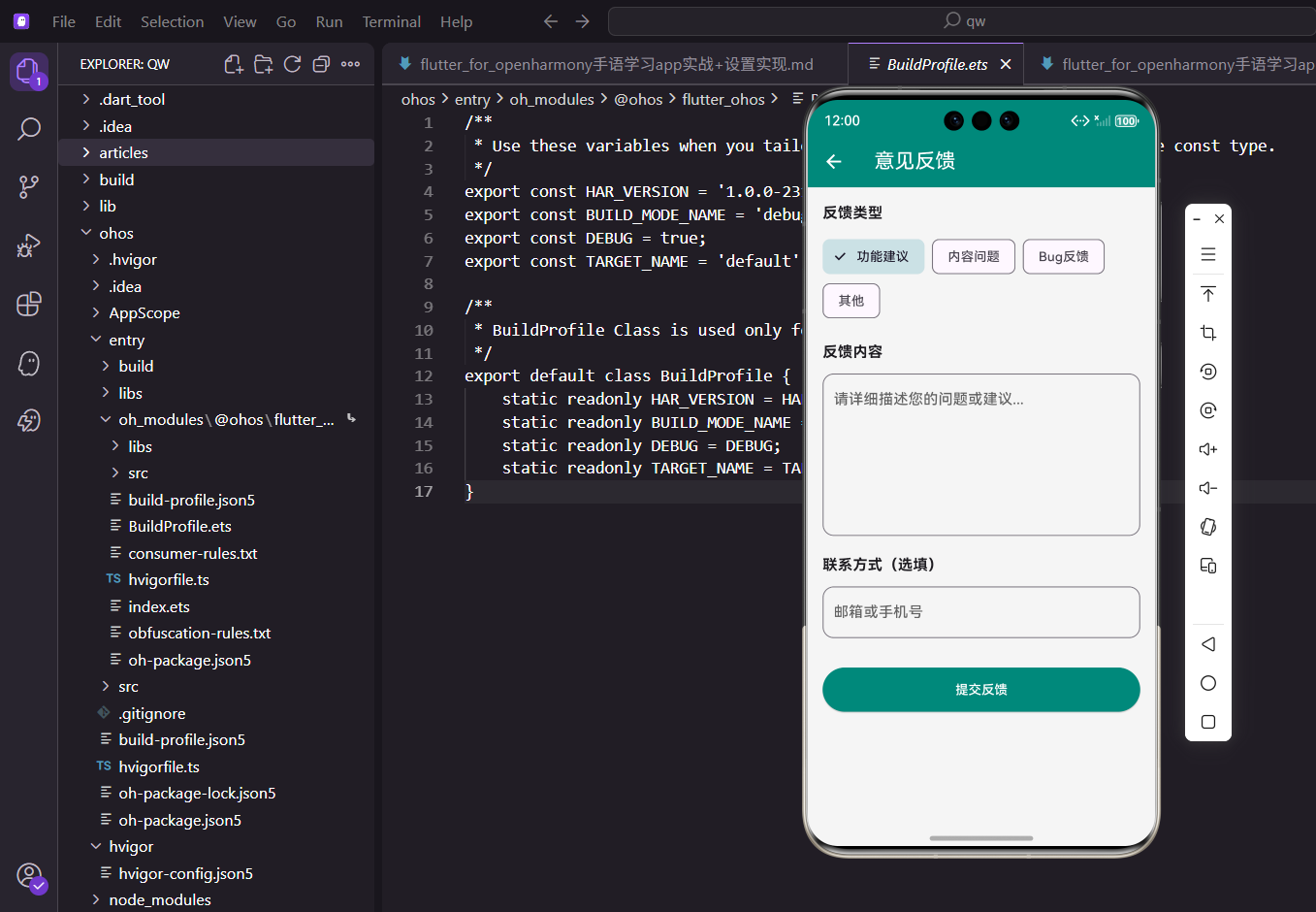
意见反馈页面是用户与开发团队沟通的重要桥梁。在手语学习App中,用户可能会遇到各种问题,比如手语视频播放不流畅、某个手势的解释不够清晰、或者希望增加某些功能。一个设计良好的反馈页面能够让用户方便地表达诉求,同时也能帮助开发团队收集有价值的改进建议。
本文将详细介绍如何实现一个功能完善的意见反馈页面,包括反馈类型选择、内容输入、联系方式填写以及表单验证等功能。
页面状态定义
反馈页面需要管理多个状态,包括用户选择的反馈类型、输入的反馈内容和联系方式。我们使用StatefulWidget来实现这个页面。
class FeedbackScreen extends StatefulWidget {
const FeedbackScreen({super.key});
State<FeedbackScreen> createState() => _FeedbackScreenState();
}
这里定义了一个有状态的Widget,因为页面中有多个需要动态更新的元素。
StatefulWidget的特点是可以在运行时改变自身状态,非常适合表单类页面。
状态变量声明
在State类中声明需要管理的状态变量:
class _FeedbackScreenState extends State<FeedbackScreen> {
  String _selectedType = '功能建议';

  final TextEditingController _contentController = TextEditingController();

  final TextEditingController _contactController = TextEditingController();

  bool _isSubmitting = false;
_selectedType存储当前选中的反馈类型,默认值设为"功能建议"。
两个TextEditingController分别管理反馈内容和联系方式输入框的文本。
_isSubmitting用于标记是否正在提交,防止用户重复点击提交按钮。
反馈类型列表
定义可选的反馈类型:
  final List<String> _feedbackTypes = [
    '功能建议',
    '内容问题',
    'Bug反馈',
    '界面优化',
    '其他',
  ];
将反馈类型抽取为列表,方便后续维护和扩展。
如果需要增加新的反馈类型,只需要在这个列表中添加即可,不用修改其他代码。
这种做法符合开闭原则,对扩展开放,对修改关闭。
页面整体结构
构建页面的基本框架:
Widget build(BuildContext context) {
return Scaffold(
appBar: AppBar(
title: const Text('意见反馈'),
elevation: 0,
),
body: SingleChildScrollView(
padding: EdgeInsets.all(16.w),
child: Column(
crossAxisAlignment: CrossAxisAlignment.start,
children: [
_buildHeader(),
SizedBox(height: 24.h),
_buildTypeSelector(),
SizedBox(height: 24.h),
_buildContentInput(),
SizedBox(height: 24.h),
_buildContactInput(),
SizedBox(height: 32.h),
_buildSubmitButton(),
],
),
),
);
}
使用SingleChildScrollView包裹内容,确保键盘弹出时页面可以滚动。
Column中的子组件按照从上到下的顺序排列,形成清晰的表单结构。
将各个部分拆分成独立的方法,让代码更加清晰易读。
页面头部说明
在表单顶部添加引导文字:
  Widget _buildHeader() {
    return Container(
      padding: EdgeInsets.all(16.w),
      decoration: BoxDecoration(
        color: const Color(0xFF00897B).withOpacity(0.1),
        borderRadius: BorderRadius.circular(12.r),
      ),
      child: Row(
        children: [
          Icon(
            Icons.lightbulb_outline,
            color: const Color(0xFF00897B),
            size: 24.sp,
          ),
          SizedBox(width: 12.w),
          Expanded(
            child: Text(
              '您的每一条建议都是我们前进的动力,感谢您的支持!',
              style: TextStyle(
                fontSize: 14.sp,
                color: const Color(0xFF00897B),
              ),
            ),
          ),
        ],
      ),
    );
  }
头部区域使用浅色背景和图标,营造友好的氛围。
Expanded让文字自动填充剩余空间,避免文字过长时溢出。
这段引导文字能够让用户感受到开发团队的诚意,提高反馈的积极性。
反馈类型选择器
实现反馈类型的单选功能:
  Widget _buildTypeSelector() {
    return Column(
      crossAxisAlignment: CrossAxisAlignment.start,
      children: [
        Text(
          '反馈类型',
          style: TextStyle(
            fontSize: 16.sp,
            fontWeight: FontWeight.bold,
            color: Colors.black87,
          ),
        ),
        SizedBox(height: 12.h),
        Wrap(
          spacing: 10.w,
          runSpacing: 10.h,
          children: _feedbackTypes.map((type) {
            final isSelected = _selectedType == type;
            return _buildTypeChip(type, isSelected);
          }).toList(),
        ),
      ],
    );
  }
Wrap组件让标签自动换行,适应不同屏幕宽度。
spacing和runSpacing分别设置水平和垂直方向的间距。
通过map方法遍历类型列表,为每个类型生成对应的选择标签。
类型选择标签
单个类型标签的实现:
  Widget _buildTypeChip(String type, bool isSelected) {
    return GestureDetector(
      onTap: () {
        setState(() {
          _selectedType = type;
        });
      },
      child: Container(
        padding: EdgeInsets.symmetric(
          horizontal: 16.w,
          vertical: 8.h,
        ),
        decoration: BoxDecoration(
          color: isSelected
              ? const Color(0xFF00897B)
              : Colors.grey.shade100,
          borderRadius: BorderRadius.circular(20.r),
          border: Border.all(
            color: isSelected
                ? const Color(0xFF00897B)
                : Colors.grey.shade300,
          ),
        ),
        child: Text(
          type,
          style: TextStyle(
            fontSize: 14.sp,
            color: isSelected ? Colors.white : Colors.black87,
          ),
        ),
      ),
    );
  }
选中状态和未选中状态有明显的视觉差异,用户一眼就能看出当前选择。
使用GestureDetector包裹容器,让整个标签区域都可以点击。
圆角设计让标签看起来更加柔和,符合现代UI设计趋势。
反馈内容输入区
多行文本输入框的实现:
  Widget _buildContentInput() {
    return Column(
      crossAxisAlignment: CrossAxisAlignment.start,
      children: [
        Row(
          children: [
            Text(
              '反馈内容',
              style: TextStyle(
                fontSize: 16.sp,
                fontWeight: FontWeight.bold,
                color: Colors.black87,
              ),
            ),
            SizedBox(width: 4.w),
            Text(
              '*',
              style: TextStyle(
                fontSize: 16.sp,
                color: Colors.red,
              ),
            ),
          ],
        ),
        SizedBox(height: 12.h),
        TextField(
          controller: _contentController,
          maxLines: 6,
          maxLength: 500,
          decoration: InputDecoration(
            hintText: '请详细描述您遇到的问题或建议...',
            hintStyle: TextStyle(
              color: Colors.grey.shade400,
              fontSize: 14.sp,
            ),
            filled: true,
            fillColor: Colors.grey.shade50,
            border: OutlineInputBorder(
              borderRadius: BorderRadius.circular(12.r),
              borderSide: BorderSide(color: Colors.grey.shade300),
            ),
            focusedBorder: OutlineInputBorder(
              borderRadius: BorderRadius.circular(12.r),
              borderSide: const BorderSide(
                color: Color(0xFF00897B),
                width: 2,
              ),
            ),
            contentPadding: EdgeInsets.all(16.w),
          ),
        ),
      ],
    );
  }
红色星号标记这是必填项,提醒用户必须填写。
maxLines: 6让输入框有足够的高度,用户可以输入较长的内容。
maxLength: 500限制最大字数,底部会自动显示字数统计。
聚焦时边框变为主题色,给用户清晰的输入状态反馈。
联系方式输入
可选的联系方式输入框:
  Widget _buildContactInput() {
    return Column(
      crossAxisAlignment: CrossAxisAlignment.start,
      children: [
        Row(
          children: [
            Text(
              '联系方式',
              style: TextStyle(
                fontSize: 16.sp,
                fontWeight: FontWeight.bold,
                color: Colors.black87,
              ),
            ),
            SizedBox(width: 8.w),
            Container(
              padding: EdgeInsets.symmetric(
                horizontal: 8.w,
                vertical: 2.h,
              ),
              decoration: BoxDecoration(
                color: Colors.grey.shade200,
                borderRadius: BorderRadius.circular(4.r),
              ),
              child: Text(
                '选填',
                style: TextStyle(
                  fontSize: 12.sp,
                  color: Colors.grey.shade600,
                ),
              ),
            ),
          ],
        ),
        SizedBox(height: 12.h),
        TextField(
          controller: _contactController,
          keyboardType: TextInputType.emailAddress,
          decoration: InputDecoration(
            hintText: '邮箱或手机号,方便我们回复您',
            hintStyle: TextStyle(
              color: Colors.grey.shade400,
              fontSize: 14.sp,
            ),
            filled: true,
            fillColor: Colors.grey.shade50,
            border: OutlineInputBorder(
              borderRadius: BorderRadius.circular(12.r),
              borderSide: BorderSide(color: Colors.grey.shade300),
            ),
            focusedBorder: OutlineInputBorder(
              borderRadius: BorderRadius.circular(12.r),
              borderSide: const BorderSide(
                color: Color(0xFF00897B),
                width: 2,
              ),
            ),
            prefixIcon: Icon(
              Icons.email_outlined,
              color: Colors.grey.shade400,
            ),
          ),
        ),
      ],
    );
  }
"选填"标签用小字体和灰色背景,不会喧宾夺主。
keyboardType设置为邮箱类型,弹出的键盘会包含@符号,方便输入。
前置图标让输入框的用途更加直观,用户一眼就知道这里要填什么。
提交按钮
底部提交按钮的实现:
  Widget _buildSubmitButton() {
    return SizedBox(
      width: double.infinity,
      height: 50.h,
      child: ElevatedButton(
        onPressed: _isSubmitting ? null : _submitFeedback,
        style: ElevatedButton.styleFrom(
          backgroundColor: const Color(0xFF00897B),
          disabledBackgroundColor: Colors.grey.shade300,
          shape: RoundedRectangleBorder(
            borderRadius: BorderRadius.circular(12.r),
          ),
          elevation: 0,
        ),
        child: _isSubmitting
            ? SizedBox(
                width: 24.w,
                height: 24.w,
                child: const CircularProgressIndicator(
                  color: Colors.white,
                  strokeWidth: 2,
                ),
              )
            : Text(
                '提交反馈',
                style: TextStyle(
                  fontSize: 16.sp,
                  color: Colors.white,
                  fontWeight: FontWeight.bold,
                ),
              ),
      ),
    );
  }
按钮宽度撑满屏幕,增大点击区域,提升用户体验。
提交过程中显示加载动画,按钮变为禁用状态,防止重复提交。
圆角和主题色让按钮与整体设计风格保持一致。
表单验证逻辑
提交前验证用户输入:
  bool _validateForm() {
    if (_contentController.text.trim().isEmpty) {
      _showMessage('请输入反馈内容');
      return false;
    }

    if (_contentController.text.trim().length < 10) {
      _showMessage('反馈内容至少需要10个字');
      return false;
    }

    return true;
  }
先检查内容是否为空,再检查内容长度是否足够。
使用trim()去除首尾空格,避免用户只输入空格就提交。
验证失败时返回false,阻止后续的提交操作。
消息提示方法
封装统一的消息提示:
  void _showMessage(String message) {
    ScaffoldMessenger.of(context).showSnackBar(
      SnackBar(
        content: Text(message),
        backgroundColor: Colors.black87,
        behavior: SnackBarBehavior.floating,
        shape: RoundedRectangleBorder(
          borderRadius: BorderRadius.circular(8.r),
        ),
        margin: EdgeInsets.all(16.w),
      ),
    );
  }
使用floating样式让提示条悬浮显示,不会遮挡底部内容。
圆角和边距让提示条看起来更加精致。
封装成方法后,在多处调用时代码更加简洁。
提交处理逻辑
处理表单提交的完整流程:
  void _submitFeedback() async {
    if (!_validateForm()) return;

    setState(() {
      _isSubmitting = true;
    });

    await Future.delayed(const Duration(seconds: 1));

    setState(() {
      _isSubmitting = false;
    });

    _showSuccessDialog();
  }
先调用验证方法,验证不通过则直接返回。
设置提交状态为true,触发按钮显示加载动画。
模拟网络请求延迟,实际项目中这里会调用API接口。
成功提示对话框
提交成功后显示感谢对话框:
  void _showSuccessDialog() {
    showDialog(
      context: context,
      barrierDismissible: false,
      builder: (context) => AlertDialog(
        shape: RoundedRectangleBorder(
          borderRadius: BorderRadius.circular(16.r),
        ),
        title: Row(
          children: [
            Icon(
              Icons.check_circle,
              color: const Color(0xFF00897B),
              size: 28.sp,
            ),
            SizedBox(width: 8.w),
            const Text('提交成功'),
          ],
        ),
        content: const Text(
          '感谢您的宝贵意见!我们会认真阅读并尽快处理。',
        ),
        actions: [
          TextButton(
            onPressed: () {
              Navigator.pop(context);
              Navigator.pop(context);
            },
            child: const Text(
              '确定',
              style: TextStyle(color: Color(0xFF00897B)),
            ),
          ),
        ],
      ),
    );
  }
barrierDismissible: false防止用户点击对话框外部关闭。
标题栏添加绿色对勾图标,增强成功的视觉反馈。
点击确定后连续两次pop,关闭对话框并返回上一页。
资源释放
在页面销毁时释放控制器资源:
void dispose() {
_contentController.dispose();
_contactController.dispose();
super.dispose();
}
}
TextEditingController使用完毕后必须调用dispose方法释放。
不释放会导致内存泄漏,长时间运行后应用会越来越卡。
这是Flutter开发中的重要规范,每个控制器都要记得释放。
小结
意见反馈页面虽然功能简单,但细节处理很重要。好的反馈页面能够降低用户的使用门槛,让用户愿意花时间写下自己的想法。
在实现过程中,我们注意了以下几点:
- 使用清晰的视觉层次引导用户填写
- 必填项和选填项有明确的区分
- 提交过程有加载状态反馈
- 成功后有友好的感谢提示
这些细节的打磨能够提升用户体验,也体现了开发团队对用户的尊重。
欢迎加入开源鸿蒙跨平台社区:https://openharmonycrossplatform.csdn.net

开源鸿蒙跨平台开发社区汇聚开发者与厂商,共建“一次开发,多端部署”的开源生态,致力于降低跨端开发门槛,推动万物智联创新。
更多推荐
 17
17 0
0- 0


 已为社区贡献30条内容

所有评论(0)