Flutter for OpenHarmony 猫咪管家App实战:支出统计功能开发详解
本文介绍了如何实现养猫支出统计功能,主要包括:1)页面整体结构使用StatelessWidget构建,通过Consumer监听数据变化;2)分类统计计算通过遍历记录并按分类累加金额;3)总支出卡片展示总金额和图标;4)饼图使用fl_chart库展示各分类占比;5)分类明细列表按金额排序显示。实现要点包括空状态处理、数据计算与可视化展示,帮助用户直观了解养猫开销分布情况。
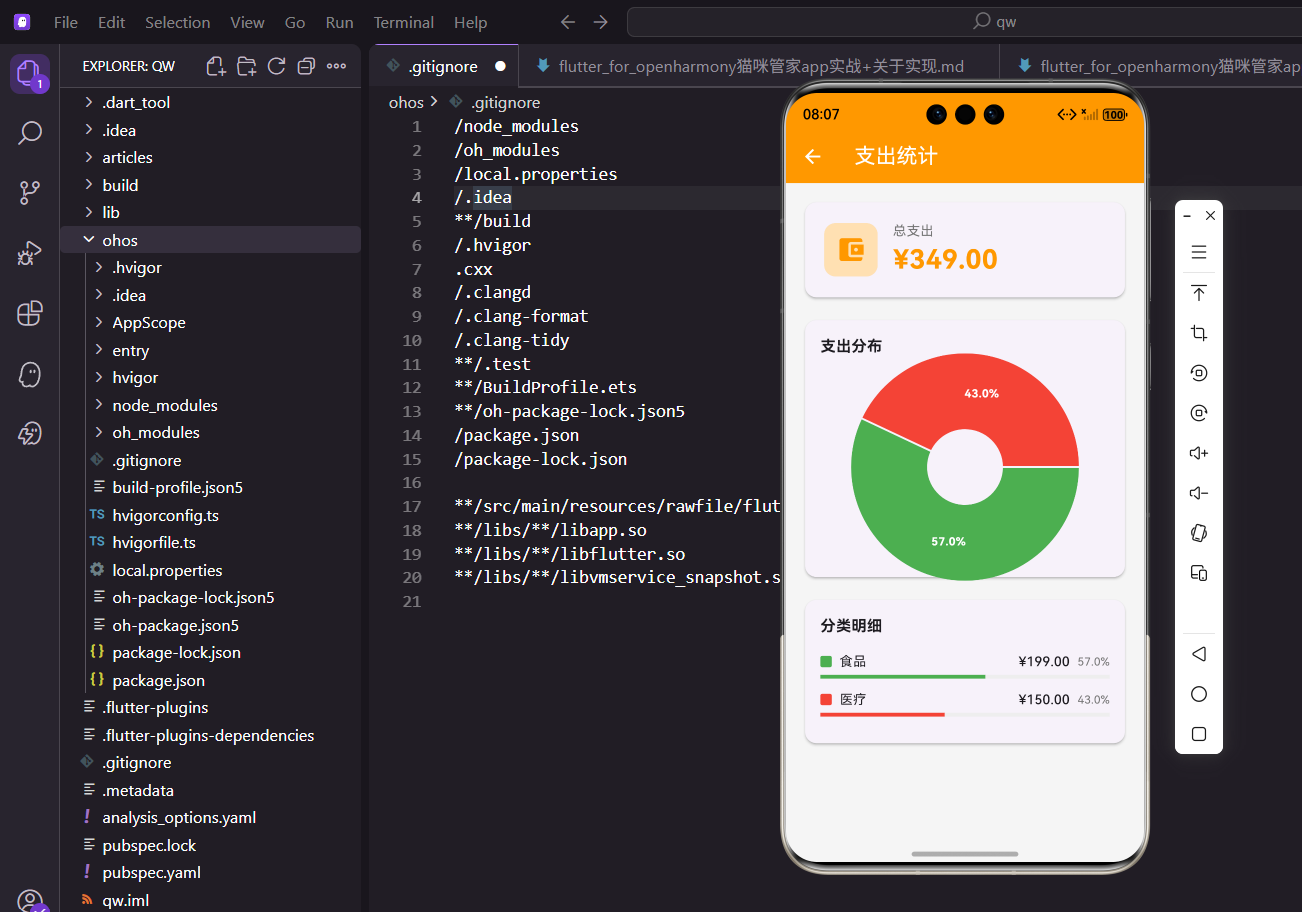
记录支出只是第一步,分析支出才能更好地管理养猫开销。今天来实现支出统计功能,用饼图展示各分类占比,用进度条展示分类明细。
一、页面整体结构
支出统计用 StatelessWidget:
class ExpenseStatisticsScreen extends StatelessWidget {
const ExpenseStatisticsScreen({super.key});
Widget build(BuildContext context) {
return Scaffold(
appBar: AppBar(title: const Text('支出统计')),
body: Consumer<CatProvider>(
builder: (context, provider, child) {
final records = provider.expenseRecords;
Consumer 监听数据变化,添加新支出后统计自动更新。
从 Provider 获取所有支出记录。
空状态处理:
if (records.isEmpty) {
  return Center(
    child: Column(
      mainAxisAlignment: MainAxisAlignment.center,
      children: [
        Icon(Icons.pie_chart, size: 80.sp, color: Colors.grey[300]),
        SizedBox(height: 16.h),
        Text('暂无支出数据', style: TextStyle(color: Colors.grey[600])),
      ],
    ),
  );
}
没有数据时显示饼图图标和提示。
居中显示,视觉上不会太空。
数据计算:
final categoryTotals = _calculateCategoryTotals(records);
final total = categoryTotals.values.fold(0.0, (a, b) => a + b);

return SingleChildScrollView(
  padding: EdgeInsets.all(16.w),
  child: Column(
    crossAxisAlignment: CrossAxisAlignment.start,
    children: [
      _buildTotalCard(total),
      SizedBox(height: 16.h),
      _buildPieChart(categoryTotals, total),
      SizedBox(height: 16.h),
      _buildCategoryList(categoryTotals, total),
    ],
  ),
);
先计算各分类的总额,再计算总支出。
页面分三部分:总额卡片、饼图、分类明细。
二、分类统计计算
计算各分类总额:
Map<ExpenseCategory, double> _calculateCategoryTotals(List<ExpenseRecord> records) {
  final totals = <ExpenseCategory, double>{};
  for (var record in records) {
    totals[record.category] = (totals[record.category] ?? 0) + record.amount;
  }
  return totals;
}
遍历所有记录,按分类累加金额。
用 ?? 0 处理分类第一次出现的情况。
fold 计算总和:
final total = categoryTotals.values.fold(0.0, (a, b) => a + b);
fold 是累加器,从 0.0 开始,依次加上每个值。
最终得到所有分类的总和。
三、总支出卡片
卡片布局:
Widget _buildTotalCard(double total) {
  return Card(
    child: Padding(
      padding: EdgeInsets.all(20.w),
      child: Row(
        children: [
          Container(
            padding: EdgeInsets.all(12.w),
            decoration: BoxDecoration(
              color: Colors.orange[100],
              borderRadius: BorderRadius.circular(12.r),
            ),
            child: Icon(Icons.account_balance_wallet, color: Colors.orange, size: 32.sp),
          ),
左边是带背景的钱包图标。
橙色系和 App 主题一致。
金额显示:
SizedBox(width: 16.w),
Column(
  crossAxisAlignment: CrossAxisAlignment.start,
  children: [
    Text('总支出', style: TextStyle(color: Colors.grey[600], fontSize: 14.sp)),
    Text(
      '¥${total.toStringAsFixed(2)}',
      style: TextStyle(fontSize: 28.sp, fontWeight: FontWeight.bold, color: Colors.orange),
    ),
  ],
),
标签在上,金额在下。
金额用大字号橙色加粗,是卡片焦点。
四、饼图实现
生成饼图数据:
Widget _buildPieChart(Map<ExpenseCategory, double> categoryTotals, double total) {
  final sections = categoryTotals.entries.map((entry) {
    final percentage = (entry.value / total * 100);
    return PieChartSectionData(
      value: entry.value,
      title: '${percentage.toStringAsFixed(1)}%',
      color: _getCategoryColor(entry.key),
      radius: 80.r,
      titleStyle: TextStyle(fontSize: 12.sp, color: Colors.white, fontWeight: FontWeight.bold),
    );
  }).toList();
遍历各分类,计算百分比。
PieChartSectionData 是 fl_chart 的饼图数据类型。
饼图容器:
return Card(
  child: Padding(
    padding: EdgeInsets.all(16.w),
    child: Column(
      crossAxisAlignment: CrossAxisAlignment.start,
      children: [
        Text('支出分布', style: TextStyle(fontSize: 16.sp, fontWeight: FontWeight.bold)),
        SizedBox(height: 16.h),
        SizedBox(
          height: 200.h,
          child: PieChart(
            PieChartData(
              sections: sections,
              centerSpaceRadius: 40.r,
              sectionsSpace: 2,
            ),
          ),
        ),
      ],
    ),
  ),
);
centerSpaceRadius 是中间空心的半径。
sectionsSpace 是扇形之间的间隙。
五、分类明细列表
排序后展示:
Widget _buildCategoryList(Map<ExpenseCategory, double> categoryTotals, double total) {
  final sortedEntries = categoryTotals.entries.toList()
    ..sort((a, b) => b.value.compareTo(a.value));

  return Card(
    child: Padding(
      padding: EdgeInsets.all(16.w),
      child: Column(
        crossAxisAlignment: CrossAxisAlignment.start,
        children: [
          Text('分类明细', style: TextStyle(fontSize: 16.sp, fontWeight: FontWeight.bold)),
          SizedBox(height: 16.h),
按金额从大到小排序。
用户最关心花钱最多的分类。
单个分类项:
...sortedEntries.map((entry) {
  final percentage = entry.value / total;
  return Padding(
    padding: EdgeInsets.only(bottom: 12.h),
    child: Column(
      children: [
        Row(
          children: [
            Container(
              width: 12.w,
              height: 12.h,
              decoration: BoxDecoration(
                color: _getCategoryColor(entry.key),
                borderRadius: BorderRadius.circular(2.r),
              ),
            ),
            SizedBox(width: 8.w),
            Text(_getCategoryString(entry.key)),
            const Spacer(),
            Text(
              '¥${entry.value.toStringAsFixed(2)}',
              style: const TextStyle(fontWeight: FontWeight.w500),
            ),
左边是颜色方块,中间是分类名,右边是金额。
Spacer 让金额靠右对齐。
百分比和进度条:
SizedBox(width: 8.w),
Text(
  '${(percentage * 100).toStringAsFixed(1)}%',
  style: TextStyle(color: Colors.grey[600], fontSize: 12.sp),
),
百分比用小字号灰色显示。
放在金额右边。
进度条:
SizedBox(height: 4.h),
LinearProgressIndicator(
  value: percentage,
  backgroundColor: Colors.grey[200],
  valueColor: AlwaysStoppedAnimation(_getCategoryColor(entry.key)),
),
进度条直观展示各分类占比。
颜色和分类颜色一致。
六、分类名称转换
枚举转中文:
String _getCategoryString(ExpenseCategory category) {
  switch (category) {
    case ExpenseCategory.food: return '食品';
    case ExpenseCategory.medical: return '医疗';
    case ExpenseCategory.grooming: return '美容';
    case ExpenseCategory.toys: return '玩具';
    case ExpenseCategory.supplies: return '用品';
    case ExpenseCategory.other: return '其他';
  }
}
switch 覆盖所有枚举值。
返回用户友好的中文名称。
七、分类颜色配置
不同分类不同颜色:
Color _getCategoryColor(ExpenseCategory category) {
  switch (category) {
    case ExpenseCategory.food: return Colors.green;
    case ExpenseCategory.medical: return Colors.red;
    case ExpenseCategory.grooming: return Colors.pink;
    case ExpenseCategory.toys: return Colors.purple;
    case ExpenseCategory.supplies: return Colors.blue;
    case ExpenseCategory.other: return Colors.grey;
  }
}
颜色要和支出列表页面保持一致。
用户在不同页面看到同样的颜色代表同样的分类。
八、饼图库的使用
fl_chart 的 PieChart:
PieChart(
  PieChartData(
    sections: sections,
    centerSpaceRadius: 40.r,
    sectionsSpace: 2,
  ),
)
sections 是扇形数据列表。
centerSpaceRadius 控制中间空心大小。
PieChartSectionData:
PieChartSectionData(
  value: entry.value,
  title: '${percentage.toStringAsFixed(1)}%',
  color: _getCategoryColor(entry.key),
  radius: 80.r,
)
value 是数值,决定扇形大小。
title 显示在扇形上的文字。
九、排序的实现
级联操作符:
final sortedEntries = categoryTotals.entries.toList()
  ..sort((a, b) => b.value.compareTo(a.value));
..是级联操作符,在 toList() 返回的列表上调用 sort。
sort 是原地排序,不返回新列表。
降序排列:
b.value.compareTo(a.value)
b 在前表示降序,从大到小。
a 在前表示升序,从小到大。
十、进度条的使用
LinearProgressIndicator:
LinearProgressIndicator(
  value: percentage,
  backgroundColor: Colors.grey[200],
  valueColor: AlwaysStoppedAnimation(_getCategoryColor(entry.key)),
)
value 是 0 到 1 之间的进度值。
valueColor 用 AlwaysStoppedAnimation 包裹颜色。
为什么用 AlwaysStoppedAnimation:
valueColor 类型是 Animation。
AlwaysStoppedAnimation 创建一个不变的动画值。
十一、颜色方块的设计
分类标识:
Container(
  width: 12.w,
  height: 12.h,
  decoration: BoxDecoration(
    color: _getCategoryColor(entry.key),
    borderRadius: BorderRadius.circular(2.r),
  ),
),
小方块用分类颜色填充。
和饼图、进度条的颜色对应。
为什么用方块:
方块比圆点更容易对齐。
和进度条的方形风格一致。
十二、Spacer 的作用
自动填充空间:
Row(
  children: [
    Text(_getCategoryString(entry.key)),
    const Spacer(),
    Text('¥${entry.value.toStringAsFixed(2)}'),
  ],
)
Spacer 占据 Row 中的剩余空间。
让金额自动靠右对齐。
等价写法:
Row(
  mainAxisAlignment: MainAxisAlignment.spaceBetween,
  children: [...],
)
spaceBetween 也能实现两端对齐。
但 Spacer 更灵活,可以放在任意位置。
小结
支出统计用饼图展示各分类占比,用进度条展示分类明细。数据按金额从大到小排序,用户最关心的分类排在前面。代码上用 fl_chart 实现饼图,用 LinearProgressIndicator 实现进度条,用 fold 计算总和,用级联操作符排序。这些都是数据可视化常用的技巧。
欢迎加入开源鸿蒙跨平台社区:https://openharmonycrossplatform.csdn.net

开源鸿蒙跨平台开发社区汇聚开发者与厂商,共建“一次开发,多端部署”的开源生态,致力于降低跨端开发门槛,推动万物智联创新。
更多推荐

 12
12 0
0- 0


 已为社区贡献31条内容

所有评论(0)