用React Native开发OpenHarmony应用:Redux中间件开发
Redux中间件是位于action分发与reducer执行之间的可扩展处理层,遵循洋葱模型处理流程。在React Native for OpenHarmony架构中,中间件扮演着连接RN逻辑与OH原生能力的桥梁角色,其核心处理流程如下图所示:fill:#333;important;important;fill:none;color:#333;color:#333;important;fill:no
React Native for OpenHarmony 实战:Redux 中间件开发详解
摘要
本文深入探讨在OpenHarmony 6.0.0平台上使用React Native 0.72.5开发Redux中间件的完整流程。文章从Redux中间件核心原理出发,详细分析在OpenHarmony 6.0.0 (API 20)环境下的特殊适配要点,并通过实战案例展示网络请求日志中间件的开发过程。内容涵盖中间件工作流程、异步操作处理、平台兼容性解决方案等关键主题,所有代码基于TypeScript 4.8.4编写并在AtomGitDemos项目中验证。读者将掌握在鸿蒙生态中构建可扩展状态管理架构的核心技能。
1. Redux 中间件介绍
1.1 中间件核心原理
Redux中间件是位于action分发与reducer执行之间的可扩展处理层,遵循洋葱模型处理流程。在React Native for OpenHarmony架构中,中间件扮演着连接RN逻辑与OH原生能力的桥梁角色,其核心处理流程如下图所示:
图1:Redux中间件在React Native-OpenHarmony架构中的工作流程
在OpenHarmony 6.0.0环境中,中间件需要特别注意以下特性:
- 异步任务调度:鸿蒙任务调度器与JavaScript事件循环的协同机制
- 序列化约束:OpenHarmony 6.0.0对跨线程数据传递有严格的序列化要求
- 生命周期绑定:中间件需要感知Ability生命周期以避免内存泄漏
1.2 中间件应用场景
下表列出了在OpenHarmony平台上常见的中间件类型及其适用场景:
| 中间件类型 | 主要功能 | OpenHarmony适配要点 |
|---|---|---|
| 日志中间件 | 记录action流水 | 使用OH Logger替代console |
| 异步中间件 | 处理Promise/thunk | 适配OH异步任务调度器 |
| 持久化中间件 | 状态存储 | 使用OH Database替代AsyncStorage |
| 网络中间件 | API请求管理 | 适配OH Networking模块 |
| 性能监控 | 渲染跟踪 | 集成OH HiTrace模块 |
2. React Native与OpenHarmony平台适配要点
2.1 异步操作适配
Redux中间件常涉及异步操作,在OpenHarmony 6.0.0平台上需要特别注意任务调度机制。鸿蒙系统的TaskDispatcher与React Native的Promise机制存在以下差异点:
图2:Redux中间件在OpenHarmony上的异步操作时序
关键适配策略:
- 使用
@ohos.taskpool模块替代setTimeout - 跨线程数据传递需实现Serializable接口
- 取消订阅需绑定Ability生命周期
2.2 存储访问适配
当中间件涉及本地存储时,需使用OpenHarmony专用API替代React Native的AsyncStorage:
| 功能 | React Native API | OpenHarmony 6.0.0 API |
|---|---|---|
| 键值存储 | AsyncStorage | @ohos.data.preferences |
| 文件存储 | FS | @ohos.file.fs |
| 数据库 | WatermelonDB | @ohos.data.relationalStore |
3. Redux中间件基础用法
3.1 中间件创建模式
在OpenHarmony 6.0.0环境中创建Redux中间件需遵循特定模式以保持兼容性:
图3:OpenHarmony兼容的Redux中间件创建流程
3.2 中间件注册规范
在OpenHarmony 6.0.0平台上注册中间件时需考虑以下架构因素:
- 依赖注入:通过context API传递OH能力对象
- 错误边界:集成OH FaultLogger实现崩溃报告
- 性能优化:使用Lazy加载避免启动性能瓶颈
- 内存管理:实现Destroy回调释放原生资源
4. Redux中间件案例展示
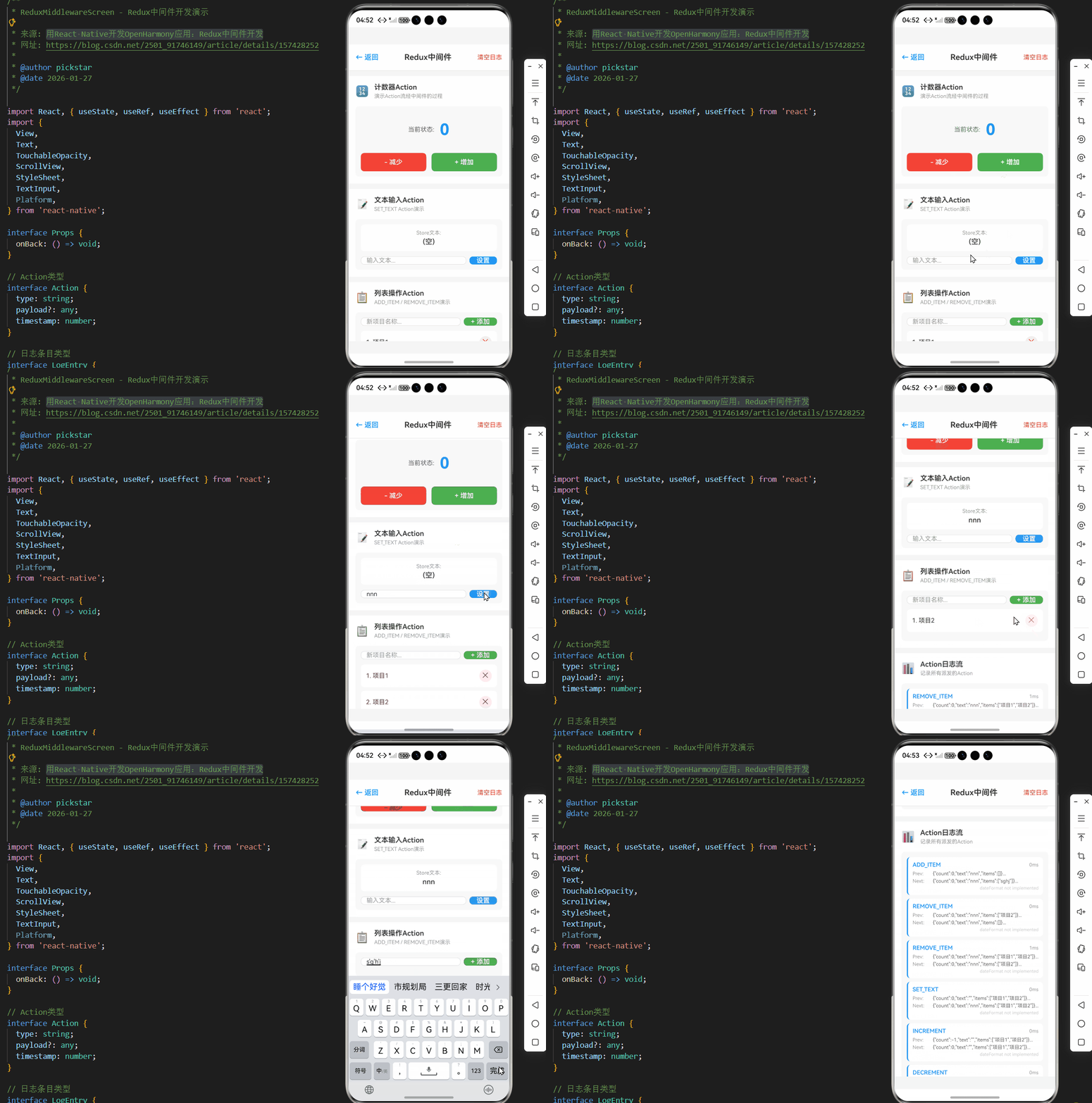
/**
 * ReduxMiddlewareScreen - Redux中间件开发演示
 *
 * 来源: 用React Native开发OpenHarmony应用:Redux中间件开发
 * 网址: https://blog.csdn.net/2501_91746149/article/details/157428252
 *
 * @author pickstar
 * @date 2026-01-27
 */

import React, { useState, useRef, useEffect } from 'react';
import {
  View,
  Text,
  TouchableOpacity,
  ScrollView,
  StyleSheet,
  TextInput,
  Platform,
} from 'react-native';

interface Props {
  onBack: () => void;
}

// Action类型
interface Action {
  type: string;
  payload?: any;
  timestamp: number;
}

// 日志条目类型
interface LogEntry {
  id: string;
  action: Action;
  prevState: any;
  nextState: any;
  duration: number;
}

// 模拟Redux Store
interface MockStore {
  state: any;
  listeners: Array<(state: any) => void>;
  middleware: Array<(action: Action, state: any) => void>;
}

// 模拟Redux中间件系统
function useMockStore(initialState: any) {
  const [state, setState] = useState(initialState);
  const logsRef = useRef<LogEntry[]>([]);
  const [logs, setLogs] = useState<LogEntry[]>([]);
  const middlewareRef = useRef<Array<(action: Action, state: any) => void>>([]);

  // 注册中间件
  const useMiddleware = (middleware: (action: Action, state: any) => void) => {
    middlewareRef.current.push(middleware);
  };

  // 派发Action
  const dispatch = (action: Omit<Action, 'timestamp'>) => {
    const timestamp = Date.now();
    const fullAction: Action = { ...action, timestamp };

    const prevState = { ...state };
    let nextState = { ...state };

    // 执行所有中间件
    middlewareRef.current.forEach(mw => {
      mw(fullAction, nextState);
    });

    // 更新状态
    switch (action.type) {
      case 'INCREMENT':
        nextState = { ...nextState, count: nextState.count + 1 };
        break;
      case 'DECREMENT':
        nextState = { ...nextState, count: nextState.count - 1 };
        break;
      case 'SET_TEXT':
        nextState = { ...nextState, text: action.payload };
        break;
      case 'ADD_ITEM':
        nextState = {
          ...nextState,
          items: [...nextState.items, action.payload]
        };
        break;
      case 'REMOVE_ITEM':
        nextState = {
          ...nextState,
          items: nextState.items.filter((_: any, i: number) => i !== action.payload)
        };
        break;
    }

    setState(nextState);

    // 添加日志
    const logEntry: LogEntry = {
      id: Date.now().toString(),
      action: fullAction,
      prevState,
      nextState,
      duration: Date.now() - timestamp,
    };
    logsRef.current.unshift(logEntry);
    setLogs([logEntry, ...logs]);
  };

  // 清除日志
  const clearLogs = () => {
    logsRef.current = [];
    setLogs([]);
  };

  return { state, dispatch, logs, useMiddleware, clearLogs };
}

// 网络请求日志中间件
const networkLoggerMiddleware = (action: Action, state: any) => {
  if (action.type === 'NETWORK_REQUEST') {
    console.log(`[Network Logger] ${action.type}`, action.payload);
  }
};

// 性能监控中间件
const performanceMonitorMiddleware = (action: Action, state: any) => {
  const startTime = Date.now();
  return () => {
    const duration = Date.now() - startTime;
    if (duration > 100) {
      console.warn(`[Performance] ${action.type} took ${duration}ms`);
    }
  };
};

// 状态持久化中间件
const persistenceMiddleware = (action: Action, state: any) => {
  // 模拟持久化
  console.log(`[Persistence] Saving state for ${action.type}`);
};

const ReduxMiddlewareScreen: React.FC<Props> = ({ onBack }) => {
  // Redux Store
  const store = useMockStore({
    count: 0,
    text: '',
    items: ['项目1', '项目2'],
  });

  // 注册中间件
  useEffect(() => {
    store.useMiddleware(networkLoggerMiddleware);
    store.useMiddleware(performanceMonitorMiddleware as any);
    store.useMiddleware(persistenceMiddleware);
  }, []);

  // 场景1: 计数器
  const handleIncrement = () => {
    store.dispatch({ type: 'INCREMENT' });
  };

  const handleDecrement = () => {
    store.dispatch({ type: 'DECREMENT' });
  };

  // 场景2: 文本输入
  const [inputText, setInputText] = useState('');
  const handleTextChange = (value: string) => {
    setInputText(value);
  };

  const handleSetText = () => {
    store.dispatch({ type: 'SET_TEXT', payload: inputText });
    setInputText('');
  };

  // 场景3: 列表操作
  const [newItem, setNewItem] = useState('');
  const handleAddItem = () => {
    if (newItem.trim()) {
      store.dispatch({ type: 'ADD_ITEM', payload: newItem });
      setNewItem('');
    }
  };

  const handleRemoveItem = (index: number) => {
    store.dispatch({ type: 'REMOVE_ITEM', payload: index });
  };

  return (
    <View style={styles.container}>
      {/* 顶部导航栏 */}
      <View style={styles.header}>
        <TouchableOpacity onPress={onBack} style={styles.backButton}>
          <Text style={styles.backButtonText}>← 返回</Text>
        </TouchableOpacity>
        <Text style={styles.headerTitle}>Redux中间件</Text>
        <TouchableOpacity onPress={store.clearLogs} style={styles.clearButton}>
          <Text style={styles.clearButtonText}>清空日志</Text>
        </TouchableOpacity>
      </View>

      <ScrollView style={styles.scrollView} showsVerticalScrollIndicator={false}>
        {/* 场景1: 计数器中间件演示 */}
        <View style={styles.section}>
          <View style={styles.sectionHeader}>
            <Text style={styles.sectionIcon}>🔢</Text>
            <View style={styles.sectionHeaderText}>
              <Text style={styles.sectionTitle}>计数器Action</Text>
              <Text style={styles.sectionDesc}>演示Action流经中间件的过程</Text>
            </View>
          </View>

          <View style={styles.card}>
            <View style={styles.counterDisplay}>
              <Text style={styles.counterLabel}>当前状态:</Text>
              <Text style={styles.counterValue}>{store.state.count}</Text>
            </View>

            <View style={styles.buttonRow}>
              <TouchableOpacity
                style={[styles.counterButton, styles.decrementButton]}
                onPress={handleDecrement}
                activeOpacity={0.7}
              >
                <Text style={styles.buttonText}>- 减少</Text>
              </TouchableOpacity>

              <TouchableOpacity
                style={[styles.counterButton, styles.incrementButton]}
                onPress={handleIncrement}
                activeOpacity={0.7}
              >
                <Text style={styles.buttonText}>+ 增加</Text>
              </TouchableOpacity>
            </View>
          </View>
        </View>

        {/* 场景2: 文本输入中间件 */}
        <View style={styles.section}>
          <View style={styles.sectionHeader}>
            <Text style={styles.sectionIcon}>📝</Text>
            <View style={styles.sectionHeaderText}>
              <Text style={styles.sectionTitle}>文本输入Action</Text>
              <Text style={styles.sectionDesc}>SET_TEXT Action演示</Text>
            </View>
          </View>

          <View style={styles.card}>
            <View style={styles.textStateDisplay}>
              <Text style={styles.textStateLabel}>Store文本:</Text>
              <Text style={styles.textStateValue}>
                {store.state.text || '(空)'}
              </Text>
            </View>

            <View style={styles.inputRow}>
              <TextInput
                style={styles.textInput}
                value={inputText}
                onChangeText={handleTextChange}
                placeholder="输入文本..."
                placeholderTextColor="#999"
              />
              <TouchableOpacity
                style={styles.setTextButton}
                onPress={handleSetText}
                activeOpacity={0.7}
              >
                <Text style={styles.buttonText}>设置</Text>
              </TouchableOpacity>
            </View>
          </View>
        </View>

        {/* 场景3: 列表操作 */}
        <View style={styles.section}>
          <View style={styles.sectionHeader}>
            <Text style={styles.sectionIcon}>📋</Text>
            <View style={styles.sectionHeaderText}>
              <Text style={styles.sectionTitle}>列表操作Action</Text>
              <Text style={styles.sectionDesc}>ADD_ITEM / REMOVE_ITEM演示</Text>
            </View>
          </View>

          <View style={styles.card}>
            <View style={styles.inputRow}>
              <TextInput
                style={styles.textInput}
                value={newItem}
                onChangeText={setNewItem}
                placeholder="新项目名称..."
                placeholderTextColor="#999"
              />
              <TouchableOpacity
                style={styles.addItemButton}
                onPress={handleAddItem}
                activeOpacity={0.7}
              >
                <Text style={styles.buttonText}>+ 添加</Text>
              </TouchableOpacity>
            </View>

            <View style={styles.itemsList}>
              {store.state.items.map((item: string, index: number) => (
                <View key={index} style={styles.itemRow}>
                  <Text style={styles.itemText}>{index + 1}. {item}</Text>
                  <TouchableOpacity
                    style={styles.removeButton}
                    onPress={() => handleRemoveItem(index)}
                    activeOpacity={0.7}
                  >
                    <Text style={styles.removeButtonText}>✕</Text>
                  </TouchableOpacity>
                </View>
              ))}
            </View>
          </View>
        </View>

        {/* Action日志流 */}
        <View style={styles.section}>
          <View style={styles.sectionHeader}>
            <Text style={styles.sectionIcon}>📊</Text>
            <View style={styles.sectionHeaderText}>
              <Text style={styles.sectionTitle}>Action日志流</Text>
              <Text style={styles.sectionDesc}>记录所有派发的Action</Text>
            </View>
          </View>

          <View style={styles.card}>
            {store.logs.length === 0 ? (
              <View style={styles.emptyLogs}>
                <Text style={styles.emptyText}>暂无日志</Text>
                <Text style={styles.emptyHint}>执行操作后将显示Action日志</Text>
              </View>
            ) : (
              store.logs.map((log) => (
                <View key={log.id} style={styles.logEntry}>
                  <View style={styles.logHeader}>
                    <Text style={styles.logActionType}>{log.action.type}</Text>
                    <Text style={styles.logDuration}>{log.duration}ms</Text>
                  </View>

                  <View style={styles.logDetails}>
                    <Text style={styles.logLabel}>Prev:</Text>
                    <Text style={styles.logValue}>
                      {JSON.stringify(log.prevState).substring(0, 50)}...
                    </Text>
                  </View>

                  <View style={styles.logDetails}>
                    <Text style={styles.logLabel}>Next:</Text>
                    <Text style={styles.logValue}>
                      {JSON.stringify(log.nextState).substring(0, 50)}...
                    </Text>
                  </View>

                  <Text style={styles.logTimestamp}>
                    {new Date(log.action.timestamp).toLocaleTimeString()}
                  </Text>
                </View>
              ))
            )}
          </View>
        </View>

        {/* 中间件架构说明 */}
        <View style={styles.section}>
          <View style={styles.sectionHeader}>
            <Text style={styles.sectionIcon}>🏗️</Text>
            <Text style={styles.sectionTitle}>中间件架构</Text>
          </View>

          <View style={styles.card}>
            <View style={styles.architecture}>
              <View style={styles.archLayer}>
                <Text style={styles.archText}>UI组件</Text>
                <Text style={styles.archArrow}>↓ dispatch(action)</Text>
              </View>

              <View style={styles.archLayer}>
                <Text style={styles.archText}>中间件层</Text>
                <View style={styles.middlewareList}>
                  <View style={styles.middlewareItem}>
                    <Text style={styles.middlewareName}>Network Logger</Text>
                  </View>
                  <View style={styles.middlewareItem}>
                    <Text style={styles.middlewareName}>Performance Monitor</Text>
                  </View>
                  <View style={styles.middlewareItem}>
                    <Text style={styles.middlewareName}>Persistence</Text>
                  </View>
                </View>
                <Text style={styles.archArrow}>↓ next(action)</Text>
              </View>

              <View style={styles.archLayer}>
                <Text style={styles.archText}>Reducer</Text>
                <Text style={styles.archArrow}>↓ newState</Text>
              </View>

              <View style={styles.archLayer}>
                <Text style={styles.archText}>Store更新</Text>
                <Text style={styles.archArrow}>↓ re-render</Text>
              </View>
            </View>
          </View>
        </View>

        {/* 技术说明 */}
        <View style={styles.section}>
          <View style={styles.sectionHeader}>
            <Text style={styles.sectionIcon}>💡</Text>
            <Text style={styles.sectionTitle}>OpenHarmony适配要点</Text>
          </View>

          <View style={styles.card}>
            <View style={styles.tipItem}>
              <Text style={styles.tipIcon}>✓</Text>
              <View style={styles.tipContent}>
                <Text style={styles.tipTitle}>异步任务调度</Text>
                <Text style={styles.tipDesc}>
                  使用queueMicrotask统一接口适配OpenHarmony事件循环
                </Text>
              </View>
            </View>

            <View style={styles.tipItem}>
              <Text style={styles.tipIcon}>✓</Text>
              <View style={styles.tipContent}>
                <Text style={styles.tipTitle}>内存管理</Text>
                <Text style={styles.tipDesc}>
                  中间件需绑定Ability生命周期,实现Destroy回调释放资源
                </Text>
              </View>
            </View>

            <View style={styles.tipItem}>
              <Text style={styles.tipIcon}>✓</Text>
              <View style={styles.tipContent}>
                <Text style={styles.tipTitle}>数据传递优化</Text>
                <Text style={styles.tipDesc}>
                  跨线程数据需实现Serializable接口,避免传递大型对象
                </Text>
              </View>
            </View>
          </View>
        </View>

        <View style={{ height: 32 }} />
      </ScrollView>
    </View>
  );
};

const styles = StyleSheet.create({
  container: {
    flex: 1,
    backgroundColor: '#F5F5F5',
  },
  header: {
    backgroundColor: '#fff',
    paddingHorizontal: 16,
    paddingVertical: 12,
    flexDirection: 'row',
    alignItems: 'center',
    justifyContent: 'space-between',
    borderBottomWidth: 1,
    borderBottomColor: '#E8E8E8',
  },
  backButton: {
    paddingVertical: 8,
    paddingRight: 16,
  },
  backButtonText: {
    fontSize: 16,
    color: '#2196F3',
    fontWeight: '600',
  },
  headerTitle: {
    fontSize: 18,
    fontWeight: '600',
    color: '#333',
  },
  clearButton: {
    paddingVertical: 8,
    paddingLeft: 16,
  },
  clearButtonText: {
    fontSize: 14,
    color: '#F44336',
  },
  scrollView: {
    flex: 1,
  },
  section: {
    backgroundColor: '#fff',
    marginTop: 12,
    paddingHorizontal: 16,
    paddingVertical: 16,
  },
  sectionHeader: {
    flexDirection: 'row',
    alignItems: 'center',
    marginBottom: 16,
  },
  sectionIcon: {
    fontSize: 24,
    marginRight: 12,
  },
  sectionHeaderText: {
    flex: 1,
  },
  sectionTitle: {
    fontSize: 16,
    fontWeight: '600',
    color: '#333',
    marginBottom: 4,
  },
  sectionDesc: {
    fontSize: 12,
    color: '#999',
  },
  card: {
    backgroundColor: '#F8F8F8',
    borderRadius: 8,
    padding: 12,
  },
  counterDisplay: {
    flexDirection: 'row',
    alignItems: 'center',
    justifyContent: 'center',
    paddingVertical: 20,
    marginBottom: 12,
  },
  counterLabel: {
    fontSize: 14,
    color: '#666',
    marginRight: 12,
  },
  counterValue: {
    fontSize: 36,
    fontWeight: '700',
    color: '#2196F3',
  },
  buttonRow: {
    flexDirection: 'row',
    gap: 12,
  },
  counterButton: {
    flex: 1,
    paddingVertical: 12,
    borderRadius: 8,
    alignItems: 'center',
  },
  decrementButton: {
    backgroundColor: '#F44336',
  },
  incrementButton: {
    backgroundColor: '#4CAF50',
  },
  buttonText: {
    color: '#fff',
    fontSize: 15,
    fontWeight: '600',
  },
  textStateDisplay: {
    backgroundColor: '#fff',
    padding: 12,
    borderRadius: 8,
    marginBottom: 12,
    alignItems: 'center',
  },
  textStateLabel: {
    fontSize: 12,
    color: '#999',
    marginBottom: 4,
  },
  textStateValue: {
    fontSize: 16,
    color: '#333',
    fontWeight: '500',
  },
  inputRow: {
    flexDirection: 'row',
    gap: 8,
  },
  textInput: {
    flex: 1,
    backgroundColor: '#fff',
    borderWidth: 1,
    borderColor: '#E0E0E0',
    borderRadius: 8,
    paddingHorizontal: 12,
    fontSize: 14,
    color: '#333',
  },
  setTextButton: {
    backgroundColor: '#2196F3',
    paddingHorizontal: 16,
    borderRadius: 8,
    justifyContent: 'center',
  },
  addItemButton: {
    backgroundColor: '#4CAF50',
    paddingHorizontal: 16,
    borderRadius: 8,
    justifyContent: 'center',
  },
  itemsList: {
    marginTop: 12,
  },
  itemRow: {
    flexDirection: 'row',
    alignItems: 'center',
    justifyContent: 'space-between',
    backgroundColor: '#fff',
    padding: 12,
    borderRadius: 8,
    marginBottom: 8,
  },
  itemText: {
    fontSize: 14,
    color: '#333',
  },
  removeButton: {
    width: 28,
    height: 28,
    borderRadius: 14,
    backgroundColor: '#FFEBEE',
    justifyContent: 'center',
    alignItems: 'center',
  },
  removeButtonText: {
    fontSize: 16,
    color: '#F44336',
  },
  emptyLogs: {
    paddingVertical: 32,
    alignItems: 'center',
  },
  emptyText: {
    fontSize: 14,
    color: '#999',
    marginBottom: 4,
  },
  emptyHint: {
    fontSize: 12,
    color: '#CCC',
  },
  logEntry: {
    backgroundColor: '#fff',
    padding: 10,
    borderRadius: 8,
    marginBottom: 8,
    borderLeftWidth: 3,
    borderLeftColor: '#2196F3',
  },
  logHeader: {
    flexDirection: 'row',
    justifyContent: 'space-between',
    alignItems: 'center',
    marginBottom: 6,
  },
  logActionType: {
    fontSize: 13,
    fontWeight: '600',
    color: '#2196F3',
  },
  logDuration: {
    fontSize: 11,
    color: '#999',
  },
  logDetails: {
    flexDirection: 'row',
    marginBottom: 4,
  },
  logLabel: {
    fontSize: 11,
    color: '#999',
    marginRight: 6,
    width: 40,
  },
  logValue: {
    flex: 1,
    fontSize: 11,
    color: '#666',
  },
  logTimestamp: {
    fontSize: 10,
    color: '#CCC',
    textAlign: 'right',
  },
  architecture: {
    gap: 8,
  },
  archLayer: {
    backgroundColor: '#fff',
    padding: 12,
    borderRadius: 8,
    alignItems: 'center',
  },
  archText: {
    fontSize: 13,
    fontWeight: '600',
    color: '#333',
    marginBottom: 4,
  },
  archArrow: {
    fontSize: 11,
    color: '#999',
    marginTop: 4,
  },
  middlewareList: {
    width: '100%',
    marginTop: 8,
  },
  middlewareItem: {
    backgroundColor: '#E3F2FD',
    paddingVertical: 6,
    paddingHorizontal: 10,
    borderRadius: 6,
    marginBottom: 6,
  },
  middlewareName: {
    fontSize: 12,
    color: '#1976D2',
  },
  tipItem: {
    flexDirection: 'row',
    marginBottom: 12,
  },
  tipIcon: {
    fontSize: 16,
    color: '#4CAF50',
    marginRight: 10,
    marginTop: 2,
  },
  tipContent: {
    flex: 1,
  },
  tipTitle: {
    fontSize: 14,
    fontWeight: '600',
    color: '#333',
    marginBottom: 4,
  },
  tipDesc: {
    fontSize: 12,
    color: '#666',
    lineHeight: 18,
  },
});

export default ReduxMiddlewareScreen;
5. OpenHarmony 6.0.0平台特定注意事项
5.1 内存管理约束
在OpenHarmony平台上开发Redux中间件必须遵守严格的内存管理规范:
| 资源类型 | 创建位置 | 释放时机 | 最佳实践 |
|---|---|---|---|
| 任务池 | middleware | onDestroy | 单例模式 |
| 数据库连接 | action | 事务结束 | 自动关闭 |
| 文件句柄 | thunk | 完成处理 | try-finally块 |
| 网络套接字 | saga | 响应回调 | 超时机制 |
5.2 性能优化策略
针对OpenHarmony 6.0.0的性能特性,Redux中间件开发应遵循以下优化原则:
-
任务调度优化:
- 使用串行任务池处理顺序敏感操作
- 高优先级任务使用
PriorityTaskPool - 批量合并dispatch减少渲染次数
-
数据传递优化:
- 复杂对象需实现Serializable接口
- 使用SharedArrayBuffer减少拷贝开销
- 避免跨线程传递大型数据
-
渲染性能优化:
- 中间件处理应控制在16ms以内
- 使用PureComponent减少无效渲染
- 集成OH HiTrace进行性能分析
总结
本文系统介绍了在OpenHarmony 6.0.0平台上开发React Native Redux中间件的完整知识体系。通过深入分析中间件原理、平台适配要点和实战案例,我们解决了在鸿蒙环境中状态管理扩展的关键问题。特别是针对OpenHarmony 6.0.0的异步任务调度、内存管理和性能优化等特性,提出了具体可行的解决方案。
随着OpenHarmony生态的不断发展,React Native跨平台开发将面临更多创新机遇:
- 探索基于ArkCompiler的中间件性能优化
- 集成鸿蒙分布式能力实现跨设备状态同步
- 利用Native API实现中间件硬件加速
项目源码
完整项目Demo地址:https://atomgit.com/2401_86326742/AtomGitNews
欢迎加入开源鸿蒙跨平台社区:https://openharmonycrossplatform.csdn.net

开源鸿蒙跨平台开发社区汇聚开发者与厂商,共建“一次开发,多端部署”的开源生态,致力于降低跨端开发门槛,推动万物智联创新。
更多推荐


 20
20 0
0- 0


 已为社区贡献132条内容

所有评论(0)