Flutter for OpenHarmony 个人理财管理App实战 - 统计分析
本文介绍了一个理财应用的统计分析页面实现方案。该页面包含月份切换、收支概览、饼图展示和分类明细等功能模块,采用GetX状态管理框架构建。控制器负责管理月份选择、收支标签切换和各项统计数据,通过响应式编程实现数据与UI的自动同步。页面布局遵循用户阅读习惯,将关键信息置于顶部,详细信息向下展开。技术实现上使用Flutter框架,依赖注入设计模式,并结合fl_chart库实现可视化图表展示。该方案通过分
统计分析是理财应用的核心功能,用户打开这个页面就是想知道自己的钱花到哪里去了。这篇文章来实现统计分析主页面,包含月份切换、收支概览、饼图展示、分类明细等功能。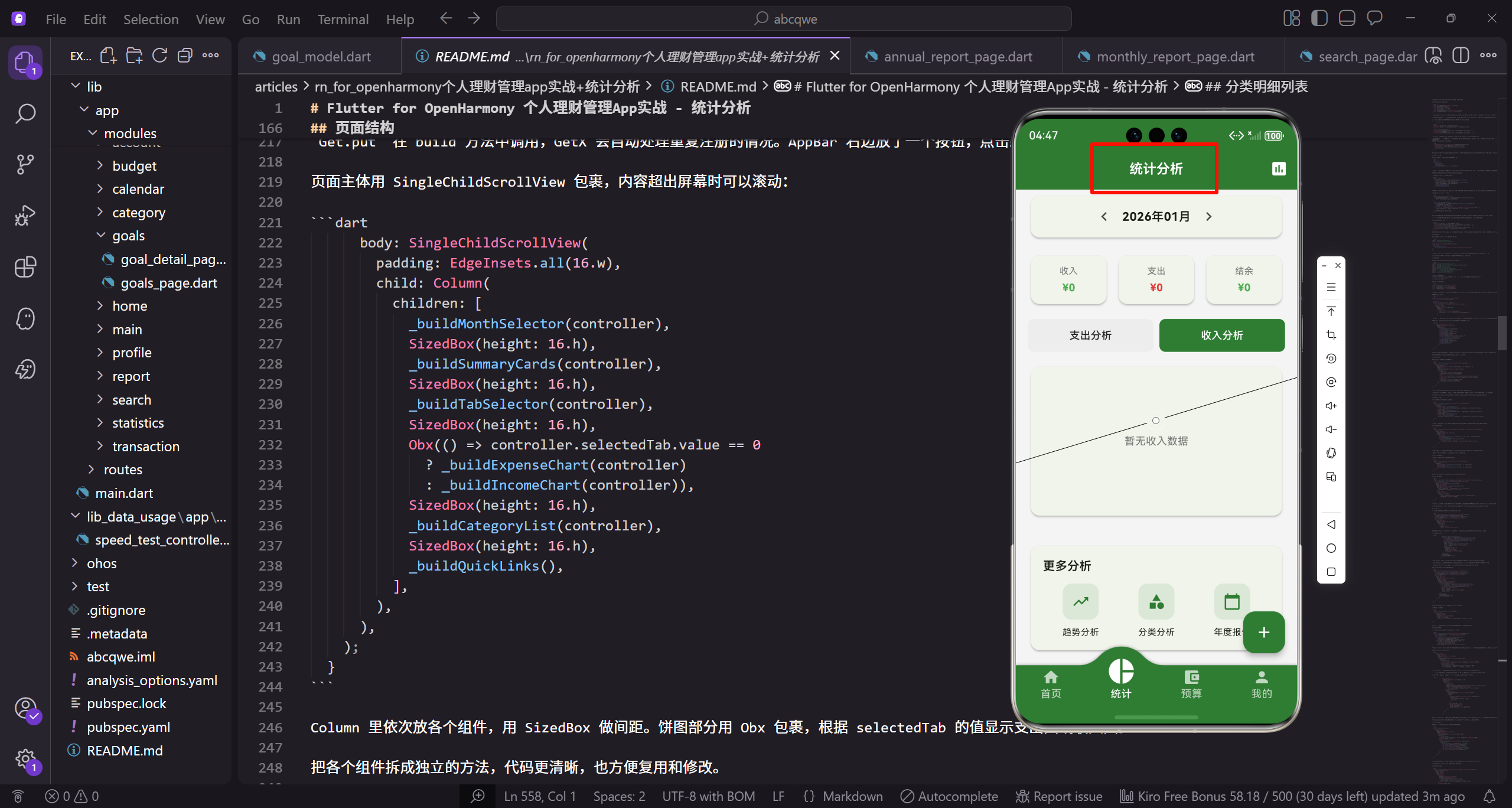
页面整体规划
做统计页面之前,先想清楚用户最关心什么。无非就是这几个问题:这个月花了多少钱?收入多少?结余多少?钱都花在哪些地方了?哪个分类占比最大?
基于这些需求,页面从上到下依次是:月份选择器、收支概览卡片、支出/收入切换标签、饼图、分类明细列表、更多分析入口。这个布局符合用户的阅读习惯,重要信息放在上面,详细信息往下展开。
控制器实现
先把数据逻辑写好,页面只负责展示。控制器需要管理的状态包括:当前选中的月份、收入支出切换、各项统计数据。
import 'package:get/get.dart';
import '../../core/services/transaction_service.dart';
import '../../core/services/category_service.dart';
import '../../core/services/storage_service.dart';
import '../../data/models/transaction_model.dart';

class StatisticsController extends GetxController {
  final _transactionService = Get.find<TransactionService>();
  final _categoryService = Get.find<CategoryService>();
  final _storage = Get.find<StorageService>();
这里通过 Get.find 获取三个服务的实例:
- TransactionService 负责交易数据的查询和统计
- CategoryService 管理分类信息,后面要用它获取分类名称和颜色
- StorageService 存储用户设置,比如货币符号
用依赖注入而不是直接 new,好处是方便测试和替换实现。
接下来定义响应式状态变量:
  final selectedMonth = DateTime.now().obs;
  final selectedTab = 0.obs;
  final totalIncome = 0.0.obs;
  final totalExpense = 0.0.obs;
  final expenseByCategory = <String, double>{}.obs;
  final incomeByCategory = <String, double>{}.obs;
selectedMonth 存当前选中的月份,默认是当前月。selectedTab 控制支出/收入标签的切换,0 是支出,1 是收入。
expenseByCategory 和 incomeByCategory 是两个 Map,key 是分类 ID,value 是该分类的总金额。这两个数据用来画饼图和分类列表。
用 .obs 后缀把普通变量变成响应式的,值变化时 UI 会自动更新。
再加几个计算属性:
  String get currency => _storage.currency;
  double get balance => totalIncome.value - totalExpense.value;

  DateTime get startOfMonth =>
    DateTime(selectedMonth.value.year, selectedMonth.value.month, 1);
  DateTime get endOfMonth =>
    DateTime(selectedMonth.value.year, selectedMonth.value.month + 1, 0);
currency 从存储服务获取货币符号,用于金额显示。balance 是结余,收入减支出。
startOfMonth 和 endOfMonth 计算当月的起止日期。DateTime(year, month + 1, 0) 这个写法是个小技巧,day 传 0 会得到上个月的最后一天,也就是当月月末。
还需要一个排序后的支出分类列表:
  List<MapEntry<String, double>> get sortedExpenseCategories {
    final entries = expenseByCategory.entries.toList();
    entries.sort((a, b) => b.value.compareTo(a.value));
    return entries;
  }
这个 getter 把支出分类按金额从大到小排序。饼图和列表都需要按金额排序展示,金额大的分类排在前面,用户一眼就能看出钱主要花在哪里。
数据加载逻辑
控制器初始化时加载数据,月份变化时重新加载:
void onInit() {
super.onInit();
_loadData();
ever(selectedMonth, (_) => _loadData());
}
onInit 是 GetX 控制器的生命周期方法,在控制器创建后自动调用。ever 监听 selectedMonth 的变化,每次切换月份都会触发 _loadData。
这种响应式的写法比手动调用要优雅,不容易漏掉更新。
_loadData 方法加载所有统计数据:
  void _loadData() {
    totalIncome.value = _transactionService.getTotalIncome(
      start: startOfMonth, end: endOfMonth);
    totalExpense.value = _transactionService.getTotalExpense(
      start: startOfMonth, end: endOfMonth);
    _loadExpenseByCategory();
    _loadIncomeByCategory();
  }
直接调用 TransactionService 的方法,传入日期范围。服务层已经封装好了筛选和累加的逻辑,控制器只需要调用就行。
分类统计的加载稍微复杂一点:
  void _loadExpenseByCategory() {
    expenseByCategory.value = _transactionService.getExpenseByCategory(
      start: startOfMonth, end: endOfMonth);
  }

  void _loadIncomeByCategory() {
    final transactions = _transactionService.getTransactionsByDateRange(
      startOfMonth, endOfMonth);
    final map = <String, double>{};
    for (var t in transactions.where((t) => t.type == TransactionType.income)) {
      map[t.categoryId] = (map[t.categoryId] ?? 0) + t.amount;
    }
    incomeByCategory.value = map;
  }
支出分类直接调用服务层方法。收入分类这里手动遍历计算,先筛选出收入类型的交易,然后按分类 ID 累加金额。
?? 是空合并运算符,如果左边是 null 就用右边的值。这里用来处理分类第一次出现的情况。
月份切换的方法很简单:
  void previousMonth() => selectedMonth.value =
    DateTime(selectedMonth.value.year, selectedMonth.value.month - 1);
  void nextMonth() => selectedMonth.value =
    DateTime(selectedMonth.value.year, selectedMonth.value.month + 1);
  void changeTab(int index) => selectedTab.value = index;
切换月份就是在当前月份基础上加减一个月。DateTime 构造函数会自动处理跨年的情况,比如 1 月减 1 会变成上一年的 12 月。
依赖绑定
控制器需要在路由中注册,用 Binding 来做:
import 'package:get/get.dart';
import 'statistics_controller.dart';
class StatisticsBinding extends Bindings {
void dependencies() {
Get.lazyPut<StatisticsController>(() => StatisticsController());
}
}
lazyPut 是懒加载注册,只有在第一次 Get.find 时才会创建实例。这样可以减少启动时的初始化开销。
在路由配置中关联这个 Binding,导航到统计页面时会自动注册控制器。
页面结构
页面用 StatelessWidget,状态都在控制器里管理:
import 'package:flutter/material.dart';
import 'package:flutter_screenutil/flutter_screenutil.dart';
import 'package:get/get.dart';
import 'package:intl/intl.dart';
import 'package:fl_chart/fl_chart.dart';
import '../../core/services/category_service.dart';
import '../../routes/app_pages.dart';
import 'statistics_controller.dart';
导入了几个关键的包:
- flutter_screenutil 做屏幕适配,
.w.h.sp这些后缀会根据屏幕尺寸自动缩放 - intl 用于日期格式化
- fl_chart 画饼图
先定义几个颜色常量:
const _primaryColor = Color(0xFF2E7D32);
const _incomeColor = Color(0xFF4CAF50);
const _expenseColor = Color(0xFFE53935);
const _textSecondary = Color(0xFF757575);
颜色定义放在文件顶部用 const,好处是避免重复创建 Color 对象,也方便统一管理。收入用绿色,支出用红色,这是用户普遍接受的约定。
页面的 build 方法:
class StatisticsPage extends StatelessWidget {
const StatisticsPage({super.key});
Widget build(BuildContext context) {
final controller = Get.put(StatisticsController());
return Scaffold(
appBar: AppBar(
title: const Text('统计分析'),
actions: [
IconButton(
icon: const Icon(Icons.assessment),
onPressed: () => Get.toNamed(Routes.monthlyReport)),
],
),
Get.put 在 build 方法中调用,GetX 会自动处理重复注册的情况。AppBar 右边放了一个按钮,点击跳转到月度报告页面。
页面主体用 SingleChildScrollView 包裹,内容超出屏幕时可以滚动:
      body: SingleChildScrollView(
        padding: EdgeInsets.all(16.w),
        child: Column(
          children: [
            _buildMonthSelector(controller),
            SizedBox(height: 16.h),
            _buildSummaryCards(controller),
            SizedBox(height: 16.h),
            _buildTabSelector(controller),
            SizedBox(height: 16.h),
            Obx(() => controller.selectedTab.value == 0
              ? _buildExpenseChart(controller)
              : _buildIncomeChart(controller)),
            SizedBox(height: 16.h),
            _buildCategoryList(controller),
            SizedBox(height: 16.h),
            _buildQuickLinks(),
          ],
        ),
      ),
    );
  }
Column 里依次放各个组件,用 SizedBox 做间距。饼图部分用 Obx 包裹,根据 selectedTab 的值显示支出图或收入图。
把各个组件拆成独立的方法,代码更清晰,也方便复用和修改。
月份选择器
月份选择器让用户可以查看历史数据:
  Widget _buildMonthSelector(StatisticsController controller) {
    return Obx(() => Card(
      child: Padding(
        padding: EdgeInsets.symmetric(horizontal: 8.w, vertical: 4.h),
        child: Row(
          mainAxisAlignment: MainAxisAlignment.center,
          children: [
            IconButton(
              icon: const Icon(Icons.chevron_left),
              onPressed: controller.previousMonth),
            Text(
              DateFormat('yyyy年MM月').format(controller.selectedMonth.value),
              style: TextStyle(fontSize: 16.sp, fontWeight: FontWeight.w600)),
            IconButton(
              icon: const Icon(Icons.chevron_right),
              onPressed: controller.nextMonth),
          ],
        ),
      ),
    ));
  }
用 Card 包裹,视觉上有层次感。中间显示当前月份,两边是左右箭头按钮。
DateFormat('yyyy年MM月') 把日期格式化成 “2024年01月” 这样的格式。intl 包提供了丰富的日期格式化选项。
整个组件用 Obx 包裹,当 selectedMonth 变化时自动更新显示。点击箭头调用控制器的方法切换月份。
收支概览卡片
三个卡片并排显示收入、支出、结余:
  Widget _buildSummaryCards(StatisticsController controller) {
    return Obx(() => Row(
      children: [
        Expanded(child: _buildSummaryCard(
          '收入', controller.totalIncome.value, _incomeColor, controller.currency)),
        SizedBox(width: 8.w),
        Expanded(child: _buildSummaryCard(
          '支出', controller.totalExpense.value, _expenseColor, controller.currency)),
        SizedBox(width: 8.w),
        Expanded(child: _buildSummaryCard(
          '结余', controller.balance,
          controller.balance >= 0 ? _incomeColor : _expenseColor, controller.currency)),
      ],
    ));
  }
用 Row 和 Expanded 让三个卡片等宽排列。结余的颜色根据正负值动态变化,正数用绿色,负数用红色。
单个卡片的实现:
  Widget _buildSummaryCard(String label, double value, Color color, String currency) {
    return Card(
      child: Padding(
        padding: EdgeInsets.all(12.w),
        child: Column(
          children: [
            Text(label, style: TextStyle(fontSize: 12.sp, color: _textSecondary)),
            SizedBox(height: 4.h),
            Text('$currency${value.toStringAsFixed(0)}',
              style: TextStyle(
                fontSize: 14.sp, fontWeight: FontWeight.bold, color: color)),
          ],
        ),
      ),
    );
  }
卡片里上面是标签,下面是金额。金额用 toStringAsFixed(0) 取整显示,概览不需要小数位。
颜色通过参数传入,这样同一个方法可以复用,只是颜色不同。
支出/收入切换标签
用两个按钮切换查看支出分析或收入分析:
  Widget _buildTabSelector(StatisticsController controller) {
    return Obx(() => Row(
      children: [
        Expanded(child: _buildTabButton('支出分析', 0, controller)),
        SizedBox(width: 8.w),
        Expanded(child: _buildTabButton('收入分析', 1, controller)),
      ],
    ));
  }
两个按钮等宽排列,选中状态由控制器的 selectedTab 决定。
单个按钮的实现:
  Widget _buildTabButton(String label, int index, StatisticsController controller) {
    final isSelected = controller.selectedTab.value == index;
    return GestureDetector(
      onTap: () => controller.changeTab(index),
      child: Container(
        padding: EdgeInsets.symmetric(vertical: 12.h),
        decoration: BoxDecoration(
          color: isSelected ? _primaryColor : Colors.grey[200],
          borderRadius: BorderRadius.circular(8.r),
        ),
        child: Center(
          child: Text(label,
            style: TextStyle(
              color: isSelected ? Colors.white : const Color(0xFF212121),
              fontWeight: FontWeight.w500))),
      ),
    );
  }
选中的按钮用主题色背景、白色文字,未选中的用灰色背景、深色文字。这种对比让用户一眼就能看出当前选中的是哪个。
用 GestureDetector 而不是 InkWell,因为这里不需要水波纹效果,Container 的圆角背景已经够好看了。
饼图展示
饼图是统计页面的视觉焦点,直观展示各分类的占比:
  Widget _buildExpenseChart(StatisticsController controller) {
    final data = controller.sortedExpenseCategories;
    if (data.isEmpty) return _buildEmptyChart('暂无支出数据');
    final categoryService = Get.find<CategoryService>();
    return Card(
      child: Padding(
        padding: EdgeInsets.all(16.w),
        child: Column(
          children: [
            SizedBox(
              height: 200.h,
              child: PieChart(PieChartData(
先判断数据是否为空,空的话显示占位提示。通过 CategoryService 获取分类信息,包括名称和颜色。
饼图扇区的配置:
                sections: data.take(6).map((e) {
                  final category = categoryService.getCategoryById(e.key);
                  final percentage = controller.totalExpense.value > 0
                    ? e.value / controller.totalExpense.value * 100 : 0;
                  return PieChartSectionData(
                    value: e.value,
                    title: '${percentage.toStringAsFixed(0)}%',
                    color: category?.color ?? Colors.grey,
                    radius: 60.r,
                    titleStyle: TextStyle(
                      fontSize: 10.sp,
                      color: Colors.white,
                      fontWeight: FontWeight.bold),
                  );
                }).toList(),
                sectionsSpace: 2,
                centerSpaceRadius: 40.r,
              )),
data.take(6) 只取前 6 个分类,太多了饼图会很乱。每个扇区显示百分比,颜色用分类的颜色。
sectionsSpace 是扇区之间的间隙,centerSpaceRadius 是中间空心的半径,设置这个值会变成环形图。
category?.color ?? Colors.grey 用空安全操作符,如果分类不存在就用灰色兜底。
收入饼图的实现类似,只是数据源不同:
  Widget _buildIncomeChart(StatisticsController controller) {
    final data = controller.incomeByCategory.entries.toList();
    if (data.isEmpty) return _buildEmptyChart('暂无收入数据');
    final categoryService = Get.find<CategoryService>();
    return Card(
      child: Padding(
        padding: EdgeInsets.all(16.w),
        child: SizedBox(
          height: 200.h,
          child: PieChart(PieChartData(
            sections: data.map((e) {
              final category = categoryService.getCategoryById(e.key);
              final percentage = controller.totalIncome.value > 0
                ? e.value / controller.totalIncome.value * 100 : 0;
              return PieChartSectionData(
                value: e.value,
                color: category?.color ?? Colors.grey,
                radius: 60.r,
              );
            }).toList(),
            sectionsSpace: 2,
            centerSpaceRadius: 40.r,
          )),
        ),
      ),
    );
  }
收入分类通常比支出少,所以不需要 take(6) 限制数量。
空数据的占位组件:
  Widget _buildEmptyChart(String message) {
    return Card(
      child: Container(
        height: 200.h,
        alignment: Alignment.center,
        child: Text(message,
          style: TextStyle(color: _textSecondary, fontSize: 14.sp)),
      ),
    );
  }
保持和饼图一样的高度,居中显示提示文字。这样切换标签时页面不会跳动。
分类明细列表
饼图下面是分类明细列表,显示具体金额和百分比:
  Widget _buildCategoryList(StatisticsController controller) {
    final categoryService = Get.find<CategoryService>();
    return Obx(() {
      final data = controller.selectedTab.value == 0
        ? controller.sortedExpenseCategories
        : controller.incomeByCategory.entries.toList();
      final total = controller.selectedTab.value == 0
        ? controller.totalExpense.value
        : controller.totalIncome.value;
      if (data.isEmpty) return const SizedBox.shrink();
根据当前选中的标签决定显示支出还是收入的数据。SizedBox.shrink() 是一个零尺寸的组件,数据为空时不显示任何东西。
列表的主体部分用 Card 包裹:
      return Card(
        child: Padding(
          padding: EdgeInsets.all(16.w),
          child: Column(
            crossAxisAlignment: CrossAxisAlignment.start,
            children: [
              Text('分类明细',
                style: TextStyle(fontSize: 16.sp, fontWeight: FontWeight.w600)),
              SizedBox(height: 12.h),
              ...data.take(8).map((e) {
                final category = categoryService.getCategoryById(e.key);
                final percentage = total > 0 ? e.value / total : 0.0;
标题 “分类明细” 放在最上面。data.take(8) 最多显示 8 个分类,太多了页面会很长。
... 是展开运算符,把 map 返回的 Iterable 展开成多个 Widget 放进 Column 的 children 里。
每个分类项用 Row 布局,左边是图标,中间是名称和进度条,右边是百分比:
                return Padding(
                  padding: EdgeInsets.only(bottom: 12.h),
                  child: Row(
                    children: [
                      CircleAvatar(
                        radius: 16.r,
                        backgroundColor: (category?.color ?? Colors.grey).withOpacity(0.2),
                        child: Icon(category?.icon ?? Icons.help,
                          size: 16.sp, color: category?.color ?? Colors.grey)),
                      SizedBox(width: 12.w),
                      Expanded(
                        child: Column(
                          crossAxisAlignment: CrossAxisAlignment.start,
                          children: [
                            Row(
                              mainAxisAlignment: MainAxisAlignment.spaceBetween,
                              children: [
                                Text(category?.name ?? '未知'),
                                Text(''),
                              ],
                            ),
                            SizedBox(height: 4.h),
                            LinearProgressIndicator(
                              value: percentage,
                              backgroundColor: Colors.grey[200]),
                          ],
                        ),
                      ),
                    ],
                  ),
                );
左边是一个圆形头像,背景色是分类颜色的浅色版本,里面放分类图标。withOpacity(0.2) 让背景色变淡,不会太抢眼。
分类名称和金额用 Row 左右排列。下面是一个进度条,直观显示该分类占总金额的比例。
更多分析入口
页面底部放几个快捷入口,跳转到更详细的分析页面:
  Widget _buildQuickLinks() {
    return Card(
      child: Padding(
        padding: EdgeInsets.all(16.w),
        child: Column(
          crossAxisAlignment: CrossAxisAlignment.start,
          children: [
            Text('更多分析',
              style: TextStyle(fontSize: 16.sp, fontWeight: FontWeight.w600)),
            SizedBox(height: 12.h),
            Row(
              mainAxisAlignment: MainAxisAlignment.spaceAround,
              children: [
                _buildLinkItem(Icons.trending_up, '趋势分析',
                  () => Get.toNamed(Routes.trendAnalysis)),
                _buildLinkItem(Icons.category, '分类分析',
                  () => Get.toNamed(Routes.categoryAnalysis)),
                _buildLinkItem(Icons.calendar_today, '年度报告',
                  () => Get.toNamed(Routes.annualReport)),
              ],
            ),
          ],
        ),
      ),
    );
  }
三个入口横向排列:趋势分析看历史走势,分类分析深入某个分类,年度报告看全年总结。
spaceAround 让三个按钮均匀分布,两边也有间距。
单个入口的实现:
  Widget _buildLinkItem(IconData icon, String label, VoidCallback onTap) {
    return GestureDetector(
      onTap: onTap,
      child: Column(
        children: [
          Container(
            padding: EdgeInsets.all(12.w),
            decoration: BoxDecoration(
              color: _primaryColor.withOpacity(0.1),
              borderRadius: BorderRadius.circular(12.r)),
            child: Icon(icon, color: _primaryColor, size: 24.sp),
          ),
          SizedBox(height: 8.h),
          Text(label, style: TextStyle(fontSize: 12.sp)),
        ],
      ),
    );
  }
图标放在一个圆角方形容器里,背景是主题色的浅色版本。下面是文字标签。
点击时调用传入的 onTap 回调,跳转到对应页面。用 VoidCallback 类型,这是 Flutter 中无参数无返回值函数的标准类型。
一些细节优化
实际开发中还有一些细节需要注意。
数据刷新时机:除了切换月份,添加或删除交易后也需要刷新统计数据。可以在 TransactionService 里加一个事件通知,统计页面监听这个事件来刷新。
性能考虑:如果交易数据很多,每次切换月份都重新计算可能会有点慢。可以考虑缓存计算结果,或者在后台线程计算。
空状态处理:新用户没有任何交易数据时,页面不能是一片空白。可以显示引导文案,告诉用户去添加第一笔交易。
动画效果:饼图切换时可以加个动画,fl_chart 支持动画配置。但要注意动画不能太慢,影响操作流畅度。
小结
统计分析页面的核心是数据的组织和展示。控制器负责从服务层获取数据、计算统计值,页面负责把数据可视化展示出来。
饼图用 fl_chart 实现,配置项比较多但很灵活。分类列表用进度条直观显示占比。月份选择器让用户可以查看历史数据。
这个页面的代码量不算少,但逻辑是清晰的。把各个组件拆成独立的方法,每个方法只做一件事,代码就不会乱。
下一篇会实现趋势分析页面,用折线图展示收支的历史走势。
欢迎加入开源鸿蒙跨平台社区:https://openharmonycrossplatform.csdn.net

开源鸿蒙跨平台开发社区汇聚开发者与厂商,共建“一次开发,多端部署”的开源生态,致力于降低跨端开发门槛,推动万物智联创新。
更多推荐

 0
0 0
0- 0


 已为社区贡献26条内容

所有评论(0)