Flutter for OpenHarmony 猫咪管家App实战 - 喂食计算器实现
本文介绍了一个猫咪喂食计算器的实现方案,可根据猫咪体重、年龄、活动量和绝育状态计算每日建议食量。计算器采用Flutter开发,通过滑块选择体重(1-15kg),单选按钮选择年龄阶段(幼猫/成年/老年)和活动量(低/正常/高),开关控制绝育状态。核心算法根据这些参数计算每日所需热量(千卡),并转换为干粮(约3.5kcal/g)和湿粮(约1kcal/g)的建议克数。该工具可帮助铲屎官科学喂养猫咪,避免
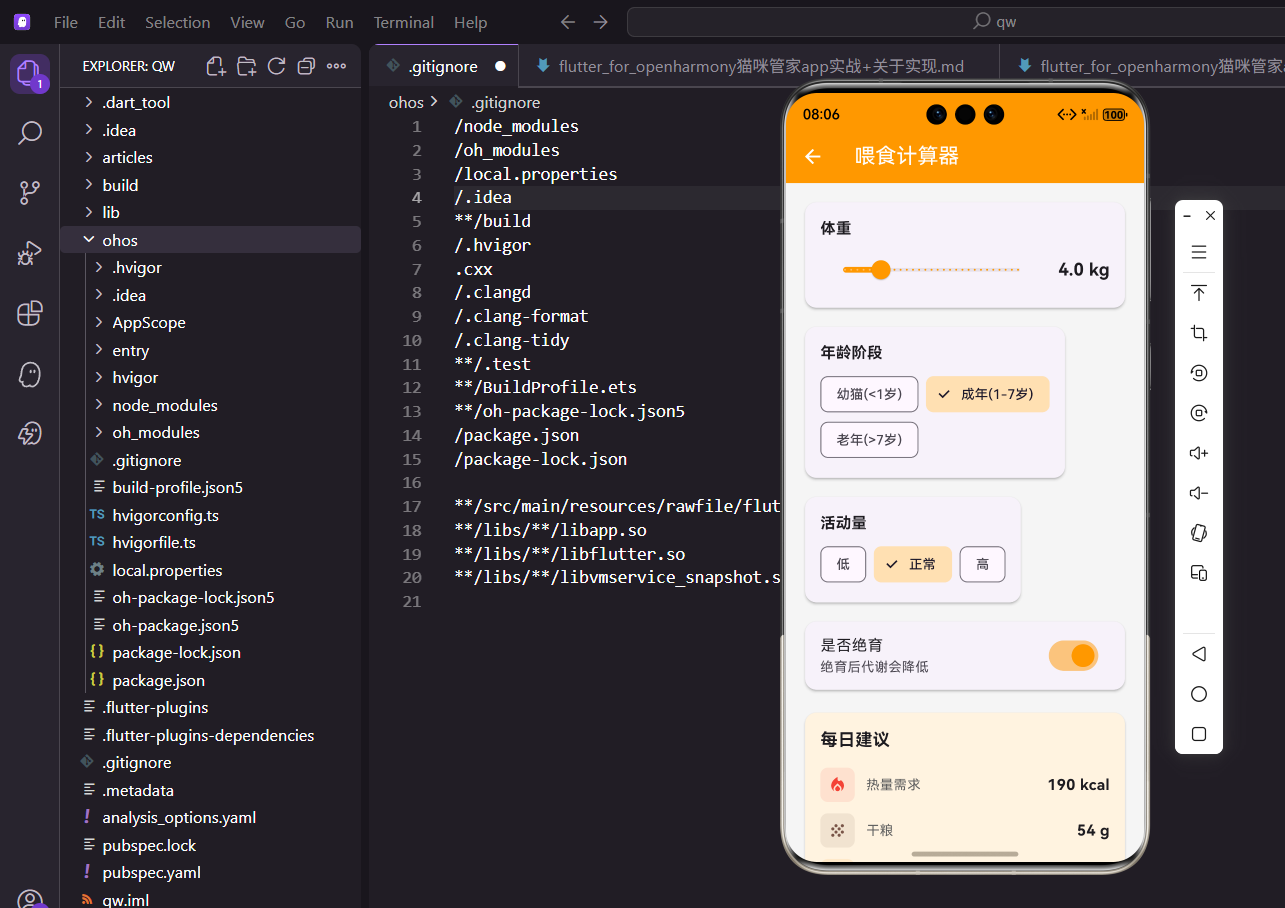
猫咪每天应该吃多少?这是很多铲屎官的困惑。今天我们来实现一个喂食计算器,根据猫咪的体重、年龄、活动量等因素,计算出每日建议的食量。
功能规划
喂食计算器需要支持:
- 输入猫咪体重
- 选择年龄阶段
- 选择活动量
- 是否绝育
- 计算每日热量、干粮、湿粮、饮水量
这些参数组合起来,就能给出比较准确的喂食建议。
依赖导入
引入需要的包:
import 'package:flutter/material.dart';
import 'package:flutter_screenutil/flutter_screenutil.dart';
import 'dart:math';
dart:math用于数学计算,这里需要用到pow函数。
不需要Provider,因为不涉及数据持久化。
有状态组件
需要维护多个输入状态:
class FoodCalculatorScreen extends StatefulWidget {
const FoodCalculatorScreen({super.key});
State<FoodCalculatorScreen> createState() => _FoodCalculatorScreenState();
}
体重、年龄、活动量等都是状态。
状态变化时需要重新计算结果。
状态变量
State类中定义变量:
class _FoodCalculatorScreenState extends State<FoodCalculatorScreen> {
  double _weight = 4.0;
  String _activityLevel = 'normal';
  String _ageGroup = 'adult';
  bool _isNeutered = true;
默认体重4公斤,是成年猫的平均体重。
默认已绝育,因为大多数家猫都做了绝育。
页面结构
build方法构建UI:
Widget build(BuildContext context) {
final calories = _calculateCalories();
final dryFood = (calories / 3.5).round();
final wetFood = (calories / 1.0).round();
return Scaffold(
appBar: AppBar(title: const Text('喂食计算器')),
body: SingleChildScrollView(
padding: EdgeInsets.all(16.w),
child: Column(
crossAxisAlignment: CrossAxisAlignment.start,
children: [
在build开头就计算结果,后面直接使用。
干粮约3.5kcal/g,湿粮约1kcal/g。
体重输入卡片
滑块选择体重:
            Card(
              child: Padding(
                padding: EdgeInsets.all(16.w),
                child: Column(
                  crossAxisAlignment: CrossAxisAlignment.start,
                  children: [
                    Text('体重', style: TextStyle(fontSize: 16.sp, fontWeight: FontWeight.bold)),
                    SizedBox(height: 8.h),
                    Row(
                      children: [
                        Expanded(
                          child: Slider(
                            value: _weight,
                            min: 1,
                            max: 15,
                            divisions: 28,
                            activeColor: Colors.orange,
                            onChanged: (value) => setState(() => _weight = value),
                          ),
                        ),
体重范围1-15公斤,覆盖大多数猫咪。
divisions: 28让每0.5公斤一档。
体重数值显示:
                        SizedBox(width: 16.w),
                        Text(
                          '${_weight.toStringAsFixed(1)} kg',
                          style: TextStyle(fontSize: 18.sp, fontWeight: FontWeight.bold),
                        ),
                      ],
                    ),
                  ],
                ),
              ),
            ),
            SizedBox(height: 12.h),
体重显示在滑块右侧。
保留一位小数更精确。
年龄阶段选择
用ChoiceChip选择年龄段:
            Card(
              child: Padding(
                padding: EdgeInsets.all(16.w),
                child: Column(
                  crossAxisAlignment: CrossAxisAlignment.start,
                  children: [
                    Text('年龄阶段', style: TextStyle(fontSize: 16.sp, fontWeight: FontWeight.bold)),
                    SizedBox(height: 8.h),
                    Wrap(
                      spacing: 8.w,
                      children: [
                        _buildChoiceChip('kitten', '幼猫(<1岁)'),
                        _buildChoiceChip('adult', '成年(1-7岁)'),
                        _buildChoiceChip('senior', '老年(>7岁)'),
                      ],
                    ),
                  ],
                ),
              ),
            ),
            SizedBox(height: 12.h),
三个年龄段对应不同的热量需求。
幼猫需要更多热量支持生长。
活动量选择
选择猫咪的活动水平:
            Card(
              child: Padding(
                padding: EdgeInsets.all(16.w),
                child: Column(
                  crossAxisAlignment: CrossAxisAlignment.start,
                  children: [
                    Text('活动量', style: TextStyle(fontSize: 16.sp, fontWeight: FontWeight.bold)),
                    SizedBox(height: 8.h),
                    Wrap(
                      spacing: 8.w,
                      children: [
                        _buildActivityChip('low', '低'),
                        _buildActivityChip('normal', '正常'),
                        _buildActivityChip('high', '高'),
                      ],
                    ),
                  ],
                ),
              ),
            ),
            SizedBox(height: 12.h),
活动量影响热量消耗。
室内猫通常活动量较低。
绝育开关
SwitchListTile控制绝育状态:
            Card(
              child: SwitchListTile(
                title: const Text('是否绝育'),
                subtitle: const Text('绝育后代谢会降低'),
                value: _isNeutered,
                onChanged: (value) => setState(() => _isNeutered = value),
                activeColor: Colors.orange,
              ),
            ),
            SizedBox(height: 16.h),
绝育后代谢降低,需要减少食量。
subtitle说明这个选项的影响。
计算结果展示
显示计算出的各项数值:
            Card(
              color: Colors.orange[50],
              child: Padding(
                padding: EdgeInsets.all(16.w),
                child: Column(
                  crossAxisAlignment: CrossAxisAlignment.start,
                  children: [
                    Text('每日建议', style: TextStyle(fontSize: 18.sp, fontWeight: FontWeight.bold)),
                    SizedBox(height: 16.h),
                    _buildResultRow(Icons.local_fire_department, '热量需求', '$calories kcal', Colors.red),
                    SizedBox(height: 12.h),
                    _buildResultRow(Icons.grain, '干粮', '$dryFood g', Colors.brown),
                    SizedBox(height: 12.h),
                    _buildResultRow(Icons.soup_kitchen, '湿粮', '$wetFood g', Colors.orange),
                    SizedBox(height: 12.h),
                    _buildResultRow(Icons.water_drop, '饮水', '${(_weight * 50).round()} ml', Colors.blue),
                  ],
                ),
              ),
            ),
            SizedBox(height: 16.h),
浅橙色背景突出结果区域。
饮水量按每公斤50ml计算。
喂食建议卡片
提供一些实用建议:
            Card(
              child: Padding(
                padding: EdgeInsets.all(16.w),
                child: Column(
                  crossAxisAlignment: CrossAxisAlignment.start,
                  children: [
                    Row(
                      children: [
                        Icon(Icons.tips_and_updates, color: Colors.orange, size: 20.sp),
                        SizedBox(width: 8.w),
                        Text('喂食建议', style: TextStyle(fontSize: 16.sp, fontWeight: FontWeight.bold)),
                      ],
                    ),
                    SizedBox(height: 12.h),
                    _buildTip('• 建议分2-3次喂食'),
                    _buildTip('• 干粮和湿粮可以混合喂食'),
                    _buildTip('• 保持新鲜饮水供应'),
                    _buildTip('• 根据体重变化调整食量'),
                    _buildTip('• 避免突然更换食物'),
                  ],
                ),
              ),
            ),
          ],
        ),
      ),
    );
  }
这些建议都是养猫的基础知识。
用项目符号列出,方便阅读。
ChoiceChip构建方法
年龄选择的Chip:
  Widget _buildChoiceChip(String value, String label) {
    return ChoiceChip(
      label: Text(label),
      selected: _ageGroup == value,
      onSelected: (selected) {
        if (selected) setState(() => _ageGroup = value);
      },
      selectedColor: Colors.orange[100],
    );
  }
抽取方法减少重复代码。
selected状态与_ageGroup比较。
活动量选择的Chip:
  Widget _buildActivityChip(String value, String label) {
    return ChoiceChip(
      label: Text(label),
      selected: _activityLevel == value,
      onSelected: (selected) {
        if (selected) setState(() => _activityLevel = value);
      },
      selectedColor: Colors.orange[100],
    );
  }
与年龄Chip类似,但比较的是_activityLevel。
两个方法可以合并,但分开更清晰。
结果行构建
显示一行结果的方法:
  Widget _buildResultRow(IconData icon, String label, String value, Color color) {
    return Row(
      children: [
        Container(
          padding: EdgeInsets.all(8.w),
          decoration: BoxDecoration(
            color: color.withOpacity(0.1),
            borderRadius: BorderRadius.circular(8.r),
          ),
          child: Icon(icon, color: color, size: 20.sp),
        ),
        SizedBox(width: 12.w),
        Text(label, style: TextStyle(fontSize: 14.sp, color: Colors.grey[700])),
        const Spacer(),
        Text(value, style: TextStyle(fontSize: 16.sp, fontWeight: FontWeight.bold)),
      ],
    );
  }
图标、标签、数值水平排列。
Spacer让数值靠右对齐。
建议文字构建
显示一条建议:
  Widget _buildTip(String text) {
    return Padding(
      padding: EdgeInsets.only(bottom: 4.h),
      child: Text(text, style: TextStyle(fontSize: 13.sp, color: Colors.grey[700])),
    );
  }
简单的文字显示,带底部间距。
灰色文字不会太抢眼。
热量计算算法
核心的计算逻辑:
  int _calculateCalories() {
    // RER (Resting Energy Requirement) = 70 * (weight^0.75)
    double rer = 70 * pow(_weight, 0.75).toDouble();

    // Activity factor
    double factor = 1.0;
    switch (_activityLevel) {
      case 'low': factor = 0.8; break;
      case 'normal': factor = 1.0; break;
      case 'high': factor = 1.4; break;
    }
RER是静息能量需求,是计算的基础。
活动量系数调整基础热量。
年龄和绝育因素:
    // Age factor
    switch (_ageGroup) {
      case 'kitten': factor *= 2.5; break;
      case 'adult': factor *= 1.2; break;
      case 'senior': factor *= 1.0; break;
    }

    // Neutered factor
    if (_isNeutered) factor *= 0.8;

    return (rer * factor).round();
  }
}
幼猫需要2.5倍的热量支持生长。
绝育后代谢降低,乘以0.8。
算法解释
RER公式的来源:
RER = 70 × 体重^0.75
这是兽医营养学的标准公式。
0.75次方考虑了体表面积与体重的关系。
各因素的系数:
活动量:低0.8,正常1.0,高1.4
年龄:幼猫2.5,成年1.2,老年1.0
绝育:是0.8,否1.0
这些系数来自兽医营养学的研究。
实际喂食还需要根据猫咪的体重变化调整。
pow函数使用
计算幂次方:
import 'dart:math';

pow(_weight, 0.75).toDouble()
pow返回num类型,需要转为double。
0.75次方就是开4次方后再立方。
SwitchListTile
开关列表项:
SwitchListTile(
  title: const Text('是否绝育'),
  subtitle: const Text('绝育后代谢会降低'),
  value: _isNeutered,
  onChanged: (value) => setState(() => _isNeutered = value),
  activeColor: Colors.orange,
)
比单独的Switch更方便,自带标题和副标题。
activeColor设置开关打开时的颜色。
Spacer使用
让元素靠右对齐:
Row(
  children: [
    Icon(...),
    Text(label),
    const Spacer(),  // 占据剩余空间
    Text(value),     // 靠右显示
  ],
)
Spacer会占据Row中的剩余空间。
后面的元素自然就靠右了。
数值格式化
体重保留一位小数:
_weight.toStringAsFixed(1)
输出类似"4.0"、"4.5"的格式。
比直接toString更规范。
饮水量计算:
(_weight * 50).round()
每公斤体重50ml饮水。
round四舍五入取整。
小结
喂食计算器涉及的知识点:
- Slider滑块输入
- ChoiceChip选择
- SwitchListTile开关
- 数学计算和格式化
这个工具虽然简单,但计算逻辑是有科学依据的,能给铲屎官们提供参考。
欢迎加入OpenHarmony跨平台开发社区,一起交流Flutter开发经验:
https://openharmonycrossplatform.csdn.net

开源鸿蒙跨平台开发社区汇聚开发者与厂商,共建“一次开发,多端部署”的开源生态,致力于降低跨端开发门槛,推动万物智联创新。
更多推荐


 26
26 0
0- 0


 已为社区贡献31条内容

所有评论(0)