flutter_for_openharmony手语学习app实战+手语测验实现
本文介绍了一个手语测验页面的实现方案,采用Flutter框架开发。主要内容包括: 使用StatefulWidget管理测验状态,包括当前题号、得分、选中答案和结果展示状态 定义结构化题目数据,包含问题、选项、正确答案和解释说明 实现页面切换逻辑,根据状态显示题目页或结果页 添加进度提示功能,通过AppBar数字和线性进度条展示测验进度 设计题目卡片和选项卡片,动态生成测验内容 该方案实现了完整的测
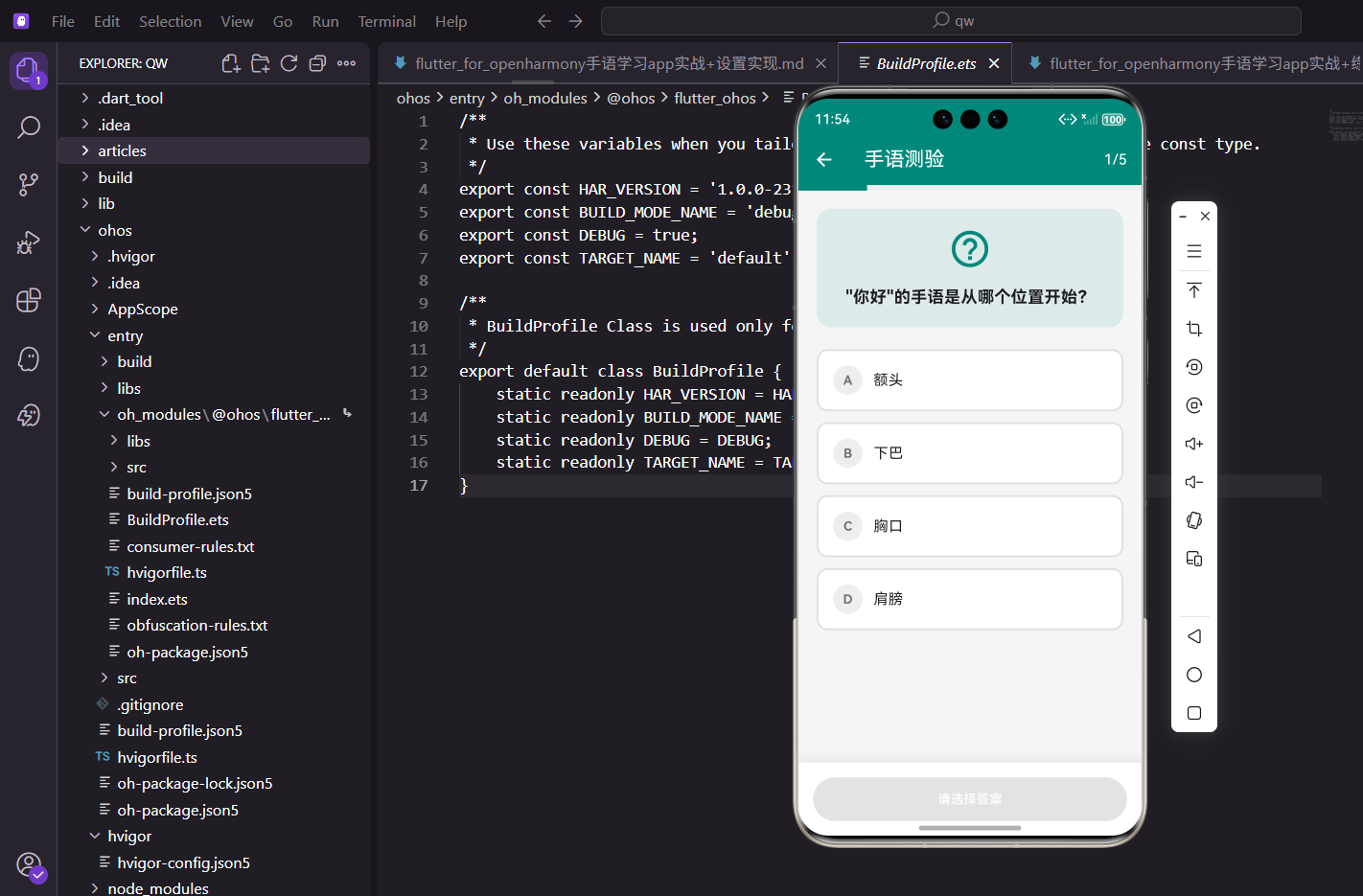
手语测验是检验学习效果的重要方式,通过选择题形式测试用户对手语知识的掌握程度。本文介绍如何实现一个手语测验页面,包括题目展示、答案选择、结果统计和重新测验功能。
StatefulWidget与状态管理
测验需要管理多个状态:
class QuizScreen extends StatefulWidget {
const QuizScreen({super.key});
State<QuizScreen> createState() => _QuizScreenState();
}
class _QuizScreenState extends State<QuizScreen> {
int _currentQuestion = 0;
int _score = 0;
int? _selectedAnswer;
bool _showResult = false;
使用StatefulWidget管理测验状态。_currentQuestion记录当前题号,_score记录得分,_selectedAnswer记录选中的答案索引,_showResult标识是否显示结果页。这些状态变量共同构成了测验的核心逻辑。
题目数据
定义测验题目:
  final List<Map<String, dynamic>> _questions = [
    {
      'question': '"你好"的手语是从哪个位置开始?',
      'options': ['额头', '下巴', '胸口', '肩膀'],
      'correct': 0,
      'explanation': '"你好"的手语从额头位置开始,向前挥动。',
    },
    {
      'question': '数字"5"的手语是什么样的?',
      'options': ['握拳', '五指张开', '只伸食指', '拇指和小指伸出'],
      'correct': 1,
      'explanation': '数字5用五指张开表示,手掌面向对方。',
    },
每道题包含问题、选项、正确答案索引和解释。选项是字符串列表,正确答案用索引表示(0-3)。解释文字在用户选择后显示,帮助理解正确答案。这种结构化数据便于扩展和维护。
更多题目
继续定义其他题目:
    {
      'question': '"谢谢"的手语动作方向是?',
      'options': ['向上', '向下', '向前', '向后'],
      'correct': 2,
      'explanation': '"谢谢"的手语是手掌从下巴处向前推出。',
    },
    {
      'question': '表示"我爱你"的手语需要伸出哪些手指?',
      'options': ['食指和中指', '拇指、食指和小指', '全部手指', '只有拇指'],
      'correct': 1,
      'explanation': '"我爱你"需要同时伸出拇指、食指和小指。',
    },
    {
      'question': '"对不起"的手语动作是?',
      'options': ['点头', '摇头', '在胸前画圈', '挥手'],
      'correct': 2,
      'explanation': '"对不起"是右手握拳放在胸前顺时针画圈。',
    },
  ];
5道题涵盖不同的手语知识点,从基础问候到数字表达。题目难度适中,适合初学者测验。实际项目中应该从题库中随机抽取,增加测验的多样性。
页面切换
根据状态显示不同页面:
Widget build(BuildContext context) {
if (_showResult) {
return _buildResultScreen();
}
final question = _questions[_currentQuestion];
如果_showResult为true显示结果页,否则显示题目页。从题目列表中取出当前题目。这种状态驱动的页面切换简洁明了。
AppBar与进度
显示题号和进度:
    return Scaffold(
      appBar: AppBar(
        title: const Text('手语测验'),
        actions: [
          Center(
            child: Padding(
              padding: EdgeInsets.only(right: 16.w),
              child: Text(
                '${_currentQuestion + 1}/${_questions.length}',
                style: TextStyle(fontSize: 16.sp),
              ),
            ),
          ),
        ],
      ),
AppBar右侧显示当前题号和总题数,让用户了解测验进度。_currentQuestion + 1因为索引从0开始,显示时加1。这种进度提示让用户知道还剩多少题。
进度条
顶部显示线性进度条:
      body: Column(
        children: [
          LinearPercentIndicator(
            lineHeight: 6.h,
            percent: (_currentQuestion + 1) / _questions.length,
            backgroundColor: Colors.grey[200],
            progressColor: const Color(0xFF00897B),
            padding: EdgeInsets.zero,
          ),
LinearPercentIndicator显示线性进度条,高度6.h,进度根据当前题号计算。进度条用主题色,背景用浅灰色。padding设为零让进度条紧贴顶部。这种可视化进度比纯数字更直观。
题目卡片
显示题目内容:
          Expanded(
            child: SingleChildScrollView(
              padding: EdgeInsets.all(20.w),
              child: Column(
                crossAxisAlignment: CrossAxisAlignment.start,
                children: [
                  Container(
                    width: double.infinity,
                    padding: EdgeInsets.all(20.w),
                    decoration: BoxDecoration(
                      color: const Color(0xFF00897B).withOpacity(0.1),
                      borderRadius: BorderRadius.circular(16.r),
                    ),
                    child: Column(
                      children: [
                        Icon(
                          Icons.help_outline,
                          size: 48.sp,
                          color: const Color(0xFF00897B),
                        ),
                        SizedBox(height: 16.h),
                        Text(
                          question['question'],
                          style: TextStyle(
                            fontSize: 18.sp,
                            fontWeight: FontWeight.bold,
                          ),
                          textAlign: TextAlign.center,
                        ),
                      ],
                    ),
                  ),
                  SizedBox(height: 24.h),
题目卡片用主题色半透明背景和圆角装饰,顶部放置问号图标,下方显示题目文字。文字用粗体居中显示,让题目成为视觉焦点。
选项列表
动态生成选项卡片:
                  ...List.generate(
                    (question['options'] as List).length,
                    (index) => _buildOptionCard(
                      index,
                      question['options'][index],
                      question['correct'],
                    ),
                  ),
                ],
              ),
            ),
          ),
          _buildBottomButton(question['correct'], question['explanation']),
        ],
      ),
    );
  }
用List.generate生成选项卡片,传入索引、选项文字和正确答案索引。...展开运算符将生成的列表插入。底部放置提交按钮。这种动态生成的方式适应不同数量的选项。
选项卡片
构建单个选项:
  Widget _buildOptionCard(int index, String option, int correctIndex) {
    final isSelected = _selectedAnswer == index;
    final isCorrect = index == correctIndex;
    final showCorrectness = _selectedAnswer != null;

    Color backgroundColor = Colors.white;
    Color borderColor = Colors.grey[300]!;

    if (showCorrectness) {
      if (isCorrect) {
        backgroundColor = Colors.green[50]!;
        borderColor = Colors.green;
      } else if (isSelected && !isCorrect) {
        backgroundColor = Colors.red[50]!;
        borderColor = Colors.red;
      }
    } else if (isSelected) {
      backgroundColor = const Color(0xFF00897B).withOpacity(0.1);
      borderColor = const Color(0xFF00897B);
    }
根据选中状态和正确性动态设置颜色。未选择时白色背景灰色边框,选中时主题色背景和边框,提交后正确答案绿色,错误答案红色。这种状态驱动的UI让用户清楚选择结果。
选项容器
构建选项的容器和内容:
    return GestureDetector(
      onTap: _selectedAnswer == null
          ? () => setState(() => _selectedAnswer = index)
          : null,
      child: Container(
        width: double.infinity,
        margin: EdgeInsets.only(bottom: 12.h),
        padding: EdgeInsets.all(16.w),
        decoration: BoxDecoration(
          color: backgroundColor,
          borderRadius: BorderRadius.circular(12.r),
          border: Border.all(color: borderColor, width: 2),
        ),
用GestureDetector处理点击,只有未选择时才能点击。容器用动态的背景色和边框色,圆角和边框宽度2。这种交互限制防止用户重复选择。
选项标识
显示选项字母或图标:
        child: Row(
          children: [
            Container(
              width: 32.w,
              height: 32.w,
              decoration: BoxDecoration(
                color: isSelected ? borderColor : Colors.grey[200],
                shape: BoxShape.circle,
              ),
              child: Center(
                child: showCorrectness && (isCorrect || (isSelected && !isCorrect))
                    ? Icon(
                        isCorrect ? Icons.check : Icons.close,
                        color: Colors.white,
                        size: 20.sp,
                      )
                    : Text(
                        String.fromCharCode(65 + index),
                        style: TextStyle(
                          color: isSelected ? Colors.white : Colors.grey[600],
                          fontWeight: FontWeight.bold,
                        ),
                      ),
              ),
            ),
            SizedBox(width: 12.w),
            Expanded(
              child: Text(
                option,
                style: TextStyle(fontSize: 16.sp),
              ),
            ),
          ],
        ),
      ),
    );
  }
左侧圆形容器显示选项字母(A、B、C、D)或图标。提交后正确答案显示对勾,错误答案显示叉号。String.fromCharCode(65 + index)将索引转换为字母。这种视觉反馈让用户清楚答题结果。
底部按钮
显示解释和提交按钮:
  Widget _buildBottomButton(int correctIndex, String explanation) {
    return Container(
      padding: EdgeInsets.all(16.w),
      decoration: BoxDecoration(
        color: Colors.white,
        boxShadow: [
          BoxShadow(
            color: Colors.black.withOpacity(0.05),
            blurRadius: 10,
            offset: const Offset(0, -5),
          ),
        ],
      ),
      child: Column(
        children: [
          if (_selectedAnswer != null) ...[
            Container(
              width: double.infinity,
              padding: EdgeInsets.all(12.w),
              margin: EdgeInsets.only(bottom: 12.h),
              decoration: BoxDecoration(
                color: _selectedAnswer == correctIndex
                    ? Colors.green[50]
                    : Colors.orange[50],
                borderRadius: BorderRadius.circular(8.r),
              ),
              child: Text(
                explanation,
                style: TextStyle(fontSize: 13.sp),
              ),
            ),
          ],
底部容器用白色背景和顶部阴影,形成悬浮效果。选择答案后显示解释文字,正确答案绿色背景,错误答案橙色背景。这种即时反馈帮助用户理解知识点。
提交按钮
处理答案提交和下一题:
          SizedBox(
            width: double.infinity,
            child: ElevatedButton(
              onPressed: _selectedAnswer == null
                  ? null
                  : () {
                      if (_selectedAnswer == correctIndex) {
                        _score++;
                      }
                      if (_currentQuestion < _questions.length - 1) {
                        setState(() {
                          _currentQuestion++;
                          _selectedAnswer = null;
                        });
                      } else {
                        setState(() => _showResult = true);
                      }
                    },
              style: ElevatedButton.styleFrom(
                backgroundColor: const Color(0xFF00897B),
                padding: EdgeInsets.symmetric(vertical: 14.h),
              ),
              child: Text(
                _selectedAnswer == null
                    ? '请选择答案'
                    : (_currentQuestion < _questions.length - 1 ? '下一题' : '查看结果'),
                style: const TextStyle(color: Colors.white),
              ),
            ),
          ),
        ],
      ),
    );
  }
未选择时按钮禁用,选择后启用。点击时判断答案是否正确,正确则加分。如果不是最后一题则进入下一题,否则显示结果页。按钮文字根据状态动态变化。这种状态机逻辑确保测验流程正确。
结果页面
显示测验结果:
  Widget _buildResultScreen() {
    final percentage = _score / _questions.length;
    final isPassed = percentage >= 0.6;

    return Scaffold(
      appBar: AppBar(title: const Text('测验结果')),
      body: Center(
        child: Padding(
          padding: EdgeInsets.all(20.w),
          child: Column(
            mainAxisAlignment: MainAxisAlignment.center,
            children: [
计算得分百分比,60%及以上算通过。用Scaffold构建独立的结果页面,内容垂直居中显示。这种独立页面的设计让结果展示更突出。
圆形进度
显示得分百分比:
              CircularPercentIndicator(
                radius: 80.r,
                lineWidth: 12.w,
                percent: percentage,
                center: Column(
                  mainAxisAlignment: MainAxisAlignment.center,
                  children: [
                    Text(
                      '${(percentage * 100).toInt()}%',
                      style: TextStyle(
                        fontSize: 32.sp,
                        fontWeight: FontWeight.bold,
                      ),
                    ),
                    Text(
                      '$_score/${_questions.length}',
                      style: TextStyle(fontSize: 14.sp, color: Colors.grey),
                    ),
                  ],
                ),
                progressColor: isPassed ? Colors.green : Colors.orange,
                backgroundColor: Colors.grey[200]!,
              ),
              SizedBox(height: 24.h),
圆形进度条显示得分百分比,中心显示百分比数字和得分。通过显示绿色,未通过显示橙色。这种可视化展示比纯数字更有冲击力。
结果图标和文字
显示鼓励信息:
              Icon(
                isPassed ? Icons.celebration : Icons.sentiment_satisfied,
                size: 64.sp,
                color: isPassed ? Colors.amber : Colors.orange,
              ),
              SizedBox(height: 16.h),
              Text(
                isPassed ? '太棒了!' : '继续加油!',
                style: TextStyle(fontSize: 24.sp, fontWeight: FontWeight.bold),
              ),
              SizedBox(height: 8.h),
              Text(
                isPassed ? '你已经掌握了这些手语知识' : '再练习一下,你会做得更好',
                style: TextStyle(fontSize: 14.sp, color: Colors.grey),
              ),
              SizedBox(height: 32.h),
通过显示庆祝图标和鼓励文字,未通过显示微笑图标和激励文字。这种情感化设计给用户正向反馈,无论结果如何都保持积极态度。
操作按钮
返回和重试按钮:
              Row(
                children: [
                  Expanded(
                    child: OutlinedButton(
                      onPressed: () => Navigator.pop(context),
                      child: const Text('返回'),
                    ),
                  ),
                  SizedBox(width: 12.w),
                  Expanded(
                    child: ElevatedButton(
                      onPressed: () {
                        setState(() {
                          _currentQuestion = 0;
                          _score = 0;
                          _selectedAnswer = null;
                          _showResult = false;
                        });
                      },
                      style: ElevatedButton.styleFrom(
                        backgroundColor: const Color(0xFF00897B),
                      ),
                      child: const Text('再试一次', style: TextStyle(color: Colors.white)),
                    ),
                  ),
                ],
              ),
            ],
          ),
        ),
      ),
    );
  }
}
两个按钮横向排列,返回按钮用边框样式,重试按钮用填充样式。重试按钮重置所有状态变量,回到第一题。这种双选项设计让用户可以选择继续测验或退出。
响应式布局
使用flutter_screenutil适配屏幕:
fontSize: 18.sp,
padding: EdgeInsets.all(20.w),
radius: 80.r,
lineWidth: 12.w,
.sp用于字号,.w和.h用于尺寸和间距,.r用于圆角半径。这些单位会根据屏幕尺寸自动缩放,确保在不同设备上比例一致。一套代码适配所有屏幕。
小结
手语测验页面通过选择题形式检验学习效果,进度条和题号提示测验进度。选项颜色根据正确性动态变化,解释文字帮助理解知识点。结果页面用圆形进度条和鼓励文字展示成绩,重试功能让用户可以反复练习。整体设计注重交互反馈和用户体验,打造有效的测验工具。
欢迎加入开源鸿蒙跨平台社区:https://openharmonycrossplatform.csdn.net

开源鸿蒙跨平台开发社区汇聚开发者与厂商,共建“一次开发,多端部署”的开源生态,致力于降低跨端开发门槛,推动万物智联创新。
更多推荐
 18
18 0
0- 0


 已为社区贡献28条内容

所有评论(0)