Flutter for OpenHarmony生活助手App实战:喝水提醒功能实现
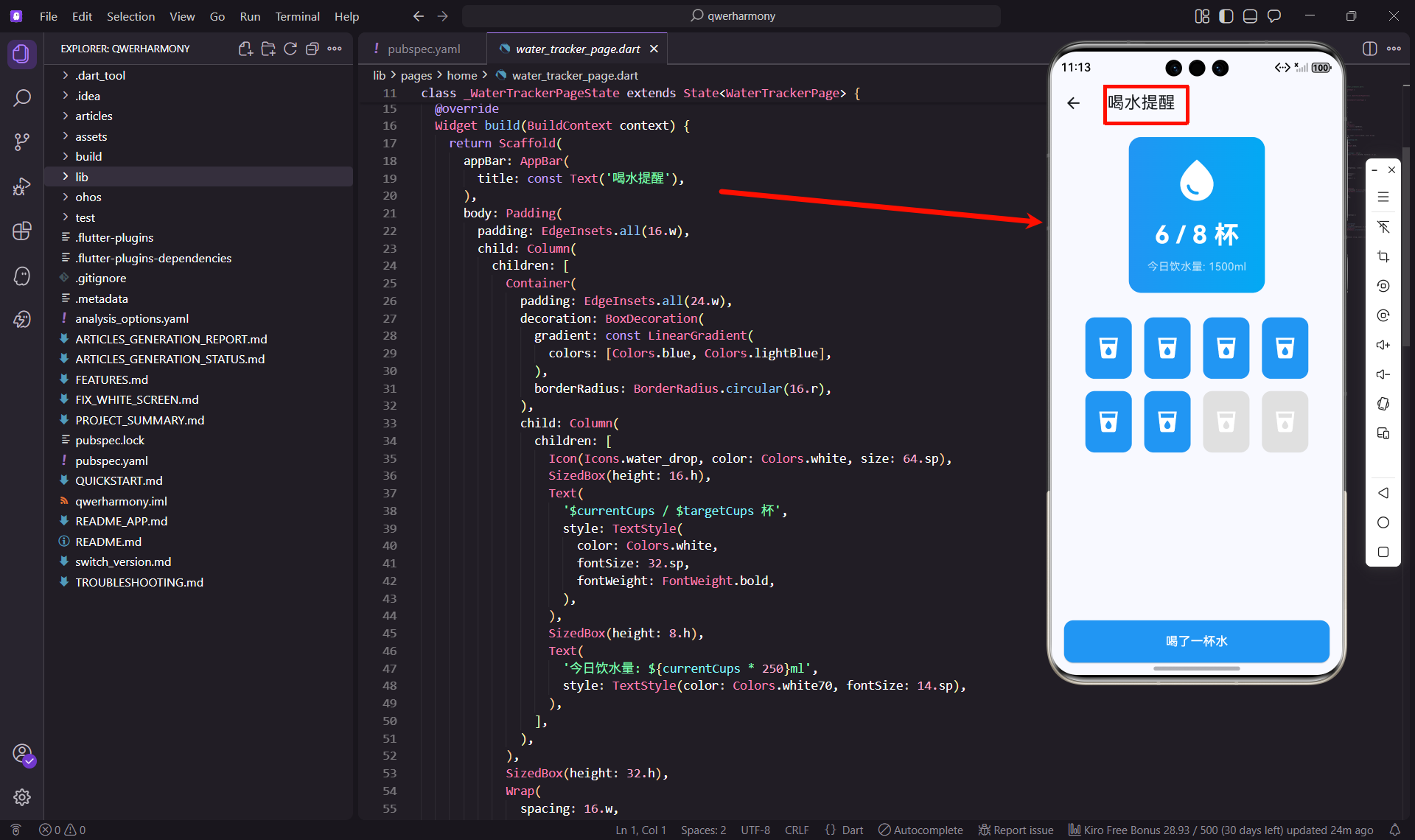
喝水提醒是一个看似简单但非常实用的功能。很多人在忙碌的工作中经常忘记喝水,而这个功能就是要帮助用户养成良好的饮水习惯。今天我来分享一下如何实现这个功能。
功能设计思路
在设计喝水提醒功能时,我的核心思路是让用户能够轻松记录每次的饮水量,并且一眼就能看出今天喝了多少水。
首先是视觉设计,我用了蓝色作为主色调,因为蓝色让人联想到水,很符合功能主题。顶部是一个醒目的统计卡片,显示今天已经喝了几杯水。
其次是交互设计,我用水杯图标来表示每一杯水,用户点击就能记录。已经喝过的杯子显示为蓝色,还没喝的显示为灰色,这样的视觉反馈非常直观。
最后是便捷性,底部有一个大按钮,用户点击就能快速记录一杯水,不需要复杂的操作。
页面结构实现
让我先看看整体的代码结构:
import 'package:flutter/material.dart';
import 'package:flutter_screenutil/flutter_screenutil.dart';
class WaterTrackerPage extends StatefulWidget {
const WaterTrackerPage({super.key});
State<WaterTrackerPage> createState() => _WaterTrackerPageState();
}
class _WaterTrackerPageState extends State<WaterTrackerPage> {
int currentCups = 6;
final int targetCups = 8;
Widget build(BuildContext context) {
return Scaffold(
appBar: AppBar(
title: const Text('喝水提醒'),
),
body: Padding(
padding: EdgeInsets.all(16.w),
child: Column(
children: [
Container(
  padding: EdgeInsets.all(24.w),
  decoration: BoxDecoration(
    gradient: const LinearGradient(
      colors: [Colors.blue, Colors.lightBlue],
    ),
    borderRadius: BorderRadius.circular(16.r),
  ),
  child: Column(
    children: [
      Icon(Icons.water_drop, color: Colors.white, size: 64.sp),
      SizedBox(height: 16.h),
      Text(
        '$currentCups / $targetCups 杯',
        style: TextStyle(
          color: Colors.white,
          fontSize: 32.sp,
          fontWeight: FontWeight.bold,
        ),
      ),
      SizedBox(height: 8.h),
      Text(
        '今日饮水量: ${currentCups * 250}ml',
        style: TextStyle(color: Colors.white70, fontSize: 14.sp),
      ),
    ],
  ),
),
SizedBox(height: 32.h),
Wrap(
  spacing: 16.w,
  runSpacing: 16.h,
  children: List.generate(targetCups, (index) {
    return GestureDetector(
      onTap: () {
        setState(() {
          if (index < currentCups) {
            currentCups = index;
          } else {
            currentCups = index + 1;
          }
        });
      },
      child: Container(
        width: 60.w,
        height: 80.h,
        decoration: BoxDecoration(
          color: index < currentCups ? Colors.blue : Colors.grey[300],
          borderRadius: BorderRadius.circular(12.r),
        ),
        child: Icon(
          Icons.local_drink,
          color: Colors.white,
          size: 32.sp,
        ),
      ),
    );
  }),
),
const Spacer(),
SizedBox(
  width: double.infinity,
  child: ElevatedButton(
    onPressed: () {
      if (currentCups < targetCups) {
        setState(() {
          currentCups++;
        });
      }
    },
    style: ElevatedButton.styleFrom(
      backgroundColor: Colors.blue,
      padding: EdgeInsets.symmetric(vertical: 16.h),
      shape: RoundedRectangleBorder(
        borderRadius: BorderRadius.circular(12.r),
      ),
    ),
    child: Text(
      '喝了一杯水',
      style: TextStyle(fontSize: 16.sp, color: Colors.white),
    ),
  ),
),
],
),
),
);
}
}
这个页面使用了StatefulWidget,因为需要管理饮水量的状态。每次用户记录喝水,都会调用setState来更新UI。
统计卡片设计
顶部的统计卡片是整个页面的焦点,我用了渐变色背景来增加视觉吸引力:
Container(
padding: EdgeInsets.all(24.w),
decoration: BoxDecoration(
gradient: const LinearGradient(
colors: [Colors.blue, Colors.lightBlue],
),
borderRadius: BorderRadius.circular(16.r),
),
child: Column(
children: [
Icon(Icons.water_drop, color: Colors.white, size: 64.sp),
SizedBox(height: 16.h),
Text(
'$currentCups / $targetCups 杯',
style: TextStyle(
color: Colors.white,
fontSize: 32.sp,
fontWeight: FontWeight.bold,
),
),
SizedBox(height: 8.h),
Text(
'今日饮水量: ${currentCups * 250}ml',
style: TextStyle(color: Colors.white70, fontSize: 14.sp),
),
],
),
)
这个卡片的设计很简洁。最上面是一个水滴图标,下面是当前杯数和目标杯数的对比,最下面是具体的毫升数。我假设每杯水是250ml,这是一个比较常见的标准。
渐变色的使用让卡片看起来更有层次感,白色的文字在蓝色背景上非常醒目。
水杯网格布局
中间的水杯网格是用户交互的主要区域:
Wrap(
spacing: 16.w,
runSpacing: 16.h,
children: List.generate(targetCups, (index) {
return GestureDetector(
onTap: () {
setState(() {
if (index < currentCups) {
currentCups = index;
} else {
currentCups = index + 1;
}
});
},
child: Container(
width: 60.w,
height: 80.h,
decoration: BoxDecoration(
color: index < currentCups ? Colors.blue : Colors.grey[300],
borderRadius: BorderRadius.circular(12.r),
),
child: Icon(
Icons.local_drink,
color: Colors.white,
size: 32.sp,
),
),
);
}),
)
我使用了Wrap组件来布局水杯,它会自动换行,适应不同的屏幕宽度。List.generate方法根据目标杯数动态生成水杯图标。
每个水杯都是一个GestureDetector,用户点击时会触发onTap回调。这里的逻辑有点意思:如果点击的是已经喝过的杯子,就把当前杯数设置为这个索引,相当于撤销后面的记录;如果点击的是还没喝的杯子,就把当前杯数设置为这个索引加1。
颜色的变化也很直观,已经喝过的杯子是蓝色,还没喝的是灰色。这种视觉反馈让用户能够立即看到自己的进度。
快速记录按钮
底部的按钮提供了一个快速记录的方式:
SizedBox(
width: double.infinity,
child: ElevatedButton(
onPressed: () {
if (currentCups < targetCups) {
setState(() {
currentCups++;
});
}
},
style: ElevatedButton.styleFrom(
backgroundColor: Colors.blue,
padding: EdgeInsets.symmetric(vertical: 16.h),
shape: RoundedRectangleBorder(
borderRadius: BorderRadius.circular(12.r),
),
),
child: Text(
'喝了一杯水',
style: TextStyle(fontSize: 16.sp, color: Colors.white),
),
),
)
这个按钮占据了整个宽度,用户很容易点击到。按钮的文字"喝了一杯水"非常直白,用户一看就知道这个按钮的作用。
我加了一个判断,只有当前杯数小于目标杯数时才能继续增加,避免超出目标。当然,在实际应用中,你也可以允许用户超出目标,这取决于你的产品设计。
数据持久化
喝水记录需要保存下来,这样用户关闭App后再打开,数据还在。我建议使用SharedPreferences:
import 'package:shared_preferences/shared_preferences.dart';

class WaterDataService {
  static const String _keyWaterCups = 'water_cups';
  static const String _keyDate = 'water_date';

  // 保存今日饮水量
  static Future<void> saveWaterCups(int cups) async {
    final prefs = await SharedPreferences.getInstance();
    final today = DateTime.now().toString().substring(0, 10);
    await prefs.setInt(_keyWaterCups, cups);
    await prefs.setString(_keyDate, today);
  }

  // 获取今日饮水量
  static Future<int> getTodayWaterCups() async {
    final prefs = await SharedPreferences.getInstance();
    final savedDate = prefs.getString(_keyDate);
    final today = DateTime.now().toString().substring(0, 10);

    // 如果日期不是今天,返回0
    if (savedDate != today) {
      return 0;
    }

    return prefs.getInt(_keyWaterCups) ?? 0;
  }
}
这个服务类会检查保存的日期,如果不是今天就返回0,这样每天都会重新开始计数。在实际使用时,你需要在initState中加载数据,在setState时保存数据。
提醒功能实现
喝水提醒的核心是定时通知。我们可以使用flutter_local_notifications插件来实现:
import 'package:flutter_local_notifications/flutter_local_notifications.dart';

class WaterReminderService {
  static final FlutterLocalNotificationsPlugin _notifications =
      FlutterLocalNotificationsPlugin();

  // 初始化通知
  static Future<void> initialize() async {
    const androidSettings = AndroidInitializationSettings('@mipmap/ic_launcher');
    const iosSettings = DarwinInitializationSettings();
    const settings = InitializationSettings(
      android: androidSettings,
      iOS: iosSettings,
    );

    await _notifications.initialize(settings);
  }

  // 设置定时提醒
  static Future<void> scheduleReminder() async {
    // 每2小时提醒一次
    await _notifications.periodicallyShow(
      0,
      '喝水提醒',
      '该喝水啦!保持身体水分充足很重要哦',
      RepeatInterval.everyTwoHours,
      const NotificationDetails(
        android: AndroidNotificationDetails(
          'water_reminder',
          '喝水提醒',
          channelDescription: '定时提醒您喝水',
          importance: Importance.high,
          priority: Priority.high,
        ),
      ),
    );
  }

  // 取消提醒
  static Future<void> cancelReminder() async {
    await _notifications.cancel(0);
  }
}
这个服务类提供了初始化、设置提醒和取消提醒的功能。你可以在设置页面让用户选择提醒的频率,比如每小时、每两小时或每三小时。
数据统计功能
除了记录当天的饮水量,我们还可以添加历史统计功能,让用户看到过去一周或一个月的饮水情况:
class WaterHistory {
  final DateTime date;
  final int cups;

  WaterHistory({required this.date, required this.cups});

  Map<String, dynamic> toJson() => {
    'date': date.toIso8601String(),
    'cups': cups,
  };

  factory WaterHistory.fromJson(Map<String, dynamic> json) => WaterHistory(
    date: DateTime.parse(json['date']),
    cups: json['cups'],
  );
}

class WaterHistoryService {
  static const String _keyHistory = 'water_history';

  // 保存历史记录
  static Future<void> saveHistory(List<WaterHistory> history) async {
    final prefs = await SharedPreferences.getInstance();
    final jsonList = history.map((h) => h.toJson()).toList();
    await prefs.setString(_keyHistory, jsonEncode(jsonList));
  }

  // 获取历史记录
  static Future<List<WaterHistory>> getHistory() async {
    final prefs = await SharedPreferences.getInstance();
    final jsonString = prefs.getString(_keyHistory);
    if (jsonString == null) return [];

    final jsonList = jsonDecode(jsonString) as List;
    return jsonList.map((json) => WaterHistory.fromJson(json)).toList();
  }
}
有了历史数据,你就可以用图表展示用户的饮水趋势,帮助用户更好地了解自己的饮水习惯。
个性化设置
不同的人对饮水量的需求不同,我们可以让用户自定义目标杯数和每杯的容量:
class WaterSettings {
  int targetCups;
  int cupVolume; // 毫升

  WaterSettings({
    this.targetCups = 8,
    this.cupVolume = 250,
  });

  int get targetVolume => targetCups * cupVolume;
}
在设置页面,用户可以调整这些参数。比如有些人习惯用大杯子,每杯500ml,那么目标杯数可以设置为4杯。
扩展功能思路
基于这个喝水提醒功能,还可以添加很多有趣的特性:
比如添加不同类型的饮品记录,除了水,还可以记录茶、咖啡、果汁等。每种饮品可以设置不同的图标和颜色。
或者加入天气因素,在炎热的天气自动提高饮水目标,在寒冷的天气适当降低。这需要接入天气API。
还可以添加社交功能,让用户可以和好友比拼每日饮水量,或者创建饮水挑战活动。
另外,可以根据用户的运动量自动调整饮水目标。如果用户今天运动量大,系统可以建议多喝水。
用户体验优化
在实际使用中,我发现了一些可以优化的地方:
第一,添加动画效果。当用户点击水杯时,可以加一个水波纹动画,让交互更生动。
第二,添加音效反馈。每次记录喝水时播放一个清脆的水滴声,增加使用的趣味性。
第三,优化提醒时间。可以让用户设置"勿扰时段",比如晚上10点到早上7点不发送提醒。
第四,添加快捷操作。可以在通知栏直接添加"已喝水"按钮,用户不需要打开App就能记录。
总结
喝水提醒功能虽然简单,但要做好需要考虑很多细节。从视觉设计到交互体验,从数据持久化到定时提醒,每个环节都需要仔细打磨。
在开发过程中,我特别注重用户体验。简洁的界面、直观的交互、及时的反馈,这些都是提升用户满意度的关键。希望这篇文章能给你带来一些启发,帮助你实现一个优秀的喝水提醒功能。
记住,好的功能不仅要实现基本需求,更要关注用户的使用场景和习惯。只有真正理解用户的需求,才能做出让用户喜欢的产品。
欢迎加入开源鸿蒙跨平台社区:https://openharmonycrossplatform.csdn.net

开源鸿蒙跨平台开发社区汇聚开发者与厂商,共建“一次开发,多端部署”的开源生态,致力于降低跨端开发门槛,推动万物智联创新。
更多推荐
 16
16 0
0- 0


 已为社区贡献28条内容

所有评论(0)