Flutter for OpenHarmony 猫咪管家App实战 - 添加喂食实现
本文介绍了开发猫咪喂食记录功能的技术实现,重点讲解了Flutter应用中的表单设计。文章首先明确了功能需求,包括食物类型选择、数量输入、自动补全等核心功能。然后详细阐述了代码实现过程,包括状态管理(使用Provider)、表单验证(GlobalKey)、输入控件(Autocomplete)等关键技术的应用。特别展示了食物类型选择(ChoiceChip)、自动补全输入框以及数量单位的联动处理等实现细
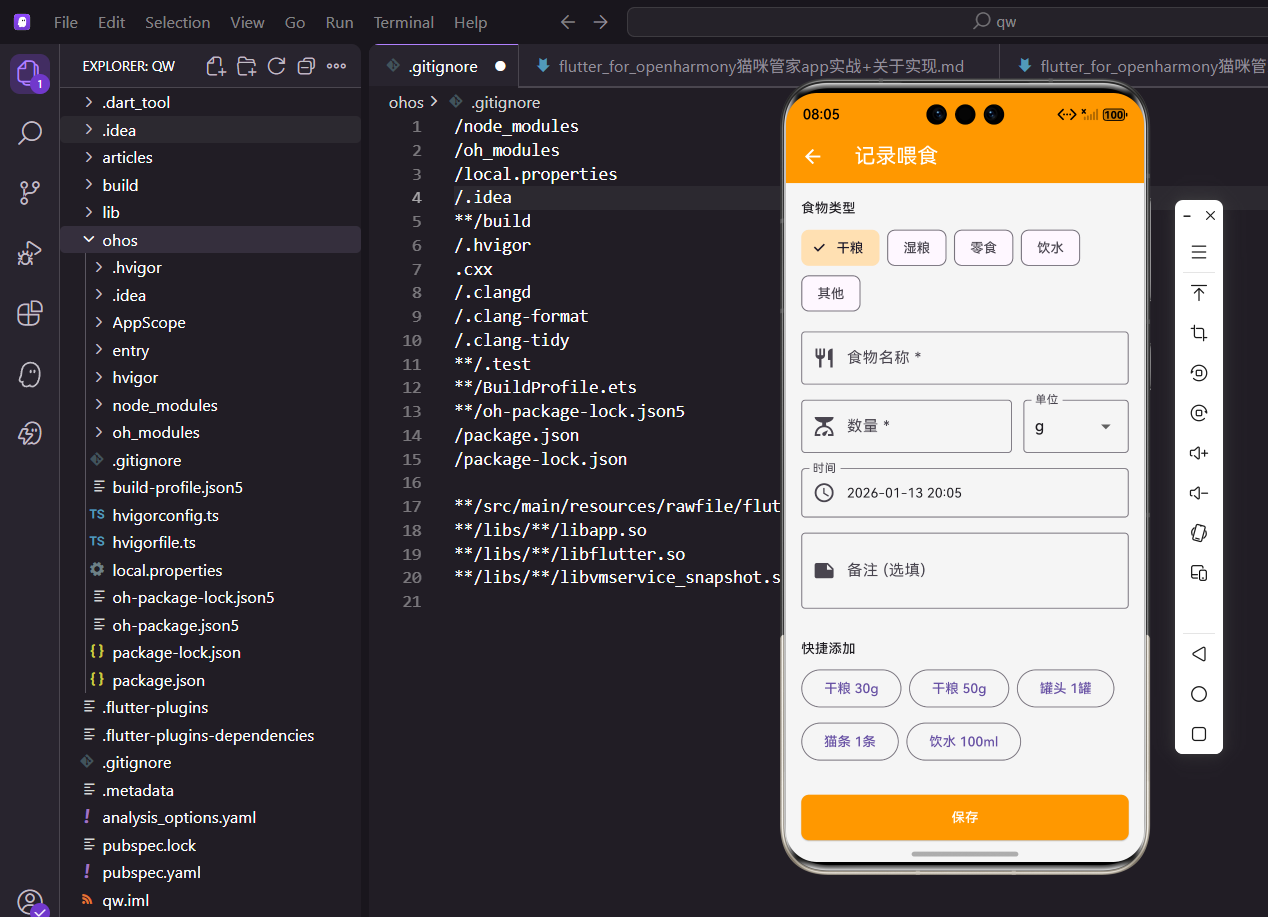
记录猫咪每天吃了什么、吃了多少,是科学养猫的基础。今天我们来实现添加喂食记录的功能,包括食物类型选择、数量输入、快捷添加等实用特性。
功能设计
添加喂食页面需要支持以下功能:
- 选择食物类型(干粮、湿粮、零食等)
- 输入食物名称,支持自动补全
- 填写数量和单位
- 选择喂食时间
- 快捷添加常用组合
把这些功能想清楚,实现起来就有方向了。
依赖和导入
首先引入需要的包:
import 'package:flutter/material.dart';
import 'package:provider/provider.dart';
import 'package:flutter_screenutil/flutter_screenutil.dart';
import 'package:intl/intl.dart';
import '../../providers/cat_provider.dart';
import '../../models/feeding_record.dart';
Material提供UI组件,Provider管理状态。
intl用于日期时间的格式化显示。
有状态组件定义
添加页面需要管理表单状态:
class AddFeedingScreen extends StatefulWidget {
final String catId;
const AddFeedingScreen({super.key, required this.catId});
State<AddFeedingScreen> createState() => _AddFeedingScreenState();
}
StatefulWidget用于需要维护状态的页面。
catId标识是给哪只猫咪添加喂食记录。
状态变量声明
State类中定义各种状态:
class _AddFeedingScreenState extends State<AddFeedingScreen> {
  final _formKey = GlobalKey<FormState>();
  final _foodNameController = TextEditingController();
  final _amountController = TextEditingController();
  final _notesController = TextEditingController();

  FoodType _foodType = FoodType.dryFood;
  String _unit = 'g';
  DateTime _dateTime = DateTime.now();
GlobalKey用于表单验证,TextEditingController管理输入框内容。
食物类型默认是干粮,单位默认是克。
常用食物列表:
  final List<String> _commonFoods = [
    '皇家猫粮', '渴望猫粮', '巅峰猫粮', '爱肯拿猫粮',
    '猫罐头', '猫条', '冻干零食', '鸡胸肉', '其他',
  ];
预设一些常见的猫粮品牌,方便用户快速选择。
这个列表可以根据实际需求扩展。
资源释放
dispose方法释放控制器:
void dispose() {
_foodNameController.dispose();
_amountController.dispose();
_notesController.dispose();
super.dispose();
}
TextEditingController需要手动释放,避免内存泄漏。
在dispose中调用每个控制器的dispose方法。
页面主体结构
build方法构建UI:
Widget build(BuildContext context) {
return Scaffold(
appBar: AppBar(title: const Text('记录喂食')),
body: Form(
key: _formKey,
child: SingleChildScrollView(
padding: EdgeInsets.all(16.w),
child: Column(
crossAxisAlignment: CrossAxisAlignment.start,
children: [
Form包裹整个表单,用于统一验证。
SingleChildScrollView让内容可以滚动,防止键盘弹出时遮挡。
食物类型选择
用ChoiceChip实现类型选择:
              Text('食物类型', style: TextStyle(fontSize: 14.sp, fontWeight: FontWeight.w500)),
              SizedBox(height: 8.h),
              Wrap(
                spacing: 8.w,
                children: FoodType.values.map((type) {
                  final isSelected = _foodType == type;
                  return ChoiceChip(
                    label: Text(_getFoodTypeString(type)),
                    selected: isSelected,
                    onSelected: (selected) {
                      if (selected) {
                        setState(() {
                          _foodType = type;
                          _unit = type == FoodType.water ? 'ml' : 'g';
                        });
                      }
                    },
                    selectedColor: Colors.orange[100],
                  );
                }).toList(),
              ),
              SizedBox(height: 16.h),
Wrap组件让Chip自动换行,适应不同屏幕宽度。
选择饮水时自动切换单位为ml,其他类型用g。
食物名称输入
带自动补全的输入框:
              Autocomplete<String>(
                optionsBuilder: (textEditingValue) {
                  if (textEditingValue.text.isEmpty) return _commonFoods;
                  return _commonFoods.where((food) =>
                      food.toLowerCase().contains(textEditingValue.text.toLowerCase()));
                },
                onSelected: (selection) => _foodNameController.text = selection,
Autocomplete组件提供自动补全功能。
optionsBuilder根据输入内容过滤选项列表。
输入框的具体配置:
                fieldViewBuilder: (context, controller, focusNode, onFieldSubmitted) {
                  _foodNameController.text = controller.text;
                  return TextFormField(
                    controller: controller,
                    focusNode: focusNode,
                    decoration: const InputDecoration(
                      labelText: '食物名称 *',
                      hintText: '请输入或选择食物',
                      border: OutlineInputBorder(),
                      prefixIcon: Icon(Icons.restaurant),
                    ),
                    validator: (value) => value?.isEmpty ?? true ? '请输入食物名称' : null,
                    onChanged: (value) => _foodNameController.text = value,
                  );
                },
              ),
              SizedBox(height: 16.h),
fieldViewBuilder自定义输入框的外观。
validator进行非空验证,星号表示必填项。
数量和单位输入
数量输入和单位选择并排显示:
              Row(
                children: [
                  Expanded(
                    flex: 2,
                    child: TextFormField(
                      controller: _amountController,
                      keyboardType: TextInputType.number,
                      decoration: const InputDecoration(
                        labelText: '数量 *',
                        border: OutlineInputBorder(),
                        prefixIcon: Icon(Icons.scale),
                      ),
                      validator: (value) {
                        if (value?.isEmpty ?? true) return '请输入数量';
                        if (double.tryParse(value!) == null) return '请输入有效数字';
                        return null;
                      },
                    ),
                  ),
Row让数量和单位水平排列。
flex: 2让数量输入框占更多空间。
单位下拉选择:
                  SizedBox(width: 12.w),
                  Expanded(
                    child: DropdownButtonFormField<String>(
                      value: _unit,
                      decoration: const InputDecoration(
                        labelText: '单位',
                        border: OutlineInputBorder(),
                      ),
                      items: ['g', 'ml', '个', '袋', '罐'].map((unit) {
                        return DropdownMenuItem(value: unit, child: Text(unit));
                      }).toList(),
                      onChanged: (value) => setState(() => _unit = value!),
                    ),
                  ),
                ],
              ),
              SizedBox(height: 16.h),
DropdownButtonFormField提供下拉选择功能。
支持克、毫升、个、袋、罐等常用单位。
时间选择器
点击触发时间选择:
              InkWell(
                onTap: () => _selectDateTime(context),
                child: InputDecorator(
                  decoration: const InputDecoration(
                    labelText: '时间',
                    border: OutlineInputBorder(),
                    prefixIcon: Icon(Icons.access_time),
                  ),
                  child: Text(DateFormat('yyyy-MM-dd HH:mm').format(_dateTime)),
                ),
              ),
              SizedBox(height: 16.h),
InkWell包裹让整个区域可点击。
InputDecorator让显示样式与其他输入框一致。
备注输入
可选的备注字段:
              TextFormField(
                controller: _notesController,
                maxLines: 2,
                decoration: const InputDecoration(
                  labelText: '备注 (选填)',
                  border: OutlineInputBorder(),
                  prefixIcon: Icon(Icons.note),
                ),
              ),
              SizedBox(height: 32.h),
maxLines: 2让输入框显示两行高度。
标签注明选填,用户知道这不是必填项。
快捷添加按钮
预设一些常用组合:
              Text('快捷添加', style: TextStyle(fontSize: 14.sp, fontWeight: FontWeight.w500)),
              SizedBox(height: 8.h),
              Wrap(
                spacing: 8.w,
                runSpacing: 8.h,
                children: [
                  _buildQuickButton('干粮 30g', FoodType.dryFood, '干粮', 30, 'g'),
                  _buildQuickButton('干粮 50g', FoodType.dryFood, '干粮', 50, 'g'),
                  _buildQuickButton('罐头 1罐', FoodType.wetFood, '猫罐头', 1, '罐'),
                  _buildQuickButton('猫条 1条', FoodType.snack, '猫条', 1, '个'),
                  _buildQuickButton('饮水 100ml', FoodType.water, '饮水', 100, 'ml'),
                ],
              ),
              SizedBox(height: 32.h),
快捷按钮一键填充表单,省去手动输入。
Wrap让按钮自动换行排列。
保存按钮
底部的保存按钮:
              SizedBox(
                width: double.infinity,
                height: 48.h,
                child: ElevatedButton(
                  onPressed: _saveRecord,
                  child: const Text('保存'),
                ),
              ),
            ],
          ),
        ),
      ),
    );
  }
width: double.infinity让按钮撑满宽度。
点击触发_saveRecord方法保存数据。
快捷按钮实现
构建快捷按钮的方法:
  Widget _buildQuickButton(String label, FoodType type, String name, double amount, String unit) {
    return OutlinedButton(
      onPressed: () {
        setState(() {
          _foodType = type;
          _foodNameController.text = name;
          _amountController.text = amount.toString();
          _unit = unit;
        });
      },
      child: Text(label),
    );
  }
点击按钮一次性设置多个字段的值。
OutlinedButton是带边框的按钮样式。
食物类型转换
枚举转中文的方法:
  String _getFoodTypeString(FoodType type) {
    switch (type) {
      case FoodType.dryFood: return '干粮';
      case FoodType.wetFood: return '湿粮';
      case FoodType.snack: return '零食';
      case FoodType.water: return '饮水';
      case FoodType.other: return '其他';
    }
  }
switch语句处理每种类型的显示文本。
这种写法比if-else更清晰。
日期时间选择
选择日期和时间的方法:
  Future<void> _selectDateTime(BuildContext context) async {
    final date = await showDatePicker(
      context: context,
      initialDate: _dateTime,
      firstDate: DateTime(2020),
      lastDate: DateTime.now(),
    );
    if (date != null) {
      final time = await showTimePicker(
        context: context,
        initialTime: TimeOfDay.fromDateTime(_dateTime),
      );
      if (time != null) {
        setState(() {
          _dateTime = DateTime(date.year, date.month, date.day, time.hour, time.minute);
        });
      }
    }
  }
先选日期再选时间,两步完成。
lastDate设为当前时间,不能选择未来的日期。
保存记录逻辑
表单验证和保存:
  void _saveRecord() {
    if (_formKey.currentState!.validate()) {
      final record = FeedingRecord(
        catId: widget.catId,
        foodType: _foodType,
        foodName: _foodNameController.text,
        amount: double.parse(_amountController.text),
        unit: _unit,
        dateTime: _dateTime,
        notes: _notesController.text.isEmpty ? null : _notesController.text,
      );

      context.read<CatProvider>().addFeedingRecord(record);
      Navigator.pop(context);
      ScaffoldMessenger.of(context).showSnackBar(
        const SnackBar(content: Text('喂食记录添加成功!')),
      );
    }
  }
}
validate方法触发所有字段的验证。
验证通过后创建记录对象并保存。
表单验证详解
数量字段的验证逻辑:
validator: (value) {
  if (value?.isEmpty ?? true) return '请输入数量';
  if (double.tryParse(value!) == null) return '请输入有效数字';
  return null;
},
先检查是否为空,再检查是否是有效数字。
返回null表示验证通过。
Autocomplete组件
自动补全的工作原理:
Autocomplete<String>(
  optionsBuilder: (textEditingValue) {
    if (textEditingValue.text.isEmpty) return _commonFoods;
    return _commonFoods.where((food) =>
        food.toLowerCase().contains(textEditingValue.text.toLowerCase()));
  },
  onSelected: (selection) => _foodNameController.text = selection,
  ...
)
optionsBuilder根据输入返回匹配的选项。
输入为空时显示全部选项,否则过滤匹配项。
InputDecorator使用
让非输入组件看起来像输入框:
InputDecorator(
  decoration: const InputDecoration(
    labelText: '时间',
    border: OutlineInputBorder(),
    prefixIcon: Icon(Icons.access_time),
  ),
  child: Text(DateFormat('yyyy-MM-dd HH:mm').format(_dateTime)),
)
InputDecorator应用InputDecoration的样式。
内部可以放任何Widget,这里放的是Text。
DropdownButtonFormField
下拉选择框的使用:
DropdownButtonFormField<String>(
  value: _unit,
  decoration: const InputDecoration(...),
  items: ['g', 'ml', '个', '袋', '罐'].map((unit) {
    return DropdownMenuItem(value: unit, child: Text(unit));
  }).toList(),
  onChanged: (value) => setState(() => _unit = value!),
)
value是当前选中的值,items是选项列表。
onChanged在选择变化时更新状态。
数据模型
FeedingRecord的结构:
class FeedingRecord {
  final String catId;
  final FoodType foodType;
  final String foodName;
  final double amount;
  final String unit;
  final DateTime dateTime;
  final String? notes;
}
包含喂食记录的所有必要信息。
notes是可选字段,用问号标记。
小结
添加喂食页面涉及的知识点比较多:
- 表单验证和状态管理
- Autocomplete自动补全
- 日期时间选择器
- 快捷按钮提升用户体验
这些技巧在其他表单页面也能用到,值得好好掌握。
欢迎加入OpenHarmony跨平台开发社区,一起交流Flutter开发经验:
https://openharmonycrossplatform.csdn.net

开源鸿蒙跨平台开发社区汇聚开发者与厂商,共建“一次开发,多端部署”的开源生态,致力于降低跨端开发门槛,推动万物智联创新。
更多推荐
 17
17 0
0- 0


 已为社区贡献31条内容

所有评论(0)