Flutter for OpenHarmony Web开发助手App实战:API测试
开发Web应用时,经常需要测试后端API接口。今天我们来实现一个简单但实用的API测试工具,类似Postman的基础功能。
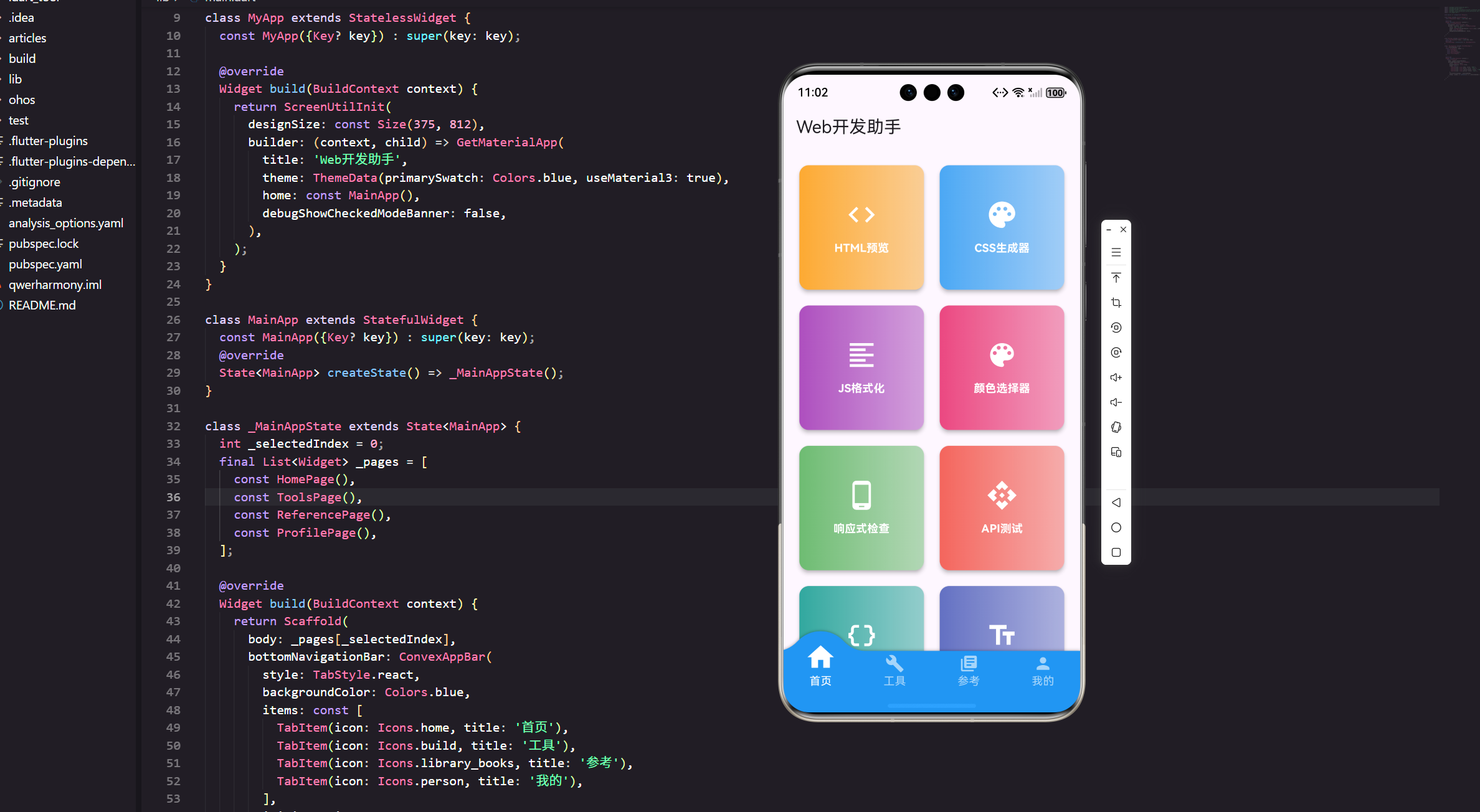
开发Web应用时,经常需要测试后端API接口。今天我们来实现一个简单但实用的API测试工具,类似Postman的基础功能。
功能需求
一个基础的API测试工具需要支持:
HTTP方法选择:GET、POST、PUT、DELETE等。
URL输入:输入要测试的接口地址。
请求头设置:添加自定义的HTTP头。
请求体编辑:对于POST/PUT请求,需要编辑请求体。
响应显示:展示接口返回的数据和状态码。
完整代码实现
import 'package:flutter/material.dart';
import 'package:flutter/services.dart';
import 'package:flutter_screenutil/flutter_screenutil.dart';
import 'package:get/get.dart';
import 'dart:convert';
class ApiTesterPage extends StatefulWidget {
const ApiTesterPage({Key? key}) : super(key: key);
State<ApiTesterPage> createState() => _ApiTesterPageState();
}
class _ApiTesterPageState extends State<ApiTesterPage> {
final TextEditingController _urlController = TextEditingController();
final TextEditingController _bodyController = TextEditingController();
String _selectedMethod = 'GET';
final List<String> _methods = ['GET', 'POST', 'PUT', 'DELETE', 'PATCH'];
final List<MapEntry<String, String>> _headers = [];
String _response = '';
int _statusCode = 0;
bool _isLoading = false;
int _selectedTab = 0; // 0: Headers, 1: Body
void initState() {
super.initState();
_urlController.text = 'https://jsonplaceholder.typicode.com/posts/1';
_headers.add(const MapEntry('Content-Type', 'application/json'));
}
void dispose() {
_urlController.dispose();
_bodyController.dispose();
super.dispose();
}
Widget build(BuildContext context) {
return Scaffold(
appBar: AppBar(
title: const Text('API测试'),
actions: [
IconButton(
icon: const Icon(Icons.history),
onPressed: () {
Get.snackbar('提示', '历史记录功能开发中',
snackPosition: SnackPosition.BOTTOM);
},
tooltip: '历史记录',
),
],
),
body: Column(
children: [
// 请求配置区
Container(
padding: EdgeInsets.all(16.w),
color: Colors.white,
child: Column(
children: [
// URL和方法
Row(
children: [
// HTTP方法选择
Container(
padding: EdgeInsets.symmetric(horizontal: 12.w),
decoration: BoxDecoration(
border: Border.all(color: Colors.grey[300]!),
borderRadius: BorderRadius.circular(8.r),
),
child: DropdownButton<String>(
value: _selectedMethod,
underline: const SizedBox(),
items: _methods.map((method) {
return DropdownMenuItem(
value: method,
child: Text(
method,
style: TextStyle(
fontWeight: FontWeight.bold,
color: _getMethodColor(method),
),
),
);
}).toList(),
onChanged: (value) {
setState(() => _selectedMethod = value!);
},
),
),
SizedBox(width: 12.w),
// URL输入
Expanded(
child: TextField(
controller: _urlController,
decoration: InputDecoration(
hintText: '输入API地址',
border: OutlineInputBorder(
borderRadius: BorderRadius.circular(8.r),
),
contentPadding: EdgeInsets.symmetric(
horizontal: 12.w,
vertical: 12.h,
),
),
),
),
SizedBox(width: 12.w),
// 发送按钮
ElevatedButton(
onPressed: _isLoading ? null : _sendRequest,
style: ElevatedButton.styleFrom(
padding: EdgeInsets.symmetric(
horizontal: 24.w,
vertical: 12.h,
),
),
child: _isLoading
? SizedBox(
width: 20.w,
height: 20.h,
child: const CircularProgressIndicator(
strokeWidth: 2,
color: Colors.white,
),
)
: const Text('发送'),
),
],
),
SizedBox(height: 16.h),
// 标签切换
Row(
children: [
_buildTab('请求头', 0),
SizedBox(width: 16.w),
_buildTab('请求体', 1),
],
),
],
),
),
// 请求配置详情
Container(
height: 200.h,
color: Colors.grey[50],
child: _selectedTab == 0 ? _buildHeadersPanel() : _buildBodyPanel(),
),
Divider(height: 1.h, thickness: 2),
// 响应区域
Expanded(
child: _buildResponsePanel(),
),
],
),
);
}
Widget _buildTab(String title, int index) {
final isSelected = _selectedTab == index;
return GestureDetector(
onTap: () => setState(() => _selectedTab = index),
child: Container(
padding: EdgeInsets.symmetric(horizontal: 16.w, vertical: 8.h),
decoration: BoxDecoration(
color: isSelected ? Colors.blue : Colors.transparent,
borderRadius: BorderRadius.circular(8.r),
),
child: Text(
title,
style: TextStyle(
color: isSelected ? Colors.white : Colors.grey[600],
fontWeight: isSelected ? FontWeight.bold : FontWeight.normal,
),
),
),
);
}
Widget _buildHeadersPanel() {
return Column(
children: [
// 添加按钮
Padding(
padding: EdgeInsets.all(12.w),
child: Row(
children: [
Text(
'请求头',
style: TextStyle(
fontSize: 14.sp,
fontWeight: FontWeight.bold,
),
),
const Spacer(),
TextButton.icon(
onPressed: _addHeader,
icon: const Icon(Icons.add),
label: const Text('添加'),
),
],
),
),
// 请求头列表
Expanded(
child: ListView.builder(
padding: EdgeInsets.symmetric(horizontal: 12.w),
itemCount: _headers.length,
itemBuilder: (context, index) {
return Card(
margin: EdgeInsets.only(bottom: 8.h),
child: Padding(
padding: EdgeInsets.all(8.w),
child: Row(
children: [
Expanded(
child: Text(
'${_headers[index].key}: ${_headers[index].value}',
style: TextStyle(fontSize: 13.sp),
),
),
IconButton(
icon: const Icon(Icons.delete, color: Colors.red),
onPressed: () {
setState(() => _headers.removeAt(index));
},
),
],
),
),
);
},
),
),
],
);
}
Widget _buildBodyPanel() {
return Column(
children: [
Padding(
padding: EdgeInsets.all(12.w),
child: Row(
children: [
Text(
'请求体 (JSON)',
style: TextStyle(
fontSize: 14.sp,
fontWeight: FontWeight.bold,
),
),
const Spacer(),
TextButton.icon(
onPressed: _formatJson,
icon: const Icon(Icons.auto_fix_high),
label: const Text('格式化'),
),
],
),
),
Expanded(
child: TextField(
controller: _bodyController,
maxLines: null,
expands: true,
style: TextStyle(
fontFamily: 'monospace',
fontSize: 13.sp,
),
decoration: InputDecoration(
hintText: '输入JSON格式的请求体...',
border: InputBorder.none,
contentPadding: EdgeInsets.all(12.w),
),
),
),
],
);
}
Widget _buildResponsePanel() {
return Container(
color: Colors.grey[900],
child: Column(
crossAxisAlignment: CrossAxisAlignment.start,
children: [
// 响应头
Container(
padding: EdgeInsets.all(12.w),
color: Colors.grey[800],
child: Row(
children: [
Text(
'响应',
style: TextStyle(
color: Colors.white,
fontSize: 16.sp,
fontWeight: FontWeight.bold,
),
),
const Spacer(),
if (_statusCode > 0) ...[
Container(
padding: EdgeInsets.symmetric(horizontal: 12.w, vertical: 4.h),
decoration: BoxDecoration(
color: _getStatusColor(_statusCode),
borderRadius: BorderRadius.circular(4.r),
),
child: Text(
'Status: $_statusCode',
style: TextStyle(
color: Colors.white,
fontSize: 12.sp,
fontWeight: FontWeight.bold,
),
),
),
SizedBox(width: 8.w),
IconButton(
icon: const Icon(Icons.copy, color: Colors.white),
onPressed: () => _copyResponse(),
tooltip: '复制响应',
),
],
],
),
),
// 响应内容
Expanded(
child: SingleChildScrollView(
padding: EdgeInsets.all(16.w),
child: SelectableText(
_response.isEmpty ? '点击"发送"按钮测试API' : _response,
style: TextStyle(
fontFamily: 'monospace',
fontSize: 13.sp,
color: _response.isEmpty ? Colors.grey[600] : Colors.greenAccent,
),
),
),
),
],
),
);
}
Color _getMethodColor(String method) {
switch (method) {
case 'GET':
return Colors.green;
case 'POST':
return Colors.blue;
case 'PUT':
return Colors.orange;
case 'DELETE':
return Colors.red;
case 'PATCH':
return Colors.purple;
default:
return Colors.grey;
}
}
Color _getStatusColor(int status) {
if (status >= 200 && status < 300) {
return Colors.green;
} else if (status >= 300 && status < 400) {
return Colors.blue;
} else if (status >= 400 && status < 500) {
return Colors.orange;
} else {
return Colors.red;
}
}
void _addHeader() {
showDialog(
context: context,
builder: (context) {
final keyController = TextEditingController();
final valueController = TextEditingController();
return AlertDialog(
title: const Text('添加请求头'),
content: Column(
mainAxisSize: MainAxisSize.min,
children: [
TextField(
controller: keyController,
decoration: const InputDecoration(
labelText: 'Key',
hintText: '例如: Authorization',
),
),
SizedBox(height: 12.h),
TextField(
controller: valueController,
decoration: const InputDecoration(
labelText: 'Value',
hintText: '例如: Bearer token123',
),
),
],
),
actions: [
TextButton(
onPressed: () => Navigator.pop(context),
child: const Text('取消'),
),
ElevatedButton(
onPressed: () {
if (keyController.text.isNotEmpty && valueController.text.isNotEmpty) {
setState(() {
_headers.add(MapEntry(keyController.text, valueController.text));
});
Navigator.pop(context);
}
},
child: const Text('添加'),
),
],
);
},
);
}
void _formatJson() {
try {
final json = jsonDecode(_bodyController.text);
final formatted = const JsonEncoder.withIndent(' ').convert(json);
_bodyController.text = formatted;
} catch (e) {
Get.snackbar('错误', 'JSON格式不正确',
snackPosition: SnackPosition.BOTTOM);
}
}
Future<void> _sendRequest() async {
if (_urlController.text.isEmpty) {
Get.snackbar('提示', '请输入API地址',
snackPosition: SnackPosition.BOTTOM);
return;
}
setState(() {
_isLoading = true;
_response = '';
_statusCode = 0;
});
try {
// 模拟API请求
await Future.delayed(const Duration(seconds: 1));
// 模拟响应数据
final mockResponse = {
'success': true,
'message': '这是模拟的API响应',
'data': {
'id': 1,
'title': 'Sample Post',
'body': 'This is a sample response body',
'userId': 1,
},
'timestamp': DateTime.now().toIso8601String(),
};
setState(() {
_statusCode = 200;
_response = const JsonEncoder.withIndent(' ').convert(mockResponse);
_isLoading = false;
});
Get.snackbar('成功', '请求完成',
snackPosition: SnackPosition.BOTTOM,
duration: const Duration(seconds: 2));
} catch (e) {
setState(() {
_statusCode = 500;
_response = 'Error: $e';
_isLoading = false;
});
Get.snackbar('错误', '请求失败: $e',
snackPosition: SnackPosition.BOTTOM);
}
}
void _copyResponse() {
if (_response.isNotEmpty) {
Clipboard.setData(ClipboardData(text: _response));
Get.snackbar('成功', '响应已复制到剪贴板',
snackPosition: SnackPosition.BOTTOM,
duration: const Duration(seconds: 2));
}
}
}
HTTP方法选择
使用DropdownButton实现方法选择:
DropdownButton<String>(
  value: _selectedMethod,
  items: _methods.map((method) {
    return DropdownMenuItem(
      value: method,
      child: Text(
        method,
        style: TextStyle(
          fontWeight: FontWeight.bold,
          color: _getMethodColor(method),
        ),
      ),
    );
  }).toList(),
)
不同的HTTP方法用不同的颜色标识:GET是绿色、POST是蓝色、DELETE是红色等。这种视觉区分很有用,一眼就能看出当前选择的方法。
请求头管理
请求头存储在一个List中:
final List<MapEntry<String, String>> _headers = [];
使用MapEntry来存储键值对,比用Map更灵活,因为可以有重复的key。
添加请求头时弹出对话框:
void _addHeader() {
  showDialog(
    context: context,
    builder: (context) {
      return AlertDialog(
        title: const Text('添加请求头'),
        content: Column(
          children: [
            TextField(controller: keyController, decoration: InputDecoration(labelText: 'Key')),
            TextField(controller: valueController, decoration: InputDecoration(labelText: 'Value')),
          ],
        ),
      );
    },
  );
}
这种方式比在列表里直接编辑更清晰,用户不容易出错。
请求体编辑
对于POST、PUT等需要请求体的方法,提供一个多行文本框:
TextField(
  controller: _bodyController,
  maxLines: null,
  expands: true,
  style: TextStyle(
    fontFamily: 'monospace',
    fontSize: 13.sp,
  ),
)
使用等宽字体显示JSON,更容易阅读。
提供格式化按钮,一键美化JSON:
void _formatJson() {
  try {
    final json = jsonDecode(_bodyController.text);
    final formatted = const JsonEncoder.withIndent('  ').convert(json);
    _bodyController.text = formatted;
  } catch (e) {
    Get.snackbar('错误', 'JSON格式不正确');
  }
}
响应显示
响应区域使用深色背景,模拟终端的感觉:
Container(
  color: Colors.grey[900],
  child: SelectableText(
    _response,
    style: TextStyle(
      fontFamily: 'monospace',
      color: Colors.greenAccent,
    ),
  ),
)
使用SelectableText而不是Text,让用户可以选择和复制响应内容。
状态码显示
HTTP状态码用不同颜色标识:
Color _getStatusColor(int status) {
  if (status >= 200 && status < 300) {
    return Colors.green; // 成功
  } else if (status >= 400 && status < 500) {
    return Colors.orange; // 客户端错误
  } else if (status >= 500) {
    return Colors.red; // 服务器错误
  }
  return Colors.blue;
}
2xx是绿色表示成功,4xx是橙色表示客户端错误,5xx是红色表示服务器错误。
加载状态处理
发送请求时显示加载动画:
ElevatedButton(
  onPressed: _isLoading ? null : _sendRequest,
  child: _isLoading
      ? CircularProgressIndicator()
      : Text('发送'),
)
按钮禁用并显示加载动画,防止重复点击。
模拟API请求
当前版本使用模拟数据:
Future<void> _sendRequest() async {
  await Future.delayed(const Duration(seconds: 1));

  final mockResponse = {
    'success': true,
    'data': {...},
  };

  setState(() {
    _statusCode = 200;
    _response = JsonEncoder.withIndent('  ').convert(mockResponse);
  });
}
实际项目中可以使用http包发送真实请求:
import 'package:http/http.dart' as http;

final response = await http.get(
  Uri.parse(_urlController.text),
  headers: Map.fromEntries(_headers),
);

setState(() {
  _statusCode = response.statusCode;
  _response = response.body;
});
功能扩展建议
环境变量:保存常用的API地址和token。
请求历史:记录最近的请求,方便重复测试。
批量测试:一次测试多个接口。
响应时间:显示请求耗时。
保存为集合:把相关的API请求组织成集合。
导入导出:支持导入Postman的collection文件。
实战经验
做API测试工具时,最重要的是界面要清晰。请求配置和响应结果要分开显示,不能混在一起。
一开始我把请求头和请求体放在同一个区域,结果很乱。后来改成标签切换,界面就清爽多了。
还有一个细节:HTTP方法的颜色标识。这是从Postman学来的,效果很好。不同颜色让人一眼就能区分方法类型。
小结
API测试工具是Web开发的必备工具。通过合理的界面设计和功能组织,我们实现了一个简单但实用的测试工具。
虽然功能不如Postman完整,但对于日常的API测试已经够用了。而且因为是集成在应用里的,使用起来更方便。
记住:工具的价值在于解决实际问题,不在于功能有多复杂。
欢迎加入开源鸿蒙跨平台社区:https://openharmonycrossplatform.csdn.net

开源鸿蒙跨平台开发社区汇聚开发者与厂商,共建“一次开发,多端部署”的开源生态,致力于降低跨端开发门槛,推动万物智联创新。
更多推荐

 4
4 0
0- 0


 已为社区贡献12条内容

所有评论(0)