flutter_for_openharmony小区门禁管理app实战+新建报修表单实现
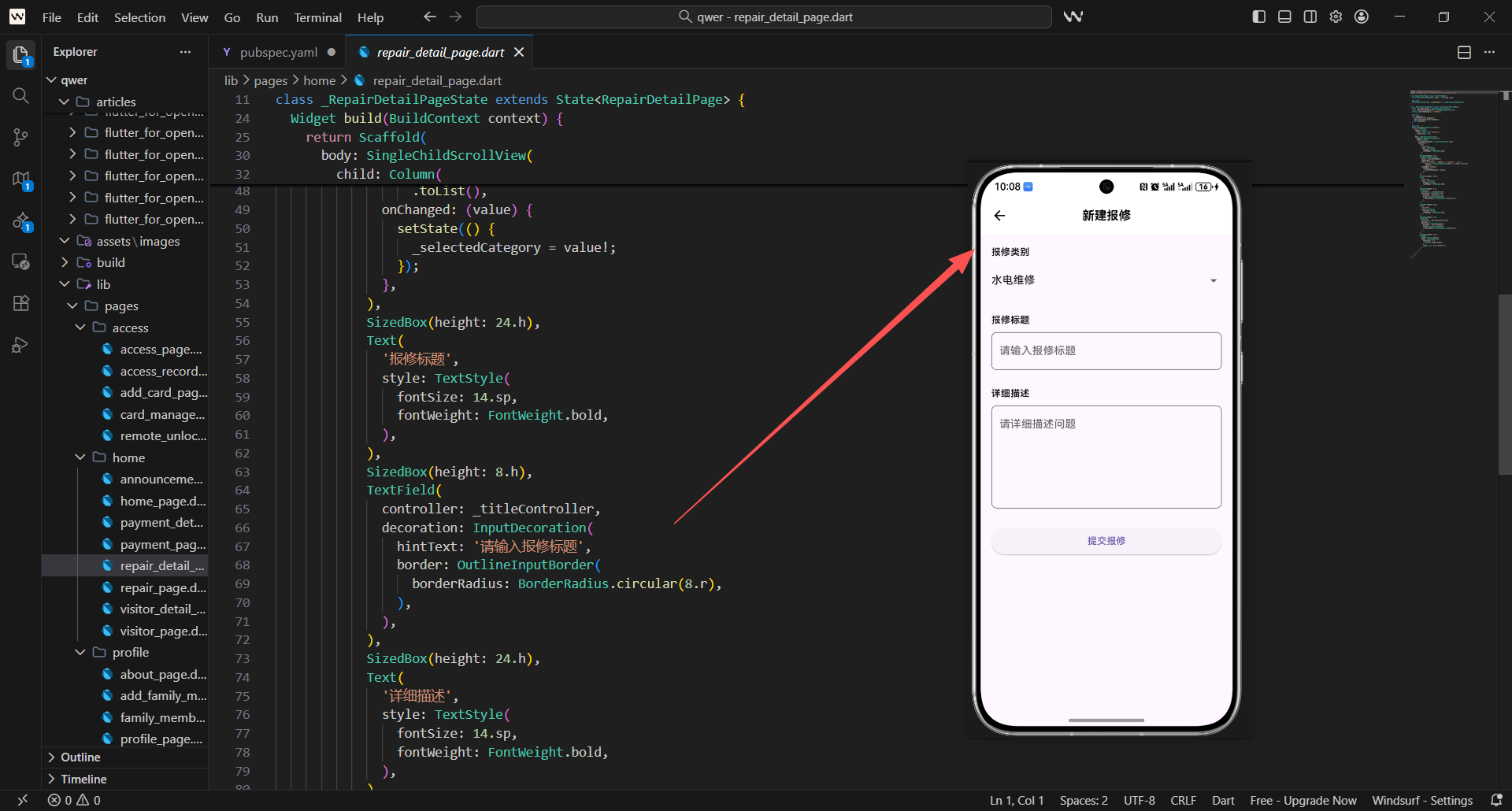
这篇专注一个点:把“新建报修”做成一个可靠的表单页。
在物业类 App 里,报修表单通常会遇到这些问题:
- 用户不知道该选什么类别
- 标题/描述不完整导致工单质量差
- 提交后没有反馈
当前项目还处于原型阶段,所以实现策略是:
- 先把表单结构写扎实
- 不上复杂校验、不接网络接口
- 提交动作先做“返回上一页”
本文对应源码:
lib/pages/home/repair_detail_page.dart
这一页的目标是把“新建报修”做成一个稳定的业务表单骨架。
我们按两部分来走读:
- A:项目真实实现(
repair_detail_page.dart):把表单结构写扎实 - B:增强版示例(可选):加校验 + 提交反馈(SnackBar),代码更接近真实业务
A)lib/pages/home/repair_detail_page.dart(每10行一段)
import 'package:flutter/material.dart';
import 'package:flutter_screenutil/flutter_screenutil.dart';
class RepairDetailPage extends StatefulWidget {
const RepairDetailPage({Key? key}) : super(key: key);
State<RepairDetailPage> createState() => _RepairDetailPageState();
}
- 报修详情页需要输入表单数据,所以用
StatefulWidget。 - 用
TextEditingController管理输入框状态,方便获取和清空。
class _RepairDetailPageState extends State<RepairDetailPage> {
final _titleController = TextEditingController();
final _descriptionController = TextEditingController();
String _selectedCategory = '水电维修';
void dispose() {
_titleController.dispose();
_descriptionController.dispose();
super.dispose();
}
- controller 必须在
dispose()释放,这是 Flutter 表单页的工程习惯。 - 类别给默认值,用户进入页面后可以直接提交或修改。
Widget build(BuildContext context) {
return Scaffold(
appBar: AppBar(
title: const Text('新建报修'),
centerTitle: true,
),
body: SingleChildScrollView(
padding: EdgeInsets.all(16.w),
child: Column(
SingleChildScrollView主要为了解决键盘弹起导致的内容遮挡。16.w是项目常用边距基准,统一视觉留白。
          crossAxisAlignment: CrossAxisAlignment.start,
          children: [
            Text(
              '报修类别',
              style: TextStyle(
                fontSize: 14.sp,
                fontWeight: FontWeight.bold,
              ),
            ),
            SizedBox(height: 8.h),
            DropdownButton<String>(
              value: _selectedCategory,
              isExpanded: true,
              items: ['水电维修', '门窗维修', '家电维修', '其他']
                  .map((e) => DropdownMenuItem(value: e, child: Text(e)))
                  .toList(),
              onChanged: (value) {
                setState(() {
                  _selectedCategory = value!;
                });
              },
            ),
            SizedBox(height: 24.h),
            Text(
              '报修标题',
              style: TextStyle(
                fontSize: 14.sp,
                fontWeight: FontWeight.bold,
              ),
            ),
            SizedBox(height: 8.h),
            TextField(
              controller: _titleController,
              decoration: InputDecoration(
                hintText: '请输入报修标题',
                border: OutlineInputBorder(
                  borderRadius: BorderRadius.circular(8.r),
                ),
              ),
            ),
-
字段统一为"标签 + 控件",读起来像表单。
-
isExpanded: true让下拉占满宽度,布局更稳定。 -
标题字段绑定 controller,提交时直接读取。
-
字段之间用
24.h分段,表单更清爽。
            SizedBox(height: 24.h),
            Text(
              '详细描述',
              style: TextStyle(
                fontSize: 14.sp,
                fontWeight: FontWeight.bold,
              ),
            ),
            SizedBox(height: 8.h),
            TextField(
              controller: _descriptionController,
              maxLines: 5,
              decoration: InputDecoration(
                hintText: '请详细描述问题',
                border: OutlineInputBorder(
                  borderRadius: BorderRadius.circular(8.r),
                ),
              ),
            ),
            SizedBox(height: 24.h),
            SizedBox(
              width: double.infinity,
              child: ElevatedButton(
                onPressed: () {
                  Navigator.pop(context);
                },
                child: const Text('提交报修'),
              ),
            ),
          ],
        ),
      ),
    );
  }
}
- 描述一般更长,用
maxLines提供稳定输入区域。 - 原型阶段提交先
pop返回即可,先把流程闭环跑通。
B)增强版示例(可选):表单校验 + 提交反馈(每10行一段)
下面的代码是“更接近真实业务”的写法:使用
Form+TextFormField做校验,并在提交时给提示。它不改变你现有的页面结构,但提供一条后续升级的参考路线。
class _RepairDetailPageState extends State<RepairDetailPage> {
final _formKey = GlobalKey<FormState>();
final _titleController = TextEditingController();
final _descriptionController = TextEditingController();
String _selectedCategory = '水电维修';
void dispose() {
_titleController.dispose();
_descriptionController.dispose();
super.dispose();
}
- _formKey 用来触发表单校验(
validate())。 - controller 仍然需要释放,和原实现一致。
void _submit() {
final ok = _formKey.currentState?.validate() ?? false;
if (!ok) return;
ScaffoldMessenger.of(context).showSnackBar(
const SnackBar(content: Text('提交成功')),
);
Navigator.pop(context);
}
Widget build(BuildContext context) {
- 提交时先校验,再提示,再返回,用户反馈更明确。
SnackBar放在pop之前,用户才能看见。
    return Scaffold(
      appBar: AppBar(title: const Text('新建报修'), centerTitle: true),
      body: SingleChildScrollView(
        padding: EdgeInsets.all(16.w),
        child: Form(
          key: _formKey,
          child: Column(
            crossAxisAlignment: CrossAxisAlignment.start,
            children: [
              Text(
                '报修标题',
                style: TextStyle(fontSize: 14.sp, fontWeight: FontWeight.bold),
              ),
              SizedBox(height: 8.h),
              TextFormField(
                controller: _titleController,
                decoration: const InputDecoration(hintText: '请输入报修标题'),
                validator: (v) {
                  if (v == null || v.trim().isEmpty) return '标题不能为空';
                  if (v.trim().length < 2) return '标题至少 2 个字';
                  return null;
                },
              ),
- 用
Form包住所有字段,校验逻辑集中管理。 TextFormField + validator是最常见的 Flutter 表单校验方式。
              SizedBox(height: 24.h),
              Text(
                '详细描述',
                style: TextStyle(fontSize: 14.sp, fontWeight: FontWeight.bold),
              ),
              SizedBox(height: 8.h),
              TextFormField(
                controller: _descriptionController,
                maxLines: 5,
                decoration: const InputDecoration(hintText: '请详细描述问题'),
                validator: (v) {
                  if (v == null || v.trim().isEmpty) return '描述不能为空';
                  if (v.trim().length < 5) return '描述至少 5 个字';
                  return null;
                },
              ),
              SizedBox(height: 24.h),
              SizedBox(
                width: double.infinity,
                child: ElevatedButton(
                  onPressed: _submit,
                  child: const Text('提交报修'),
                ),
              ),
            ],
          ),
        ),
      ),
    );
  }
}
- 描述字段同样做基础校验,能显著提升工单质量。
- 把提交逻辑收敛到
_submit(),页面结构更清爽。
C)可选:把表单做成“可复用组件模板”(每10行一段)
如果你后续要继续做“投诉/访客邀请/添加卡片”等表单页面,建议把重复的 UI 结构抽出来。
下面是一套“表单页面模板”的写法:
- 把“标签样式”统一成一个方法
- 把“输入框装饰”统一成一个方法
- 把“提交逻辑”统一封装成一个函数
1)统一标签样式
Widget _buildFieldLabel(String text) {
  return Text(
    text,
    style: TextStyle(
      fontSize: 14.sp,
      fontWeight: FontWeight.bold,
    ),
  );
}
- 表单字段的标签样式统一后,整页层级会非常稳定。
- 后续换主题或字号,只改这一处即可。
2)统一输入框装饰
InputDecoration _inputDecoration(String hint) {
  return InputDecoration(
    hintText: hint,
    border: OutlineInputBorder(
      borderRadius: BorderRadius.circular(8.r),
    ),
  );
}
- 要点 1:把
hintText + border抽出来,避免每个TextField重复写一遍。 - 要点 2:圆角/边框统一后,表单页风格不会“东一个西一个”。
3)统一间距与分段
Widget _gap12() => SizedBox(height: 12.h);

Widget _gap24() => SizedBox(height: 24.h);

Widget _fullWidthButton({
  required String text,
  required VoidCallback onPressed,
}) {
  return SizedBox(
    width: double.infinity,
    child: ElevatedButton(
      onPressed: onPressed,
      child: Text(text),
    ),
  );
}
- 要点 1:间距抽成函数后,页面只剩“结构”,阅读负担更小。
- 要点 2:业务按钮统一用满宽按钮,交互入口更明确。
4)把提交逻辑做成一个“可替换占位”
Future<bool> _fakeSubmit() async {
  await Future.delayed(const Duration(milliseconds: 600));
  return true;
}

Future<void> _submitWithFeedback() async {
  final ok = await _fakeSubmit();
  if (!mounted) return;
  if (!ok) {
    ScaffoldMessenger.of(context).showSnackBar(
      const SnackBar(content: Text('提交失败,请重试')),
    );
    return;
  }
  ScaffoldMessenger.of(context).showSnackBar(
    const SnackBar(content: Text('提交成功')),
  );
  Navigator.pop(context);
}
- 要点 1:原型阶段用
_fakeSubmit占位,后续接接口只替换这一层。 - 要点 2:
mounted判断能避免异步结束后页面已销毁导致的异常。
5)把页面主体写成“结构清晰的表单模板”
return Scaffold(
  appBar: AppBar(title: const Text('新建报修'), centerTitle: true),
  body: SingleChildScrollView(
    padding: EdgeInsets.all(16.w),
    child: Column(
      crossAxisAlignment: CrossAxisAlignment.start,
      children: [
        _buildFieldLabel('报修类别'),
        SizedBox(height: 8.h),
        DropdownButton<String>(
          value: _selectedCategory,
          isExpanded: true,
          items: ['水电维修', '门窗维修', '家电维修', '其他']
              .map((e) => DropdownMenuItem(value: e, child: Text(e)))
              .toList(),
          onChanged: (value) => setState(() => _selectedCategory = value!),
        ),
        _gap24(),
        _buildFieldLabel('报修标题'),
        SizedBox(height: 8.h),
        TextField(
          controller: _titleController,
          decoration: _inputDecoration('请输入报修标题'),
        ),
        _gap24(),
        _buildFieldLabel('详细描述'),
        SizedBox(height: 8.h),
        TextField(
          controller: _descriptionController,
          maxLines: 5,
          decoration: _inputDecoration('请详细描述问题'),
        ),
        _gap24(),
        _fullWidthButton(text: '提交报修', onPressed: _submitWithFeedback),
        _gap12(),
      ],
    ),
  ),
);
- 要点 1:页面主体只保留“从上到下的结构”,细节都在小函数里。
- 要点 2:这样做表单类页面会非常快:复制模板 -> 替换字段 -> 完成。
为什么这个表单要用 StatefulWidget
页面里有三个会变化的状态:
- 下拉框当前选项:
_selectedCategory - 标题输入:
_titleController.text - 描述输入:
_descriptionController.text
这决定了它必须是 StatefulWidget。
另外,这里使用了 TextEditingController,它有一个很重要的工程习惯:
- 必须在
dispose()里释放
项目里已经写了:
void dispose() {
_titleController.dispose();
_descriptionController.dispose();
super.dispose();
}
如果你忘了释放,短期可能看不出来,但页面频繁打开关闭时会积累资源问题。
表单结构:从上到下四段
从代码可以拆成四段:
- 报修类别(下拉选择)
- 报修标题(单行输入)
- 详细描述(多行输入)
- 提交按钮
这种“固定四段式”在很多业务表单里都通用。
1)类别选择:DropdownButton
这里默认值:
_selectedCategory = '水电维修'
然后通过 items 构造选项:
items: ['水电维修', '门窗维修', '家电维修', '其他']
    .map((e) => DropdownMenuItem(value: e, child: Text(e)))
    .toList(),
注意两点:
isExpanded: true会让下拉在横向占满,布局更稳定onChanged里用setState更新状态
2)标题输入:TextField
标题输入采用了:
TextField(controller: _titleController)
并配了边框:
OutlineInputBorder(borderRadius: BorderRadius.circular(8.r))
这和项目其他表单页(例如投诉、访客邀请、添加家庭成员)保持了一致的风格。
3)描述输入:多行 TextField
描述输入的关键是:
maxLines: 5
这样用户能在一个相对稳定的区域里输入更多信息,不会把页面撑得很长。
4)提交按钮:最小闭环
目前 onPressed 的实现是:
Navigator.pop(context)
这代表“提交后返回上一页”。
在原型阶段我更倾向于先保持这种最小闭环:
- 用户能输入
- 用户能点提交
- 页面能回退
后续你接入真实接口时,可以把 Navigator.pop 替换成:
- 先发起提交
- 提交成功提示
- 再返回
例如在项目的 PaymentDetailPage 里,你能看到类似的反馈方式:
ScaffoldMessenger.of(context).showSnackBar(
  const SnackBar(content: Text('支付成功')),
);
Navigator.pop(context);
这段代码同样来自项目真实文件(lib/pages/home/payment_detail_page.dart)。
表单页的滚动:SingleChildScrollView
表单页用了:
SingleChildScrollView
这是为了避免键盘弹出、内容增长时造成溢出。
常见的一个体验问题是:
- 键盘弹起后底部按钮被遮挡
当前项目没有做更复杂的“键盘避让”处理,但使用滚动容器至少可以保证用户还能滚动到按钮。
小结
这个报修表单页目前完成的是“结构稳定、最小闭环”的版本:
- 状态清晰:类别、标题、描述
- 控制器释放完整
- UI 风格与项目内其他表单一致
- 提交动作先闭环(返回)
下一步如果你要继续完善,通常会从两件事开始:
- 增加校验(标题不能为空、描述长度限制)
- 提交时加入反馈(SnackBar/Loading)
欢迎加入开源鸿蒙跨平台社区:https://openharmonycrossplatform.csdn.net

开源鸿蒙跨平台开发社区汇聚开发者与厂商,共建“一次开发,多端部署”的开源生态,致力于降低跨端开发门槛,推动万物智联创新。
更多推荐



 19
19 0
0- 0


 已为社区贡献52条内容

所有评论(0)