Flutter for OpenHarmony 个人理财管理App实战 - 日历视图页面
摘要:本文介绍了一个基于日历视图的账单管理系统设计方案。系统通过可交互的日历组件实现直观的日期选择和账单查看功能,包含日期标记、收支汇总、交易明细列表和月度统计等核心模块。采用Flutter框架开发,使用table_calendar插件实现日历功能,支持快速定位特定日期账单,并提供"回到今天"的便捷操作。设计着重于提升用户浏览账单的时间维度和定位效率,通过视觉标记和分类展示帮助
日历视图提供了一种直观的方式查看每日的收支记录。用户可以通过日历选择日期,查看当天的交易明细,快速定位到特定日期的账单。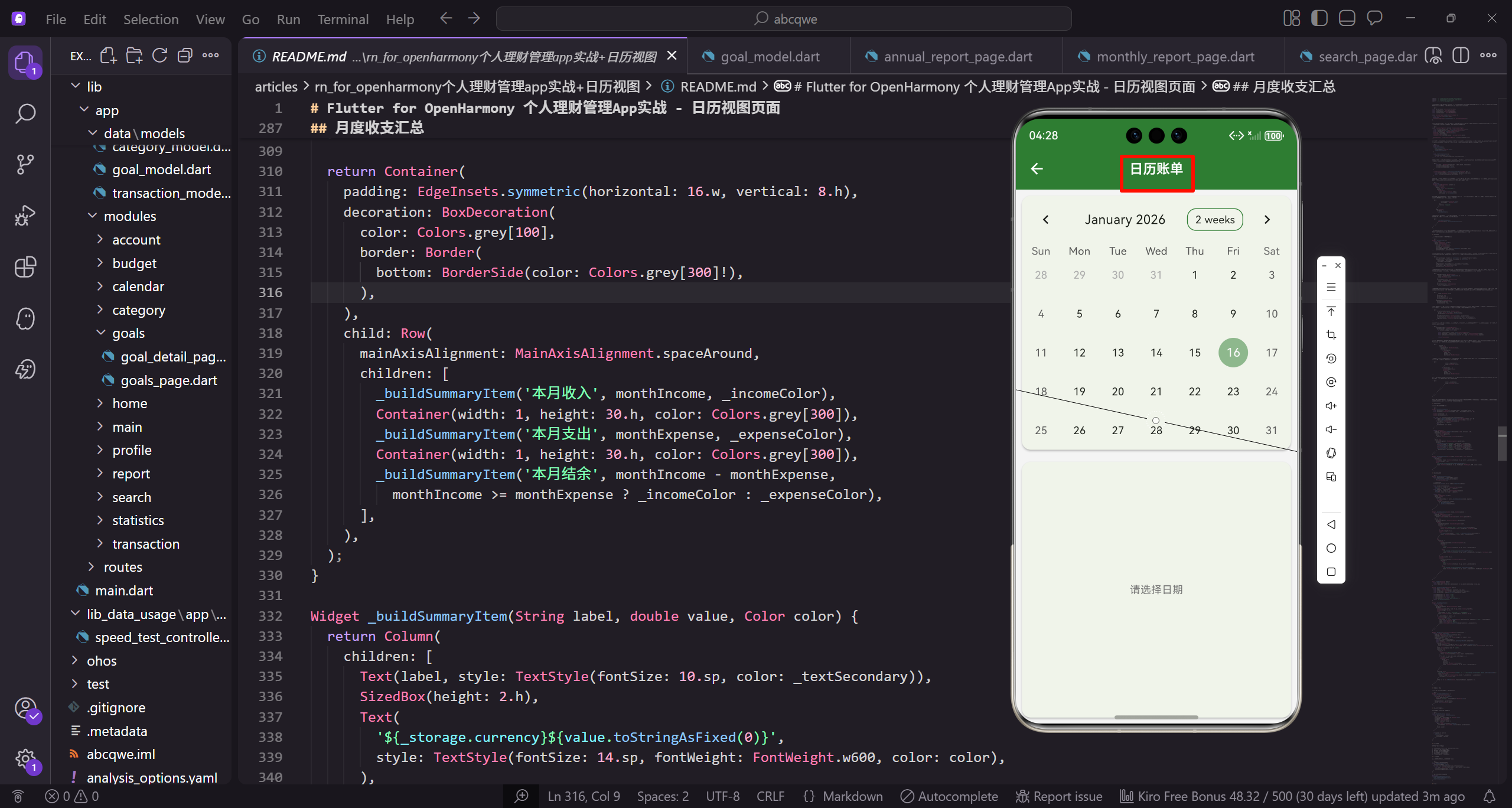
功能设计
日历视图页面包含:
- 可交互的日历组件
- 有记录的日期显示标记
- 选中日期的收支汇总
- 当日交易记录列表
- 月度收支统计
- 快速跳转到今天
设计思路
日历视图的核心价值:
- 提供时间维度的账单浏览方式
- 快速定位到特定日期
- 直观展示哪些日期有记录
- 方便回顾历史消费
依赖配置
使用 table_calendar 包实现日历功能:
dependencies:
  table_calendar: ^3.0.9
页面实现
创建 calendar_page.dart:
import 'package:flutter/material.dart';
import 'package:flutter_screenutil/flutter_screenutil.dart';
import 'package:get/get.dart';
import 'package:table_calendar/table_calendar.dart';
import 'package:intl/intl.dart';
import '../../core/services/transaction_service.dart';
import '../../core/services/category_service.dart';
import '../../core/services/storage_service.dart';
import '../../data/models/transaction_model.dart';
import '../../routes/app_pages.dart';
导入必要的包和服务。table_calendar 是第三方日历组件库,提供了丰富的日历功能。intl 用于日期格式化。导入三个核心服务用于获取交易数据、分类信息和存储配置。TransactionModel 是交易数据模型,app_pages 包含路由定义。
const _primaryColor = Color(0xFF2E7D32);
const _incomeColor = Color(0xFF4CAF50);
const _expenseColor = Color(0xFFE53935);
const _textSecondary = Color(0xFF757575);
class CalendarPage extends StatefulWidget {
const CalendarPage({super.key});
State<CalendarPage> createState() => _CalendarPageState();
}
定义颜色常量保持视觉一致性。主题色用于强调元素,收入用绿色,支出用红色,次要文字用灰色。CalendarPage 使用 StatefulWidget 因为需要管理选中日期、焦点日期等状态。这些状态会随用户交互而变化,需要触发页面重建。
class _CalendarPageState extends State<CalendarPage> {
  final _transactionService = Get.find<TransactionService>();
  final _categoryService = Get.find<CategoryService>();
  final _storage = Get.find<StorageService>();
  DateTime _focusedDay = DateTime.now();
  DateTime? _selectedDay;
  CalendarFormat _calendarFormat = CalendarFormat.month;

  Map<DateTime, List<TransactionModel>> _transactionsByDay = {};
初始化服务和状态变量。_focusedDay 是日历当前显示的月份,_selectedDay 是用户选中的日期。_calendarFormat 控制日历显示格式(月/周/双周)。_transactionsByDay 是缓存,key 是日期,value 是该日期的交易列表,避免重复查询提升性能。
void initState() {
super.initState();
_selectedDay = DateTime.now();
_loadTransactions();
}
void _loadTransactions() {
_transactionsByDay.clear();
for (var t in _transactionService.allTransactions) {
页面初始化时加载交易数据。默认选中今天的日期,然后调用 _loadTransactions 构建缓存。_loadTransactions 方法遍历所有交易记录,按日期归类存储到 Map 中。先清空缓存确保数据是最新的,避免旧数据残留。
      final day = DateTime(t.date.year, t.date.month, t.date.day);
      _transactionsByDay[day] ??= [];
      _transactionsByDay[day]!.add(t);
    }
  }

  List<TransactionModel> _getTransactionsForDay(DateTime day) {
    final normalizedDay = DateTime(day.year, day.month, day.day);
    return _transactionsByDay[normalizedDay] ?? [];
  }
将交易日期标准化为零点时刻,去掉时分秒。使用 ??= 操作符,如果该日期还没有列表就创建一个空列表。_getTransactionsForDay 方法根据日期获取交易列表,同样需要标准化日期。如果该日期没有交易返回空列表,避免空指针异常。
Widget build(BuildContext context) {
return Scaffold(
appBar: AppBar(
title: const Text('日历账单'),
actions: [
IconButton(
icon: const Icon(Icons.today),
onPressed: () => setState(() {
构建页面主体结构。AppBar 标题显示"日历账单",右侧添加一个"回到今天"的按钮。点击按钮时调用 setState 更新选中日期和焦点日期为今天,触发页面重建。这个功能方便用户快速回到当前日期,提升使用体验。
              _selectedDay = DateTime.now();
              _focusedDay = DateTime.now();
            }),
            tooltip: '回到今天',
          ),
        ],
      ),
      body: Column(
        children: [
          _buildCalendar(),
设置 tooltip 提示文字,鼠标悬停时显示。body 使用 Column 布局,从上到下依次放置日历组件、月度汇总和交易列表。_buildCalendar 方法构建日历组件,是页面的核心部分,用户通过它选择日期查看交易记录。
          _buildMonthSummary(),
          Expanded(child: _buildTransactionList()),
        ],
      ),
    );
  }
}
_buildMonthSummary 显示当前月份的收支汇总,让用户了解整体情况。_buildTransactionList 显示选中日期的交易明细,用 Expanded 包裹让它占据剩余空间。这种布局让日历固定在顶部,交易列表可以滚动查看,符合用户的使用习惯。
日历组件
使用 TableCalendar 实现日历功能:
Widget _buildCalendar() {
  return Card(
    margin: EdgeInsets.all(8.w),
    child: TableCalendar(
      firstDay: DateTime(2020),
      lastDay: DateTime(2030),
      focusedDay: _focusedDay,
      selectedDayPredicate: (day) => isSameDay(_selectedDay, day),
      calendarFormat: _calendarFormat,
创建日历组件并设置基本参数。Card 包裹提供阴影和圆角效果。firstDay 和 lastDay 限制日历的可选范围为2020-2030年。focusedDay 控制当前显示的月份。selectedDayPredicate 判断某个日期是否被选中,用于高亮显示。calendarFormat 控制显示格式。
      onFormatChanged: (format) => setState(() => _calendarFormat = format),
      onDaySelected: (selectedDay, focusedDay) => setState(() {
        _selectedDay = selectedDay;
        _focusedDay = focusedDay;
      }),
      onPageChanged: (focusedDay) => _focusedDay = focusedDay,
      eventLoader: _getTransactionsForDay,
      calendarStyle: CalendarStyle(
配置日历的交互回调。onFormatChanged 在用户切换月/周视图时触发。onDaySelected 在点击日期时触发,更新选中日期和焦点日期。onPageChanged 在切换月份时触发。eventLoader 为每个日期加载事件数据,这里返回该日期的交易列表,用于显示标记点。
        todayDecoration: BoxDecoration(
          color: _primaryColor.withOpacity(0.5),
          shape: BoxShape.circle
        ),
        selectedDecoration: BoxDecoration(
          color: _primaryColor,
          shape: BoxShape.circle
        ),
        markerDecoration: BoxDecoration(
          color: _expenseColor,
配置日历样式。todayDecoration 设置今天日期的样式,用半透明的主题色圆形背景。selectedDecoration 设置选中日期的样式,用完全不透明的主题色,比今天更醒目。markerDecoration 设置标记点的样式,用红色表示有支出记录。这些视觉区分让用户快速识别不同状态的日期。
          shape: BoxShape.circle
        ),
        markerSize: 6.w,
        markersMaxCount: 3,
        outsideDaysVisible: false,
      ),
      headerStyle: HeaderStyle(
        formatButtonVisible: true,
        titleCentered: true,
设置标记点大小为6,最多显示3个标记点。outsideDaysVisible 设为 false 隐藏非当月日期,让日历更简洁。headerStyle 配置头部样式,formatButtonVisible 显示格式切换按钮,titleCentered 让标题居中显示。这些配置让日历既美观又实用。
        formatButtonDecoration: BoxDecoration(
          border: Border.all(color: _primaryColor),
          borderRadius: BorderRadius.circular(12.r)
        ),
        formatButtonTextStyle: TextStyle(color: _primaryColor),
        leftChevronIcon: Icon(Icons.chevron_left, color: _primaryColor),
        rightChevronIcon: Icon(Icons.chevron_right, color: _primaryColor),
      ),
自定义头部按钮样式。格式切换按钮用主题色边框和圆角,文字也用主题色。左右箭头图标用主题色,保持视觉一致性。这些细节让日历组件与应用整体风格融为一体,提升专业感和品牌识别度。
      calendarBuilders: CalendarBuilders(
        markerBuilder: (context, date, events) {
          if (events.isEmpty) return null;

          final transactions = events.cast<TransactionModel>();
          final hasIncome = transactions.any((t) => t.type == TransactionType.income);
          final hasExpense = transactions.any((t) => t.type == TransactionType.expense);

          return Positioned(
自定义标记点的构建逻辑。如果某天没有交易记录返回 null 不显示标记。将 events 转换为 TransactionModel 类型。检查该天是否有收入和支出记录。使用 Positioned 定位标记点在日期下方。这样可以区分显示收入和支出,比单一标记更有信息量。
            bottom: 1,
            child: Row(
              mainAxisSize: MainAxisSize.min,
              children: [
                if (hasExpense)
                  Container(
                    width: 6.w,
                    height: 6.w,
                    decoration: BoxDecoration(
标记点定位在底部1像素处。Row 布局横向排列收入和支出标记。如果有支出记录,显示一个6x6的红色圆点。Container 用 BoxDecoration 设置圆形形状和颜色。这种设计让用户一眼就能看出某天有哪些类型的交易。
                      color: _expenseColor,
                      shape: BoxShape.circle,
                    ),
                  ),
                if (hasIncome) ...[
                  SizedBox(width: 2.w),
                  Container(
                    width: 6.w,
                    height: 6.w,
                    decoration: BoxDecoration(
支出标记用红色圆点。如果有收入记录,添加2像素间距后显示绿色圆点。两个圆点并排显示,用户可以同时看到收入和支出信息。展开运算符 … 配合 if 语句,可以条件性地添加多个 Widget,这是 Dart 的语法糖。
                      color: _incomeColor,
                      shape: BoxShape.circle,
                    ),
                  ),
                ],
              ],
            ),
          );
        },
      ),
    ),
  );
}
收入标记用绿色圆点。整个 markerBuilder 返回自定义的标记组件。这种设计比默认的单一标记更有表现力,用户可以快速了解每天的交易类型。日历组件配置完成,提供了丰富的交互和视觉反馈,是日历视图页面的核心功能。
月度收支汇总
显示当前月份的收支统计:
Widget _buildMonthSummary() {
  final monthStart = DateTime(_focusedDay.year, _focusedDay.month, 1);
  final monthEnd = DateTime(_focusedDay.year, _focusedDay.month + 1, 0);

  double monthIncome = 0;
  double monthExpense = 0;

  for (var t in _transactionService.allTransactions) {
    if (t.date.isAfter(monthStart.subtract(const Duration(days: 1))) &&
        t.date.isBefore(monthEnd.add(const Duration(days: 1)))) {
      if (t.type == TransactionType.income) {
        monthIncome += t.amount;
      } else {
        monthExpense += t.amount;
      }
    }
  }

  return Container(
    padding: EdgeInsets.symmetric(horizontal: 16.w, vertical: 8.h),
    decoration: BoxDecoration(
      color: Colors.grey[100],
      border: Border(
        bottom: BorderSide(color: Colors.grey[300]!),
      ),
    ),
    child: Row(
      mainAxisAlignment: MainAxisAlignment.spaceAround,
      children: [
        _buildSummaryItem('本月收入', monthIncome, _incomeColor),
        Container(width: 1, height: 30.h, color: Colors.grey[300]),
        _buildSummaryItem('本月支出', monthExpense, _expenseColor),
        Container(width: 1, height: 30.h, color: Colors.grey[300]),
        _buildSummaryItem('本月结余', monthIncome - monthExpense,
          monthIncome >= monthExpense ? _incomeColor : _expenseColor),
      ],
    ),
  );
}

Widget _buildSummaryItem(String label, double value, Color color) {
  return Column(
    children: [
      Text(label, style: TextStyle(fontSize: 10.sp, color: _textSecondary)),
      SizedBox(height: 2.h),
      Text(
        '${_storage.currency}${value.toStringAsFixed(0)}',
        style: TextStyle(fontSize: 14.sp, fontWeight: FontWeight.w600, color: color),
      ),
    ],
  );
}
交易记录列表
Widget _buildTransactionList() {
  final transactions = _selectedDay != null
    ? _getTransactionsForDay(_selectedDay!)
    : <TransactionModel>[];

  // 按时间排序
  transactions.sort((a, b) => b.date.compareTo(a.date));

  final income = transactions
    .where((t) => t.type == TransactionType.income)
    .fold(0.0, (sum, t) => sum + t.amount);
  final expense = transactions
    .where((t) => t.type == TransactionType.expense)
    .fold(0.0, (sum, t) => sum + t.amount);

  return Card(
    margin: EdgeInsets.all(8.w),
    child: Column(
      children: [
        if (_selectedDay != null) _buildDaySummary(income, expense),
        Expanded(
          child: transactions.isEmpty
            ? _buildEmptyState()
            : _buildList(transactions),
        ),
      ],
    ),
  );
}

Widget _buildDaySummary(double income, double expense) {
  return Container(
    padding: EdgeInsets.all(16.w),
    decoration: BoxDecoration(
      border: Border(bottom: BorderSide(color: Colors.grey[200]!)),
    ),
    child: Row(
      mainAxisAlignment: MainAxisAlignment.spaceBetween,
      children: [
        Column(
          crossAxisAlignment: CrossAxisAlignment.start,
          children: [
            Text(
              DateFormat('MM月dd日 EEEE', 'zh_CN').format(_selectedDay!),
              style: TextStyle(fontSize: 16.sp, fontWeight: FontWeight.w600)
            ),
            SizedBox(height: 4.h),
            Text(
              _isToday(_selectedDay!) ? '今天' : _getRelativeDate(_selectedDay!),
              style: TextStyle(fontSize: 12.sp, color: _textSecondary),
            ),
          ],
        ),
        Row(
          children: [
            Column(
              crossAxisAlignment: CrossAxisAlignment.end,
              children: [
                Text(
                  '收入',
                  style: TextStyle(fontSize: 10.sp, color: _textSecondary)
                ),
                Text(
                  '+${_storage.currency}${income.toStringAsFixed(0)}',
                  style: TextStyle(fontSize: 12.sp, color: _incomeColor, fontWeight: FontWeight.w500)
                ),
              ],
            ),
            SizedBox(width: 16.w),
            Column(
              crossAxisAlignment: CrossAxisAlignment.end,
              children: [
                Text(
                  '支出',
                  style: TextStyle(fontSize: 10.sp, color: _textSecondary)
                ),
                Text(
                  '-${_storage.currency}${expense.toStringAsFixed(0)}',
                  style: TextStyle(fontSize: 12.sp, color: _expenseColor, fontWeight: FontWeight.w500)
                ),
              ],
            ),
          ],
        ),
      ],
    ),
  );
}

bool _isToday(DateTime date) {
  final now = DateTime.now();
  return date.year == now.year && date.month == now.month && date.day == now.day;
}

String _getRelativeDate(DateTime date) {
  final now = DateTime.now();
  final today = DateTime(now.year, now.month, now.day);
  final targetDate = DateTime(date.year, date.month, date.day);
  final difference = today.difference(targetDate).inDays;

  if (difference == 1) return '昨天';
  if (difference == 2) return '前天';
  if (difference == -1) return '明天';
  if (difference > 0) return '$difference天前';
  return '${-difference}天后';
}

Widget _buildEmptyState() {
  return Center(
    child: Column(
      mainAxisAlignment: MainAxisAlignment.center,
      children: [
        Icon(Icons.event_note, size: 48.sp, color: Colors.grey[300]),
        SizedBox(height: 12.h),
        Text(
          _selectedDay == null ? '请选择日期' : '当日无记录',
          style: TextStyle(color: _textSecondary, fontSize: 14.sp)
        ),
        if (_selectedDay != null) ...[
          SizedBox(height: 16.h),
          ElevatedButton.icon(
            onPressed: () => Get.toNamed(Routes.addTransaction, arguments: {'date': _selectedDay}),
            icon: const Icon(Icons.add),
            label: const Text('添加记录'),
            style: ElevatedButton.styleFrom(backgroundColor: _primaryColor),
          ),
        ],
      ],
    ),
  );
}

Widget _buildList(List<TransactionModel> transactions) {
  return ListView.separated(
    padding: EdgeInsets.symmetric(vertical: 8.h),
    itemCount: transactions.length,
    separatorBuilder: (_, __) => Divider(height: 1, indent: 72.w),
    itemBuilder: (_, index) {
      final t = transactions[index];
      final category = _categoryService.getCategoryById(t.categoryId);
      return ListTile(
        leading: CircleAvatar(
          backgroundColor: (category?.color ?? Colors.grey).withOpacity(0.2),
          child: Icon(category?.icon ?? Icons.help, color: category?.color ?? Colors.grey, size: 20.sp)
        ),
        title: Text(category?.name ?? '未知'),
        subtitle: Row(
          children: [
            Text(
              DateFormat('HH:mm').format(t.date),
              style: TextStyle(fontSize: 12.sp, color: _textSecondary),
            ),
            if (t.note != null && t.note!.isNotEmpty) ...[
              SizedBox(width: 8.w),
              Expanded(
                child: Text(
                  t.note!,
                  maxLines: 1,
                  overflow: TextOverflow.ellipsis,
                  style: TextStyle(fontSize: 12.sp, color: _textSecondary),
                ),
              ),
            ],
          ],
        ),
        trailing: Text(
          '${t.type == TransactionType.income ? '+' : '-'}${_storage.currency}${t.amount.toStringAsFixed(2)}',
          style: TextStyle(
            color: t.type == TransactionType.income ? _incomeColor : _expenseColor,
            fontWeight: FontWeight.w600
          ),
        ),
        onTap: () => Get.toNamed(Routes.transactionDetail, arguments: t),
      );
    },
  );
}
快速添加记录
在选中日期时,提供快速添加记录的入口:
Widget _buildQuickAddButton() {
  return FloatingActionButton(
    onPressed: () => Get.toNamed(
      Routes.addTransaction,
      arguments: {'date': _selectedDay ?? DateTime.now()}
    ),
    backgroundColor: _primaryColor,
    child: const Icon(Icons.add),
  );
}
日期范围快速跳转
提供快速跳转到特定日期的功能:
void _showDatePicker() async {
  final picked = await showDatePicker(
    context: context,
    initialDate: _selectedDay ?? DateTime.now(),
    firstDate: DateTime(2020),
    lastDate: DateTime(2030),
    builder: (context, child) {
      return Theme(
        data: Theme.of(context).copyWith(
          colorScheme: ColorScheme.light(primary: _primaryColor),
        ),
        child: child!,
      );
    },
  );

  if (picked != null) {
    setState(() {
      _selectedDay = picked;
      _focusedDay = picked;
    });
  }
}
设计要点
日历视图的设计考虑:
- 有记录的日期显示小圆点标记,区分收入和支出
- 今天和选中日期有不同的样式
- 支持月/双周/周三种视图切换
- 选中日期后显示当日收支汇总
- 提供快速跳转到今天的功能
- 空状态时提供添加记录的入口
性能优化
对于大量交易数据,使用缓存优化性能:
// 在页面初始化时预处理数据
void _loadTransactions() {
_transactionsByDay.clear();
for (var t in _transactionService.allTransactions) {
final day = DateTime(t.date.year, t.date.month, t.date.day);
_transactionsByDay[day] ??= [];
_transactionsByDay[day]!.add(t);
}
}
// 监听数据变化,更新缓存
void didChangeDependencies() {
super.didChangeDependencies();
_loadTransactions();
}
小结
日历视图提供了一种直观的方式浏览历史记录,用户可以:
- 快速定位到某一天查看详情
- 通过标记了解哪些日期有记录
- 查看月度收支汇总
- 方便地添加指定日期的记录
下一篇将实现搜索功能页面。
欢迎加入 OpenHarmony 跨平台开发社区,获取更多技术资源和交流机会:
https://openharmonycrossplatform.csdn.net

开源鸿蒙跨平台开发社区汇聚开发者与厂商,共建“一次开发,多端部署”的开源生态,致力于降低跨端开发门槛,推动万物智联创新。
更多推荐
 17
17 0
0- 0


 已为社区贡献30条内容

所有评论(0)