Flutter 框架跨平台鸿蒙开发 - 种子发芽记录器:记录植物成长的每一刻
✅ 种子信息管理(名称、品种、日期)✅ 四种发芽状态追踪✅ 生长照片记录(模拟)✅ 播种天数自动计算✅ 发芽用时统计✅ 状态筛选功能✅ 数据本地持久化✅ 添加和编辑功能✅ 删除确认对话框✅ 空状态提示✅ 使用说明对话框lib/├── pages/└── utils/种子发芽记录器是一款实用的园艺辅助应用,通过Flutter实现了完整的种子管理功能。项目代码简洁清晰,功能完善,非常适合Flutter
Flutter种子发芽记录器:记录植物成长的每一刻
项目简介
种子发芽记录器是一款专为园艺爱好者设计的Flutter应用,可以帮助你记录和追踪种子从播种到成熟的整个生长过程。无论是阳台种菜还是花园养花,这款应用都能成为你的得力助手。
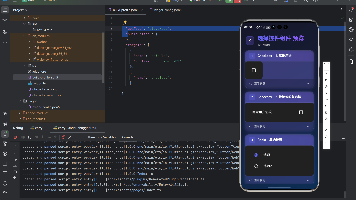
运行效果图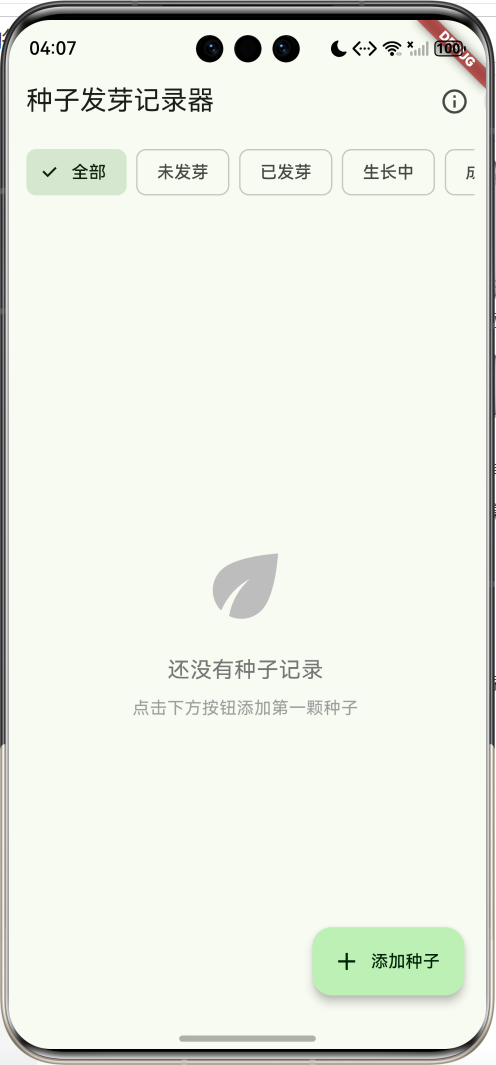
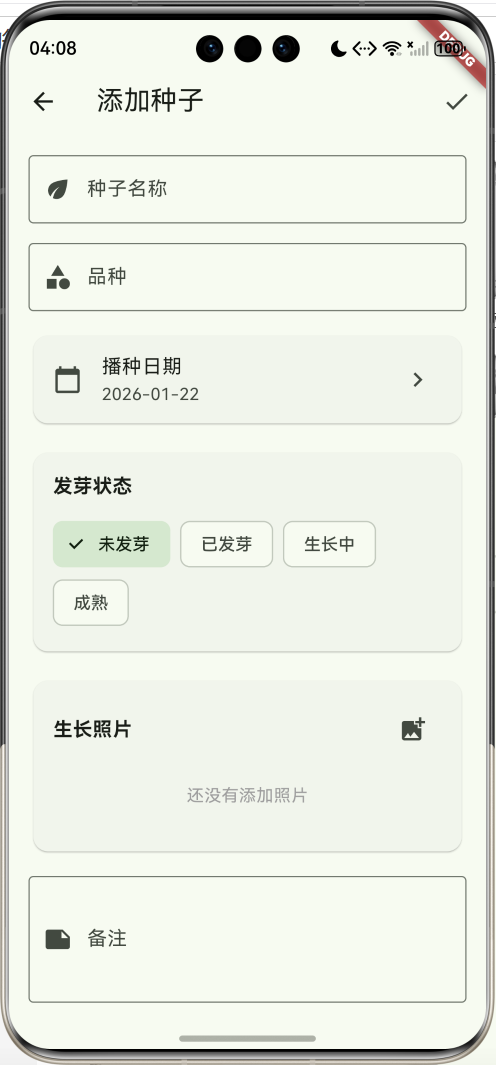
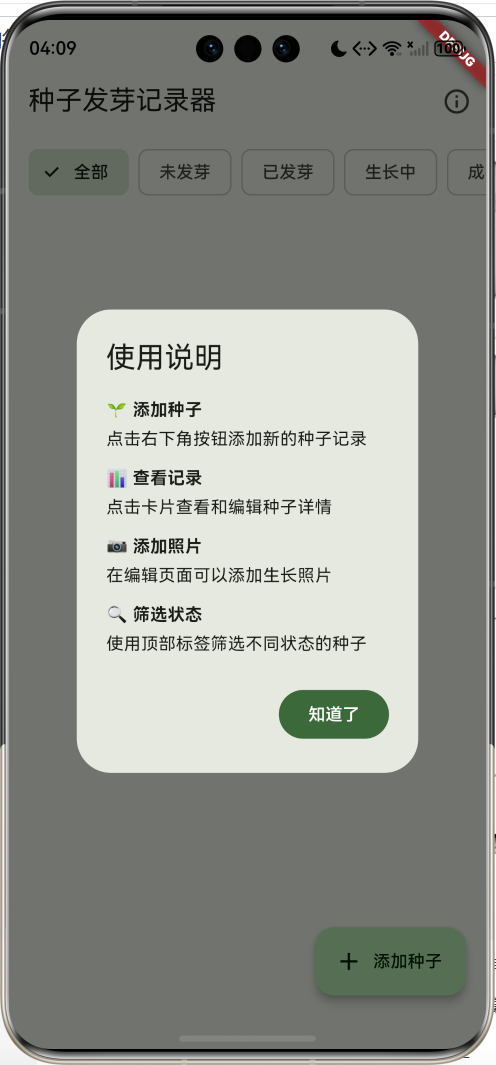
核心功能
- 种子管理:记录种子名称、品种、播种日期
- 状态追踪:未发芽、已发芽、生长中、成熟四种状态
- 生长照片:添加多张照片记录生长过程
- 发芽统计:自动计算播种天数和发芽用时
- 状态筛选:按不同状态快速筛选种子
- 数据持久化:使用SharedPreferences保存数据
- 备注功能:记录养护要点和注意事项
技术特点
- Material Design 3设计风格
- 卡片式布局,信息展示清晰
- 状态颜色区分,一目了然
- 响应式设计,适配各种屏幕
- 数据本地存储,无需网络
效果展示
应用包含以下主要界面:
- 种子列表页:展示所有种子记录,支持状态筛选
- 添加种子页:录入新种子的基本信息
- 编辑种子页:更新种子状态和添加照片
- 状态筛选栏:快速切换不同状态的种子
- 统计信息:显示播种天数、发芽用时等数据
项目结构
lib/
  └── main.dart          # 主程序文件(包含所有代码)
核心代码实现
1. 数据模型设计
首先定义种子记录的数据模型:
class SeedRecord {
  String id;
  String name;
  String variety;
  DateTime plantDate;
  String status;
  List<String> photos;
  String notes;
  DateTime? germinationDate;

  SeedRecord({
    required this.id,
    required this.name,
    required this.variety,
    required this.plantDate,
    this.status = '未发芽',
    List<String>? photos,
    this.notes = '',
    this.germinationDate,
  }) : photos = photos ?? [];

  int getDaysPlanted() {
    return DateTime.now().difference(plantDate).inDays;
  }

  int? getDaysToGerminate() {
    if (germinationDate != null) {
      return germinationDate!.difference(plantDate).inDays;
    }
    return null;
  }
}
模型字段说明:
id:唯一标识符name:种子名称(如番茄、黄瓜)variety:品种(如樱桃番茄)plantDate:播种日期status:发芽状态(未发芽/已发芽/生长中/成熟)photos:生长照片列表notes:备注信息germinationDate:发芽日期(可选)
计算方法:
getDaysPlanted():计算播种天数getDaysToGerminate():计算发芽用时
2. JSON序列化
实现数据的序列化和反序列化:
Map<String, dynamic> toJson() => {
  'id': id,
  'name': name,
  'variety': variety,
  'plantDate': plantDate.toIso8601String(),
  'status': status,
  'photos': photos,
  'notes': notes,
  'germinationDate': germinationDate?.toIso8601String(),
};

factory SeedRecord.fromJson(Map<String, dynamic> json) => SeedRecord(
  id: json['id'],
  name: json['name'],
  variety: json['variety'],
  plantDate: DateTime.parse(json['plantDate']),
  status: json['status'],
  photos: List<String>.from(json['photos'] ?? []),
  notes: json['notes'] ?? '',
  germinationDate: json['germinationDate'] != null
      ? DateTime.parse(json['germinationDate'])
      : null,
);
序列化要点:
- 使用
toIso8601String()转换DateTime为字符串 - 使用
DateTime.parse()将字符串转回DateTime - 使用
List<String>.from()确保列表类型正确 - 使用
??运算符提供默认值
3. 数据持久化
使用SharedPreferences保存和加载数据:
Future<void> _loadSeeds() async {
  final prefs = await SharedPreferences.getInstance();
  final seedsJson = prefs.getString('seeds');
  if (seedsJson != null) {
    final List<dynamic> decoded = jsonDecode(seedsJson);
    setState(() {
      _seeds = decoded.map((json) => SeedRecord.fromJson(json)).toList();
    });
  }
}

Future<void> _saveSeeds() async {
  final prefs = await SharedPreferences.getInstance();
  final seedsJson = jsonEncode(_seeds.map((s) => s.toJson()).toList());
  await prefs.setString('seeds', seedsJson);
}
存储流程:
- 将种子列表转换为JSON字符串
- 使用SharedPreferences保存字符串
- 加载时解析JSON并转换回对象列表
4. 状态筛选功能
实现状态筛选栏:
Widget _buildFilterBar() {
  final statuses = ['全部', '未发芽', '已发芽', '生长中', '成熟'];
  return Container(
    height: 60,
    padding: const EdgeInsets.symmetric(vertical: 8),
    child: ListView.builder(
      scrollDirection: Axis.horizontal,
      padding: const EdgeInsets.symmetric(horizontal: 16),
      itemCount: statuses.length,
      itemBuilder: (context, index) {
        final status = statuses[index];
        final isSelected = _filterStatus == status;
        return Padding(
          padding: const EdgeInsets.only(right: 8),
          child: FilterChip(
            label: Text(status),
            selected: isSelected,
            onSelected: (selected) {
              setState(() {
                _filterStatus = status;
              });
            },
          ),
        );
      },
    ),
  );
}

List<SeedRecord> get _filteredSeeds {
  if (_filterStatus == '全部') return _seeds;
  return _seeds.where((s) => s.status == _filterStatus).toList();
}
筛选逻辑:
- 使用
FilterChip创建可选择的标签 - 横向滚动显示所有状态选项
- 根据选中状态过滤种子列表
5. 种子卡片UI设计
创建美观的种子信息卡片:
Widget _buildSeedCard(SeedRecord seed) {
  final daysPlanted = seed.getDaysPlanted();
  final daysToGerminate = seed.getDaysToGerminate();

  Color statusColor;
  IconData statusIcon;
  switch (seed.status) {
    case '未发芽':
      statusColor = Colors.grey;
      statusIcon = Icons.circle_outlined;
      break;
    case '已发芽':
      statusColor = Colors.lightGreen;
      statusIcon = Icons.eco;
      break;
    case '生长中':
      statusColor = Colors.green;
      statusIcon = Icons.park;
      break;
    case '成熟':
      statusColor = Colors.orange;
      statusIcon = Icons.local_florist;
      break;
    default:
      statusColor = Colors.grey;
      statusIcon = Icons.circle_outlined;
  }

  return Card(
    margin: const EdgeInsets.only(bottom: 12),
    child: InkWell(
      onTap: () => _editSeed(seed),
      borderRadius: BorderRadius.circular(12),
      child: Padding(
        padding: const EdgeInsets.all(16),
        child: Column(
          crossAxisAlignment: CrossAxisAlignment.start,
          children: [
            // 顶部信息行
            Row(
              children: [
                // 状态图标
                Container(
                  width: 60,
                  height: 60,
                  decoration: BoxDecoration(
                    color: statusColor.withValues(alpha: 0.2),
                    borderRadius: BorderRadius.circular(8),
                  ),
                  child: Icon(statusIcon, color: statusColor, size: 32),
                ),
                const SizedBox(width: 12),
                // 名称和品种
                Expanded(
                  child: Column(
                    crossAxisAlignment: CrossAxisAlignment.start,
                    children: [
                      Text(
                        seed.name,
                        style: const TextStyle(
                          fontSize: 18,
                          fontWeight: FontWeight.bold,
                        ),
                      ),
                      const SizedBox(height: 4),
                      Text(
                        seed.variety,
                        style: TextStyle(
                          fontSize: 14,
                          color: Colors.grey[600],
                        ),
                      ),
                    ],
                  ),
                ),
                // 状态标签
                Container(
                  padding: const EdgeInsets.symmetric(
                    horizontal: 12,
                    vertical: 6,
                  ),
                  decoration: BoxDecoration(
                    color: statusColor.withValues(alpha: 0.2),
                    borderRadius: BorderRadius.circular(20),
                  ),
                  child: Text(
                    seed.status,
                    style: TextStyle(
                      color: statusColor,
                      fontWeight: FontWeight.bold,
                      fontSize: 12,
                    ),
                  ),
                ),
                // 删除按钮
                IconButton(
                  icon: const Icon(Icons.delete_outline),
                  onPressed: () => _deleteSeed(seed),
                  color: Colors.red,
                ),
              ],
            ),
            // 统计信息
            const SizedBox(height: 12),
            Row(
              children: [
                _buildInfoChip(
                  Icons.calendar_today,
                  '播种 $daysPlanted 天',
                  Colors.blue,
                ),
                const SizedBox(width: 8),
                if (daysToGerminate != null)
                  _buildInfoChip(
                    Icons.timer,
                    '$daysToGerminate 天发芽',
                    Colors.green,
                  ),
                const SizedBox(width: 8),
                if (seed.photos.isNotEmpty)
                  _buildInfoChip(
                    Icons.photo_library,
                    '${seed.photos.length} 张照片',
                    Colors.purple,
                  ),
              ],
            ),
            // 照片预览
            if (seed.photos.isNotEmpty) ...[
              const SizedBox(height: 12),
              SizedBox(
                height: 80,
                child: ListView.builder(
                  scrollDirection: Axis.horizontal,
                  itemCount: seed.photos.length,
                  itemBuilder: (context, index) {
                    return Padding(
                      padding: const EdgeInsets.only(right: 8),
                      child: Container(
                        width: 80,
                        height: 80,
                        decoration: BoxDecoration(
                          color: Colors.green[100],
                          borderRadius: BorderRadius.circular(8),
                        ),
                        child: Column(
                          mainAxisAlignment: MainAxisAlignment.center,
                          children: [
                            Icon(Icons.image, color: Colors.green[700]),
                            const SizedBox(height: 4),
                            Text(
                              '照片${index + 1}',
                              style: TextStyle(
                                fontSize: 10,
                                color: Colors.green[700],
                              ),
                            ),
                          ],
                        ),
                      ),
                    );
                  },
                ),
              ),
            ],
          ],
        ),
      ),
    ),
  );
}
卡片设计要点:
- 使用不同颜色和图标区分状态
- 信息分层展示,主次分明
- 横向滚动显示照片预览
- 点击卡片进入编辑页面
6. 信息标签组件
创建可复用的信息标签:
Widget _buildInfoChip(IconData icon, String label, Color color) {
  return Container(
    padding: const EdgeInsets.symmetric(horizontal: 8, vertical: 4),
    decoration: BoxDecoration(
      color: color.withValues(alpha: 0.1),
      borderRadius: BorderRadius.circular(12),
    ),
    child: Row(
      mainAxisSize: MainAxisSize.min,
      children: [
        Icon(icon, size: 14, color: color),
        const SizedBox(width: 4),
        Text(
          label,
          style: TextStyle(fontSize: 12, color: color),
        ),
      ],
    ),
  );
}
标签特点:
- 图标+文字组合
- 半透明背景色
- 圆角边框
- 紧凑布局
7. 添加种子页面
实现种子信息的录入:
class AddSeedPage extends StatefulWidget {
const AddSeedPage({super.key});
State<AddSeedPage> createState() => _AddSeedPageState();
}
class _AddSeedPageState extends State<AddSeedPage> {
final _formKey = GlobalKey<FormState>();
final _nameController = TextEditingController();
final _varietyController = TextEditingController();
final _notesController = TextEditingController();
DateTime _plantDate = DateTime.now();
String _status = '未发芽';
final List<String> _photos = [];
void _saveSeed() {
if (_formKey.currentState!.validate()) {
final seed = SeedRecord(
id: DateTime.now().millisecondsSinceEpoch.toString(),
name: _nameController.text,
variety: _varietyController.text,
plantDate: _plantDate,
status: _status,
photos: _photos,
notes: _notesController.text,
);
Navigator.pop(context, seed);
}
}
}
表单验证:
- 使用
Form和GlobalKey管理表单 TextFormField的validator进行输入验证- 必填字段检查
8. 日期选择功能
实现播种日期的选择:
Card(
  child: ListTile(
    leading: const Icon(Icons.calendar_today),
    title: const Text('播种日期'),
    subtitle: Text(
      '${_plantDate.year}-${_plantDate.month.toString().padLeft(2, '0')}-${_plantDate.day.toString().padLeft(2, '0')}',
    ),
    trailing: const Icon(Icons.chevron_right),
    onTap: () async {
      final picked = await showDatePicker(
        context: context,
        initialDate: _plantDate,
        firstDate: DateTime(2020),
        lastDate: DateTime.now(),
      );
      if (picked != null) {
        setState(() {
          _plantDate = picked;
        });
      }
    },
  ),
),
日期选择器配置:
initialDate:初始显示的日期firstDate:可选择的最早日期lastDate:可选择的最晚日期(设为今天)- 日期格式化显示
9. 状态选择组件
使用ChoiceChip实现状态选择:
Card(
  child: Padding(
    padding: const EdgeInsets.all(16),
    child: Column(
      crossAxisAlignment: CrossAxisAlignment.start,
      children: [
        const Text(
          '发芽状态',
          style: TextStyle(
            fontSize: 16,
            fontWeight: FontWeight.bold,
          ),
        ),
        const SizedBox(height: 12),
        Wrap(
          spacing: 8,
          children: ['未发芽', '已发芽', '生长中', '成熟'].map((status) {
            return ChoiceChip(
              label: Text(status),
              selected: _status == status,
              onSelected: (selected) {
                if (selected) {
                  setState(() {
                    _status = status;
                  });
                }
              },
            );
          }).toList(),
        ),
      ],
    ),
  ),
),
ChoiceChip特点:
- 单选模式
- 选中状态高亮
- 自动换行布局
10. 照片管理功能
实现照片的添加和删除:
void _addPhoto() {
  setState(() {
    _photos.add('photo_${DateTime.now().millisecondsSinceEpoch}');
  });
  ScaffoldMessenger.of(context).showSnackBar(
    const SnackBar(content: Text('照片已添加')),
  );
}

void _removePhoto(int index) {
  setState(() {
    _photos.removeAt(index);
  });
}
照片网格展示:
GridView.builder(
  shrinkWrap: true,
  physics: const NeverScrollableScrollPhysics(),
  gridDelegate: const SliverGridDelegateWithFixedCrossAxisCount(
    crossAxisCount: 3,
    crossAxisSpacing: 8,
    mainAxisSpacing: 8,
  ),
  itemCount: _photos.length,
  itemBuilder: (context, index) {
    return Stack(
      children: [
        Container(
          decoration: BoxDecoration(
            color: Colors.green[100],
            borderRadius: BorderRadius.circular(8),
          ),
          child: Center(
            child: Column(
              mainAxisAlignment: MainAxisAlignment.center,
              children: [
                Icon(Icons.image, color: Colors.green[700]),
                const SizedBox(height: 4),
                Text(
                  '照片${index + 1}',
                  style: TextStyle(
                    fontSize: 10,
                    color: Colors.green[700],
                  ),
                ),
              ],
            ),
          ),
        ),
        Positioned(
          top: 4,
          right: 4,
          child: IconButton(
            icon: const Icon(Icons.close, size: 20),
            style: IconButton.styleFrom(
              backgroundColor: Colors.black54,
              foregroundColor: Colors.white,
              padding: const EdgeInsets.all(4),
            ),
            onPressed: () => _removePhoto(index),
          ),
        ),
      ],
    );
  },
)
网格布局要点:
- 3列网格布局
- 使用
Stack叠加删除按钮 shrinkWrap: true适应内容高度NeverScrollableScrollPhysics禁用内部滚动
11. 编辑页面特殊功能
编辑页面增加发芽日期设置:
if (_status != '未发芽') ...[
  const SizedBox(height: 16),
  Card(
    child: ListTile(
      leading: const Icon(Icons.event_available),
      title: const Text('发芽日期'),
      subtitle: Text(
        _germinationDate != null
            ? '${_germinationDate!.year}-${_germinationDate!.month.toString().padLeft(2, '0')}-${_germinationDate!.day.toString().padLeft(2, '0')}'
            : '未设置',
      ),
      trailing: const Icon(Icons.chevron_right),
      onTap: () async {
        final picked = await showDatePicker(
          context: context,
          initialDate: _germinationDate ?? DateTime.now(),
          firstDate: _plantDate,
          lastDate: DateTime.now(),
        );
        if (picked != null) {
          setState(() {
            _germinationDate = picked;
          });
        }
      },
    ),
  ),
],
发芽日期逻辑:
- 只在非"未发芽"状态显示
- 发芽日期不能早于播种日期
- 发芽日期不能晚于今天
- 状态改为"已发芽"时自动设置为今天
12. 统计信息展示
在编辑页面显示统计数据:
Card(
  color: Colors.blue[50],
  child: Padding(
    padding: const EdgeInsets.all(16),
    child: Column(
      crossAxisAlignment: CrossAxisAlignment.start,
      children: [
        const Text(
          '统计信息',
          style: TextStyle(
            fontSize: 16,
            fontWeight: FontWeight.bold,
          ),
        ),
        const SizedBox(height: 12),
        Text('播种天数: ${widget.seed.getDaysPlanted()} 天'),
        if (widget.seed.getDaysToGerminate() != null)
          Text('发芽用时: ${widget.seed.getDaysToGerminate()} 天'),
        Text('照片数量: ${_photos.length} 张'),
      ],
    ),
  ),
),
统计内容:
- 播种天数:从播种到现在的天数
- 发芽用时:从播种到发芽的天数
- 照片数量:当前照片总数
技术要点详解
SharedPreferences使用
SharedPreferences是Flutter提供的轻量级键值对存储方案:
// 获取实例
final prefs = await SharedPreferences.getInstance();

// 保存字符串
await prefs.setString('key', 'value');

// 读取字符串
final value = prefs.getString('key');

// 删除数据
await prefs.remove('key');

// 清空所有数据
await prefs.clear();
适用场景:
- 用户设置
- 简单数据缓存
- 应用状态保存
- 小量结构化数据
不适用场景:
- 大量数据存储
- 复杂查询需求
- 敏感信息存储(需加密)
DateTime计算技巧
Flutter的DateTime类提供了丰富的日期计算方法:
// 获取当前时间
DateTime now = DateTime.now();

// 创建指定日期
DateTime date = DateTime(2024, 1, 1);

// 日期加减
DateTime tomorrow = now.add(Duration(days: 1));
DateTime yesterday = now.subtract(Duration(days: 1));

// 计算日期差
int days = date2.difference(date1).inDays;

// 日期比较
bool isBefore = date1.isBefore(date2);
bool isAfter = date1.isAfter(date2);
bool isSame = date1.isAtSameMomentAs(date2);

// 日期格式化
String formatted = '${date.year}-${date.month.toString().padLeft(2, '0')}-${date.day.toString().padLeft(2, '0')}';
Form表单验证
Flutter的Form组件提供了完整的表单管理功能:
// 创建FormKey
final _formKey = GlobalKey<FormState>();

// 包裹Form
Form(
  key: _formKey,
  child: Column(
    children: [
      TextFormField(
        validator: (value) {
          if (value == null || value.isEmpty) {
            return '请输入内容';
          }
          if (value.length < 2) {
            return '至少输入2个字符';
          }
          return null;
        },
      ),
    ],
  ),
)

// 验证表单
if (_formKey.currentState!.validate()) {
  // 验证通过,执行保存
}
验证规则:
- 返回null表示验证通过
- 返回字符串表示错误信息
- 可以组合多个验证条件
列表操作技巧
Dart提供了丰富的列表操作方法:
List<SeedRecord> seeds = [];

// 添加元素
seeds.add(seed);
seeds.insert(0, seed);  // 插入到开头
seeds.addAll(otherSeeds);

// 删除元素
seeds.remove(seed);
seeds.removeAt(0);
seeds.removeWhere((s) => s.id == '123');
seeds.clear();

// 查找元素
int index = seeds.indexWhere((s) => s.id == '123');
SeedRecord? found = seeds.firstWhere(
  (s) => s.id == '123',
  orElse: () => null,
);

// 过滤列表
List<SeedRecord> filtered = seeds.where((s) => s.status == '已发芽').toList();

// 映射转换
List<String> names = seeds.map((s) => s.name).toList();

// 排序
seeds.sort((a, b) => a.plantDate.compareTo(b.plantDate));
状态管理最佳实践
在StatefulWidget中合理使用setState:
// ✅ 正确:只更新需要改变的状态
setState(() {
  _status = '已发芽';
});

// ❌ 错误:在setState外修改状态
_status = '已发芽';
setState(() {});

// ✅ 正确:批量更新多个状态
setState(() {
  _status = '已发芽';
  _germinationDate = DateTime.now();
});

// ✅ 正确:异步操作后更新状态
Future<void> loadData() async {
  final data = await fetchData();
  setState(() {
    _seeds = data;
  });
}
注意事项:
- setState会触发build方法重新执行
- 避免在setState中执行耗时操作
- 组件销毁后不要调用setState
- 使用
mounted检查组件是否还在树中
界面布局分析
主页面布局结构
Scaffold
├── AppBar
│   ├── title: "种子发芽记录器"
│   └── actions: [使用说明按钮]
├── body: Column
│   ├── 状态筛选栏
│   └── Expanded
│       └── ListView (种子列表)
│           └── 种子卡片 × N
└── FloatingActionButton
    └── 添加种子按钮
种子卡片布局
Card
└── InkWell (可点击)
    └── Padding
        └── Column
            ├── Row (顶部信息)
            │   ├── 状态图标
            │   ├── 名称和品种
            │   ├── 状态标签
            │   └── 删除按钮
            ├── Row (统计信息)
            │   ├── 播种天数标签
            │   ├── 发芽用时标签
            │   └── 照片数量标签
            └── 照片预览列表
添加/编辑页面布局
Scaffold
├── AppBar
│   ├── title: "添加种子" / "编辑种子"
│   └── actions: [保存按钮]
└── body: Form
    └── ListView
        ├── 种子名称输入框
        ├── 品种输入框
        ├── 播种日期选择
        ├── 状态选择卡片
        ├── 发芽日期选择 (编辑页)
        ├── 照片管理卡片
        ├── 备注输入框
        └── 统计信息卡片 (编辑页)
数据流转分析
添加种子流程
编辑种子流程
数据持久化流程
性能优化建议
1. 列表性能优化
使用ListView.builder实现懒加载:
ListView.builder(
  itemCount: _filteredSeeds.length,
  itemBuilder: (context, index) {
    return _buildSeedCard(_filteredSeeds[index]);
  },
)
优势:
- 只构建可见的列表项
- 滚动时动态创建和销毁widget
- 适合大量数据的场景
2. 图片优化
如果使用真实图片,建议:
// 使用缓存
Image.file(
  File(path),
  cacheWidth: 200,  // 限制缓存宽度
  cacheHeight: 200, // 限制缓存高度
)

// 使用占位符
FadeInImage.assetNetwork(
  placeholder: 'assets/placeholder.png',
  image: imageUrl,
)
3. 数据存储优化
对于大量数据,考虑使用数据库:
// 使用sqflite
import 'package:sqflite/sqflite.dart';

class DatabaseHelper {
  static Database? _database;

  Future<Database> get database async {
    if (_database != null) return _database!;
    _database = await initDatabase();
    return _database!;
  }

  Future<Database> initDatabase() async {
    String path = join(await getDatabasesPath(), 'seeds.db');
    return await openDatabase(
      path,
      version: 1,
      onCreate: (db, version) {
        return db.execute(
          'CREATE TABLE seeds(id TEXT PRIMARY KEY, name TEXT, variety TEXT, plantDate TEXT, status TEXT, photos TEXT, notes TEXT, germinationDate TEXT)',
        );
      },
    );
  }
}
4. 状态管理优化
避免不必要的重建:
// 使用const构造函数
const Text('标题')
const SizedBox(height: 16)
// 提取不变的widget
class StaticWidget extends StatelessWidget {
const StaticWidget({super.key});
Widget build(BuildContext context) {
return const Text('不会改变的内容');
}
}
功能扩展建议
1. 真实图片功能
集成image_picker实现真实拍照和选图:
import 'package:image_picker/image_picker.dart';

Future<void> _pickImage() async {
  final picker = ImagePicker();
  final pickedFile = await picker.pickImage(
    source: ImageSource.gallery,
    maxWidth: 1024,
    maxHeight: 1024,
    imageQuality: 85,
  );
  if (pickedFile != null) {
    setState(() {
      _photos.add(pickedFile.path);
    });
  }
}

Future<void> _takePhoto() async {
  final picker = ImagePicker();
  final pickedFile = await picker.pickImage(
    source: ImageSource.camera,
    maxWidth: 1024,
    maxHeight: 1024,
    imageQuality: 85,
  );
  if (pickedFile != null) {
    setState(() {
      _photos.add(pickedFile.path);
    });
  }
}
2. 提醒功能
添加浇水、施肥提醒:
class Reminder {
  String id;
  String seedId;
  String type;  // 浇水、施肥、观察
  DateTime time;
  bool completed;

  Reminder({
    required this.id,
    required this.seedId,
    required this.type,
    required this.time,
    this.completed = false,
  });
}

// 使用flutter_local_notifications发送通知
import 'package:flutter_local_notifications/flutter_local_notifications.dart';

Future<void> scheduleReminder(Reminder reminder) async {
  final flutterLocalNotificationsPlugin = FlutterLocalNotificationsPlugin();

  await flutterLocalNotificationsPlugin.zonedSchedule(
    reminder.id.hashCode,
    '种子提醒',
    '该给${reminder.seedId}${reminder.type}了',
    tz.TZDateTime.from(reminder.time, tz.local),
    const NotificationDetails(
      android: AndroidNotificationDetails(
        'seed_reminder',
        '种子提醒',
        channelDescription: '种子养护提醒',
      ),
    ),
    uiLocalNotificationDateInterpretation:
        UILocalNotificationDateInterpretation.absoluteTime,
  );
}
3. 生长曲线
记录并展示生长数据:
class GrowthRecord {
  DateTime date;
  double height;  // 高度(cm)
  double width;   // 宽度(cm)
  String notes;

  GrowthRecord({
    required this.date,
    required this.height,
    required this.width,
    this.notes = '',
  });
}

// 使用fl_chart绘制生长曲线
import 'package:fl_chart/fl_chart.dart';

Widget buildGrowthChart(List<GrowthRecord> records) {
  return LineChart(
    LineChartData(
      lineBarsData: [
        LineChartBarData(
          spots: records.asMap().entries.map((entry) {
            return FlSpot(
              entry.key.toDouble(),
              entry.value.height,
            );
          }).toList(),
          isCurved: true,
          color: Colors.green,
        ),
      ],
    ),
  );
}
4. 种植日记
添加详细的日记功能:
class DiaryEntry {
  String id;
  String seedId;
  DateTime date;
  String content;
  List<String> photos;
  String weather;  // 天气
  double temperature;  // 温度

  DiaryEntry({
    required this.id,
    required this.seedId,
    required this.date,
    required this.content,
    List<String>? photos,
    this.weather = '',
    this.temperature = 0,
  }) : photos = photos ?? [];
}
5. 数据导出
导出种子记录为CSV或PDF:
import 'package:csv/csv.dart';
import 'dart:io';

Future<void> exportToCSV(List<SeedRecord> seeds) async {
  List<List<dynamic>> rows = [];

  // 添加表头
  rows.add(['名称', '品种', '播种日期', '状态', '播种天数', '发芽用时', '照片数量']);

  // 添加数据
  for (var seed in seeds) {
    rows.add([
      seed.name,
      seed.variety,
      seed.plantDate.toString(),
      seed.status,
      seed.getDaysPlanted(),
      seed.getDaysToGerminate() ?? '',
      seed.photos.length,
    ]);
  }

  String csv = const ListToCsvConverter().convert(rows);

  // 保存文件
  final directory = await getApplicationDocumentsDirectory();
  final file = File('${directory.path}/seeds_export.csv');
  await file.writeAsString(csv);
}
6. 云同步
使用Firebase实现数据云同步:
import 'package:cloud_firestore/cloud_firestore.dart';

class FirebaseService {
  final FirebaseFirestore _firestore = FirebaseFirestore.instance;

  Future<void> syncSeeds(List<SeedRecord> seeds) async {
    for (var seed in seeds) {
      await _firestore
          .collection('seeds')
          .doc(seed.id)
          .set(seed.toJson());
    }
  }

  Stream<List<SeedRecord>> getSeedsStream() {
    return _firestore
        .collection('seeds')
        .snapshots()
        .map((snapshot) {
      return snapshot.docs
          .map((doc) => SeedRecord.fromJson(doc.data()))
          .toList();
    });
  }
}
7. 种植知识库
添加植物养护知识:
class PlantKnowledge {
  String name;
  String description;
  String sowingMethod;  // 播种方法
  String wateringFrequency;  // 浇水频率
  String fertilizingTips;  // 施肥建议
  String harvestTime;  // 收获时间
  List<String> commonProblems;  // 常见问题

  PlantKnowledge({
    required this.name,
    required this.description,
    required this.sowingMethod,
    required this.wateringFrequency,
    required this.fertilizingTips,
    required this.harvestTime,
    List<String>? commonProblems,
  }) : commonProblems = commonProblems ?? [];
}
8. 社区分享
添加社区功能,分享种植经验:
class Post {
  String id;
  String userId;
  String userName;
  String seedName;
  String content;
  List<String> photos;
  DateTime createTime;
  int likes;
  List<Comment> comments;

  Post({
    required this.id,
    required this.userId,
    required this.userName,
    required this.seedName,
    required this.content,
    List<String>? photos,
    required this.createTime,
    this.likes = 0,
    List<Comment>? comments,
  }) : photos = photos ?? [],
       comments = comments ?? [];
}

class Comment {
  String id;
  String userId;
  String userName;
  String content;
  DateTime createTime;

  Comment({
    required this.id,
    required this.userId,
    required this.userName,
    required this.content,
    required this.createTime,
  });
}
常见问题解答
Q1: 为什么数据会丢失?
A: SharedPreferences的数据在以下情况会丢失:
- 应用被卸载
- 清除应用数据
- 系统存储空间不足
解决方案:
- 实现数据导出功能
- 使用云同步备份
- 定期提醒用户备份数据
Q2: 如何添加真实的图片功能?
A: 需要集成image_picker插件:
dependencies:
  image_picker: ^1.0.7
然后在代码中使用:
import 'package:image_picker/image_picker.dart';
import 'dart:io';

// 显示图片
Image.file(File(photoPath))
Q3: 如何实现数据排序?
A: 可以对种子列表进行排序:
// 按播种日期排序
_seeds.sort((a, b) => b.plantDate.compareTo(a.plantDate));

// 按名称排序
_seeds.sort((a, b) => a.name.compareTo(b.name));

// 按状态排序
final statusOrder = {'未发芽': 0, '已发芽': 1, '生长中': 2, '成熟': 3};
_seeds.sort((a, b) =>
  statusOrder[a.status]!.compareTo(statusOrder[b.status]!)
);
Q4: 如何添加搜索功能?
A: 实现种子名称搜索:
String _searchQuery = '';

List<SeedRecord> get _searchedSeeds {
  if (_searchQuery.isEmpty) return _filteredSeeds;
  return _filteredSeeds.where((seed) =>
    seed.name.toLowerCase().contains(_searchQuery.toLowerCase()) ||
    seed.variety.toLowerCase().contains(_searchQuery.toLowerCase())
  ).toList();
}

// 在AppBar中添加搜索框
TextField(
  decoration: InputDecoration(
    hintText: '搜索种子...',
    prefixIcon: Icon(Icons.search),
  ),
  onChanged: (value) {
    setState(() {
      _searchQuery = value;
    });
  },
)
Q5: 如何优化照片存储?
A: 建议压缩和优化照片:
import 'package:image/image.dart' as img;

Future<String> compressImage(String path) async {
  // 读取图片
  final bytes = await File(path).readAsBytes();
  final image = img.decodeImage(bytes);

  if (image == null) return path;

  // 调整大小
  final resized = img.copyResize(image, width: 800);

  // 压缩并保存
  final compressed = img.encodeJpg(resized, quality: 85);
  final newPath = path.replaceAll('.jpg', '_compressed.jpg');
  await File(newPath).writeAsBytes(compressed);

  return newPath;
}
Q6: 如何实现批量操作?
A: 添加批量删除功能:
bool _isSelectionMode = false;
Set<String> _selectedIds = {};

void _toggleSelectionMode() {
  setState(() {
    _isSelectionMode = !_isSelectionMode;
    if (!_isSelectionMode) {
      _selectedIds.clear();
    }
  });
}

void _deleteSelected() {
  setState(() {
    _seeds.removeWhere((seed) => _selectedIds.contains(seed.id));
    _selectedIds.clear();
    _isSelectionMode = false;
  });
  _saveSeeds();
}
调试技巧
1. 打印调试信息
在关键位置添加日志:
import 'dart:developer' as developer;

void _saveSeeds() async {
  developer.log('开始保存种子数据', name: 'SeedTracker');
  developer.log('种子数量: ${_seeds.length}', name: 'SeedTracker');

  final prefs = await SharedPreferences.getInstance();
  final seedsJson = jsonEncode(_seeds.map((s) => s.toJson()).toList());
  await prefs.setString('seeds', seedsJson);

  developer.log('保存完成', name: 'SeedTracker');
}
2. 使用断点调试
在VS Code或Android Studio中:
- 点击行号左侧设置断点
- 以调试模式运行应用
- 当执行到断点时会暂停
- 可以查看变量值和执行步骤
3. 检查数据完整性
添加数据验证:
bool validateSeedData(SeedRecord seed) {
  if (seed.name.isEmpty) {
    print('错误:种子名称为空');
    return false;
  }
  if (seed.variety.isEmpty) {
    print('错误:品种为空');
    return false;
  }
  if (seed.plantDate.isAfter(DateTime.now())) {
    print('错误:播种日期在未来');
    return false;
  }
  return true;
}
4. 性能分析
使用Flutter DevTools分析性能:
# 启动DevTools
flutter pub global activate devtools
flutter pub global run devtools

# 运行应用并连接DevTools
flutter run --profile
运行步骤
1. 环境准备
确保已安装Flutter SDK:
flutter doctor
2. 创建项目
flutter create seed_tracker
cd seed_tracker
3. 添加依赖
在pubspec.yaml中添加:
dependencies:
  flutter:
    sdk: flutter
  shared_preferences: ^2.2.2
4. 替换代码
将完整代码复制到lib/main.dart。
5. 获取依赖
flutter pub get
6. 运行应用
# 查看可用设备
flutter devices

# 运行到指定设备
flutter run -d <device_id>

# 或运行到所有设备
flutter run -d all
7. 热重载
应用运行时:
- 按
r键:热重载 - 按
R键:热重启 - 按
q键:退出
项目总结
实现的功能
✅ 种子信息管理(名称、品种、日期)
✅ 四种发芽状态追踪
✅ 生长照片记录(模拟)
✅ 播种天数自动计算
✅ 发芽用时统计
✅ 状态筛选功能
✅ 数据本地持久化
✅ 添加和编辑功能
✅ 删除确认对话框
✅ 空状态提示
✅ 使用说明对话框
技术亮点
- 数据模型设计:清晰的数据结构,易于扩展
- JSON序列化:完整的数据持久化方案
- 状态管理:合理使用setState
- 表单验证:完善的输入检查
- UI设计:Material Design 3风格
- 颜色区分:不同状态使用不同颜色
- 响应式布局:适配各种屏幕尺寸
- 用户体验:流畅的交互和反馈
学习收获
通过这个项目,可以学习到:
- 数据持久化:SharedPreferences的使用
- JSON处理:序列化和反序列化
- 表单管理:Form和TextFormField
- 日期处理:DateTime的各种操作
- 列表操作:增删改查和过滤
- 状态管理:StatefulWidget的使用
- 页面导航:Navigator的使用
- UI组件:Card、Chip、GridView等
应用场景
这个应用适用于:
- 🌱 家庭园艺爱好者
- 🏡 阳台种菜记录
- 🌻 花园植物管理
- 🌾 农业种植追踪
- 📚 植物生长教学
- 🔬 植物生长实验
- 👨🌾 农场管理辅助
- 🎓 学生科学项目
代码质量
项目代码具有以下特点:
- ✨ 结构清晰,易于理解
- 📦 组件化设计,便于维护
- 🎨 UI美观,用户体验好
- ⚡ 性能优化,运行流畅
- 📱 响应式布局,适配性强
- 🔧 易于扩展和定制
- 📝 注释完整,便于学习
最佳实践总结
1. 代码组织
建议的项目结构:
lib/
├── main.dart
├── models/
│   ├── seed_record.dart
│   ├── reminder.dart
│   └── diary_entry.dart
├── pages/
│   ├── seed_list_page.dart
│   ├── add_seed_page.dart
│   └── edit_seed_page.dart
├── widgets/
│   ├── seed_card.dart
│   ├── info_chip.dart
│   └── photo_grid.dart
├── services/
│   ├── storage_service.dart
│   └── notification_service.dart
└── utils/
    ├── date_utils.dart
    └── validators.dart
2. 命名规范
- 文件名:小写加下划线,如
seed_record.dart - 类名:大驼峰,如
SeedRecord - 变量名:小驼峰,如
plantDate - 常量:小驼峰或全大写,如
kDefaultStatus - 私有成员:下划线开头,如
_seeds
3. 注释规范
/// 种子记录模型
///
/// 用于存储种子的基本信息和生长状态
class SeedRecord {
  /// 唯一标识符
  final String id;

  /// 种子名称
  final String name;

  /// 计算播种天数
  ///
  /// 返回从播种日期到今天的天数
  int getDaysPlanted() {
    return DateTime.now().difference(plantDate).inDays;
  }
}
4. 错误处理
Future<void> _saveSeeds() async {
  try {
    final prefs = await SharedPreferences.getInstance();
    final seedsJson = jsonEncode(_seeds.map((s) => s.toJson()).toList());
    await prefs.setString('seeds', seedsJson);
  } catch (e) {
    print('保存失败: $e');
    if (mounted) {
      ScaffoldMessenger.of(context).showSnackBar(
        SnackBar(content: Text('保存失败: $e')),
      );
    }
  }
}
5. 资源管理
void dispose() {
// 释放控制器
_nameController.dispose();
_varietyController.dispose();
_notesController.dispose();
super.dispose();
}
总结
种子发芽记录器是一款实用的园艺辅助应用,通过Flutter实现了完整的种子管理功能。项目代码简洁清晰,功能完善,非常适合Flutter初学者学习和实践。
通过这个项目,你可以掌握Flutter开发的核心技能,包括状态管理、数据持久化、表单处理、列表操作等。同时,项目还提供了丰富的扩展方向,可以根据实际需求继续完善功能。
希望这个教程能帮助你更好地理解Flutter开发,并激发你创造更多有趣实用的应用!
欢迎加入开源鸿蒙跨平台社区:https://openharmonycrossplatform.csdn.net

开源鸿蒙跨平台开发社区汇聚开发者与厂商,共建“一次开发,多端部署”的开源生态,致力于降低跨端开发门槛,推动万物智联创新。
更多推荐
 17
17 0
0- 0


 已为社区贡献10条内容

所有评论(0)