Flutter for OpenHarmony 猫咪管家App实战:体重图表功能开发详解
本文介绍了使用Flutter实现猫咪体重记录功能的开发过程。主要包含三个核心模块:当前体重卡片展示、体重趋势图表和历史记录列表。通过fl_chart库实现动态折线图,展示体重变化趋势,并采用条件渲染优化显示逻辑。界面采用橙色系主题,使用Card组件提升视觉层次,通过响应式布局适配不同屏幕尺寸。功能上支持数据自动刷新、日期格式化显示和智能Y轴范围调整,为猫咪健康管理提供直观的数据可视化工具。
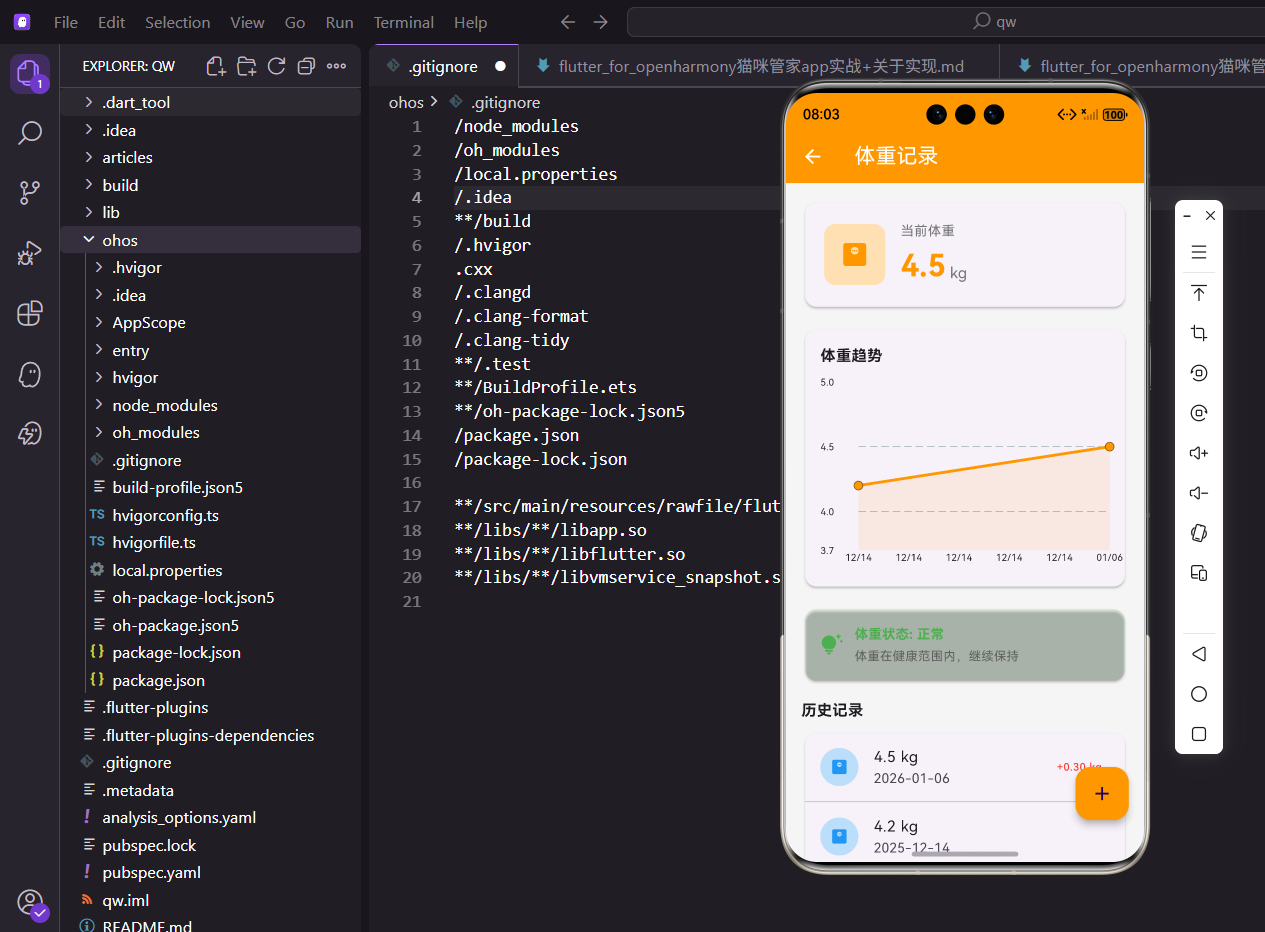
猫咪的体重变化是健康的重要指标,今天来实现一个体重记录功能,包括当前体重展示、历史趋势图表、体重建议提示等。用到了 fl_chart 这个图表库,效果还不错。
一、页面整体结构
体重页面需要接收猫咪 ID:
class WeightChartScreen extends StatelessWidget {
final String catId;
const WeightChartScreen({super.key, required this.catId});
Widget build(BuildContext context) {
return Scaffold(
appBar: AppBar(title: const Text('体重记录')),
body: Consumer<CatProvider>(
builder: (context, provider, child) {
final records = provider.getWeightRecordsForCat(catId);
final cat = provider.cats.firstWhere((c) => c.id == catId);
用 Consumer 监听数据变化,添加新记录后页面自动刷新。
firstWhere 找到对应的猫咪对象,获取当前体重。
页面内容区域:
return SingleChildScrollView(
  padding: EdgeInsets.all(16.w),
  child: Column(
    crossAxisAlignment: CrossAxisAlignment.start,
    children: [
      _buildCurrentWeight(cat.weight),
      SizedBox(height: 16.h),
      if (records.length >= 2) ...[
        _buildWeightChart(records),
        SizedBox(height: 16.h),
      ],
      _buildWeightTips(cat.weight),
      SizedBox(height: 16.h),
      Text('历史记录', style: TextStyle(fontSize: 16.sp, fontWeight: FontWeight.bold)),
      SizedBox(height: 8.h),
      _buildRecordList(context, records, provider),
    ],
  ),
);
图表至少需要两个数据点才有意义,所以加了条件判断。
用展开运算符...[]实现条件渲染多个组件。
二、当前体重卡片
展示当前体重:
Widget _buildCurrentWeight(double weight) {
  return Card(
    child: Padding(
      padding: EdgeInsets.all(20.w),
      child: Row(
        children: [
          Container(
            padding: EdgeInsets.all(16.w),
            decoration: BoxDecoration(
              color: Colors.orange[100],
              borderRadius: BorderRadius.circular(12.r),
            ),
            child: Icon(Icons.monitor_weight, color: Colors.orange, size: 32.sp),
          ),
左边是带背景的体重图标,右边是数字。
橙色系和 App 主题保持一致。
体重数字显示:
SizedBox(width: 16.w),
Column(
  crossAxisAlignment: CrossAxisAlignment.start,
  children: [
    Text('当前体重', style: TextStyle(color: Colors.grey[600], fontSize: 14.sp)),
    SizedBox(height: 4.h),
    Row(
      crossAxisAlignment: CrossAxisAlignment.end,
      children: [
        Text(
          weight.toStringAsFixed(1),
          style: TextStyle(fontSize: 32.sp, fontWeight: FontWeight.bold, color: Colors.orange),
        ),
        Padding(
          padding: EdgeInsets.only(bottom: 4.h, left: 4.w),
          child: Text('kg', style: TextStyle(fontSize: 16.sp, color: Colors.grey[600])),
        ),
      ],
    ),
  ],
),
数字用大字号橙色加粗,是卡片的视觉焦点。
单位 kg 用小字号灰色,放在数字右下角。
三、体重趋势图表
图表数据准备:
Widget _buildWeightChart(List<WeightRecord> records) {
  final sortedRecords = records.reversed.toList();
  if (sortedRecords.length < 2) return const SizedBox();

  final spots = sortedRecords.asMap().entries.map((entry) {
    return FlSpot(entry.key.toDouble(), entry.value.weight);
  }).toList();

  final minWeight = sortedRecords.map((r) => r.weight).reduce((a, b) => a < b ? a : b);
  final maxWeight = sortedRecords.map((r) => r.weight).reduce((a, b) => a > b ? a : b);
记录按时间倒序存储,需要反转才能正确显示趋势。
FlSpot 是 fl_chart 的数据点类型,x 是索引,y 是体重值。
图表容器:
return Card(
  child: Padding(
    padding: EdgeInsets.all(16.w),
    child: Column(
      crossAxisAlignment: CrossAxisAlignment.start,
      children: [
        Text('体重趋势', style: TextStyle(fontSize: 16.sp, fontWeight: FontWeight.bold)),
        SizedBox(height: 16.h),
        SizedBox(
          height: 200.h,
          child: LineChart(
图表高度固定 200,太高会占太多空间。
标题和图表之间留 16 的间距。
图表配置:
LineChartData(
  gridData: FlGridData(show: true, drawVerticalLine: false),
  titlesData: FlTitlesData(
    leftTitles: AxisTitles(
      sideTitles: SideTitles(
        showTitles: true,
        reservedSize: 40,
        getTitlesWidget: (value, meta) {
          return Text('${value.toStringAsFixed(1)}', style: TextStyle(fontSize: 10.sp));
        },
      ),
    ),
gridData 控制网格线,只显示水平线。
leftTitles 是左边的 Y 轴标签,显示体重值。
X 轴日期标签:
bottomTitles: AxisTitles(
  sideTitles: SideTitles(
    showTitles: true,
    getTitlesWidget: (value, meta) {
      final index = value.toInt();
      if (index >= 0 && index < sortedRecords.length) {
        return Text(
          DateFormat('MM/dd').format(sortedRecords[index].date),
          style: TextStyle(fontSize: 10.sp),
        );
      }
      return const Text('');
    },
  ),
),
根据索引找到对应的记录,显示日期。
日期格式用 MM/dd,简洁明了。
折线样式:
lineBarsData: [
  LineChartBarData(
    spots: spots,
    isCurved: true,
    color: Colors.orange,
    barWidth: 3,
    dotData: const FlDotData(show: true),
    belowBarData: BarAreaData(
      show: true,
      color: Colors.orange.withOpacity(0.1),
    ),
  ),
],
isCurved 让折线变成曲线,更平滑。
belowBarData 在折线下方填充淡橙色区域。
Y 轴范围设置:
minY: minWeight - 0.5,
maxY: maxWeight + 0.5,
上下各留 0.5 的余量,数据点不会贴着边缘。
这样图表看起来更舒服。
四、体重建议提示
根据体重判断状态:
Widget _buildWeightTips(double weight) {
  String status;
  Color statusColor;
  String tip;

  if (weight < 3) {
    status = '偏轻';
    statusColor = Colors.orange;
    tip = '建议增加喂食量,注意营养均衡';
  } else if (weight > 6) {
    status = '偏重';
    statusColor = Colors.red;
    tip = '建议控制饮食,增加运动量';
  } else {
    status = '正常';
    statusColor = Colors.green;
    tip = '体重在健康范围内,继续保持';
  }
3-6 公斤是成年猫的正常范围。
不同状态用不同颜色,一眼就能看出来。
提示卡片 UI:
return Card(
  color: statusColor.withOpacity(0.1),
  child: Padding(
    padding: EdgeInsets.all(16.w),
    child: Row(
      children: [
        Icon(Icons.tips_and_updates, color: statusColor),
        SizedBox(width: 12.w),
        Expanded(
          child: Column(
            crossAxisAlignment: CrossAxisAlignment.start,
            children: [
              Text('体重状态: $status', style: TextStyle(fontWeight: FontWeight.bold, color: statusColor)),
              SizedBox(height: 4.h),
              Text(tip, style: TextStyle(fontSize: 13.sp, color: Colors.grey[700])),
            ],
          ),
        ),
      ],
    ),
  ),
);
卡片背景用状态颜色的 10% 透明度。
灯泡图标表示这是建议提示。
五、历史记录列表
空状态处理:
Widget _buildRecordList(BuildContext context, List<WeightRecord> records, CatProvider provider) {
  if (records.isEmpty) {
    return Card(
      child: Padding(
        padding: EdgeInsets.all(24.w),
        child: Center(child: Text('暂无记录', style: TextStyle(color: Colors.grey[500]))),
      ),
    );
  }
没有记录时显示提示文字,不是空白。
这样用户知道这里是干什么的。
记录列表:
return Card(
  child: ListView.separated(
    shrinkWrap: true,
    physics: const NeverScrollableScrollPhysics(),
    itemCount: records.length,
    separatorBuilder: (_, __) => const Divider(height: 1),
    itemBuilder: (context, index) {
      final record = records[index];
      final prevRecord = index < records.length - 1 ? records[index + 1] : null;
      final diff = prevRecord != null ? record.weight - prevRecord.weight : null;
shrinkWrap 让列表高度自适应内容。
NeverScrollableScrollPhysics 禁用列表自身滚动,由外层 ScrollView 统一滚动。
体重变化显示:
trailing: diff != null
    ? Text(
        '${diff >= 0 ? '+' : ''}${diff.toStringAsFixed(2)} kg',
        style: TextStyle(
          color: diff >= 0 ? Colors.red : Colors.green,
          fontWeight: FontWeight.w500,
        ),
      )
    : null,
和上次比较,增加显示红色加号,减少显示绿色。
第一条记录没有对比对象,不显示变化。
六、滑动删除功能
Dismissible 实现滑动删除:
return Dismissible(
  key: Key(record.id),
  direction: DismissDirection.endToStart,
  background: Container(
    color: Colors.red,
    alignment: Alignment.centerRight,
    padding: EdgeInsets.only(right: 16.w),
    child: const Icon(Icons.delete, color: Colors.white),
  ),
  onDismissed: (_) => provider.deleteWeightRecord(record.id),
  child: ListTile(
direction 设为 endToStart,只能从右往左滑。
background 是滑动时露出的红色背景。
列表项内容:
child: ListTile(
  leading: CircleAvatar(
    backgroundColor: Colors.blue[100],
    child: Icon(Icons.monitor_weight, color: Colors.blue, size: 20.sp),
  ),
  title: Text('${record.weight} kg'),
  subtitle: Text(DateFormat('yyyy-MM-dd').format(record.date)),
体重图标用蓝色,和顶部的橙色区分开。
副标题显示记录日期。
七、添加记录按钮
浮动按钮:
floatingActionButton: FloatingActionButton(
  onPressed: () => Navigator.push(context, MaterialPageRoute(
    builder: (_) => AddWeightScreen(catId: catId),
  )),
  backgroundColor: Colors.orange,
  child: const Icon(Icons.add),
),
点击跳转到添加体重页面,传入猫咪 ID。
橙色背景和 App 主题一致。
八、图表库的选择
为什么用 fl_chart:
fl_chart 是纯 Dart 实现,不依赖原生代码。
支持折线图、柱状图、饼图等多种类型。
其他选择:
charts_flutter 是 Google 官方的,但已经不维护了。
syncfusion_flutter_charts 功能强大,但部分功能收费。
九、数据点的处理
FlSpot 的使用:
final spots = sortedRecords.asMap().entries.map((entry) {
  return FlSpot(entry.key.toDouble(), entry.value.weight);
}).toList();
asMap() 把 List 转成 Map,key 是索引。
entries 返回键值对,可以同时拿到索引和值。
为什么用索引做 X 轴:
如果用时间戳,间隔不均匀的记录会挤在一起。
用索引能保证数据点均匀分布。
十、颜色的语义
不同颜色的含义:
// 体重增加 - 红色(警示)
color: diff >= 0 ? Colors.red : Colors.green

// 偏轻 - 橙色(注意)
// 偏重 - 红色(警告)
// 正常 - 绿色(健康)
颜色选择要符合用户直觉。
红色表示需要注意,绿色表示正常。
十一、性能优化
ListView 的优化:
ListView.separated(
  shrinkWrap: true,
  physics: const NeverScrollableScrollPhysics(),
shrinkWrap 会计算所有子项高度,数据量大时有性能问题。
但体重记录通常不会太多,这里可以接受。
如果数据量大:
可以用 ListView.builder 配合固定高度。
或者分页加载,每次只显示最近的记录。
小结
体重图表功能用 fl_chart 实现趋势可视化,配合体重建议提示,让用户直观了解猫咪的健康状况。滑动删除、体重变化对比这些细节提升了用户体验。代码上用 Consumer 实现数据响应式更新,用 Dismissible 实现滑动删除,都是 Flutter 开发中常用的模式。
欢迎加入开源鸿蒙跨平台社区:https://openharmonycrossplatform.csdn.net

开源鸿蒙跨平台开发社区汇聚开发者与厂商,共建“一次开发,多端部署”的开源生态,致力于降低跨端开发门槛,推动万物智联创新。
更多推荐
 19
19 0
0- 0


 已为社区贡献31条内容

所有评论(0)