Flutter for OpenHarmony Web开发助手App实战:HTML预览
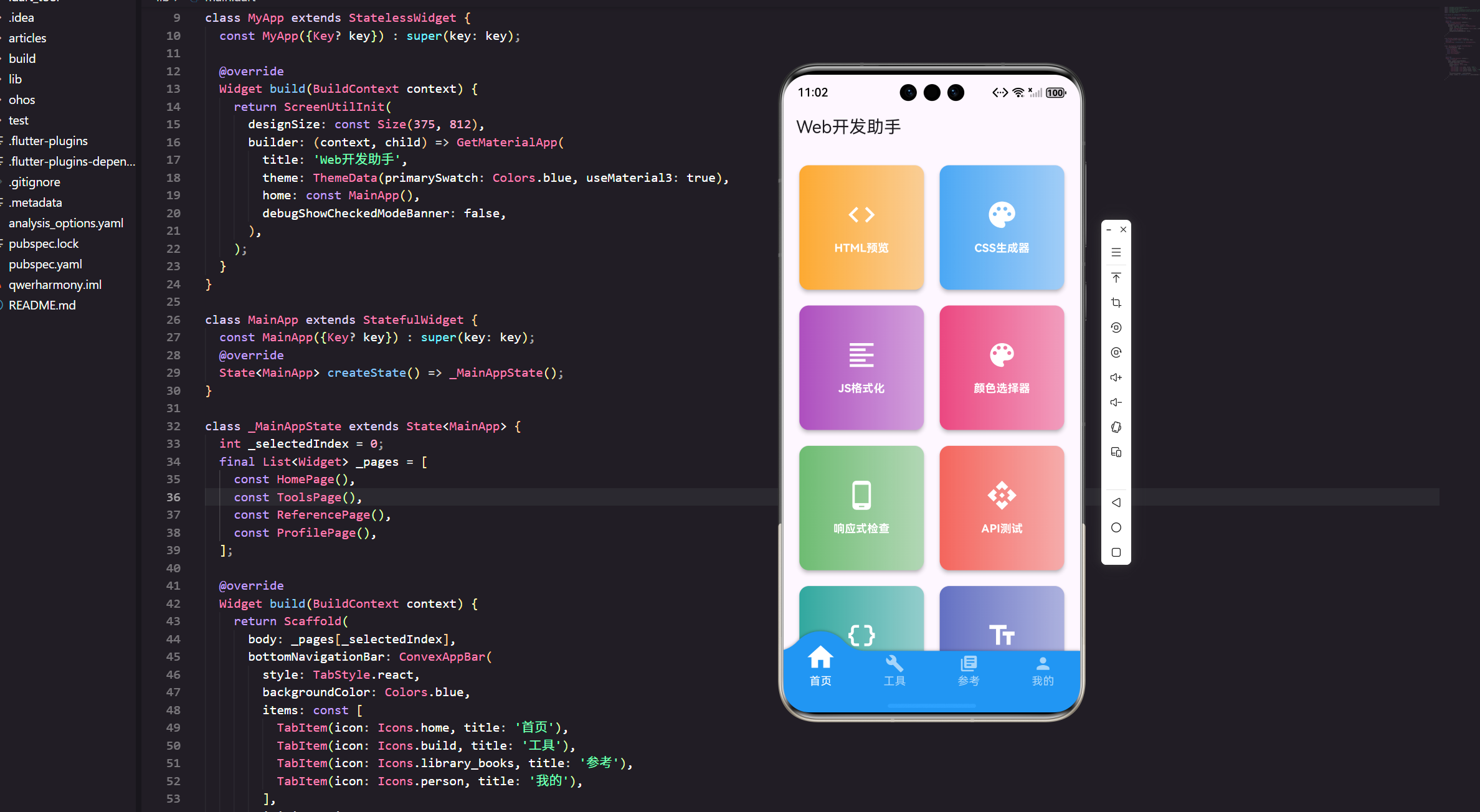
做Web开发的时候,经常需要快速预览一段HTML代码的效果。今天我们来实现一个HTML预览功能,让你可以边写边看效果。
#
做Web开发的时候,经常需要快速预览一段HTML代码的效果。今天我们来实现一个HTML预览功能,让你可以边写边看效果。
功能设计思路
HTML预览器的核心功能很简单:左边输入HTML代码,右边实时显示渲染效果。但要做好这个功能,需要考虑几个问题:
首先是代码编辑体验。用户需要一个舒适的编辑器,支持多行输入、代码高亮最好,但考虑到复杂度,我们先实现基础版本。
其次是预览更新时机。每输入一个字符就刷新预览会很卡,所以需要做防抖处理。
最后是渲染方式。Flutter本身不能直接渲染HTML,我们需要用一些技巧来实现。
完整实现代码
import 'package:flutter/material.dart';
import 'package:flutter_screenutil/flutter_screenutil.dart';
import 'package:get/get.dart';
class HtmlPreviewPage extends StatefulWidget {
const HtmlPreviewPage({Key? key}) : super(key: key);
State<HtmlPreviewPage> createState() => _HtmlPreviewPageState();
}
class _HtmlPreviewPageState extends State<HtmlPreviewPage> {
final TextEditingController _htmlController = TextEditingController();
String _previewHtml = '';
void initState() {
super.initState();
_htmlController.text = '''<!DOCTYPE html>
<html>
<head>
<title>示例页面</title>
<style>
body { font-family: Arial; padding: 20px; }
h1 { color: #2196F3; }
p { line-height: 1.6; }
</style>
</head>
<body>
<h1>欢迎使用HTML预览器</h1>
<p>在左侧编辑HTML代码,右侧会实时显示效果。</p>
<button onclick="alert('Hello!')">点击我</button>
</body>
</html>''';
_previewHtml = _htmlController.text;
}
void dispose() {
_htmlController.dispose();
super.dispose();
}
void _updatePreview() {
setState(() {
_previewHtml = _htmlController.text;
});
}
Widget build(BuildContext context) {
return Scaffold(
appBar: AppBar(
title: const Text('HTML预览'),
actions: [
IconButton(
icon: const Icon(Icons.refresh),
onPressed: _updatePreview,
tooltip: '刷新预览',
),
IconButton(
icon: const Icon(Icons.clear),
onPressed: () {
_htmlController.clear();
_updatePreview();
},
tooltip: '清空',
),
],
),
body: Row(
children: [
// 左侧编辑区
Expanded(
flex: 1,
child: Container(
color: Colors.grey[100],
child: Column(
crossAxisAlignment: CrossAxisAlignment.start,
children: [
Container(
padding: EdgeInsets.all(12.w),
color: Colors.blue,
child: Row(
children: [
Icon(Icons.code, color: Colors.white, size: 20.sp),
SizedBox(width: 8.w),
Text(
'HTML代码',
style: TextStyle(
color: Colors.white,
fontSize: 16.sp,
fontWeight: FontWeight.bold,
),
),
],
),
),
Expanded(
child: TextField(
controller: _htmlController,
maxLines: null,
expands: true,
style: TextStyle(
fontFamily: 'monospace',
fontSize: 14.sp,
),
decoration: InputDecoration(
hintText: '在这里输入HTML代码...',
border: InputBorder.none,
contentPadding: EdgeInsets.all(16.w),
),
),
),
],
),
),
),
// 分隔线
Container(
width: 2.w,
color: Colors.grey[300],
),
// 右侧预览区
Expanded(
flex: 1,
child: Container(
color: Colors.white,
child: Column(
crossAxisAlignment: CrossAxisAlignment.start,
children: [
Container(
padding: EdgeInsets.all(12.w),
color: Colors.green,
child: Row(
children: [
Icon(Icons.visibility, color: Colors.white, size: 20.sp),
SizedBox(width: 8.w),
Text(
'预览效果',
style: TextStyle(
color: Colors.white,
fontSize: 16.sp,
fontWeight: FontWeight.bold,
),
),
],
),
),
Expanded(
child: SingleChildScrollView(
padding: EdgeInsets.all(16.w),
child: _buildPreview(),
),
),
],
),
),
),
],
),
floatingActionButton: FloatingActionButton(
onPressed: _updatePreview,
child: const Icon(Icons.play_arrow),
tooltip: '运行预览',
),
);
}
Widget _buildPreview() {
// 简化版HTML渲染
// 实际项目中可以使用webview_flutter或flutter_html包
return Container(
padding: EdgeInsets.all(16.w),
decoration: BoxDecoration(
border: Border.all(color: Colors.grey[300]!),
borderRadius: BorderRadius.circular(8.r),
),
child: Column(
crossAxisAlignment: CrossAxisAlignment.start,
children: [
Text(
'预览模式(简化版)',
style: TextStyle(
fontSize: 12.sp,
color: Colors.grey[600],
fontStyle: FontStyle.italic,
),
),
SizedBox(height: 16.h),
Text(
_previewHtml.isEmpty ? '暂无内容' : _parseHtmlToText(_previewHtml),
style: TextStyle(fontSize: 14.sp),
),
],
),
);
}
String _parseHtmlToText(String html) {
// 简单的HTML解析,提取文本内容
String text = html;
text = text.replaceAll(RegExp(r'<script[^>]*>.*?</script>', dotAll: true), '');
text = text.replaceAll(RegExp(r'<style[^>]*>.*?</style>', dotAll: true), '');
text = text.replaceAll(RegExp(r'<[^>]+>'), '\n');
text = text.replaceAll(RegExp(r'\n+'), '\n');
return text.trim();
}
}
界面布局分析
整个页面采用左右分栏布局,使用Row组件实现:
Row(
  children: [
    Expanded(flex: 1, child: _buildEditor()),
    Container(width: 2.w, color: Colors.grey[300]),
    Expanded(flex: 1, child: _buildPreview()),
  ],
)
左右两边各占50%的宽度,中间用一条细线分隔。这种布局在桌面端和平板上效果很好。
代码编辑器实现
编辑器部分使用TextField组件:
TextField(
  controller: _htmlController,
  maxLines: null,
  expands: true,
  style: TextStyle(
    fontFamily: 'monospace',
    fontSize: 14.sp,
  ),
)
maxLines设为null:允许无限行输入。
expands设为true:让TextField填充所有可用空间。
fontFamily使用monospace:等宽字体更适合显示代码。
这样就得到了一个可以自由编辑的多行文本框。
预览更新机制
我们提供了两种更新方式:
手动刷新:点击刷新按钮或浮动按钮触发更新。
void _updatePreview() {
  setState(() {
    _previewHtml = _htmlController.text;
  });
}
自动刷新:可以监听TextField的变化,但需要加防抖。
Timer? _debounce;

void _onHtmlChanged(String value) {
  if (_debounce?.isActive ?? false) _debounce!.cancel();
  _debounce = Timer(const Duration(milliseconds: 500), () {
    _updatePreview();
  });
}
用户停止输入500毫秒后才更新预览,避免频繁刷新。
HTML渲染方案
Flutter本身不支持直接渲染HTML,我们有几种选择:
方案1:使用WebView
最完整的方案,可以完美渲染HTML。需要添加webview_flutter依赖。
WebView(
  initialUrl: 'about:blank',
  javascriptMode: JavascriptMode.unrestricted,
  onWebViewCreated: (controller) {
    controller.loadHtmlString(_previewHtml);
  },
)
方案2:使用flutter_html包
轻量级的HTML渲染库,支持常见的HTML标签。
Html(
  data: _previewHtml,
  style: {
    "body": Style(fontSize: FontSize(14.sp)),
    "h1": Style(color: Colors.blue),
  },
)
方案3:简化版文本提取
我们当前使用的方案,只提取HTML中的文本内容显示。适合快速预览结构。
String _parseHtmlToText(String html) {
  String text = html;
  text = text.replaceAll(RegExp(r'<script[^>]*>.*?</script>', dotAll: true), '');
  text = text.replaceAll(RegExp(r'<style[^>]*>.*?</style>', dotAll: true), '');
  text = text.replaceAll(RegExp(r'<[^>]+>'), '\n');
  return text.trim();
}
这个方法先移除script和style标签,然后把所有HTML标签替换成换行符,最后得到纯文本。
默认模板设置
为了让用户快速上手,我们提供了一个默认的HTML模板:
_htmlController.text = '''<!DOCTYPE html>
<html>
<head>
  <title>示例页面</title>
  <style>
    body { font-family: Arial; padding: 20px; }
    h1 { color: #2196F3; }
  </style>
</head>
<body>
  <h1>欢迎使用HTML预览器</h1>
  <p>在左侧编辑HTML代码,右侧会实时显示效果。</p>
</body>
</html>''';
这个模板包含了HTML的基本结构,用户可以在此基础上修改。
工具栏功能
AppBar上提供了两个实用按钮:
刷新按钮:手动触发预览更新。
IconButton(
  icon: const Icon(Icons.refresh),
  onPressed: _updatePreview,
  tooltip: '刷新预览',
)
清空按钮:一键清除所有代码。
IconButton(
  icon: const Icon(Icons.clear),
  onPressed: () {
    _htmlController.clear();
    _updatePreview();
  },
  tooltip: '清空',
)
tooltip参数会在长按时显示提示文字,提升用户体验。
浮动按钮设计
右下角的浮动按钮提供了快捷的预览触发方式:
FloatingActionButton(
  onPressed: _updatePreview,
  child: const Icon(Icons.play_arrow),
  tooltip: '运行预览',
)
使用播放图标,暗示"运行"的概念。用户编辑完代码后,点击这个按钮就能看到效果。
性能优化建议
避免频繁setState:使用防抖机制,减少不必要的重建。
大文件处理:如果HTML内容很大,考虑分页或虚拟滚动。
内存管理:及时dispose TextEditingController。
void dispose() {
_htmlController.dispose();
_debounce?.cancel();
super.dispose();
}
功能扩展方向
代码高亮:集成代码高亮库,让HTML代码更易读。
语法检查:实时检查HTML语法错误,给出提示。
模板库:提供常用的HTML模板,用户可以快速选择。
导出功能:支持将HTML代码导出为文件。
历史记录:保存用户编辑过的HTML,方便回溯。
实战经验分享
做这个功能时遇到过一个问题:用户输入很长的HTML代码后,TextField会变得很卡。后来发现是因为每次输入都触发了重建。
解决方法是把编辑器和预览区分开管理,编辑时不更新预览,只有点击刷新按钮才更新。这样就流畅多了。
还有一个细节:默认模板的选择很重要。一开始我放了一个空模板,但用户不知道该写什么。后来改成一个完整的示例,用户可以直接修改,体验好了很多。
适配OpenHarmony的注意事项
在OpenHarmony平台上,WebView的支持可能有限制。如果要用WebView方案,需要测试兼容性。
简化版的文本提取方案虽然功能有限,但兼容性最好,在所有平台上都能正常运行。
如果要追求完美的HTML渲染效果,建议使用flutter_html包,它是纯Dart实现的,跨平台兼容性很好。
用户体验优化
快捷键支持:可以添加Ctrl+R刷新、Ctrl+S保存等快捷键。
错误提示:当HTML语法错误时,给出友好的提示信息。
响应式布局:在手机上可以改成上下布局,更适合小屏幕。
LayoutBuilder(
  builder: (context, constraints) {
    if (constraints.maxWidth < 600) {
      return Column(children: [_buildEditor(), _buildPreview()]);
    } else {
      return Row(children: [_buildEditor(), _buildPreview()]);
    }
  },
)
小结
HTML预览器是Web开发助手中的核心功能之一。通过合理的布局设计和更新机制,我们实现了一个实用的预览工具。
虽然当前版本的渲染功能比较简单,但已经能满足基本的预览需求。后续可以根据实际使用情况,逐步增强渲染能力。
记住几个关键点:左右分栏布局、防抖更新机制、合理的默认模板。做好这些,你的HTML预览器就能给用户带来良好的体验。
欢迎加入开源鸿蒙跨平台社区:https://openharmonycrossplatform.csdn.net

开源鸿蒙跨平台开发社区汇聚开发者与厂商,共建“一次开发,多端部署”的开源生态,致力于降低跨端开发门槛,推动万物智联创新。
更多推荐


 12
12 0
0- 0


 已为社区贡献26条内容

所有评论(0)