Flutter for OpenHarmony生活助手App实战:添加账单功能实现
摘要:本文介绍了记账App中账单添加功能的优化设计思路。作者基于个人记账经验,提出了快速记录、分类清晰、输入简单和体验流畅四大核心设计原则。具体实现包括:1)采用单页面设计,支出收入一键切换;2)金额输入采用大字体和数字键盘优化;3)分类选择采用网格布局和视觉反馈;4)备注输入作为可选功能。文章通过Flutter代码示例详细展示了页面布局、类型切换按钮、分类卡片等关键组件的实现方法,强调了良好的用
说起记账这件事,我自己是从大学开始养成的习惯。刚开始工作的时候,每个月工资不多,但花钱的地方却不少,经常到月底就不知道钱花哪儿去了。后来开始记账,才发现原来自己在很多不必要的地方花了钱。
为什么添加账单功能很重要
记账App的核心功能就是添加账单,这个功能做得好不好,直接决定了用户愿不愿意坚持记账。我在设计这个功能的时候,有几个核心想法:
- 快速记录:打开就能记,不要超过3步操作
- 分类清晰:支出和收入要分开,分类要明确
- 输入简单:金额输入要方便,不要让用户觉得麻烦
- 体验流畅:整个流程要顺畅,不能卡顿
我自己用过很多记账App,发现最大的问题就是添加账单太麻烦。有些App要填一堆信息,有些App分类太复杂,结果就是用户懒得记了。
页面布局设计
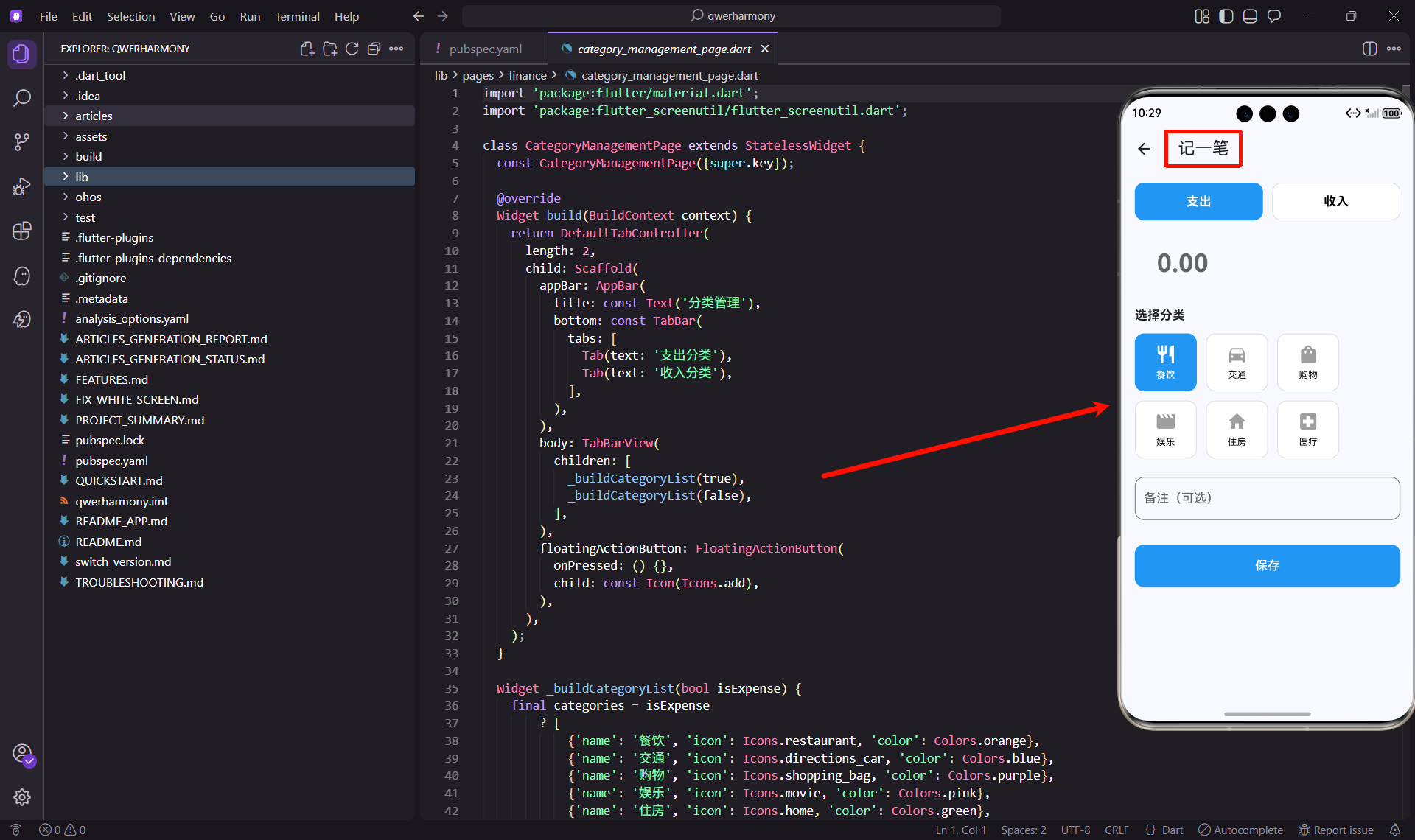
添加账单页面我采用了单页面设计,所有操作都在一个页面完成。先看看基本结构:
class AddTransactionPage extends StatefulWidget {
const AddTransactionPage({super.key});
State<AddTransactionPage> createState() => _AddTransactionPageState();
}
class _AddTransactionPageState extends State<AddTransactionPage> {
bool isExpense = true;
String selectedCategory = '餐饮';
final TextEditingController amountController = TextEditingController();
final TextEditingController noteController = TextEditingController();
这里用了几个关键的状态变量:isExpense表示是支出还是收入,selectedCategory是选中的分类,还有两个输入控制器。状态管理要清晰,不然容易出bug。
支出收入切换
final List<Map<String, dynamic>> expenseCategories = [
  {'name': '餐饮', 'icon': Icons.restaurant},
  {'name': '交通', 'icon': Icons.directions_car},
  {'name': '购物', 'icon': Icons.shopping_bag},
  {'name': '娱乐', 'icon': Icons.movie},
  {'name': '住房', 'icon': Icons.home},
  {'name': '医疗', 'icon': Icons.local_hospital},
];

final List<Map<String, dynamic>> incomeCategories = [
  {'name': '工资', 'icon': Icons.work},
  {'name': '奖金', 'icon': Icons.card_giftcard},
  {'name': '投资', 'icon': Icons.trending_up},
  {'name': '其他', 'icon': Icons.more_horiz},
];
支出和收入的分类是分开的,这样更符合实际使用场景。支出分类比较多,因为花钱的地方确实多;收入分类比较少,因为收入来源相对固定。
类型切换按钮
页面顶部是支出收入的切换按钮:
Row(
  children: [
    Expanded(
      child: _buildTypeButton('支出', isExpense, () {
        setState(() {
          isExpense = true;
          selectedCategory = expenseCategories[0]['name'];
        });
      }),
    ),
    SizedBox(width: 12.w),
    Expanded(
      child: _buildTypeButton('收入', !isExpense, () {
        setState(() {
          isExpense = false;
          selectedCategory = incomeCategories[0]['name'];
        });
      }),
    ),
  ],
),
两个按钮并排放置,选中的按钮用蓝色背景,未选中的用白色背景。切换类型的时候,分类也要跟着切换到对应类型的第一个分类。
按钮样式
Widget _buildTypeButton(String label, bool isSelected, VoidCallback onTap) {
  return GestureDetector(
    onTap: onTap,
    child: Container(
      padding: EdgeInsets.symmetric(vertical: 12.h),
      decoration: BoxDecoration(
        color: isSelected ? Colors.blue : Colors.white,
        borderRadius: BorderRadius.circular(12.r),
        border: Border.all(
          color: isSelected ? Colors.blue : Colors.grey[300]!,
        ),
      ),
      child: Center(
        child: Text(
          label,
          style: TextStyle(
            fontSize: 16.sp,
            fontWeight: FontWeight.bold,
            color: isSelected ? Colors.white : Colors.black,
          ),
        ),
      ),
    ),
  );
}
按钮的圆角、边框、颜色都要考虑到。选中状态和未选中状态要有明显的视觉区别,让用户一眼就能看出当前选的是什么。
金额输入
金额输入是最重要的部分,要做得特别醒目:
SizedBox(height: 24.h),
TextField(
  controller: amountController,
  keyboardType: TextInputType.number,
  style: TextStyle(fontSize: 32.sp, fontWeight: FontWeight.bold),
  decoration: InputDecoration(
    hintText: '0.00',
    prefixText: '¥ ',
    prefixStyle: TextStyle(fontSize: 32.sp, fontWeight: FontWeight.bold),
    border: InputBorder.none,
  ),
),
金额用32号字体显示,特别大,特别醒目。前面加上人民币符号,让用户知道这是金额输入。keyboardType: TextInputType.number确保弹出数字键盘,输入更方便。
分类选择
分类选择用网格布局,一眼能看到所有分类:
SizedBox(height: 24.h),
Text(
  '选择分类',
  style: TextStyle(fontSize: 16.sp, fontWeight: FontWeight.bold),
),
SizedBox(height: 12.h),
Wrap(
  spacing: 12.w,
  runSpacing: 12.h,
  children: categories.map((category) {
    final isSelected = selectedCategory == category['name'];
    return GestureDetector(
      onTap: () {
        setState(() {
          selectedCategory = category['name'];
        });
      },
      child: Container(
        width: 80.w,
        padding: EdgeInsets.all(12.w),
        decoration: BoxDecoration(
          color: isSelected ? Colors.blue : Colors.white,
          borderRadius: BorderRadius.circular(12.r),
          border: Border.all(
            color: isSelected ? Colors.blue : Colors.grey[300]!,
          ),
        ),
用Wrap布局可以自动换行,不用担心分类太多显示不下。每个分类是一个小卡片,包含图标和文字。
分类卡片内容
child: Column(
  children: [
    Icon(
      category['icon'] as IconData,
      color: isSelected ? Colors.white : Colors.grey,
      size: 28.sp,
    ),
    SizedBox(height: 4.h),
    Text(
      category['name'],
      style: TextStyle(
        fontSize: 12.sp,
        color: isSelected ? Colors.white : Colors.black,
      ),
    ),
  ],
),
图标和文字垂直排列,选中的分类用白色图标和文字,未选中的用灰色图标和黑色文字。这样的视觉反馈很清晰。
备注输入
备注是可选的,但有时候很有用:
SizedBox(height: 24.h),
TextField(
  controller: noteController,
  decoration: InputDecoration(
    hintText: '备注(可选)',
    border: OutlineInputBorder(
      borderRadius: BorderRadius.circular(12.r),
    ),
  ),
),
备注输入框用了边框样式,和金额输入区分开来。提示文字写明"可选",让用户知道这不是必填项。
保存按钮
最后是保存按钮,要做得醒目:
SizedBox(height: 32.h),
SizedBox(
  width: double.infinity,
  child: ElevatedButton(
    onPressed: () {
      Get.back();
      Get.snackbar('成功', '记账成功');
    },
    style: ElevatedButton.styleFrom(
      backgroundColor: Colors.blue,
      padding: EdgeInsets.symmetric(vertical: 16.h),
      shape: RoundedRectangleBorder(
        borderRadius: BorderRadius.circular(12.r),
      ),
    ),
    child: Text(
      '保存',
      style: TextStyle(fontSize: 16.sp, color: Colors.white),
    ),
  ),
),
按钮占满整个宽度,蓝色背景,白色文字,16号字体。点击后返回上一页,并显示成功提示。
数据验证
保存之前要验证数据:
void _saveTransaction() {
  // 验证金额
  final amount = double.tryParse(amountController.text);
  if (amount == null || amount <= 0) {
    Get.snackbar('错误', '请输入有效的金额');
    return;
  }

  // 构建账单数据
  final transaction = {
    'type': isExpense ? 'expense' : 'income',
    'category': selectedCategory,
    'amount': amount,
    'note': noteController.text,
    'date': DateTime.now().toIso8601String(),
  };

  // 保存到存储
  TransactionStorage.saveTransaction(transaction);

  Get.back();
  Get.snackbar('成功', '记账成功');
}
金额必须是有效的数字,而且要大于0。验证很重要,能避免脏数据。
快速记账功能
有时候想快速记一笔,不想选分类:
class QuickAddDialog extends StatelessWidget {
const QuickAddDialog({super.key});
Widget build(BuildContext context) {
return AlertDialog(
title: const Text('快速记账'),
content: Column(
mainAxisSize: MainAxisSize.min,
children: [
TextField(
keyboardType: TextInputType.number,
decoration: const InputDecoration(
labelText: '金额',
prefixText: '¥ ',
),
),
SizedBox(height: 12.h),
TextField(
decoration: const InputDecoration(
labelText: '备注',
),
),
],
),
actions: [
TextButton(
onPressed: () => Navigator.pop(context),
child: const Text('取消'),
),
ElevatedButton(
onPressed: () {
// 保存到默认分类
Navigator.pop(context);
},
child: const Text('保存'),
),
],
);
}
}
快速记账只需要输入金额和备注,自动归类到"其他"分类。这个功能适合临时记账,后面可以再编辑。
语音输入
有时候打字不方便,语音输入会更快:
import 'package:speech_to_text/speech_to_text.dart';
class VoiceInputButton extends StatefulWidget {
final Function(String) onResult;
const VoiceInputButton({super.key, required this.onResult});
State<VoiceInputButton> createState() => _VoiceInputButtonState();
}
class _VoiceInputButtonState extends State<VoiceInputButton> {
final SpeechToText _speech = SpeechToText();
bool _isListening = false;
void _startListening() async {
bool available = await _speech.initialize();
if (available) {
setState(() => _isListening = true);
_speech.listen(onResult: (result) {
widget.onResult(result.recognizedWords);
});
}
}
Widget build(BuildContext context) {
return IconButton(
icon: Icon(_isListening ? Icons.mic : Icons.mic_none),
onPressed: _isListening ? null : _startListening,
);
}
}
语音输入可以识别"花了50块钱买菜"这样的语句,自动提取金额和分类。这个功能实现起来有点复杂,需要做自然语言处理,但很实用。
模板功能
有些账单是重复的,比如每月的房租、话费:
class TransactionTemplate {
  final String name;
  final String category;
  final double amount;
  final String note;

  TransactionTemplate({
    required this.name,
    required this.category,
    required this.amount,
    required this.note,
  });
}

List<TransactionTemplate> templates = [
  TransactionTemplate(name: '房租', category: '住房', amount: 2000, note: '每月房租'),
  TransactionTemplate(name: '话费', category: '通讯', amount: 99, note: '手机话费'),
];

Widget buildTemplateSelector() {
  return Column(
    children: [
      Text('常用模板', style: TextStyle(fontSize: 16.sp, fontWeight: FontWeight.bold)),
      SizedBox(height: 12.h),
      Wrap(
        spacing: 8.w,
        children: templates.map((template) => ActionChip(
          label: Text(template.name),
          onPressed: () {
            // 填充模板数据
            amountController.text = template.amount.toString();
            selectedCategory = template.category;
            noteController.text = template.note;
          },
        )).toList(),
      ),
    ],
  );
}
点击模板,自动填充金额、分类、备注,只需要确认保存就行。这个功能能大大提高记账效率。
实际使用体验
我自己用这个添加账单功能已经有一段时间了,感觉还是挺顺手的。特别是分类选择用图标展示,一眼就能找到想要的分类。
有时候买完东西,拿出手机就能快速记一笔,整个过程不超过10秒。记账不能太麻烦,太麻烦就坚持不下去了。
不过也发现了一些可以改进的地方:
- 拍照记账:可以拍小票照片,自动识别金额和商家
- 位置记录:自动记录消费地点,方便回顾
- 多币种支持:出国旅游的时候需要记外币
- 分期记录:信用卡分期需要特殊处理
性能优化
添加账单功能要注意性能:
1. 输入防抖:金额输入时不要每次都触发计算,用防抖处理。
2. 分类缓存:分类列表可以缓存,不用每次都重新加载。
3. 异步保存:保存数据用异步操作,不要阻塞UI。
4. 动画优化:页面切换动画不要太复杂,影响体验。
总结
添加账单功能是记账App的核心,一定要做得简单快速。用户愿意记账,才能坚持下去,才能真正起到理财的作用。
我在开发这个功能的时候,一直在思考怎么让它更好用。后来发现,好的记账功能不是选项最多的,而是最快速的。
如果你也在开发类似的功能,建议多从用户角度思考,多试用,多改进。一个好用的添加账单功能,真的能帮助人们更好地管理财务。
欢迎加入开源鸿蒙跨平台社区:https://openharmonycrossplatform.csdn.net

开源鸿蒙跨平台开发社区汇聚开发者与厂商,共建“一次开发,多端部署”的开源生态,致力于降低跨端开发门槛,推动万物智联创新。
更多推荐

 16
16 0
0- 0


 已为社区贡献28条内容

所有评论(0)