Flutter for OpenHarmony 家具购买记录App实战:日历视图实现
Flutter日历视图页面设计摘要 该页面使用table_calendar组件实现家居事件的日历展示功能。主要特点: 采用月/周双视图切换,直观展示购买记录、保修到期等事件 日期标记系统:有事件的日期会显示棕色圆点标记 交互设计:点击日期显示当天事件列表,支持左右滑动切换月份 视觉风格:采用棕色系UI,与家居主题相协调 数据结构:使用Map存储日期-事件对应关系 空状态处理:无事件时显示友好提示
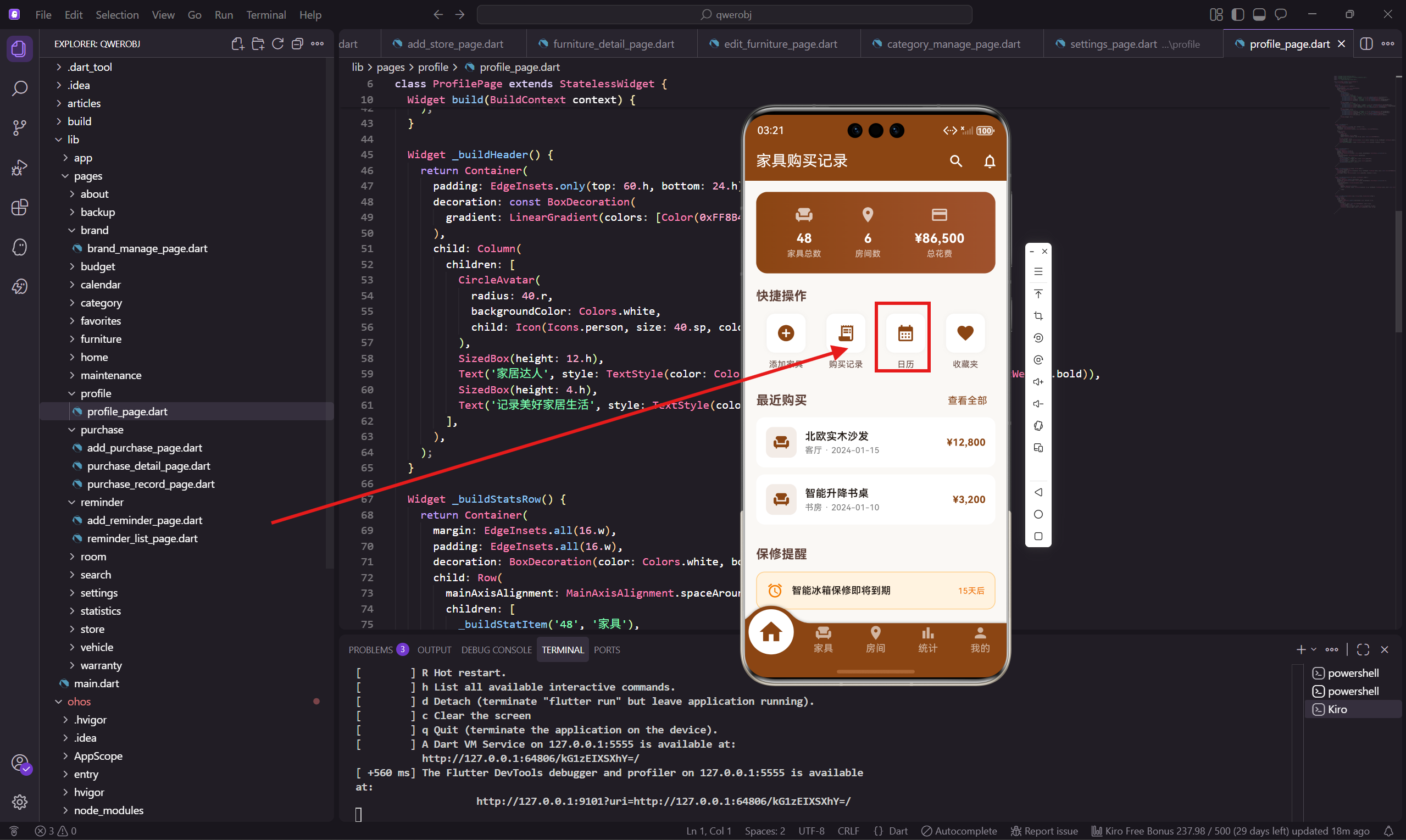
日历视图页面用日历形式展示所有事件,包括购买记录、保修到期、保养提醒等。用户可以直观地看到每天有什么事件,点击日期查看详情。
这个页面用到了 table_calendar 库,这是 Flutter 里最流行的日历组件之一,功能丰富,样式可定制。
页面设计思路
日历视图页面的设计要点:
- 顶部是日历组件,显示月份和日期
- 有事件的日期下面有小圆点标记
- 点击日期显示当天的事件列表
- 支持切换月份和周视图
日历组件是这个页面的核心,事件列表是补充信息。
页面基础结构
日历视图页面用 StatefulWidget:
class CalendarPage extends StatefulWidget {
const CalendarPage({super.key});
State<CalendarPage> createState() => _CalendarPageState();
}
状态类里定义日历相关的状态:
class _CalendarPageState extends State<CalendarPage> {
  CalendarFormat _calendarFormat = CalendarFormat.month;
  DateTime _focusedDay = DateTime.now();
  DateTime? _selectedDay;
_calendarFormat 是日历格式,可以是月视图或周视图。_focusedDay 是当前聚焦的日期,_selectedDay 是用户选中的日期。
事件数据
事件数据用 Map 存储,key 是日期,value 是事件列表:
  final _events = {
    DateTime(2024, 1, 15): ['购买北欧实木沙发'],
    DateTime(2024, 1, 10): ['购买智能升降书桌'],
    DateTime(2024, 2, 20): ['智能冰箱保修到期'],
    DateTime(2024, 2, 10): ['沙发皮革保养'],
  };
实际项目中,这个数据应该从数据库查询,合并购买记录、保修到期、提醒等不同类型的事件。
build 方法实现
build 方法构建整个页面:
Widget build(BuildContext context) {
return Scaffold(
backgroundColor: const Color(0xFFFAF8F5),
appBar: AppBar(
title: const Text('日历'),
backgroundColor: const Color(0xFF8B4513),
foregroundColor: Colors.white
),
body: Column(
children: [
_buildCalendar(),
SizedBox(height: 16.h),
Expanded(child: _buildEventList()),
],
),
);
}
页面分为两部分:上面是日历,下面是事件列表。事件列表用 Expanded 包裹,占据剩余空间。
日历组件
日历组件用 TableCalendar:
  Widget _buildCalendar() {
    return Container(
      margin: EdgeInsets.all(16.w),
      decoration: BoxDecoration(
        color: Colors.white,
        borderRadius: BorderRadius.circular(16.r)
      ),
      child: TableCalendar(
        firstDay: DateTime(2020),
        lastDay: DateTime(2030),
        focusedDay: _focusedDay,
        calendarFormat: _calendarFormat,
        selectedDayPredicate: (day) => isSameDay(_selectedDay, day),
        onDaySelected: (selectedDay, focusedDay) {
          setState(() {
            _selectedDay = selectedDay;
            _focusedDay = focusedDay;
          });
        },
        onFormatChanged: (format) => setState(() => _calendarFormat = format),
firstDay 和 lastDay 设置日历的范围。selectedDayPredicate 判断某天是否被选中。onDaySelected 在用户点击日期时触发。onFormatChanged 在切换格式时触发。
日历样式
日历的样式配置:
        calendarStyle: CalendarStyle(
          selectedDecoration: const BoxDecoration(
            color: Color(0xFF8B4513),
            shape: BoxShape.circle
          ),
          todayDecoration: BoxDecoration(
            color: const Color(0xFF8B4513).withOpacity(0.3),
            shape: BoxShape.circle
          ),
          markerDecoration: const BoxDecoration(
            color: Color(0xFFA0522D),
            shape: BoxShape.circle
          ),
        ),
selectedDecoration 是选中日期的样式,用主题棕色圆形背景。todayDecoration 是今天的样式,用浅棕色。markerDecoration 是事件标记的样式。
头部样式
日历头部的样式配置:
        headerStyle: HeaderStyle(
          formatButtonDecoration: BoxDecoration(
            border: Border.all(color: const Color(0xFF8B4513)),
            borderRadius: BorderRadius.circular(8.r)
          ),
          formatButtonTextStyle: const TextStyle(color: Color(0xFF8B4513)),
        ),
格式切换按钮用棕色边框和文字,和整体风格统一。
事件加载
eventLoader 回调返回某天的事件列表:
        eventLoader: (day) {
          final key = DateTime(day.year, day.month, day.day);
          return _events[key] ?? [];
        },
      ),
    );
  }
table_calendar 会根据返回的事件数量在日期下面显示标记点。
事件列表组件
事件列表显示选中日期的事件:
  Widget _buildEventList() {
    final selectedEvents = _selectedDay != null
      ? (_events[DateTime(_selectedDay!.year, _selectedDay!.month, _selectedDay!.day)] ?? [])
      : [];

    if (selectedEvents.isEmpty) {
      return Center(
        child: Column(
          mainAxisAlignment: MainAxisAlignment.center,
          children: [
            Icon(Icons.event_available, size: 60.sp, color: Colors.grey[300]),
            SizedBox(height: 12.h),
            Text('当天无事件', style: TextStyle(color: Colors.grey[500], fontSize: 14.sp)),
          ],
        ),
      );
    }
如果没有选中日期或选中日期没有事件,显示空状态。
事件列表渲染
有事件时渲染列表:
    return ListView.builder(
      padding: EdgeInsets.symmetric(horizontal: 16.w),
      itemCount: selectedEvents.length,
      itemBuilder: (context, index) => Container(
        margin: EdgeInsets.only(bottom: 10.h),
        padding: EdgeInsets.all(14.w),
        decoration: BoxDecoration(
          color: Colors.white,
          borderRadius: BorderRadius.circular(12.r)
        ),
        child: Row(
          children: [
            Container(
              padding: EdgeInsets.all(10.w),
              decoration: BoxDecoration(
                color: const Color(0xFF8B4513).withOpacity(0.1),
                borderRadius: BorderRadius.circular(10.r)
              ),
              child: Icon(Icons.event, color: const Color(0xFF8B4513), size: 24.sp),
            ),
            SizedBox(width: 12.w),
            Expanded(
              child: Text(selectedEvents[index], style: TextStyle(
                fontWeight: FontWeight.w500,
                fontSize: 14.sp
              ))
            ),
          ],
        ),
      ),
    );
  }
每个事件是一个卡片,左边是事件图标,右边是事件标题。
事件类型区分
可以根据事件类型显示不同的图标和颜色:
IconData _getEventIcon(String eventType) {
  switch (eventType) {
    case 'purchase': return Icons.shopping_cart;
    case 'warranty': return Icons.security;
    case 'maintenance': return Icons.build;
    default: return Icons.event;
  }
}

Color _getEventColor(String eventType) {
  switch (eventType) {
    case 'purchase': return Colors.blue;
    case 'warranty': return Colors.orange;
    case 'maintenance': return Colors.green;
    default: return const Color(0xFF8B4513);
  }
}
购买用蓝色购物车图标,保修用橙色盾牌图标,保养用绿色工具图标。
添加事件
可以在日历页面添加事件:
floatingActionButton: FloatingActionButton(
  onPressed: () {
    // 跳转到添加提醒页面,带上选中的日期
    Get.toNamed(AppRoutes.addReminder, arguments: {'date': _selectedDay});
  },
  backgroundColor: const Color(0xFF8B4513),
  child: const Icon(Icons.add, color: Colors.white),
),
添加时带上选中的日期,这样添加页面可以预填日期。
月份切换
table_calendar 支持左右滑动切换月份,也可以点击头部的箭头按钮切换。切换时 _focusedDay 会更新,日历会显示新的月份。
如果需要在切换月份时加载新数据,可以监听 onPageChanged 回调:
onPageChanged: (focusedDay) {
  _focusedDay = focusedDay;
  // 加载新月份的事件数据
  _loadEventsForMonth(focusedDay);
},
小结
日历视图页面用 table_calendar 库实现日历功能,支持月视图和周视图切换。有事件的日期下面有标记点,点击日期显示当天的事件列表。
日历样式可以自定义,包括选中日期、今天、事件标记的样式。事件列表根据选中日期动态显示。
下一篇会讲搜索功能页面的实现,支持搜索家具、品牌、房间等。
欢迎加入开源鸿蒙跨平台社区:https://openharmonycrossplatform.csdn.net

开源鸿蒙跨平台开发社区汇聚开发者与厂商,共建“一次开发,多端部署”的开源生态,致力于降低跨端开发门槛,推动万物智联创新。
更多推荐

 11
11 0
0- 0


 已为社区贡献26条内容

所有评论(0)