Flutter for OpenHarmony音乐播放器App实战:本地音乐实现
本文介绍了本地音乐播放器页面的实现方案。文章详细阐述了页面基础结构设计,包括使用TabBar实现四种浏览方式(歌曲/专辑/歌手/文件夹)。重点讲解了状态管理(扫描进度、排序方式、多选模式等)、数据模型定义(歌曲元信息、专辑/歌手/文件夹数据结构)以及核心功能实现,特别是歌曲的搜索过滤与多条件排序逻辑。通过Dart代码示例展示了如何构建一个功能完善的本地音乐播放界面,支持动态搜索、多种排序方式和分类
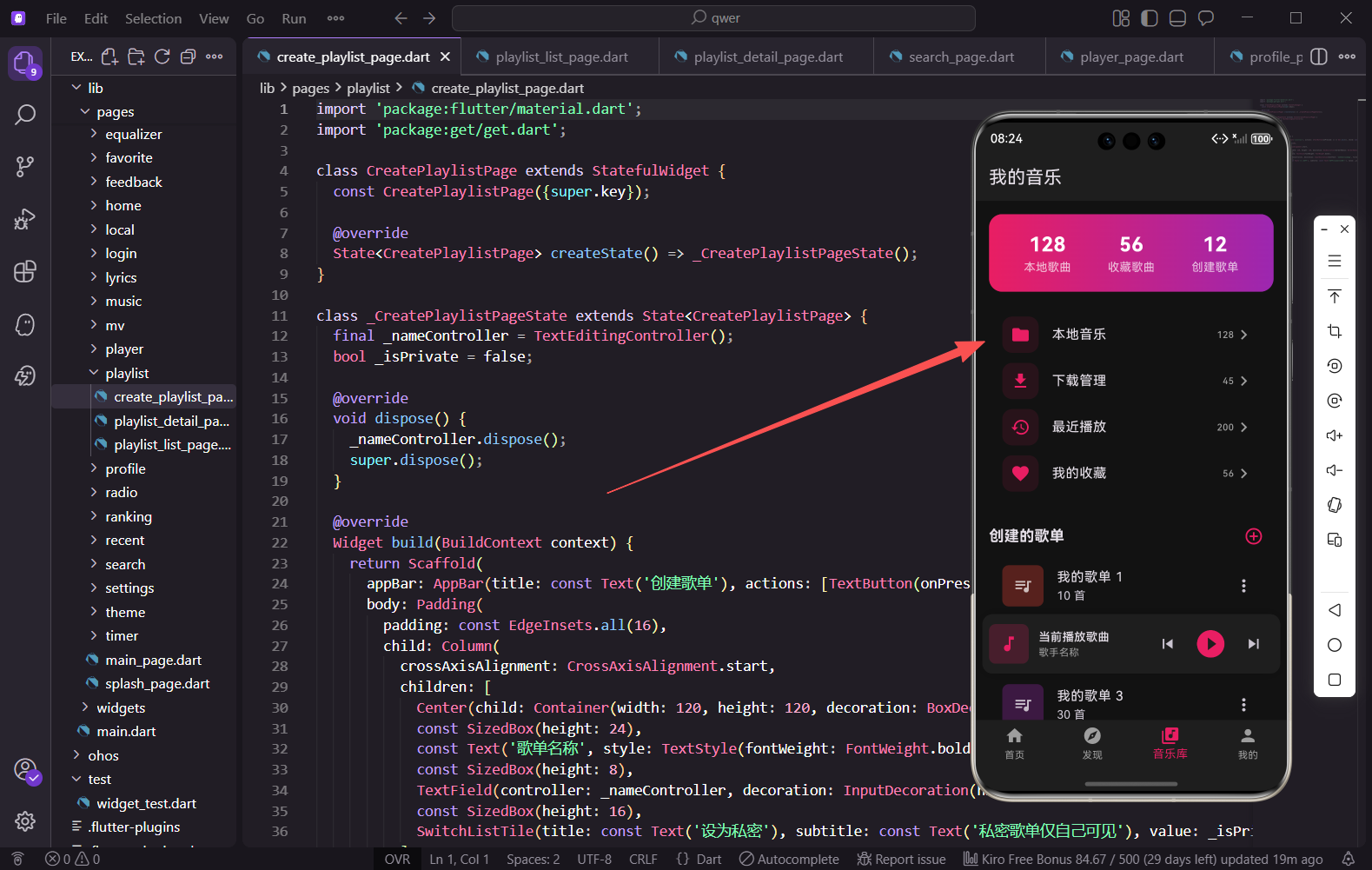
本地音乐是音乐播放器的基础功能之一。用户可以播放存储在设备上的音乐文件,不依赖网络。本篇文章将详细介绍如何实现一个功能完善的本地音乐页面,包括歌曲扫描、多种排序方式、按专辑/歌手/文件夹分类浏览等功能。
页面基础结构
本地音乐页面使用TabBar实现歌曲、专辑、歌手、文件夹四种浏览方式的切换。
import 'package:flutter/material.dart';
import 'package:get/get.dart';
/// 本地音乐页面
/// 展示设备上的本地音乐文件,支持扫描、排序、播放等功能
class LocalMusicPage extends StatefulWidget {
const LocalMusicPage({super.key});
State<LocalMusicPage> createState() => _LocalMusicPageState();
}
本地音乐页面需要管理扫描状态、排序方式、多选模式等多个状态,因此使用StatefulWidget。
状态变量定义
页面需要管理的状态比较多,包括扫描、排序、搜索、多选等。
class _LocalMusicPageState extends State<LocalMusicPage> with SingleTickerProviderStateMixin {
  late TabController _tabController;
  bool _isScanning = false;
  double _scanProgress = 0;
  int _sortType = 0;
  bool _isAscending = true;
  bool _isMultiSelect = false;
  final Set<int> _selectedSongs = {};
  String _searchKeyword = '';
  bool _showSearch = false;
_isScanning和_scanProgress用于控制扫描状态和进度显示。_sortType支持按名称、时间、大小、歌手四种排序方式。_isAscending控制升序或降序。
数据模型定义
本地音乐涉及歌曲、专辑、歌手、文件夹四种数据类型。
late List<Map<String, dynamic>> _songs;
late List<Map<String, dynamic>> _albums;
late List<Map<String, dynamic>> _artists;
late List<Map<String, dynamic>> _folders;
void initState() {
super.initState();
_tabController = TabController(length: 4, vsync: this);
_initData();
}
四个列表分别存储不同类型的数据。在initState中初始化TabController和数据。
歌曲数据初始化
模拟本地歌曲数据,包含丰富的元信息。
  void _initData() {
    _songs = List.generate(128, (index) => {
      return {
        'id': index,
        'name': '本地歌曲 ${index + 1}',
        'artist': '歌手 ${index % 10 + 1}',
        'album': '专辑 ${index % 8 + 1}',
        'duration': Duration(minutes: 3 + index % 4, seconds: index * 7 % 60),
        'size': 3.5 + (index % 10) * 0.5,
        'path': '/storage/Music/song_${index + 1}.mp3',
        'addTime': DateTime.now().subtract(Duration(days: index)),
        'quality': index % 3 == 0 ? 'FLAC' : (index % 2 == 0 ? '320K' : '128K'),
      };
    });
每首歌曲包含ID、名称、歌手、专辑、时长、文件大小、路径、添加时间和音质等信息。duration使用Duration类型方便后续格式化。
专辑和歌手数据
专辑和歌手数据用于分类浏览。
    _albums = List.generate(20, (index) => {
      return {
        'id': index,
        'name': '专辑 ${index + 1}',
        'artist': '歌手 ${index % 5 + 1}',
        'songCount': 8 + index % 5,
        'year': 2020 + index % 5,
      };
    });

    _artists = List.generate(15, (index) => {
      return {
        'id': index,
        'name': '歌手 ${index + 1}',
        'songCount': 10 + index * 2,
        'albumCount': 2 + index % 3,
      };
    });
专辑数据包含歌手、歌曲数和发行年份。歌手数据包含歌曲数和专辑数。
文件夹数据
按文件夹浏览是本地音乐的特色功能。
    _folders = List.generate(8, (index) => {
      return {
        'id': index,
        'name': index == 0 ? 'Music' : '文件夹 ${index}',
        'path': '/storage/${index == 0 ? 'Music' : 'Folder$index'}',
        'songCount': 15 + index * 5,
      };
    });
  }
文件夹数据包含名称、路径和歌曲数。第一个文件夹默认是Music目录。
歌曲过滤与排序
使用getter实现动态过滤和排序。
  List<Map<String, dynamic>> get _filteredSongs {
    var songs = List<Map<String, dynamic>>.from(_songs);

    if (_searchKeyword.isNotEmpty) {
      songs = songs.where((s) =>
        s['name'].toString().toLowerCase().contains(_searchKeyword.toLowerCase()) ||
        s['artist'].toString().toLowerCase().contains(_searchKeyword.toLowerCase()) ||
        s['album'].toString().toLowerCase().contains(_searchKeyword.toLowerCase())
      ).toList();
    }
搜索时同时匹配歌曲名、歌手名和专辑名,使用toLowerCase实现不区分大小写的搜索。
排序逻辑
支持四种排序方式,每种都可以切换升序降序。
    songs.sort((a, b) {
      int result;
      switch (_sortType) {
        case 0:
          result = a['name'].compareTo(b['name']);
          break;
        case 1:
          result = (b['addTime'] as DateTime).compareTo(a['addTime'] as DateTime);
          break;
        case 2:
          result = (b['size'] as double).compareTo(a['size'] as double);
          break;
        case 3:
          result = a['artist'].compareTo(b['artist']);
          break;
        default:
          result = 0;
      }
      return _isAscending ? result : -result;
    });

    return songs;
  }
按时间和大小默认降序(最新/最大在前),按名称和歌手默认升序。通过_isAscending控制排序方向。
AppBar构建
AppBar包含搜索框、排序按钮和更多菜单。
Widget build(BuildContext context) {
return Scaffold(
appBar: AppBar(
title: _showSearch ? _buildSearchField() : const Text('本地音乐'),
actions: [
IconButton(
icon: Icon(_showSearch ? Icons.close : Icons.search),
onPressed: () {
setState(() {
_showSearch = !_showSearch;
if (!_showSearch) _searchKeyword = '';
});
},
),
IconButton(
icon: const Icon(Icons.sort),
onPressed: () => _showSortOptions(),
),
搜索按钮点击后切换显示搜索框,关闭搜索时清空搜索关键词。排序按钮点击后显示排序选项菜单。
更多菜单
PopupMenuButton提供扫描和多选功能入口。
          PopupMenuButton<String>(
            onSelected: (value) {
              if (value == 'scan') _startScan();
              if (value == 'multiSelect') {
                setState(() {
                  _isMultiSelect = !_isMultiSelect;
                  _selectedSongs.clear();
                });
              }
            },
            itemBuilder: (context) => [
              const PopupMenuItem(value: 'scan', child: Text('扫描本地音乐')),
              PopupMenuItem(
                value: 'multiSelect',
                child: Text(_isMultiSelect ? '取消多选' : '多选'),
              ),
            ],
          ),
        ],
扫描选项触发本地音乐扫描,多选选项切换多选模式。菜单文字会根据当前状态动态变化。
TabBar设置
底部TabBar用于切换四种浏览方式。
        bottom: TabBar(
          controller: _tabController,
          indicatorColor: const Color(0xFFE91E63),
          labelColor: const Color(0xFFE91E63),
          unselectedLabelColor: Colors.grey,
          tabs: const [
            Tab(text: '歌曲'),
            Tab(text: '专辑'),
            Tab(text: '歌手'),
            Tab(text: '文件夹'),
          ],
        ),
      ),
四个Tab分别对应歌曲列表、专辑网格、歌手列表和文件夹列表。使用主题色作为选中状态的颜色。
页面主体结构
主体包含扫描进度条、播放全部栏和内容区域。
      body: Column(
        children: [
          if (_isScanning) _buildScanProgress(),
          _buildPlayAllBar(),
          Expanded(
            child: TabBarView(
              controller: _tabController,
              children: [
                _buildSongList(),
                _buildAlbumGrid(),
                _buildArtistList(),
                _buildFolderList(),
              ],
            ),
          ),
        ],
      ),
      bottomNavigationBar: _isMultiSelect ? _buildMultiSelectBar() : null,
    );
  }
扫描进度条只在扫描时显示。多选模式下底部显示操作栏。使用Expanded让TabBarView占据剩余空间。
搜索框组件
搜索框自动获取焦点,实时过滤歌曲列表。
  Widget _buildSearchField() {
    return TextField(
      autofocus: true,
      decoration: const InputDecoration(
        hintText: '搜索本地音乐',
        border: InputBorder.none,
        hintStyle: TextStyle(color: Colors.grey),
      ),
      style: const TextStyle(color: Colors.white),
      onChanged: (value) {
        setState(() => _searchKeyword = value);
      },
    );
  }
autofocus设置为true,打开搜索时自动弹出键盘。onChanged实时更新搜索关键词,触发列表重新过滤。
扫描进度条
扫描时显示进度条和取消按钮。
  Widget _buildScanProgress() {
    return Container(
      padding: const EdgeInsets.all(16),
      color: const Color(0xFF1E1E1E),
      child: Column(
        children: [
          Row(
            children: [
              const SizedBox(
                width: 20,
                height: 20,
                child: CircularProgressIndicator(
                  strokeWidth: 2,
                  valueColor: AlwaysStoppedAnimation<Color>(Color(0xFFE91E63)),
                ),
              ),
              const SizedBox(width: 12),
              Text('正在扫描... ${(_scanProgress * 100).toInt()}%'),
              const Spacer(),
              TextButton(
                onPressed: () => setState(() => _isScanning = false),
                child: const Text('取消', style: TextStyle(color: Colors.grey)),
              ),
            ],
          ),
          const SizedBox(height: 8),
          LinearProgressIndicator(
            value: _scanProgress,
            backgroundColor: Colors.grey.withOpacity(0.3),
            valueColor: const AlwaysStoppedAnimation<Color>(Color(0xFFE91E63)),
          ),
        ],
      ),
    );
  }
使用CircularProgressIndicator显示加载动画,LinearProgressIndicator显示具体进度。取消按钮可以中断扫描。
播放全部栏
显示播放全部按钮和扫描按钮。
  Widget _buildPlayAllBar() {
    final songs = _filteredSongs;
    return Container(
      padding: const EdgeInsets.all(16),
      child: Row(
        children: [
          Expanded(
            child: ElevatedButton.icon(
              onPressed: () => _playAll(),
              icon: const Icon(Icons.play_arrow, color: Colors.white),
              label: Text('播放全部 (${songs.length})', style: const TextStyle(color: Colors.white)),
              style: ElevatedButton.styleFrom(
                backgroundColor: const Color(0xFFE91E63),
                padding: const EdgeInsets.symmetric(vertical: 12),
                shape: RoundedRectangleBorder(borderRadius: BorderRadius.circular(25)),
              ),
            ),
          ),
播放全部按钮显示当前过滤后的歌曲数量。使用主题色背景和圆角胶囊形状。
扫描按钮
扫描按钮可以启动或停止扫描。
          const SizedBox(width: 12),
          OutlinedButton.icon(
            onPressed: () => _startScan(),
            icon: Icon(
              _isScanning ? Icons.stop : Icons.refresh,
              color: const Color(0xFFE91E63),
            ),
            label: Text(
              _isScanning ? '停止' : '扫描',
              style: const TextStyle(color: Color(0xFFE91E63)),
            ),
            style: OutlinedButton.styleFrom(
              side: const BorderSide(color: Color(0xFFE91E63)),
              padding: const EdgeInsets.symmetric(vertical: 12, horizontal: 16),
            ),
          ),
        ],
      ),
    );
  }
按钮图标和文字根据扫描状态动态变化。使用OutlinedButton与播放按钮形成视觉区分。
歌曲列表构建
歌曲列表是本地音乐的核心视图。
  Widget _buildSongList() {
    final songs = _filteredSongs;
    if (songs.isEmpty) {
      return _buildEmptyState('没有找到本地音乐', '点击扫描按钮扫描本地音乐');
    }
    return ListView.builder(
      itemCount: songs.length,
      itemBuilder: (context, index) {
        final song = songs[index];
        final isSelected = _selectedSongs.contains(song['id']);
        return ListTile(
          leading: _isMultiSelect
              ? Checkbox(
                  value: isSelected,
                  activeColor: const Color(0xFFE91E63),
                  onChanged: (value) {
                    setState(() {
                      if (value == true) {
                        _selectedSongs.add(song['id']);
                      } else {
                        _selectedSongs.remove(song['id']);
                      }
                    });
                  },
                )
列表为空时显示空状态提示。多选模式下显示Checkbox,普通模式下显示封面。
歌曲封面与音质标签
封面上可以显示音质标签。
              : Container(
                  width: 50,
                  height: 50,
                  decoration: BoxDecoration(
                    borderRadius: BorderRadius.circular(8),
                    color: Colors.primaries[index % Colors.primaries.length].withOpacity(0.3),
                  ),
                  child: Stack(
                    children: [
                      const Center(child: Icon(Icons.music_note, color: Colors.white70)),
                      if (song['quality'] == 'FLAC')
                        Positioned(
                          bottom: 2,
                          right: 2,
                          child: Container(
                            padding: const EdgeInsets.symmetric(horizontal: 3, vertical: 1),
                            decoration: BoxDecoration(color: Colors.amber, borderRadius: BorderRadius.circular(2)),
                            child: const Text('SQ', style: TextStyle(color: Colors.black, fontSize: 8, fontWeight: FontWeight.bold)),
                          ),
                        ),
                    ],
                  ),
                ),
FLAC格式的歌曲在封面右下角显示SQ(Super Quality)标签,使用金色背景突出显示。
歌曲信息与时长
显示歌曲名、歌手、专辑和时长。
          title: Text(song['name'], maxLines: 1, overflow: TextOverflow.ellipsis),
          subtitle: Row(
            children: [
              Expanded(
                child: Text(
                  '${song['artist']} · ${song['album']}',
                  style: const TextStyle(color: Colors.grey, fontSize: 12),
                  maxLines: 1,
                  overflow: TextOverflow.ellipsis,
                ),
              ),
              Text(
                _formatDuration(song['duration']),
                style: const TextStyle(color: Colors.grey, fontSize: 12),
              ),
            ],
          ),
歌手和专辑用中点分隔,时长显示在右侧。使用Expanded让左侧内容自适应宽度。
专辑网格
专辑使用网格布局展示,更加直观。
  Widget _buildAlbumGrid() {
    return GridView.builder(
      padding: const EdgeInsets.all(16),
      gridDelegate: const SliverGridDelegateWithFixedCrossAxisCount(
        crossAxisCount: 2,
        childAspectRatio: 0.85,
        crossAxisSpacing: 16,
        mainAxisSpacing: 16,
      ),
      itemCount: _albums.length,
      itemBuilder: (context, index) {
        final album = _albums[index];
        return GestureDetector(
          onTap: () => _openAlbum(index),
          child: Column(
            crossAxisAlignment: CrossAxisAlignment.start,
            children: [
              Expanded(
                child: Container(
                  decoration: BoxDecoration(
                    borderRadius: BorderRadius.circular(12),
                    color: Colors.primaries[index % Colors.primaries.length].withOpacity(0.3),
                  ),
                  child: const Center(child: Icon(Icons.album, size: 60, color: Colors.white70)),
                ),
              ),
              const SizedBox(height: 8),
              Text(album['name'], style: const TextStyle(fontWeight: FontWeight.bold), maxLines: 1, overflow: TextOverflow.ellipsis),
              Text('${album['artist']} · ${album['songCount']}首', style: const TextStyle(color: Colors.grey, fontSize: 12)),
            ],
          ),
        );
      },
    );
  }
每行显示2个专辑,封面使用大图标。底部显示专辑名、歌手和歌曲数。
歌手列表
歌手使用列表形式展示。
  Widget _buildArtistList() {
    return ListView.builder(
      itemCount: _artists.length,
      itemBuilder: (context, index) {
        final artist = _artists[index];
        return ListTile(
          leading: CircleAvatar(
            radius: 25,
            backgroundColor: Colors.primaries[index % Colors.primaries.length].withOpacity(0.3),
            child: const Icon(Icons.person, color: Colors.white70),
          ),
          title: Text(artist['name']),
          subtitle: Text(
            '${artist['songCount']}首歌曲 · ${artist['albumCount']}张专辑',
            style: const TextStyle(color: Colors.grey, fontSize: 12),
          ),
          trailing: const Icon(Icons.chevron_right, color: Colors.grey),
          onTap: () => _openArtist(index),
        );
      },
    );
  }
歌手头像使用圆形,副标题显示歌曲数和专辑数。右侧箭头提示可以点击进入详情。
文件夹列表
按文件夹浏览本地音乐。
  Widget _buildFolderList() {
    return ListView.builder(
      itemCount: _folders.length,
      itemBuilder: (context, index) {
        final folder = _folders[index];
        return ListTile(
          leading: Container(
            width: 50,
            height: 50,
            decoration: BoxDecoration(
              borderRadius: BorderRadius.circular(8),
              color: Colors.amber.withOpacity(0.3),
            ),
            child: const Icon(Icons.folder, color: Colors.amber),
          ),
          title: Text(folder['name']),
          subtitle: Text('${folder['songCount']}首歌曲', style: const TextStyle(color: Colors.grey, fontSize: 12)),
          trailing: const Icon(Icons.chevron_right, color: Colors.grey),
          onTap: () => _openFolder(index),
        );
      },
    );
  }
文件夹图标使用金色,与其他列表形成区分。显示文件夹名称和包含的歌曲数。
多选操作栏
多选模式下底部显示的操作栏。
  Widget _buildMultiSelectBar() {
    return Container(
      padding: const EdgeInsets.all(16),
      decoration: const BoxDecoration(
        color: Color(0xFF1E1E1E),
        border: Border(top: BorderSide(color: Colors.grey, width: 0.2)),
      ),
      child: Row(
        children: [
          GestureDetector(
            onTap: () {
              setState(() {
                if (_selectedSongs.length == _songs.length) {
                  _selectedSongs.clear();
                } else {
                  _selectedSongs.addAll(_songs.map((s) => s['id'] as int));
                }
              });
            },
            child: Row(
              children: [
                Icon(
                  _selectedSongs.length == _songs.length ? Icons.check_circle : Icons.radio_button_unchecked,
                  color: const Color(0xFFE91E63),
                ),
                const SizedBox(width: 8),
                Text('全选 (${_selectedSongs.length})'),
              ],
            ),
          ),
全选按钮显示当前选中数量,点击可以全选或取消全选。
操作按钮
多选操作栏包含播放、添加、删除和取消按钮。
          const Spacer(),
          IconButton(
            icon: const Icon(Icons.play_arrow),
            onPressed: _selectedSongs.isEmpty ? null : () => _playSelected(),
            tooltip: '播放',
          ),
          IconButton(
            icon: const Icon(Icons.playlist_add),
            onPressed: _selectedSongs.isEmpty ? null : () => _addToPlaylist(),
            tooltip: '添加到歌单',
          ),
          IconButton(
            icon: const Icon(Icons.delete_outline, color: Colors.red),
            onPressed: _selectedSongs.isEmpty ? null : () => _deleteSelected(),
            tooltip: '删除',
          ),
          IconButton(
            icon: const Icon(Icons.close),
            onPressed: () {
              setState(() {
                _isMultiSelect = false;
                _selectedSongs.clear();
              });
            },
            tooltip: '取消',
          ),
        ],
      ),
    );
  }
没有选中歌曲时按钮禁用。删除按钮使用红色提醒用户这是危险操作。
扫描模拟
模拟扫描本地音乐的过程。
  void _startScan() {
    if (_isScanning) {
      setState(() => _isScanning = false);
      return;
    }
    setState(() {
      _isScanning = true;
      _scanProgress = 0;
    });
    _simulateScan();
  }

  void _simulateScan() {
    Future.delayed(const Duration(milliseconds: 100), () {
      if (!_isScanning || !mounted) return;
      setState(() {
        _scanProgress += 0.02;
        if (_scanProgress >= 1) {
          _isScanning = false;
          Get.snackbar('扫描完成', '共找到 ${_songs.length} 首歌曲', snackPosition: SnackPosition.BOTTOM);
        } else {
          _simulateScan();
        }
      });
    });
  }
使用递归的Future.delayed模拟扫描进度。扫描完成后显示找到的歌曲数量。检查mounted避免组件销毁后继续更新状态。
时长格式化
将Duration格式化为分:秒的形式。
  String _formatDuration(Duration duration) {
    final minutes = duration.inMinutes.remainder(60).toString().padLeft(2, '0');
    final seconds = duration.inSeconds.remainder(60).toString().padLeft(2, '0');
    return '$minutes:$seconds';
  }
使用padLeft补零,保证格式统一,如"03:45"。
总结
本地音乐页面的实现涵盖了多个实用功能:TabBar实现多种浏览方式切换、搜索过滤和多种排序方式、扫描进度显示、多选批量操作等。通过合理的状态管理和组件拆分,让代码结构清晰、易于维护。在实际项目中,还需要使用平台通道调用原生API来真正扫描设备上的音乐文件。
欢迎加入开源鸿蒙跨平台社区:https://openharmonycrossplatform.csdn.net

开源鸿蒙跨平台开发社区汇聚开发者与厂商,共建“一次开发,多端部署”的开源生态,致力于降低跨端开发门槛,推动万物智联创新。
更多推荐
 7
7 0
0- 0


 已为社区贡献22条内容

所有评论(0)