Flutter for OpenHarmony社团管理App实战:签到打卡实现
本文介绍了如何在Flutter中实现签到打卡功能,主要包括:1)设计签到记录数据模型;2)构建页面基础结构;3)实现连续签到天数计算逻辑;4)处理签到操作及反馈;5)设计包含统计卡片、周历、签到按钮和记录列表的完整界面。该方案通过状态管理维护签到数据,使用计算属性实时更新显示信息,并提供友好的用户交互体验,适合社团类应用提升用户活跃度。
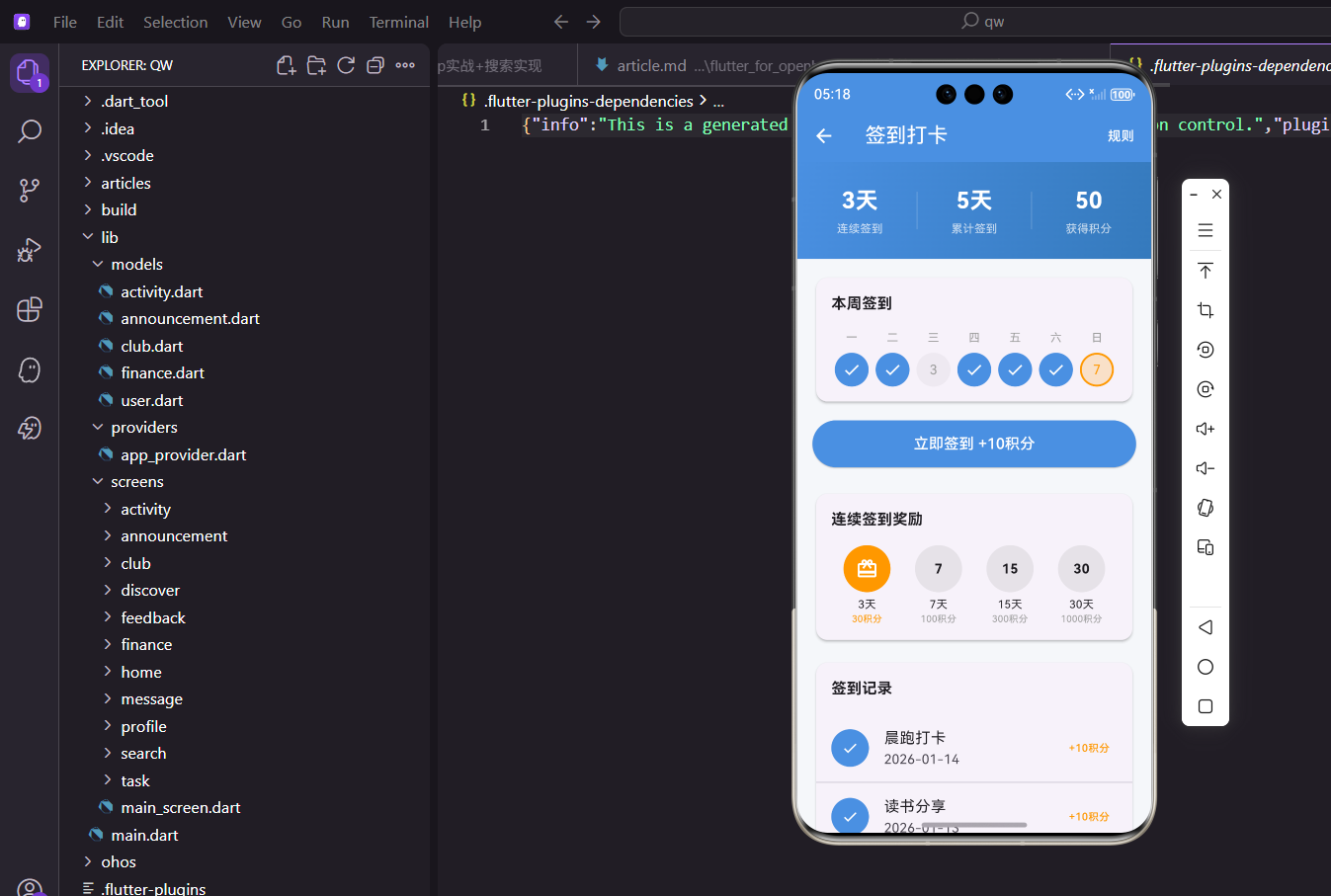
签到打卡是社团管理应用中提升用户活跃度的重要功能模块。通过每日签到机制,可以有效增强用户粘性,同时配合积分奖励系统,让用户更有动力持续使用应用。本篇将详细介绍如何在Flutter中实现一个完整的签到打卡功能。
功能概述
签到打卡页面需要实现以下核心功能点。首先是签到统计展示,包括连续签到天数和累计签到天数的显示。其次是本周签到日历,直观展示一周内的签到情况。然后是签到按钮,用户点击即可完成当日签到。最后是连续签到奖励展示和签到记录列表。
这些功能组合在一起,构成了一个完整的签到体验闭环,让用户能够清晰了解自己的签到进度和可获得的奖励。
数据模型设计
在开始编写界面代码之前,我们需要先定义签到记录的数据模型。
class CheckInRecord {
  final DateTime date;
  final String activity;
  bool isChecked;

  CheckInRecord({
    required this.date,
    required this.activity,
    required this.isChecked
  });
}
这个数据模型包含三个字段,date表示签到日期,activity表示签到关联的活动名称,isChecked表示是否已完成签到。使用bool类型而非final修饰isChecked,是因为用户签到时需要修改这个状态。
页面基础结构
签到打卡页面采用StatefulWidget实现,因为页面包含签到状态的变化。
import 'package:flutter/material.dart';
class CheckInPage extends StatefulWidget {
const CheckInPage({super.key});
State<CheckInPage> createState() => _CheckInPageState();
}
StatefulWidget的选择是因为签到操作会改变页面状态,需要触发界面重建来反映最新的签到情况。
状态管理与计算属性
页面状态类中需要管理签到记录列表,并提供几个计算属性来获取统计数据。
class _CheckInPageState extends State<CheckInPage> {
  final List<CheckInRecord> _records = [
    CheckInRecord(
      date: DateTime.now().subtract(const Duration(days: 6)),
      activity: '晨跑打卡',
      isChecked: true
    ),
    CheckInRecord(
      date: DateTime.now().subtract(const Duration(days: 5)),
      activity: '晨跑打卡',
      isChecked: true
    ),
    CheckInRecord(
      date: DateTime.now().subtract(const Duration(days: 4)),
      activity: '晨跑打卡',
      isChecked: false
    ),
    CheckInRecord(
      date: DateTime.now().subtract(const Duration(days: 3)),
      activity: '晨跑打卡',
      isChecked: true
    ),
    CheckInRecord(
      date: DateTime.now().subtract(const Duration(days: 2)),
      activity: '读书分享',
      isChecked: true
    ),
    CheckInRecord(
      date: DateTime.now().subtract(const Duration(days: 1)),
      activity: '晨跑打卡',
      isChecked: true
    ),
    CheckInRecord(
      date: DateTime.now(),
      activity: '晨跑打卡',
      isChecked: false
    ),
  ];
这里初始化了一周的签到记录作为测试数据,其中包含已签到和未签到的记录,方便测试各种场景下的界面展示效果。
连续签到天数计算
连续签到天数的计算需要从最近一天开始向前遍历,遇到未签到的记录就停止计数。
  int get _continuousDays {
    int count = 0;
    for (int i = _records.length - 2; i >= 0; i--) {
      if (_records[i].isChecked) {
        count++;
      } else {
        break;
      }
    }
    return count;
  }
注意这里从倒数第二条记录开始计算,因为最后一条是今天的记录,今天是否签到不影响连续天数的基础值。这种计算方式符合大多数签到应用的逻辑。
累计签到与今日状态
累计签到天数和今日签到状态的获取相对简单。
  int get _totalCheckedDays => _records.where((r) => r.isChecked).length;

  bool get _todayChecked => _records.isNotEmpty && _records.last.isChecked;
累计签到使用where方法过滤出所有已签到的记录,然后获取数量。今日签到状态则检查记录列表最后一条的isChecked属性。
签到操作实现
用户点击签到按钮时触发的签到逻辑如下。
  void _doCheckIn() {
    if (!_todayChecked) {
      setState(() {
        _records.last.isChecked = true;
      });
      ScaffoldMessenger.of(context).showSnackBar(
        const SnackBar(
          content: Text('签到成功!+10积分'),
          backgroundColor: Colors.green
        ),
      );
    }
  }
签到成功后通过setState更新状态,同时使用SnackBar给用户一个友好的反馈提示。绿色背景的SnackBar传达了操作成功的积极信息。
页面主体构建
build方法中使用Scaffold搭建页面框架,body部分使用SingleChildScrollView包裹以支持内容滚动。
Widget build(BuildContext context) {
return Scaffold(
appBar: AppBar(
title: const Text('签到打卡'),
actions: [
TextButton(
onPressed: () => _showRulesDialog(),
child: const Text('规则', style: TextStyle(color: Colors.white)),
),
],
),
body: SingleChildScrollView(
child: Column(
children: [
_buildHeaderCard(),
const SizedBox(height: 16),
_buildWeekCalendar(),
const SizedBox(height: 16),
_buildCheckInButton(),
const SizedBox(height: 24),
_buildRewardSection(),
const SizedBox(height: 16),
_buildRecordList(),
],
),
),
);
}
AppBar右侧添加了规则按钮,方便用户查看签到规则说明。页面内容按照从上到下的顺序依次排列各个功能模块。
头部统计卡片
头部卡片使用渐变背景,展示三个核心统计数据。
  Widget _buildHeaderCard() {
    return Container(
      width: double.infinity,
      padding: const EdgeInsets.all(24),
      decoration: const BoxDecoration(
        gradient: LinearGradient(
          colors: [Color(0xFF4A90E2), Color(0xFF357ABD)],
          begin: Alignment.topLeft,
          end: Alignment.bottomRight,
        ),
      ),
      child: Column(
        children: [
          Row(
            mainAxisAlignment: MainAxisAlignment.spaceAround,
            children: [
              _buildStatItem('连续签到', '$_continuousDays天'),
              Container(width: 1, height: 40, color: Colors.white24),
              _buildStatItem('累计签到', '$_totalCheckedDays天'),
              Container(width: 1, height: 40, color: Colors.white24),
              _buildStatItem('获得积分', '${_totalCheckedDays * 10}'),
            ],
          ),
        ],
      ),
    );
  }
渐变背景从左上到右下,使用蓝色系配色,与应用整体风格保持一致。三个统计项之间用半透明的分隔线隔开,视觉上更加清晰。
统计项组件
单个统计项的构建方法,采用上下结构展示数值和标签。
  Widget _buildStatItem(String label, String value) {
    return Column(
      children: [
        Text(
          value,
          style: const TextStyle(
            color: Colors.white,
            fontSize: 24,
            fontWeight: FontWeight.bold
          )
        ),
        const SizedBox(height: 4),
        Text(
          label,
          style: const TextStyle(color: Colors.white70, fontSize: 12)
        ),
      ],
    );
  }
数值使用较大的字号和粗体突出显示,标签使用较小字号和半透明白色,形成主次分明的视觉层次。
本周签到日历
周签到日历是签到页面的核心视觉元素,直观展示一周的签到状态。
  Widget _buildWeekCalendar() {
    final weekDays = ['一', '二', '三', '四', '五', '六', '日'];
    return Padding(
      padding: const EdgeInsets.symmetric(horizontal: 16),
      child: Card(
        child: Padding(
          padding: const EdgeInsets.all(16),
          child: Column(
            crossAxisAlignment: CrossAxisAlignment.start,
            children: [
              const Text(
                '本周签到',
                style: TextStyle(fontSize: 16, fontWeight: FontWeight.bold)
              ),
              const SizedBox(height: 16),
              Row(
                mainAxisAlignment: MainAxisAlignment.spaceAround,
                children: List.generate(7, (index) {
                  final record = index < _records.length ? _records[index] : null;
                  final isToday = index == _records.length - 1;
                  final isChecked = record?.isChecked ?? false;
                  return Column(
                    children: [
                      Text(
                        weekDays[index],
                        style: const TextStyle(color: Colors.grey, fontSize: 12)
                      ),
                      const SizedBox(height: 8),
                      Container(
                        width: 36,
                        height: 36,
                        decoration: BoxDecoration(
                          shape: BoxShape.circle,
                          color: isChecked
                              ? const Color(0xFF4A90E2)
                              : (isToday
                                  ? Colors.orange.withOpacity(0.2)
                                  : Colors.grey.withOpacity(0.1)),
                          border: isToday
                              ? Border.all(color: Colors.orange, width: 2)
                              : null,
                        ),
                        child: Center(
                          child: isChecked
                              ? const Icon(Icons.check, color: Colors.white, size: 20)
                              : Text(
                                  '${index + 1}',
                                  style: TextStyle(
                                    color: isToday ? Colors.orange : Colors.grey
                                  )
                                ),
                        ),
                      ),
                    ],
                  );
                }),
              ),
            ],
          ),
        ),
      ),
    );
  }
日历使用List.generate生成七天的显示,每天根据签到状态显示不同的样式。已签到显示蓝色背景加白色对勾,今天未签到显示橙色边框提醒用户,其他未签到日期显示灰色背景。
签到按钮
签到按钮根据今日是否已签到显示不同状态。
  Widget _buildCheckInButton() {
    return Padding(
      padding: const EdgeInsets.symmetric(horizontal: 16),
      child: SizedBox(
        width: double.infinity,
        height: 50,
        child: ElevatedButton(
          onPressed: _todayChecked ? null : _doCheckIn,
          style: ElevatedButton.styleFrom(
            backgroundColor: _todayChecked
                ? Colors.grey
                : const Color(0xFF4A90E2),
            shape: RoundedRectangleBorder(
              borderRadius: BorderRadius.circular(25)
            ),
          ),
          child: Text(
            _todayChecked ? '今日已签到' : '立即签到 +10积分',
            style: const TextStyle(fontSize: 16, color: Colors.white),
          ),
        ),
      ),
    );
  }
已签到状态下按钮变灰且不可点击,未签到状态下显示蓝色可点击按钮。按钮文案也会相应变化,给用户明确的状态提示。
连续签到奖励区域
奖励区域展示不同连续签到天数对应的奖励。
  Widget _buildRewardSection() {
    return Padding(
      padding: const EdgeInsets.symmetric(horizontal: 16),
      child: Card(
        child: Padding(
          padding: const EdgeInsets.all(16),
          child: Column(
            crossAxisAlignment: CrossAxisAlignment.start,
            children: [
              const Text(
                '连续签到奖励',
                style: TextStyle(fontSize: 16, fontWeight: FontWeight.bold)
              ),
              const SizedBox(height: 16),
              Row(
                mainAxisAlignment: MainAxisAlignment.spaceAround,
                children: [
                  _buildRewardItem(3, '30积分', _continuousDays >= 3),
                  _buildRewardItem(7, '100积分', _continuousDays >= 7),
                  _buildRewardItem(15, '300积分', _continuousDays >= 15),
                  _buildRewardItem(30, '1000积分', _continuousDays >= 30),
                ],
              ),
            ],
          ),
        ),
      ),
    );
  }
四个奖励档位横向排列,根据当前连续签到天数判断是否已达成。这种设计让用户一目了然地看到自己的进度和目标。
奖励项组件
单个奖励项的构建,已达成和未达成显示不同样式。
  Widget _buildRewardItem(int days, String reward, bool achieved) {
    return Column(
      children: [
        Container(
          width: 50,
          height: 50,
          decoration: BoxDecoration(
            shape: BoxShape.circle,
            color: achieved ? Colors.orange : Colors.grey.withOpacity(0.2),
          ),
          child: Center(
            child: achieved
                ? const Icon(Icons.card_giftcard, color: Colors.white)
                : Text('$days', style: const TextStyle(fontWeight: FontWeight.bold)),
          ),
        ),
        const SizedBox(height: 4),
        Text('$days天', style: const TextStyle(fontSize: 12)),
        Text(
          reward,
          style: TextStyle(
            fontSize: 10,
            color: achieved ? Colors.orange : Colors.grey
          )
        ),
      ],
    );
  }
已达成的奖励显示橙色背景和礼物图标,未达成显示灰色背景和天数数字。奖励金额文字颜色也会相应变化。
签到记录列表
签到记录列表展示历史签到详情。
  Widget _buildRecordList() {
    return Padding(
      padding: const EdgeInsets.symmetric(horizontal: 16),
      child: Card(
        child: Column(
          crossAxisAlignment: CrossAxisAlignment.start,
          children: [
            const Padding(
              padding: EdgeInsets.all(16),
              child: Text(
                '签到记录',
                style: TextStyle(fontSize: 16, fontWeight: FontWeight.bold)
              ),
            ),
            ListView.separated(
              shrinkWrap: true,
              physics: const NeverScrollableScrollPhysics(),
              itemCount: _records.where((r) => r.isChecked).length,
              separatorBuilder: (_, __) => const Divider(height: 1),
              itemBuilder: (context, index) {
                final checkedRecords = _records
                    .where((r) => r.isChecked)
                    .toList()
                    .reversed
                    .toList();
                final record = checkedRecords[index];
                return ListTile(
                  leading: const CircleAvatar(
                    backgroundColor: Color(0xFF4A90E2),
                    child: Icon(Icons.check, color: Colors.white, size: 18),
                  ),
                  title: Text(record.activity),
                  subtitle: Text(_formatDate(record.date)),
                  trailing: const Text(
                    '+10积分',
                    style: TextStyle(color: Colors.orange)
                  ),
                );
              },
            ),
          ],
        ),
      ),
    );
  }
列表只显示已签到的记录,按时间倒序排列,最新的签到记录显示在最上面。每条记录显示活动名称、签到日期和获得的积分。
日期格式化
日期格式化辅助方法,将DateTime转换为易读的字符串格式。
  String _formatDate(DateTime date) {
    return '${date.year}-${date.month.toString().padLeft(2, '0')}-${date.day.toString().padLeft(2, '0')}';
  }
使用padLeft方法确保月份和日期始终显示两位数字,保持格式统一美观。
签到规则弹窗
点击AppBar上的规则按钮时显示签到规则说明。
  void _showRulesDialog() {
    showDialog(
      context: context,
      builder: (context) => AlertDialog(
        title: const Text('签到规则'),
        content: const Column(
          mainAxisSize: MainAxisSize.min,
          crossAxisAlignment: CrossAxisAlignment.start,
          children: [
            Text('1. 每日签到可获得10积分'),
            SizedBox(height: 8),
            Text('2. 连续签到3天额外奖励30积分'),
            SizedBox(height: 8),
            Text('3. 连续签到7天额外奖励100积分'),
            SizedBox(height: 8),
            Text('4. 连续签到15天额外奖励300积分'),
            SizedBox(height: 8),
            Text('5. 连续签到30天额外奖励1000积分'),
            SizedBox(height: 8),
            Text('6. 中断签到后连续天数重新计算'),
          ],
        ),
        actions: [
          TextButton(
            onPressed: () => Navigator.pop(context),
            child: const Text('知道了')
          ),
        ],
      ),
    );
  }
使用AlertDialog展示规则内容,Column的mainAxisSize设为min确保弹窗高度自适应内容。规则条目清晰列出,方便用户理解签到机制。
页面入口配置
签到打卡页面的入口位于活动中心页面的AppBar上。
IconButton(
  icon: const Icon(Icons.edit_calendar),
  onPressed: () => Navigator.push(
    context,
    MaterialPageRoute(builder: (_) => const CheckInPage())
  ),
),
使用edit_calendar图标直观表示签到打卡功能,用户点击后通过Navigator.push跳转到签到页面。
总结
签到打卡功能的实现涉及到状态管理、计算属性、条件渲染等多个Flutter开发要点。通过合理的组件拆分和状态设计,我们实现了一个功能完整、交互友好的签到模块。连续签到奖励机制的设计能够有效激励用户保持活跃,是社团管理应用中提升用户粘性的重要手段。
在实际项目中,签到数据应该持久化存储到本地数据库或后端服务器,签到操作也需要与服务端进行同步。本文的实现为前端展示层提供了完整的参考,后续可以根据实际需求接入数据层。
欢迎加入开源鸿蒙跨平台社区:https://openharmonycrossplatform.csdn.net

开源鸿蒙跨平台开发社区汇聚开发者与厂商,共建“一次开发,多端部署”的开源生态,致力于降低跨端开发门槛,推动万物智联创新。
更多推荐
 30
30 0
0- 0


 已为社区贡献30条内容

所有评论(0)