flutter_for_openharmony家庭相册app实战+纪念日实现
纪念日功能帮助用户管理家庭重要日期,通过卡片形式展示生日、结婚纪念日等事件,并显示倒计时天数。页面采用Flutter开发,主要包含纪念日列表、空状态提示和卡片设计。纪念日卡片显示日期、类型、关联家人及剩余天数,按时间排序。空状态时展示提示信息引导用户添加首个纪念日。代码结构清晰,使用Consumer2监听数据变化,确保实时更新。整体设计简洁直观,方便用户查看和管理家庭重要日期。
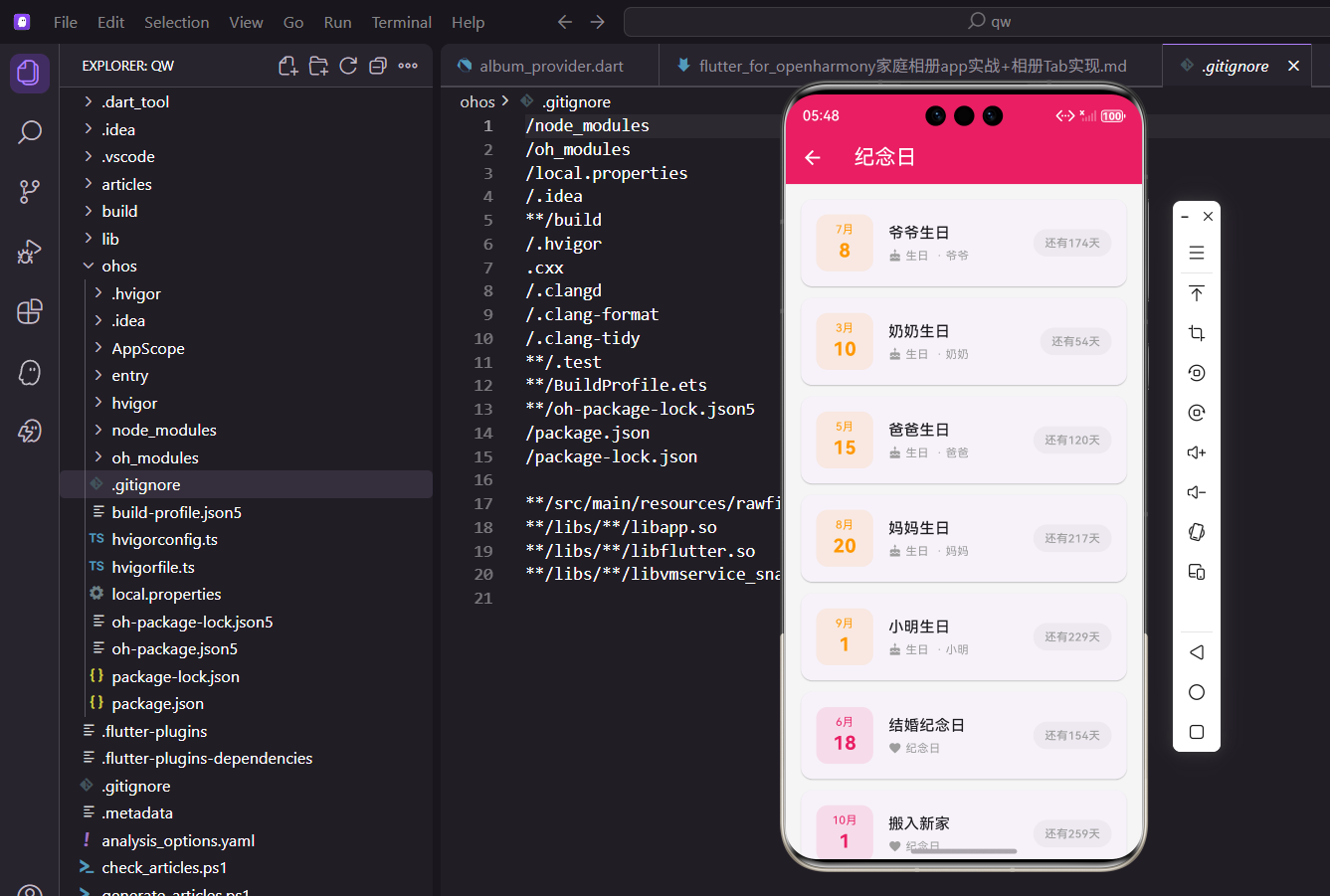
纪念日功能帮助用户记录和管理家庭中的重要日期,如生日、结婚纪念日等。通过提前提醒,用户不会错过任何重要时刻。
设计思路
纪念日页面展示所有即将到来的纪念日,按照距离现在的天数排序。每个纪念日卡片显示日期、类型、关联的家人和倒计时天数。
创建页面结构
先搭建基本框架:
import 'package:flutter/material.dart';
import 'package:flutter_screenutil/flutter_screenutil.dart';
import 'package:provider/provider.dart';
import 'package:intl/intl.dart';
import '../providers/event_provider.dart';
import '../providers/family_provider.dart';
import '../models/anniversary.dart';
class AnniversaryListScreen extends StatelessWidget {
const AnniversaryListScreen({super.key});
Widget build(BuildContext context) {
return Scaffold(
appBar: AppBar(
title: const Text('纪念日'),
elevation: 0,
actions: [
IconButton(
icon: const Icon(Icons.add),
onPressed: () => _showAddDialog(context),
),
],
),
body: Consumer2<EventProvider, FamilyProvider>(
builder: (context, eventProvider, familyProvider, _) {
final anniversaries = eventProvider.getUpcomingAnniversaries();
if (anniversaries.isEmpty) {
return _buildEmptyState(context);
}
return ListView.builder(
padding: EdgeInsets.all(16.w),
itemCount: anniversaries.length,
itemBuilder: (context, index) {
final anniversary = anniversaries[index];
final member = anniversary.memberId != null
? familyProvider.getMemberById(anniversary.memberId!)
: null;
return _buildAnniversaryCard(
context,
anniversary,
member,
);
},
);
},
),
);
}
}
用Consumer2同时监听EventProvider和FamilyProvider,这样可以获取纪念日和关联的家人信息。
空状态设计
当还没有纪念日时的提示:
Widget _buildEmptyState(BuildContext context) {
  return Center(
    child: Column(
      mainAxisAlignment: MainAxisAlignment.center,
      children: [
        Icon(
          Icons.cake_outlined,
          size: 80.sp,
          color: Colors.grey[300],
        ),
        SizedBox(height: 20.h),
        Text(
          '还没有纪念日',
          style: TextStyle(
            fontSize: 18.sp,
            color: Colors.grey[600],
            fontWeight: FontWeight.w500,
          ),
        ),
        SizedBox(height: 8.h),
        Text(
          '点击右上角添加第一个纪念日',
          style: TextStyle(
            fontSize: 14.sp,
            color: Colors.grey[400],
          ),
        ),
      ],
    ),
  );
}
空状态用蛋糕图标,因为生日是最常见的纪念日类型。
纪念日卡片设计
每个纪念日用精美的卡片展示:
Widget _buildAnniversaryCard(
  BuildContext context,
  Anniversary anniversary,
  dynamic member,
) {
  final now = DateTime.now();
  final thisYearDate = DateTime(
    now.year,
    anniversary.date.month,
    anniversary.date.day,
  );
  final daysUntil = thisYearDate.difference(now).inDays;
  final isPast = daysUntil < 0;
  final displayDays = isPast ? daysUntil + 365 : daysUntil;
  final color = _getColorForType(anniversary.type);

  return Card(
    margin: EdgeInsets.only(bottom: 16.h),
    elevation: 2,
    shape: RoundedRectangleBorder(
      borderRadius: BorderRadius.circular(16.r),
    ),
    child: Padding(
      padding: EdgeInsets.all(16.w),
      child: Row(
        children: [
          Container(
            width: 70.w,
            height: 70.w,
            decoration: BoxDecoration(
              color: color.withOpacity(0.15),
              borderRadius: BorderRadius.circular(16.r),
            ),
            child: Column(
              mainAxisAlignment: MainAxisAlignment.center,
              children: [
                Text(
                  '${anniversary.date.month}月',
                  style: TextStyle(
                    fontSize: 12.sp,
                    color: color,
                    fontWeight: FontWeight.w500,
                  ),
                ),
                Text(
                  '${anniversary.date.day}',
                  style: TextStyle(
                    fontSize: 24.sp,
                    fontWeight: FontWeight.bold,
                    color: color,
                  ),
                ),
              ],
            ),
          ),
          SizedBox(width: 16.w),
          Expanded(
            child: Column(
              crossAxisAlignment: CrossAxisAlignment.start,
              children: [
                Text(
                  anniversary.title,
                  style: TextStyle(
                    fontSize: 16.sp,
                    fontWeight: FontWeight.w600,
                  ),
                  maxLines: 1,
                  overflow: TextOverflow.ellipsis,
                ),
                SizedBox(height: 6.h),
                Row(
                  children: [
                    Icon(
                      _getIconForType(anniversary.type),
                      size: 14.sp,
                      color: Colors.grey[600],
                    ),
                    SizedBox(width: 4.w),
                    Text(
                      anniversary.type,
                      style: TextStyle(
                        fontSize: 12.sp,
                        color: Colors.grey[600],
                      ),
                    ),
                    if (member != null) ...[
                      SizedBox(width: 8.w),
                      Text(
                        '· ${member.name}',
                        style: TextStyle(
                          fontSize: 12.sp,
                          color: Colors.grey[600],
                        ),
                      ),
                    ],
                  ],
                ),
              ],
            ),
          ),
          Container(
            padding: EdgeInsets.symmetric(
              horizontal: 14.w,
              vertical: 8.h,
            ),
            decoration: BoxDecoration(
              color: displayDays <= 7
                  ? Colors.red.withOpacity(0.1)
                  : color.withOpacity(0.1),
              borderRadius: BorderRadius.circular(20.r),
            ),
            child: Text(
              displayDays == 0 ? '今天' : '还有$displayDays天',
              style: TextStyle(
                fontSize: 13.sp,
                color: displayDays <= 7 ? Colors.red : color,
                fontWeight: FontWeight.w600,
              ),
            ),
          ),
        ],
      ),
    ),
  );
}
卡片左边是日期方块,中间是标题和类型,右边是倒计时。倒计时少于7天时用红色警告,让用户注意。
类型颜色和图标
根据纪念日类型返回对应的颜色和图标:
Color _getColorForType(String type) {
  switch (type) {
    case '生日':
      return const Color(0xFFFF9800);
    case '纪念日':
      return const Color(0xFFE91E63);
    case '节日':
      return const Color(0xFF4CAF50);
    case '其他':
      return const Color(0xFF2196F3);
    default:
      return const Color(0xFF9C27B0);
  }
}

IconData _getIconForType(String type) {
  switch (type) {
    case '生日':
      return Icons.cake;
    case '纪念日':
      return Icons.favorite;
    case '节日':
      return Icons.celebration;
    case '其他':
      return Icons.event;
    default:
      return Icons.star;
  }
}
生日用橙色和蛋糕图标,纪念日用粉色和心形图标,节日用绿色和庆祝图标。这样的设计让不同类型一目了然。
添加纪念日对话框
点击右上角加号添加新纪念日:
void _showAddDialog(BuildContext context) {
  final titleController = TextEditingController();
  String selectedType = '生日';
  DateTime selectedDate = DateTime.now();

  showDialog(
    context: context,
    builder: (dialogContext) => StatefulBuilder(
      builder: (context, setState) => AlertDialog(
        title: const Text('添加纪念日'),
        content: SingleChildScrollView(
          child: Column(
            mainAxisSize: MainAxisSize.min,
            children: [
              TextField(
                controller: titleController,
                decoration: InputDecoration(
                  labelText: '标题',
                  hintText: '请输入标题',
                  border: OutlineInputBorder(
                    borderRadius: BorderRadius.circular(8.r),
                  ),
                ),
              ),
              SizedBox(height: 16.h),
              DropdownButtonFormField<String>(
                value: selectedType,
                decoration: InputDecoration(
                  labelText: '类型',
                  border: OutlineInputBorder(
                    borderRadius: BorderRadius.circular(8.r),
                  ),
                ),
                items: ['生日', '纪念日', '节日', '其他']
                    .map((type) => DropdownMenuItem(
                          value: type,
                          child: Text(type),
                        ))
                    .toList(),
                onChanged: (value) {
                  setState(() => selectedType = value!);
                },
              ),
              SizedBox(height: 16.h),
              ListTile(
                contentPadding: EdgeInsets.zero,
                title: const Text('日期'),
                subtitle: Text(
                  DateFormat('yyyy年MM月dd日').format(selectedDate),
                ),
                trailing: const Icon(Icons.calendar_today),
                onTap: () async {
                  final date = await showDatePicker(
                    context: dialogContext,
                    initialDate: selectedDate,
                    firstDate: DateTime(1900),
                    lastDate: DateTime(2100),
                  );
                  if (date != null) {
                    setState(() => selectedDate = date);
                  }
                },
              ),
            ],
          ),
        ),
        shape: RoundedRectangleBorder(
          borderRadius: BorderRadius.circular(16.r),
        ),
        actions: [
          TextButton(
            onPressed: () => Navigator.pop(dialogContext),
            child: Text(
              '取消',
              style: TextStyle(color: Colors.grey[600]),
            ),
          ),
          TextButton(
            onPressed: () {
              if (titleController.text.trim().isNotEmpty) {
                final anniversary = Anniversary(
                  id: DateTime.now().millisecondsSinceEpoch.toString(),
                  title: titleController.text.trim(),
                  type: selectedType,
                  date: selectedDate,
                  createdAt: DateTime.now(),
                );
                context.read<EventProvider>().addAnniversary(anniversary);
                Navigator.pop(dialogContext);

                ScaffoldMessenger.of(context).showSnackBar(
                  SnackBar(
                    content: const Text('纪念日添加成功'),
                    behavior: SnackBarBehavior.floating,
                    shape: RoundedRectangleBorder(
                      borderRadius: BorderRadius.circular(8.r),
                    ),
                  ),
                );
              }
            },
            child: const Text(
              '添加',
              style: TextStyle(
                color: Color(0xFFE91E63),
                fontWeight: FontWeight.w600,
              ),
            ),
          ),
        ],
      ),
    ),
  );
}
对话框包含标题输入框、类型下拉菜单和日期选择器。用StatefulBuilder让对话框内的状态可以更新。
长按编辑功能
给卡片添加长按菜单:
Widget _buildAnniversaryCard(
  BuildContext context,
  Anniversary anniversary,
  dynamic member,
) {
  // ... 前面的代码 ...

  return Card(
    margin: EdgeInsets.only(bottom: 16.h),
    elevation: 2,
    shape: RoundedRectangleBorder(
      borderRadius: BorderRadius.circular(16.r),
    ),
    child: InkWell(
      onLongPress: () => _showOptionsMenu(context, anniversary),
      borderRadius: BorderRadius.circular(16.r),
      child: Padding(
        padding: EdgeInsets.all(16.w),
        child: Row(
          // ... 卡片内容 ...
        ),
      ),
    ),
  );
}

void _showOptionsMenu(BuildContext context, Anniversary anniversary) {
  showModalBottomSheet(
    context: context,
    shape: RoundedRectangleBorder(
      borderRadius: BorderRadius.vertical(top: Radius.circular(20.r)),
    ),
    builder: (sheetContext) => SafeArea(
      child: Column(
        mainAxisSize: MainAxisSize.min,
        children: [
          SizedBox(height: 8.h),
          Container(
            width: 40.w,
            height: 4.h,
            decoration: BoxDecoration(
              color: Colors.grey[300],
              borderRadius: BorderRadius.circular(2.r),
            ),
          ),
          SizedBox(height: 16.h),
          ListTile(
            leading: const Icon(Icons.edit, color: Color(0xFF2196F3)),
            title: const Text('编辑'),
            onTap: () {
              Navigator.pop(sheetContext);
              _showEditDialog(context, anniversary);
            },
          ),
          ListTile(
            leading: const Icon(Icons.delete, color: Color(0xFFF44336)),
            title: const Text('删除'),
            onTap: () {
              Navigator.pop(sheetContext);
              _showDeleteDialog(context, anniversary);
            },
          ),
          SizedBox(height: 8.h),
        ],
      ),
    ),
  );
}
长按卡片弹出底部菜单,提供编辑和删除选项。
编辑纪念日对话框
让用户修改纪念日信息:
void _showEditDialog(BuildContext context, Anniversary anniversary) {
  final titleController = TextEditingController(text: anniversary.title);
  String selectedType = anniversary.type;
  DateTime selectedDate = anniversary.date;

  showDialog(
    context: context,
    builder: (dialogContext) => StatefulBuilder(
      builder: (context, setState) => AlertDialog(
        title: const Text('编辑纪念日'),
        content: SingleChildScrollView(
          child: Column(
            mainAxisSize: MainAxisSize.min,
            children: [
              TextField(
                controller: titleController,
                decoration: InputDecoration(
                  labelText: '标题',
                  border: OutlineInputBorder(
                    borderRadius: BorderRadius.circular(8.r),
                  ),
                ),
              ),
              SizedBox(height: 16.h),
              DropdownButtonFormField<String>(
                value: selectedType,
                decoration: InputDecoration(
                  labelText: '类型',
                  border: OutlineInputBorder(
                    borderRadius: BorderRadius.circular(8.r),
                  ),
                ),
                items: ['生日', '纪念日', '节日', '其他']
                    .map((type) => DropdownMenuItem(
                          value: type,
                          child: Text(type),
                        ))
                    .toList(),
                onChanged: (value) {
                  setState(() => selectedType = value!);
                },
              ),
              SizedBox(height: 16.h),
              ListTile(
                contentPadding: EdgeInsets.zero,
                title: const Text('日期'),
                subtitle: Text(
                  DateFormat('yyyy年MM月dd日').format(selectedDate),
                ),
                trailing: const Icon(Icons.calendar_today),
                onTap: () async {
                  final date = await showDatePicker(
                    context: dialogContext,
                    initialDate: selectedDate,
                    firstDate: DateTime(1900),
                    lastDate: DateTime(2100),
                  );
                  if (date != null) {
                    setState(() => selectedDate = date);
                  }
                },
              ),
            ],
          ),
        ),
        shape: RoundedRectangleBorder(
          borderRadius: BorderRadius.circular(16.r),
        ),
        actions: [
          TextButton(
            onPressed: () => Navigator.pop(dialogContext),
            child: Text(
              '取消',
              style: TextStyle(color: Colors.grey[600]),
            ),
          ),
          TextButton(
            onPressed: () {
              if (titleController.text.trim().isNotEmpty) {
                final updated = anniversary.copyWith(
                  title: titleController.text.trim(),
                  type: selectedType,
                  date: selectedDate,
                );
                context.read<EventProvider>().updateAnniversary(updated);
                Navigator.pop(dialogContext);

                ScaffoldMessenger.of(context).showSnackBar(
                  SnackBar(
                    content: const Text('修改成功'),
                    behavior: SnackBarBehavior.floating,
                  ),
                );
              }
            },
            child: const Text(
              '保存',
              style: TextStyle(
                color: Color(0xFFE91E63),
                fontWeight: FontWeight.w600,
              ),
            ),
          ),
        ],
      ),
    ),
  );
}
编辑对话框和添加对话框类似,只是预填了现有数据。
删除确认对话框
删除前需要确认:
void _showDeleteDialog(BuildContext context, Anniversary anniversary) {
  showDialog(
    context: context,
    builder: (dialogContext) => AlertDialog(
      title: const Text('删除纪念日'),
      content: Text('确定要删除"${anniversary.title}"吗?'),
      shape: RoundedRectangleBorder(
        borderRadius: BorderRadius.circular(16.r),
      ),
      actions: [
        TextButton(
          onPressed: () => Navigator.pop(dialogContext),
          child: Text(
            '取消',
            style: TextStyle(color: Colors.grey[600]),
          ),
        ),
        TextButton(
          onPressed: () {
            context.read<EventProvider>().deleteAnniversary(anniversary.id);
            Navigator.pop(dialogContext);

            ScaffoldMessenger.of(context).showSnackBar(
              SnackBar(
                content: const Text('已删除'),
                behavior: SnackBarBehavior.floating,
              ),
            );
          },
          child: const Text(
            '删除',
            style: TextStyle(
              color: Color(0xFFF44336),
              fontWeight: FontWeight.w600,
            ),
          ),
        ),
      ],
    ),
  );
}
删除按钮用红色,提醒用户这是危险操作。
纪念日分类筛选
添加按类型筛选的功能:
Widget _buildFilterChips(EventProvider provider) {
  final types = ['全部', '生日', '纪念日', '节日', '其他'];

  return Container(
    height: 50.h,
    padding: EdgeInsets.symmetric(horizontal: 16.w),
    child: ListView.builder(
      scrollDirection: Axis.horizontal,
      itemCount: types.length,
      itemBuilder: (context, index) {
        final type = types[index];
        final isSelected = provider.selectedAnniversaryType == type;

        return Padding(
          padding: EdgeInsets.only(right: 8.w),
          child: FilterChip(
            label: Text(type),
            selected: isSelected,
            onSelected: (selected) {
              provider.setAnniversaryTypeFilter(selected ? type : '全部');
            },
            selectedColor: const Color(0xFFE91E63).withOpacity(0.2),
            checkmarkColor: const Color(0xFFE91E63),
            labelStyle: TextStyle(
              color: isSelected ? const Color(0xFFE91E63) : Colors.grey[700],
              fontWeight: isSelected ? FontWeight.w600 : FontWeight.normal,
            ),
          ),
        );
      },
    ),
  );
}
筛选芯片让用户可以快速查看特定类型的纪念日。横向滚动的设计节省空间,选中的芯片用主题色高亮。
纪念日统计
在页面顶部显示统计信息:
Widget _buildStatistics(List<Anniversary> anniversaries) {
  final upcoming = anniversaries.where((a) {
    final now = DateTime.now();
    final thisYearDate = DateTime(now.year, a.date.month, a.date.day);
    final daysUntil = thisYearDate.difference(now).inDays;
    return daysUntil >= 0 && daysUntil <= 30;
  }).length;

  return Container(
    margin: EdgeInsets.all(16.w),
    padding: EdgeInsets.all(16.w),
    decoration: BoxDecoration(
      gradient: const LinearGradient(
        colors: [Color(0xFFE91E63), Color(0xFFF06292)],
        begin: Alignment.topLeft,
        end: Alignment.bottomRight,
      ),
      borderRadius: BorderRadius.circular(16.r),
      boxShadow: [
        BoxShadow(
          color: const Color(0xFFE91E63).withOpacity(0.3),
          blurRadius: 10,
          offset: const Offset(0, 4),
        ),
      ],
    ),
    child: Row(
      children: [
        Expanded(
          child: Column(
            crossAxisAlignment: CrossAxisAlignment.start,
            children: [
              Text(
                '即将到来',
                style: TextStyle(
                  fontSize: 14.sp,
                  color: Colors.white.withOpacity(0.9),
                ),
              ),
              SizedBox(height: 4.h),
              Text(
                '$upcoming 个纪念日',
                style: TextStyle(
                  fontSize: 24.sp,
                  fontWeight: FontWeight.bold,
                  color: Colors.white,
                ),
              ),
              SizedBox(height: 4.h),
              Text(
                '未来30天内',
                style: TextStyle(
                  fontSize: 12.sp,
                  color: Colors.white.withOpacity(0.8),
                ),
              ),
            ],
          ),
        ),
        Container(
          padding: EdgeInsets.all(16.w),
          decoration: BoxDecoration(
            color: Colors.white.withOpacity(0.2),
            shape: BoxShape.circle,
          ),
          child: Icon(
            Icons.calendar_month,
            size: 32.sp,
            color: Colors.white,
          ),
        ),
      ],
    ),
  );
}
统计卡片用渐变背景和阴影,看起来更有层次感。显示未来30天内的纪念日数量,让用户一目了然。
快速添加常用纪念日
提供快速添加模板:
void _showQuickAddDialog(BuildContext context) {
  final templates = [
    {'title': '生日', 'type': '生日', 'icon': Icons.cake},
    {'title': '结婚纪念日', 'type': '纪念日', 'icon': Icons.favorite},
    {'title': '春节', 'type': '节日', 'icon': Icons.celebration},
    {'title': '中秋节', 'type': '节日', 'icon': Icons.celebration},
  ];

  showModalBottomSheet(
    context: context,
    shape: RoundedRectangleBorder(
      borderRadius: BorderRadius.vertical(top: Radius.circular(20.r)),
    ),
    builder: (sheetContext) => SafeArea(
      child: Column(
        mainAxisSize: MainAxisSize.min,
        children: [
          SizedBox(height: 8.h),
          Container(
            width: 40.w,
            height: 4.h,
            decoration: BoxDecoration(
              color: Colors.grey[300],
              borderRadius: BorderRadius.circular(2.r),
            ),
          ),
          SizedBox(height: 16.h),
          Padding(
            padding: EdgeInsets.symmetric(horizontal: 16.w),
            child: Text(
              '快速添加',
              style: TextStyle(
                fontSize: 18.sp,
                fontWeight: FontWeight.bold,
              ),
            ),
          ),
          SizedBox(height: 16.h),
          ...templates.map((template) => ListTile(
            leading: Icon(
              template['icon'] as IconData,
              color: _getColorForType(template['type'] as String),
            ),
            title: Text(template['title'] as String),
            trailing: const Icon(Icons.add_circle_outline),
            onTap: () {
              Navigator.pop(sheetContext);
              _showAddDialogWithTemplate(context, template);
            },
          )),
          SizedBox(height: 16.h),
        ],
      ),
    ),
  );
}

void _showAddDialogWithTemplate(
  BuildContext context,
  Map<String, dynamic> template,
) {
  final titleController = TextEditingController(
    text: template['title'] as String,
  );
  String selectedType = template['type'] as String;
  DateTime selectedDate = DateTime.now();

  // 显示添加对话框,预填充模板数据
  _showAddDialog(context);
}
快速添加功能提供常用纪念日模板,用户只需选择模板然后填写日期,大大提高了添加效率。
纪念日提醒设置
为每个纪念日单独设置提醒:
Widget _buildReminderSettings(Anniversary anniversary) {
  return ListTile(
    leading: Container(
      padding: EdgeInsets.all(8.w),
      decoration: BoxDecoration(
        color: const Color(0xFF9C27B0).withOpacity(0.1),
        borderRadius: BorderRadius.circular(8.r),
      ),
      child: const Icon(
        Icons.notifications_outlined,
        color: Color(0xFF9C27B0),
      ),
    ),
    title: const Text('提醒设置'),
    subtitle: Text(
      anniversary.reminderEnabled ? '已开启提醒' : '未开启提醒',
      style: TextStyle(
        fontSize: 12.sp,
        color: Colors.grey[600],
      ),
    ),
    trailing: Switch(
      value: anniversary.reminderEnabled,
      onChanged: (value) {
        final updated = anniversary.copyWith(reminderEnabled: value);
        context.read<EventProvider>().updateAnniversary(updated);
      },
      activeColor: const Color(0xFFE91E63),
    ),
  );
}
每个纪念日可以单独设置是否提醒,给用户更多控制权。有些纪念日可能不需要提醒,这样的设计更灵活。
纪念日分享
添加分享功能,让用户可以分享纪念日:
void _shareAnniversary(Anniversary anniversary) {
  final text = '''
${anniversary.title}
日期:${DateFormat('yyyy年MM月dd日').format(anniversary.date)}
类型:${anniversary.type}

来自家庭相册App
''';

  showDialog(
    context: context,
    builder: (context) => AlertDialog(
      title: const Text('分享纪念日'),
      content: Column(
        mainAxisSize: MainAxisSize.min,
        children: [
          Text(text),
          SizedBox(height: 16.h),
          Row(
            mainAxisAlignment: MainAxisAlignment.spaceEvenly,
            children: [
              _buildShareButton(Icons.message, '短信'),
              _buildShareButton(Icons.email, '邮件'),
              _buildShareButton(Icons.share, '更多'),
            ],
          ),
        ],
      ),
      shape: RoundedRectangleBorder(
        borderRadius: BorderRadius.circular(16.r),
      ),
    ),
  );
}

Widget _buildShareButton(IconData icon, String label) {
  return Column(
    children: [
      Container(
        padding: EdgeInsets.all(12.w),
        decoration: BoxDecoration(
          color: const Color(0xFFE91E63).withOpacity(0.1),
          shape: BoxShape.circle,
        ),
        child: Icon(icon, color: const Color(0xFFE91E63)),
      ),
      SizedBox(height: 4.h),
      Text(
        label,
        style: TextStyle(fontSize: 12.sp),
      ),
    ],
  );
}
分享功能让用户可以把重要的纪念日分享给家人朋友,提醒他们一起庆祝。
总结
纪念日功能通过清晰的卡片设计和倒计时提醒,帮助用户记住家庭中的重要日期。不同的颜色和图标使不同类型的纪念日易于区分。筛选、统计、快速添加等功能让管理更方便。提醒设置和分享功能增加了实用性。整体设计既美观又实用。
欢迎加入开源鸿蒙跨平台社区:https://openharmonycrossplatform.csdn.net

开源鸿蒙跨平台开发社区汇聚开发者与厂商,共建“一次开发,多端部署”的开源生态,致力于降低跨端开发门槛,推动万物智联创新。
更多推荐
 13
13 0
0- 0


 已为社区贡献21条内容

所有评论(0)