flutter_for_openharmony口腔护理app实战+视频列表实现
引言
视频教程是口腔护理知识传播的重要形式。相比文字内容,视频能够更直观地展示刷牙方法、牙线使用技巧等操作性内容。在口腔护理应用中,提供一个设计良好的视频列表页面,可以帮助用户快速找到需要的教程内容。
本文将介绍如何在 Flutter 中实现一个美观实用的视频列表页面。
功能设计
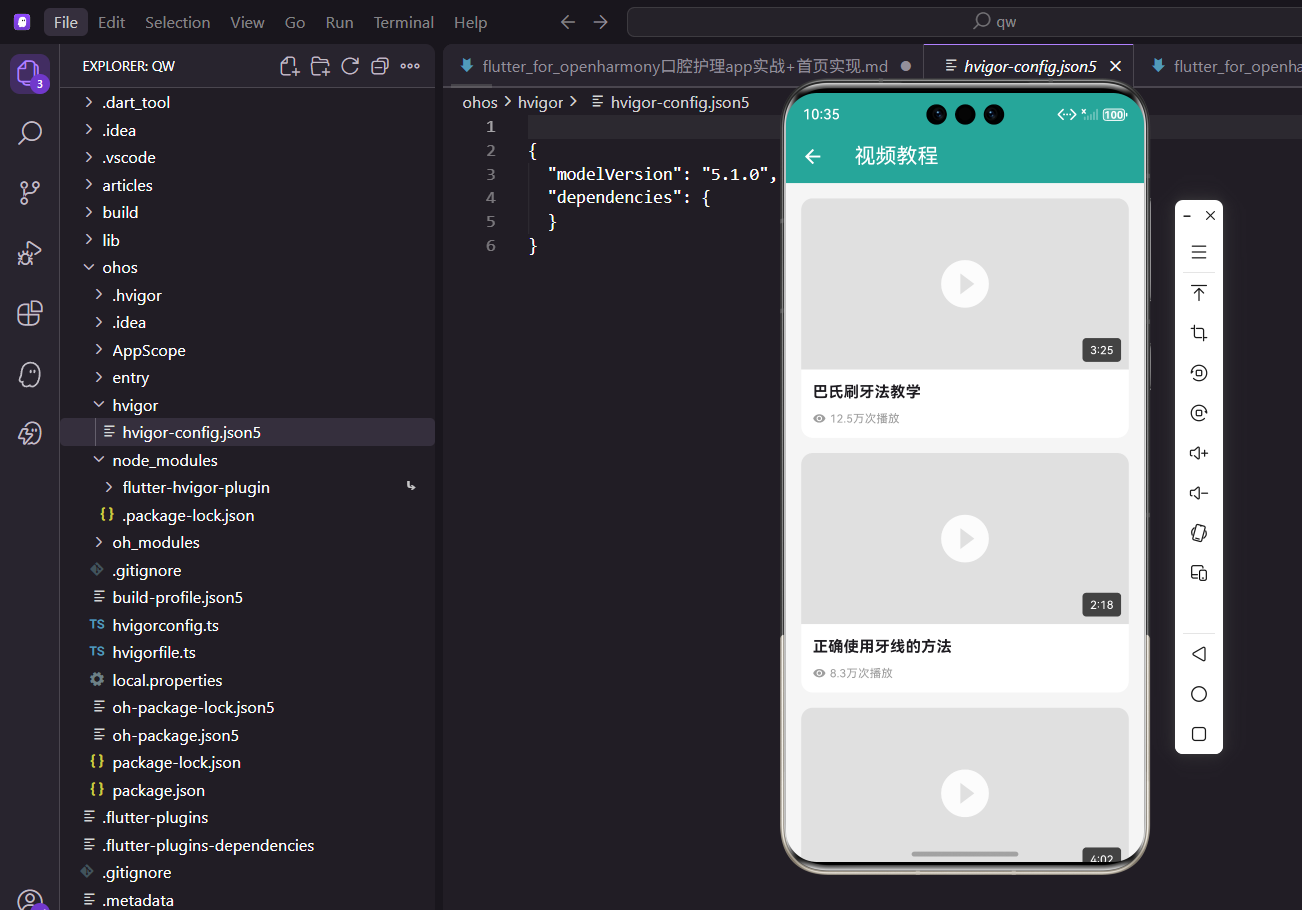
视频列表页面需要实现以下功能:
- 视频卡片:展示视频封面、标题、时长、播放量
- 播放入口:点击卡片进入视频播放
- 视觉设计:封面上叠加播放按钮和时长标签
页面基础结构
视频列表页面使用 StatelessWidget 实现:
class VideoListPage extends StatelessWidget {
const VideoListPage({super.key});
Widget build(BuildContext context) {
final videos = [
{'title': '巴氏刷牙法教学', 'duration': '3:25', 'views': '12.5万'},
{'title': '正确使用牙线的方法', 'duration': '2:18', 'views': '8.3万'},
{'title': '电动牙刷使用指南', 'duration': '4:02', 'views': '15.2万'},
{'title': '儿童刷牙教学动画', 'duration': '2:45', 'views': '20.1万'},
{'title': '漱口水的正确使用', 'duration': '1:58', 'views': '6.7万'},
{'title': '牙齿美白小技巧', 'duration': '3:12', 'views': '18.9万'},
];
视频数据使用 Map 列表存储,包含标题、时长和播放量三个字段。实际项目中这些数据应该从后端 API 获取。
列表构建
使用 ListView.builder 构建视频列表:
    return Scaffold(
      appBar: AppBar(title: const Text('视频教程')),
      body: ListView.builder(
        padding: const EdgeInsets.all(16),
        itemCount: videos.length,
        itemBuilder: (context, index) {
          final video = videos[index];
          return GestureDetector(
            onTap: () {
              ScaffoldMessenger.of(context).showSnackBar(
                const SnackBar(content: Text('视频播放功能开发中')),
              );
            },
使用 GestureDetector 包裹卡片,点击时触发视频播放。ListView.builder 实现懒加载,提升性能。
视频卡片设计
视频卡片包含封面和信息两部分:
            child: Container(
              margin: const EdgeInsets.only(bottom: 16),
              decoration: BoxDecoration(
                color: Colors.white,
                borderRadius: BorderRadius.circular(12),
              ),
              child: Column(
                crossAxisAlignment: CrossAxisAlignment.start,
                children: [
卡片使用白色背景和圆角设计,与应用整体风格保持一致。
视频封面区域
封面区域包含播放按钮和时长标签:
                  Container(
                    height: 180,
                    decoration: BoxDecoration(
                      color: Colors.grey.shade300,
                      borderRadius: const BorderRadius.vertical(
                          top: Radius.circular(12)),
                    ),
                    child: Stack(
                      children: [
                        Center(
                          child: Icon(Icons.play_circle_fill,
                              size: 60, color: Colors.white.withOpacity(0.9)),
                        ),
封面使用灰色占位背景,实际项目中应该使用视频缩略图。播放按钮居中显示,使用半透明白色。
时长标签定位在右下角:
                        Positioned(
                          right: 8,
                          bottom: 8,
                          child: Container(
                            padding: const EdgeInsets.symmetric(
                                horizontal: 8, vertical: 4),
                            decoration: BoxDecoration(
                              color: Colors.black.withOpacity(0.7),
                              borderRadius: BorderRadius.circular(4),
                            ),
                            child: Text(
                              video['duration']!,
                              style: const TextStyle(color: Colors.white, fontSize: 12),
                            ),
                          ),
                        ),
                      ],
                    ),
                  ),
时长标签使用半透明黑色背景,白色文字,确保在任何封面图上都清晰可见。
视频信息区域
封面下方展示标题和播放量:
                  Padding(
                    padding: const EdgeInsets.all(12),
                    child: Column(
                      crossAxisAlignment: CrossAxisAlignment.start,
                      children: [
                        Text(
                          video['title']!,
                          style: const TextStyle(fontWeight: FontWeight.bold,
                              fontSize: 16),
                        ),
                        const SizedBox(height: 8),
                        Row(
                          children: [
                            Icon(Icons.remove_red_eye, size: 14,
                                color: Colors.grey.shade500),
                            const SizedBox(width: 4),
                            Text('${video['views']}次播放',
                                style: TextStyle(color: Colors.grey.shade500,
                                    fontSize: 12)),
                          ],
                        ),
                      ],
                    ),
                  ),
                ],
              ),
            ),
          );
        },
      ),
    );
  }
}
标题使用加粗字体,播放量使用眼睛图标配合灰色文字。
数据模型定义
视频的数据模型:
class VideoTutorial {
  final String id;
  final String title;
  final String thumbnailUrl;
  final String videoUrl;
  final String duration;
  final int viewCount;
  final String category;
  final DateTime publishDate;

  VideoTutorial({
    String? id,
    required this.title,
    required this.thumbnailUrl,
    required this.videoUrl,
    required this.duration,
    this.viewCount = 0,
    required this.category,
    required this.publishDate,
  }) : id = id ?? DateTime.now().millisecondsSinceEpoch.toString();
}
模型包含标题、缩略图、视频地址、时长、播放量、分类和发布日期等字段。
网络图片加载
使用网络图片作为视频封面:
Container(
  height: 180,
  decoration: BoxDecoration(
    borderRadius: const BorderRadius.vertical(top: Radius.circular(12)),
    image: DecorationImage(
      image: NetworkImage(video.thumbnailUrl),
      fit: BoxFit.cover,
    ),
  ),
  child: Stack(...),
)
使用 DecorationImage 加载网络图片,BoxFit.cover 确保图片填满容器。
图片加载占位
添加图片加载占位和错误处理:
FadeInImage.assetNetwork(
  placeholder: 'assets/images/video_placeholder.png',
  image: video.thumbnailUrl,
  fit: BoxFit.cover,
  imageErrorBuilder: (context, error, stackTrace) {
    return Container(
      color: Colors.grey.shade300,
      child: const Center(
        child: Icon(Icons.broken_image, size: 40, color: Colors.grey),
      ),
    );
  },
)
FadeInImage 提供加载过渡动画,imageErrorBuilder 处理加载失败的情况。
视频分类筛选
添加分类筛选功能:
String _selectedCategory = '全部';

final categories = ['全部', '刷牙技巧', '牙线使用', '口腔护理', '儿童专区'];

SingleChildScrollView(
  scrollDirection: Axis.horizontal,
  padding: const EdgeInsets.symmetric(horizontal: 16),
  child: Row(
    children: categories.map((category) => Padding(
      padding: const EdgeInsets.only(right: 8),
      child: FilterChip(
        label: Text(category),
        selected: _selectedCategory == category,
        onSelected: (selected) {
          setState(() => _selectedCategory = category);
        },
      ),
    )).toList(),
  ),
)
使用 FilterChip 实现分类筛选,水平滚动展示所有分类。
视频播放页面
点击视频卡片跳转到播放页面:
onTap: () {
  Navigator.push(
    context,
    MaterialPageRoute(
      builder: (context) => VideoPlayerPage(video: video),
    ),
  );
}
将视频数据传递给播放页面。
视频播放器集成
使用 video_player 插件播放视频:
import 'package:video_player/video_player.dart';
class VideoPlayerPage extends StatefulWidget {
final VideoTutorial video;
const VideoPlayerPage({super.key, required this.video});
State<VideoPlayerPage> createState() => _VideoPlayerPageState();
}
class _VideoPlayerPageState extends State<VideoPlayerPage> {
late VideoPlayerController _controller;
void initState() {
super.initState();
_controller = VideoPlayerController.network(widget.video.videoUrl)
..initialize().then((_) {
setState(() {});
_controller.play();
});
}
void dispose() {
_controller.dispose();
super.dispose();
}
初始化视频控制器,加载完成后自动播放。
播放器界面:
Widget build(BuildContext context) {
return Scaffold(
appBar: AppBar(title: Text(widget.video.title)),
body: Column(
children: [
AspectRatio(
aspectRatio: _controller.value.aspectRatio,
child: VideoPlayer(_controller),
),
VideoProgressIndicator(_controller, allowScrubbing: true),
Row(
mainAxisAlignment: MainAxisAlignment.center,
children: [
IconButton(
icon: Icon(
_controller.value.isPlaying ? Icons.pause : Icons.play_arrow,
),
onPressed: () {
setState(() {
_controller.value.isPlaying
? _controller.pause()
: _controller.play();
});
},
),
],
),
],
),
);
}
}
包含视频播放器、进度条和播放/暂停按钮。
播放量统计
进入播放页面时增加播放量:
void incrementViewCount(String id) {
  final index = _videos.indexWhere((v) => v.id == id);
  if (index != -1) {
    final old = _videos[index];
    _videos[index] = VideoTutorial(
      id: old.id,
      title: old.title,
      thumbnailUrl: old.thumbnailUrl,
      videoUrl: old.videoUrl,
      duration: old.duration,
      viewCount: old.viewCount + 1,
      category: old.category,
      publishDate: old.publishDate,
    );
    notifyListeners();
  }
}
每次播放视频时增加播放量计数。
热门视频排序
按播放量排序展示热门视频:
List<VideoTutorial> get popularVideos {
  final sorted = List<VideoTutorial>.from(_videos);
  sorted.sort((a, b) => b.viewCount.compareTo(a.viewCount));
  return sorted;
}
降序排列,播放量最高的视频排在前面。
最新视频排序
按发布日期排序展示最新视频:
List<VideoTutorial> get latestVideos {
  final sorted = List<VideoTutorial>.from(_videos);
  sorted.sort((a, b) => b.publishDate.compareTo(a.publishDate));
  return sorted;
}
最新发布的视频排在前面。
搜索功能
添加视频搜索功能:
List<VideoTutorial> searchVideos(String keyword) {
  if (keyword.isEmpty) return _videos;
  return _videos.where((v) =>
    v.title.contains(keyword) || v.category.contains(keyword)
  ).toList();
}
支持按标题和分类搜索视频。
搜索栏实现
在页面顶部添加搜索栏:
TextField(
  decoration: InputDecoration(
    hintText: '搜索视频',
    prefixIcon: const Icon(Icons.search),
    border: OutlineInputBorder(
      borderRadius: BorderRadius.circular(8),
    ),
    contentPadding: const EdgeInsets.symmetric(horizontal: 16),
  ),
  onChanged: (value) {
    setState(() => _searchKeyword = value);
  },
)
实时搜索,输入时即时过滤视频列表。
收藏功能
添加视频收藏功能:
IconButton(
  icon: Icon(
    video.isFavorite ? Icons.favorite : Icons.favorite_border,
    color: video.isFavorite ? Colors.red : Colors.grey,
  ),
  onPressed: () {
    provider.toggleVideoFavorite(video.id);
  },
)
收藏按钮放在视频卡片右上角或信息区域。
下载功能思路
可以添加视频下载功能:
Future<void> downloadVideo(VideoTutorial video) async {
  // 使用 dio 或 http 下载视频
  // 保存到本地存储
  // 更新下载状态
}
下载功能需要处理文件存储和下载进度显示。
播放历史记录
记录用户的播放历史:
List<String> _watchHistory = [];

void addToWatchHistory(String videoId) {
  _watchHistory.remove(videoId);
  _watchHistory.insert(0, videoId);
  if (_watchHistory.length > 50) {
    _watchHistory.removeLast();
  }
  notifyListeners();
}
最近观看的视频排在前面,限制历史记录数量。
空状态处理
当没有视频时显示空状态:
if (videos.isEmpty) {
  return Center(
    child: Column(
      mainAxisAlignment: MainAxisAlignment.center,
      children: [
        Icon(Icons.video_library, size: 64, color: Colors.grey.shade300),
        const SizedBox(height: 16),
        Text('暂无视频', style: TextStyle(color: Colors.grey.shade500)),
      ],
    ),
  );
}
空状态使用视频图标和提示文字。
总结
本文详细介绍了口腔护理 App 中视频列表功能的实现。通过精心设计的卡片布局和丰富的交互功能,我们构建了一个美观实用的视频列表页面。核心技术点包括:
- 使用
Stack在封面上叠加播放按钮和时长标签 - 通过
Positioned精确定位时长标签 - 使用
ListView.builder实现懒加载 - 集成
video_player插件播放视频
视频教程是口腔护理知识传播的重要形式,希望本文的实现对你有所帮助。
欢迎加入开源鸿蒙跨平台社区:https://openharmonycrossplatform.csdn.net

开源鸿蒙跨平台开发社区汇聚开发者与厂商,共建“一次开发,多端部署”的开源生态,致力于降低跨端开发门槛,推动万物智联创新。
更多推荐
 9
9 0
0- 0


 已为社区贡献25条内容

所有评论(0)