flutter_for_openharmony小区门禁管理app实战+应用入口与主导航实现
·
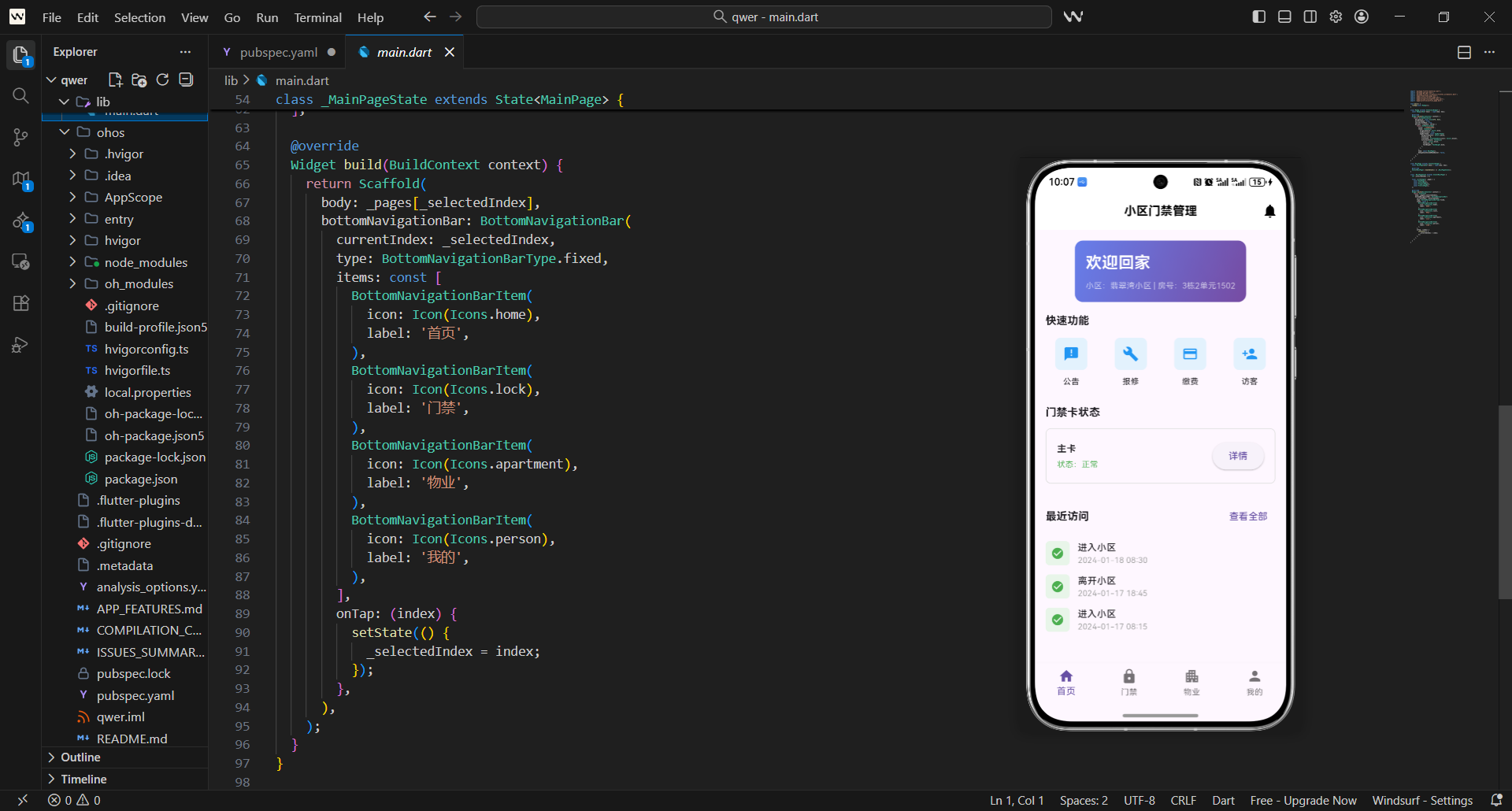
这篇把项目的“第一层骨架”讲清楚:
- 应用入口怎么启动(
main()/MyApp) - 为什么根组件要用
ScreenUtilInit+GetMaterialApp - 主导航(底部 4 Tab)怎么组织页面(
MainPage+BottomNavigationBar)
这部分写稳了,后面所有页面(公告/报修/缴费/访客/门禁/物业/我的)都能按同一套路接入。
本文对应源码:
lib/main.dart
这一篇我们把“入口 + 主导航”拆成两块来走读:
- A:
lib/main.dart(应用启动、主题、底部 4 Tab) - B:
lib/pages/home/home_page.dart(首页作为第一个 Tab 的页面骨架)
你会发现它们的共同点是:都在做“页面骨架”,不在入口处堆业务细节。
A)lib/main.dart(每10行一段)
import 'package:flutter/material.dart';
import 'package:get/get.dart';
import 'package:flutter_screenutil/flutter_screenutil.dart';
import 'pages/home/home_page.dart';
import 'pages/access/access_page.dart';
import 'pages/property/property_page.dart';
import 'pages/profile/profile_page.dart';

void main() {
  runApp(const MyApp());
}
- 入口只做
runApp,不要把业务初始化塞进main()。 - 先把 4 个 Tab 的页面导入,主导航才能直接组装
_pages。
class MyApp extends StatelessWidget {
const MyApp({Key? key}) : super(key: key);
Widget build(BuildContext context) {
return ScreenUtilInit(
designSize: const Size(375, 812),
minTextAdapt: true,
splitScreenMode: true,
builder: (context, child) {
return GetMaterialApp(
title: '小区门禁管理',
theme: ThemeData(
primarySwatch: Colors.blue,
useMaterial3: true,
appBarTheme: const AppBarTheme(
backgroundColor: Colors.white,
GetMaterialApp是 GetX 导航能力的入口,后续Get.to()才能直接用。- 主题(
ThemeData/AppBarTheme)放在根部统一,避免每页各写一套。
elevation: 0,
iconTheme: IconThemeData(color: Colors.black),
titleTextStyle: TextStyle(
color: Colors.black,
fontSize: 18,
fontWeight: FontWeight.bold,
),
),
),
home: const MainPage(),
debugShowCheckedModeBanner: false,
);
},
);
}
}
class MainPage extends StatefulWidget {
const MainPage({Key? key}) : super(key: key);
MainPage必须是StatefulWidget,因为要维护当前 Tab 下标。- 调试角标在入口关闭即可,避免截图/录屏时干扰。
  State<MainPage> createState() => _MainPageState();
}

class _MainPageState extends State<MainPage> {
  int _selectedIndex = 0;

  final List<Widget> _pages = [
    const HomePage(),
    const AccessPage(),
    const PropertyPage(),
    const ProfilePage(),
  ];
- 要点 1:
_pages是“Tab -> 页面”的映射,顺序必须与底部导航items对齐。 - 要点 2:把页面实例集中在这里,主导航只做切换,不参与业务渲染细节。
Widget build(BuildContext context) {
return Scaffold(
body: _pages[_selectedIndex],
bottomNavigationBar: BottomNavigationBar(
currentIndex: _selectedIndex,
type: BottomNavigationBarType.fixed,
items: const [
BottomNavigationBarItem(
- 要点 1:
body直接用_selectedIndex取当前页面,切换成本很低。 - 要点 2:
fixed适合 4 个 Tab,label 稳定显示,视觉更统一。
            icon: Icon(Icons.home),
            label: '首页',
          ),
          BottomNavigationBarItem(
            icon: Icon(Icons.lock),
            label: '门禁',
          ),
          BottomNavigationBarItem(
            icon: Icon(Icons.apartment),
            label: '物业',
          ),
          BottomNavigationBarItem(
            icon: Icon(Icons.person),
- 要点 1:每个 Tab 用图标 + 文案,符合社区类 App 常见导航样式。
- 要点 2:图标和 label 不要在页面里重复定义,集中放主导航更好维护。
            label: '我的',
          ),
        ],
        onTap: (index) {
          setState(() {
            _selectedIndex = index;
          });
        },
      ),
    );
  }
}
- 要点 1:
onTap + setState是最直观的 Tab 切换方式,原型阶段足够稳定。 - 要点 2:主导航页到这里就“闭合”了:它只负责切换,不关心每个页面内部结构。
B)lib/pages/home/home_page.dart(每10行一段)
这一段是“主导航第一个 Tab:首页”的页面骨架。你会发现它依旧遵循:
- 上层做布局组织(滚动、分区)
- 下层才是每个区块的具体 UI
import 'package:flutter/material.dart';
import 'package:flutter_screenutil/flutter_screenutil.dart';
import 'package:get/get.dart';
import 'announcement_page.dart';
import 'repair_page.dart';
import 'payment_page.dart';
import 'visitor_page.dart';

class HomePage extends StatefulWidget {
  const HomePage({Key? key}) : super(key: key);
- 要点 1:首页聚合多个入口,所以会导入多个页面用于跳转。
- 要点 2:这里虽然没有显式状态字段,但预留为
StatefulWidget便于后续扩展。
State<HomePage> createState() => _HomePageState();
}
class _HomePageState extends State<HomePage> {
Widget build(BuildContext context) {
return Scaffold(
appBar: AppBar(
- 要点 1:首页用
Scaffold做骨架:AppBar + body。 - 要点 2:
_HomePageState里写build,保证页面渲染逻辑集中。
        title: const Text('小区门禁管理'),
        centerTitle: true,
        actions: [
          IconButton(
            icon: const Icon(Icons.notifications),
            onPressed: () => Get.to(() => const AnnouncementPage()),
          ),
        ],
      ),
      body: SingleChildScrollView(
- 要点 1:通知入口放到 AppBar
actions,用户路径最短。 - 要点 2:首页模块多,用
SingleChildScrollView承载,避免小屏溢出。
        child: Column(
          children: [
            // 用户信息卡片
            Container(
              margin: EdgeInsets.all(16.w),
              padding: EdgeInsets.all(16.w),
              decoration: BoxDecoration(
                gradient: const LinearGradient(
                  colors: [Color(0xFF667EEA), Color(0xFF764BA2)],
                  begin: Alignment.topLeft,
- 要点 1:
Column负责把多个业务模块按顺序拼起来。 - 要点 2:欢迎卡片用渐变 + 圆角,作为“第一屏视觉焦点”。
                  end: Alignment.bottomRight,
                ),
                borderRadius: BorderRadius.circular(12.r),
              ),
              child: Column(
                crossAxisAlignment: CrossAxisAlignment.start,
                children: [
                  Text(
                    '欢迎回家',
                    style: TextStyle(
                      color: Colors.white,
- 要点 1:内层再用
Column放标题/副标题,阅读顺序清晰。 - 要点 2:字号用
sp,配合ScreenUtil做统一缩放。
                      fontSize: 24.sp,
                      fontWeight: FontWeight.bold,
                    ),
                  ),
                  SizedBox(height: 8.h),
                  Text(
                    '小区:翡翠湾小区 | 房号:3栋2单元1502',
                    style: TextStyle(
                      color: Colors.white70,
                      fontSize: 12.sp,
- 要点 1:副标题用
white70做弱化层级。 - 要点 2:用
SizedBox做统一间距,保持排版稳定。
                    ),
                  ),
                ],
              ),
            ),

            // 快速功能区
            Padding(
              padding: EdgeInsets.symmetric(horizontal: 16.w),
              child: Column(
                crossAxisAlignment: CrossAxisAlignment.start,
- 要点 1:欢迎卡片结束后用空行分隔模块,阅读更清楚。
- 要点 2:快速功能区用
Padding控制左右边距,统一整页风格。
                children: [
                  Text(
                    '快速功能',
                    style: TextStyle(
                      fontSize: 16.sp,
                      fontWeight: FontWeight.bold,
                    ),
                  ),
                  SizedBox(height: 12.h),
                  GridView.count(
                    crossAxisCount: 4,
- 要点 1:模块标题统一用加粗,形成清晰分区。
- 要点 2:入口按钮用网格更适合“多入口聚合”的页面。
                    shrinkWrap: true,
                    physics: const NeverScrollableScrollPhysics(),
                    mainAxisSpacing: 12.h,
                    crossAxisSpacing: 12.w,
                    children: [
                      _buildQuickButton(
                        icon: Icons.announcement,
                        label: '公告',
                        onTap: () => Get.to(() => const AnnouncementPage()),
                      ),
- 要点 1:外层滚动、内层网格不滚动:
shrinkWrap + NeverScrollableScrollPhysics。 - 要点 2:每个入口都封装成
_buildQuickButton,避免重复 UI 代码。
                      _buildQuickButton(
                        icon: Icons.build,
                        label: '报修',
                        onTap: () => Get.to(() => const RepairPage()),
                      ),
                      _buildQuickButton(
                        icon: Icons.payment,
                        label: '缴费',
                        onTap: () => Get.to(() => const PaymentPage()),
                      ),
                      _buildQuickButton(
                        icon: Icons.person_add,
                        label: '访客',
- 要点 1:4 个入口对应 4 个核心业务模块,首页就是“导航聚合”。
- 要点 2:跳转统一用
Get.to,不需要路由表即可工作。
                        onTap: () => Get.to(() => const VisitorPage()),
                      ),
                    ],
                  ),
                ],
              ),
            ),

            SizedBox(height: 24.h),

            // 门禁卡信息
            Padding(
              padding: EdgeInsets.symmetric(horizontal: 16.w),
- 要点 1:模块之间统一用 24.h 做“段落间距”。
- 要点 2:门禁卡状态是信息展示模块,所以用
Padding + Column。
              child: Column(
                crossAxisAlignment: CrossAxisAlignment.start,
                children: [
                  Text(
                    '门禁卡状态',
                    style: TextStyle(
                      fontSize: 16.sp,
                      fontWeight: FontWeight.bold,
                    ),
                  ),
                  SizedBox(height: 12.h),
                  Container(
                    padding: EdgeInsets.all(16.w),
- 要点 1:信息模块标题与快速功能标题保持一致的字号/粗细。
- 要点 2:状态卡片外层
Container负责边框、圆角和内边距。
                    decoration: BoxDecoration(
                      border: Border.all(color: Colors.grey[300]!),
                      borderRadius: BorderRadius.circular(8.r),
                    ),
                    child: Row(
                      mainAxisAlignment: MainAxisAlignment.spaceBetween,
                      children: [
                        Column(
                          crossAxisAlignment: CrossAxisAlignment.start,
                          children: [
                            Text(
                              '主卡',
- 要点 1:用
Row左右布局:左边信息、右边操作按钮。 - 要点 2:卡片内部再用
Column做标题/状态两行结构。
                              style: TextStyle(
                                fontSize: 14.sp,
                                fontWeight: FontWeight.bold,
                              ),
                            ),
                            SizedBox(height: 4.h),
                            Text(
                              '状态:正常',
                              style: TextStyle(
                                fontSize: 12.sp,
                                color: Colors.green,
                              ),
                            ),
                          ],
                        ),
                        ElevatedButton(
                          onPressed: () {},
- 要点 1:状态用颜色区分(绿=正常),信息扫一眼就能理解。
- 要点 2:按钮先预留空回调,原型阶段先把结构跑通。
                          child: const Text('详情'),
                        ),
                      ],
                    ),
                  ),
                ],
              ),
            ),

            SizedBox(height: 24.h),

            // 最近访问记录
            Padding(
              padding: EdgeInsets.symmetric(horizontal: 16.w),
- 要点 1:继续沿用同样的“标题 + 内容”模块结构。
- 要点 2:访问记录属于列表型信息,适合抽成
_buildAccessRecord。
              child: Column(
                crossAxisAlignment: CrossAxisAlignment.start,
                children: [
                  Row(
                    mainAxisAlignment: MainAxisAlignment.spaceBetween,
                    children: [
                      Text(
                        '最近访问',
                        style: TextStyle(
                          fontSize: 16.sp,
                          fontWeight: FontWeight.bold,
                        ),
                      ),
                      TextButton(
                        onPressed: () {},
- 要点 1:标题行用
Row左右对齐,右侧放“查看全部”。 - 要点 2:按钮回调同样先留空,后续接“访问记录页”即可。
                        child: const Text('查看全部'),
                      ),
                    ],
                  ),
                  SizedBox(height: 12.h),
                  _buildAccessRecord('2024-01-18 08:30', '进入小区'),
                  _buildAccessRecord('2024-01-17 18:45', '离开小区'),
                  _buildAccessRecord('2024-01-17 08:15', '进入小区'),
                ],
              ),
            ),

            SizedBox(height: 24.h),
          ],
        ),
      ),
    );
  }
- 要点 1:
_buildAccessRecord让列表渲染更干净,可复用。 - 要点 2:首页到这里仍然是“聚合页”,每块 UI 都能独立拆出去。
  Widget _buildQuickButton({
    required IconData icon,
    required String label,
    required VoidCallback onTap,
  }) {
    return GestureDetector(
      onTap: onTap,
      child: Column(
        mainAxisAlignment: MainAxisAlignment.center,
        children: [
          Container(
            padding: EdgeInsets.all(12.w),
- 要点 1:快速入口按钮统一封装,后续新增入口只改一处。
- 要点 2:点击用
GestureDetector包裹,交互入口清晰。
            decoration: BoxDecoration(
              color: Colors.blue[50],
              borderRadius: BorderRadius.circular(8.r),
            ),
            child: Icon(
              icon,
              color: Colors.blue,
              size: 24.sp,
            ),
          ),
          SizedBox(height: 8.h),
          Text(
            label,
            style: TextStyle(fontSize: 12.sp),
- 要点 1:图标块用浅色背景突出“可点击”。
- 要点 2:文案字号小一些,避免在 4 列网格里挤压。
            textAlign: TextAlign.center,
          ),
        ],
      ),
    );
  }

  Widget _buildAccessRecord(String time, String action) {
    return Padding(
      padding: EdgeInsets.only(bottom: 12.h),
      child: Row(
        children: [
          Container(
            padding: EdgeInsets.all(8.w),
- 要点 1:访问记录是一行结构:左图标 + 右文本。
- 要点 2:外层
Padding控制每条记录间距,避免列表拥挤。
            decoration: BoxDecoration(
              color: Colors.green[50],
              borderRadius: BorderRadius.circular(6.r),
            ),
            child: Icon(
              Icons.check_circle,
              color: Colors.green,
              size: 20.sp,
            ),
          ),
          SizedBox(width: 12.w),
          Expanded(
            child: Column(
              crossAxisAlignment: CrossAxisAlignment.start,
              children: [
                Text(
                  action,
                  style: TextStyle(
                    fontSize: 14.sp,
- 要点 1:图标颜色/背景用绿色系,表达“正常通行”。
- 要点 2:右侧文本用
Expanded防止溢出,适配不同屏宽。
                    fontWeight: FontWeight.w500,
                  ),
                ),
                Text(
                  time,
                  style: TextStyle(
                    fontSize: 12.sp,
                    color: Colors.grey,
                  ),
                ),
              ],
            ),
          ),
        ],
      ),
    );
  }
}
- 要点 1:上行是动作(进入/离开),下行是时间(弱化显示)。
- 要点 2:到这里首页的公共组件抽取完成,结构更容易扩展。
1)应用入口:main() 做一件事就够了
项目入口在 lib/main.dart:
main()只负责启动根组件- 不在
main()里堆业务逻辑
这样做的好处是:入口稳定、后续加启动流程(登录/引导页)也好扩展。
2)根组件:为什么是 ScreenUtilInit + GetMaterialApp
屏幕适配:ScreenUtilInit
你在各个页面里大量使用了:
16.w、12.h、14.sp、8.r
这些尺寸能生效的前提就是:在根部用 ScreenUtilInit 把设计稿基准(designSize)统一好。
全局导航:GetMaterialApp
项目里页面跳转普遍采用:
Get.to(() => const XxxPage())
因此根组件必须是 GetMaterialApp。
这让你的页面跳转写法更统一:
- 不需要额外配置路由表也能直接跳转
- 后续要加中间件、路由拦截(登录态)也更集中
3)主导航:MainPage 负责“页面切换”
主导航页面在同一个文件里:MainPage。
它的职责很明确:
- 管理当前选中的 Tab(
_selectedIndex) - 维护 4 个 Tab 对应的页面列表(
_pages) - 在
Scaffold.body中展示当前页面
这种写法的价值是:
- 项目结构清晰(主导航只负责切换,不做业务内容)
- 各模块页面可以独立开发,不互相影响
4)为什么 BottomNavigationBarType.fixed
项目用了:
type: BottomNavigationBarType.fixed
因为你有 4 个 Tab:
- fixed 能保证每个 Tab 的 label 都稳定显示
- UI 更接近“社区类/工具类 App”的常见形态
5)一个小建议:后续怎么扩展登录/启动页
当前 GetMaterialApp(home: const MainPage()) 代表“直接进入主导航”。
后续如果要加登录页/引导页,你通常只需要:
- 把
home换成启动页 - 启动页判断状态后再跳转到
MainPage
主导航结构本身不需要改。
小结
现在项目的“应用入口与主导航”已经具备一个稳定骨架:
- 入口启动:
main()->MyApp - 根能力:
ScreenUtilInit(适配) +GetMaterialApp(导航) - 主导航:
MainPage+BottomNavigationBar(4 Tab)
后续我们所有页面的实现,都会围绕这个骨架自然生长。
欢迎加入开源鸿蒙跨平台社区:https://openharmonycrossplatform.csdn.net

开源鸿蒙跨平台开发社区汇聚开发者与厂商,共建“一次开发,多端部署”的开源生态,致力于降低跨端开发门槛,推动万物智联创新。
更多推荐
 17
17 0
0- 0


 已为社区贡献46条内容

所有评论(0)