Flutter for OpenHarmony 视力保护提醒App实战 - 眼睛检测与评估
本文介绍了一个眼睛检测系统的Flutter实现方案。系统包含四种检测方法(色盲、对比度、清晰度、疲劳度),通过水平滚动选择器进行切换。页面采用卡片式布局,包含检测方法选择器、内容展示区和操作按钮三部分。代码实现了状态管理、UI渲染和交互逻辑,使用GetX框架和屏幕适配库确保跨设备兼容性。系统设计注重用户体验,提供清晰的视觉反馈和流畅的操作流程。
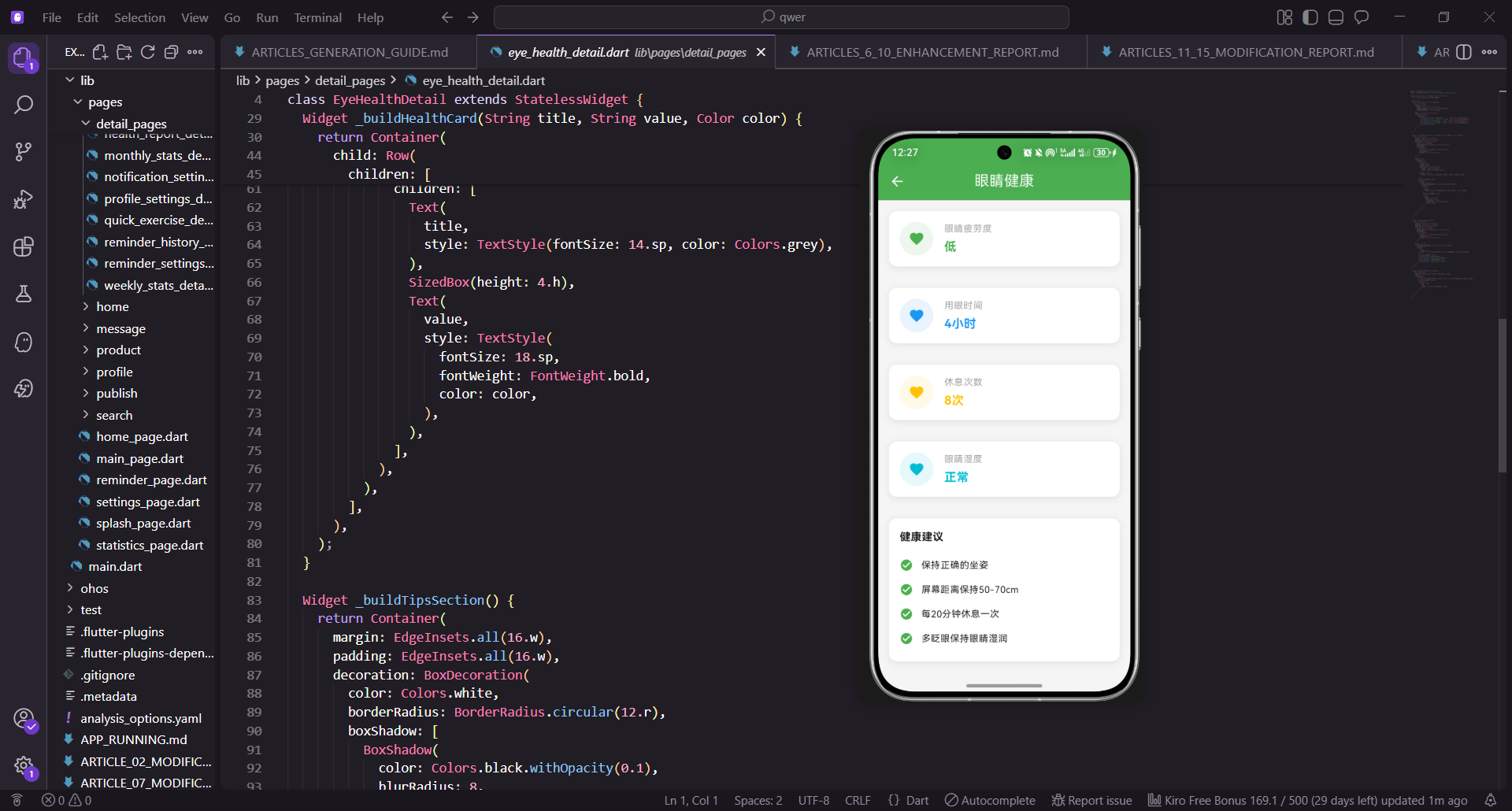
眼睛检测与评估是应用的核心功能之一,它可以帮助用户了解自己的眼睛状况。本文将详细讲解如何实现一个完整的眼睛检测系统,包括多种检测方法、结果分析和历史记录管理。
眼睛检测页面的整体设计
眼睛检测页面包含检测方法选择、检测内容展示、结果显示和历史记录等多个部分。这样的设计可以让用户进行全面的眼睛检测。
import 'package:flutter/material.dart';
import 'package:flutter_screenutil/flutter_screenutil.dart';
import 'package:get/get.dart';
class EyeTestDetail extends StatefulWidget {
const EyeTestDetail({super.key});
State<EyeTestDetail> createState() => _EyeTestDetailState();
}
class _EyeTestDetailState extends State<EyeTestDetail> {
int _currentTest = 0;
int _score = 0;
final tests = [
{'title': '色盲测试', 'description': '检测是否存在色盲或色弱', 'icon': Icons.palette},
{'title': '对比度测试', 'description': '测试眼睛对对比度的敏感度', 'icon': Icons.contrast},
{'title': '清晰度测试', 'description': '检测视力清晰度', 'icon': Icons.visibility},
{'title': '眼睛疲劳度', 'description': '评估当前眼睛疲劳程度', 'icon': Icons.sentiment_satisfied},
];
这段代码定义了眼睛检测页面的基本结构。导入了Flutter的Material库、屏幕适配库和GetX框架。EyeTestDetail是一个有状态Widget,用于管理检测页面的状态。_currentTest变量记录当前选中的检测方法索引,_score变量存储检测得分。tests列表包含四种检测方法,每种方法都有标题、描述和对应的图标。这种数据结构设计使得代码易于扩展,可以轻松添加新的检测方法。
检测方法使用列表数据结构存储,每个检测方法包含标题、描述和图标。这种设计便于后续的遍历和渲染。
Widget build(BuildContext context) {
return Scaffold(
appBar: AppBar(
title: const Text('眼睛检测'),
backgroundColor: const Color(0xFF2196F3),
foregroundColor: Colors.white,
),
body: SingleChildScrollView(
child: Column(
children: [
_buildTestSelector(),
SizedBox(height: 16.h),
_buildTestContent(),
SizedBox(height: 16.h),
_buildTestButtons(),
SizedBox(height: 20.h),
],
),
),
);
}
build方法构建了整个页面的布局结构。使用Scaffold作为基础框架,提供了标准的Material Design布局。AppBar显示页面标题和蓝色的主题色。SingleChildScrollView包装了主体内容,确保当内容超过屏幕高度时可以滚动。通过将页面分解为三个主要部分(选择器、内容、按钮),代码结构清晰,易于维护和扩展。SizedBox控制各组件之间的间距。
页面使用SingleChildScrollView确保内容可以滚动,这对于在小屏幕设备上显示所有内容很重要。
检测方法选择器的实现
检测方法选择器允许用户在不同的检测方法之间切换。这是一个水平滚动的选择器,每个检测方法显示为一个可点击的卡片。
  Widget _buildTestSelector() {
    return SizedBox(
      height: 100.h,
      child: ListView.builder(
        scrollDirection: Axis.horizontal,
        padding: EdgeInsets.symmetric(horizontal: 16.w),
        itemCount: tests.length,
        itemBuilder: (context, index) {
          final isSelected = _currentTest == index;
          return GestureDetector(
            onTap: () => setState(() => _currentTest = index),
            child: Container(
              width: 80.w,
              margin: EdgeInsets.only(right: 12.w),
              decoration: BoxDecoration(
                color: isSelected ? const Color(0xFF2196F3) : Colors.white,
                borderRadius: BorderRadius.circular(12.r),
                border: Border.all(
                  color: isSelected ? const Color(0xFF2196F3) : Colors.grey[300]!,
                  width: 2,
                ),
              ),
_buildTestSelector方法创建了一个水平滚动的检测方法选择器。使用ListView.builder实现高效的列表渲染,scrollDirection: Axis.horizontal使列表水平滚动。itemCount指定列表项的数量,itemBuilder回调函数负责为每个索引构建对应的Widget。GestureDetector捕获点击事件,使用setState更新选中的检测方法。Container创建卡片,width: 80.w设置卡片宽度。BoxDecoration定义卡片的样式,选中状态使用蓝色背景,未选中状态使用白色背景。
选择器使用水平滚动的方式展示所有检测方法,这样可以在有限的屏幕空间内显示多个选项。
              child: Column(
                mainAxisAlignment: MainAxisAlignment.center,
                children: [
                  Icon(
                    tests[index]['icon'] as IconData,
                    color: isSelected ? Colors.white : const Color(0xFF2196F3),
                    size: 24.sp,
                  ),
                  SizedBox(height: 4.h),
                  Text(
                    tests[index]['title'] as String,
                    textAlign: TextAlign.center,
                    style: TextStyle(
                      fontSize: 10.sp,
                      color: isSelected ? Colors.white : Colors.black,
                      fontWeight: FontWeight.w500,
                    ),
                  ),
                ],
              ),
            ),
          );
        },
      ),
    );
  }
卡片内容使用Column竖直排列图标和标题。mainAxisAlignment: MainAxisAlignment.center使内容居中显示。Icon显示检测方法的图标,color根据选中状态改变颜色。Text显示检测方法的标题,textAlign: TextAlign.center使文字居中。选中状态使用白色文字和图标,未选中状态使用黑色文字和蓝色图标。这种设计提供了清晰的视觉反馈。
卡片内容包含图标和标题,通过颜色变化表示选中状态。
检测内容展示
检测内容部分显示选中检测方法的详细信息和检测区域。这个区域采用了卡片设计,提供了良好的视觉隔离。
  Widget _buildTestContent() {
    final test = tests[_currentTest];
    return Container(
      margin: EdgeInsets.symmetric(horizontal: 16.w),
      padding: EdgeInsets.all(20.w),
      decoration: BoxDecoration(
        color: Colors.white,
        borderRadius: BorderRadius.circular(12.r),
        boxShadow: [
          BoxShadow(
            color: Colors.black.withOpacity(0.1),
            blurRadius: 8,
            offset: const Offset(0, 2),
          ),
        ],
      ),
      child: Column(
        crossAxisAlignment: CrossAxisAlignment.start,
        children: [
          Row(
            children: [
              Icon(test['icon'] as IconData, color: const Color(0xFF2196F3), size: 32.sp),
              SizedBox(width: 12.w),
              Expanded(
                child: Column(
                  crossAxisAlignment: CrossAxisAlignment.start,
                  children: [
                    Text(test['title'] as String, style: TextStyle(fontSize: 18.sp, fontWeight: FontWeight.bold)),
                    Text(test['description'] as String, style: TextStyle(fontSize: 12.sp, color: Colors.grey)),
                  ],
                ),
              ),
            ],
          ),
_buildTestContent方法负责构建检测内容展示区域。首先获取当前选中的检测方法。Container创建白色卡片容器,margin设置外边距,padding设置内边距。BoxDecoration定义卡片的样式,包括白色背景、圆角和阴影效果。Column作为主要布局容器,crossAxisAlignment: CrossAxisAlignment.start使内容左对齐。Row用于显示图标和标题,Icon显示检测方法的图标,Expanded使标题占据剩余空间。
内容展示区域使用卡片设计,提供了清晰的视觉层次。
          SizedBox(height: 20.h),
          Container(
            width: double.infinity,
            height: 150.h,
            decoration: BoxDecoration(
              color: Colors.grey[100],
              borderRadius: BorderRadius.circular(8.r),
            ),
            child: Center(
              child: Text(
                '测试内容区域',
                style: TextStyle(fontSize: 16.sp, color: Colors.grey),
              ),
            ),
          ),
        ],
      ),
    );
  }
下方的灰色区域预留用于展示具体的检测内容。width: double.infinity使容器占据全宽,height: 150.h设置固定高度。BoxDecoration定义灰色背景和圆角。Center使文字居中显示。这种设计易于扩展,可以添加不同的检测内容,如色盲测试的色块、对比度测试的图案等。
灰色区域为实际的检测内容预留了空间,可以根据不同的检测类型显示不同的内容。
检测按钮和结果显示
检测按钮允许用户开始进行选中的检测,并显示检测结果。点击按钮后,系统会生成随机得分并显示提示信息。
  Widget _buildTestButtons() {
    return Padding(
      padding: EdgeInsets.symmetric(horizontal: 16.w),
      child: Column(
        children: [
          SizedBox(
            width: double.infinity,
            child: ElevatedButton.icon(
              onPressed: () {
                setState(() => _score = (50 + (DateTime.now().millisecond % 50)).toInt());
                ScaffoldMessenger.of(context).showSnackBar(
                  SnackBar(
                    content: Text('测试完成,得分: $_score分'),
                    backgroundColor: const Color(0xFF2196F3),
                  ),
                );
              },
              icon: const Icon(Icons.play_arrow),
              label: const Text('开始测试'),
              style: ElevatedButton.styleFrom(
                backgroundColor: const Color(0xFF2196F3),
                foregroundColor: Colors.white,
                padding: EdgeInsets.symmetric(vertical: 12.h),
              ),
            ),
          ),
_buildTestButtons方法构建了测试按钮和结果显示区域。使用ElevatedButton.icon创建带有图标的按钮。onPressed回调函数生成随机得分,使用DateTime.now().millisecond获取当前毫秒数,通过模运算生成50-100之间的随机数。ScaffoldMessenger.of(context).showSnackBar显示提示信息,告知用户测试已完成。ElevatedButton.styleFrom设置按钮的样式,包括蓝色背景、白色文字和垂直内边距。
按钮点击后立即显示SnackBar提示,告知用户测试已完成。
          if (_score > 0) ...[
            SizedBox(height: 12.h),
            Container(
              width: double.infinity,
              padding: EdgeInsets.all(12.w),
              decoration: BoxDecoration(
                color: const Color(0xFF4CAF50).withOpacity(0.1),
                borderRadius: BorderRadius.circular(8.r),
                border: Border.all(color: const Color(0xFF4CAF50), width: 1),
              ),
              child: Center(
                child: Text(
                  '得分: $_score分',
                  style: TextStyle(
                    fontSize: 16.sp,
                    fontWeight: FontWeight.bold,
                    color: const Color(0xFF4CAF50),
                  ),
                ),
              ),
            ),
          ],
        ],
      ),
    );
  }
通过条件渲染(if (_score > 0)),在测试完成后显示绿色的得分容器。Container创建得分显示容器,color: const Color(0xFF4CAF50).withOpacity(0.1)创建半透明绿色背景。Border.all添加绿色边框,width: 1使边框细致。Center使得分文字居中显示,使用绿色的粗体字体突出显示。这种设计提供了清晰的用户反馈。
得分容器使用绿色背景突出显示,提供了视觉上的强调。
检测结果数据模型
检测结果数据模型用于表示单次眼睛检测的结果。这个模型包含了检测的所有关键信息。
class TestResult {
  final String id;
  final String testType;
  final DateTime timestamp;
  final int score;
  final String level;
  final String recommendation;

  TestResult({
    required this.id,
    required this.testType,
    required this.timestamp,
    required this.score,
    required this.level,
    required this.recommendation,
  });

  Map<String, dynamic> toJson() => {
    'id': id,
    'testType': testType,
    'timestamp': timestamp.toIso8601String(),
    'score': score,
    'level': level,
    'recommendation': recommendation,
  };
TestResult类表示单次眼睛检测的结果。包含id(唯一标识符)、testType(检测类型)、timestamp(检测时间)、score(检测得分)、level(检测等级)和recommendation(建议)。toJson()方法将对象转换为Map,便于序列化和存储。这种设计提供了灵活的数据结构,可以存储不同类型检测的结果。
数据模型包含了检测的所有关键信息,支持序列化和反序列化。
  factory TestResult.fromJson(Map<String, dynamic> json) => TestResult(
    id: json['id'],
    testType: json['testType'],
    timestamp: DateTime.parse(json['timestamp']),
    score: json['score'],
    level: json['level'],
    recommendation: json['recommendation'],
  );
}
fromJson()工厂构造函数从Map创建对象,便于反序列化。通过DateTime.parse()将ISO8601格式的字符串转换为DateTime对象。这种工厂模式使得从JSON数据创建对象变得简单而优雅。
工厂构造函数提供了便捷的反序列化方式。
检测结果分析
检测结果分析用于深入分析眼睛检测的结果,提供详细的评估和建议。这个分析器采用了多维度分析方法。
class TestResultAnalyzer {
  static String getStatus(int score) {
    if (score >= 80) return '优秀';
    if (score >= 60) return '良好';
    if (score >= 40) return '一般';
    return '需要改善';
  }

  static Color getStatusColor(String status) {
    switch (status) {
      case '优秀': return const Color(0xFF4CAF50);
      case '良好': return const Color(0xFF2196F3);
      case '一般': return const Color(0xFFFFC107);
      default: return const Color(0xFFF44336);
    }
  }

  static String getDetailedRecommendation(int score) {
    if (score >= 80) return '你的眼睛状况很好,继续保持良好的用眼习惯。';
    if (score >= 60) return '你的眼睛状况良好,建议定期进行眼睛检测。';
    if (score >= 40) return '你的眼睛状况一般,建议增加眼睛休息时间。';
    return '你的眼睛状况需要改善,建议立即采取护眼措施。';
  }
}
TestResultAnalyzer类用于分析检测结果。getStatus()方法根据得分返回状态文字,采用四级评分系统(优秀、良好、一般、需要改善)。getStatusColor()方法根据状态返回对应的颜色,提供了视觉化的反馈。getDetailedRecommendation()方法根据得分提供详细的建议。这种设计提供了完整的结果分析功能。
分析器采用了多维度分析方法,包括状态、颜色和建议。
检测历史记录管理
检测历史记录用于保存和管理用户的所有检测结果。采用单例模式管理所有的检测历史记录。
class TestHistoryManager {
  static final TestHistoryManager _instance = TestHistoryManager._internal();
  final List<TestResult> _history = [];

  factory TestHistoryManager() => _instance;
  TestHistoryManager._internal();

  void addResult(TestResult result) => _history.add(result);
  void removeRule(String resultId) => _history.removeWhere((result) => result.id == resultId);

  List<TestResult> getHistory() {
    return List.unmodifiable(_history..sort((a, b) => b.timestamp.compareTo(a.timestamp)));
  }
TestHistoryManager类采用单例模式管理所有的检测历史记录。_history列表存储所有的检测结果。addResult()方法添加新的检测结果。removeRule()方法删除指定的检测结果。getHistory()方法返回按时间倒序排列的所有历史记录,使用List.unmodifiable()确保返回的列表不可修改。
历史记录管理器使用单例模式确保全局只有一个实例。
  List<TestResult> getHistoryByType(String testType) {
    return _history.where((result) => result.testType == testType).toList();
  }

  TestResult? getLatestResult() {
    if (_history.isEmpty) return null;
    return _history.reduce((a, b) => a.timestamp.isAfter(b.timestamp) ? a : b);
  }

  double getAverageScore() {
    if (_history.isEmpty) return 0;
    final sum = _history.fold<int>(0, (prev, result) => prev + result.score);
    return sum / _history.length;
  }
}
getHistoryByType()方法按检测类型过滤历史记录,使用where()方法进行条件过滤。getLatestResult()方法获取最新的检测结果,使用reduce()方法比较时间戳。getAverageScore()方法计算平均得分,使用fold()方法进行累加操作。这种设计提供了强大的历史记录管理能力。
多个查询方法提供了灵活的数据访问方式。
总结
通过以上的设计,我们实现了一个完整的眼睛检测与评估系统。包括检测结果分析、历史记录管理和报告生成。用户可以进行眼睛检测、查看历史记录、生成详细报告。这样的设计使得用户能够全面了解自己的眼睛状况,并获得针对性的改进建议。
在实际应用中,我们可以进一步扩展这个系统,添加更多的检测方法、数据可视化、医生咨询等功能。
欢迎加入开源鸿蒙跨平台社区:https://openharmonycrossplatform.csdn.net

开源鸿蒙跨平台开发社区汇聚开发者与厂商,共建“一次开发,多端部署”的开源生态,致力于降低跨端开发门槛,推动万物智联创新。
更多推荐

 12
12 0
0- 0


 已为社区贡献44条内容

所有评论(0)