Flutter for OpenHarmony垃圾分类指南App实战:快速搜索实现
本文介绍了在Flutter for OpenHarmony中实现快速搜索页面的关键技术。通过StatefulWidget管理输入框控制器生命周期,将TextField嵌入AppBar实现沉浸式搜索体验,利用autofocus自动弹出键盘。页面内容根据搜索状态分为三种:显示热门搜索(使用Wrap组件布局)、无结果提示和搜索结果列表。采用GetX进行状态管理,实现搜索结果的响应式更新。同时处理了输入事
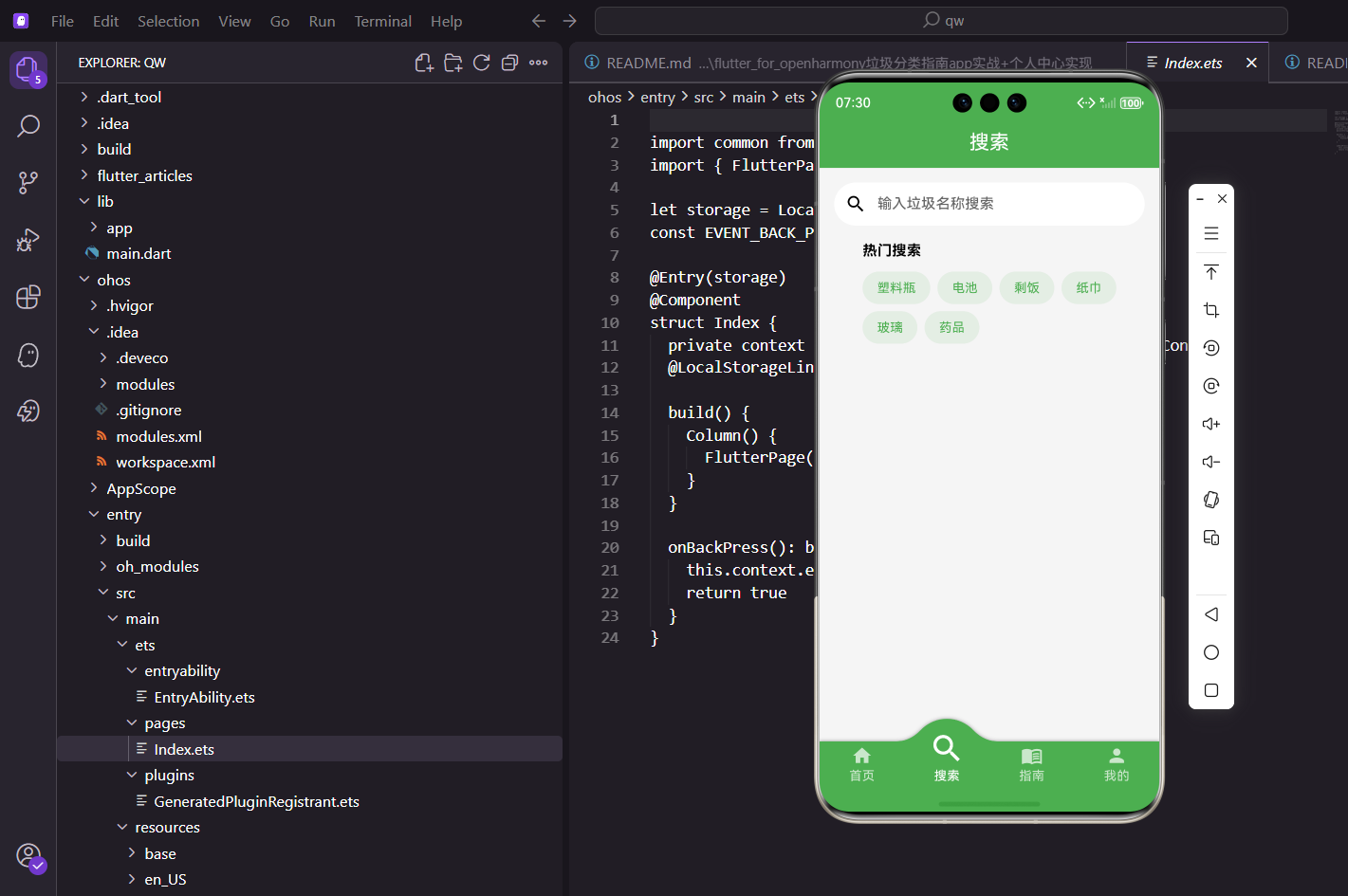
前言
从首页点击搜索栏会进入这个快速搜索页面。跟底部tab里的搜索页不太一样,这个页面更加沉浸式——进来就自动弹出键盘,用户可以直接开始输入。这种设计在很多主流App里都能看到,比如淘宝、京东的搜索。本文将详细介绍如何在Flutter for OpenHarmony环境下实现一个完整的快速搜索页面。
技术要点概览
本页面涉及的核心技术点:
- StatefulWidget:管理输入框控制器的生命周期
- AppBar自定义:将输入框放入AppBar的title位置
- autofocus:页面打开自动获取焦点
- Wrap组件:热门搜索标签的自动换行布局
- GetX状态管理:搜索结果的响应式更新
为啥要用StatefulWidget
这个页面需要管理输入框的控制器,控制器的生命周期得跟页面绑定:
class QuickSearchPage extends StatefulWidget {
const QuickSearchPage({super.key});
State<QuickSearchPage> createState() => _QuickSearchPageState();
}
class _QuickSearchPageState extends State<QuickSearchPage> {
final _textController = TextEditingController();
final _searchController = Get.find<SearchPageController>();
final _homeController = Get.find<HomeController>();
final _profileController = Get.find<ProfileController>();
这里拿了三个Controller的引用,各有各的用处:
- _searchController:处理搜索逻辑
- _homeController:记录最近搜索的物品
- _profileController:统计搜索次数
资源释放
页面销毁时要释放输入框控制器:
void dispose() {
_textController.dispose();
super.dispose();
}
为啥要dispose:
TextEditingController会占用资源,不释放的话会内存泄漏。这是Flutter开发的基本规范,用了Controller就得记得释放。
把输入框放到AppBar里
这是这个页面最特别的地方——输入框直接放在AppBar的title位置:
Widget build(BuildContext context) {
return Scaffold(
appBar: AppBar(
title: TextField(
controller: _textController,
autofocus: true,
style: const TextStyle(color: Colors.white),
decoration: InputDecoration(
hintText: '搜索垃圾名称',
hintStyle: TextStyle(color: Colors.white70),
border: InputBorder.none,
),
几个关键配置:
- autofocus: true 页面打开就自动获取焦点,键盘直接弹出
- style 文字颜色设成白色,跟AppBar的绿色背景搭配
- border: InputBorder.none 去掉输入框的边框,让它跟AppBar融为一体
输入事件处理
输入变化时触发搜索:
          onChanged: (value) {
            _searchController.search(value);
          },
          onSubmitted: (value) {
            if (value.isNotEmpty) {
              _searchController.addToHistory(value);
              _profileController.incrementSearchCount();
            }
          },
        ),
onChanged vs onSubmitted:
onChanged是每输入一个字符就触发,实现实时搜索。onSubmitted是用户按回车时触发,这时候才把关键词加到历史记录,并且增加搜索次数统计。
AppBar右边的搜索按钮
        actions: [
          TextButton(
            onPressed: () {
              final text = _textController.text;
              if (text.isNotEmpty) {
                _searchController.addToHistory(text);
                _profileController.incrementSearchCount();
              }
            },
            child: const Text('搜索', style: TextStyle(color: Colors.white)),
          ),
        ],
      ),
有些用户习惯点按钮而不是按键盘上的搜索,所以两种方式都得支持。
页面内容的三种状态
页面主体部分根据搜索状态显示不同内容:
      body: Obx(() {
        // 状态1:输入框为空,显示热门搜索
        if (_searchController.searchResults.isEmpty && _textController.text.isEmpty) {
          return _buildHotSearch();
        }

        // 状态2:有输入但没结果,显示空状态
        if (_searchController.searchResults.isEmpty) {
          return Center(
            child: Column(
              mainAxisAlignment: MainAxisAlignment.center,
              children: [
                Icon(Icons.search_off, size: 64.sp, color: Colors.grey),
                SizedBox(height: 16.h),
                Text('未找到相关结果', style: TextStyle(fontSize: 16.sp, color: Colors.grey)),
              ],
            ),
          );
        }
三种状态:
- 输入框为空:显示热门搜索
- 有输入但没结果:显示"未找到"的提示
- 有搜索结果:显示结果列表
增强版空状态
Widget _buildEmptyState() {
  return Center(
    child: Column(
      mainAxisAlignment: MainAxisAlignment.center,
      children: [
        Icon(Icons.search_off, size: 80.sp, color: Colors.grey.shade300),
        SizedBox(height: 16.h),
        Text(
          '未找到"${_textController.text}"相关结果',
          style: TextStyle(fontSize: 16.sp, color: Colors.grey),
        ),
        SizedBox(height: 8.h),
        Text(
          '试试其他关键词',
          style: TextStyle(fontSize: 14.sp, color: Colors.grey.shade400),
        ),
        SizedBox(height: 24.h),
        OutlinedButton(
          onPressed: () {
            _textController.clear();
            _searchController.clearResults();
          },
          child: Text('清空搜索'),
        ),
      ],
    ),
  );
}
搜索结果列表
有结果时用ListView展示:
        return ListView.builder(
          padding: EdgeInsets.all(16.w),
          itemCount: _searchController.searchResults.length,
          itemBuilder: (context, index) {
            final item = _searchController.searchResults[index];
            return Card(
              margin: EdgeInsets.only(bottom: 8.h),
              child: ListTile(
                leading: Text(item.icon, style: TextStyle(fontSize: 28.sp)),
                title: Text(item.name),
                subtitle: Text(item.typeName),
                onTap: () {
                  _homeController.addRecentSearch(item);
                  _profileController.incrementSearchCount();
                  Get.toNamed(Routes.itemDetail, arguments: item);
                },
              ),
            );
          },
        );
      }),
    );
  }
点击结果时做了三件事:
- 把物品加到最近搜索记录
- 增加搜索次数统计
- 跳转到物品详情页
搜索结果高亮
可以对搜索关键词进行高亮显示:
Widget _buildHighlightedTitle(String name, String keyword) {
  if (keyword.isEmpty) return Text(name);

  final lowerName = name.toLowerCase();
  final lowerKeyword = keyword.toLowerCase();
  final index = lowerName.indexOf(lowerKeyword);

  if (index == -1) return Text(name);

  return RichText(
    text: TextSpan(
      style: TextStyle(fontSize: 16.sp, color: Colors.black),
      children: [
        TextSpan(text: name.substring(0, index)),
        TextSpan(
          text: name.substring(index, index + keyword.length),
          style: TextStyle(color: AppTheme.primaryColor, fontWeight: FontWeight.bold),
        ),
        TextSpan(text: name.substring(index + keyword.length)),
      ],
    ),
  );
}
热门搜索的实现
热门搜索展示一些常见的垃圾名称:
  Widget _buildHotSearch() {
    final hotItems = ['塑料瓶', '电池', '剩饭', '纸巾', '玻璃', '药品', '旧衣服', '外卖盒'];

    return Padding(
      padding: EdgeInsets.all(16.w),
      child: Column(
        crossAxisAlignment: CrossAxisAlignment.start,
        children: [
          Text('热门搜索', style: TextStyle(fontSize: 16.sp, fontWeight: FontWeight.bold)),
          SizedBox(height: 12.h),
          Wrap(
            spacing: 8.w,
            runSpacing: 8.h,
Wrap组件:标签会自动换行,不用担心一行放不下的问题。
spacing是水平间距,runSpacing是行与行之间的间距。
热门标签点击处理
            children: hotItems.map((item) {
              return GestureDetector(
                onTap: () {
                  _textController.text = item;
                  _searchController.search(item);
                },
                child: Container(
                  padding: EdgeInsets.symmetric(horizontal: 16.w, vertical: 8.h),
                  decoration: BoxDecoration(
                    color: AppTheme.primaryColor.withOpacity(0.1),
                    borderRadius: BorderRadius.circular(20.r),
                  ),
                  child: Text(item, style: TextStyle(fontSize: 14.sp, color: AppTheme.primaryColor)),
                ),
              );
            }).toList(),
          ),
        ],
      ),
    );
  }
}
点击热门词会做两件事:
- 把词填到输入框里(这样用户能看到搜的是啥)
- 触发搜索
标签用胶囊形状,背景是主题色的10%透明度版本,既能看出是可点击的,又不会太抢眼。
搜索历史功能
除了热门搜索,还可以显示用户的搜索历史:
Widget _buildSearchHistory() {
  return Obx(() {
    final history = _searchController.searchHistory;
    if (history.isEmpty) return SizedBox.shrink();

    return Column(
      crossAxisAlignment: CrossAxisAlignment.start,
      children: [
        Row(
          mainAxisAlignment: MainAxisAlignment.spaceBetween,
          children: [
            Text('搜索历史', style: TextStyle(fontSize: 16.sp, fontWeight: FontWeight.bold)),
            TextButton(
              onPressed: () => _searchController.clearHistory(),
              child: Text('清空', style: TextStyle(color: Colors.grey)),
            ),
          ],
        ),
        SizedBox(height: 12.h),
        Wrap(
          spacing: 8.w,
          runSpacing: 8.h,
          children: history.map((item) {
            return GestureDetector(
              onTap: () {
                _textController.text = item;
                _searchController.search(item);
              },
              child: Chip(
                label: Text(item),
                deleteIcon: Icon(Icons.close, size: 16.sp),
                onDeleted: () => _searchController.removeFromHistory(item),
              ),
            );
          }).toList(),
        ),
      ],
    );
  });
}
搜索防抖
实时搜索时,每输入一个字符就触发搜索可能会造成性能问题。可以加个防抖:
Timer? _debounceTimer;
void _onSearchChanged(String value) {
_debounceTimer?.cancel();
_debounceTimer = Timer(const Duration(milliseconds: 300), () {
_searchController.search(value);
});
}
void dispose() {
_debounceTimer?.cancel();
_textController.dispose();
super.dispose();
}
用户停止输入300毫秒后才触发搜索,避免频繁搜索。
这种设计的好处
快速搜索页面的设计有几个优点:
1. 减少操作步骤
用户从首页点搜索栏,进来就能直接输入,不用再点一下输入框。少一步操作,体验就好一分。
2. 沉浸式体验
整个页面就是为搜索服务的,没有其他干扰元素。用户的注意力完全集中在搜索这件事上。
3. 热门推荐
不知道搜啥的用户可以看看热门词,点一下就能搜索,降低了使用门槛。
性能优化
1. 使用const构造函数
const Icon(Icons.search_off, size: 64, color: Colors.grey)
const Text('搜索', style: TextStyle(color: Colors.white))
2. 列表项使用Key
return Card(
  key: ValueKey(item.id),
  // ...
);
3. 搜索结果缓存
class SearchCache {
  static final Map<String, List<GarbageItem>> _cache = {};

  static List<GarbageItem> search(String keyword) {
    if (_cache.containsKey(keyword)) {
      return _cache[keyword]!;
    }
    final results = GarbageData.searchItems(keyword);
    _cache[keyword] = results;
    return results;
  }
}
总结
这种搜索页面的设计模式在很多主流App里都能看到,算是比较成熟的方案了。本文介绍的实现方案包括:
- AppBar自定义:将输入框放入AppBar实现沉浸式搜索
- 自动聚焦:页面打开自动弹出键盘
- 三种状态:热门搜索、空结果、结果列表
- 热门标签:使用Wrap组件实现自动换行
通过合理的页面设计,可以为用户提供流畅的搜索体验。
欢迎加入开源鸿蒙跨平台社区:https://openharmonycrossplatform.csdn.net

开源鸿蒙跨平台开发社区汇聚开发者与厂商,共建“一次开发,多端部署”的开源生态,致力于降低跨端开发门槛,推动万物智联创新。
更多推荐

 25
25 0
0- 0


 已为社区贡献30条内容

所有评论(0)