React Native for OpenHarmony 实战:单位换算实现
本文介绍了一个基于React Native的单位换算工具实现,支持长度、重量和温度三种单位类型的转换。文章重点对比了React Native与鸿蒙ArkTS在数据结构和动画实现上的差异。核心内容包括: 数据结构设计:采用分层结构存储单位换算关系,温度转换单独处理 状态管理:使用useState管理当前单位类型、输入值和转换方向 动画实现:包含背景旋转、发光效果、结果弹出和箭头跳动四种动画效果 核心
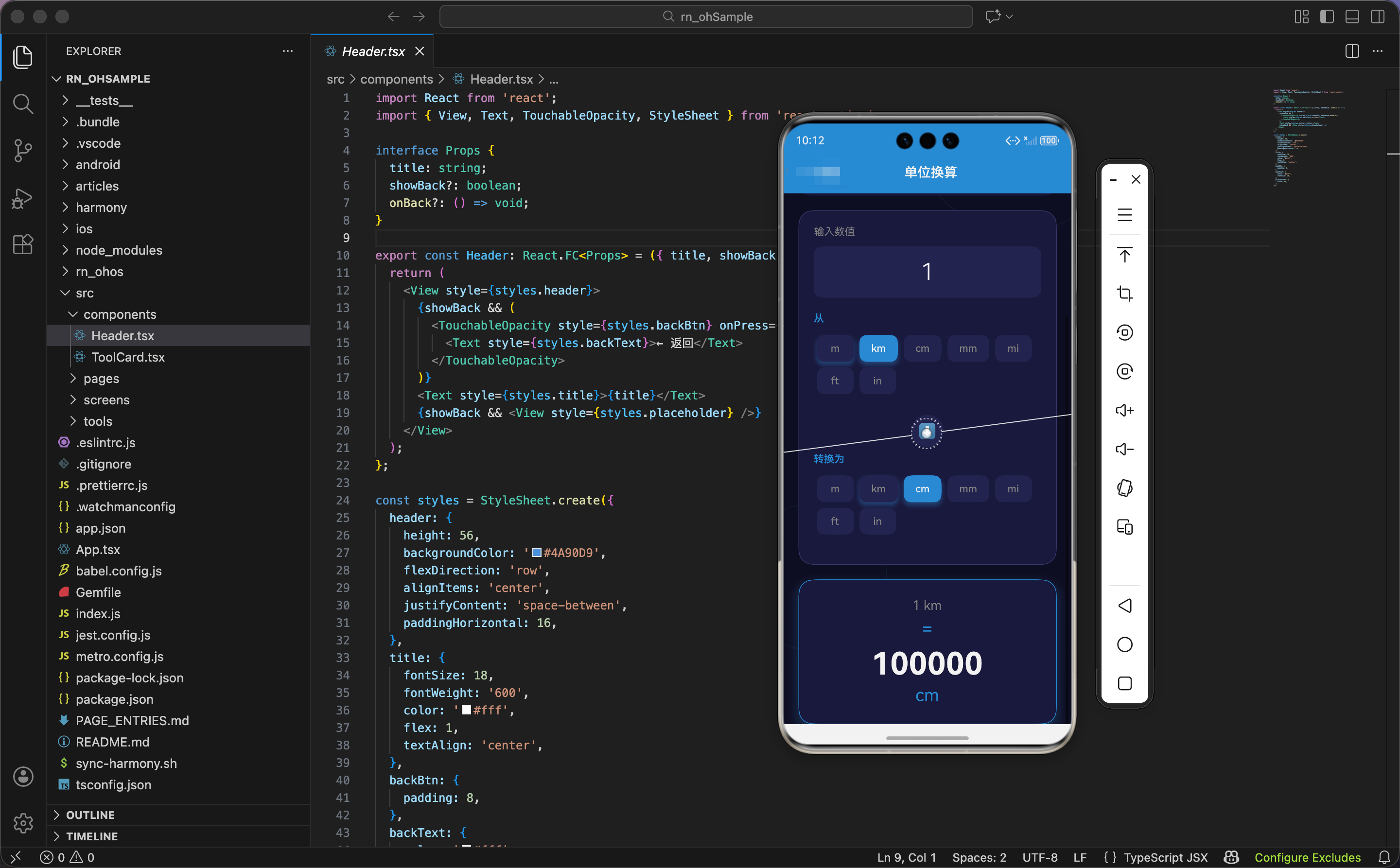
单位换算是日常生活中经常用到的功能,无论是长度、重量还是温度,不同单位之间的转换总是让人头疼。今天我们用 React Native 实现一个支持多种单位类型的换算工具,界面上加入一些动画效果让它更有趣。
功能设计思路
这个单位换算工具需要支持三种类型:长度、重量和温度。长度和重量的换算比较简单,都是基于一个基准单位做乘除运算。温度就麻烦一些,摄氏度、华氏度、开尔文之间的转换公式各不相同,需要单独处理。
我们把换算逻辑和 UI 分开,数据结构设计好了,后面加新的单位类型也很方便。
数据结构定义
先来看单位数据的定义:
import React, { useState, useRef, useEffect } from 'react';
import { View, Text, TextInput, TouchableOpacity, StyleSheet, ScrollView, Animated } from 'react-native';

const units = {
  length: { name: '长度', icon: '📏', units: { m: 1, km: 1000, cm: 0.01, mm: 0.001, mi: 1609.34, ft: 0.3048, in: 0.0254 } },
  weight: { name: '重量', icon: '⚖️', units: { kg: 1, g: 0.001, mg: 0.000001, lb: 0.453592, oz: 0.0283495 } },
  temp: { name: '温度', icon: '🌡️', units: { '°C': 'c', '°F': 'f', 'K': 'k' } },
};
长度和重量的 units 对象里,key 是单位名称,value 是相对于基准单位的换算系数。比如长度以米为基准,1 公里等于 1000 米,所以 km: 1000。
温度比较特殊,没法用简单的系数表示,所以 value 只是一个标识符,实际换算逻辑在代码里单独处理。
鸿蒙 ArkTS 对比:数据结构
在 ArkTS 中定义类似的数据结构:
interface UnitCategory {
  name: string
  icon: string
  units: Record<string, number | string>
}

const units: Record<string, UnitCategory> = {
  length: {
    name: '长度',
    icon: '📏',
    units: { m: 1, km: 1000, cm: 0.01, mm: 0.001 }
  },
  weight: {
    name: '重量',
    icon: '⚖️',
    units: { kg: 1, g: 0.001, mg: 0.000001 }
  },
  temp: {
    name: '温度',
    icon: '🌡️',
    units: { '°C': 'c', '°F': 'f', 'K': 'k' }
  }
}
ArkTS 和 TypeScript 的语法几乎一样,数据结构定义没有区别。这也是 React Native for OpenHarmony 的优势之一,业务逻辑代码可以直接复用。
状态管理
组件内部需要管理多个状态:
export const UnitConverter: React.FC = () => {
  const [category, setCategory] = useState<'length' | 'weight' | 'temp'>('length');
  const [value, setValue] = useState('1');
  const [fromUnit, setFromUnit] = useState('m');
  const [toUnit, setToUnit] = useState('km');

  const rotateAnim = useRef(new Animated.Value(0)).current;
  const scaleAnim = useRef(new Animated.Value(1)).current;
  const resultAnim = useRef(new Animated.Value(0)).current;
  const arrowAnim = useRef(new Animated.Value(0)).current;
  const glowAnim = useRef(new Animated.Value(0)).current;
状态变量的作用:
category当前选中的单位类型value用户输入的数值fromUnit源单位toUnit目标单位
动画值有五个,分别控制背景旋转、选项卡缩放、结果弹出、箭头跳动和发光效果。看起来有点多,但每个都有它的用处。
鸿蒙 ArkTS 对比:状态声明
@Entry
@Component
struct UnitConverter {
  @State category: string = 'length'
  @State value: string = '1'
  @State fromUnit: string = 'm'
  @State toUnit: string = 'km'
  @State scaleValue: number = 1
  @State resultScale: number = 0
ArkTS 用 @State 装饰器声明响应式状态。动画值在 ArkTS 中通常直接用状态变量配合 animateTo 函数实现,不需要像 React Native 那样创建 Animated.Value 对象。
动画初始化
组件挂载时启动背景动画和发光动画:
  useEffect(() => {
    // 旋转动画
    Animated.loop(
      Animated.timing(rotateAnim, {
        toValue: 1,
        duration: 20000,
        useNativeDriver: true,
      })
    ).start();

    // 发光动画
    Animated.loop(
      Animated.sequence([
        Animated.timing(glowAnim, { toValue: 1, duration: 1500, useNativeDriver: false }),
        Animated.timing(glowAnim, { toValue: 0, duration: 1500, useNativeDriver: false }),
      ])
    ).start();
  }, []);
Animated.loop 让动画无限循环。旋转动画 20 秒转一圈,发光动画 3 秒一个周期。注意发光动画的 useNativeDriver 设为 false,因为它要控制 shadowOpacity,这个属性不支持原生驱动。
鸿蒙 ArkTS 对比:循环动画
@State rotateAngle: number = 0

aboutToAppear() {
  this.startRotateAnimation()
}

startRotateAnimation() {
  animateTo({
    duration: 20000,
    iterations: -1,  // 无限循环
    curve: Curve.Linear
  }, () => {
    this.rotateAngle = 360
  })
}
ArkTS 的 animateTo 函数通过 iterations: -1 实现无限循环。语法更简洁,但灵活性不如 React Native 的 Animated API,比如串联多个动画就没那么方便。
结果变化时的动画
每当输入值或单位改变时,触发结果区域的动画:
  useEffect(() => {
    // 结果动画
    resultAnim.setValue(0);
    Animated.spring(resultAnim, {
      toValue: 1,
      friction: 5,
      useNativeDriver: true,
    }).start();

    // 箭头动画
    arrowAnim.setValue(0);
    Animated.sequence([
      Animated.timing(arrowAnim, { toValue: 1, duration: 300, useNativeDriver: true }),
      Animated.spring(arrowAnim, { toValue: 0, friction: 3, useNativeDriver: true }),
    ]).start();
  }, [value, fromUnit, toUnit]);
这里用了 useEffect 的依赖数组来监听变化。每次变化时先把动画值重置为 0,然后启动弹簧动画。箭头动画是先向下移动,再弹回原位,给用户一个"转换中"的视觉反馈。
核心换算逻辑
换算函数是整个组件的核心:
  const convert = () => {
    const num = parseFloat(value) || 0;
    if (category === 'temp') {
      let celsius = num;
      if (fromUnit === '°F') celsius = (num - 32) * 5 / 9;
      else if (fromUnit === 'K') celsius = num - 273.15;

      if (toUnit === '°C') return celsius.toFixed(2);
      if (toUnit === '°F') return ((celsius * 9 / 5) + 32).toFixed(2);
      return (celsius + 273.15).toFixed(2);
    }
    const fromFactor = (units[category].units as any)[fromUnit];
    const toFactor = (units[category].units as any)[toUnit];
    return ((num * fromFactor) / toFactor).toFixed(6).replace(/\.?0+$/, '');
  };
温度换算的思路是:先把输入值转成摄氏度,再从摄氏度转成目标单位。这样只需要写两组公式,而不是六组。
长度和重量的换算就简单了:输入值乘以源单位系数,再除以目标单位系数。最后用正则 /\.?0+$/ 去掉末尾多余的零,让结果更美观。
鸿蒙 ArkTS 对比:换算逻辑
convert(): string {
  let num = parseFloat(this.value) || 0

  if (this.category === 'temp') {
    let celsius = num
    if (this.fromUnit === '°F') {
      celsius = (num - 32) * 5 / 9
    } else if (this.fromUnit === 'K') {
      celsius = num - 273.15
    }

    if (this.toUnit === '°C') return celsius.toFixed(2)
    if (this.toUnit === '°F') return ((celsius * 9 / 5) + 32).toFixed(2)
    return (celsius + 273.15).toFixed(2)
  }

  let fromFactor = units[this.category].units[this.fromUnit] as number
  let toFactor = units[this.category].units[this.toUnit] as number
  return ((num * fromFactor) / toFactor).toFixed(6).replace(/\.?0+$/, '')
}
换算逻辑在 ArkTS 中完全一样,这就是跨平台开发的好处——业务逻辑写一次,到处运行。
选项卡切换处理
切换单位类型时需要重置选中的单位:
  const handleTabPress = (key: 'length' | 'weight' | 'temp') => {
    Animated.sequence([
      Animated.timing(scaleAnim, { toValue: 0.95, duration: 100, useNativeDriver: true }),
      Animated.spring(scaleAnim, { toValue: 1, friction: 3, useNativeDriver: true }),
    ]).start();
    setCategory(key);
    const unitKeys = Object.keys(units[key].units);
    setFromUnit(unitKeys[0]);
    setToUnit(unitKeys[1]);
  };
点击时先播放一个缩放动画,然后更新状态。unitKeys[0] 和 unitKeys[1] 分别取该类型的前两个单位作为默认值。
界面渲染
先看头部和选项卡部分:
  const unitKeys = Object.keys(units[category].units);
  const spin = rotateAnim.interpolate({ inputRange: [0, 1], outputRange: ['0deg', '360deg'] });

  return (
    <ScrollView style={styles.container}>
      {/* 背景装饰 */}
      <Animated.View style={[styles.bgCircle, styles.bgCircle1, { transform: [{ rotate: spin }] }]} />
      <Animated.View style={[styles.bgCircle, styles.bgCircle2, { transform: [{ rotate: spin }] }]} />

      <View style={styles.header}>
        <Text style={styles.headerIcon}>{units[category].icon}</Text>
        <Text style={styles.headerTitle}>单位换算</Text>
        <Text style={styles.headerSubtitle}>精准转换各种单位</Text>
      </View>

      {/* 分类选项卡 */}
      <Animated.View style={[styles.tabs, { transform: [{ scale: scaleAnim }] }]}>
        {Object.entries(units).map(([key, val]) => (
          <TouchableOpacity
            key={key}
            style={[styles.tab, category === key && styles.tabActive]}
            onPress={() => handleTabPress(key as any)}
            activeOpacity={0.7}
          >
            <Text style={styles.tabIcon}>{val.icon}</Text>
            <Text style={[styles.tabText, category === key && styles.tabTextActive]}>{val.name}</Text>
          </TouchableOpacity>
        ))}
      </Animated.View>
interpolate 方法把 0-1 的动画值映射成 0-360 度的旋转角度。背景装饰圆圈会缓慢旋转,增加视觉层次感。
鸿蒙 ArkTS 对比:选项卡渲染
build() {
  Column() {
    // 选项卡
    Row() {
      ForEach(Object.entries(units), ([key, val]: [string, UnitCategory]) => {
        Button() {
          Row() {
            Text(val.icon).fontSize(18)
            Text(val.name)
              .fontSize(14)
              .fontColor(this.category === key ? Color.White : '#888888')
          }
        }
        .backgroundColor(this.category === key ? '#4A90D9' : 'transparent')
        .borderRadius(12)
        .onClick(() => this.handleTabPress(key))
      })
    }
    .backgroundColor('#1a1a3e')
    .borderRadius(16)
    .padding(6)
  }
}
ArkTS 使用 ForEach 遍历数据,通过链式调用设置样式。React Native 用 map 函数和 style 数组,两种方式各有特点。
输入区域渲染
      {/* 输入区域 */}
      <View style={styles.inputCard}>
        <View style={styles.inputHeader}>
          <Text style={styles.inputLabel}>输入数值</Text>
        </View>
        <TextInput
          style={styles.input}
          value={value}
          onChangeText={setValue}
          keyboardType="numeric"
          placeholder="0"
          placeholderTextColor="#666"
        />

        <Text style={styles.unitSectionLabel}>从</Text>
        <View style={styles.unitRow}>
          {unitKeys.map(u => (
            <TouchableOpacity
              key={u}
              style={[styles.unitBtn, fromUnit === u && styles.unitBtnActive]}
              onPress={() => setFromUnit(u)}
              activeOpacity={0.7}
            >
              <Text style={[styles.unitText, fromUnit === u && styles.unitTextActive]}>{u}</Text>
            </TouchableOpacity>
          ))}
        </View>

        {/* 动画箭头 */}
        <Animated.View style={[styles.arrowContainer, {
          transform: [{ translateY: arrowAnim.interpolate({ inputRange: [0, 1], outputRange: [0, 10] }) }]
        }]}>
          <View style={styles.arrowCircle}>
            <Text style={styles.arrow}>⬇️</Text>
          </View>
        </Animated.View>

        <Text style={styles.unitSectionLabel}>转换为</Text>
        <View style={styles.unitRow}>
          {unitKeys.map(u => (
            <TouchableOpacity
              key={u}
              style={[styles.unitBtn, toUnit === u && styles.unitBtnActive]}
              onPress={() => setToUnit(u)}
              activeOpacity={0.7}
            >
              <Text style={[styles.unitText, toUnit === u && styles.unitTextActive]}>{u}</Text>
            </TouchableOpacity>
          ))}
        </View>
      </View>
TextInput 的 keyboardType="numeric" 确保弹出数字键盘。单位按钮用 flexWrap: 'wrap' 实现自动换行,适应不同数量的单位选项。
结果显示区域
      {/* 结果显示 */}
      <Animated.View style={[
        styles.result,
        {
          transform: [
            { scale: resultAnim },
            { perspective: 1000 },
            { rotateX: resultAnim.interpolate({ inputRange: [0, 1], outputRange: ['20deg', '0deg'] }) }
          ],
          shadowOpacity: glowAnim.interpolate({ inputRange: [0, 1], outputRange: [0.3, 0.6] }),
        }
      ]}>
        <View style={styles.resultInner}>
          <Text style={styles.resultLabel}>{value || '0'} {fromUnit}</Text>
          <Text style={styles.resultEquals}>=</Text>
          <Text style={styles.resultValue}>{convert()}</Text>
          <Text style={styles.resultUnit}>{toUnit}</Text>
        </View>
      </Animated.View>
    </ScrollView>
  );
};
结果区域用了 3D 翻转效果:perspective 设置透视距离,rotateX 让卡片从倾斜状态翻转到正面。配合 shadowOpacity 的呼吸动画,整个结果区域看起来很有质感。
样式定义
const styles = StyleSheet.create({
  container: { flex: 1, backgroundColor: '#0f0f23', padding: 20 },
  bgCircle: { position: 'absolute', borderRadius: 999, borderWidth: 1, borderColor: 'rgba(74, 144, 217, 0.1)' },
  bgCircle1: { width: 300, height: 300, top: -50, right: -100 },
  bgCircle2: { width: 200, height: 200, bottom: 100, left: -80 },
  header: { alignItems: 'center', marginBottom: 24 },
  headerIcon: { fontSize: 50, marginBottom: 8 },
  headerTitle: { fontSize: 28, fontWeight: '700', color: '#fff' },
  headerSubtitle: { fontSize: 14, color: '#888', marginTop: 4 },
  tabs: {
    flexDirection: 'row',
    backgroundColor: '#1a1a3e',
    borderRadius: 16,
    padding: 6,
    marginBottom: 20,
  },
  tab: {
    flex: 1,
    flexDirection: 'row',
    alignItems: 'center',
    justifyContent: 'center',
    paddingVertical: 12,
    borderRadius: 12,
  },
  tabActive: { backgroundColor: '#4A90D9' },
  tabIcon: { fontSize: 18, marginRight: 6 },
  tabText: { color: '#888', fontSize: 14 },
  tabTextActive: { color: '#fff', fontWeight: '600' },
暗色主题用 #0f0f23 作为背景色,卡片用 #1a1a3e,形成层次感。主色调是蓝色 #4A90D9,用于高亮选中状态和强调元素。
更多样式
  inputCard: {
    backgroundColor: '#1a1a3e',
    borderRadius: 20,
    padding: 20,
    marginBottom: 20,
    borderWidth: 1,
    borderColor: '#3a3a6a',
  },
  inputHeader: { marginBottom: 12 },
  inputLabel: { color: '#888', fontSize: 14 },
  input: {
    backgroundColor: '#252550',
    padding: 16,
    borderRadius: 12,
    fontSize: 32,
    textAlign: 'center',
    color: '#fff',
    fontWeight: '300',
    marginBottom: 20,
  },
  unitSectionLabel: { color: '#4A90D9', fontSize: 14, marginBottom: 10, fontWeight: '600' },
  unitRow: { flexDirection: 'row', flexWrap: 'wrap', marginBottom: 16 },
  unitBtn: {
    paddingVertical: 10,
    paddingHorizontal: 16,
    margin: 4,
    backgroundColor: '#252550',
    borderRadius: 10,
    minWidth: 50,
    alignItems: 'center',
  },
  unitBtnActive: {
    backgroundColor: '#4A90D9',
    shadowColor: '#4A90D9',
    shadowOffset: { width: 0, height: 4 },
    shadowOpacity: 0.4,
    shadowRadius: 8,
    elevation: 5,
  },
  unitText: { color: '#888', fontSize: 14, fontWeight: '500' },
  unitTextActive: { color: '#fff' },
  arrowContainer: { alignItems: 'center', marginVertical: 8 },
  arrowCircle: {
    width: 44,
    height: 44,
    borderRadius: 22,
    backgroundColor: '#252550',
    justifyContent: 'center',
    alignItems: 'center',
  },
  arrow: { fontSize: 20 },
  result: {
    backgroundColor: '#1a1a3e',
    borderRadius: 20,
    padding: 24,
    borderWidth: 1,
    borderColor: '#4A90D9',
    shadowColor: '#4A90D9',
    shadowOffset: { width: 0, height: 8 },
    shadowRadius: 20,
    elevation: 10,
  },
  resultInner: { alignItems: 'center' },
  resultLabel: { color: '#888', fontSize: 18 },
  resultEquals: { color: '#4A90D9', fontSize: 24, marginVertical: 8 },
  resultValue: { color: '#fff', fontSize: 42, fontWeight: '700' },
  resultUnit: { color: '#4A90D9', fontSize: 24, marginTop: 4 },
});
选中的单位按钮加了蓝色阴影,让它看起来像是浮起来的。结果区域的边框和阴影都用蓝色,和主题色保持一致。
小结
这个单位换算工具展示了如何在 React Native 中处理复杂的数据结构和多种动画效果。通过合理的数据设计,换算逻辑变得简洁清晰;通过丰富的动画,用户体验得到提升。
在 OpenHarmony 平台上,这些代码可以直接运行。React Native 的 Animated API 会被映射到鸿蒙的动画系统,TextInput 会使用鸿蒙原生的输入组件。开发者不需要关心底层实现,专注于业务逻辑和用户体验就好。
欢迎加入开源鸿蒙跨平台社区:https://openharmonycrossplatform.csdn.net

开源鸿蒙跨平台开发社区汇聚开发者与厂商,共建“一次开发,多端部署”的开源生态,致力于降低跨端开发门槛,推动万物智联创新。
更多推荐
 16
16 0
0- 0


 已为社区贡献23条内容

所有评论(0)