Flutter for OpenHarmony轻量级开源记事本App实战:提醒事项
提醒事项是笔记应用的重要功能,它帮助用户在指定时间收到笔记提醒,确保重要事项不会被遗忘。通过设置提醒时间,用户可以创建带有时间敏感性的笔记,系统会在合适的时间推送通知。本文将详细介绍如何实现一个功能完善的提醒事项系统。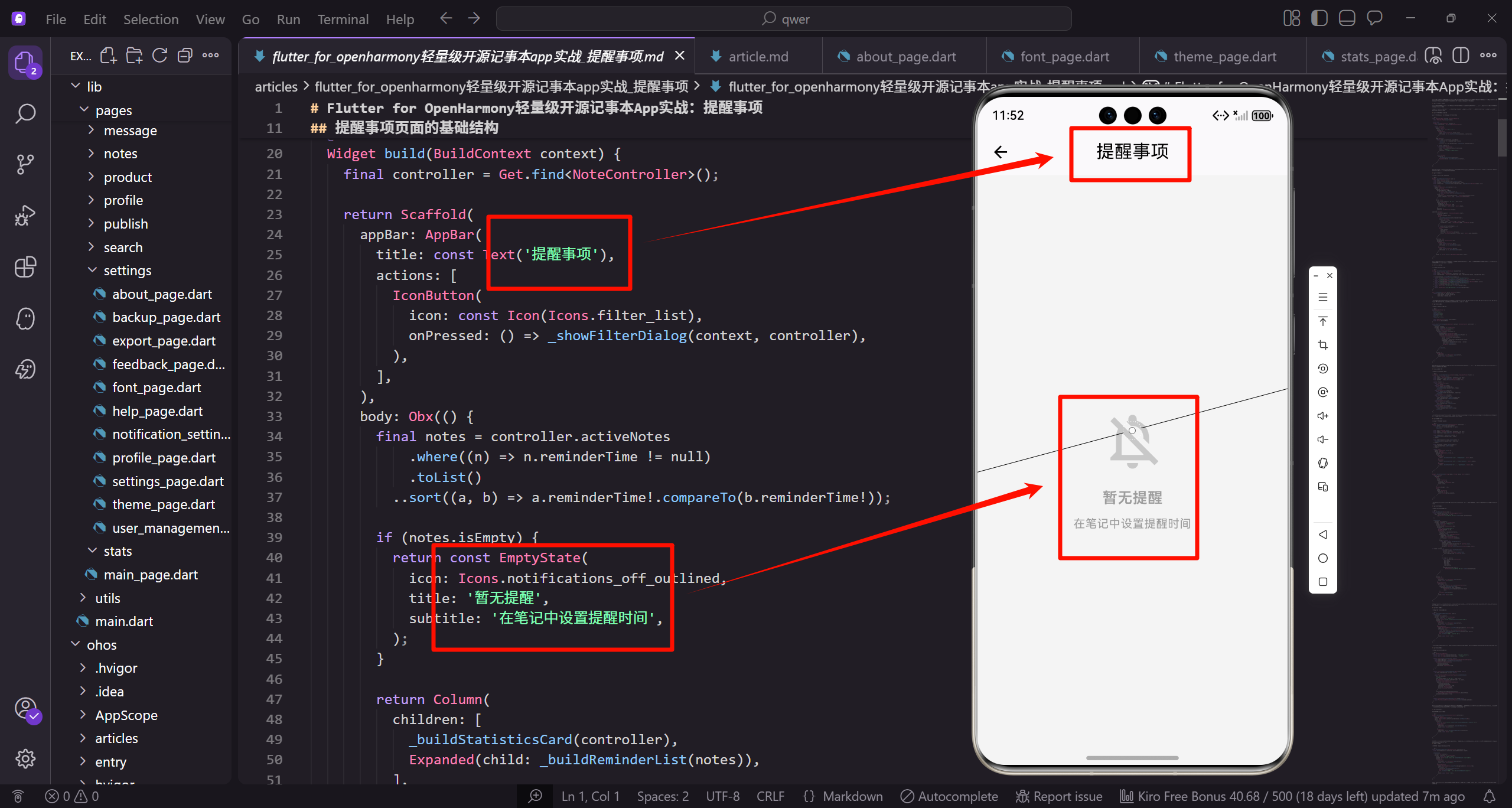
提醒事项的设计理念
提醒事项的核心功能是展示所有设置了提醒时间的笔记。设计上需要清晰地区分已过期和未过期的提醒,让用户能够快速了解提醒的状态。提醒列表应该按时间排序,最近的提醒显示在前面。
在视觉设计上,使用不同的图标和颜色区分提醒状态。过期的提醒使用灰色图标和红色时间文字,未过期的提醒使用蓝色图标和灰色时间文字。这种视觉区分帮助用户快速识别提醒的紧急程度。
提醒事项页面的基础结构
首先创建提醒事项页面的基本框架:
class RemindersPage extends StatelessWidget {
const RemindersPage({super.key});
Widget build(BuildContext context) {
final controller = Get.find<NoteController>();
return Scaffold(
appBar: AppBar(
title: const Text('提醒事项'),
RemindersPage采用StatelessWidget设计,因为状态管理完全由GetX的NoteController负责。通过Get.find获取全局控制器实例,避免重复创建。Scaffold提供标准的Material Design布局结构,AppBar显示页面标题,为后续添加筛选等功能预留空间。
接下来添加筛选按钮和响应式数据监听:
        actions: [
          IconButton(
            icon: const Icon(Icons.filter_list),
            onPressed: () => _showFilterDialog(context, controller),
          ),
        ],
      ),
      body: Obx(() {
        final notes = controller.activeNotes
            .where((n) => n.reminderTime != null)
AppBar的actions区域放置筛选按钮,使用filter_list图标符合Material Design规范。body使用Obx包裹实现响应式更新,当笔记数据变化时自动重建UI。从activeNotes中筛选出设置了提醒时间的笔记,where条件确保只显示有效的提醒事项。
实现笔记排序和空状态处理:
            .toList()
          ..sort((a, b) => a.reminderTime!.compareTo(b.reminderTime!));

        if (notes.isEmpty) {
          return const EmptyState(
            icon: Icons.notifications_off_outlined,
            title: '暂无提醒',
            subtitle: '在笔记中设置提醒时间',
          );
        }
使用级联操作符…sort对笔记列表按提醒时间升序排序,最近的提醒显示在前面。compareTo方法比较DateTime对象,确保时间顺序正确。当列表为空时显示EmptyState组件,使用notifications_off_outlined图标和友好的提示文字,引导用户如何创建提醒。
构建提醒列表的主体内容:
        return Column(
          children: [
            _buildStatisticsCard(controller),
            Expanded(child: _buildReminderList(notes)),
          ],
        );
      }),
    );
  }
}
Column布局将统计卡片和提醒列表垂直排列。统计卡片显示提醒的概览信息,帮助用户快速了解整体情况。Expanded包裹提醒列表,使其占据剩余空间并支持滚动。这种布局设计将重要信息置顶,详细列表可滚动查看,符合用户的浏览习惯。
提醒卡片的设计
创建提醒卡片的状态判断逻辑:
Widget _buildReminderCard(Note note) {
  final now = DateTime.now();
  final isPast = note.reminderTime!.isBefore(now);
  final isToday = _isSameDay(note.reminderTime!, now);
  final isTomorrow = _isSameDay(note.reminderTime!, now.add(const Duration(days: 1)));

  return Card(
    margin: EdgeInsets.only(bottom: 8.h),
    child: ListTile(
首先计算提醒的状态信息,isPast判断是否已过期,isToday和isTomorrow判断是否在今明两天。这些状态变量用于后续的视觉呈现,帮助用户快速识别提醒的紧急程度。Card组件提供卡片样式,底部边距确保列表项之间有适当间隔。
设计提醒卡片的图标区域:
      leading: CircleAvatar(
        backgroundColor: isPast
            ? Colors.grey.withOpacity(0.1)
            : const Color(0xFF2196F3).withOpacity(0.1),
        child: Icon(
          isPast ? Icons.notifications_off : Icons.notifications_active,
          color: isPast ? Colors.grey : const Color(0xFF2196F3),
        ),
      ),
CircleAvatar作为leading显示圆形图标背景,使用半透明颜色营造柔和视觉效果。过期提醒使用灰色系,未过期使用蓝色系,形成鲜明对比。图标选择notifications_off表示已过期,notifications_active表示活跃状态,这种视觉语言符合用户直觉。
构建提醒卡片的标题部分:
      title: Text(
        note.title.isEmpty ? '无标题' : note.title,
        style: TextStyle(
          fontSize: 16.sp,
          fontWeight: FontWeight.w500,
          color: isPast ? Colors.grey : Colors.black,
        ),
        maxLines: 1,
        overflow: TextOverflow.ellipsis,
      ),
标题使用16sp字体大小和中等粗细,确保可读性。过期提醒的标题显示为灰色,降低视觉优先级。maxLines限制为1行,overflow使用ellipsis在文字过长时显示省略号。空标题显示"无标题"占位文字,避免界面留白。
实现提醒时间和内容预览:
      subtitle: Column(
        crossAxisAlignment: CrossAxisAlignment.start,
        children: [
          SizedBox(height: 4.h),
          Text(
            _formatReminderTime(note.reminderTime!),
            style: TextStyle(
              fontSize: 12.sp,
              color: isPast ? Colors.red : Colors.grey,
subtitle使用Column布局垂直排列时间和内容。crossAxisAlignment设置为start实现左对齐。提醒时间使用格式化方法显示友好的时间文字,过期提醒用红色突出显示,引起用户注意。未过期提醒使用灰色,保持界面整洁。
添加内容预览和样式控制:
              fontWeight: isPast ? FontWeight.w600 : FontWeight.normal,
            ),
          ),
          if (note.content.isNotEmpty) ...[
            SizedBox(height: 4.h),
            Text(
              note.content,
              maxLines: 2,
              overflow: TextOverflow.ellipsis,
过期提醒的时间文字使用加粗字体,进一步强调紧急性。条件渲染确保只在有内容时显示预览,使用展开运算符…添加多个widget。内容预览限制2行显示,超出部分用省略号表示,既能提供足够信息又不占用过多空间。
完成内容预览和操作按钮:
              style: TextStyle(fontSize: 12.sp, color: Colors.grey.shade600),
            ),
          ],
        ],
      ),
      trailing: Row(
        mainAxisSize: MainAxisSize.min,
        children: [
          IconButton(
            icon: const Icon(Icons.edit),
内容预览使用较小的字体和中灰色,与标题形成层次对比。trailing区域使用Row布局放置操作按钮,mainAxisSize设置为min避免占用过多空间。编辑按钮使用edit图标,符合Material Design规范,让用户可以快速修改提醒时间。
添加删除按钮和点击事件:
            onPressed: () => _editReminder(note),
          ),
          IconButton(
            icon: const Icon(Icons.delete),
            onPressed: () => _deleteReminder(note),
          ),
        ],
      ),
      onTap: () => Get.to(() => NoteEditorPage(note: note)),
    ),
  );
}
删除按钮使用delete图标,提供快速删除提醒的功能。两个IconButton并排放置,操作区域清晰明确。整个ListTile的onTap事件导航到笔记编辑页面,让用户可以查看和编辑完整笔记内容。这种设计在卡片上提供快捷操作,同时保留完整编辑入口。
时间格式化工具
实现友好的时间显示格式:
String _formatReminderTime(DateTime reminderTime) {
  final now = DateTime.now();
  final today = DateTime(now.year, now.month, now.day);
  final reminderDate = DateTime(reminderTime.year, reminderTime.month, reminderTime.day);

  if (reminderDate.isAtSameMomentAs(today)) {
    return '今天 ${DateFormat('HH:mm').format(reminderTime)}';
  } else if (reminderDate.isAtSameMomentAs(today.add(const Duration(days: 1)))) {
_formatReminderTime方法将DateTime转换为用户友好的文字描述。通过创建只包含日期部分的DateTime对象进行比较,避免时分秒的干扰。isAtSameMomentAs方法精确比较两个时间点是否相同。今天的提醒显示"今天 HH:mm"格式,让用户一眼就能看出是当天的任务。
处理明天和昨天的时间显示:
    return '明天 ${DateFormat('HH:mm').format(reminderTime)}';
  } else if (reminderDate.isAtSameMomentAs(today.subtract(const Duration(days: 1)))) {
    return '昨天 ${DateFormat('HH:mm').format(reminderTime)}';
  } else if (reminderDate.year == now.year) {
    return DateFormat('MM-dd HH:mm').format(reminderTime);
  } else {
    return DateFormat('yyyy-MM-dd HH:mm').format(reminderTime);
  }
}
明天和昨天使用相对时间描述,更符合日常表达习惯。同年的提醒省略年份显示,节省空间。不同年份的提醒显示完整日期,确保信息准确。DateFormat来自intl包,提供标准的日期格式化功能。这种分层处理让时间显示既简洁又准确。
实现日期比较辅助方法:
bool _isSameDay(DateTime date1, DateTime date2) {
  return date1.year == date2.year &&
         date1.month == date2.month &&
         date1.day == date2.day;
}
_isSameDay方法通过比较年月日三个字段判断是否为同一天。这种方法比创建新DateTime对象更高效,适合频繁调用的场景。返回布尔值便于在条件判断中使用,代码简洁清晰。
提醒的筛选功能
定义筛选选项的枚举类型:
enum ReminderFilter {
  all('全部'),
  today('今天'),
  tomorrow('明天'),
  thisWeek('本周'),
  past('已过期'),
  future('未过期');

  const ReminderFilter(this.displayName);
  final String displayName;
}
ReminderFilter枚举定义了六种筛选类型,覆盖用户的常见需求。使用增强枚举特性,每个枚举值关联一个displayName字段,用于界面显示。const构造函数确保枚举值在编译时创建,提高性能。这种设计将筛选逻辑和显示文字封装在一起,便于维护和扩展。
创建筛选对话框的基本结构:
void _showFilterDialog(BuildContext context, NoteController controller) {
  showDialog(
    context: context,
    builder: (context) => AlertDialog(
      title: const Text('筛选提醒'),
      content: StatefulBuilder(
        builder: (context, setState) {
          return Column(
            mainAxisSize: MainAxisSize.min,
showDialog显示模态对话框,阻止用户与背景内容交互。AlertDialog提供标准的Material Design对话框样式。StatefulBuilder在对话框内创建局部状态,避免重建整个页面。Column的mainAxisSize设置为min,使对话框高度自适应内容,不会占据整个屏幕。
实现筛选选项的单选列表:
            children: ReminderFilter.values.map((filter) =>
              RadioListTile<ReminderFilter>(
                title: Text(filter.displayName),
                value: filter,
                groupValue: controller.reminderFilter.value,
                onChanged: (value) {
                  controller.reminderFilter.value = value!;
                  controller.saveData();
遍历ReminderFilter的所有枚举值,为每个选项创建RadioListTile。title显示枚举的displayName,value是枚举值本身。groupValue绑定控制器的当前筛选状态,实现单选效果。onChanged回调更新筛选条件并保存数据,确保用户的选择被持久化。
完成筛选对话框的交互逻辑:
                  Navigator.pop(context);
                },
              ),
            ).toList(),
          );
        },
      ),
      actions: [
        TextButton(
          onPressed: () => Navigator.pop(context),
          child: const Text('取消'),
        ),
      ],
    ),
  );
}
选择筛选条件后立即关闭对话框,提供流畅的用户体验。actions区域提供取消按钮,让用户可以放弃选择。Navigator.pop关闭对话框并返回上一页面。这种设计减少了用户的操作步骤,选择即生效,符合移动应用的交互习惯。
筛选逻辑的实现
初始化筛选方法和时间基准:
List<Note> _filterReminders(List<Note> notes, ReminderFilter filter) {
  final now = DateTime.now();
  final today = DateTime(now.year, now.month, now.day);
  final tomorrow = today.add(const Duration(days: 1));
  final weekEnd = today.add(const Duration(days: 7));

  switch (filter) {
    case ReminderFilter.all:
      return notes;
_filterReminders方法接收笔记列表和筛选条件,返回过滤后的结果。创建时间基准点:now表示当前时刻,today是今天零点,tomorrow是明天零点,weekEnd是一周后。这些基准点用于后续的时间比较。all筛选直接返回原列表,不做任何过滤。
实现今天和明天的筛选逻辑:
    case ReminderFilter.today:
      return notes.where((note) =>
        _isSameDay(note.reminderTime!, today)
      ).toList();
    case ReminderFilter.tomorrow:
      return notes.where((note) =>
        _isSameDay(note.reminderTime!, tomorrow)
      ).toList();
today筛选使用_isSameDay方法判断提醒时间是否在今天。tomorrow筛选判断是否在明天。where方法过滤符合条件的笔记,toList转换为列表。这种筛选帮助用户聚焦于近期的提醒事项,提高任务管理效率。
实现本周和过期提醒的筛选:
    case ReminderFilter.thisWeek:
      return notes.where((note) =>
        !note.reminderTime!.isBefore(today) &&
        note.reminderTime!.isBefore(weekEnd)
      ).toList();
    case ReminderFilter.past:
      return notes.where((note) =>
        note.reminderTime!.isBefore(now)
      ).toList();
thisWeek筛选要求提醒时间不早于今天且早于一周后,使用两个条件组合实现范围筛选。past筛选使用isBefore判断提醒时间是否早于当前时刻,找出所有已过期的提醒。这些筛选帮助用户管理不同时间范围的任务。
完成未来提醒的筛选逻辑:
    case ReminderFilter.future:
      return notes.where((note) =>
        !note.reminderTime!.isBefore(now)
      ).toList();
  }
}
future筛选使用!isBefore判断提醒时间不早于当前时刻,即所有未来的提醒。这种逻辑与past筛选互补,将提醒分为已过期和未过期两类。switch语句覆盖所有枚举值,确保筛选逻辑完整。
提醒的统计信息
构建统计卡片的数据准备:
Widget _buildStatisticsCard(NoteController controller) {
  final notes = controller.activeNotes
      .where((n) => n.reminderTime != null)
      .toList();

  final now = DateTime.now();
  final today = DateTime(now.year, now.month, now.day);
  final tomorrow = today.add(const Duration(days: 1));
_buildStatisticsCard方法创建统计信息卡片。首先从activeNotes中筛选出有提醒时间的笔记。定义时间基准点用于统计计算:now是当前时刻,today是今天零点,tomorrow是明天零点。这些基准点确保统计数据的准确性。
计算各类提醒的数量:
  final todayCount = notes.where((note) =>
    _isSameDay(note.reminderTime!, today)
  ).length;

  final tomorrowCount = notes.where((note) =>
    _isSameDay(note.reminderTime!, tomorrow)
  ).length;

  final pastCount = notes.where((note) =>
    note.reminderTime!.isBefore(now)
  ).length;
使用where方法配合length属性统计各类提醒的数量。todayCount统计今天的提醒,tomorrowCount统计明天的提醒,pastCount统计已过期的提醒。这三个指标最能反映用户的任务状态,帮助用户快速了解待办事项的分布情况。
构建统计卡片的布局结构:
  return Card(
    margin: EdgeInsets.all(12.w),
    child: Padding(
      padding: EdgeInsets.all(16.w),
      child: Row(
        children: [
          Expanded(
            child: _buildStatItem('今天', '$todayCount', Colors.blue),
          ),
Card组件提供卡片样式,margin设置外边距。Padding添加内边距,确保内容不贴边。Row水平排列三个统计项,Expanded使每个统计项平均分配空间。_buildStatItem方法创建单个统计项,传入标签、数值和颜色参数。
完成统计卡片的其他统计项:
          Expanded(
            child: _buildStatItem('明天', '$tomorrowCount', Colors.green),
          ),
          Expanded(
            child: _buildStatItem('已过期', '$pastCount', Colors.red),
          ),
        ],
      ),
    ),
  );
}
三个统计项分别显示今天、明天和已过期的提醒数量。使用不同颜色区分:蓝色表示今天(需要关注),绿色表示明天(提前准备),红色表示已过期(需要处理)。这种颜色编码符合用户的心理预期,提高信息传达效率。
实现单个统计项的组件:
Widget _buildStatItem(String label, String value, Color color) {
  return Column(
    children: [
      Text(
        value,
        style: TextStyle(
          fontSize: 20.sp,
          fontWeight: FontWeight.bold,
          color: color,
        ),
      ),
_buildStatItem使用Column垂直排列数值和标签。数值使用20sp的大字体和粗体,突出显示统计数据。color参数控制数值的颜色,与统计类型对应。这种设计让用户一眼就能看到关键数字。
完成统计项的标签部分:
      SizedBox(height: 4.h),
      Text(
        label,
        style: TextStyle(
          fontSize: 12.sp,
          color: Colors.grey.shade600,
        ),
      ),
    ],
  );
}
SizedBox提供数值和标签之间的间距。标签使用12sp的小字体和灰色,作为辅助信息。数值和标签的大小、颜色对比形成清晰的视觉层次。这种设计让统计信息既醒目又不失简洁。
提醒的编辑功能
创建编辑提醒的对话框:
void _editReminder(Note note) {
  final reminderController = TextEditingController(
    text: note.reminderTime != null
        ? DateFormat('yyyy-MM-dd HH:mm').format(note.reminderTime!)
        : '',
  );

  showDialog(
    context: Get.context!,
_editReminder方法打开编辑提醒的对话框。TextEditingController初始化时显示当前的提醒时间,如果没有提醒时间则为空字符串。使用DateFormat格式化时间为标准格式,便于用户识别。Get.context获取全局上下文,避免传递context参数。
构建编辑对话框的内容区域:
    builder: (context) => AlertDialog(
      title: const Text('编辑提醒'),
      content: Column(
        mainAxisSize: MainAxisSize.min,
        children: [
          const Text('选择提醒时间'),
          SizedBox(height: 16.h),
          TextField(
            controller: reminderController,
AlertDialog提供标准对话框样式。Column的mainAxisSize设置为min,使对话框高度自适应。提示文字告知用户操作目的。TextField显示和编辑提醒时间,controller绑定reminderController管理输入内容。
配置时间输入框的属性:
            readOnly: true,
            decoration: const InputDecoration(
              labelText: '提醒时间',
              border: OutlineInputBorder(),
              prefixIcon: Icon(Icons.schedule),
            ),
            onTap: () async {
              final date = await showDatePicker(
readOnly设置为true,防止用户直接输入,只能通过日期时间选择器选择。InputDecoration配置输入框样式:labelText显示标签,OutlineInputBorder提供边框,prefixIcon显示时钟图标。onTap事件触发日期选择器,async标记支持异步操作。
实现日期选择逻辑:
                context: context,
                initialDate: note.reminderTime ?? DateTime.now(),
                firstDate: DateTime.now(),
                lastDate: DateTime.now().add(const Duration(days: 365)),
              );
              if (date != null) {
                final time = await showTimePicker(
                  context: context,
showDatePicker显示日期选择器,initialDate默认为当前提醒时间或今天。firstDate限制为今天,不允许选择过去的日期。lastDate限制为一年后,提供合理的时间范围。选择日期后继续选择时间,showTimePicker显示时间选择器。
完成时间选择和格式化:
                  initialTime: TimeOfDay.fromDateTime(
                    note.reminderTime ?? DateTime.now(),
                  ),
                );

                if (time != null) {
                  final reminderTime = DateTime(
                    date.year,
                    date.month,
                    date.day,
                    time.hour,
                    time.minute,
                  );
initialTime默认为当前提醒时间或现在。TimeOfDay.fromDateTime转换DateTime为TimeOfDay。选择时间后,组合日期和时间创建完整的DateTime对象。这种分步选择的方式符合用户习惯,降低操作复杂度。
更新输入框显示和保存逻辑:
                  reminderController.text =
                      DateFormat('yyyy-MM-dd HH:mm').format(reminderTime);
                }
              }
            },
          ),
        ],
      ),
      actions: [
        TextButton(
          onPressed: () => Navigator.pop(context),
          child: const Text('取消'),
        ),
选择完成后更新TextField的显示内容,使用标准格式化字符串。actions区域提供取消和保存按钮。取消按钮关闭对话框,不保存修改。这种设计给用户提供了反悔的机会。
实现保存提醒的逻辑:
        ElevatedButton(
          onPressed: () {
            final controller = Get.find<NoteController>();
            controller.updateReminder(note,
              reminderController.text.isNotEmpty
                  ? DateTime.parse(reminderController.text)
                  : null
            );
            Navigator.pop(context);
          },
          child: const Text('保存'),
        ),
      ],
    ),
  );
}
保存按钮调用updateReminder方法更新提醒时间。如果输入框为空,传入null清除提醒。DateTime.parse解析格式化的时间字符串。保存后关闭对话框。这种设计支持设置和清除提醒两种操作,功能完整。
提醒的删除功能
实现删除提醒的确认对话框:
void _confirmDeleteReminder(Note note) {
  showDialog(
    context: Get.context!,
    builder: (context) => AlertDialog(
      title: const Text('删除提醒'),
      content: Text('确定要删除"${note.title}"的提醒吗?'),
      actions: [
        TextButton(
_confirmDeleteReminder方法显示删除确认对话框,防止用户误操作。AlertDialog的title明确告知操作类型。content显示要删除的笔记标题,让用户确认删除对象。这种二次确认机制是删除操作的最佳实践,保护用户数据安全。
完成删除确认的交互逻辑:
          onPressed: () => Navigator.pop(context),
          child: const Text('取消'),
        ),
        ElevatedButton(
          style: ElevatedButton.styleFrom(backgroundColor: Colors.red),
          onPressed: () {
            final controller = Get.find<NoteController>();
            controller.updateNote(note.copyWith(reminderTime: null));
            Navigator.pop(context);
            Get.snackbar('成功', '提醒已删除');
          },
          child: const Text('删除'),
        ),
      ],
    ),
  );
}
取消按钮关闭对话框,不执行删除操作。删除按钮使用红色背景,突出危险操作的警示性。copyWith方法创建笔记副本,将reminderTime设置为null实现删除提醒。Get.snackbar显示操作成功的提示信息。这种设计在保证安全的同时提供清晰的操作反馈。
提醒的通知功能
初始化通知管理器:
class NotificationManager {
  static const String _reminderChannelId = 'reminder_channel';
  static const String _reminderChannelName = '笔记提醒';

  static Future<void> initialize() async {
    final androidPlugin = AndroidFlutterLocalNotificationsPlugin();
    await androidPlugin.createNotificationChannel(
      AndroidNotificationChannel(
NotificationManager类封装通知相关功能。定义通知渠道的ID和名称常量,用于标识提醒通知。initialize方法初始化通知系统,获取Android插件实例。createNotificationChannel创建通知渠道,这是Android 8.0以上版本的要求,用户可以在系统设置中管理不同渠道的通知。
完成通知渠道的配置:
        _reminderChannelId,
        _reminderChannelName,
        importance: Importance.high,
      ),
    );
  }
AndroidNotificationChannel配置渠道属性,传入ID和名称。importance设置为high,确保提醒通知能够及时显示并发出声音。高重要性通知会在状态栏显著位置展示,适合时间敏感的提醒场景。
实现提醒通知的调度功能:
  static Future<void> scheduleReminder(Note note) async {
    if (note.reminderTime == null) return;

    await FlutterLocalNotificationsPlugin().zonedSchedule(
      note.id.hashCode,
      '笔记提醒',
      note.title.isEmpty ? '无标题' : note.title,
      tz.TZDateTime.from(note.reminderTime!, tz.local),
scheduleReminder方法调度提醒通知。首先检查提醒时间是否存在,避免无效调度。zonedSchedule方法按指定时间发送通知,使用note.id.hashCode作为通知ID,确保每个笔记的通知唯一。标题显示"笔记提醒",内容显示笔记标题。tz.TZDateTime.from转换为时区感知的时间对象,确保跨时区的准确性。
配置通知的详细参数:
      const NotificationDetails(
        android: AndroidNotificationDetails(
          _reminderChannelId,
          _reminderChannelName,
          importance: Importance.high,
          priority: Priority.high,
          color: Color(0xFF2196F3),
        ),
      ),
NotificationDetails配置通知的平台特定参数。AndroidNotificationDetails指定Android平台的配置:使用之前创建的通知渠道,设置高重要性和高优先级。color设置通知的主题色为蓝色,与应用主题保持一致。这些配置确保通知的显示效果和用户体验。
完成通知调度的配置:
      uiLocalNotificationDateInterpretation:
          UILocalNotificationDateInterpretation.absoluteTime,
      androidAllowWhileIdle: true,
    );
  }
uiLocalNotificationDateInterpretation设置为absoluteTime,使用绝对时间解释,确保通知在精确的时间点触发。androidAllowWhileIdle设置为true,允许在设备休眠时唤醒并发送通知。这两个配置保证了提醒的可靠性,即使设备处于省电模式也能准时提醒。
实现取消通知的功能:
  static Future<void> cancelReminder(int noteId) async {
    await FlutterLocalNotificationsPlugin().cancel(noteId.hashCode);
  }
}
cancelReminder方法取消指定笔记的通知。使用noteId.hashCode作为通知ID,与scheduleReminder保持一致。cancel方法移除已调度的通知,当用户删除提醒或删除笔记时调用。这种设计确保通知管理的完整性,避免无效通知的发送。
提醒的批量操作
构建批量操作工具栏:
Widget _buildBatchActions(NoteController controller) {
  return Container(
    padding: EdgeInsets.all(12.w),
    color: Theme.of(Get.context!).primaryColor.withOpacity(0.1),
    child: Row(
      children: [
        Obx(() => Text('已选择 ${controller.selectedReminders.length} 项')),
_buildBatchActions方法创建批量操作工具栏。Container使用主题色的半透明背景,突出显示操作区域。padding添加内边距,确保内容不贴边。Row水平排列操作元素。Obx包裹Text实现响应式更新,实时显示选中的提醒数量,让用户清楚了解当前选择状态。
完成批量操作的按钮布局:
        const Spacer(),
        TextButton(
          onPressed: () => controller.selectAllReminders(),
          child: const Text('全选'),
        ),
        TextButton(
          onPressed: () => _batchDeleteReminders(controller),
          child: const Text('删除'),
        ),
      ],
    ),
  );
}
Spacer占据剩余空间,将按钮推到右侧。全选按钮调用selectAllReminders方法,一键选择所有提醒。删除按钮调用_batchDeleteReminders方法,批量删除选中的提醒。这种布局将信息和操作分开,左侧显示状态,右侧提供操作,符合用户的视觉习惯。
批量删除功能
实现批量删除的确认对话框:
void _batchDeleteReminders(NoteController controller) {
  final selectedCount = controller.selectedReminders.length;

  showDialog(
    context: Get.context!,
    builder: (context) => AlertDialog(
      title: const Text('批量删除提醒'),
      content: Text('确定要删除选中的 $selectedCount 个提醒吗?'),
_batchDeleteReminders方法处理批量删除操作。首先获取选中的提醒数量,用于显示确认信息。showDialog显示确认对话框,AlertDialog的title明确操作类型。content显示具体的删除数量,让用户清楚了解操作影响范围。这种明确的提示减少误操作的可能性。
完成批量删除的确认逻辑:
      actions: [
        TextButton(
          onPressed: () => Navigator.pop(context),
          child: const Text('取消'),
        ),
        ElevatedButton(
          style: ElevatedButton.styleFrom(backgroundColor: Colors.red),
          onPressed: () {
            controller.batchDeleteReminders();
            Navigator.pop(context);
            Get.snackbar('成功', '已删除 $selectedCount 个提醒');
          },
          child: const Text('删除'),
        ),
      ],
    ),
  );
}
取消按钮关闭对话框,不执行删除。删除按钮使用红色背景,强调危险操作。确认后调用batchDeleteReminders方法执行批量删除,关闭对话框并显示成功提示。提示信息包含删除数量,让用户确认操作结果。这种设计在批量操作中提供了必要的安全保护和操作反馈。
总结
提醒事项功能为笔记应用增添了时间管理能力。通过实现提醒的展示、筛选、编辑、删除、统计和通知功能,我们创建了一个功能完善的提醒系统。
视觉设计上,使用颜色和图标区分提醒状态,过期提醒用红色和灰色突出显示,未过期提醒用蓝色表示。统计卡片提供概览信息,帮助用户快速了解任务分布。
交互设计上,提供多种筛选选项,支持按时间范围查看提醒。编辑功能使用日期时间选择器,操作简单直观。批量操作提高了管理效率,适合处理大量提醒。
通知系统使用本地通知插件,支持定时推送。通知渠道配置确保提醒能够及时送达,即使在设备休眠时也能准时触发。这些功能共同构建了一个可靠的提醒系统,帮助用户管理时间敏感的任务。
欢迎加入开源鸿蒙跨平台社区:https://openharmonycrossplatform.csdn.net

开源鸿蒙跨平台开发社区汇聚开发者与厂商,共建“一次开发,多端部署”的开源生态,致力于降低跨端开发门槛,推动万物智联创新。
更多推荐
 11
11 0
0- 0


 已为社区贡献36条内容

所有评论(0)